Context: This guide demonstrates how the Employer Portal manages new and existing employees with multiple funds when submitting a Contribution via file upload.
Interactive Demo
Note: Make the demo full-screen for a better experience. You can mute/un-mute narration to suit your preferences.
Step by Step
Contribution File Upload: Onboarding a New Employee with Multiple Funds
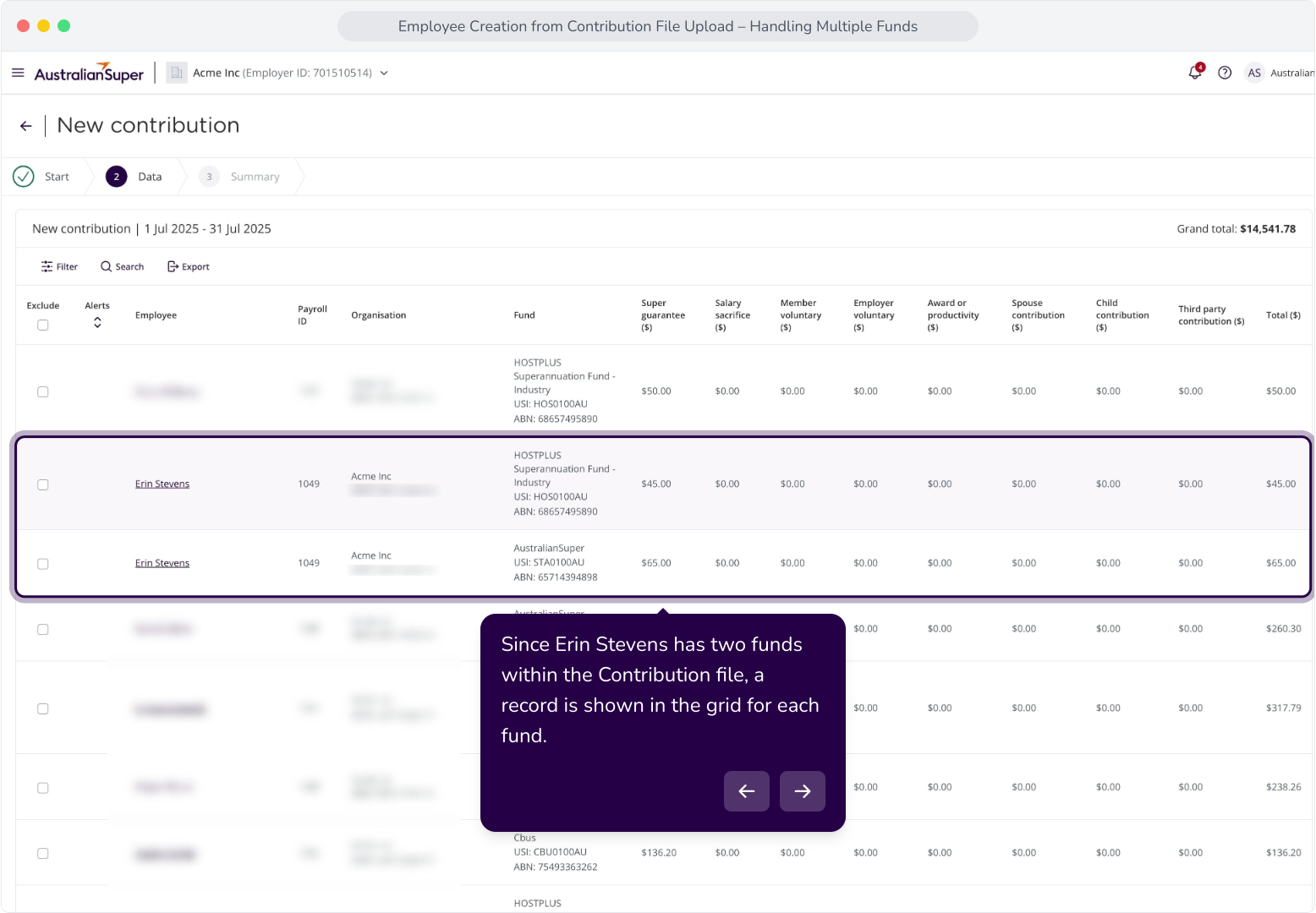
Context: The new employee with more than one fund is Erin Stevens.
Tip: When an employee with more than one fund is detected, the system will create a single Employee record. In the contribution grid, a new row will be shown for each fund the employee has.
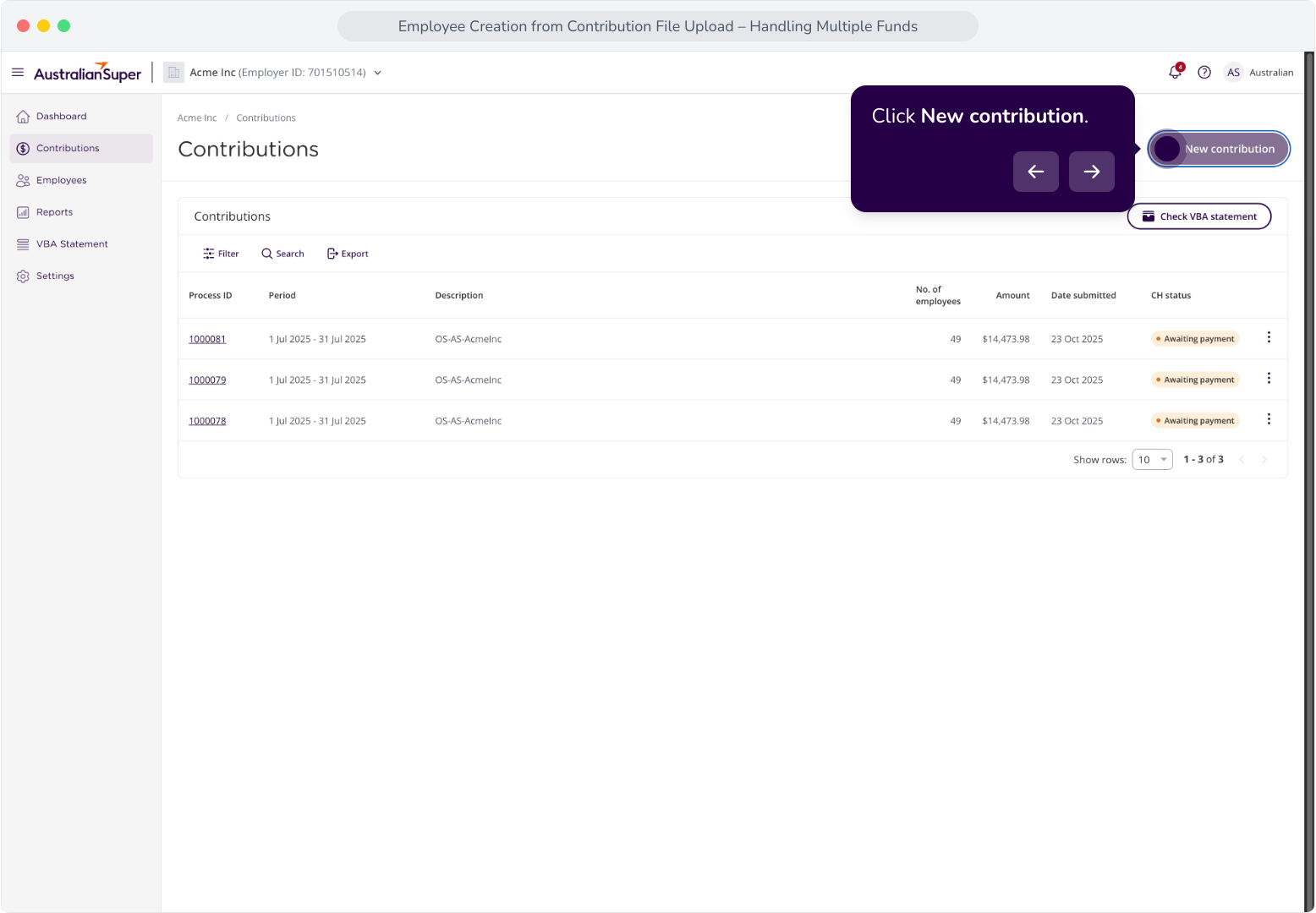
2. Click New contribution.
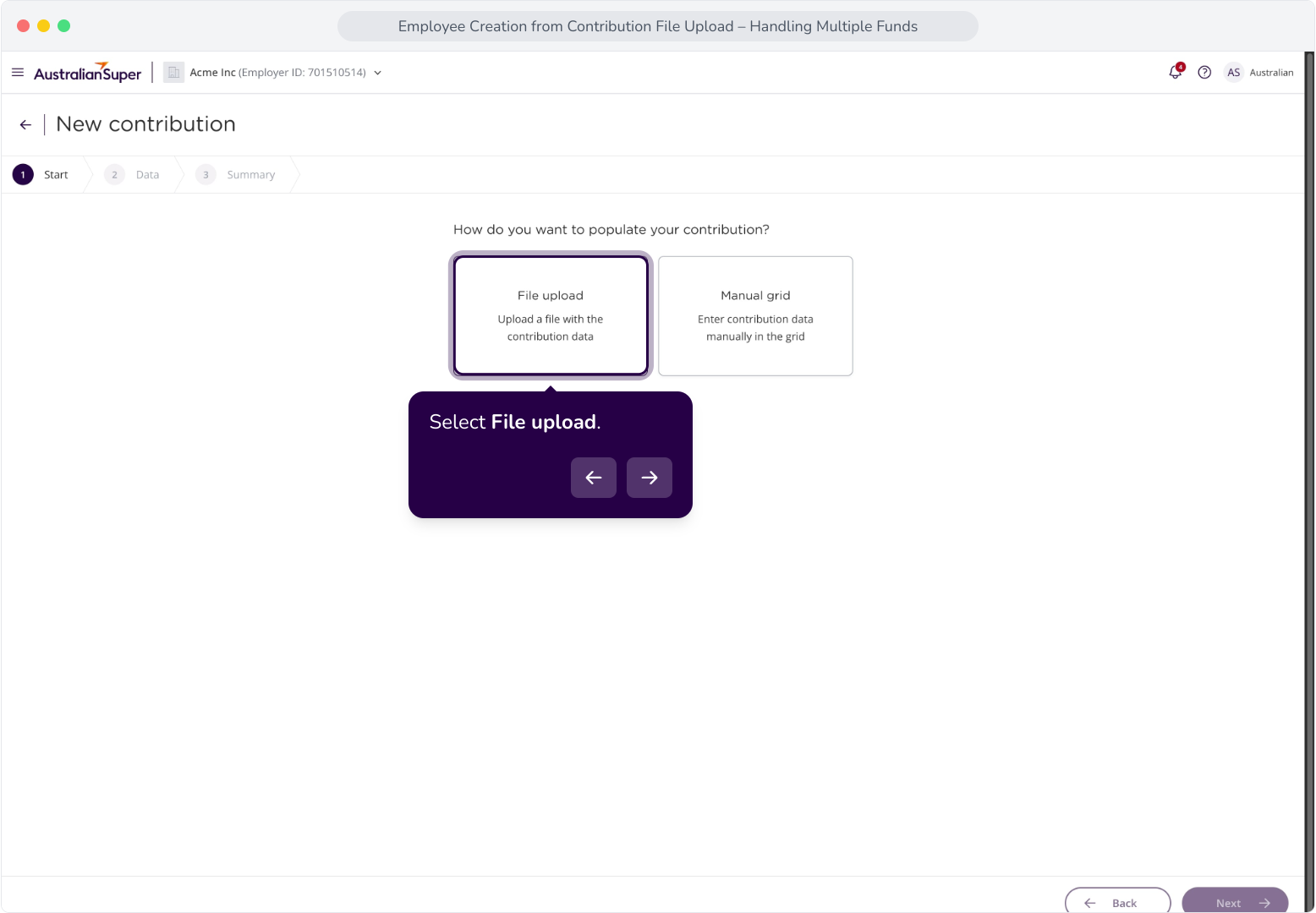
3. Select File upload.
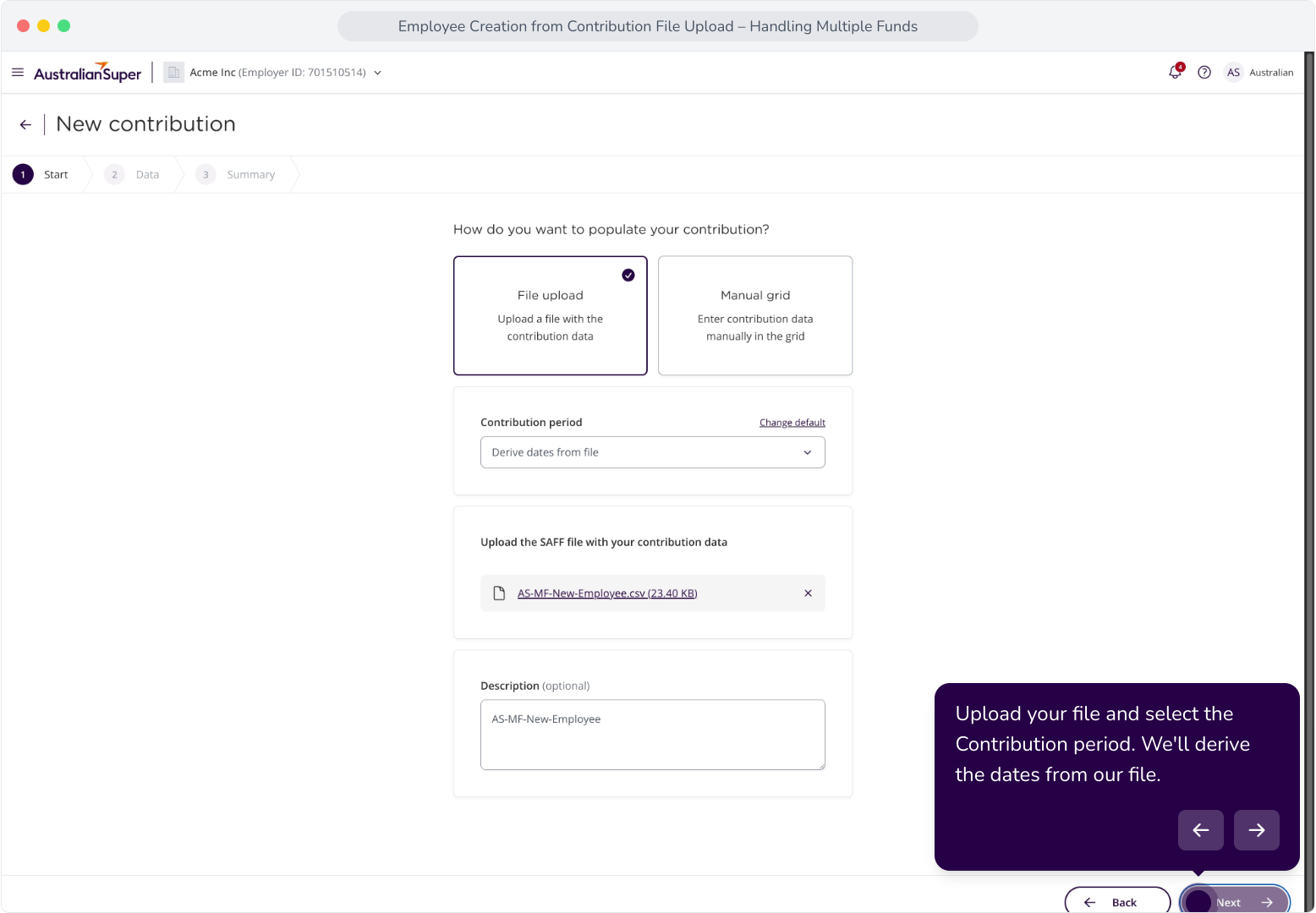
4. Upload your file and select the Contribution period. We'll derive the dates from our file.
5. Since Erin Stevens has two funds within the Contribution file, a record is shown in the grid for each fund.
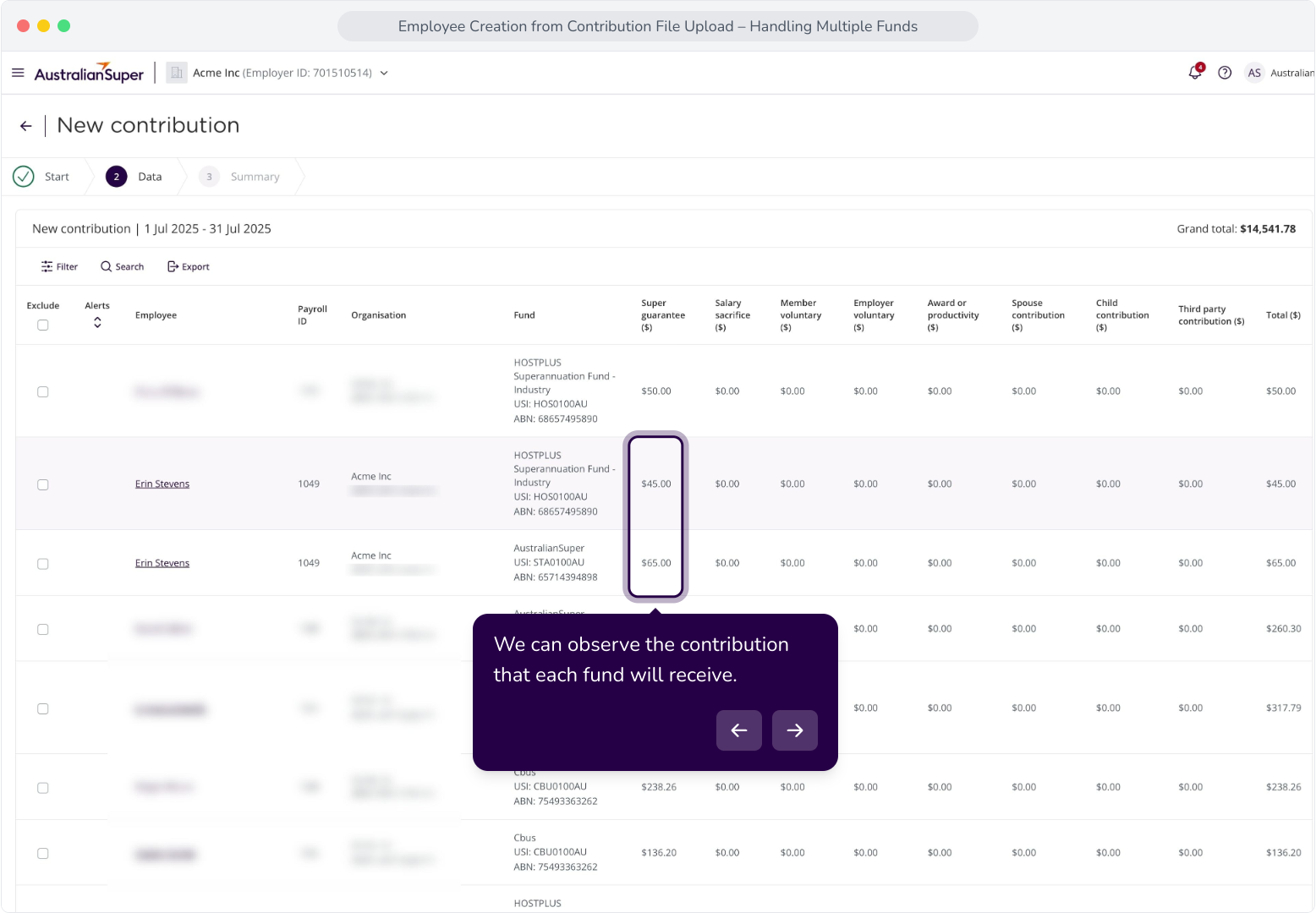
6. We can observe the contribution that each fund will receive.
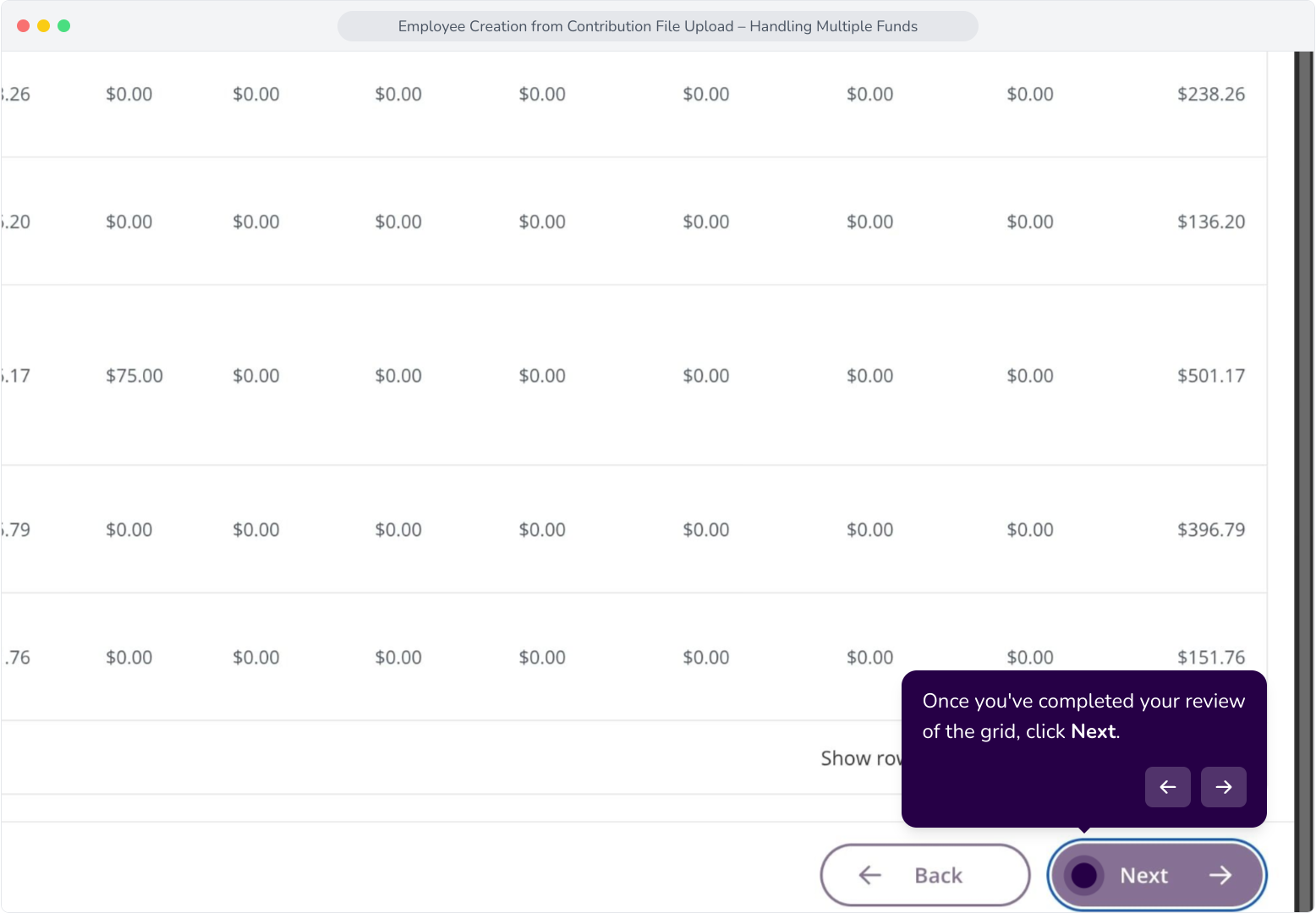
7. Once you've completed your review of the grid, click Next.
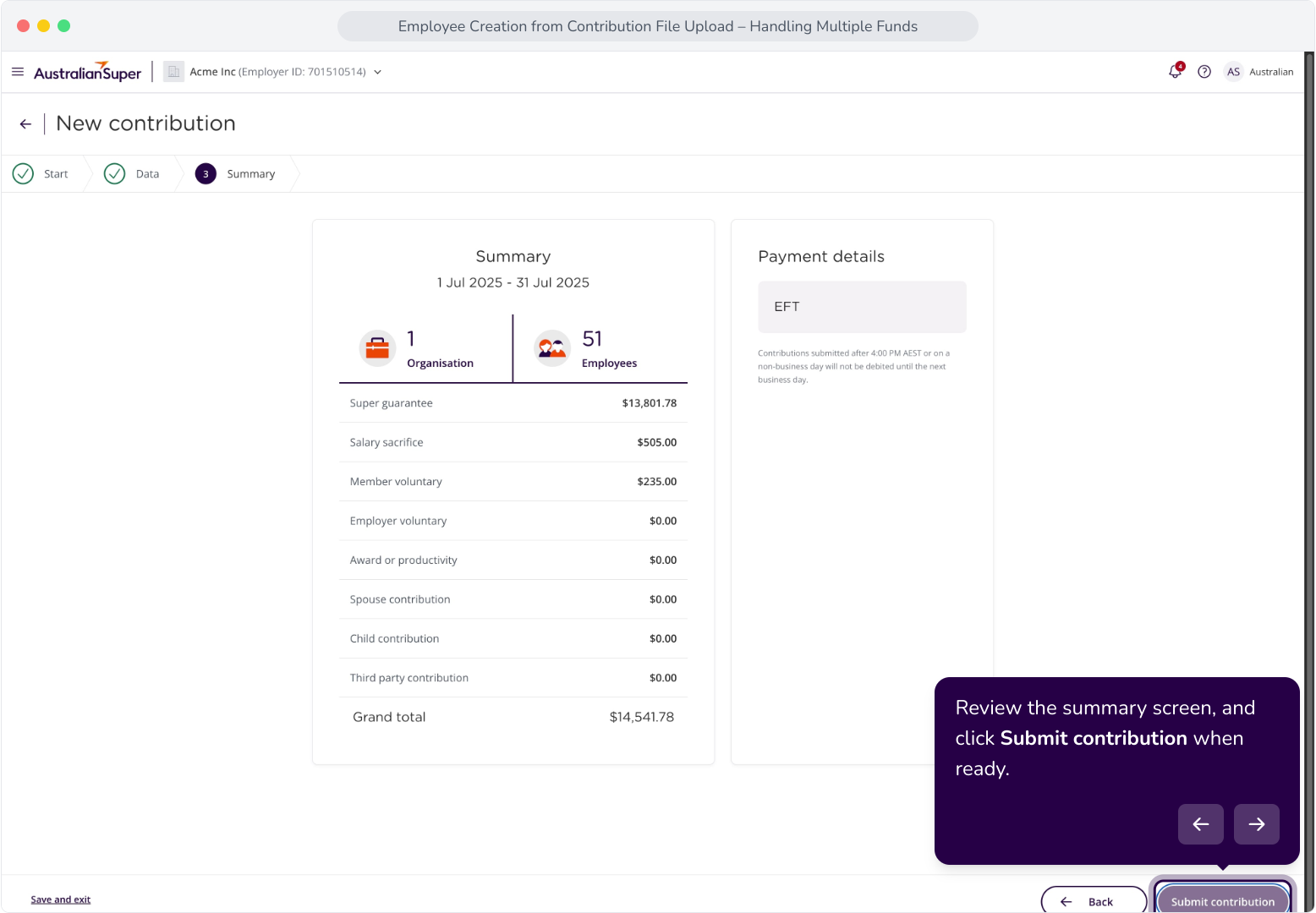
8. Review the summary screen, and click Submit contribution when ready.
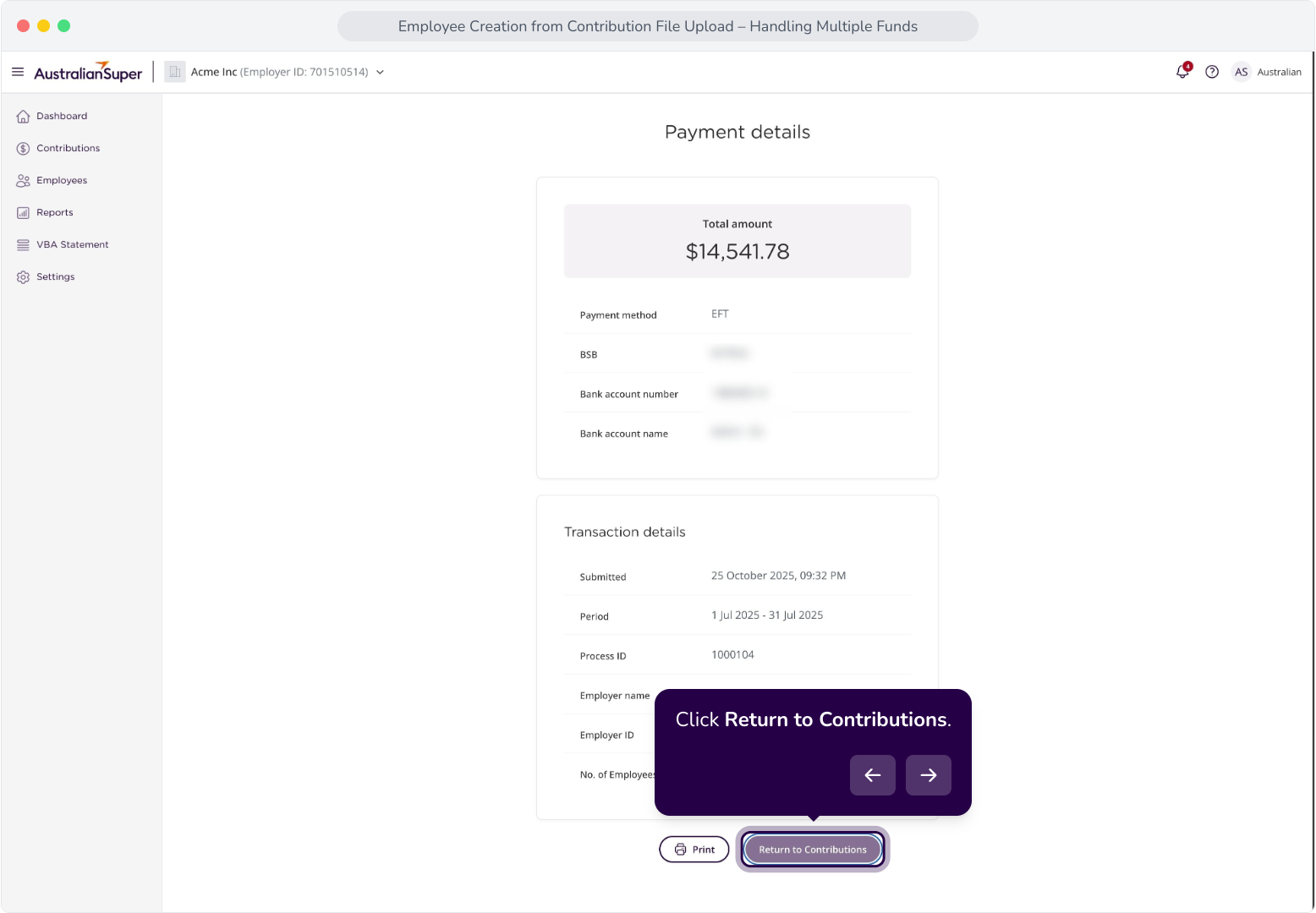
9. Click Return to Contributions.
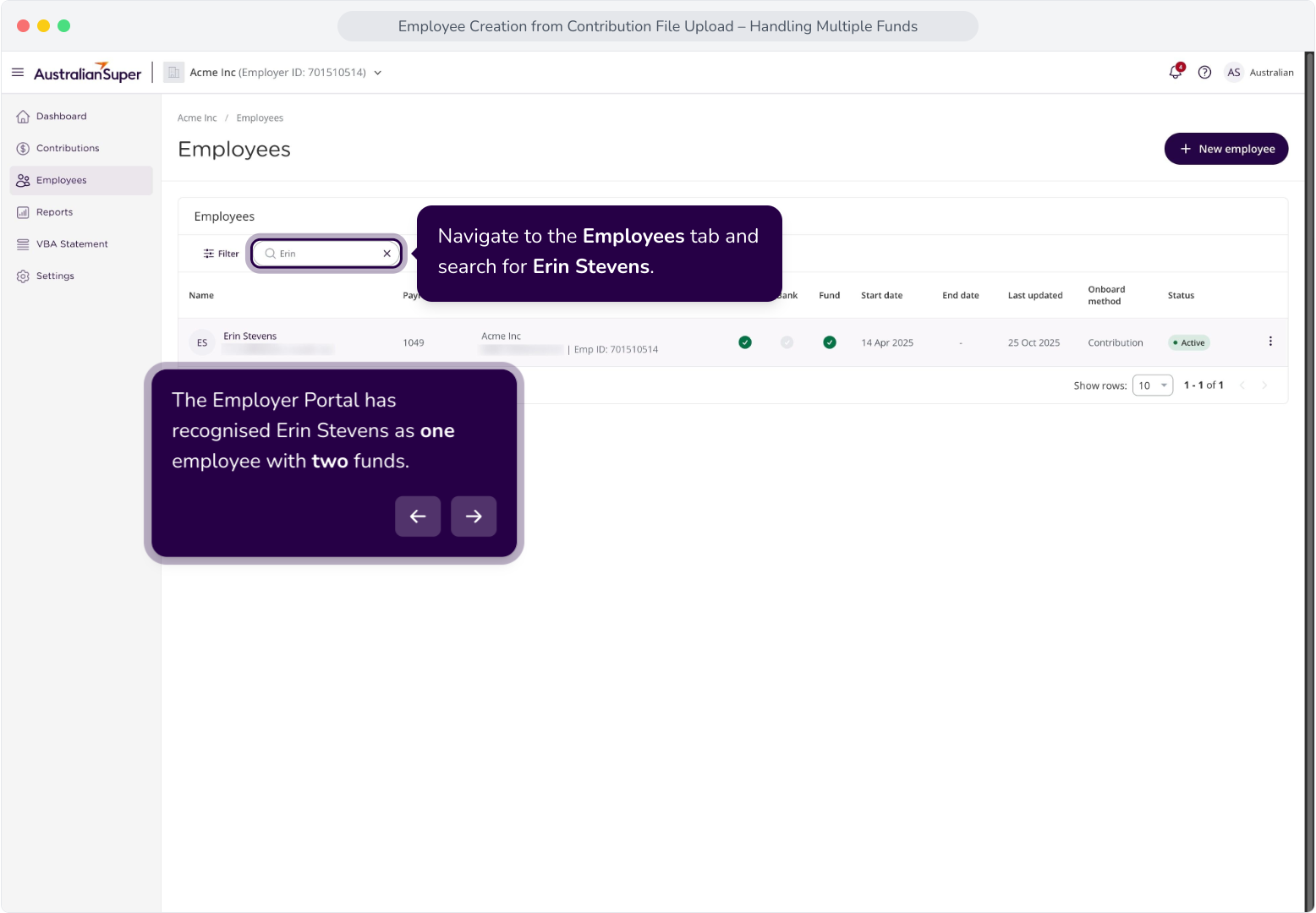
10. Navigate to the Employees tab and search for Erin Stevens.
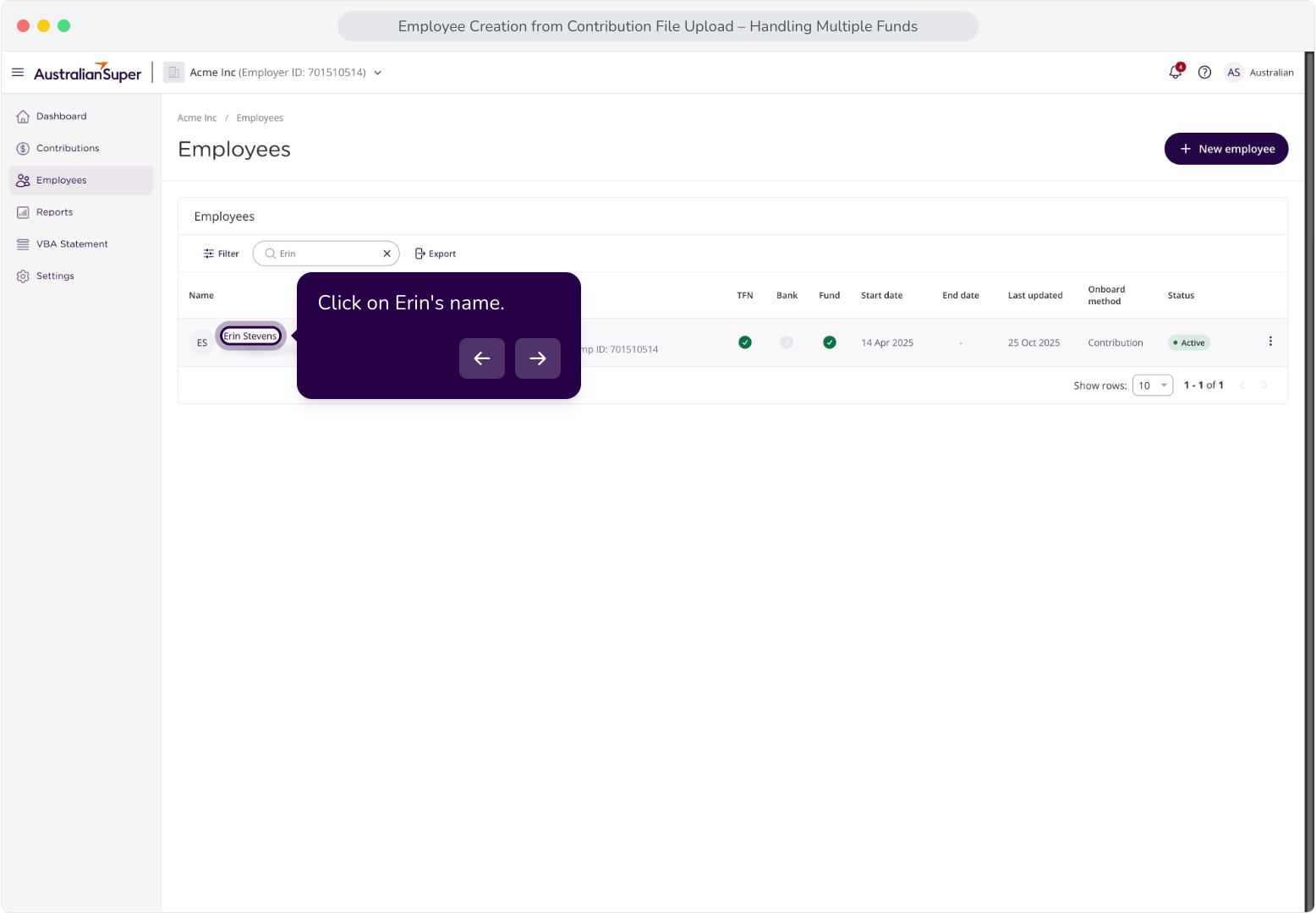
11. Click on Erin's name.
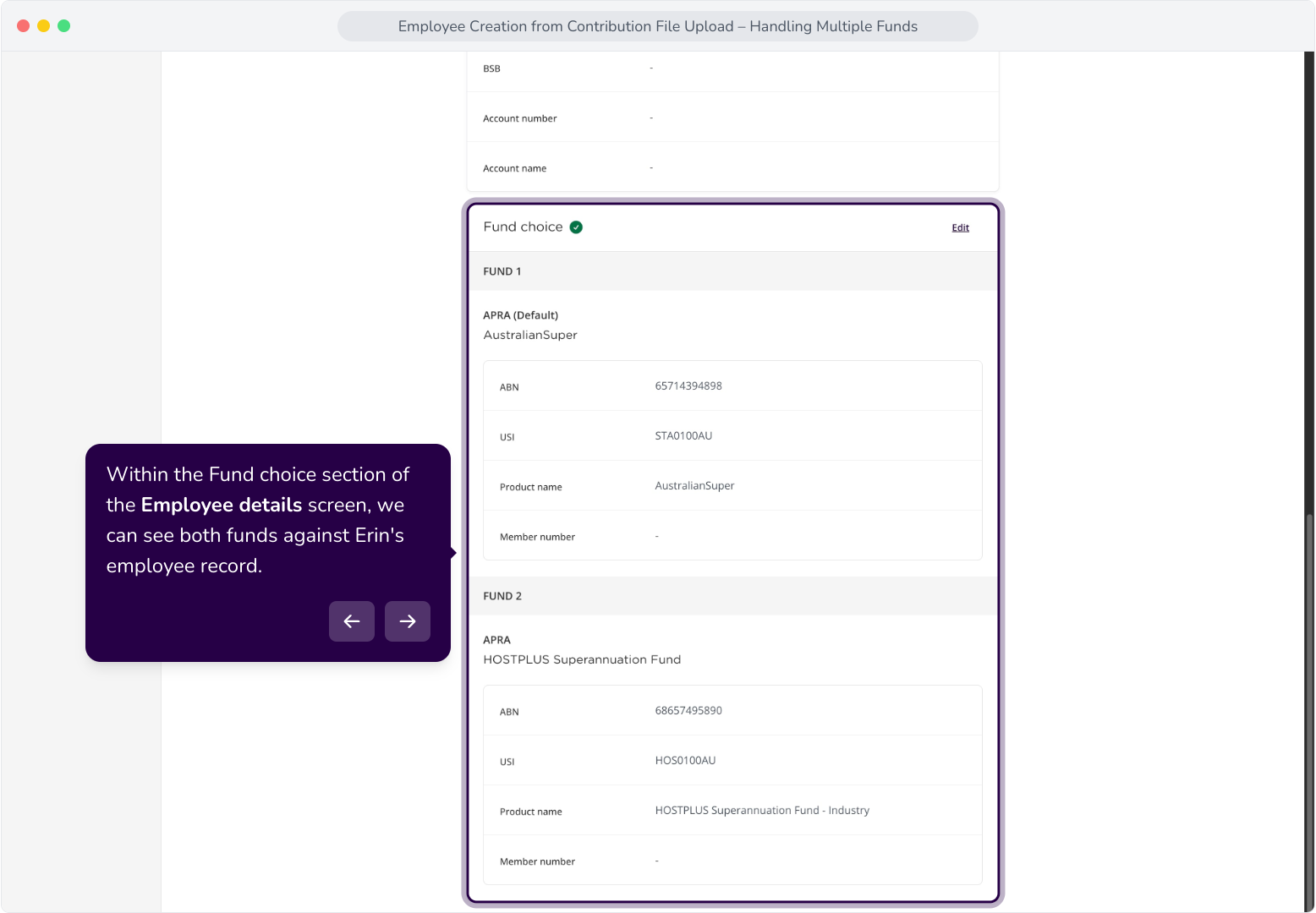
12. Within the Fund choice section of the Employee details screen, we can see both funds against Erin's employee record.
Contribution File Upload: An Existing Employee with New/Different Fund Details
Context: The new employee with more than one fund is Olivia Williams.
Tip: When the system identifies an existing employee, it will not create a new Employee record. In the contribution grid, a new row will be shown for each fund the employee has.
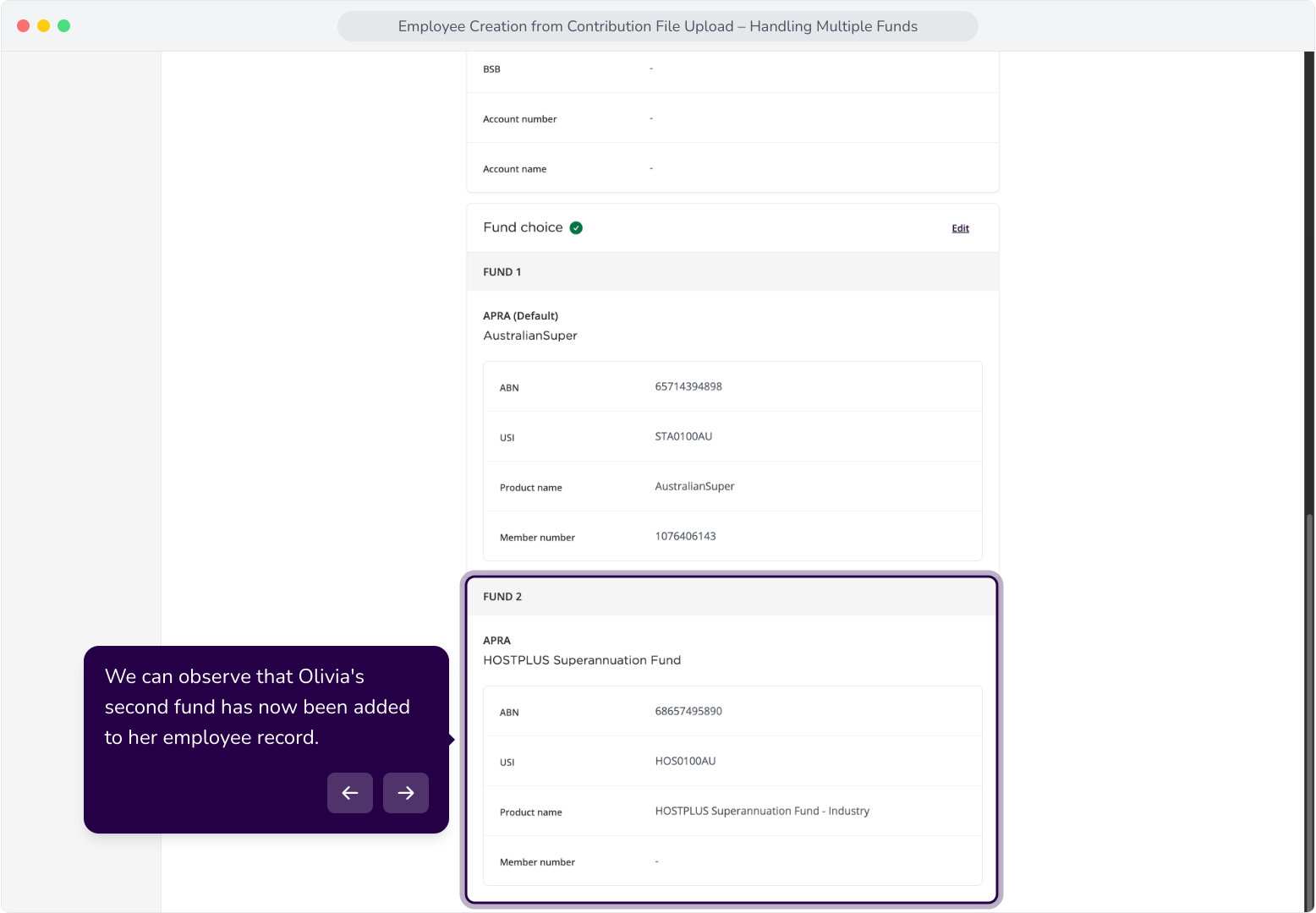
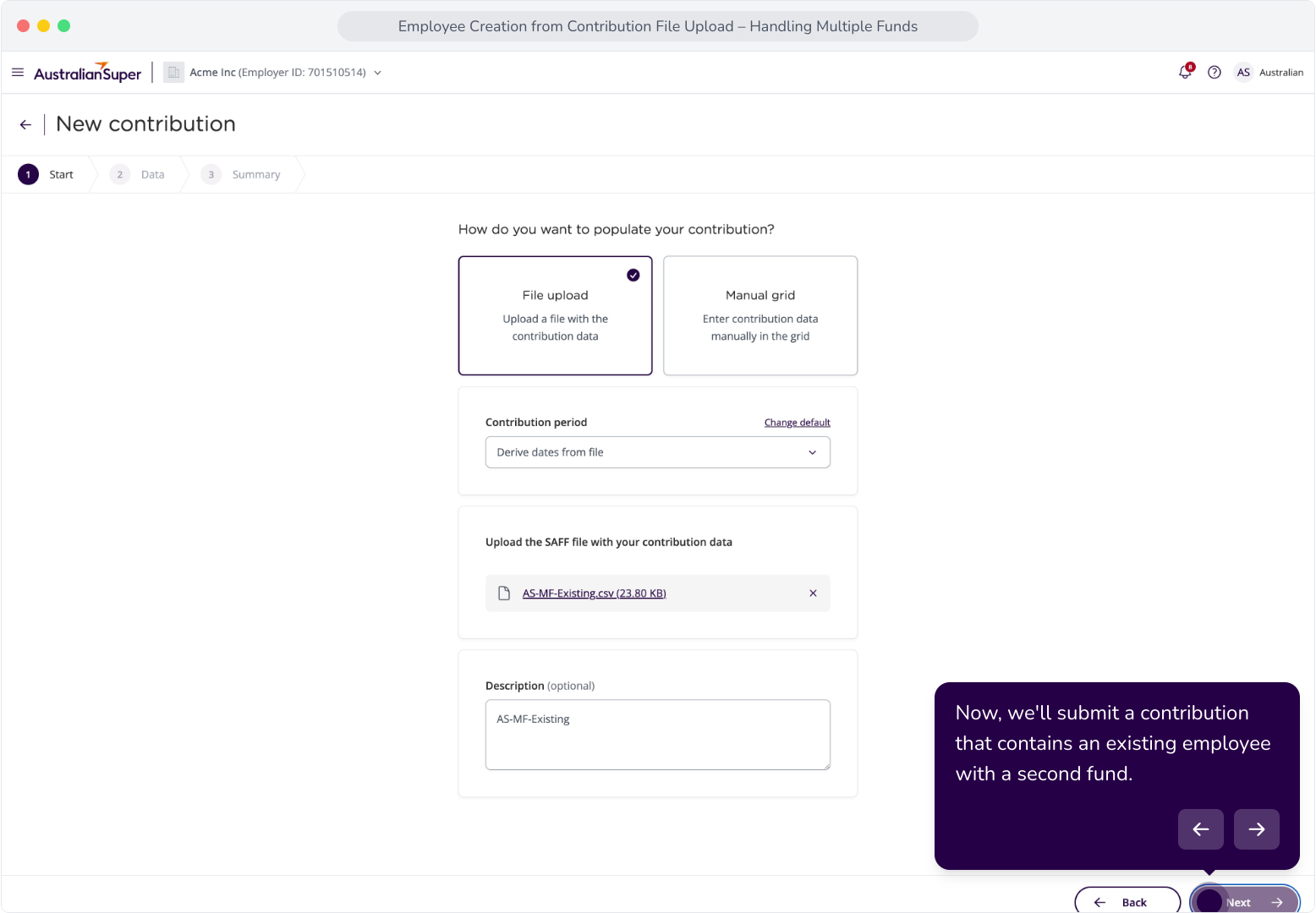
14. Now, we'll submit a contribution that contains an existing employee with a second fund.
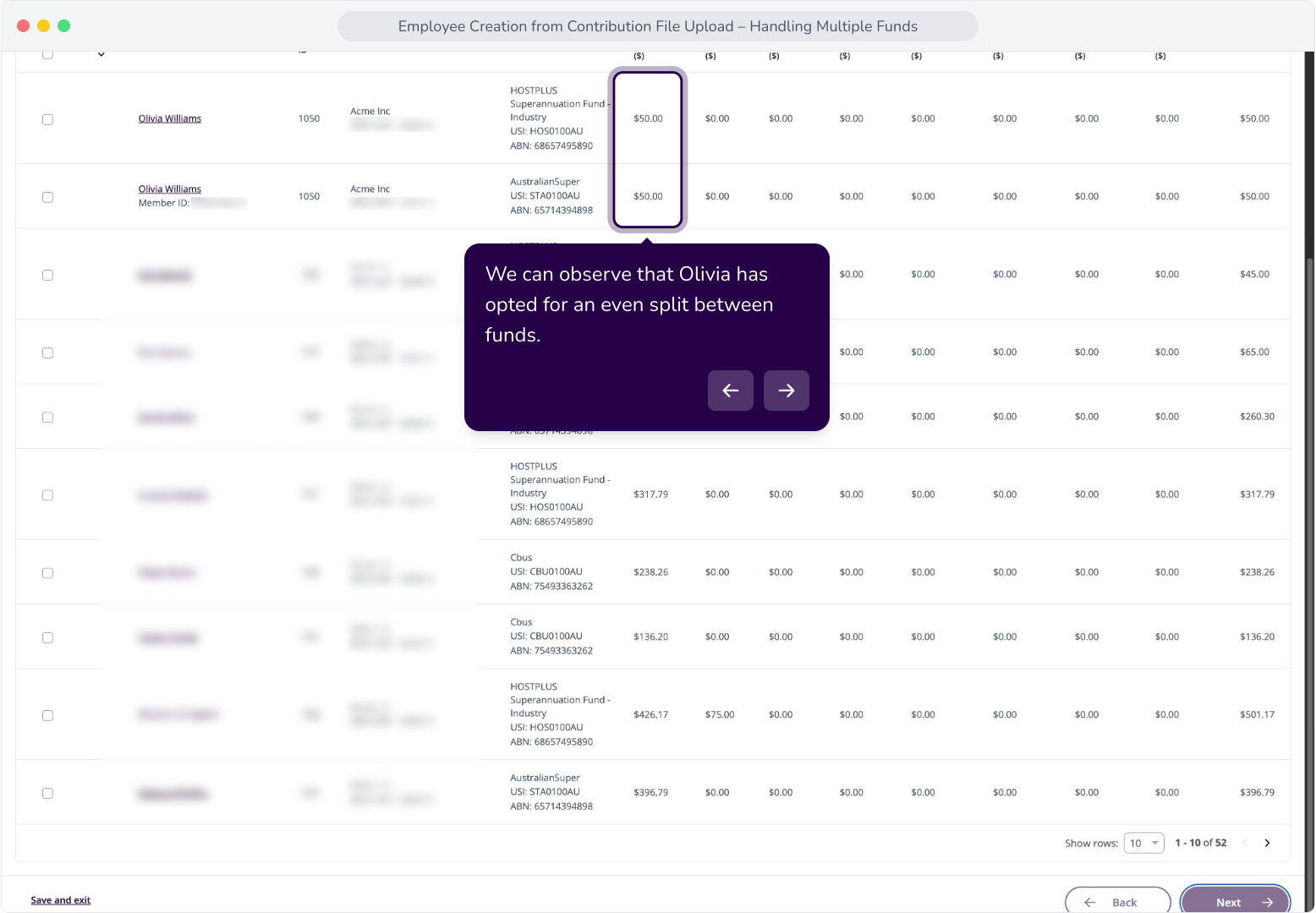
15. Olivia has opted to add a second fund on top of AustralianSuper. A row is displayed for each.
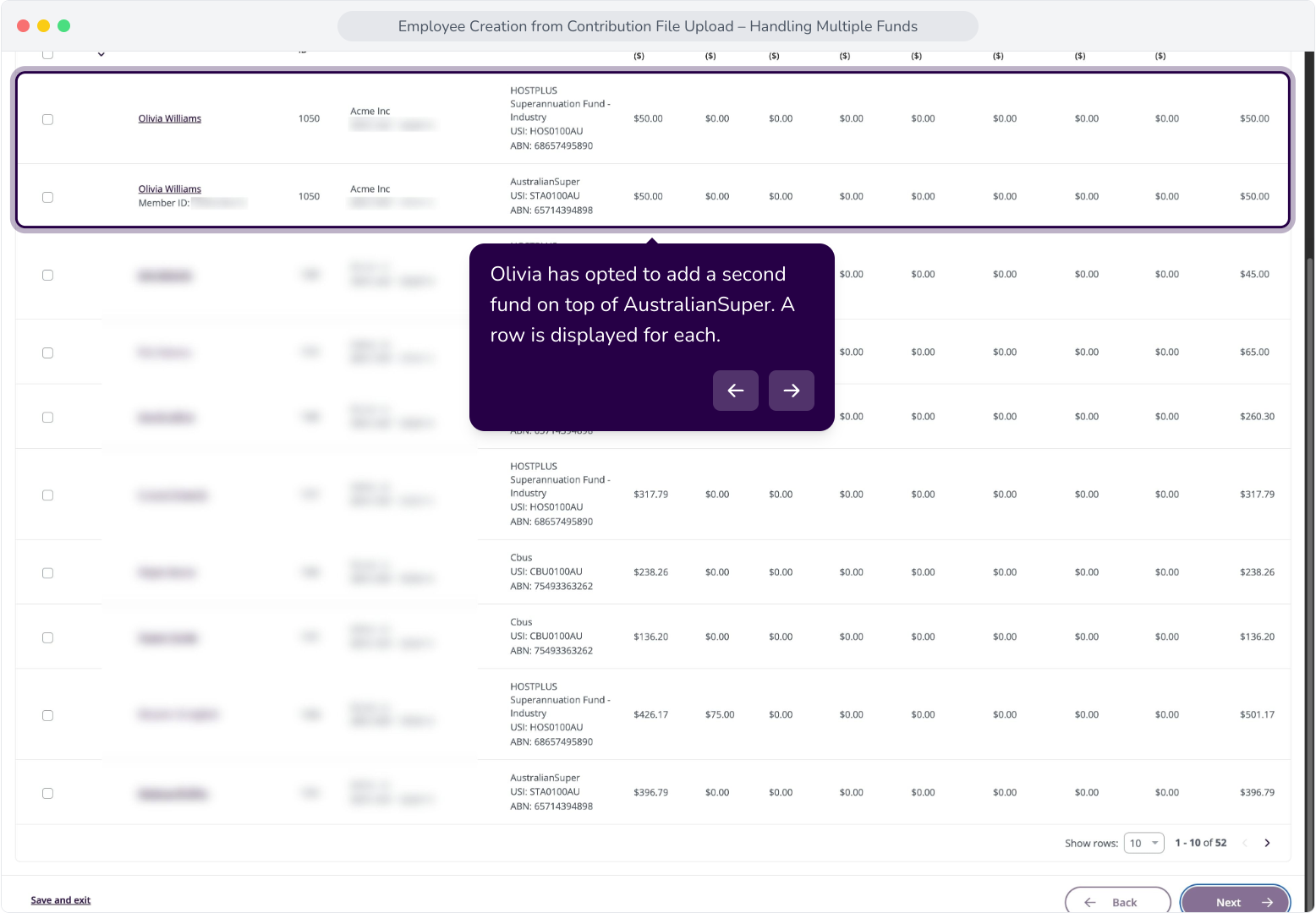
16. We can observe that Olivia has opted for an even split between funds.
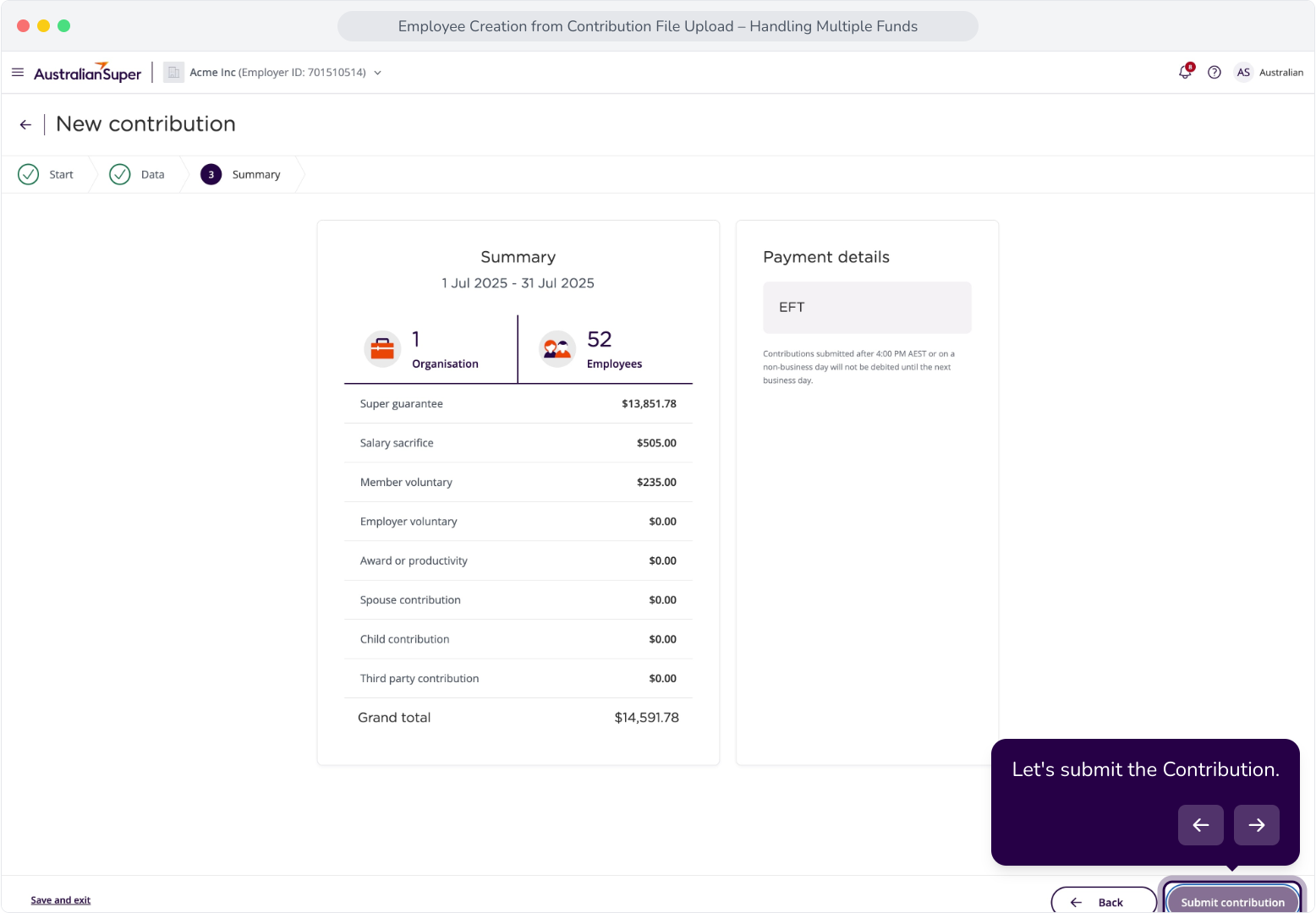
17. Let's submit the Contribution.
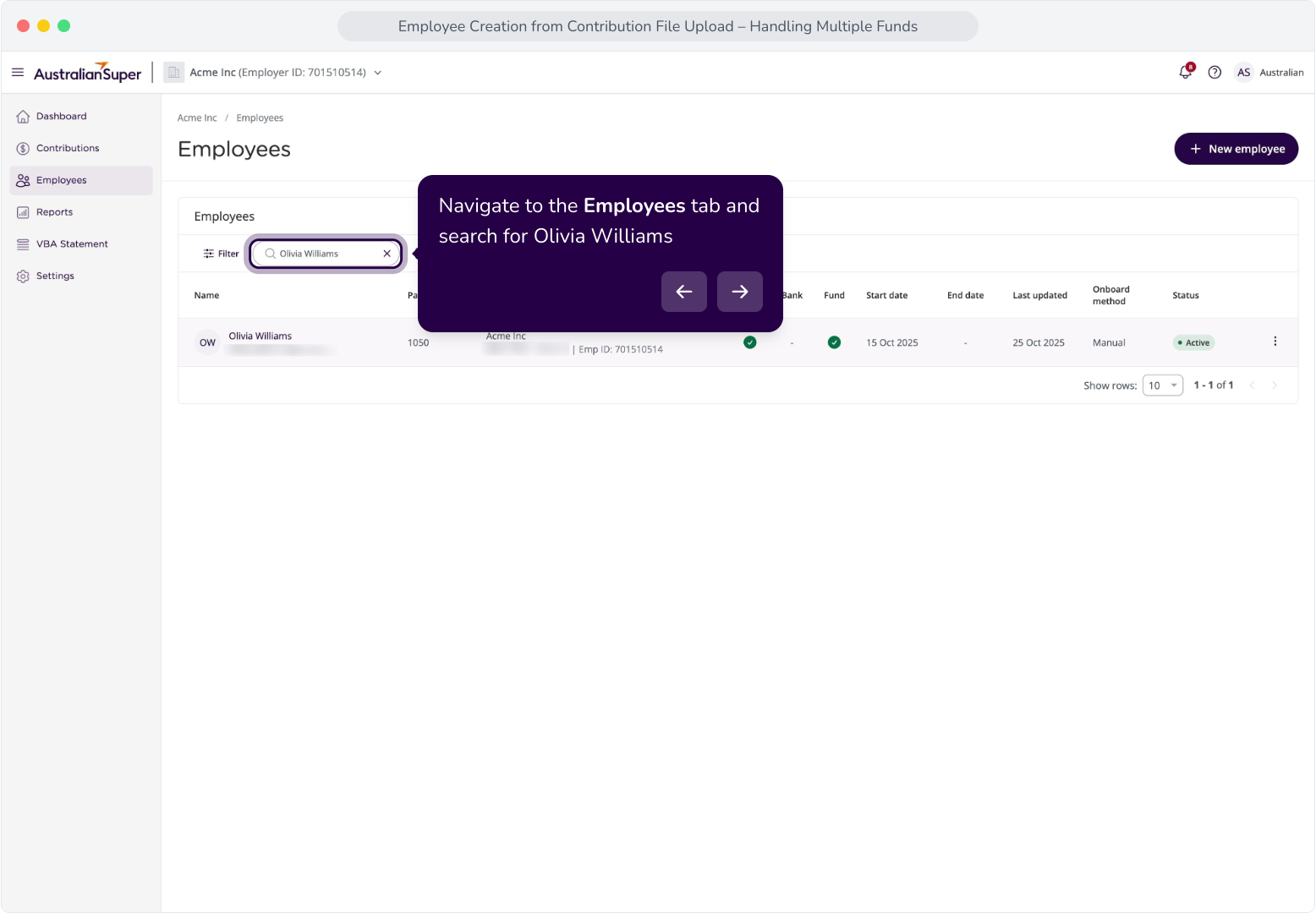
18. Navigate to the Employees tab and search for Olivia Williams
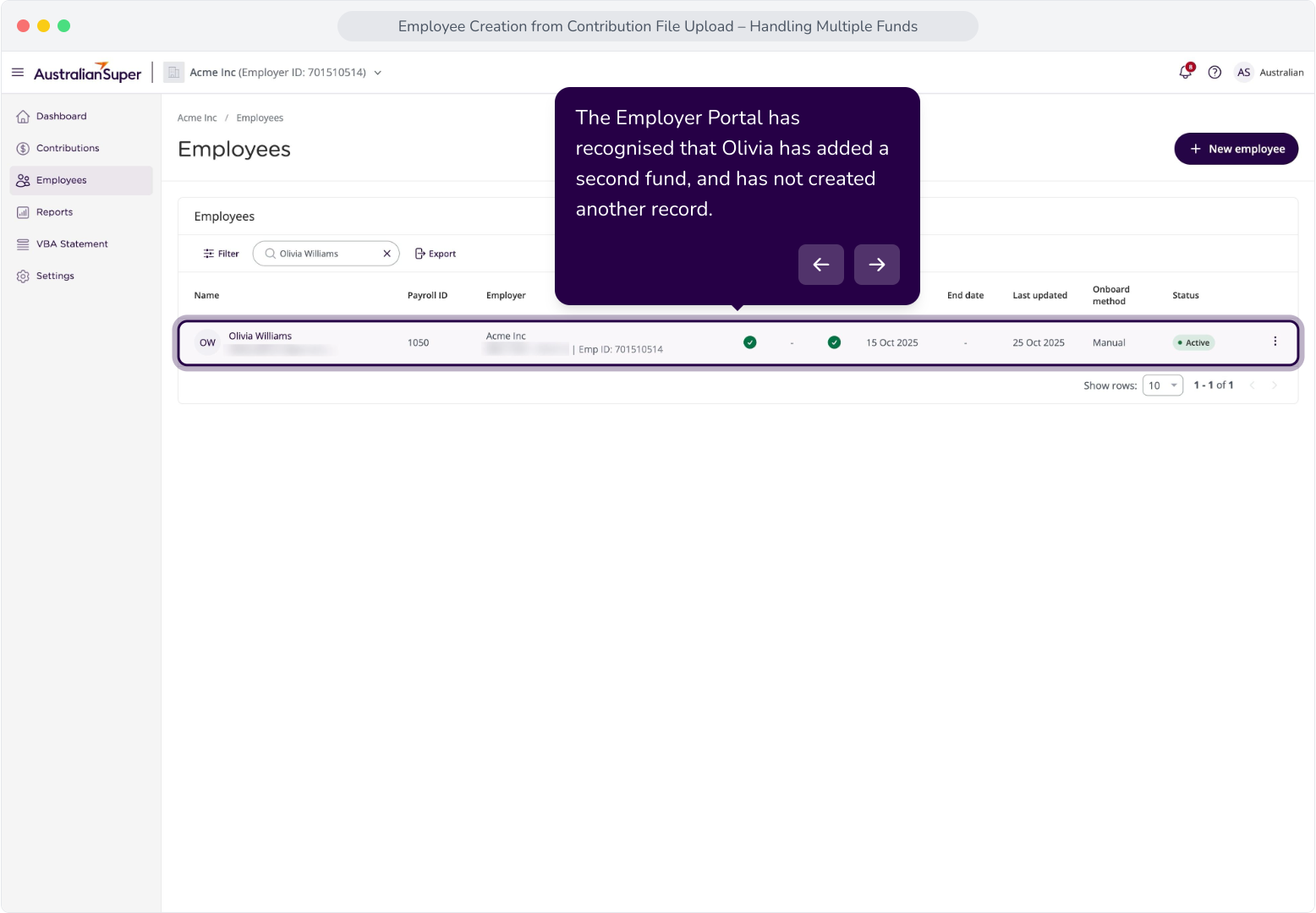
19. The Employer Portal has recognised that Olivia has added a second fund, and has not created another record.
20. Let's view Olivia's employee details.
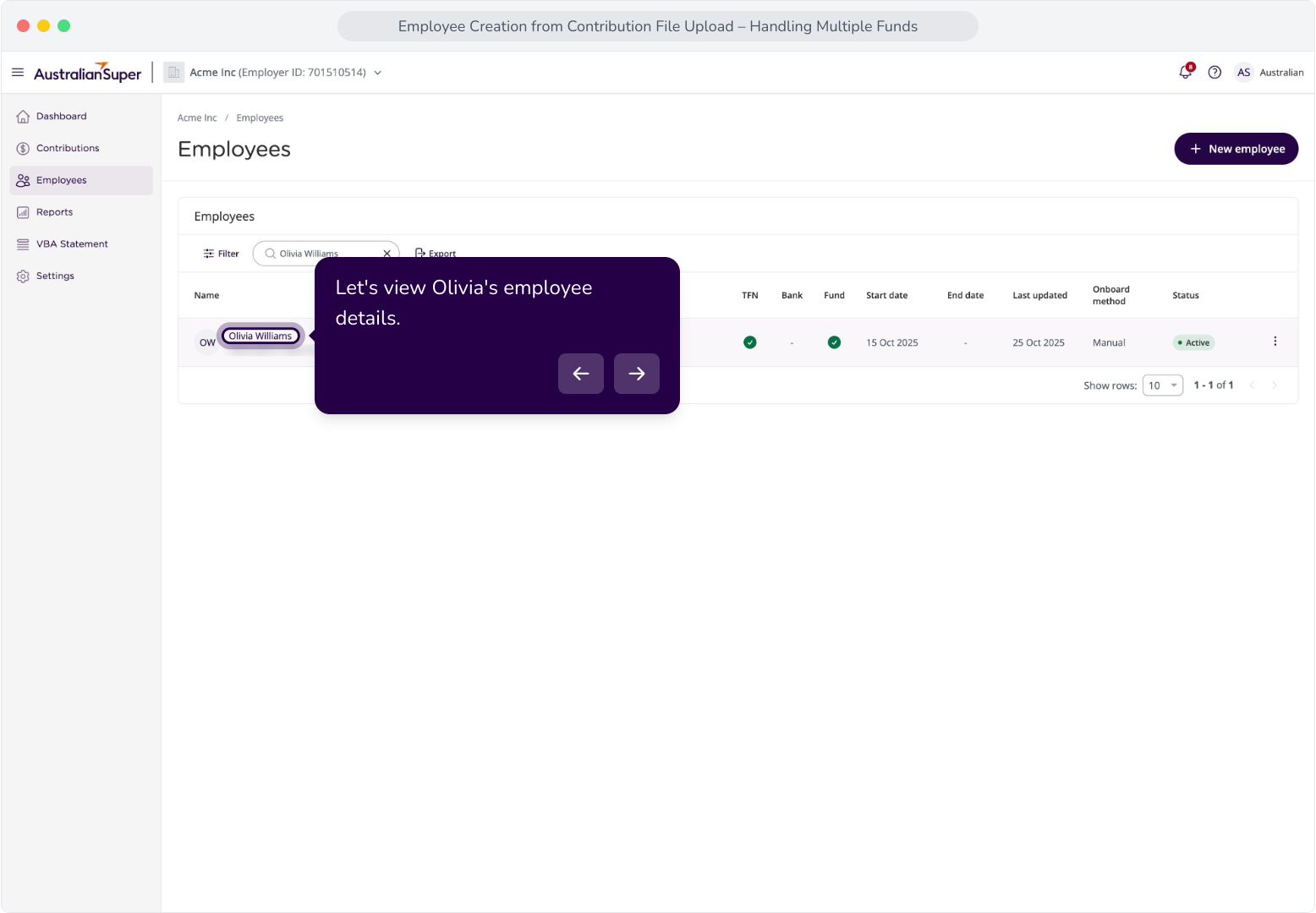
21. We can observe that Olivia's second fund has now been added to her employee record.