Context: This guide covers the process of submitting a Contribution via file upload.
Interactive Demo
Note: Make the demo full-screen for a better experience. You can mute/un-mute narration to suit your preferences.
Step by Step
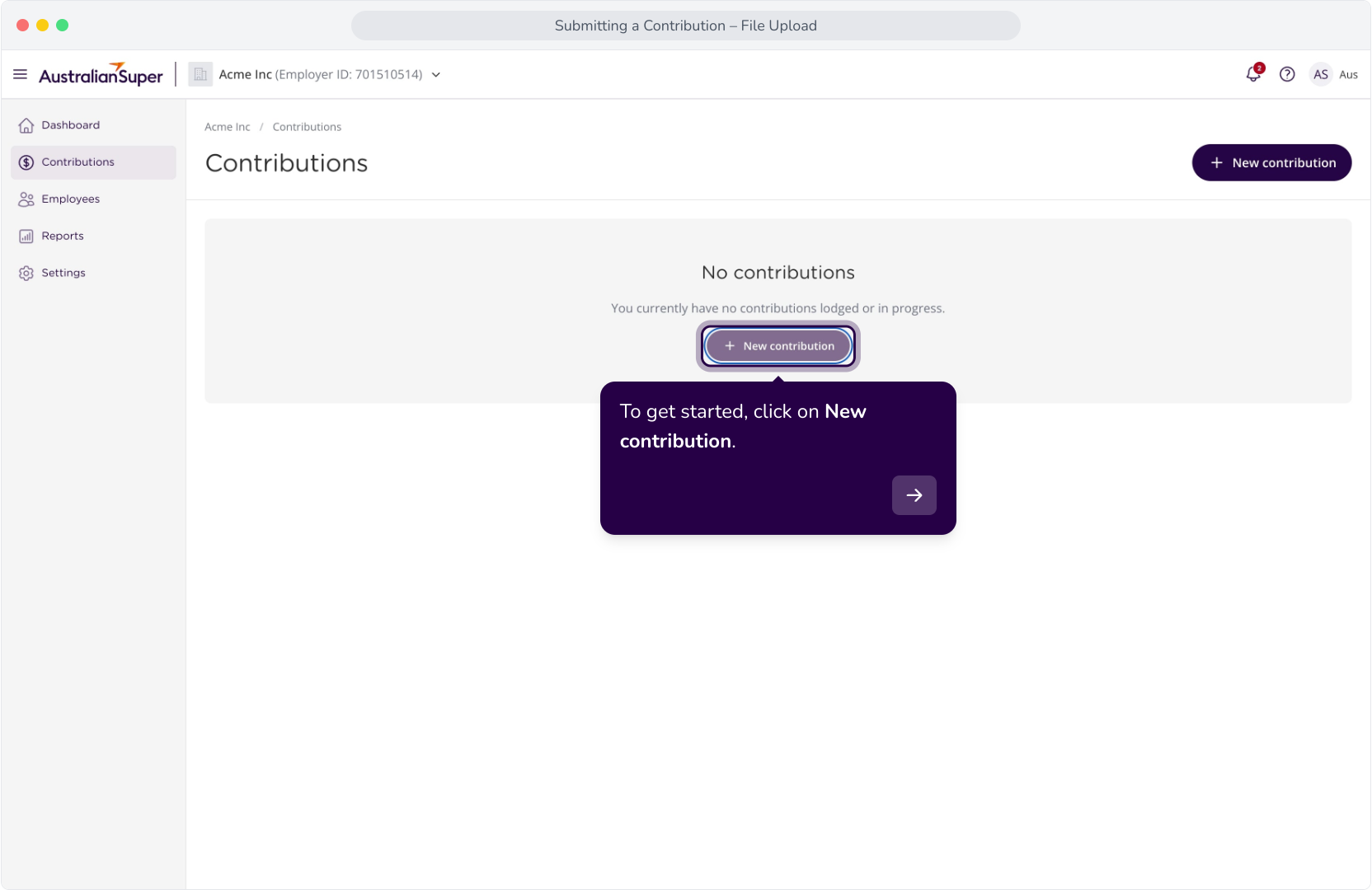
1. To get started, click on New contribution.
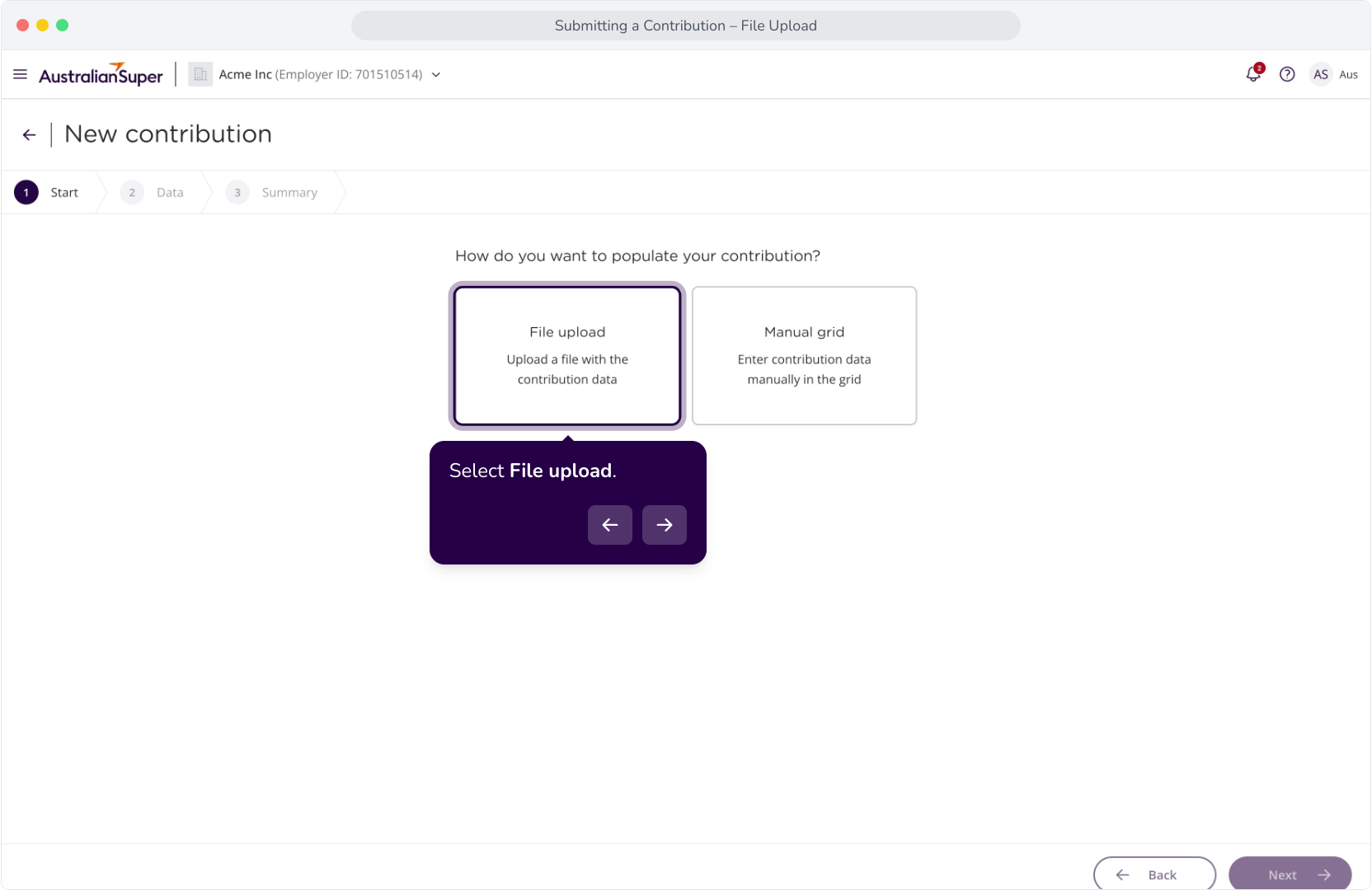
2. Select File upload.
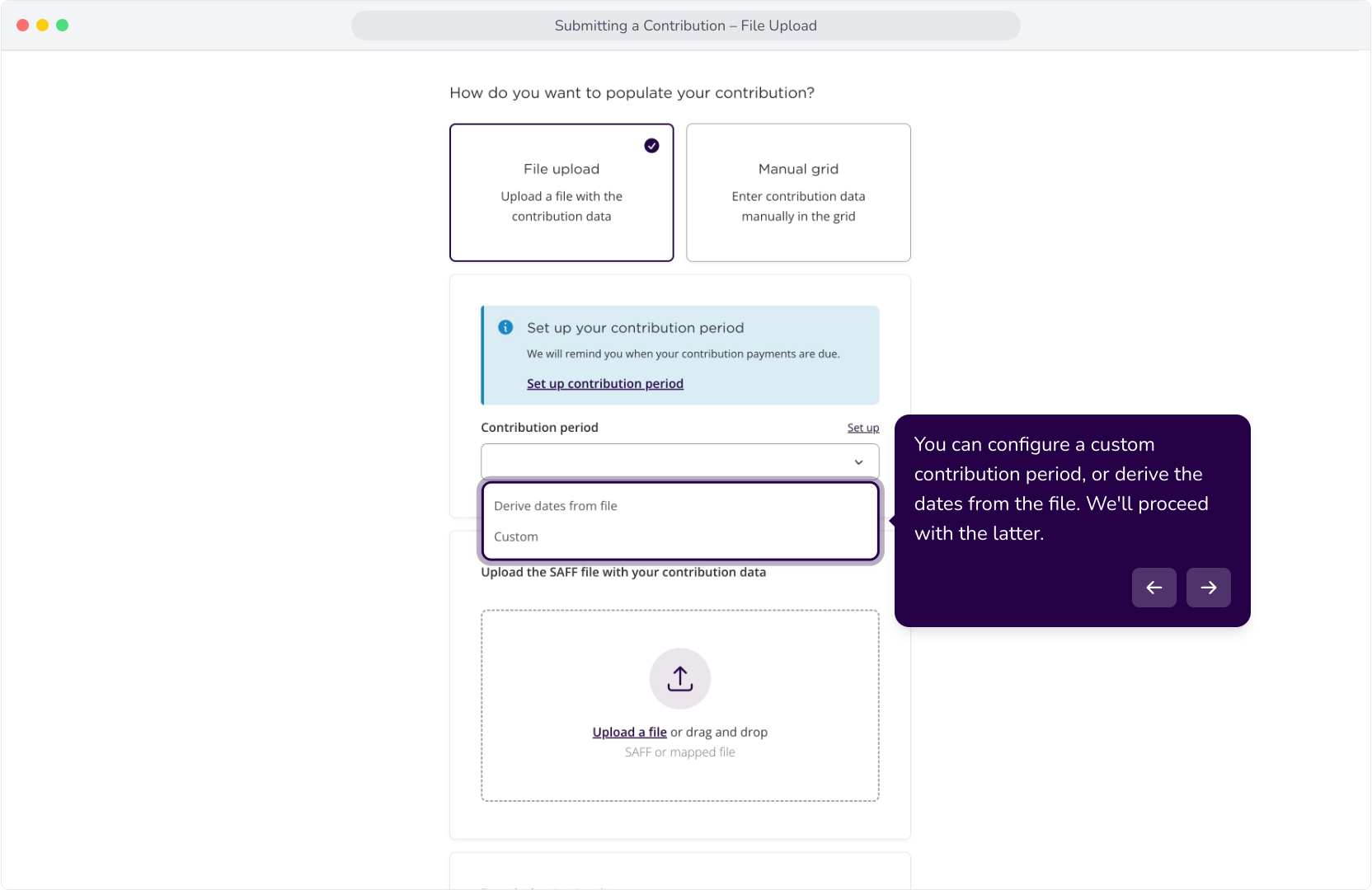
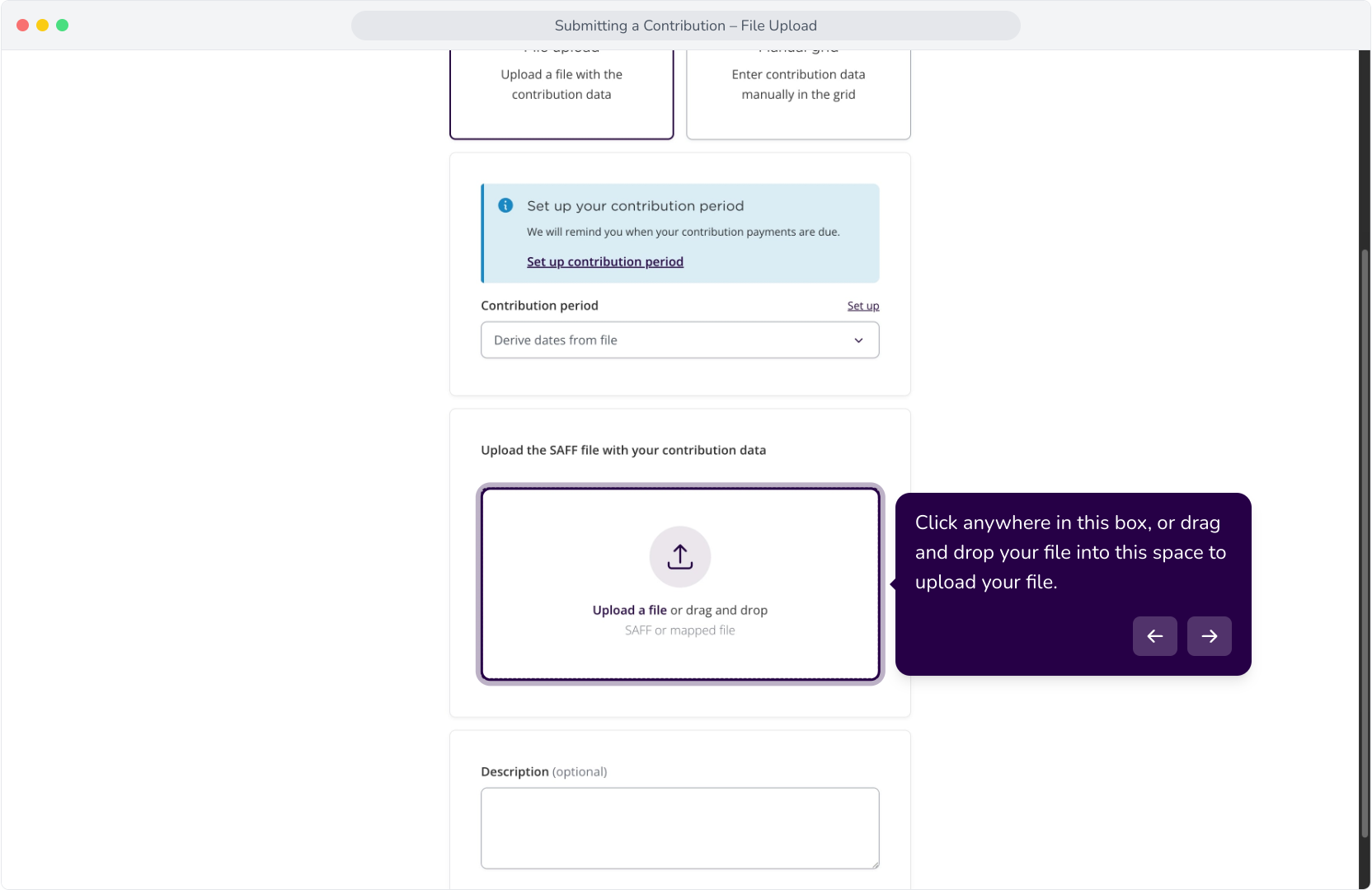
3. You can configure a custom contribution period, or derive the dates from the file. We'll proceed with the latter.
4. Click anywhere in this box, or drag and drop your file into this space to upload your file.
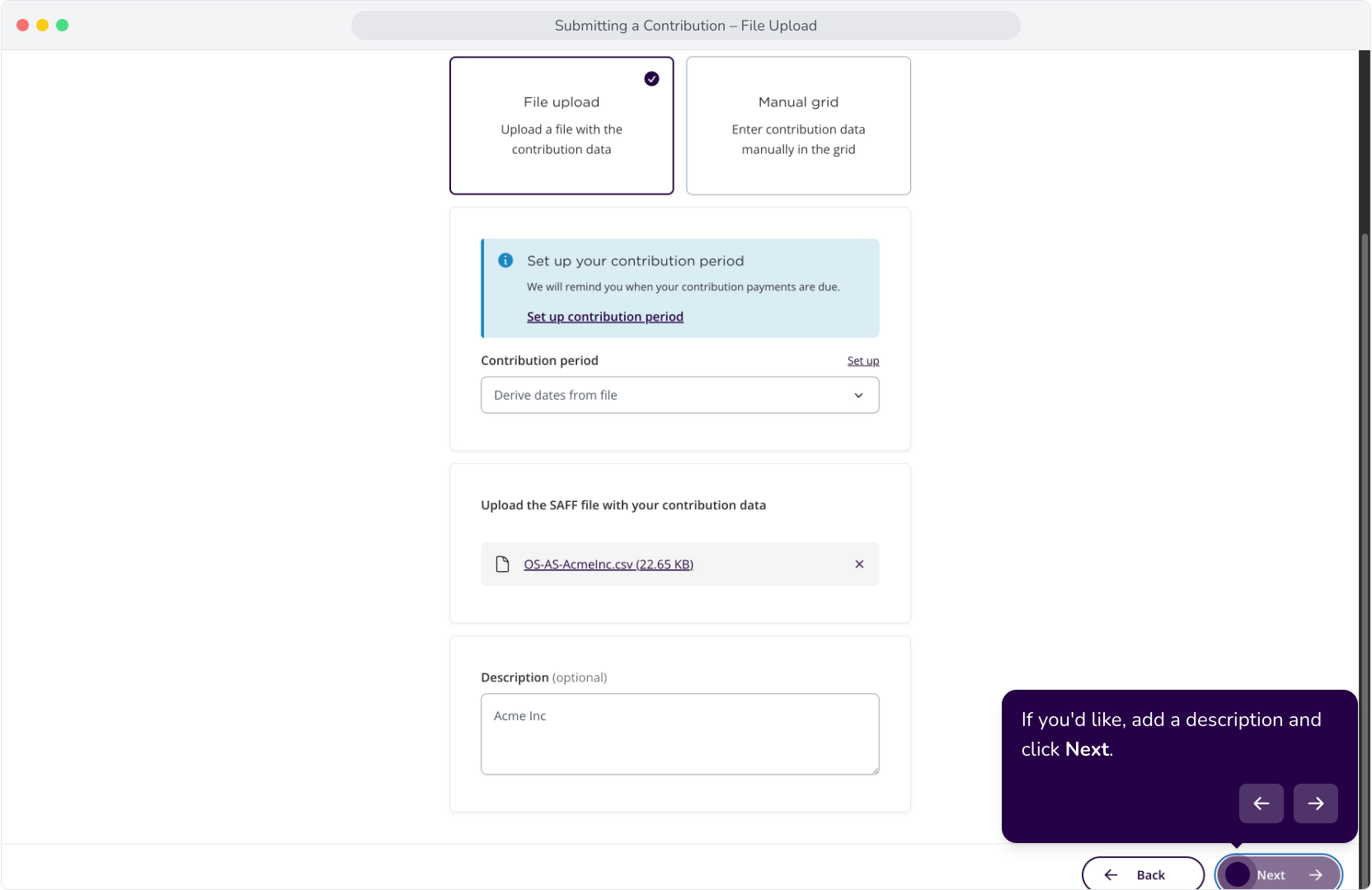
5. If you'd like, add a description and click Next.
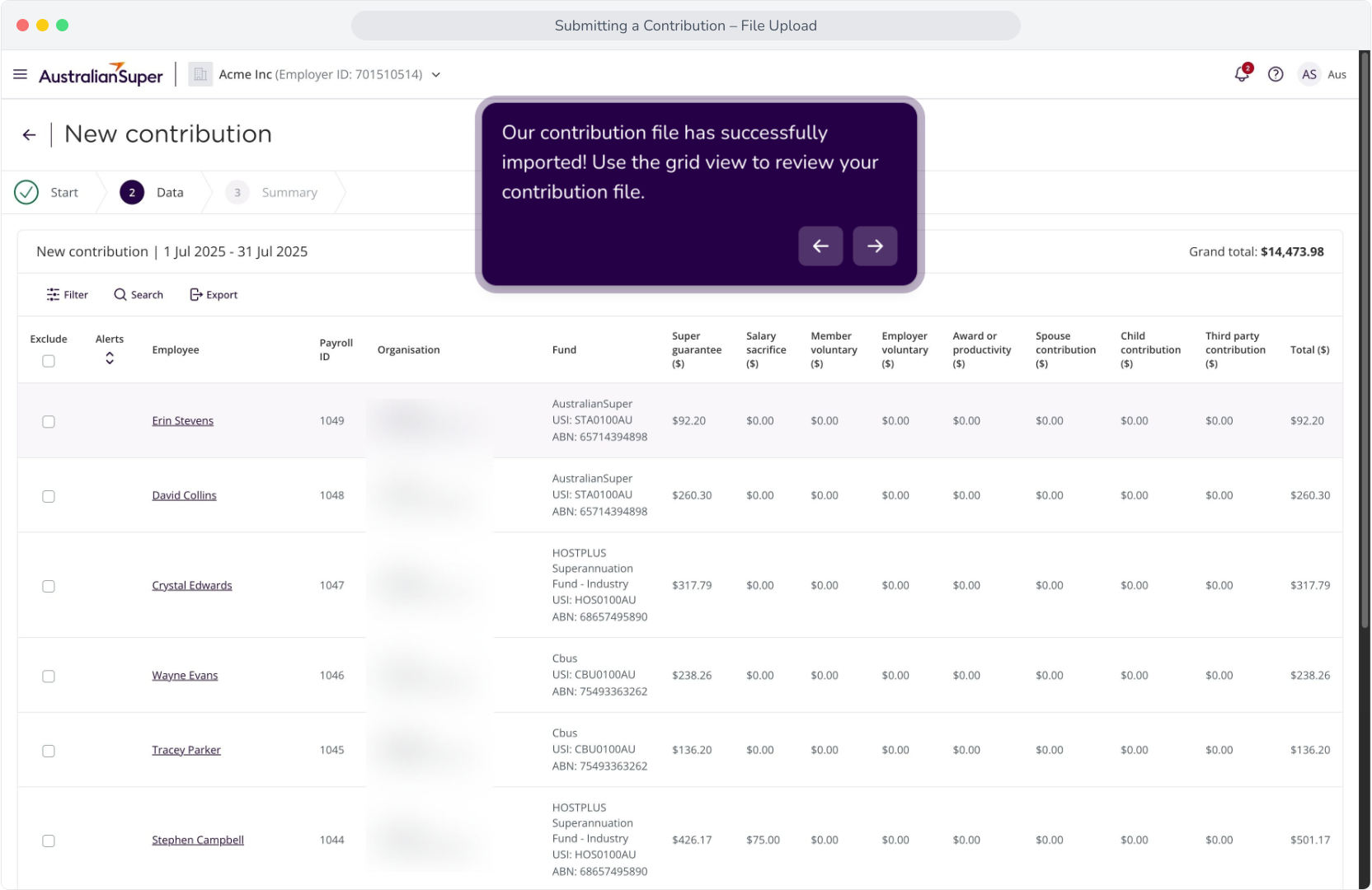
6. Our contribution file has successfully imported! Use the grid view to review your contribution file.
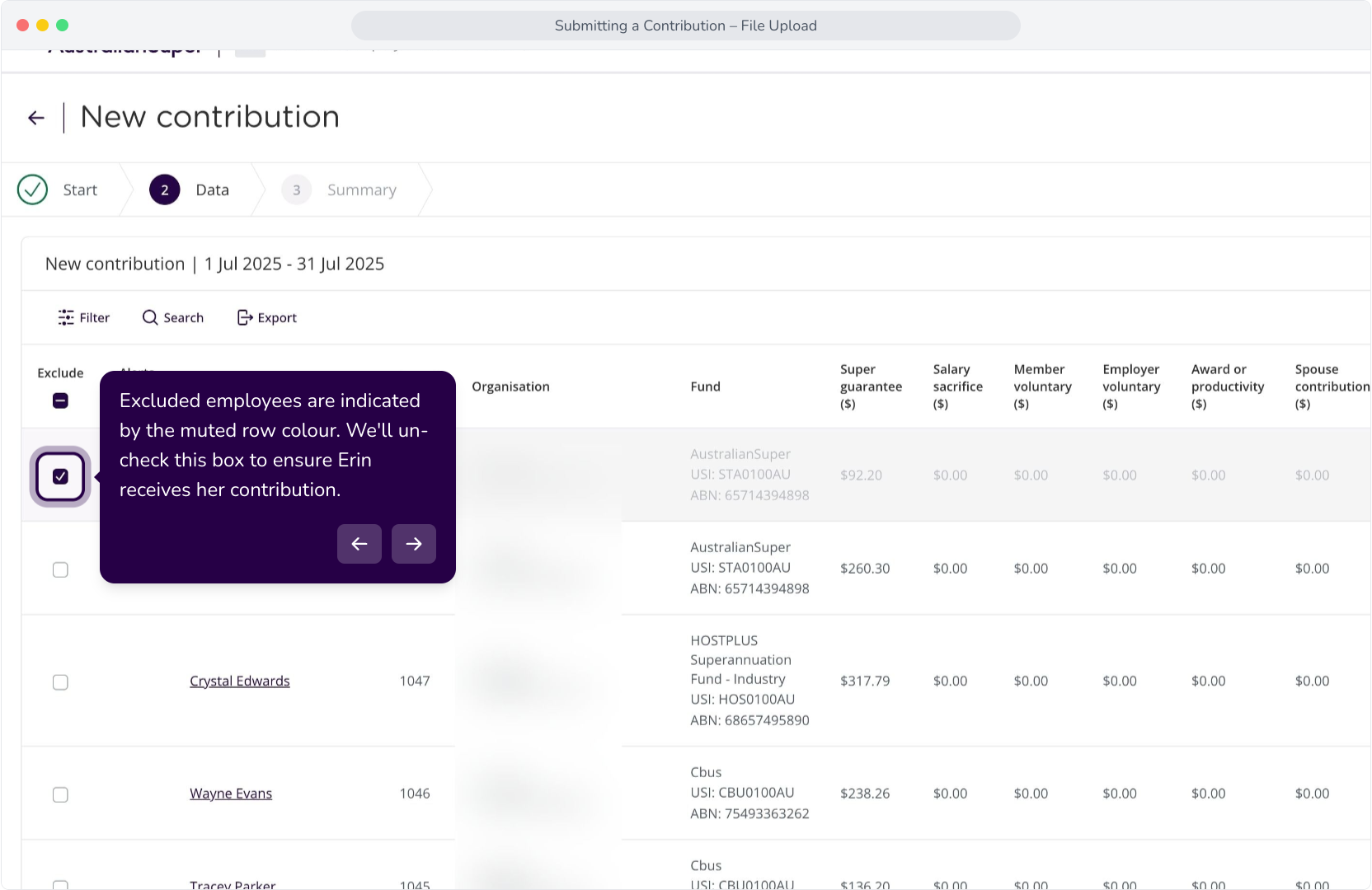
7. If you wish to exclude any employees from your contributions, check this box for any/all employees.
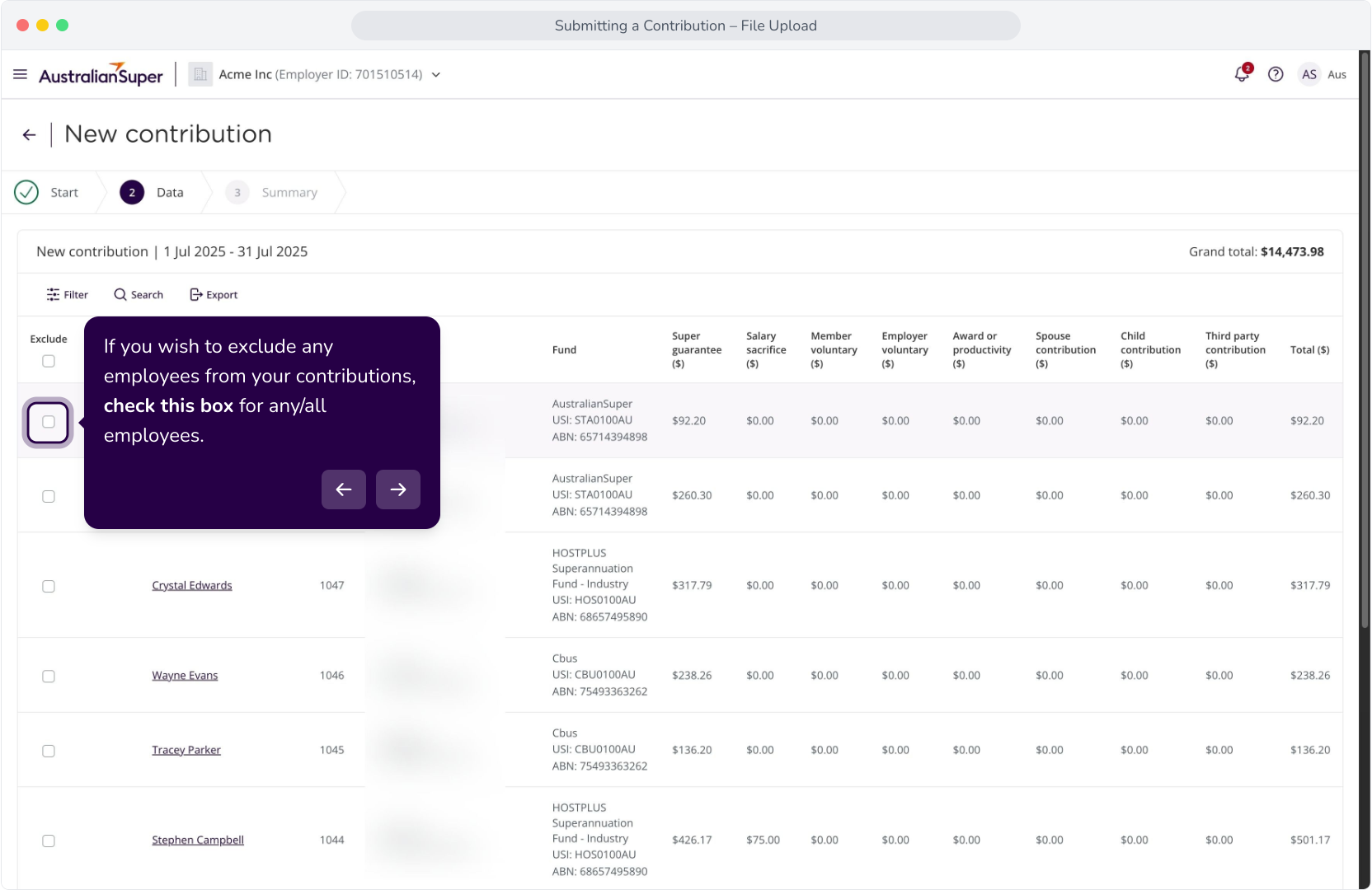
8. Excluded employees are indicated by the muted row colour. We'll un-check this box to ensure Erin receives her contribution.
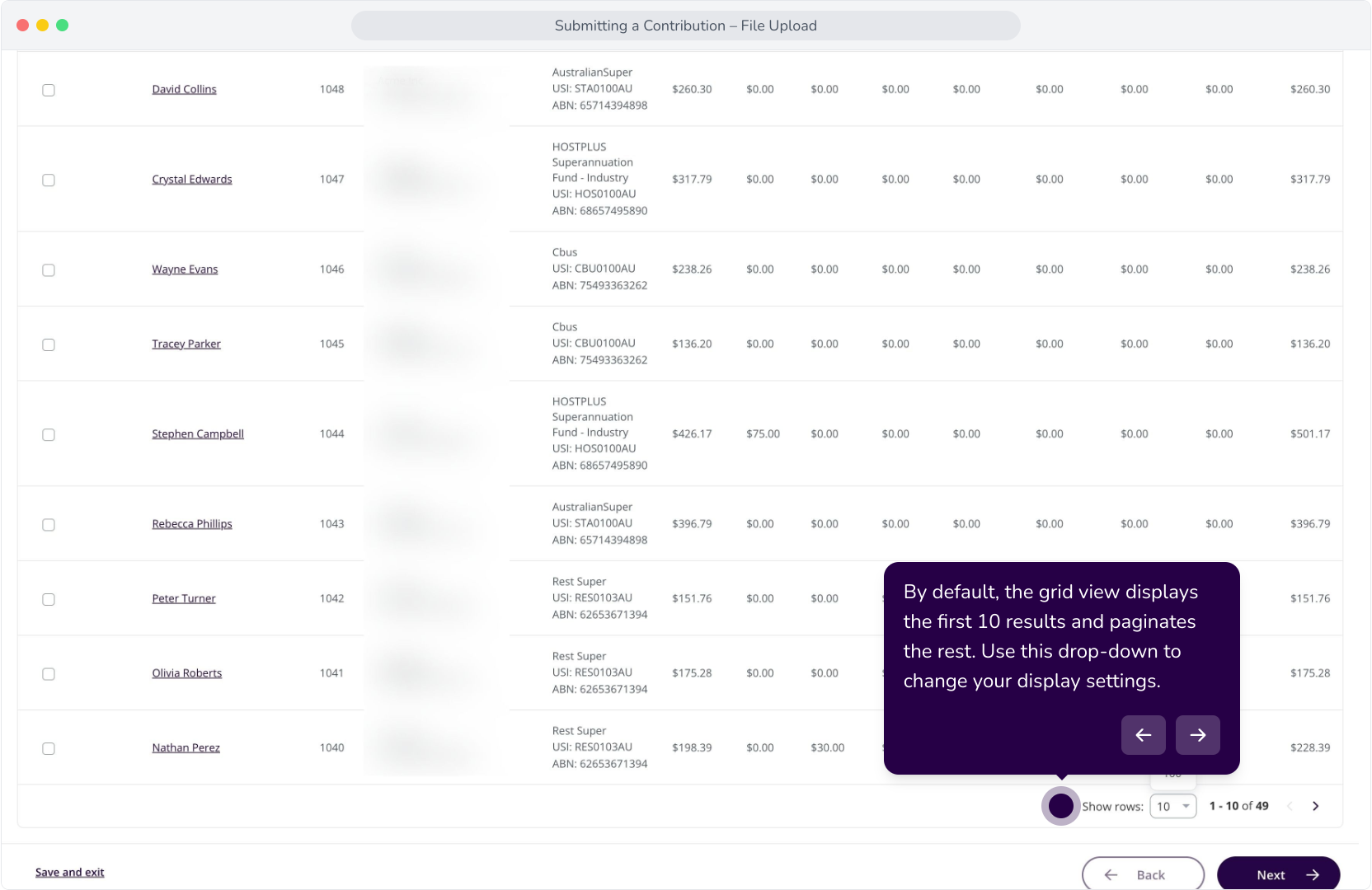
9. By default, the grid view displays the first 10 results and paginates the rest. Use this drop-down to change your display settings.
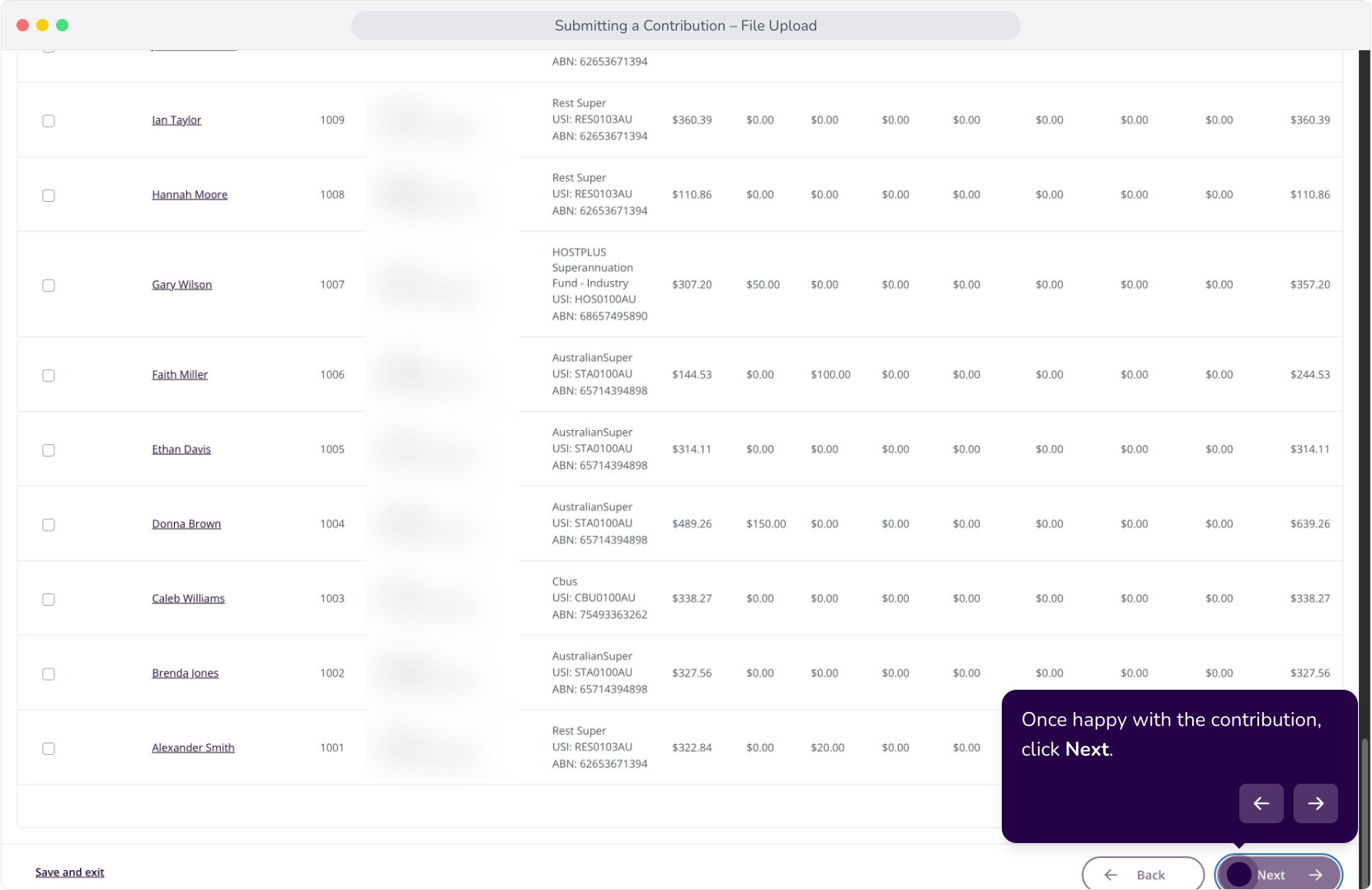
10. Once happy with the contribution, click Next.
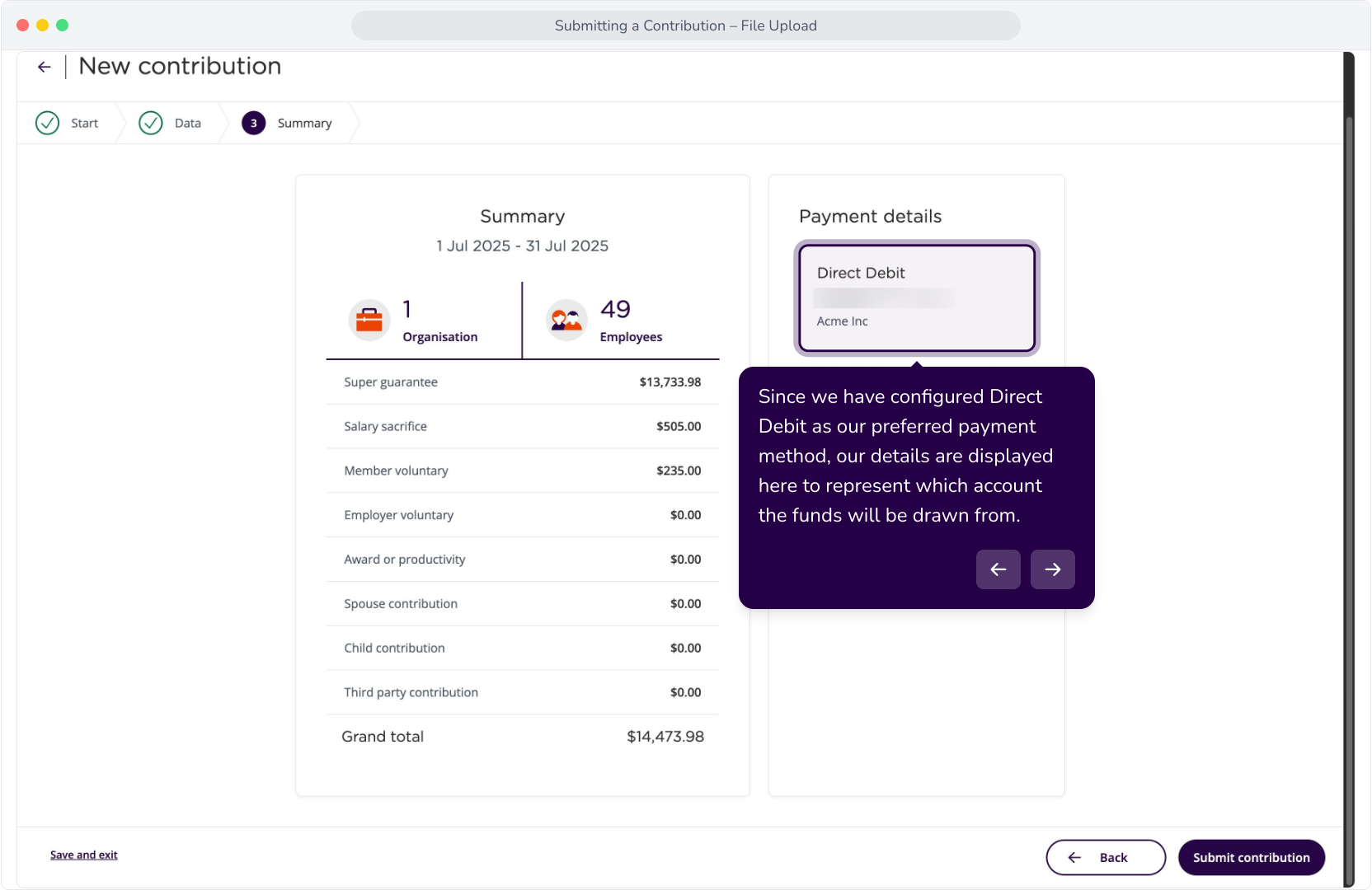
11. Since we have configured Direct Debit as our preferred payment method, our details are displayed here to represent which account the funds will be drawn from.
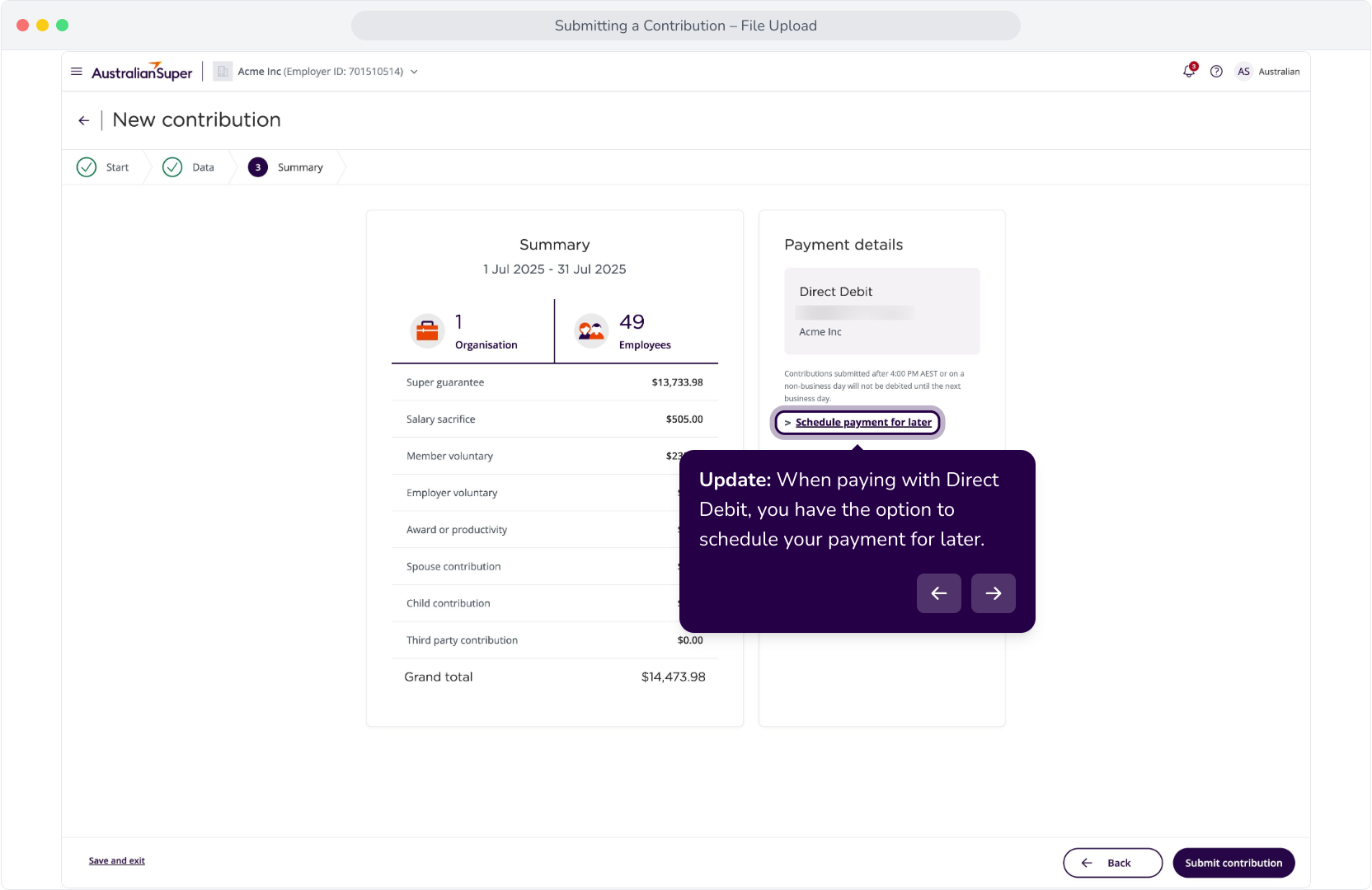
12. Update: When paying with Direct Debit, you have the option to schedule your payment for later.
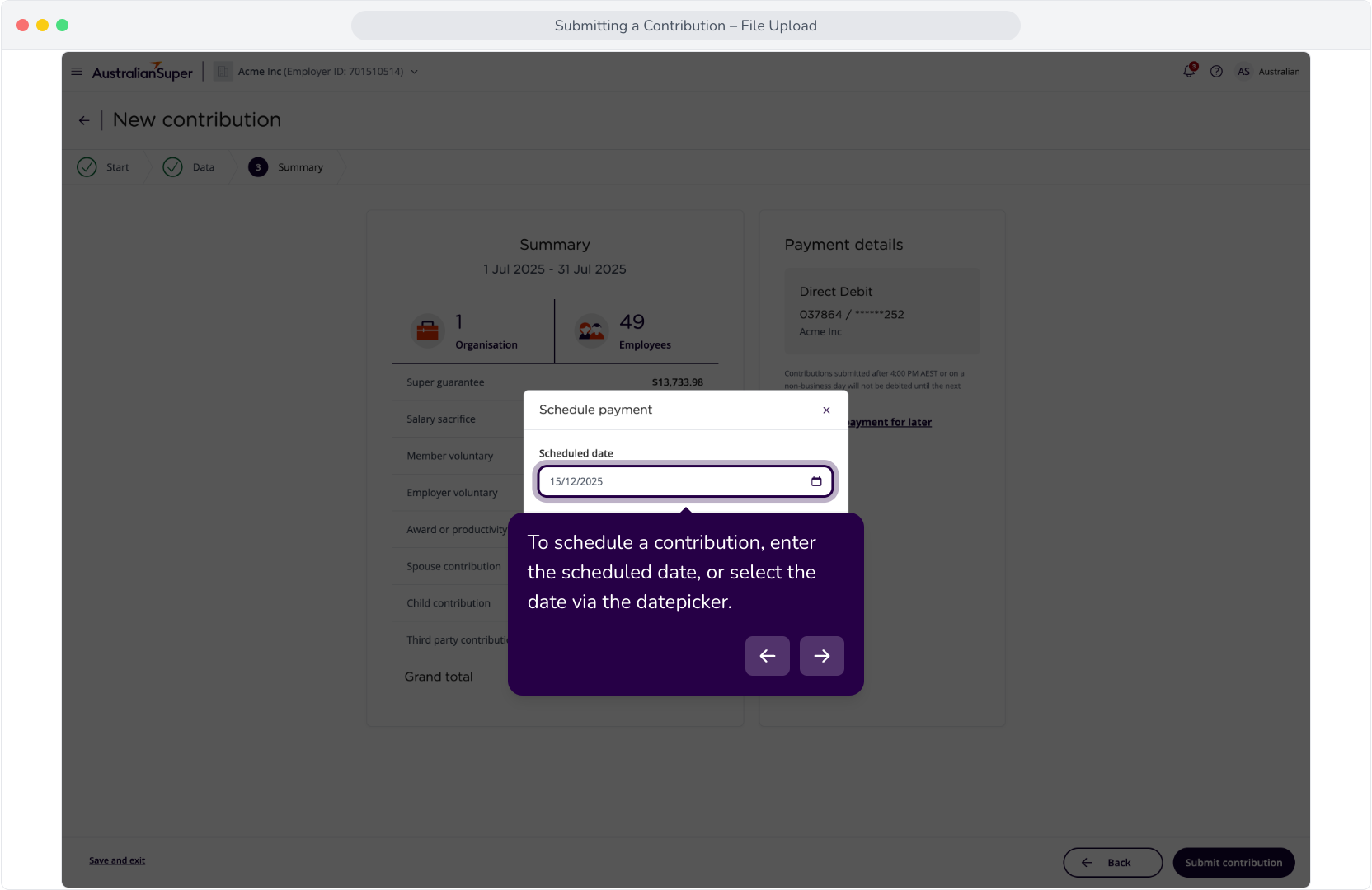
13. To schedule a contribution, enter the scheduled date, or select the date via the datepicker.
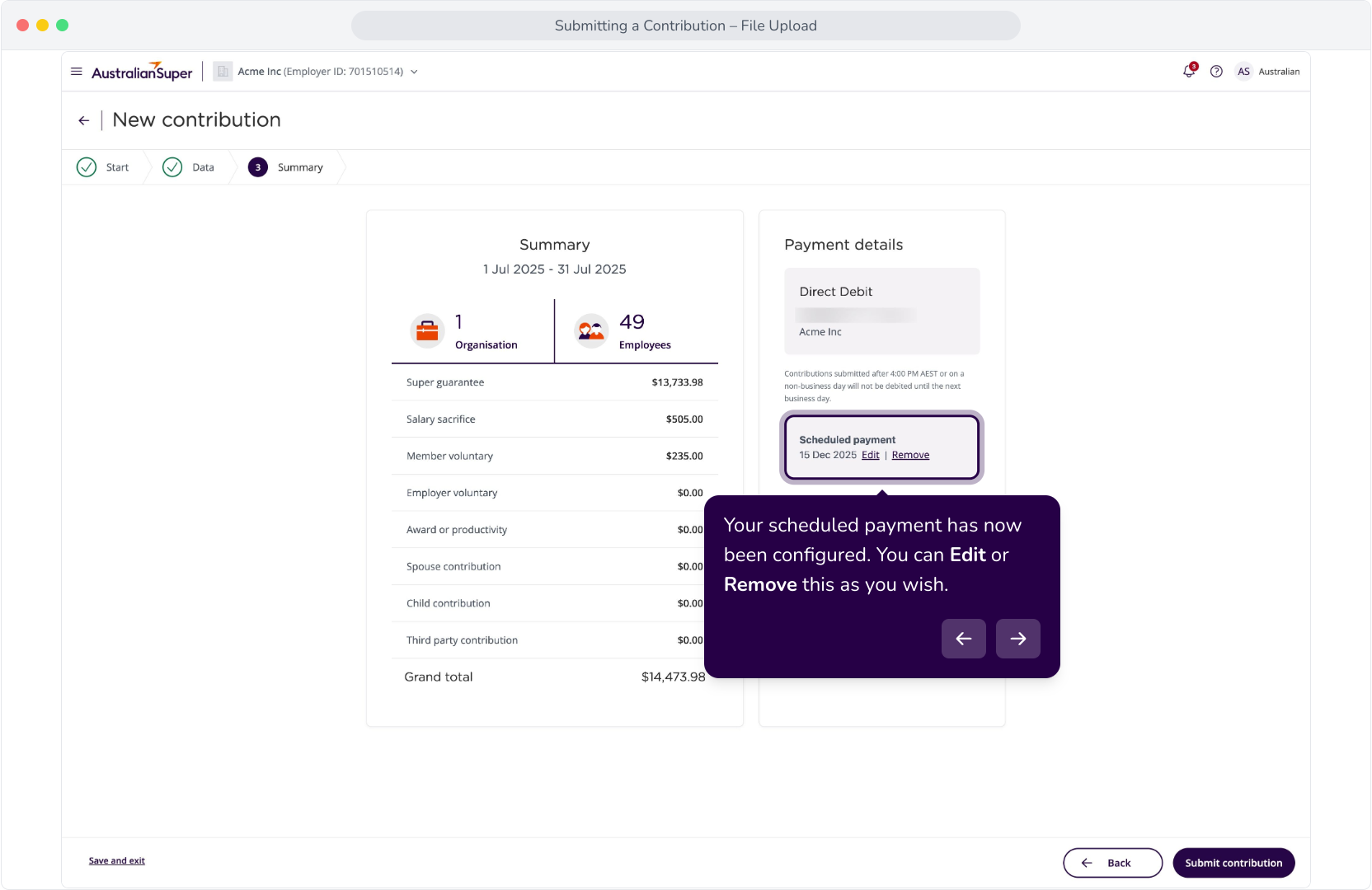
14. Your scheduled payment has now been configured. You can Edit or Remove this as you wish.
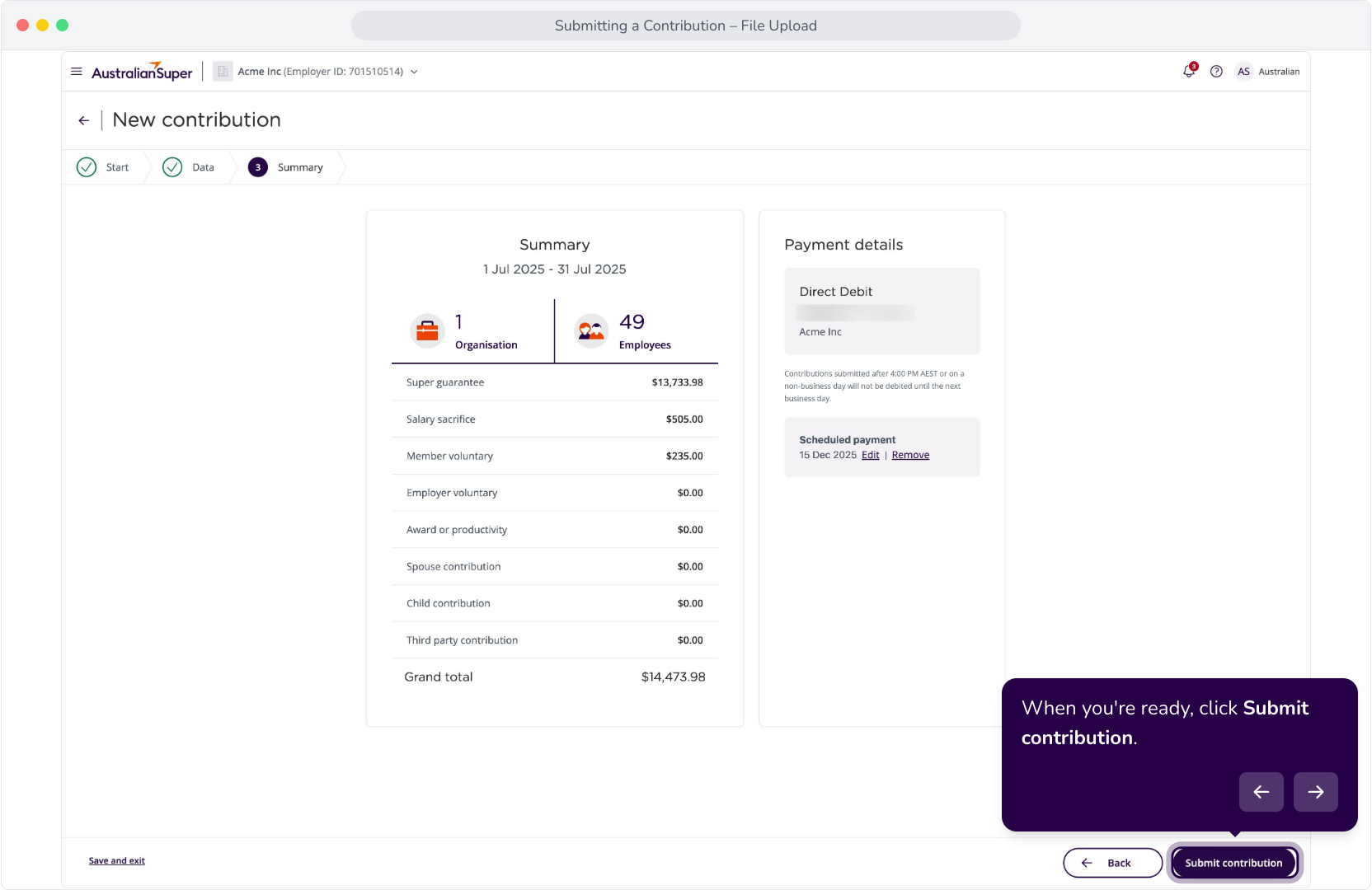
15. When you're ready, click Submit contribution.
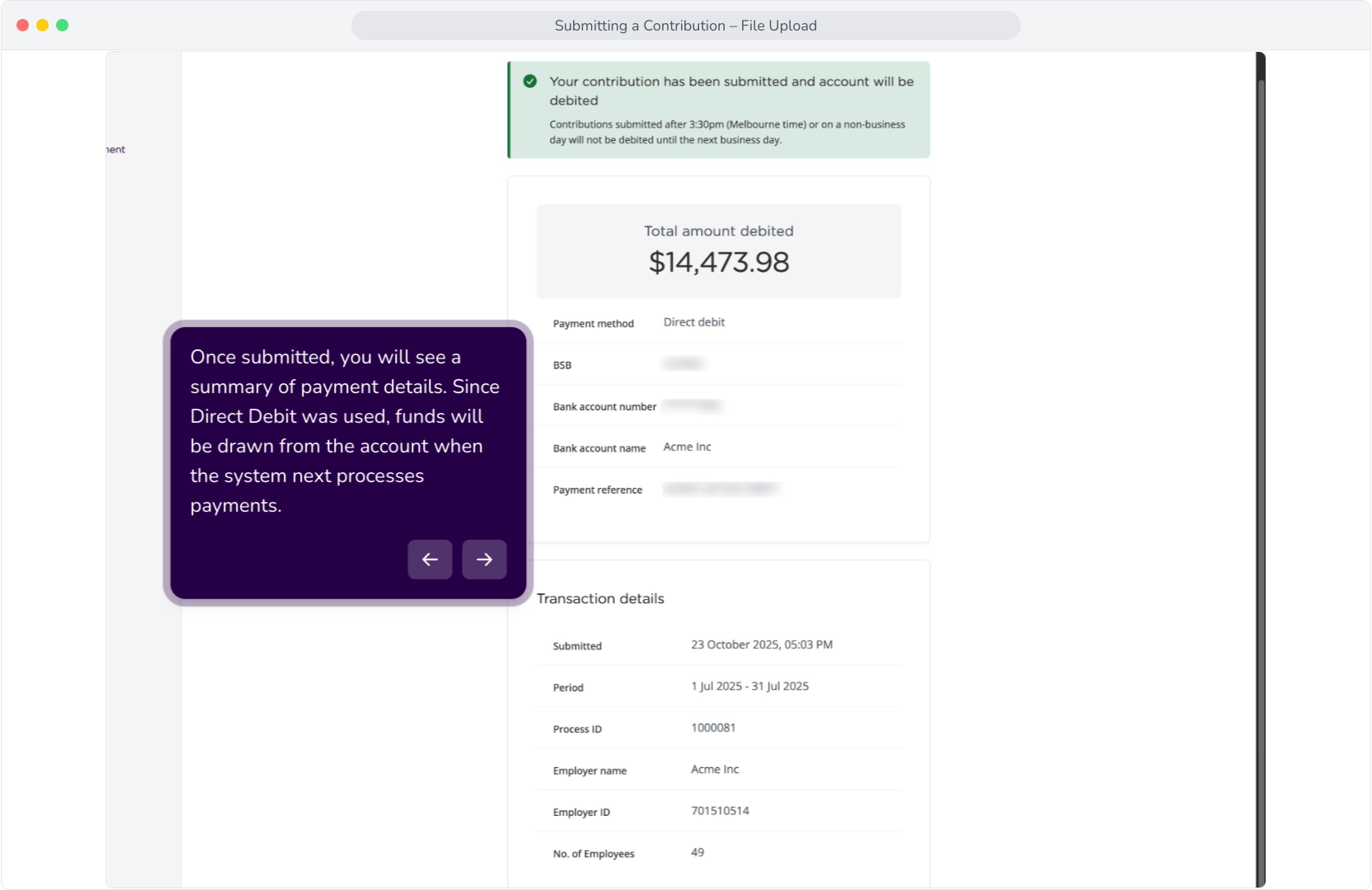
16. Once submitted, you will see a summary of payment details. Since Direct Debit was used, funds will be drawn from the account when the system next processes payments.
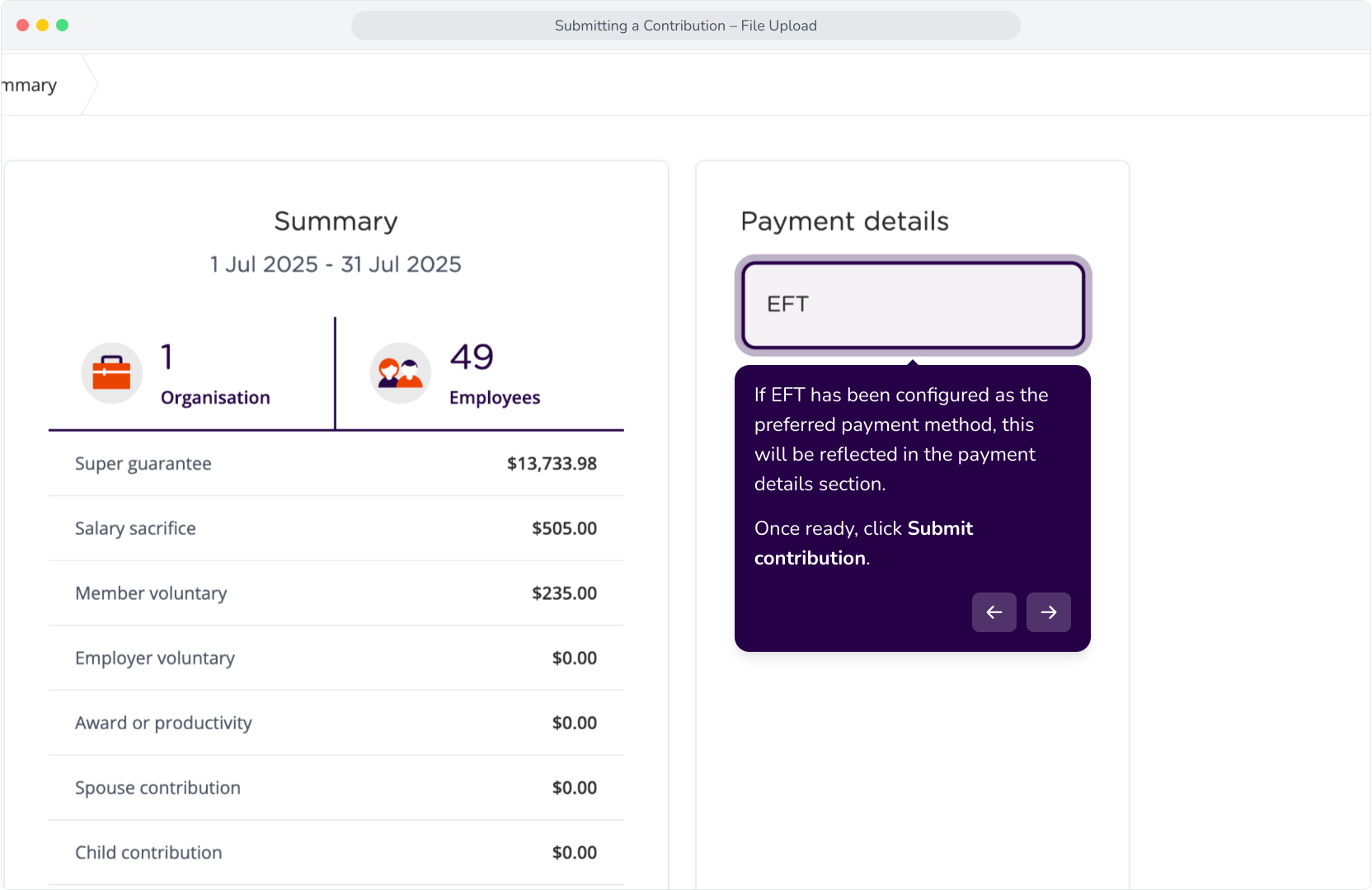
17. If EFT has been configured as the preferred payment method, this will be reflected in the payment details section.Once ready, click Submit contribution.
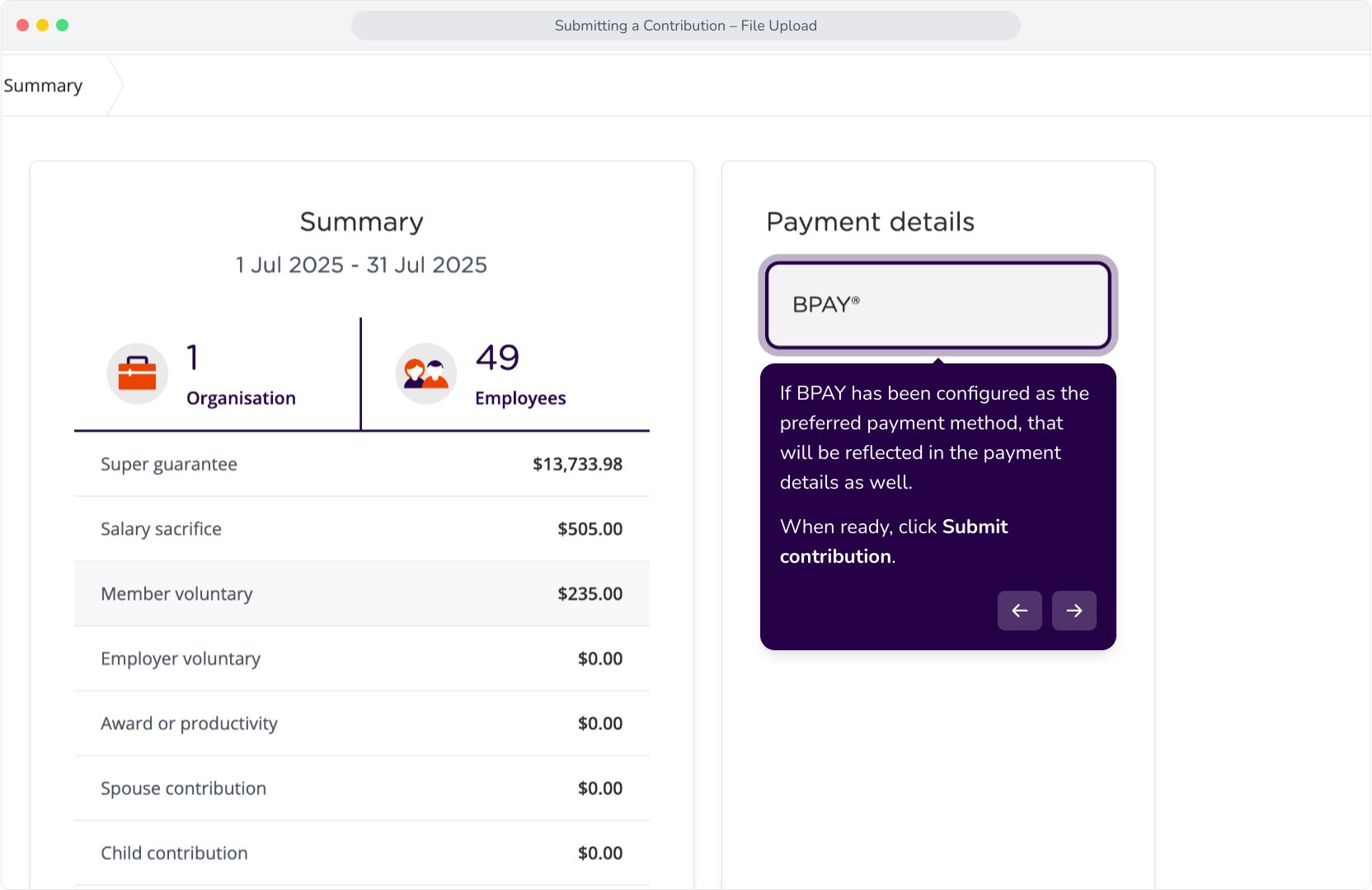
18. If BPAY has been configured as the preferred payment method, that will be reflected in the payment details as well.When ready, click Submit contribution.
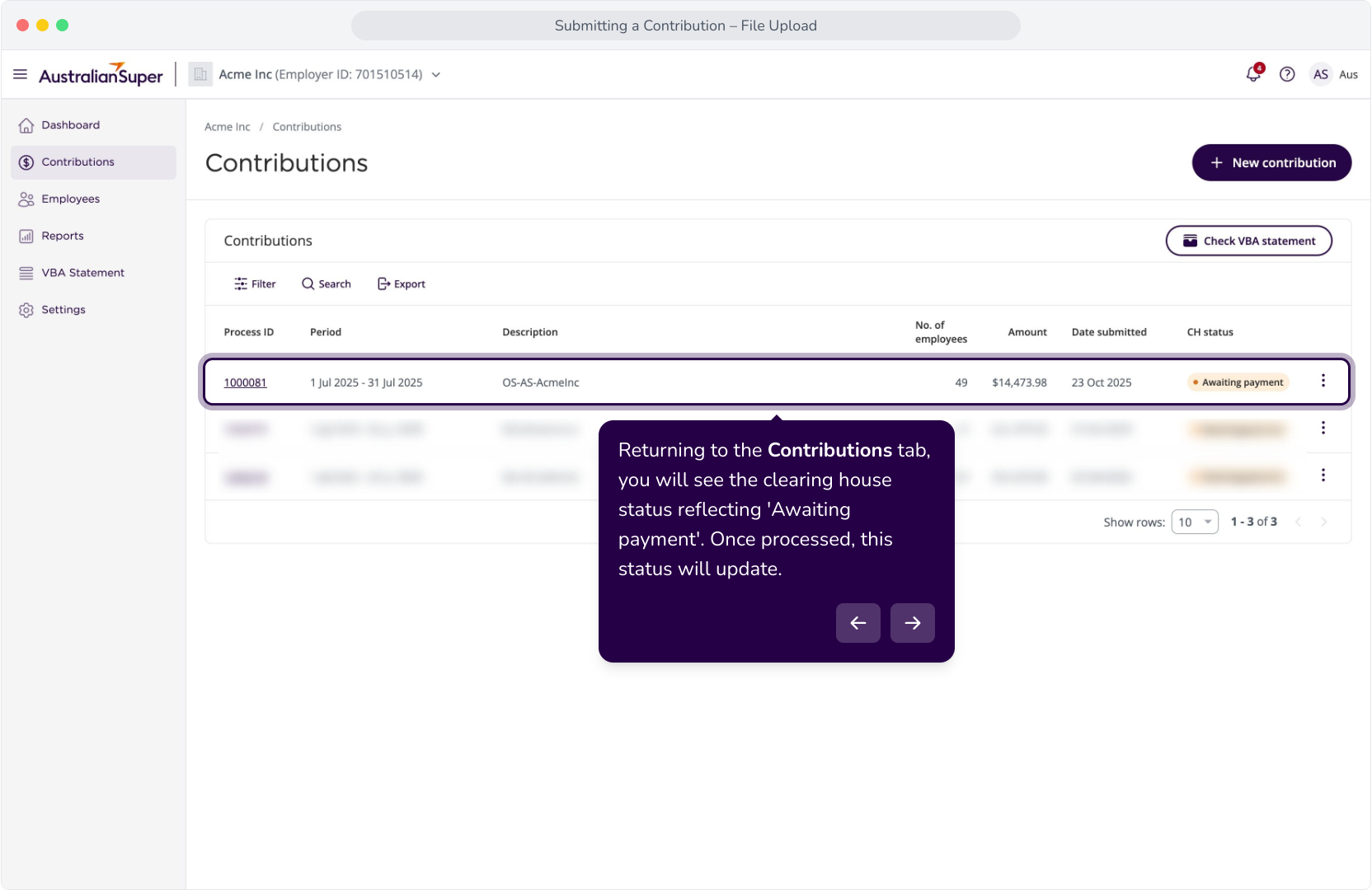
19. Returning to the Contributions tab, you will see the clearing house status reflecting 'Awaiting payment'. Once processed, this status will update.
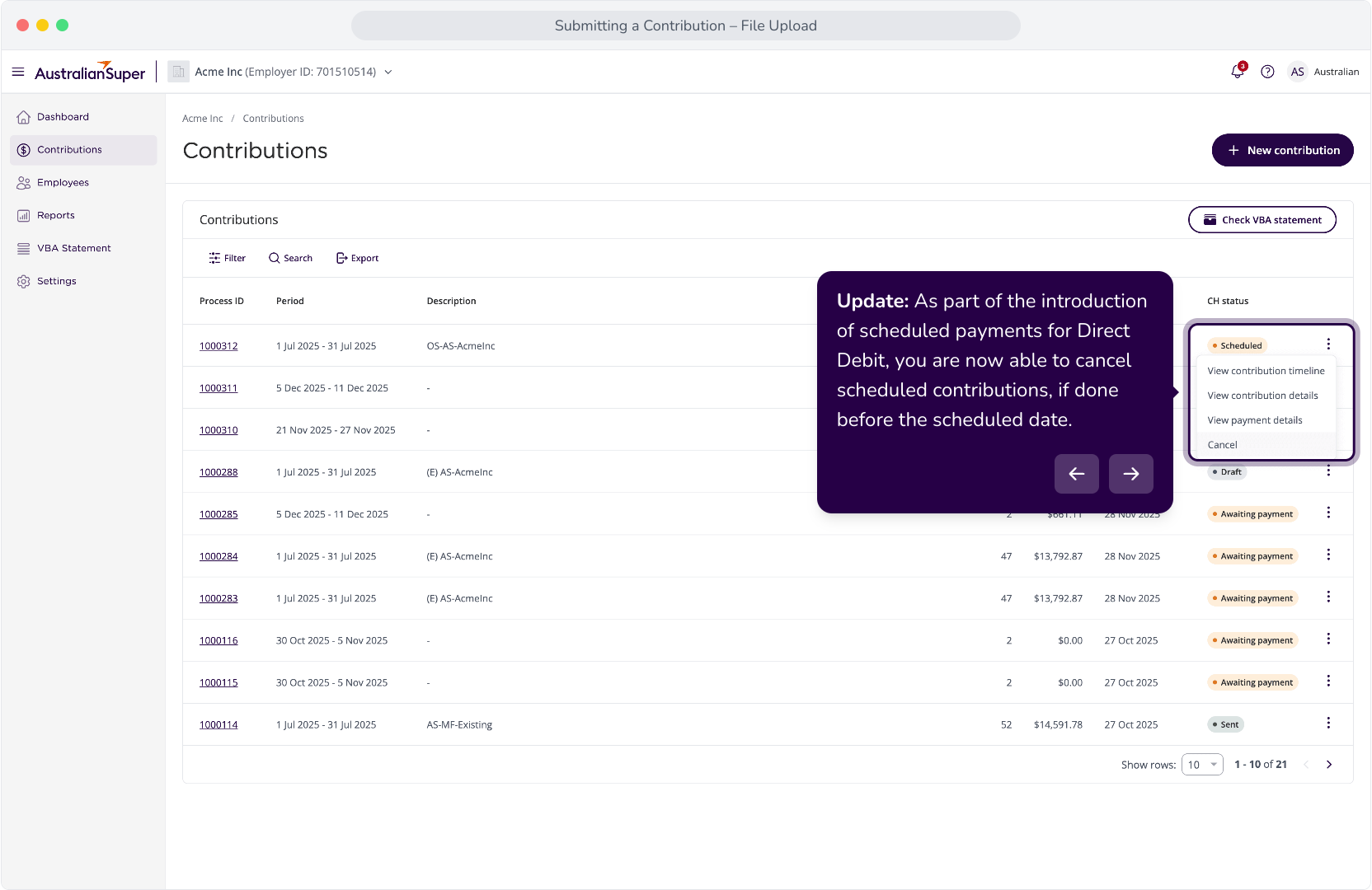
20. Update: As part of the introduction of scheduled payments for Direct Debit, you are now able to cancel scheduled contributions, if done before the scheduled date.