Context: This guide covers the process of submitting a contribution using the manual grid, and how multiple funds are managed throughout the process.
Interactive Demo
Note: Make the demo full-screen for a better experience. You can mute/un-mute narration to suit your preferences.
Step by Step
1. Submitting a Contribution Using the Manual Grid
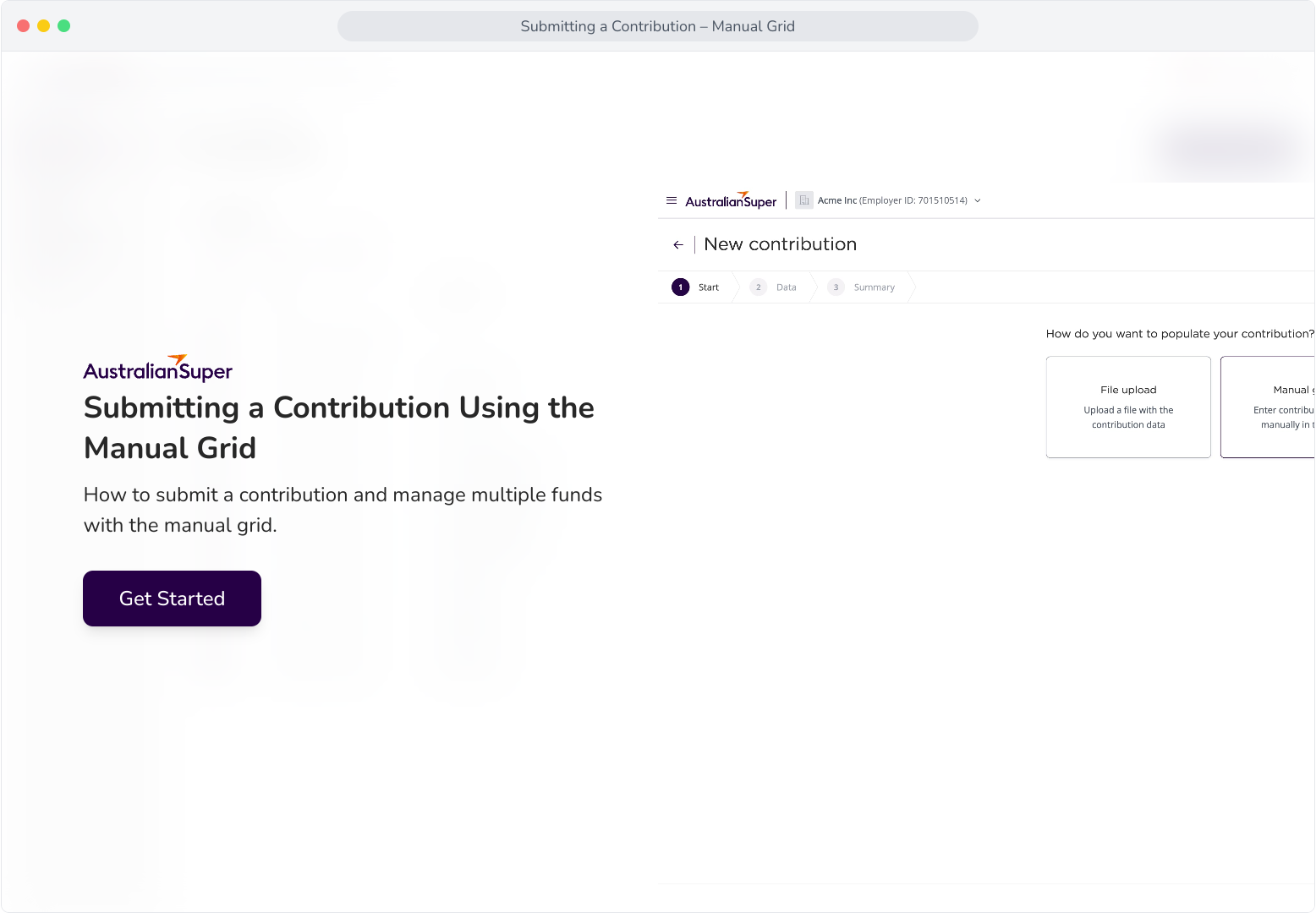
2. To get started, click New contribution.
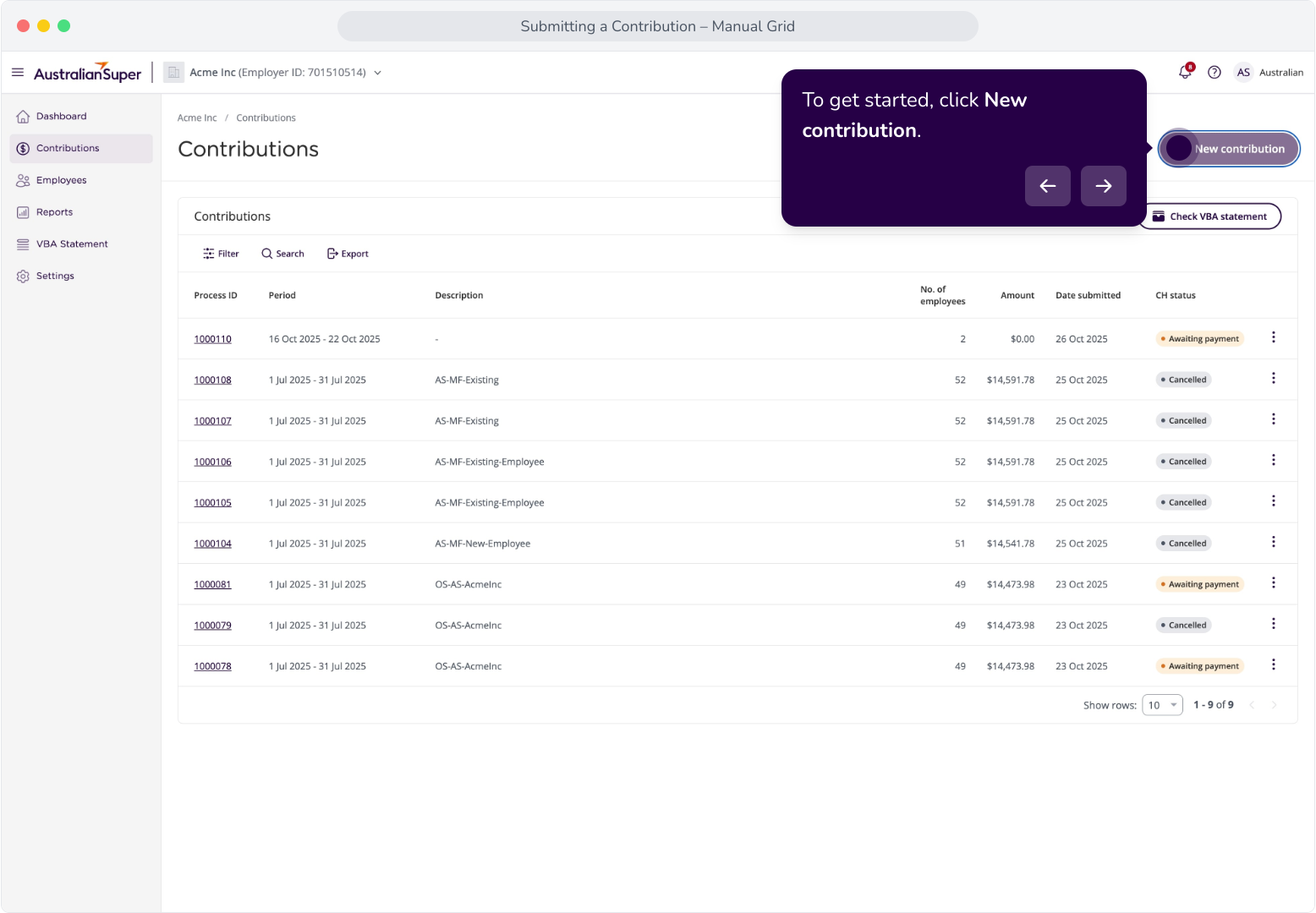
3. Select Manual grid.
4. With the manual grid, you can pre-populate your contribution with the last submitted contribution, all employees in your organisation, or start with a blank grid.
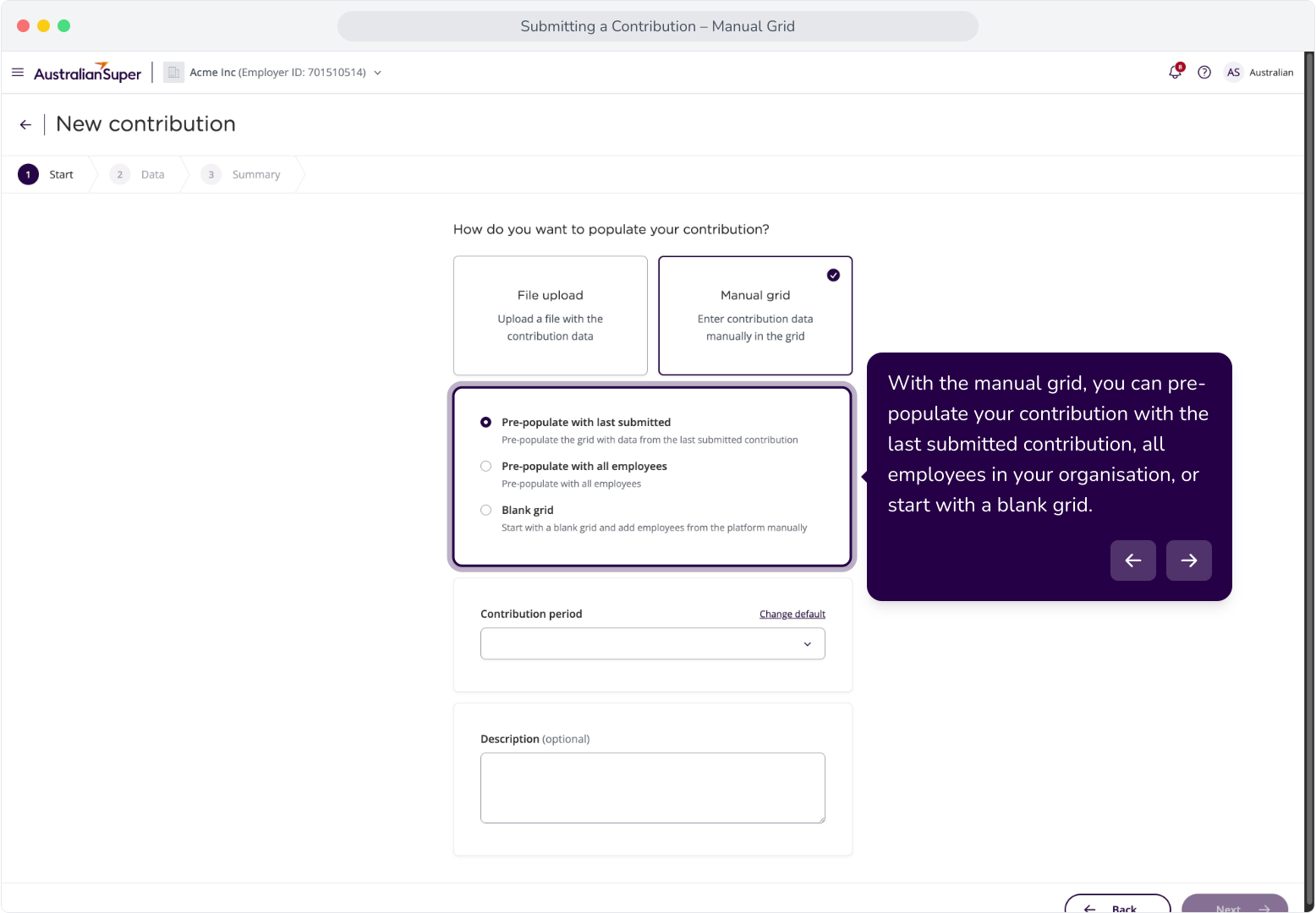
5. We've opted for the blank grid. Enter the contribution period and click Next.
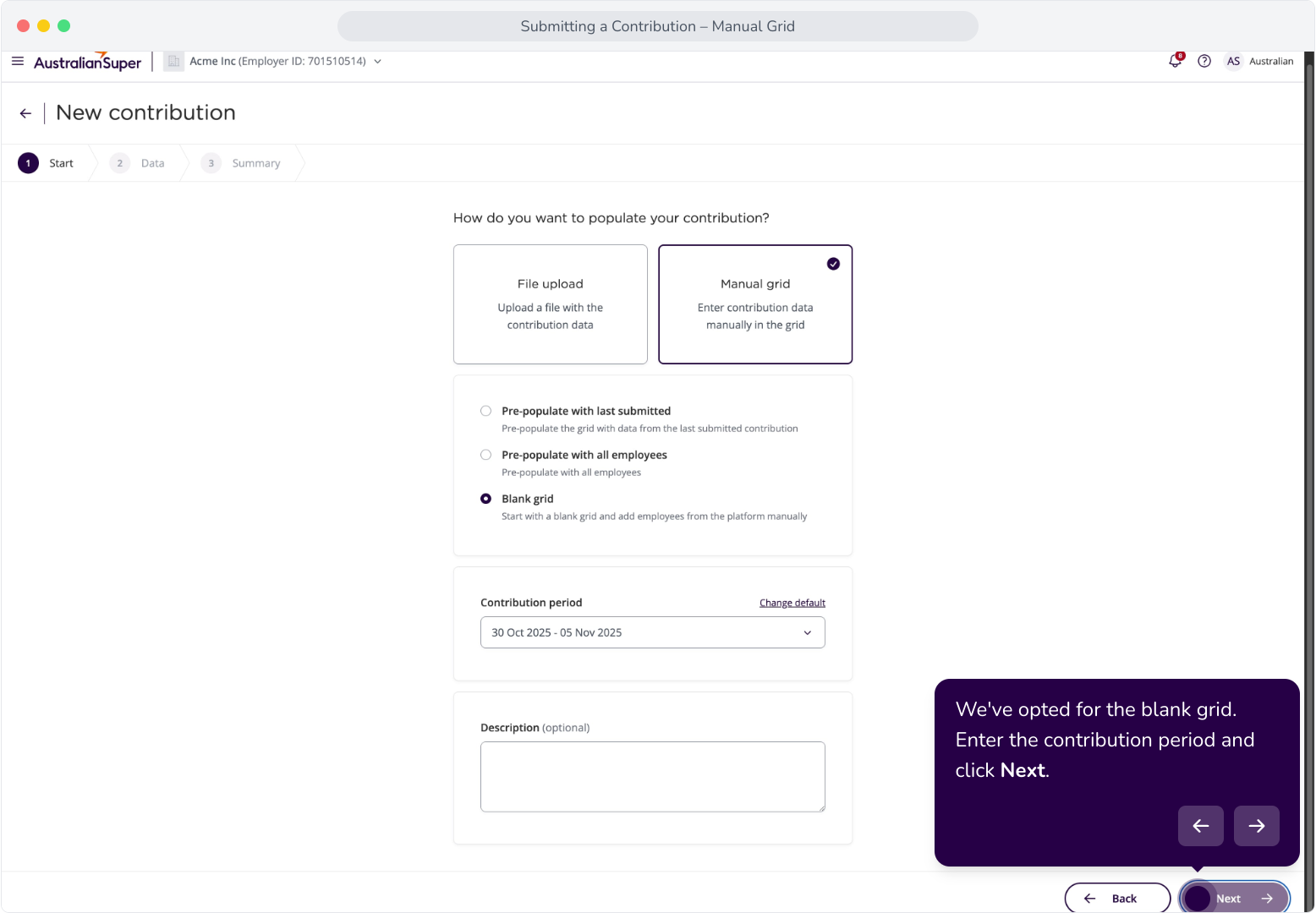
6. Now, we have our blank grid.
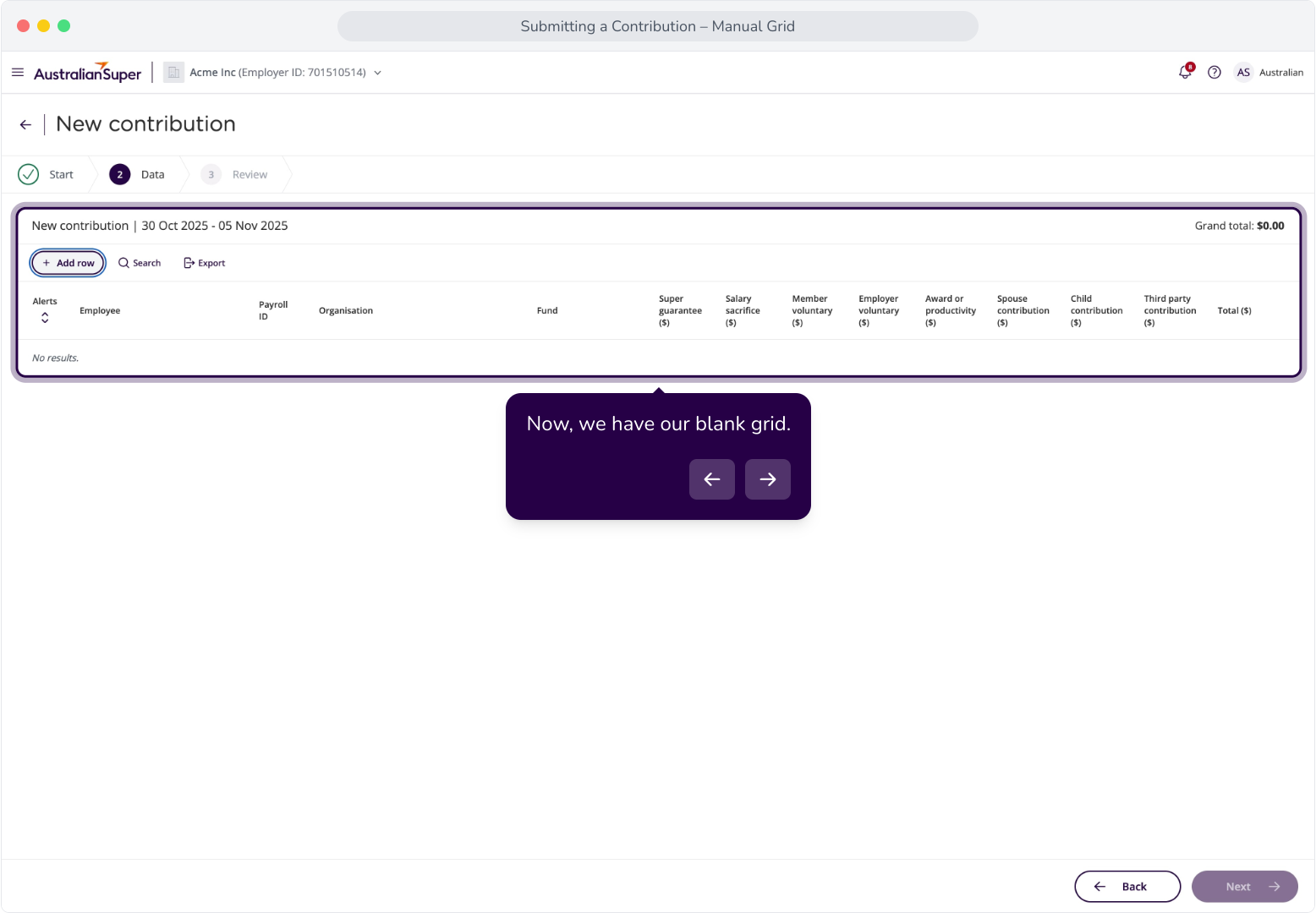
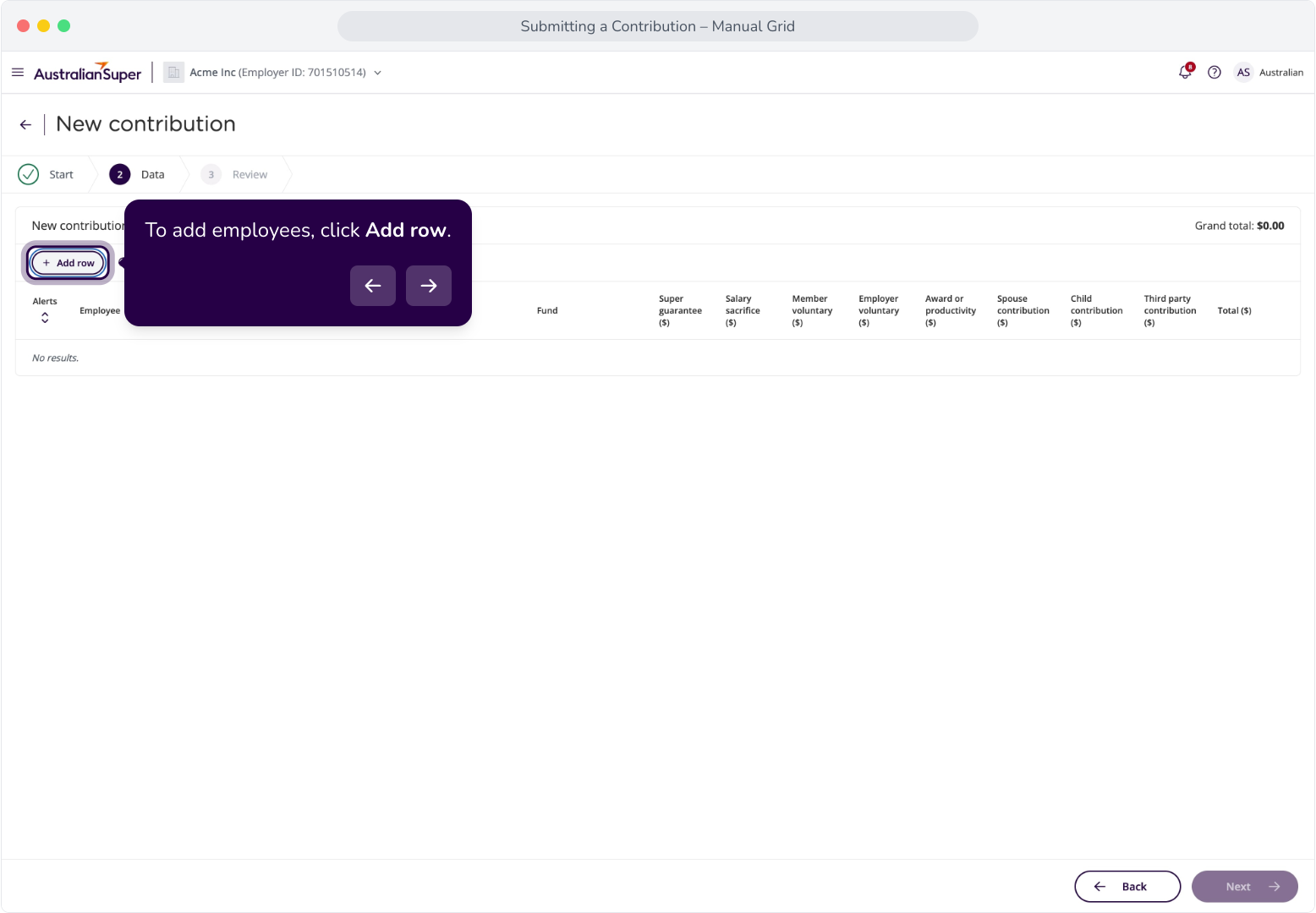
7. To add employees, click Add row.
8. Search for the employee you'd like to add.
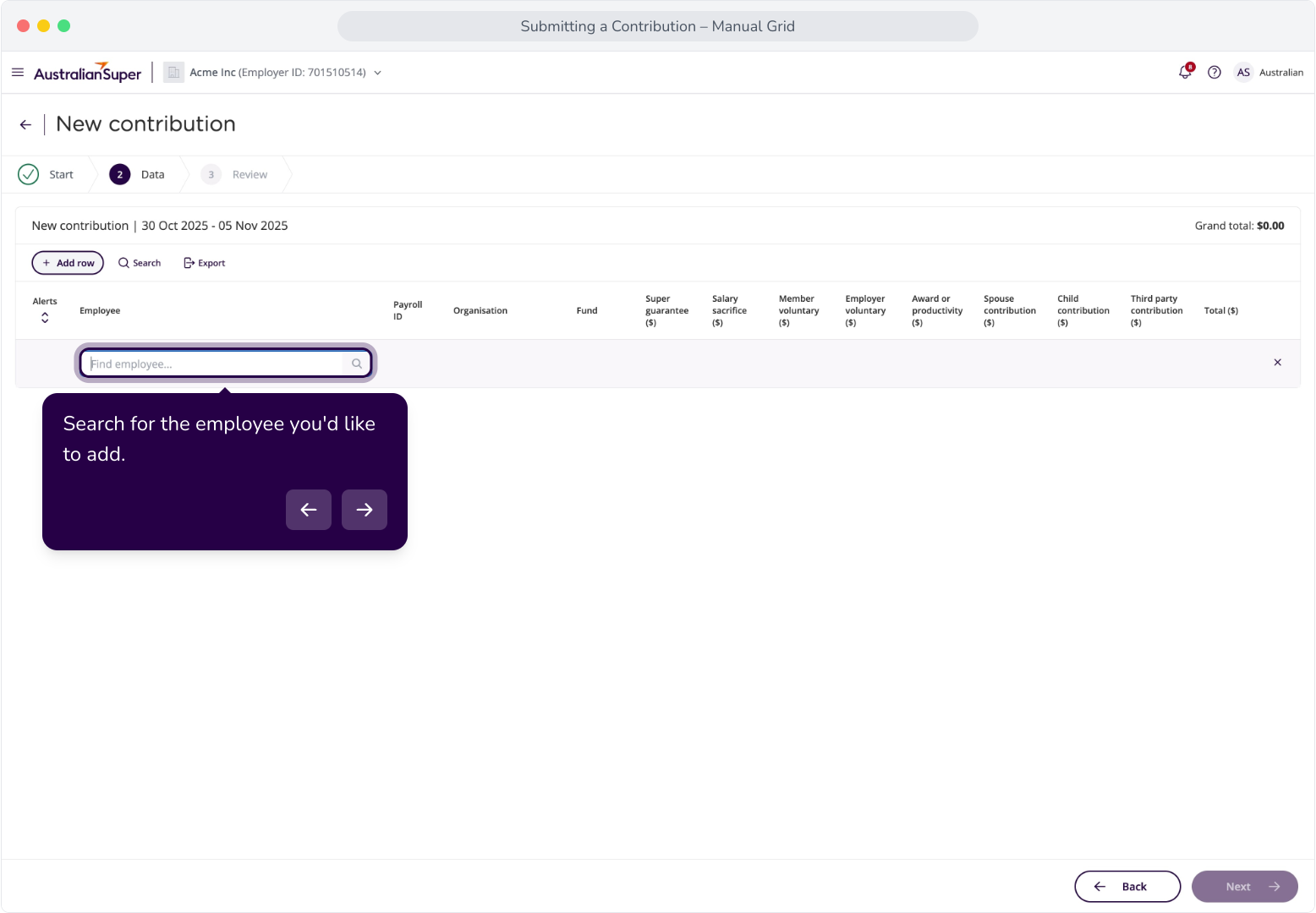
9. Now that we've added some employees, we can enter the contribution details for each of them.
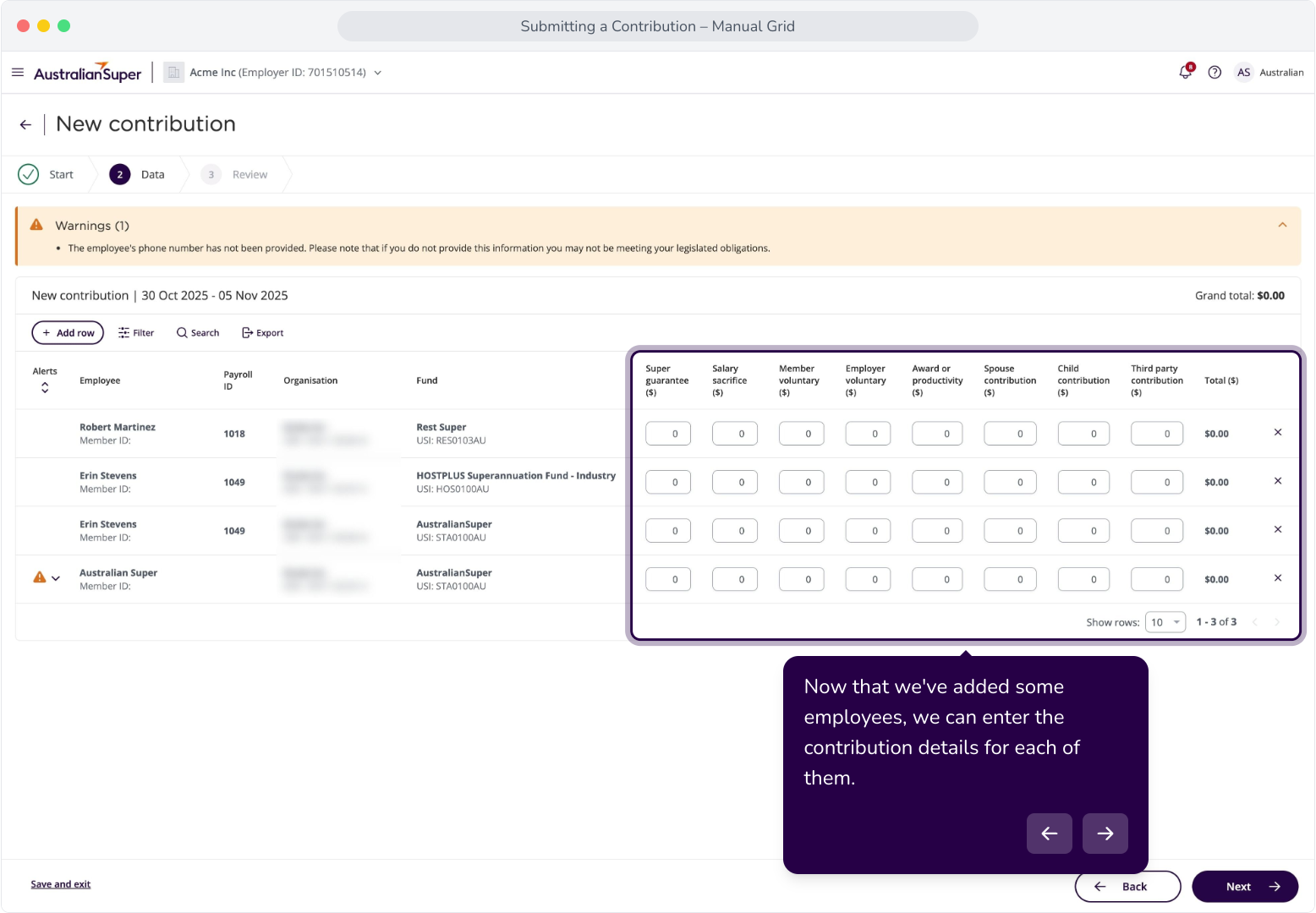
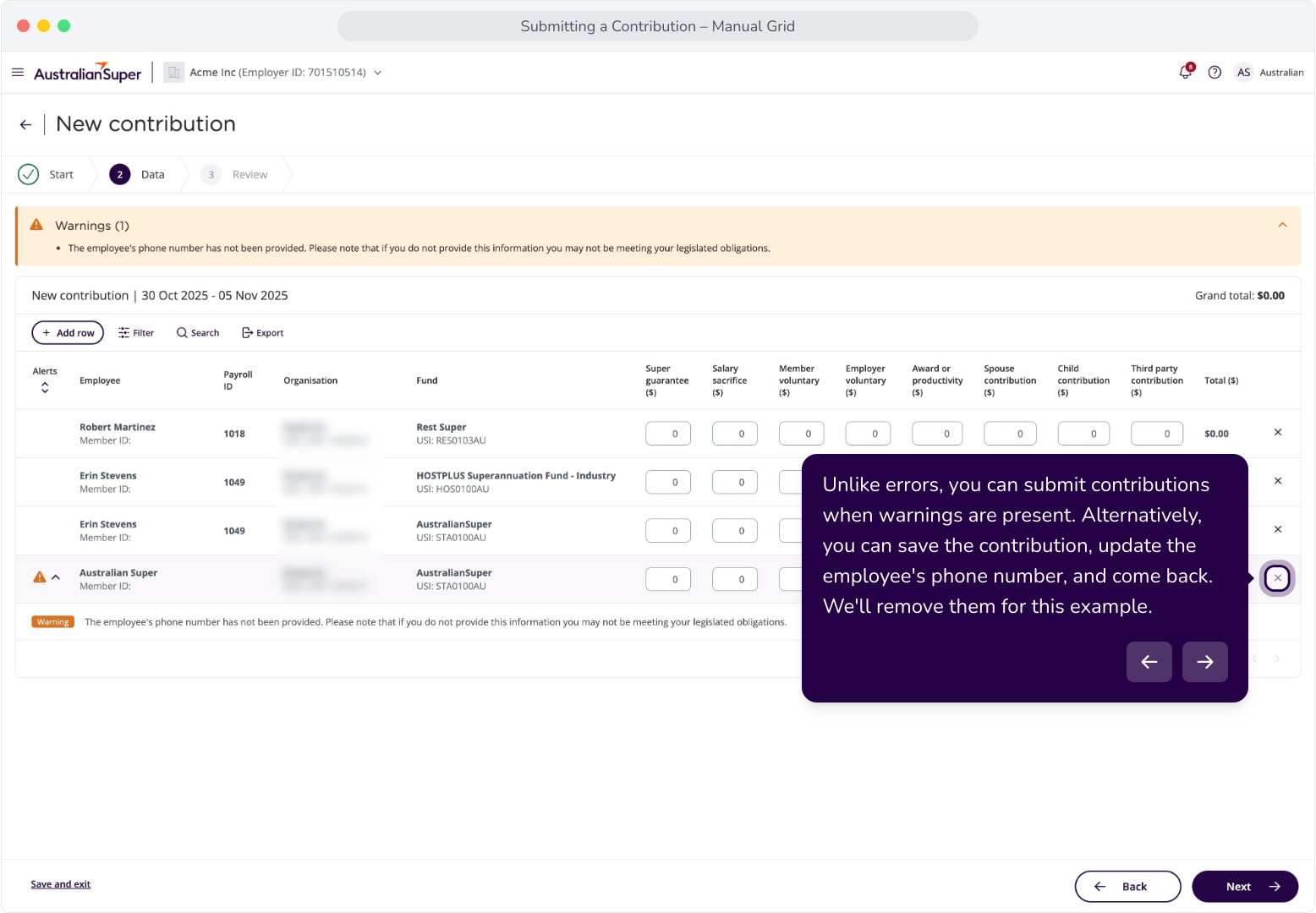
10. We can see a warning appear for our employee "Australian Super". You can review the message banner at the top, or click on the down chevron for in-line details.
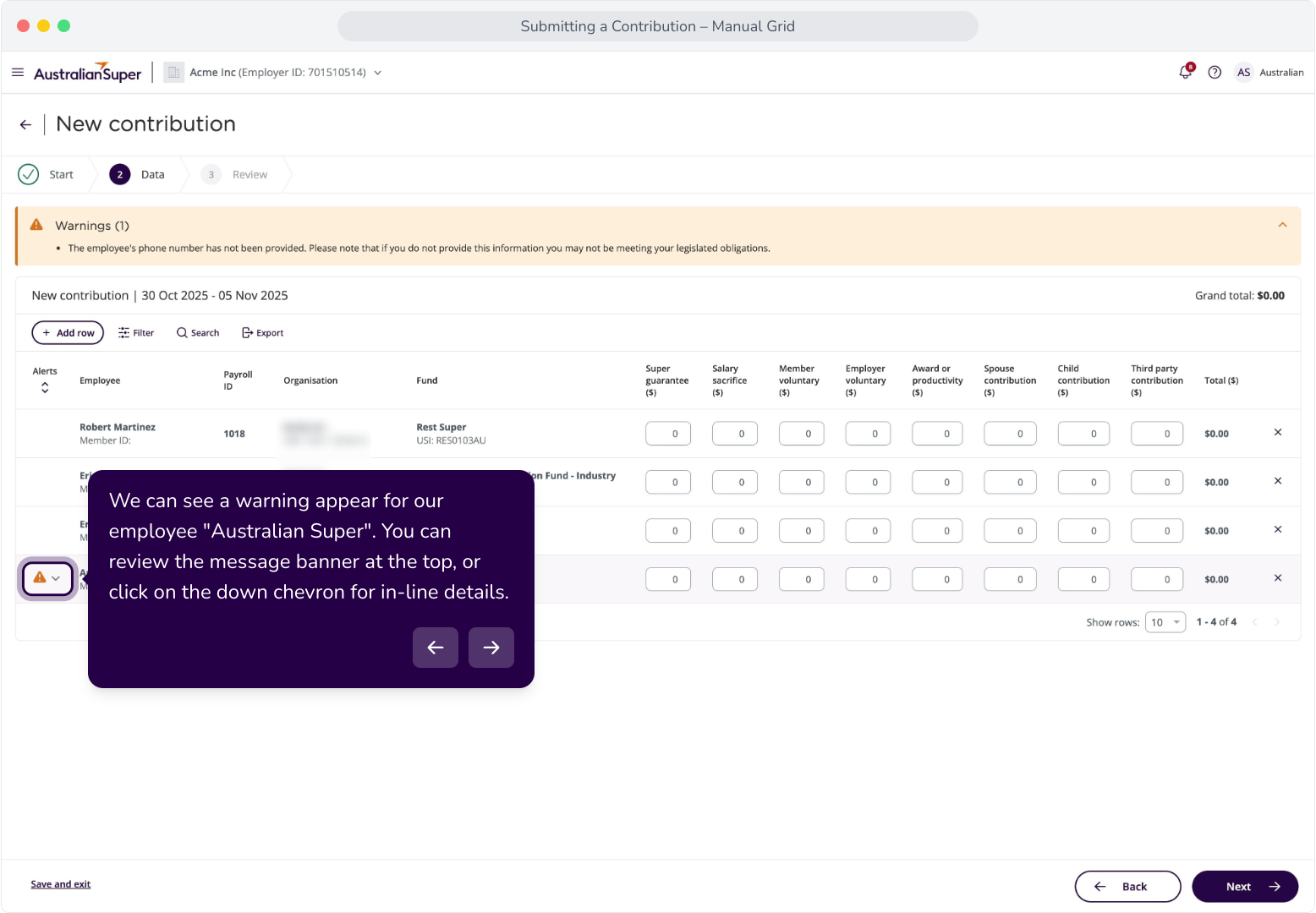
11. When expanded, warnings are displayed under each impacted row. This is useful when there are a large number of warnings or errors in the grid.
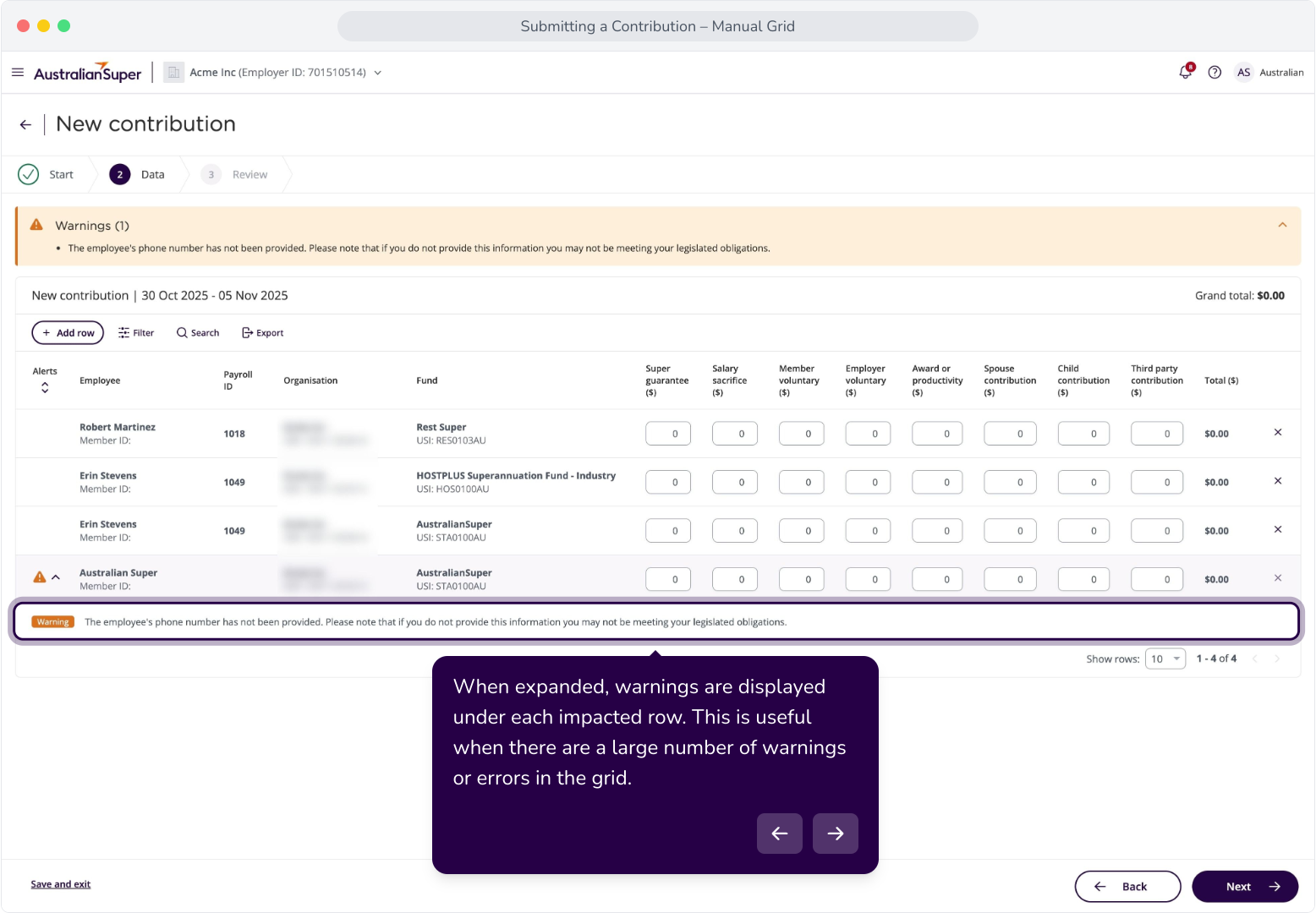
12. Unlike errors, you can submit contributions when warnings are present. Alternatively, you can save the contribution, update the employee's phone number, and come back. We'll remove them for this example.
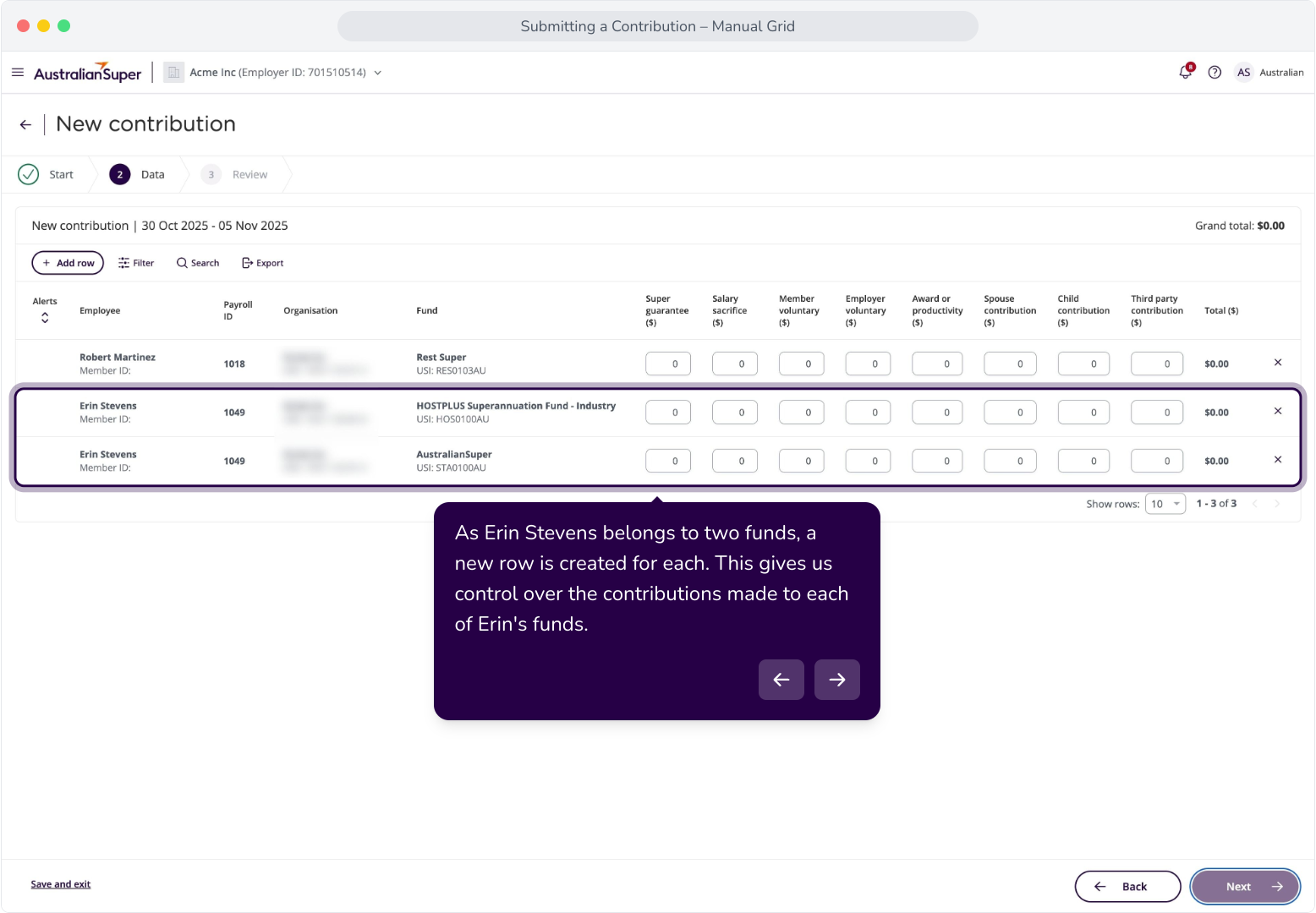
13. As Erin Stevens belongs to two funds, a new row is created for each. This gives us control over the contributions made to each of Erin's funds.
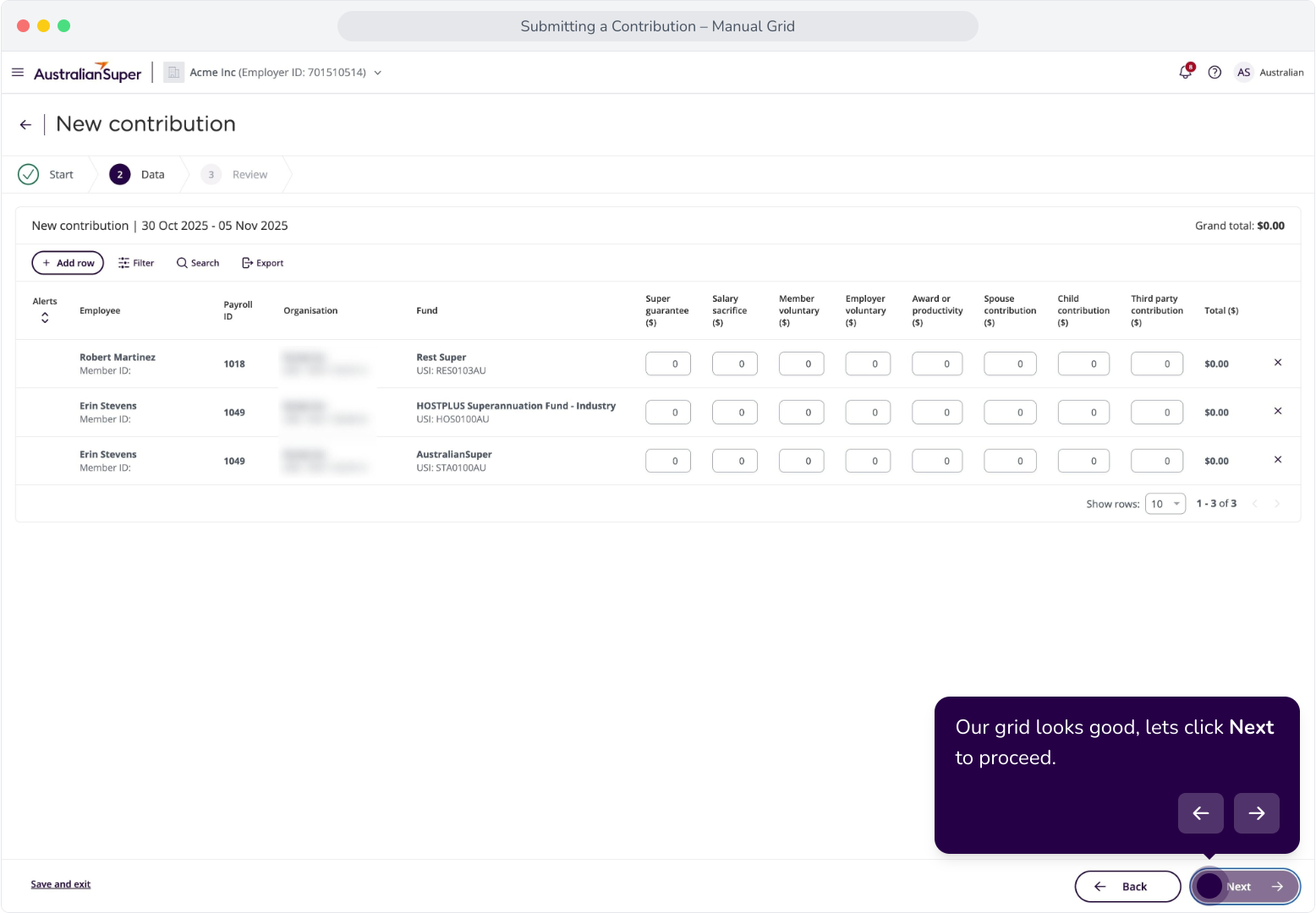
14. Our grid looks good, lets click Next to proceed.
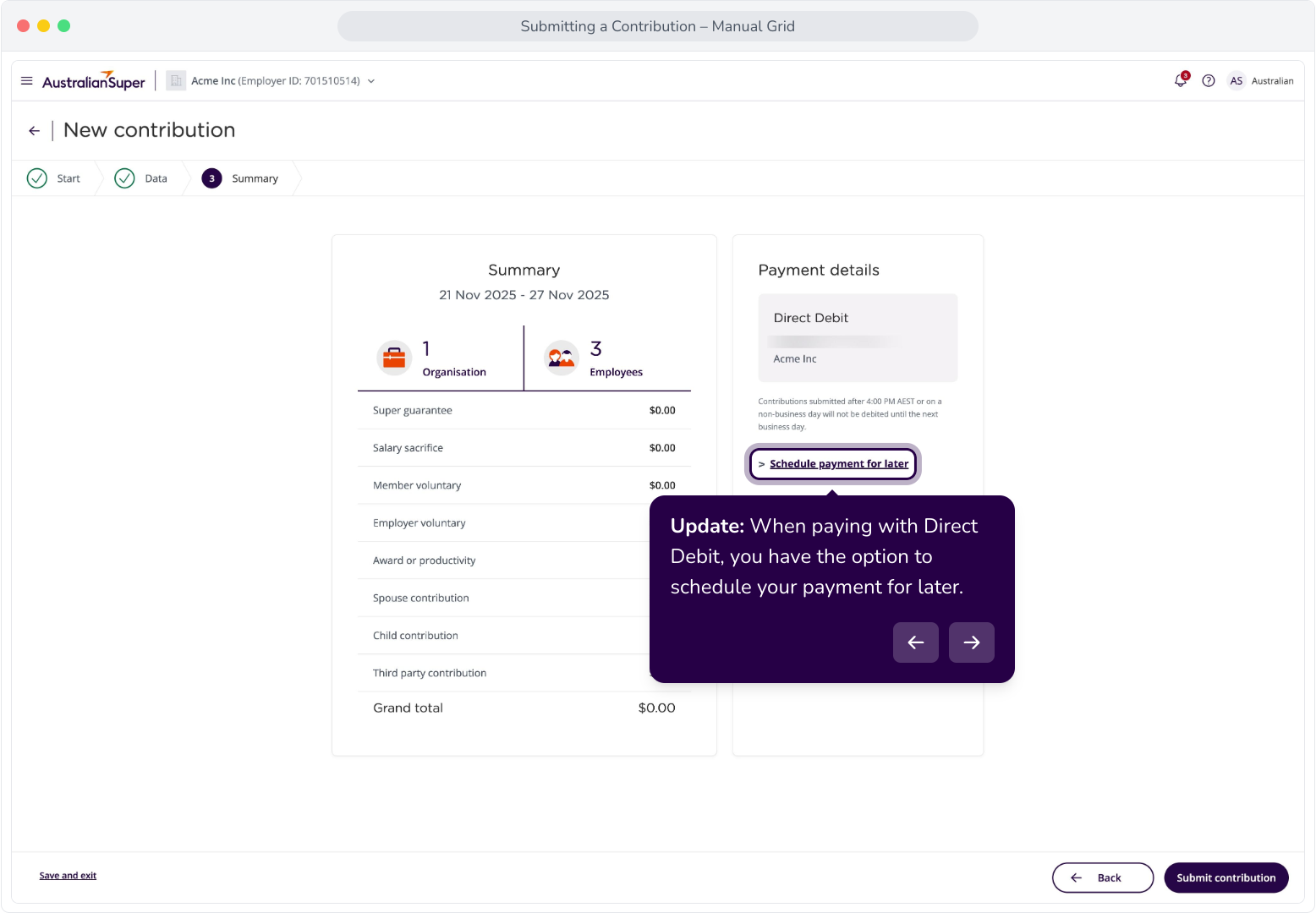
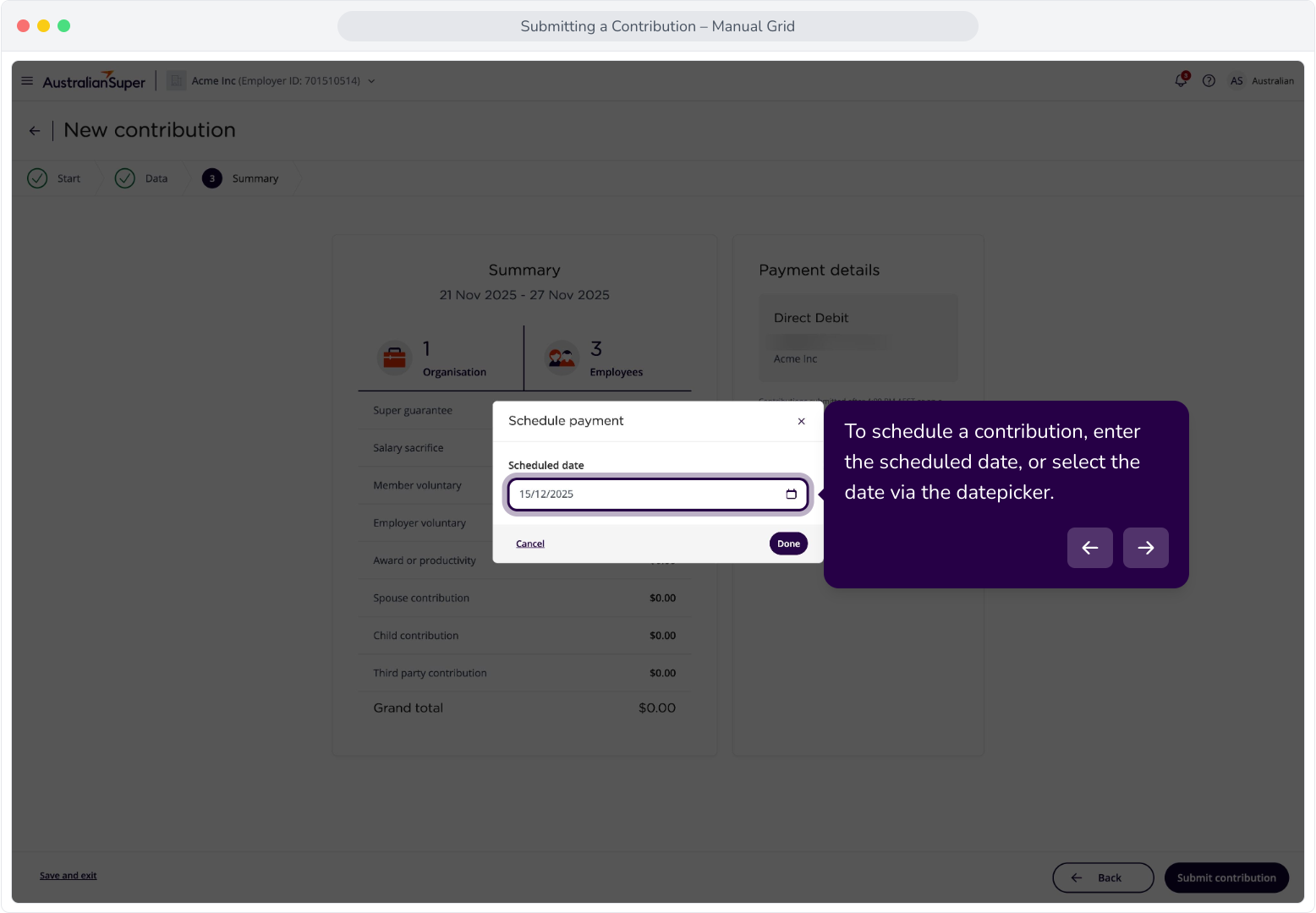
15. Update: When paying with Direct Debit, you have the option to schedule your payment for later.
16. To schedule a contribution, enter the scheduled date, or select the date via the datepicker.
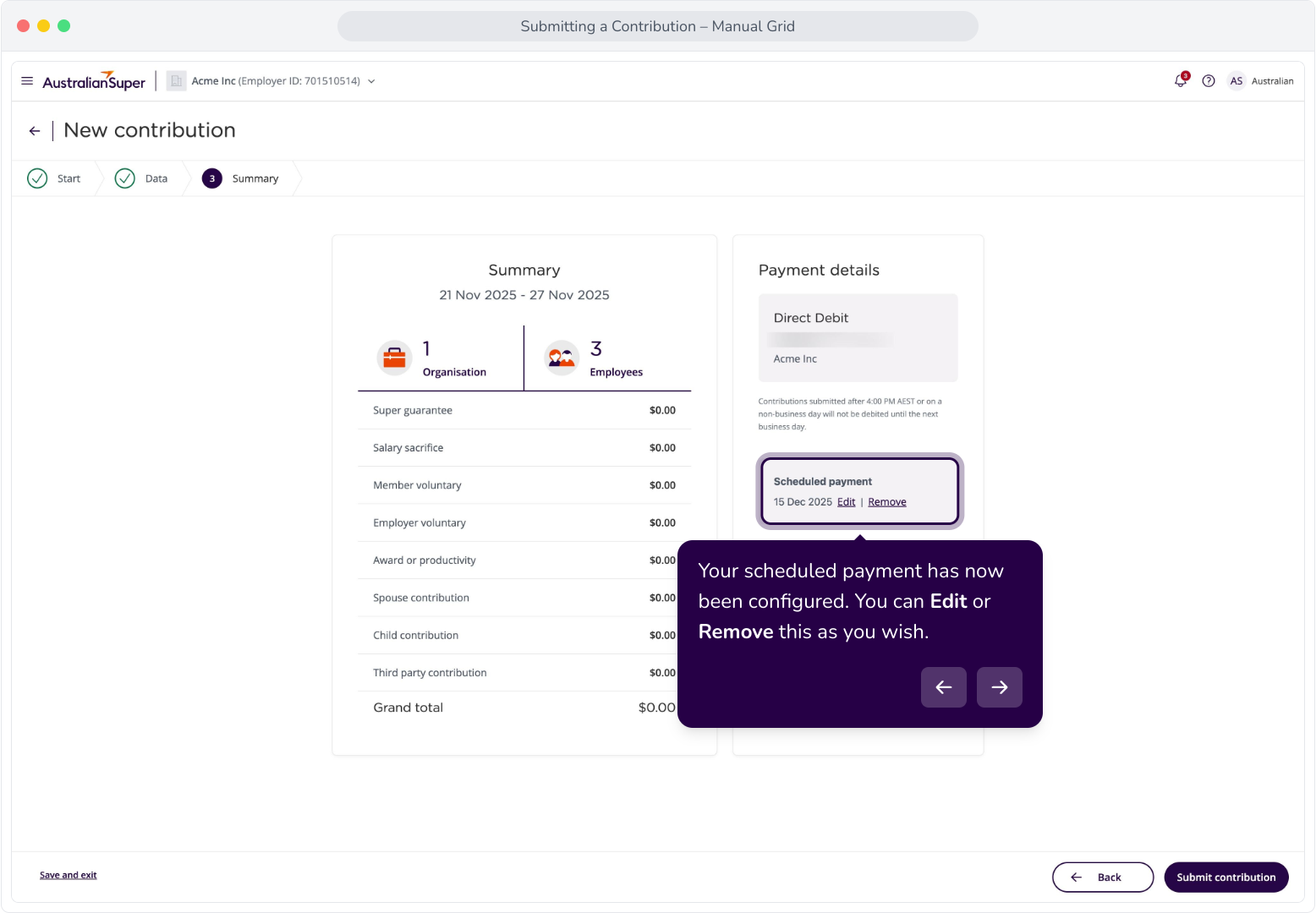
17. Your scheduled payment has now been configured. You can Edit or Remove this as you wish.
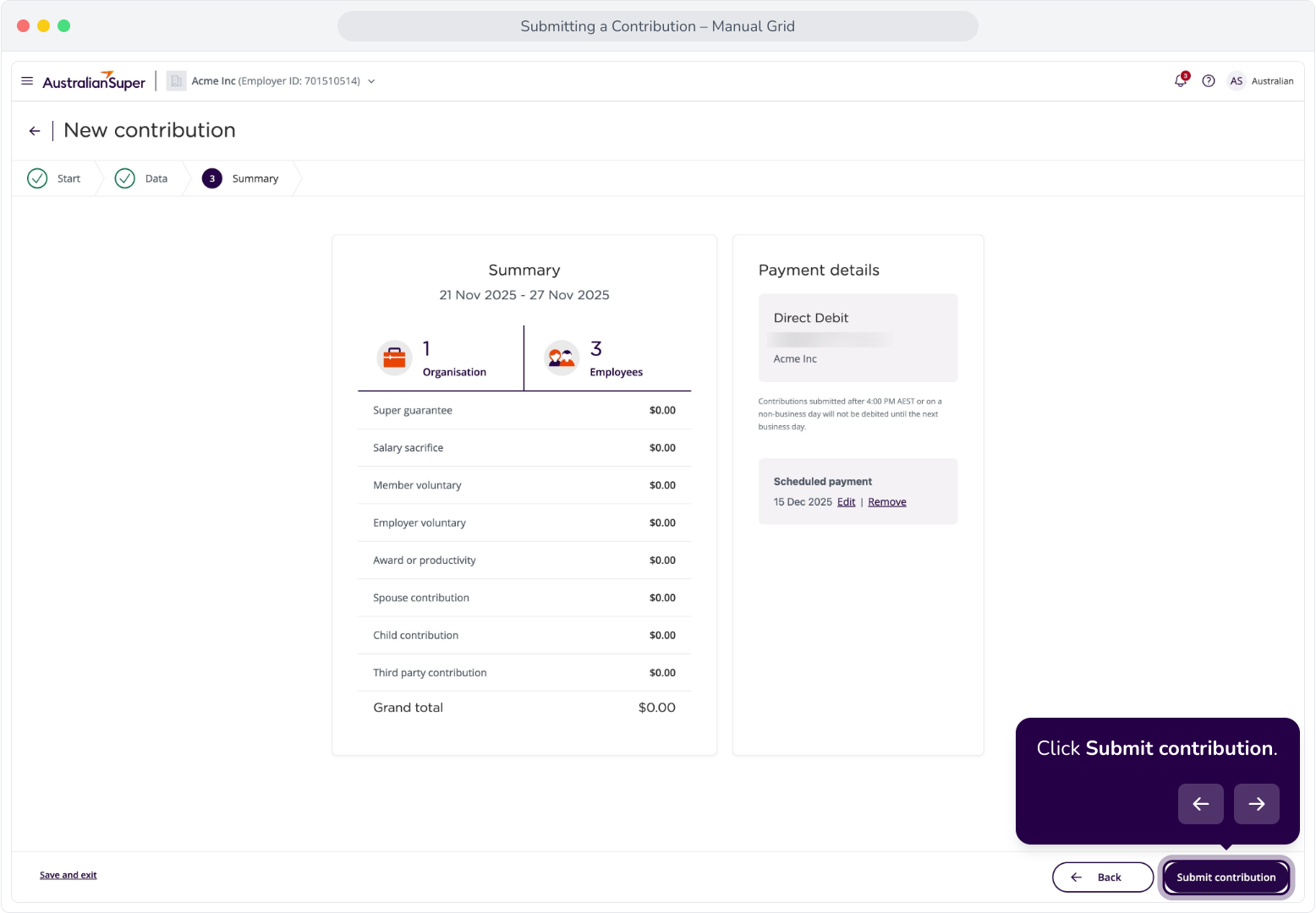
18. Click Submit contribution.
19. We've set Direct Debit as our preferred payment method, reflected in this payment summary. Let's Return to Contributions.
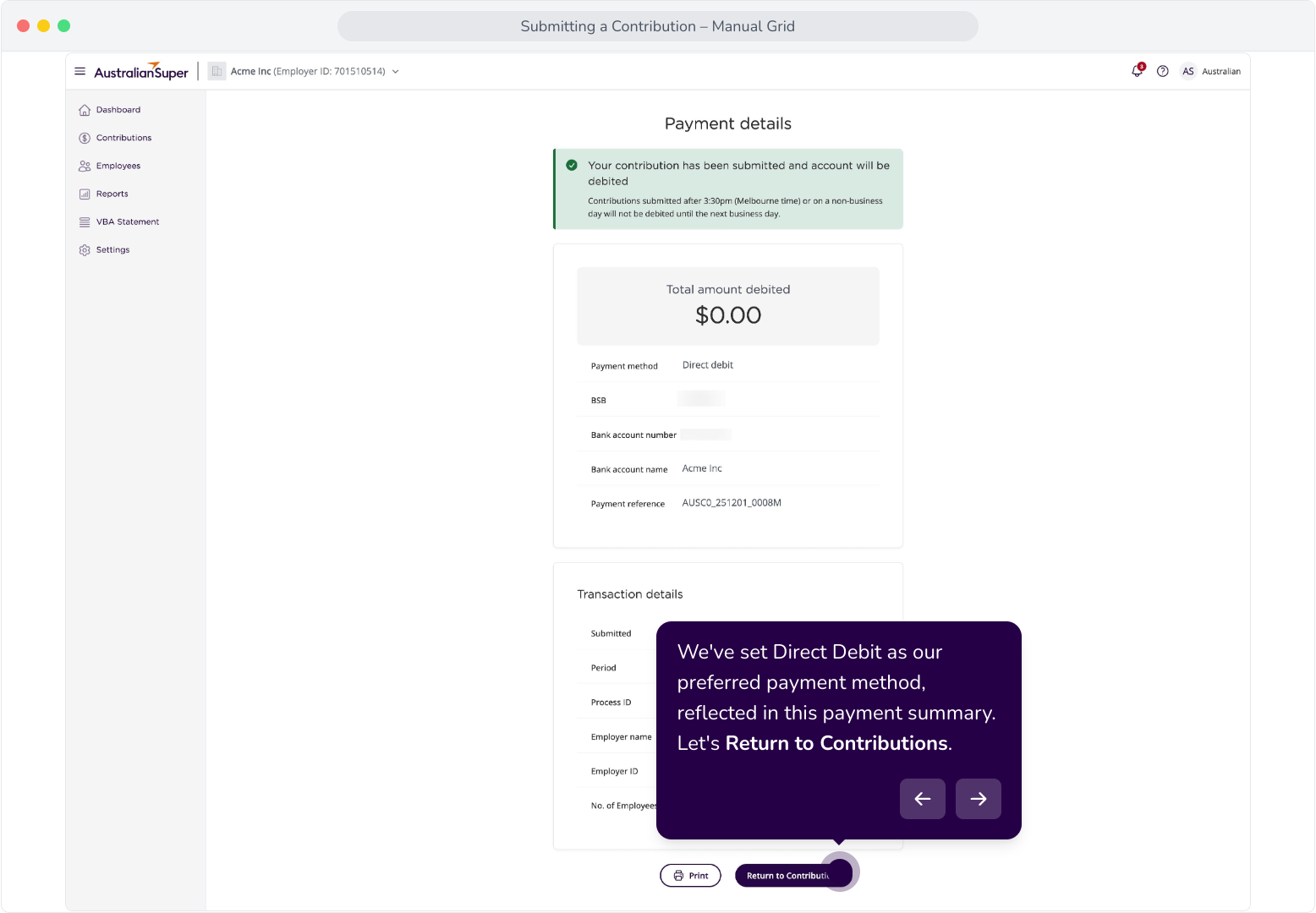
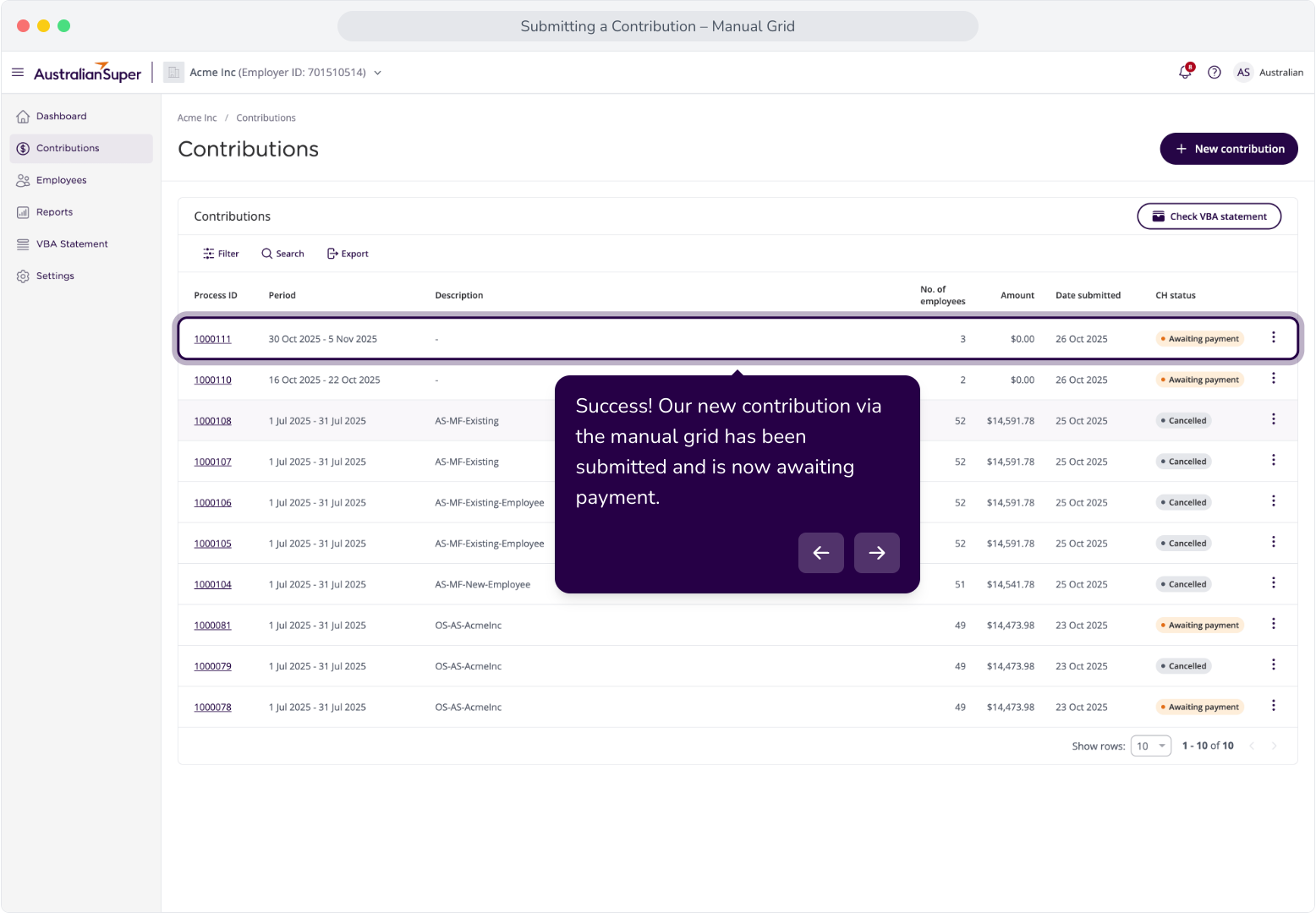
20. Success! Our new contribution via the manual grid has been submitted and is now awaiting payment.
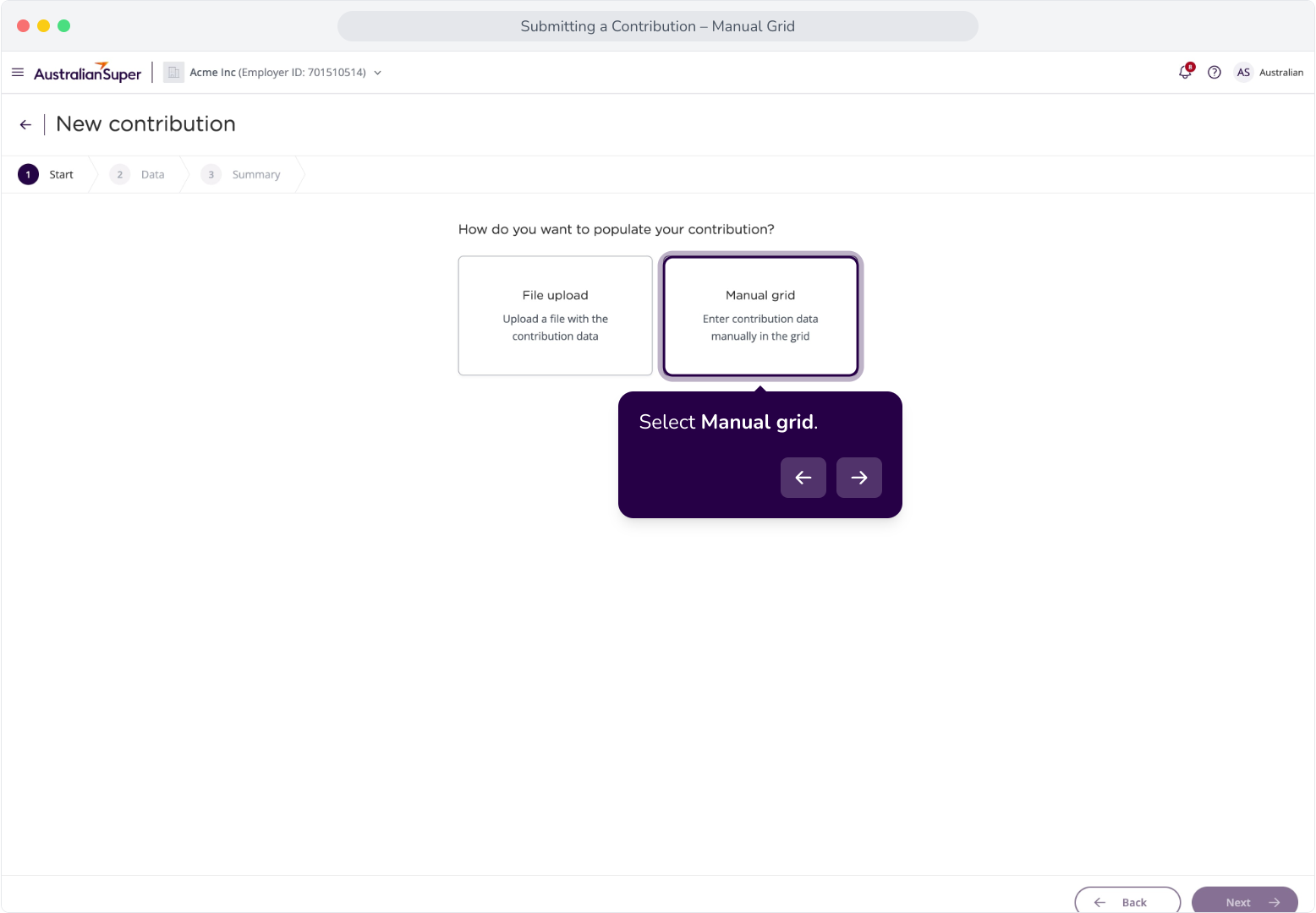
21. Update: As part of the introduction of scheduled payments for Direct Debit, you are now able to cancel scheduled contributions, if done before the scheduled date.