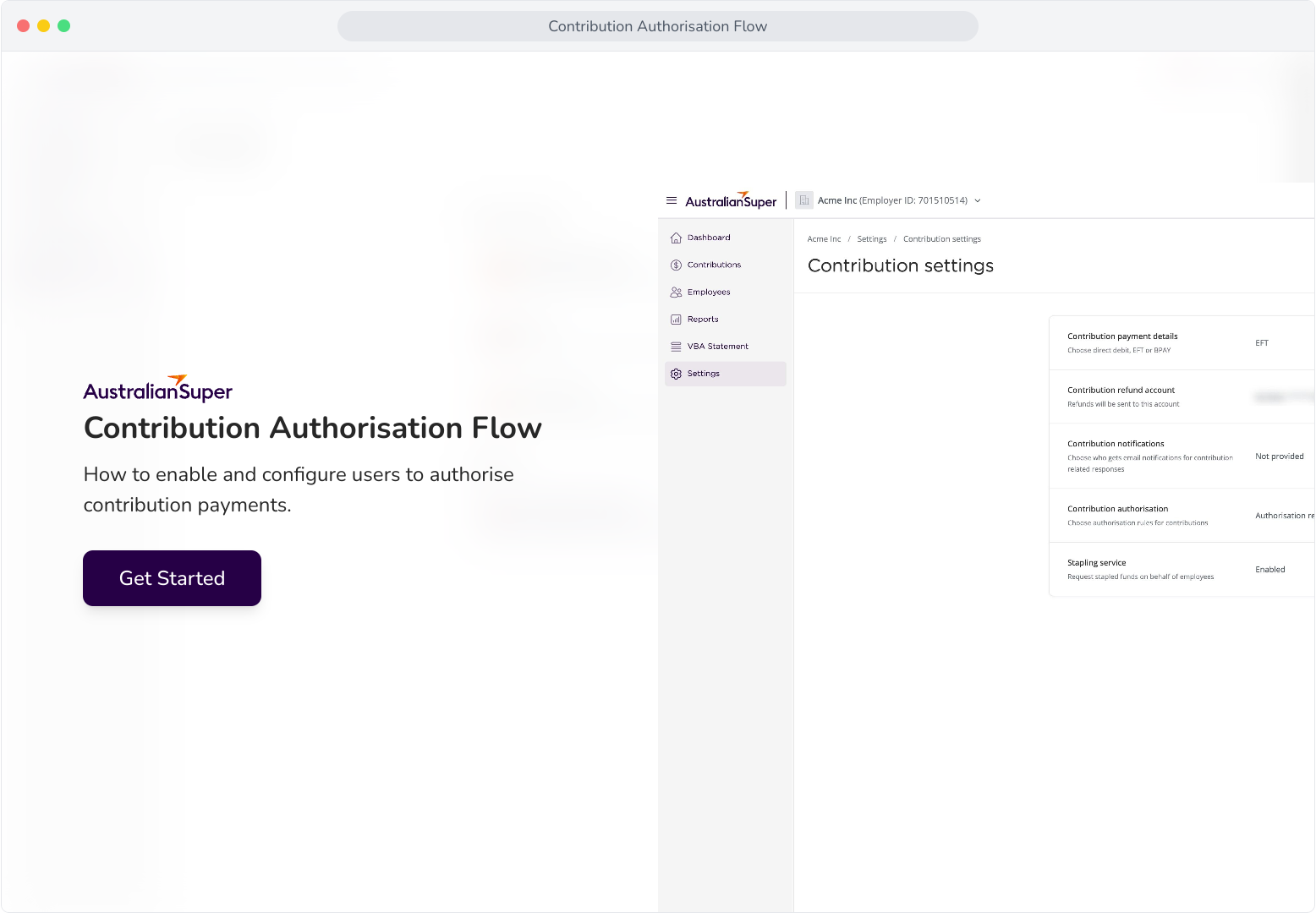
Context: This guide demonstrates how to configure contribution authorisers within the Employer Portal, and walks through the approval process for a contribution.
Help: The Contribution authorisation flow allows organisations to
require that a Contribution is reviewed and approved by one or more users
who hold the Contributions Authorisor role, prior to the submission
of the Contribution payment.
Interactive Demo
Note: Make the demo full-screen for a better experience. You can mute/un-mute narration to suit your preferences.
Step by Step
1. Contribution Authorisation Flow
Context: This section demonstrates how and where to configure contribution authorisation, and how to edit user roles accordingly, or invite specific approvers to your organisation.
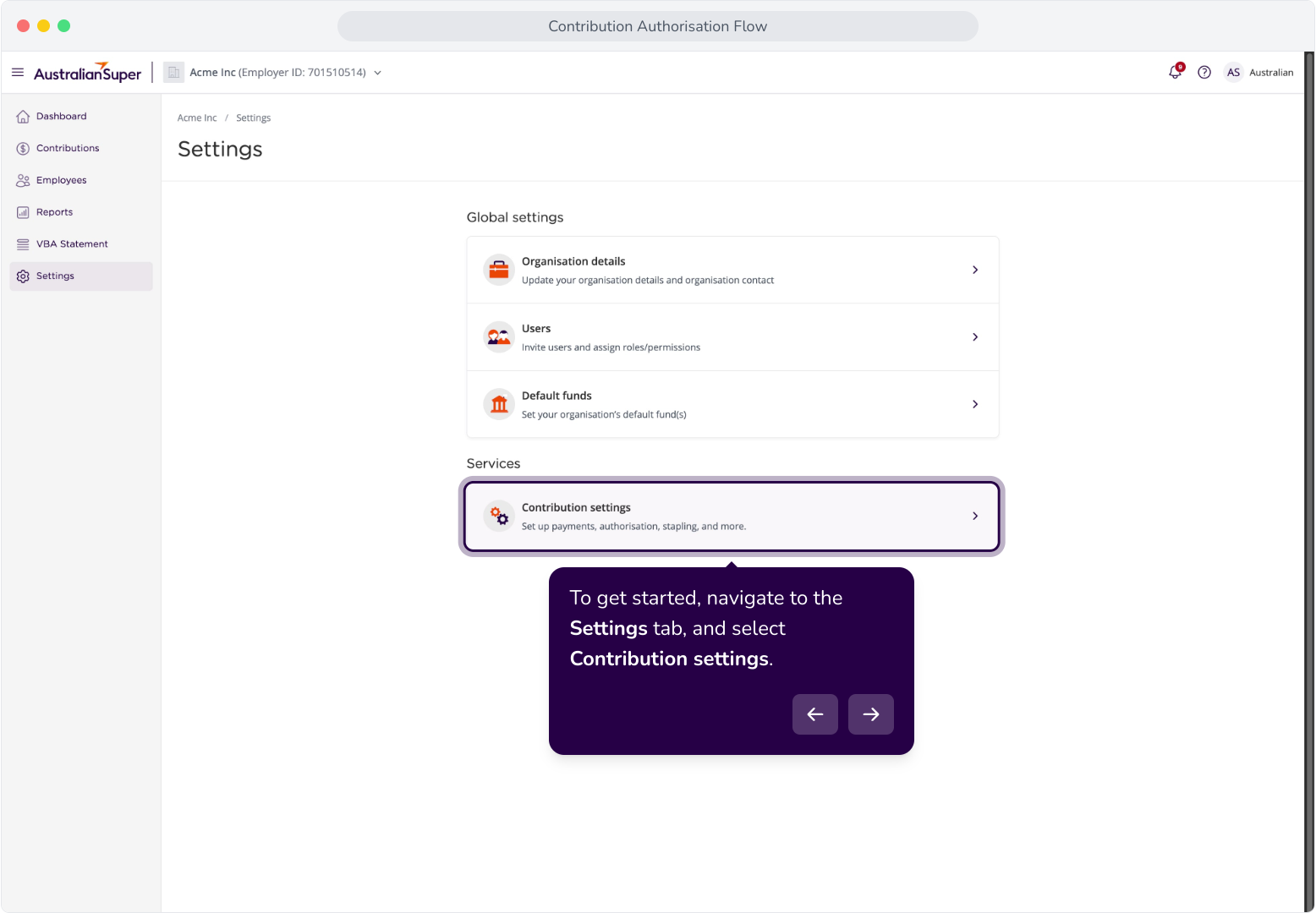
2. To get started, navigate to the Settings tab, and select Contribution settings.
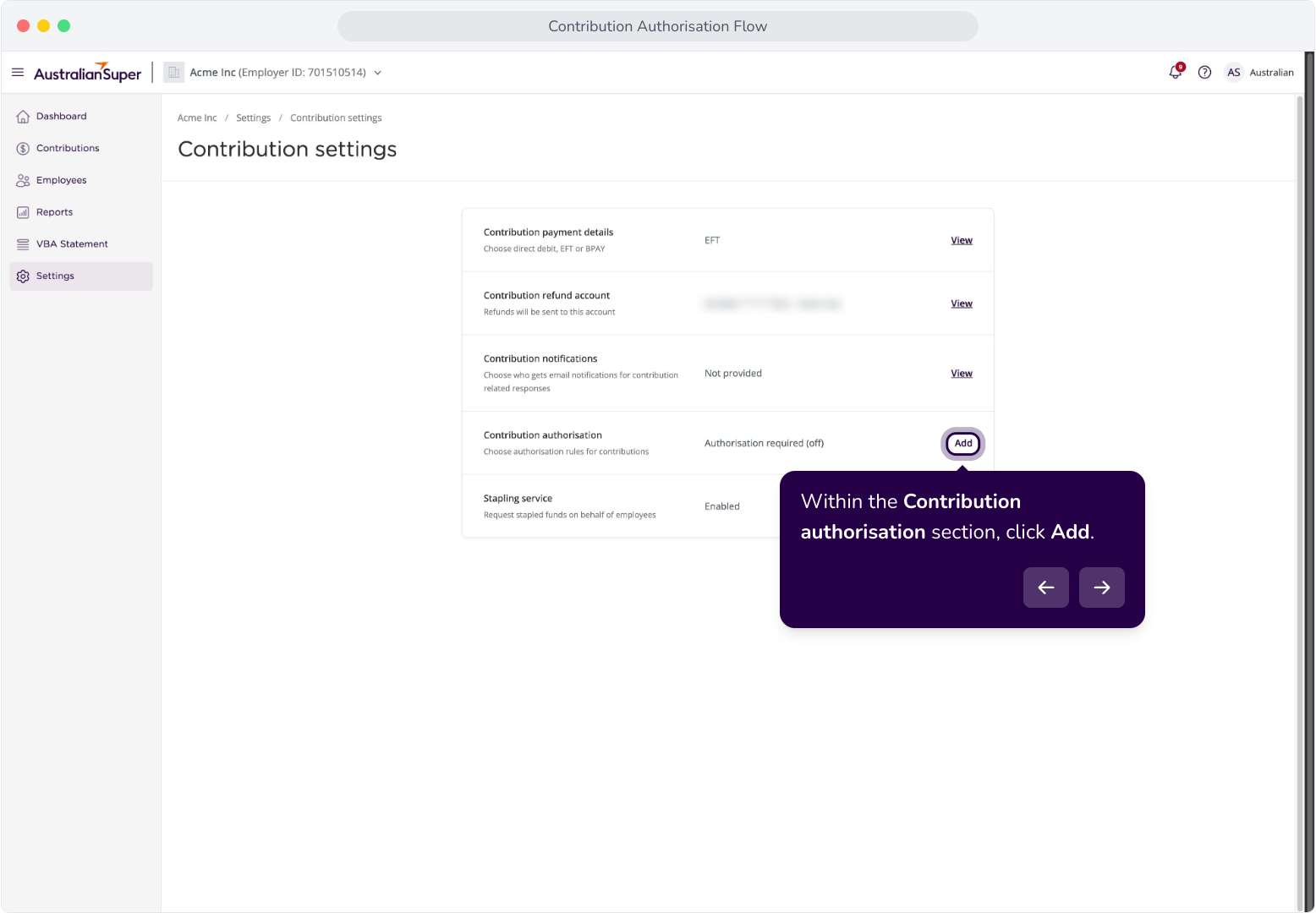
3. Within the Contribution authorisation section, click Add.
4. By default, Authorisation is disabled.
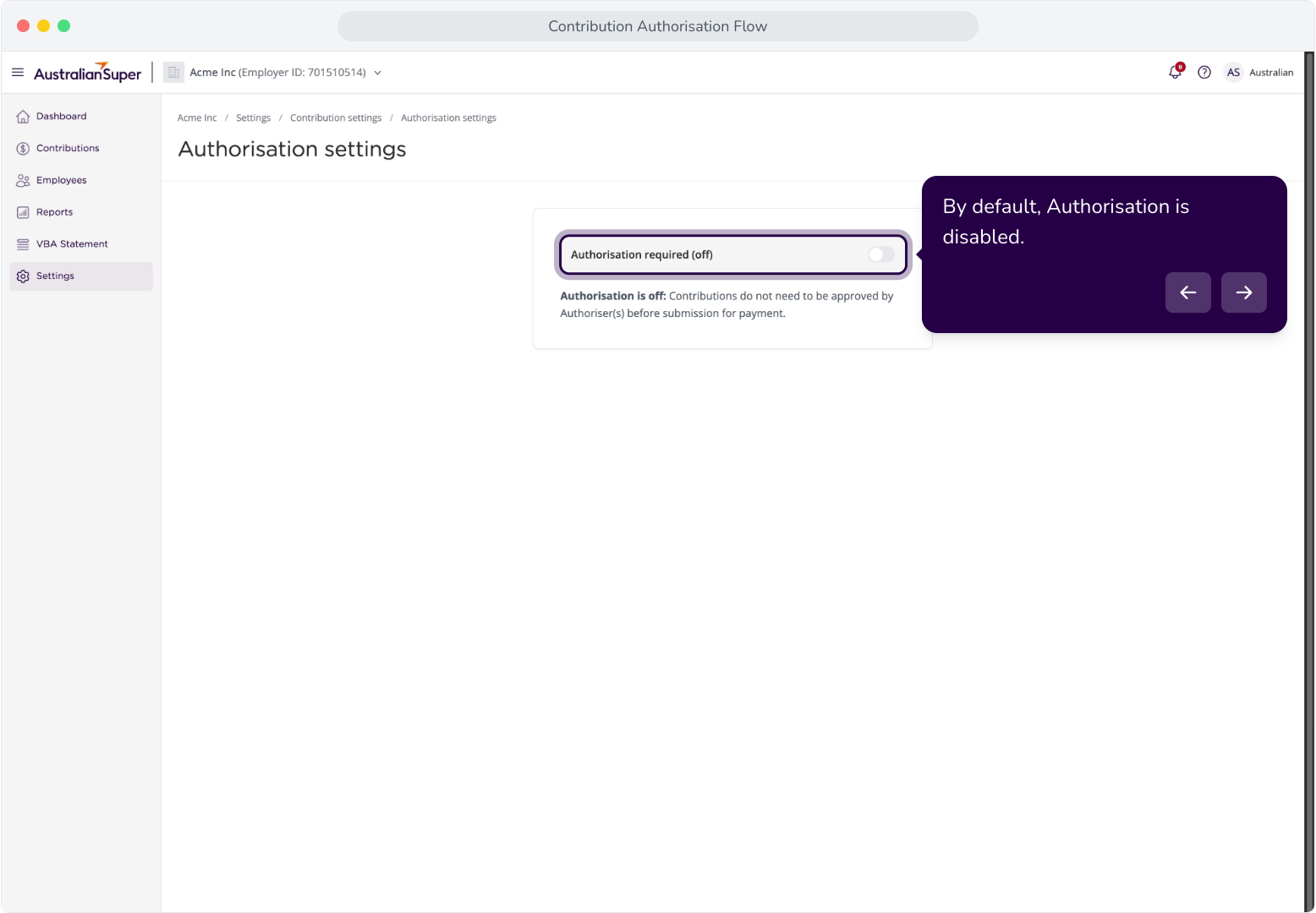
5. Once enabled, you can configure the number of authorisers needed for your contributions.
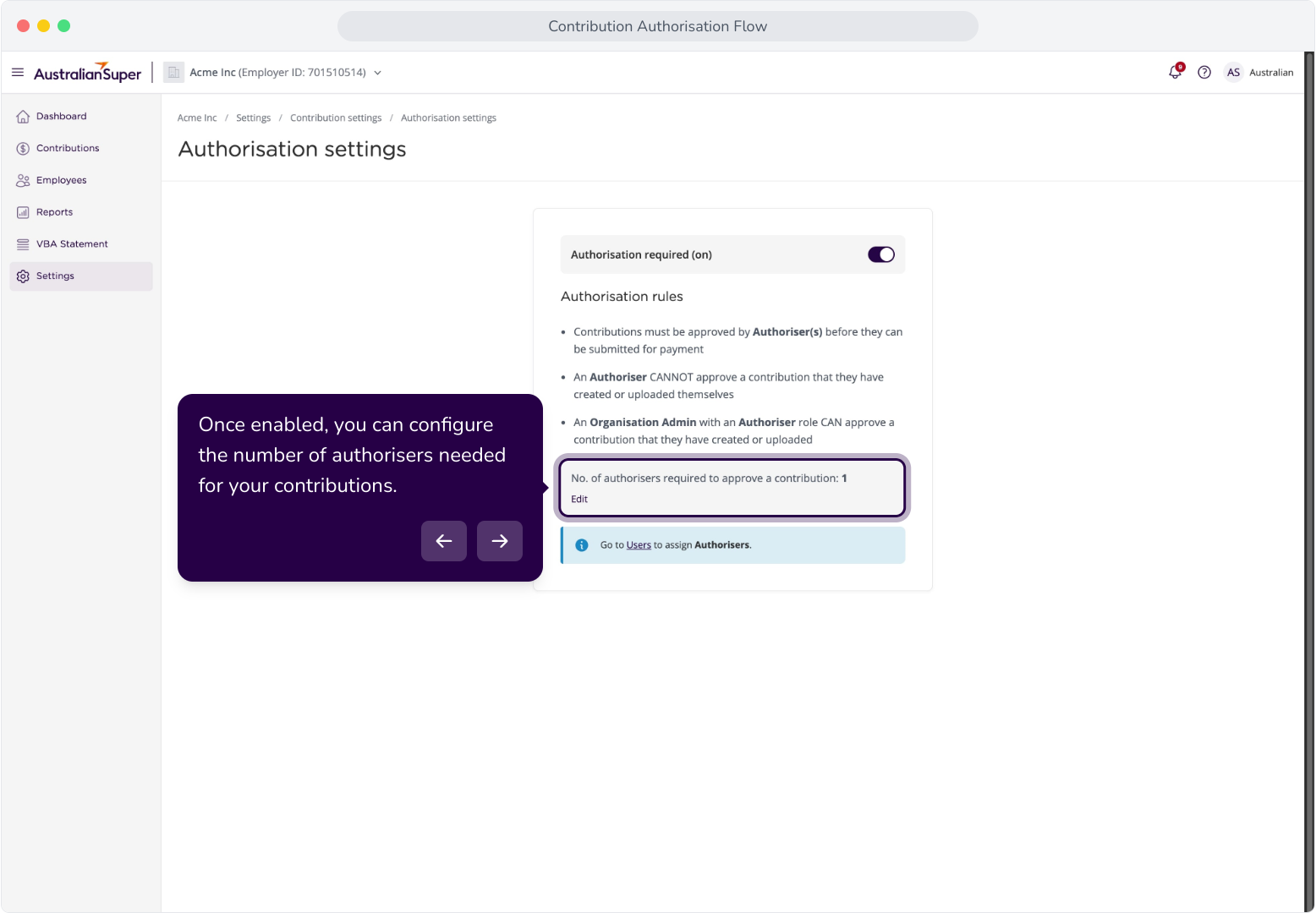
6. Click Edit to update the number of required authorisers.
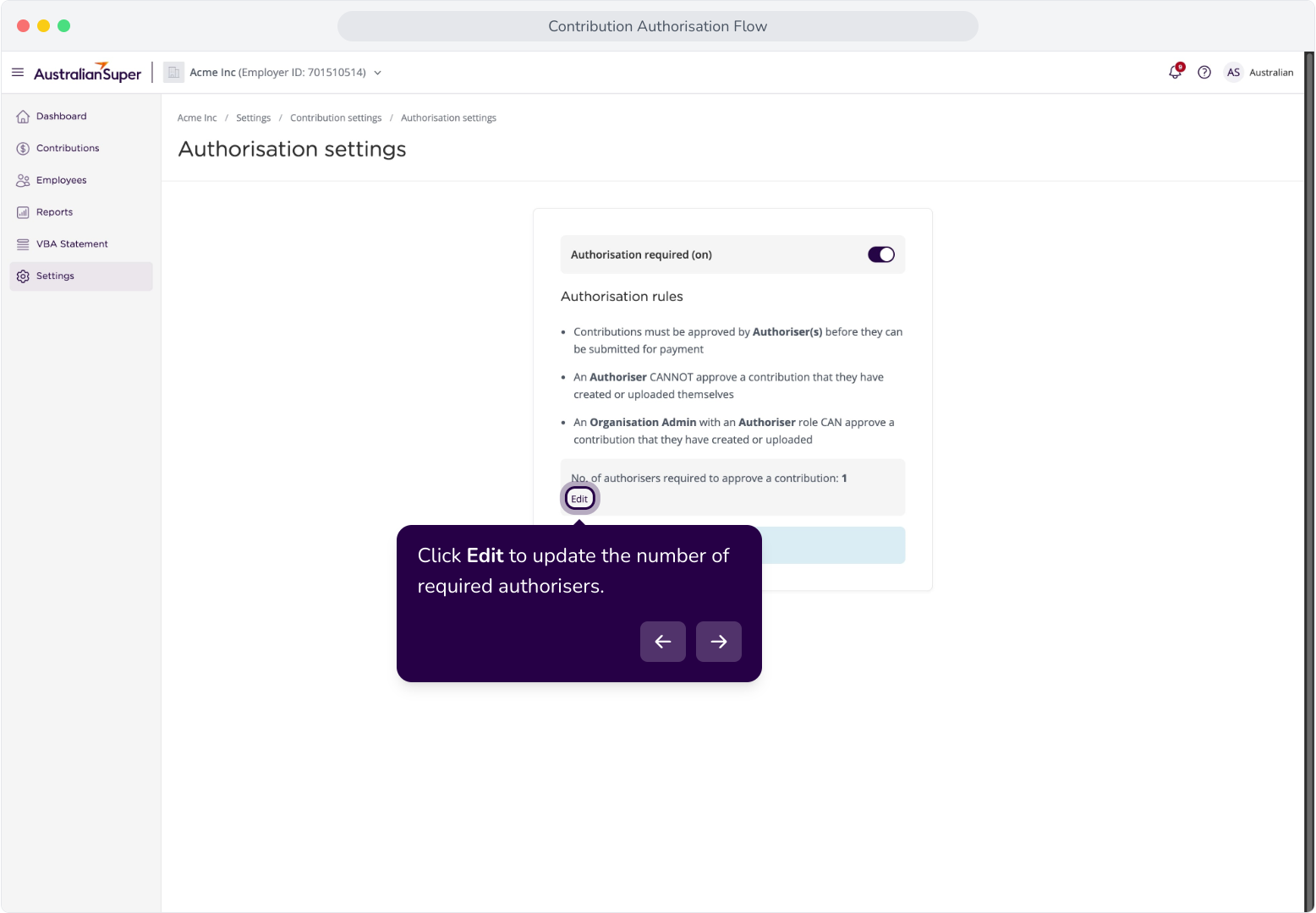
7. Click on the drop-down to update. We'll keep it as one authoriser.
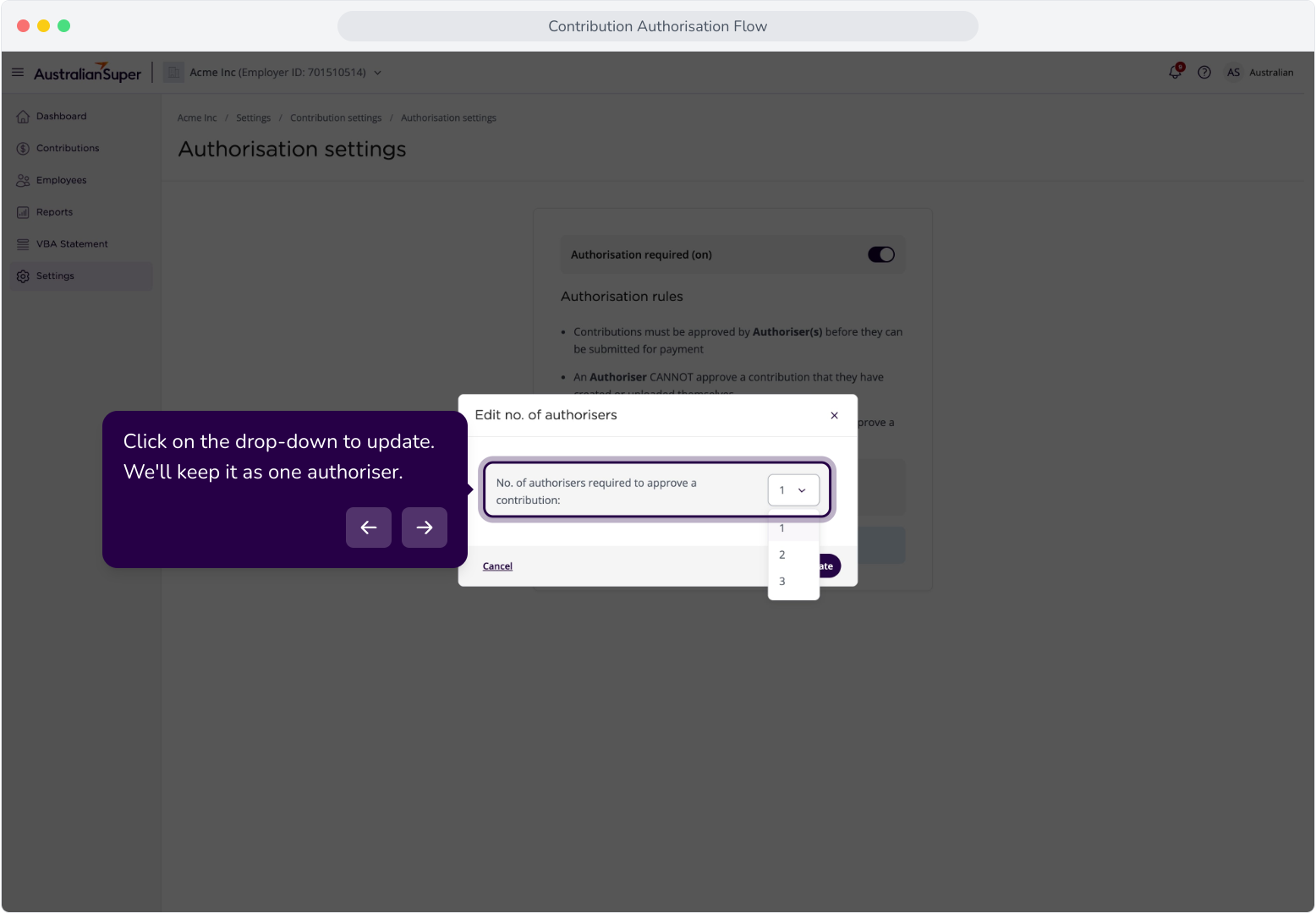
8. Click Update to save your changes.
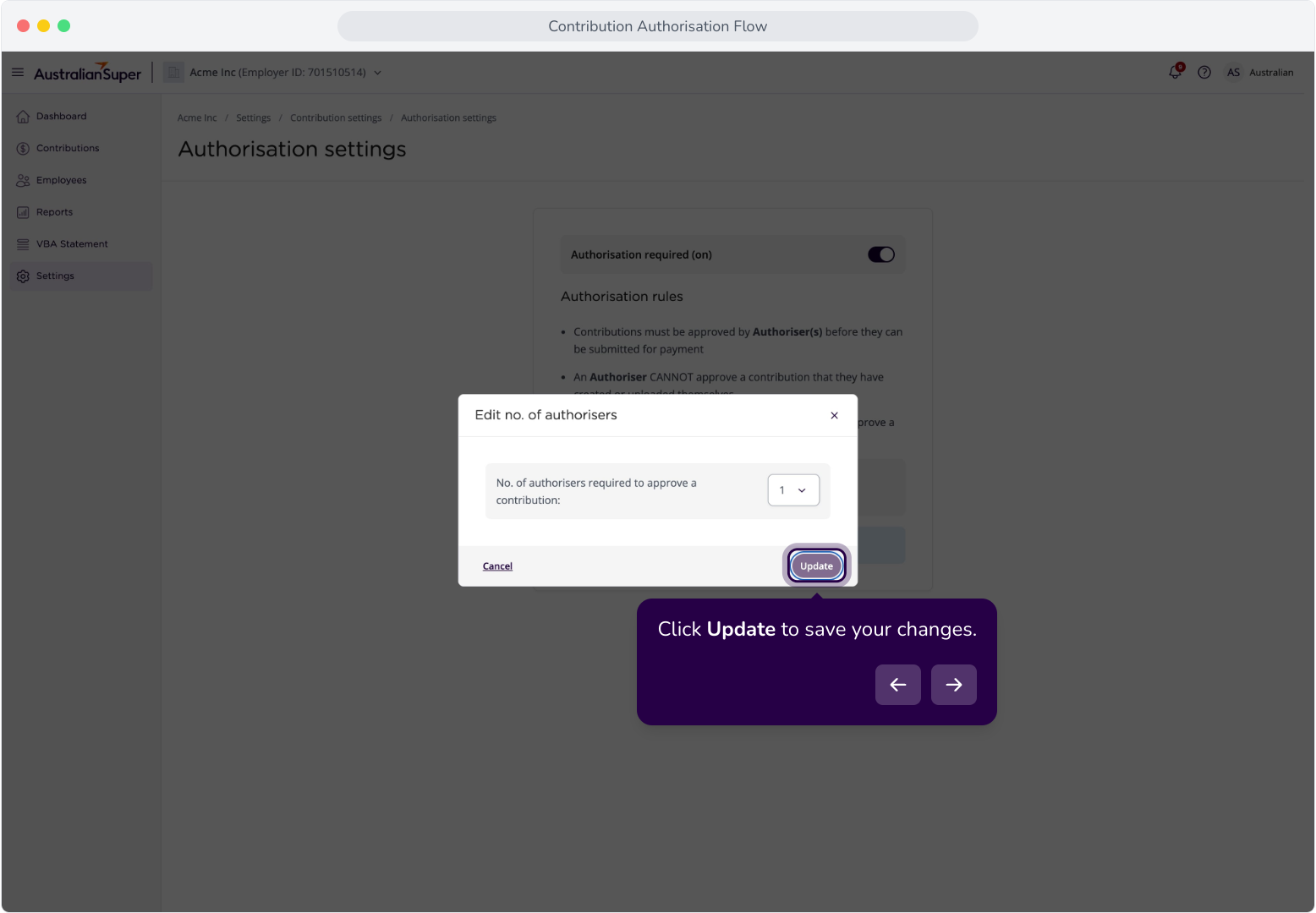
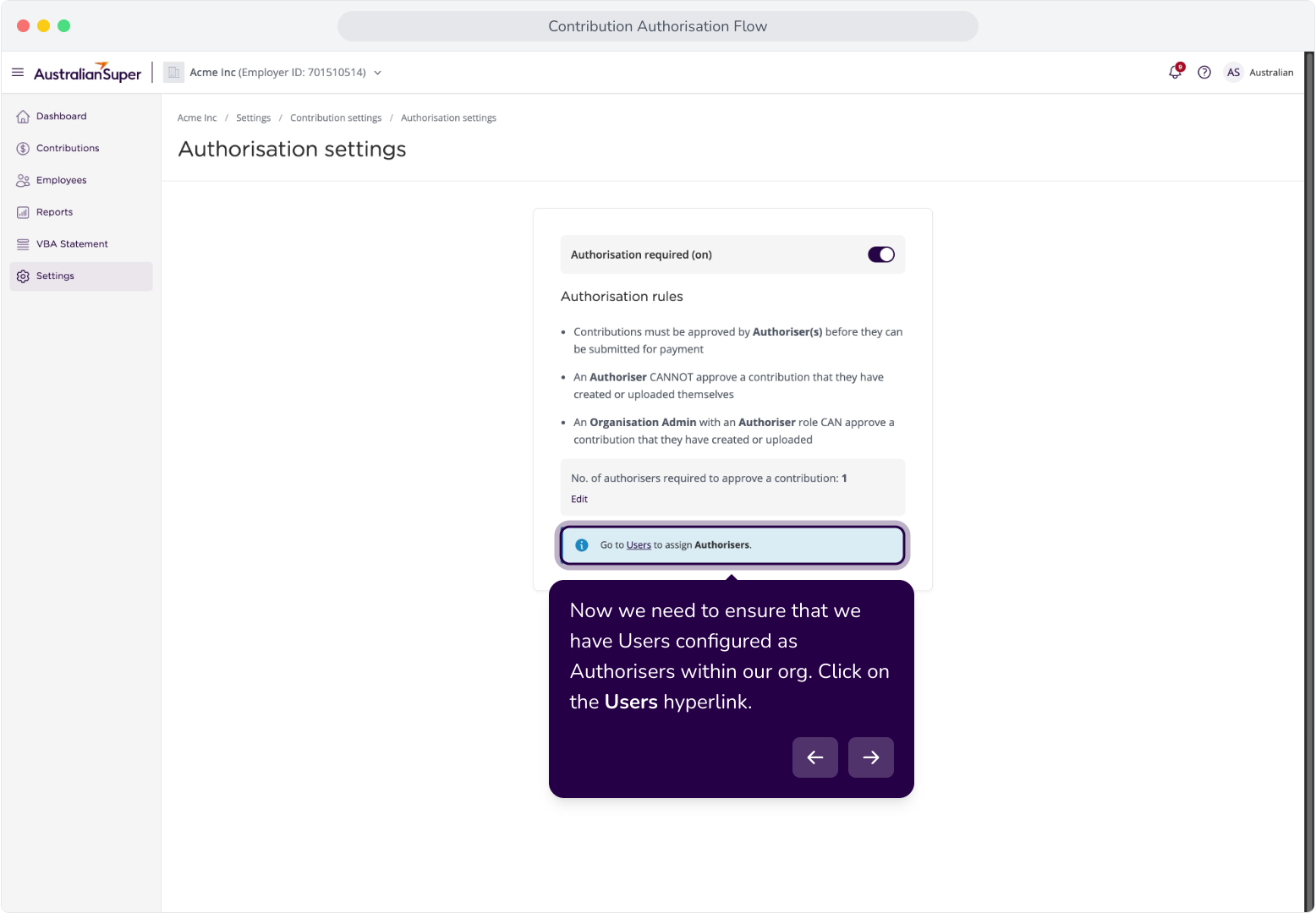
9. Now we need to ensure that we have Users configured as Authorisers within our org. Click on the Users hyperlink.
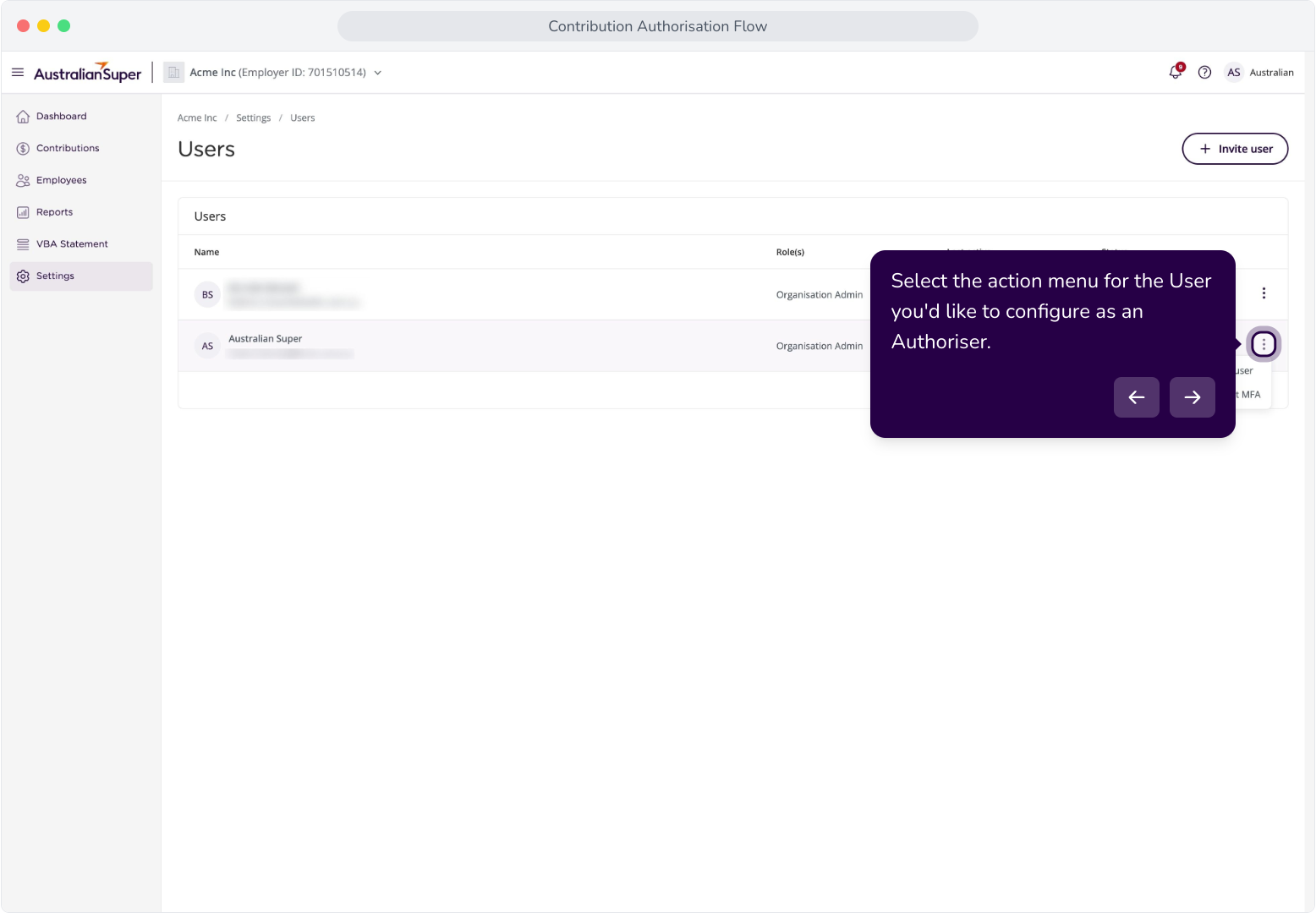
10. Select the action menu for the User you'd like to configure as an Authoriser.
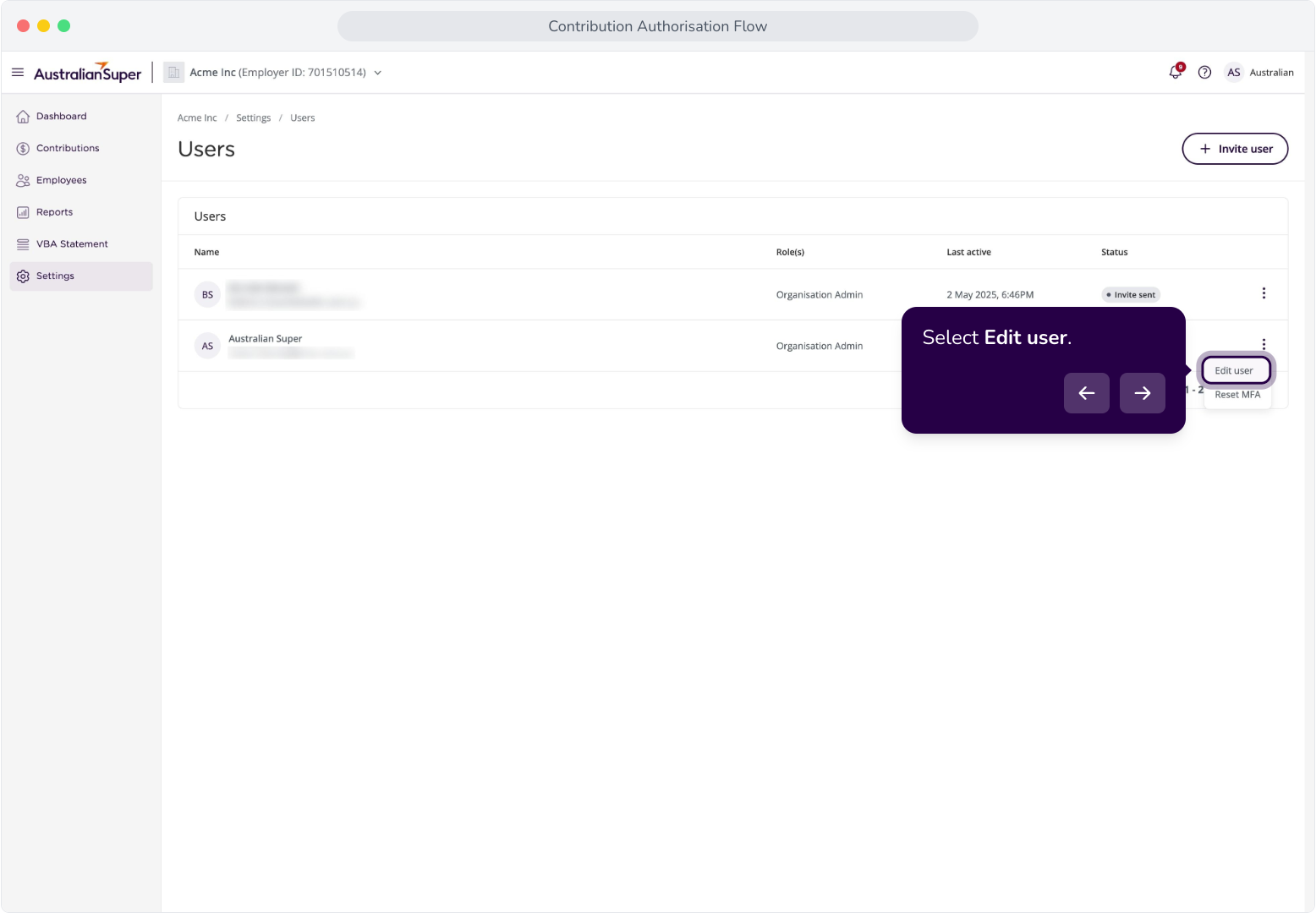
11. Select Edit user.
12. Add the Contributions Authoriser role to your user.
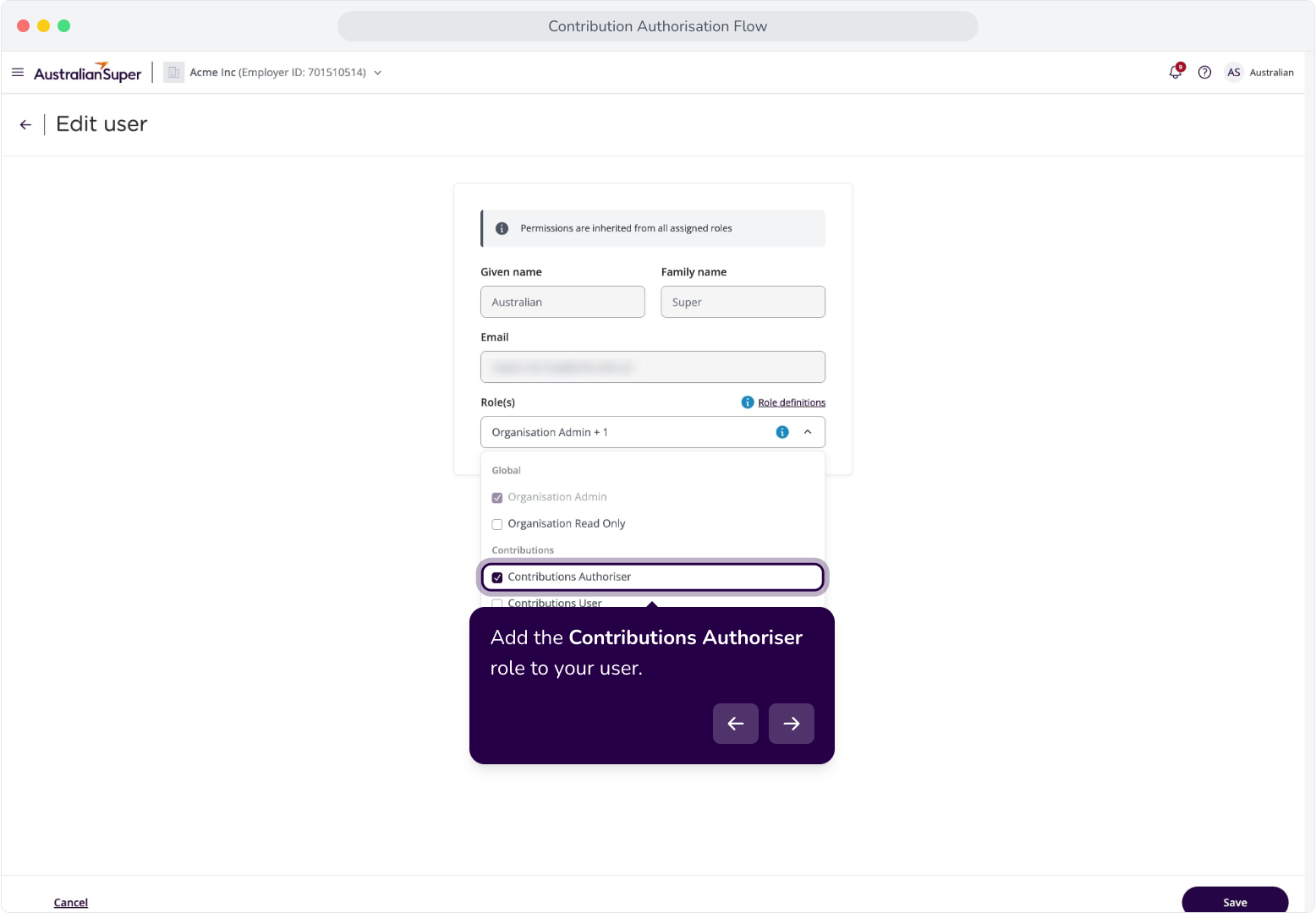
13. Click Save.
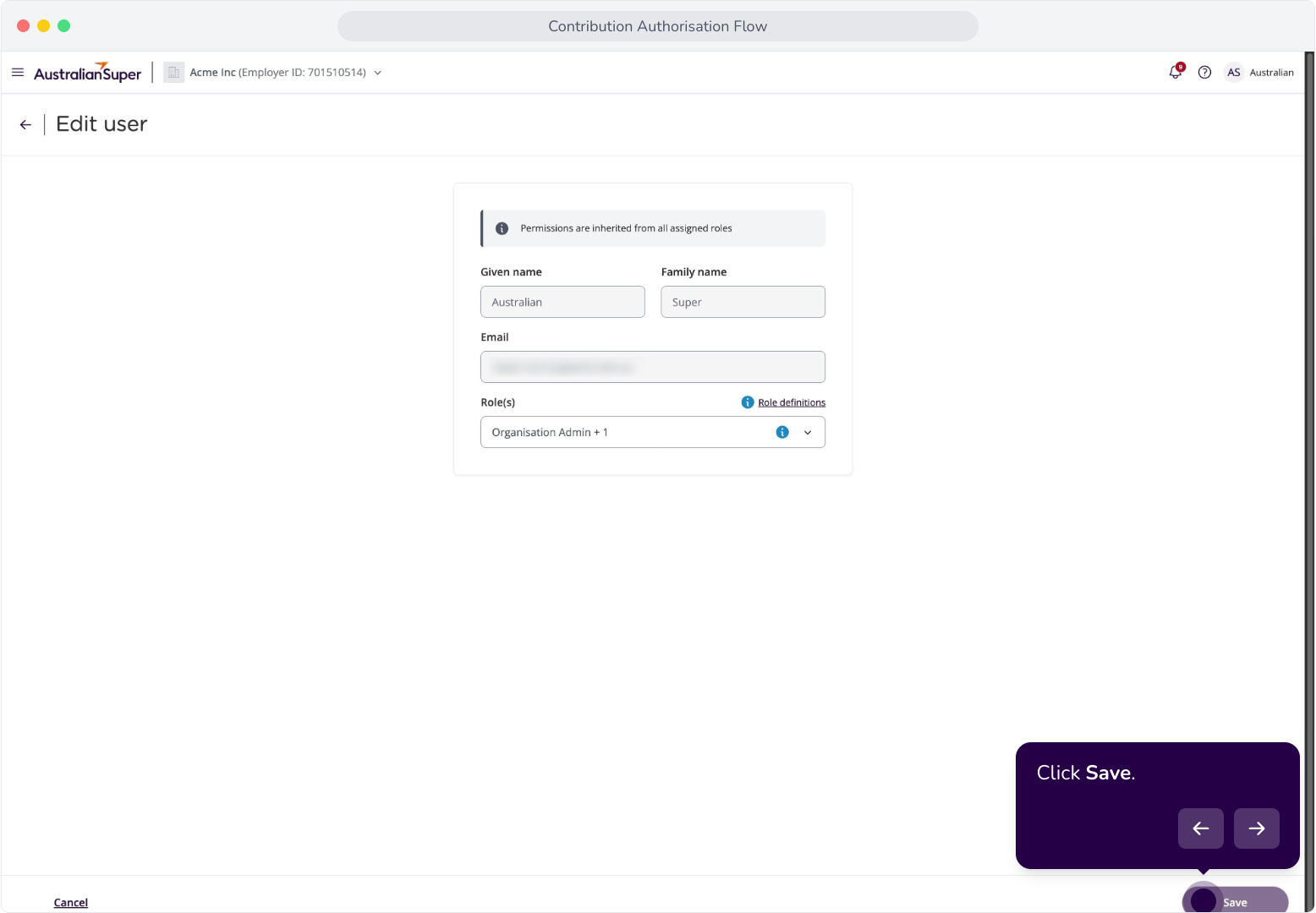
14. If you wish to invite an authoriser, click Invite user.
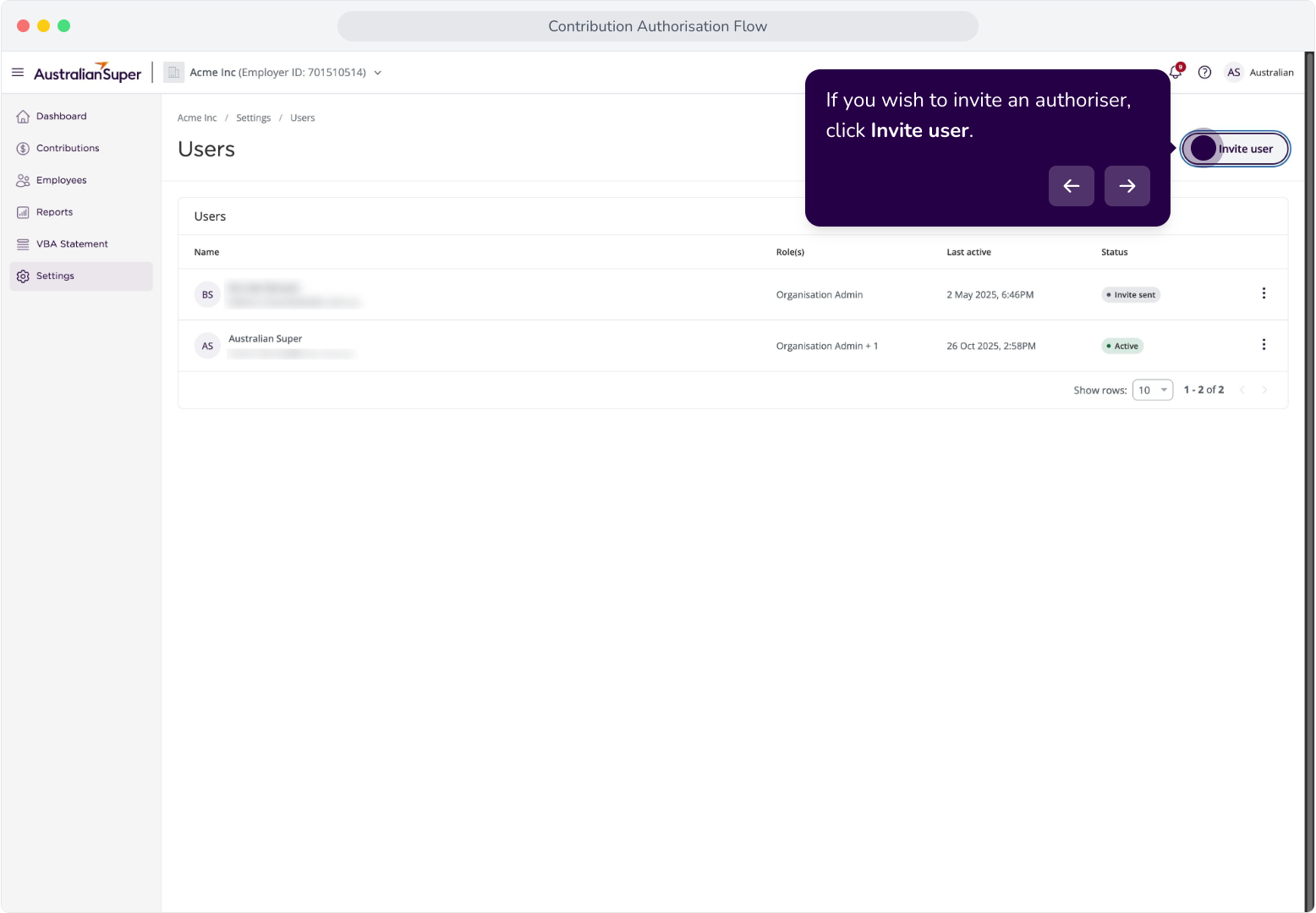
15. Enter your authorisers details, configure their user role as Contributions Authoriser, and click Send invite.
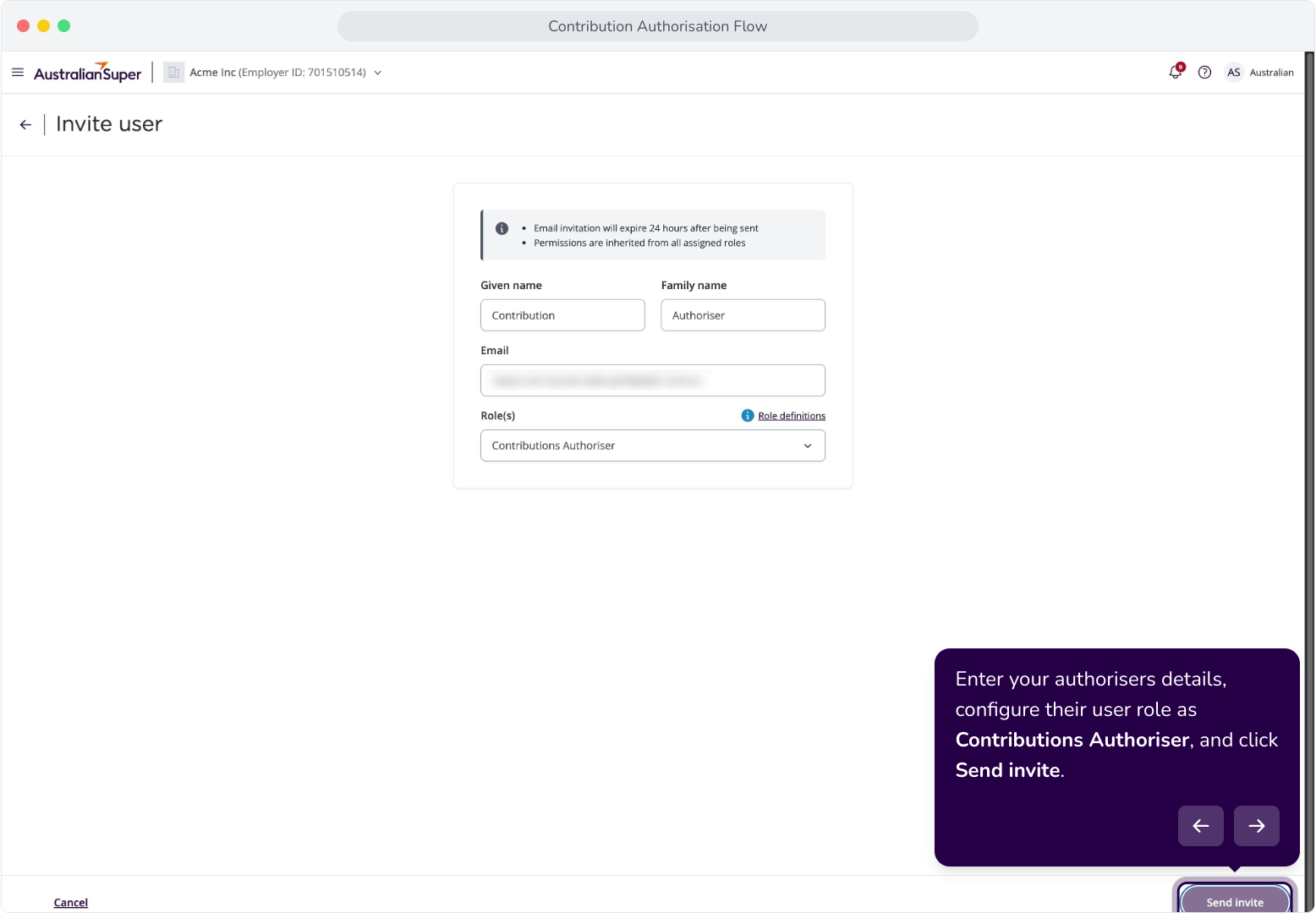
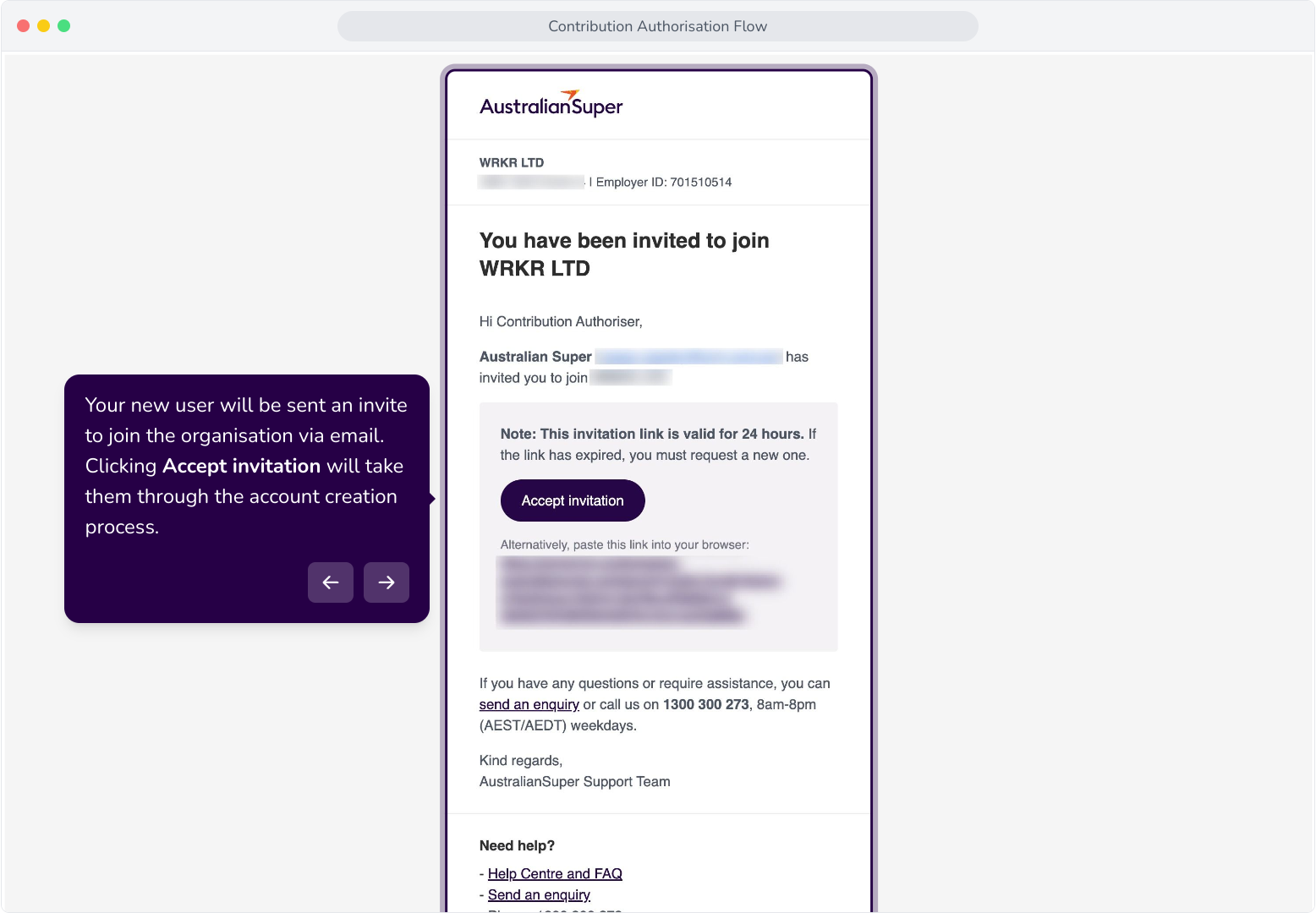
16. Your new user will be sent an invite to join the organisation via email. Clicking Accept invitation will take them through the account creation process.
Submitting Contributions with Authorisers
Context: This section demonstrates the authorisation flow when submitting a contribution.
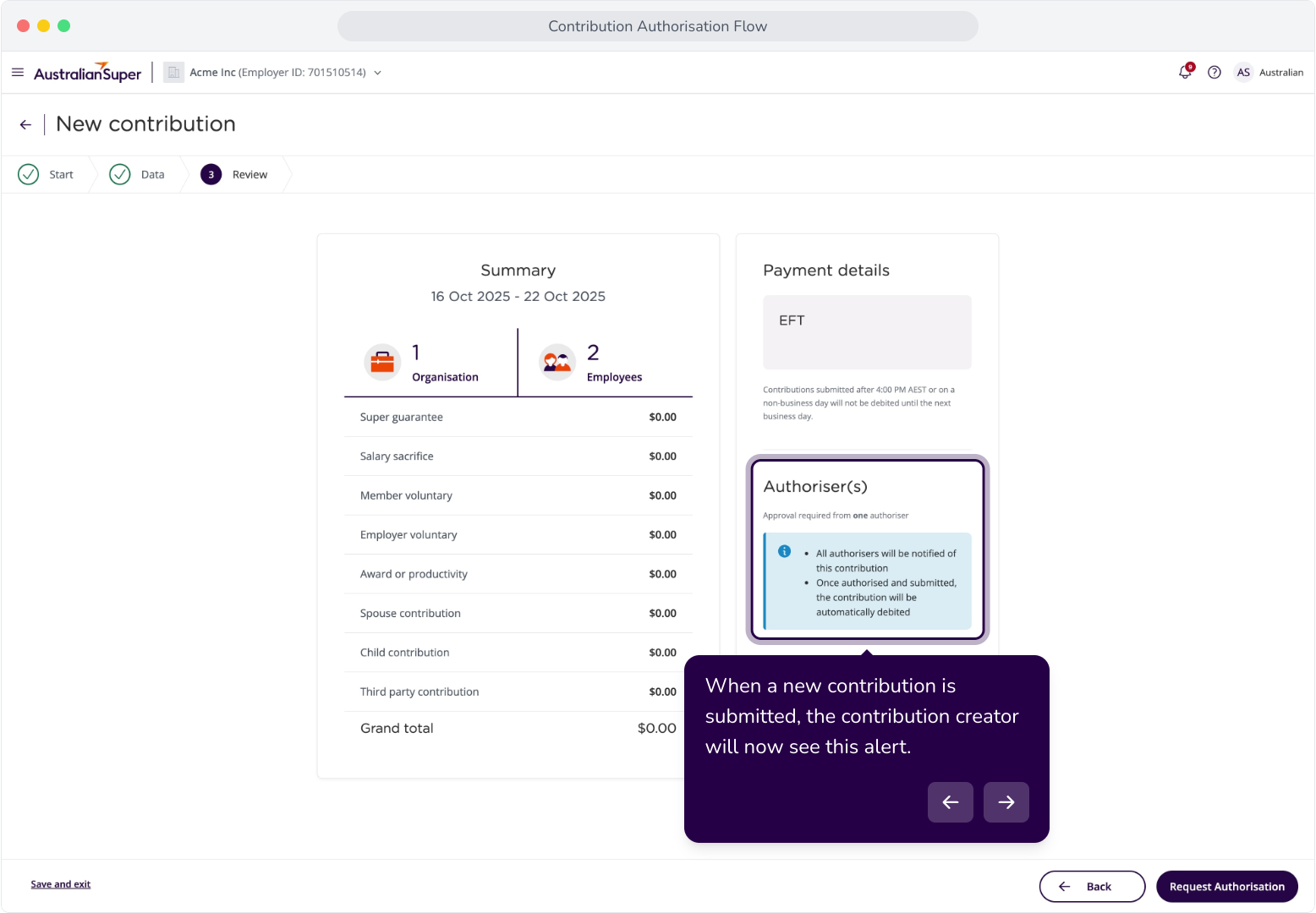
18. When a new contribution is submitted, the contribution creator will now see this alert.
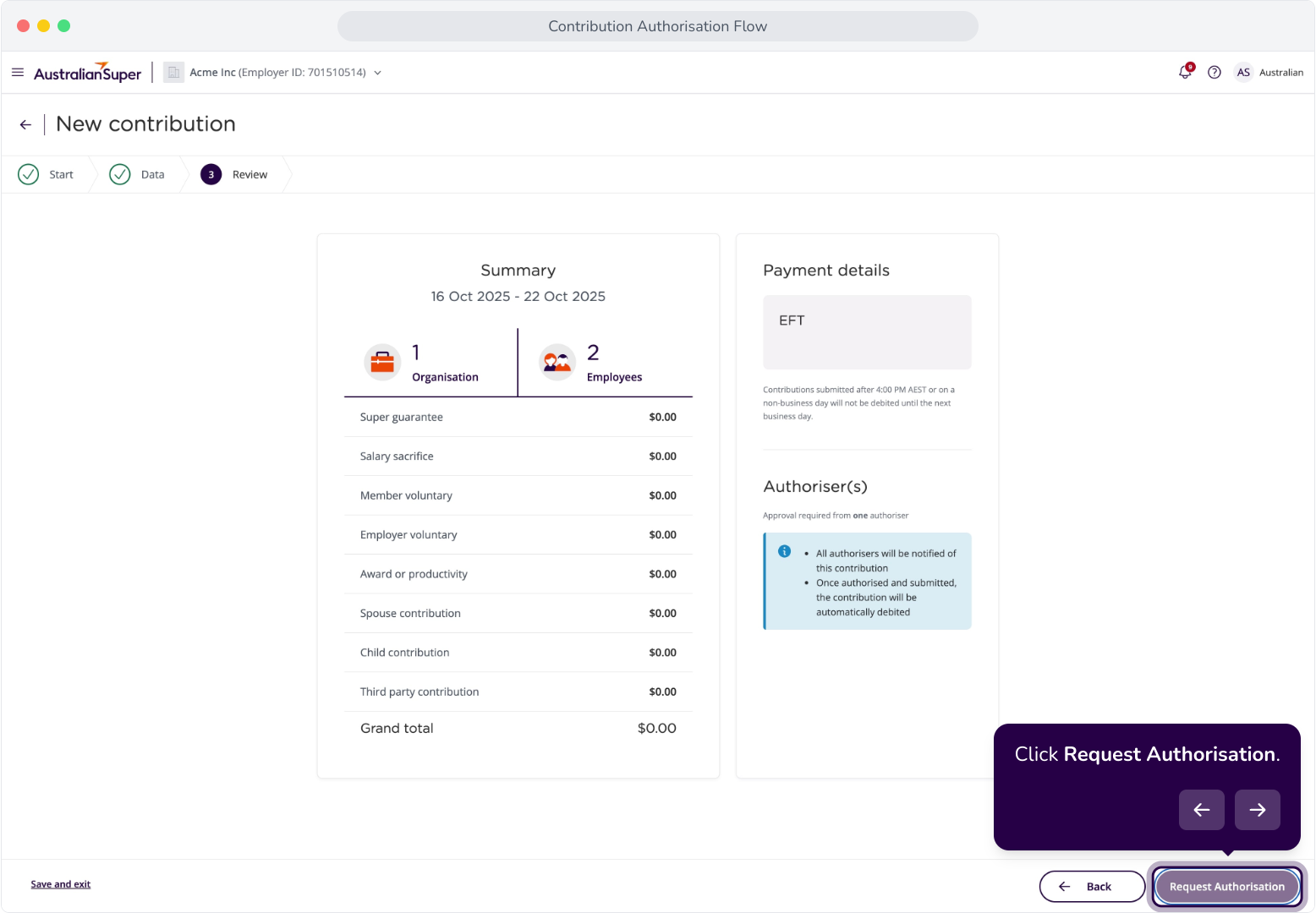
19. Click Request Authorisation.
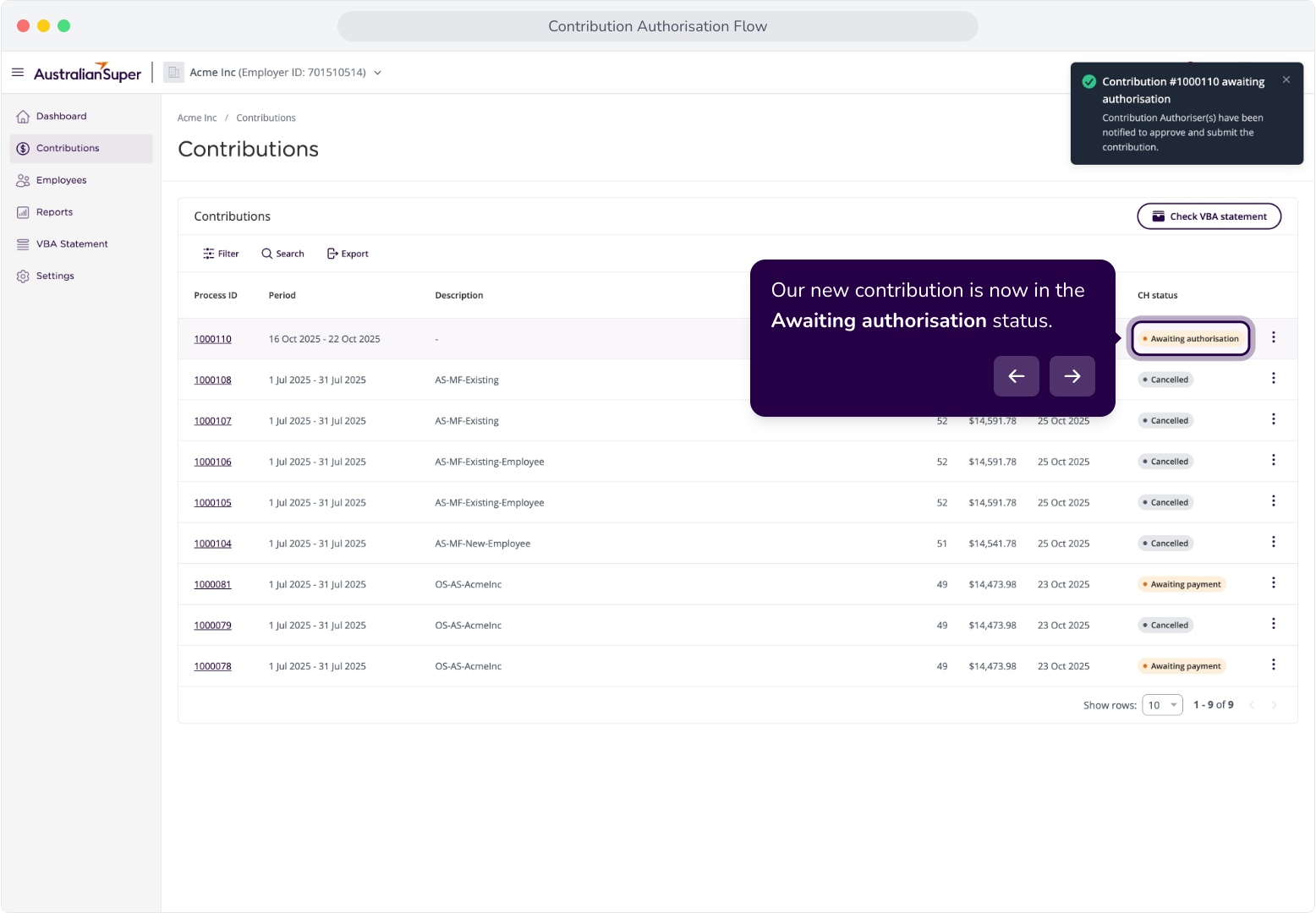
20. Our new contribution is now in the Awaiting authorisation status.
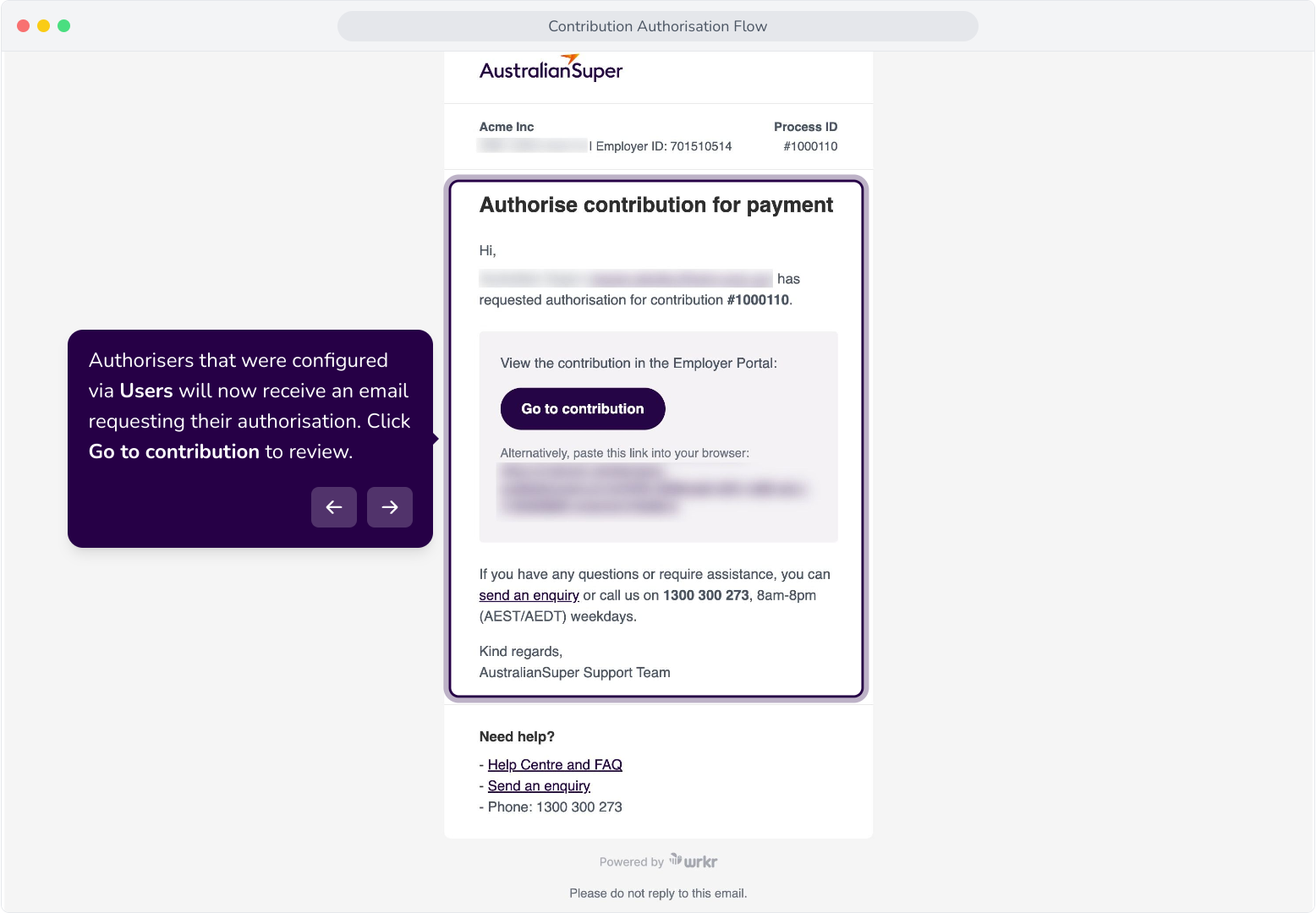
21. Authorisers that were configured via Users will now receive an email requesting their authorisation. Click Go to contribution to review.
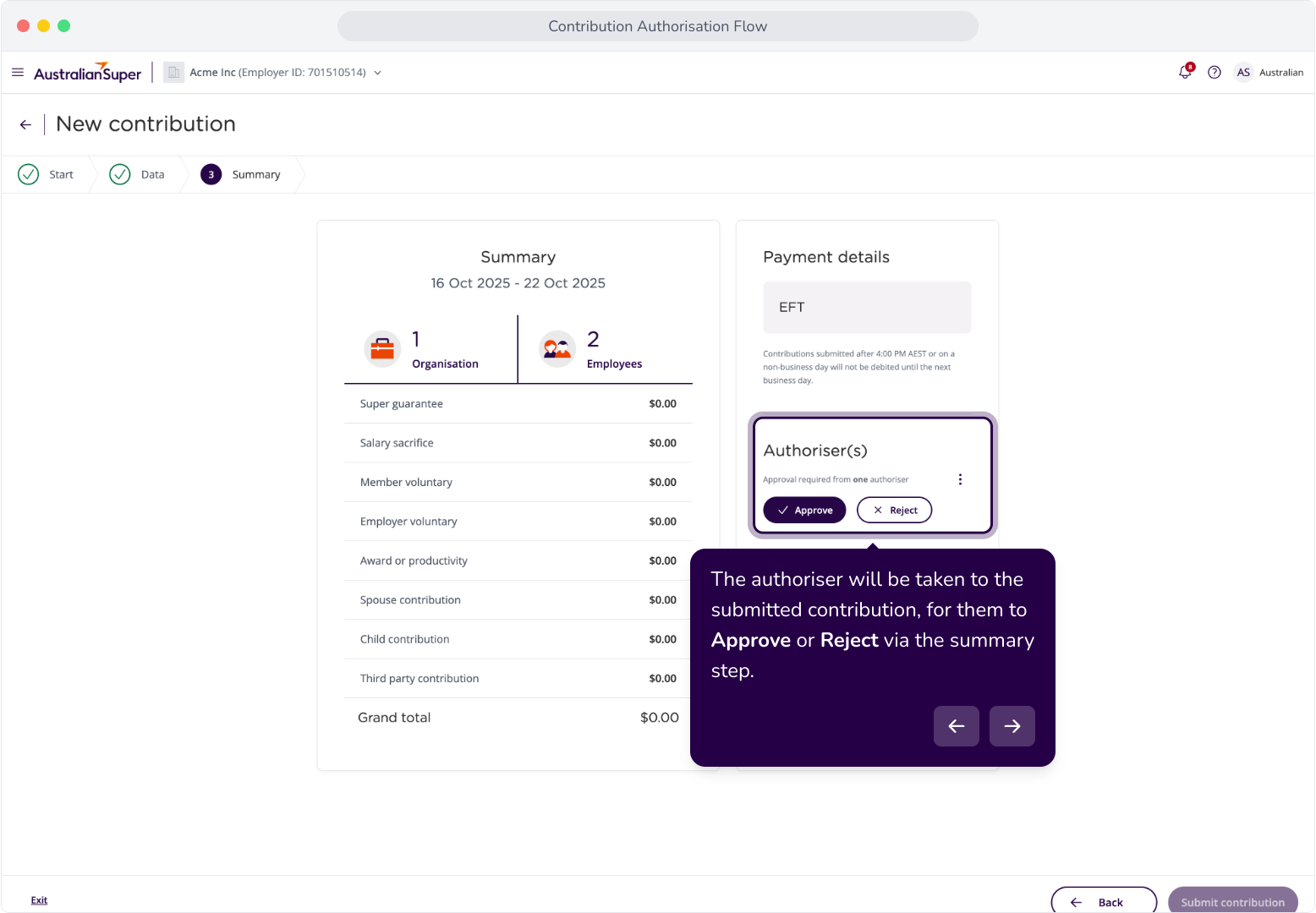
22. The authoriser will be taken to the submitted contribution, for them to Approve or Reject via the summary step.
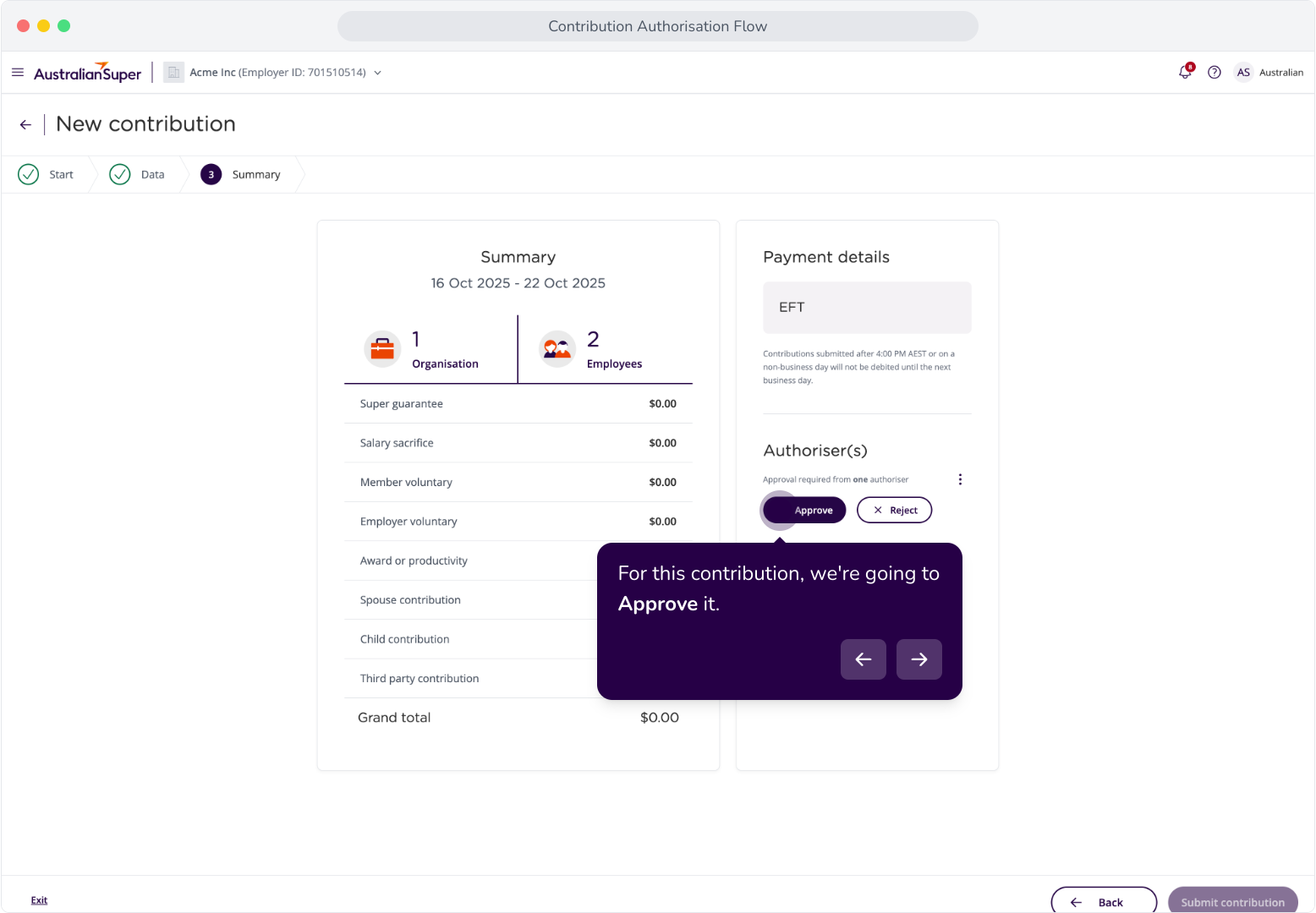
23. For this contribution, we're going to Approve it.
24. Click Approve and submit.
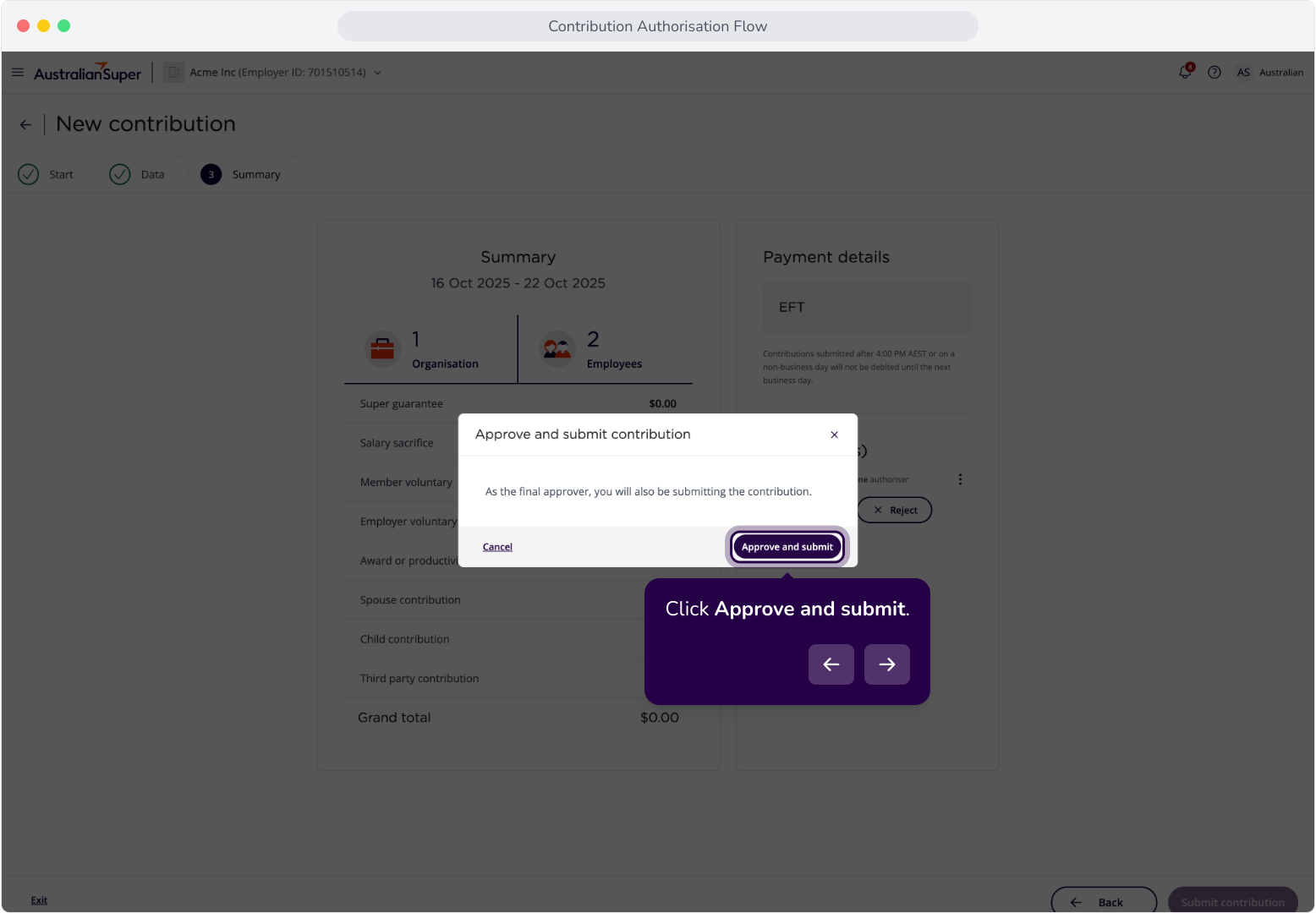
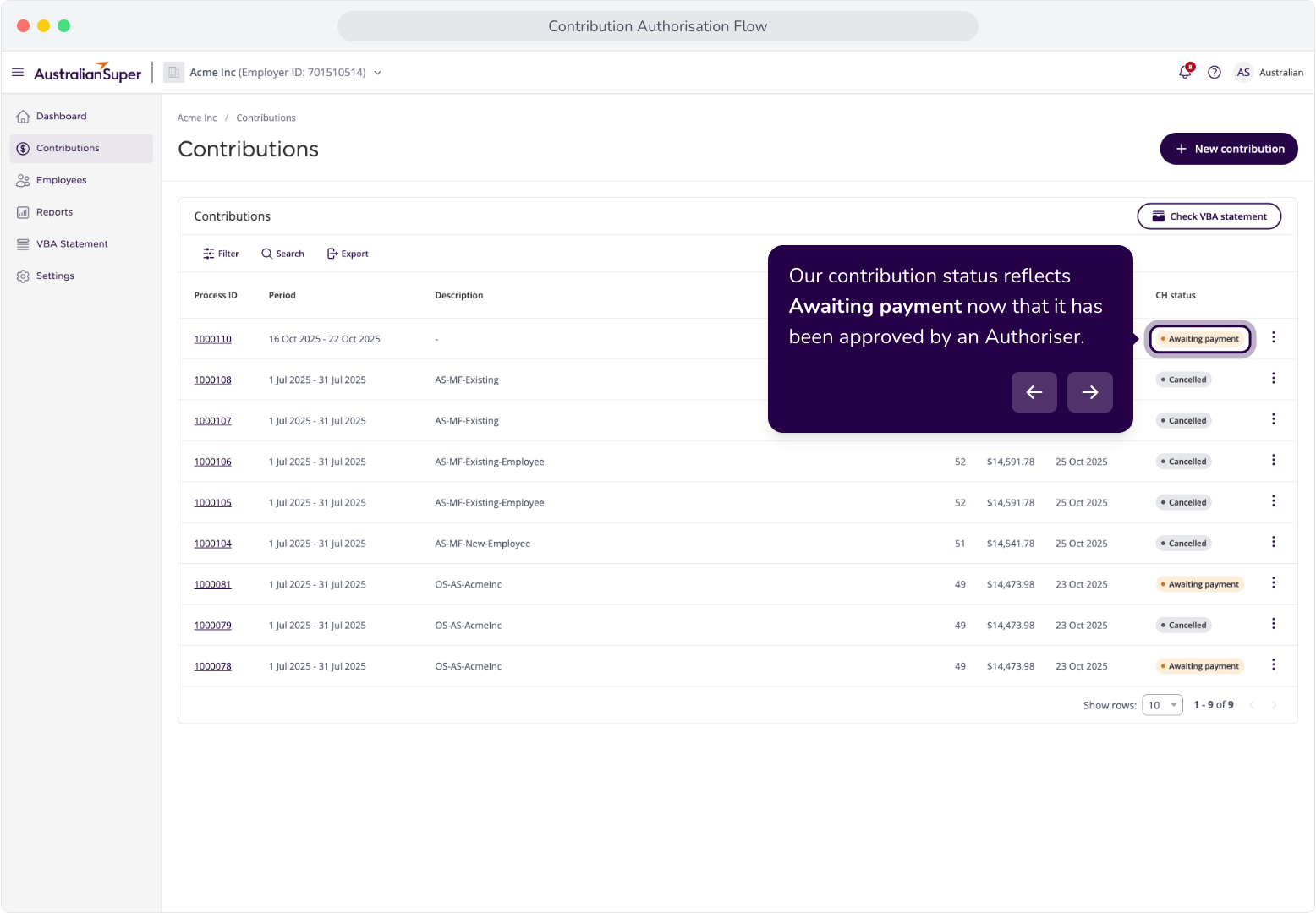
25. Our contribution status reflects Awaiting payment now that it has been approved by an Authoriser.