Context: This guide covers the File Mapper function within the Employer Portal, and how to map non-SAFF file formats.
Interactive Demo
Note: Make the demo full-screen for a better experience. You can mute/un-mute narration to suit your preferences.
Step by Step
1. How to use the File Mapper in the Employer Portal.
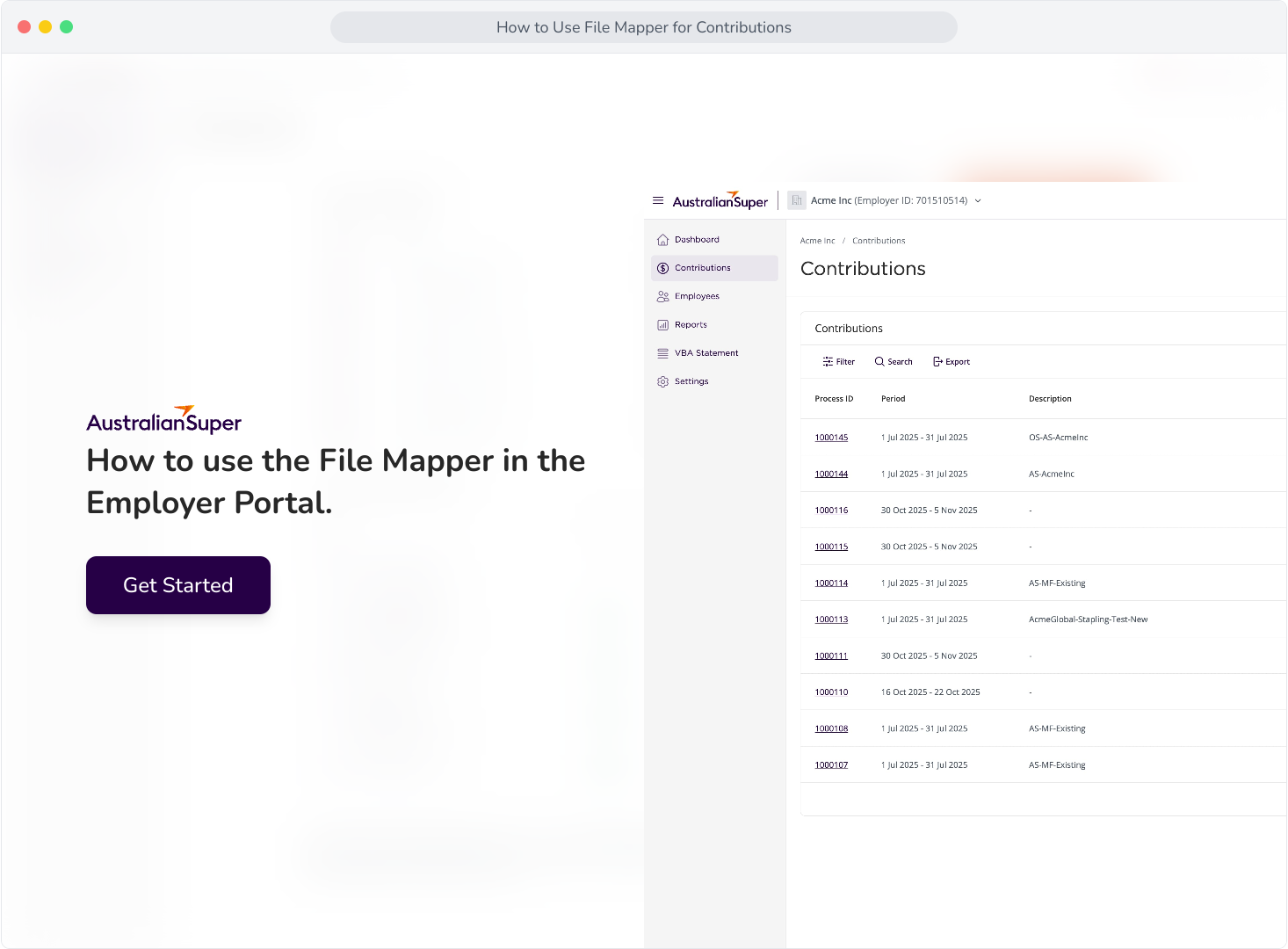
2. To start mapping your file, navigate to the Contributions tab.
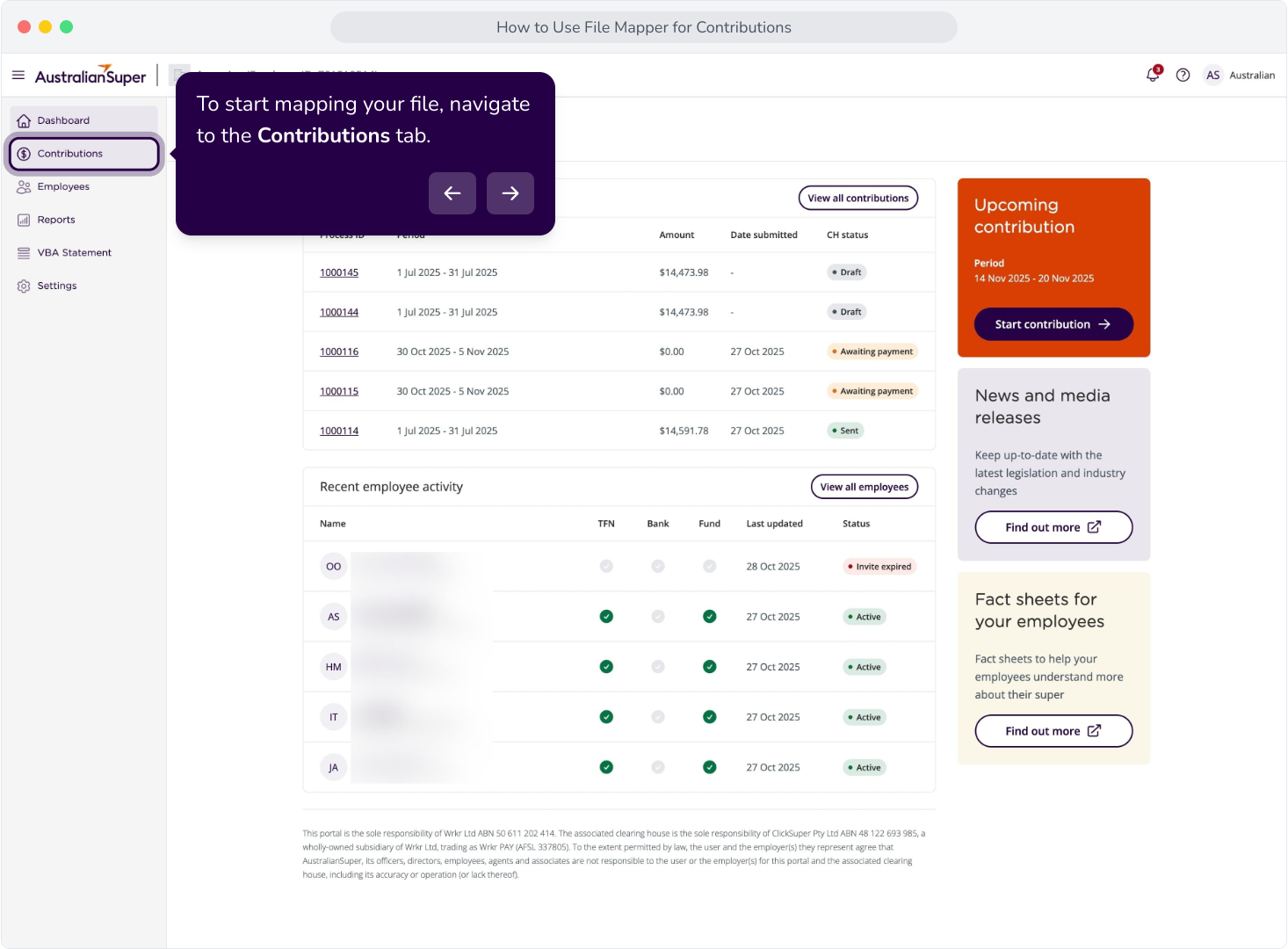
3. Click on New contribution.
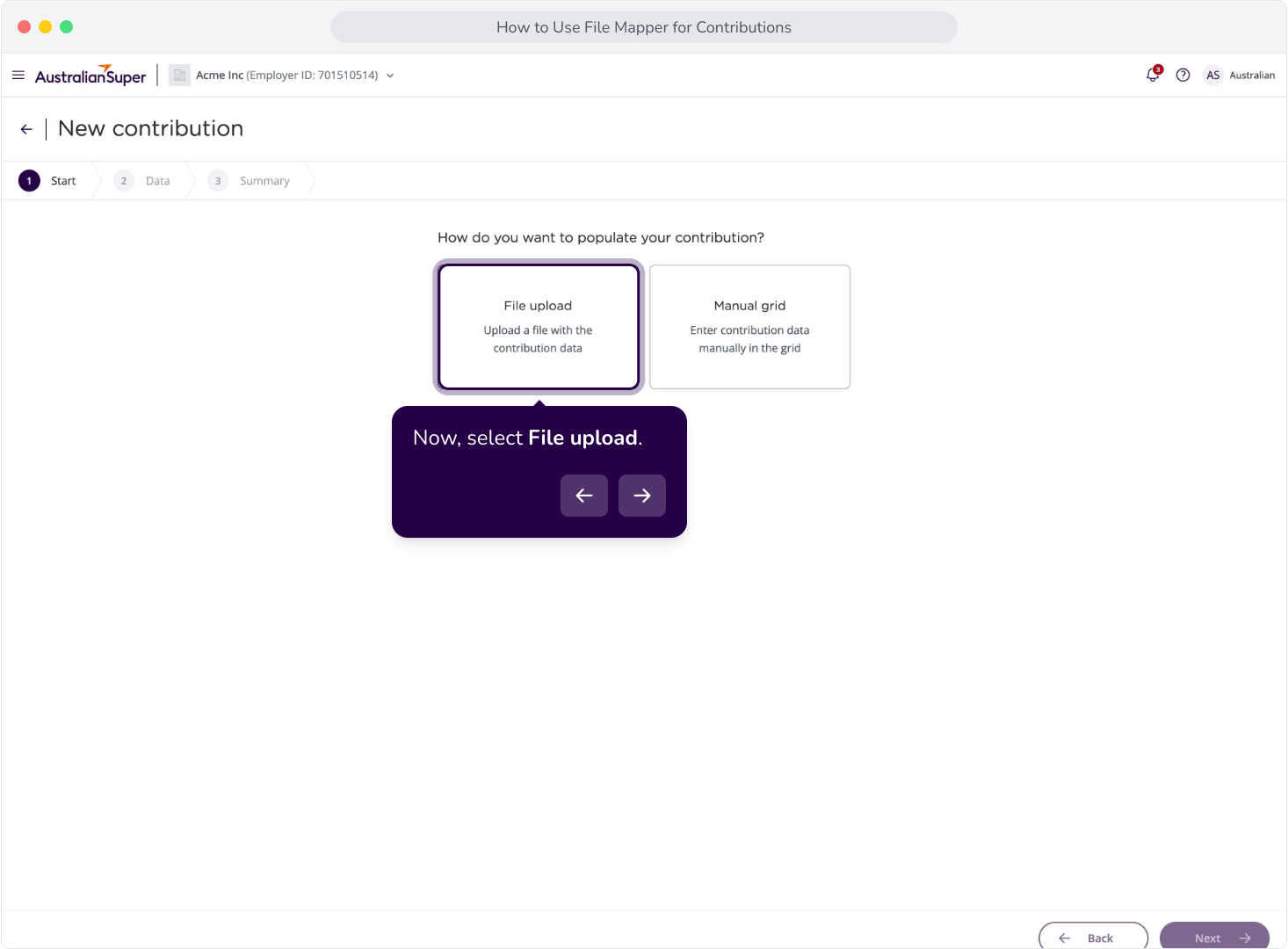
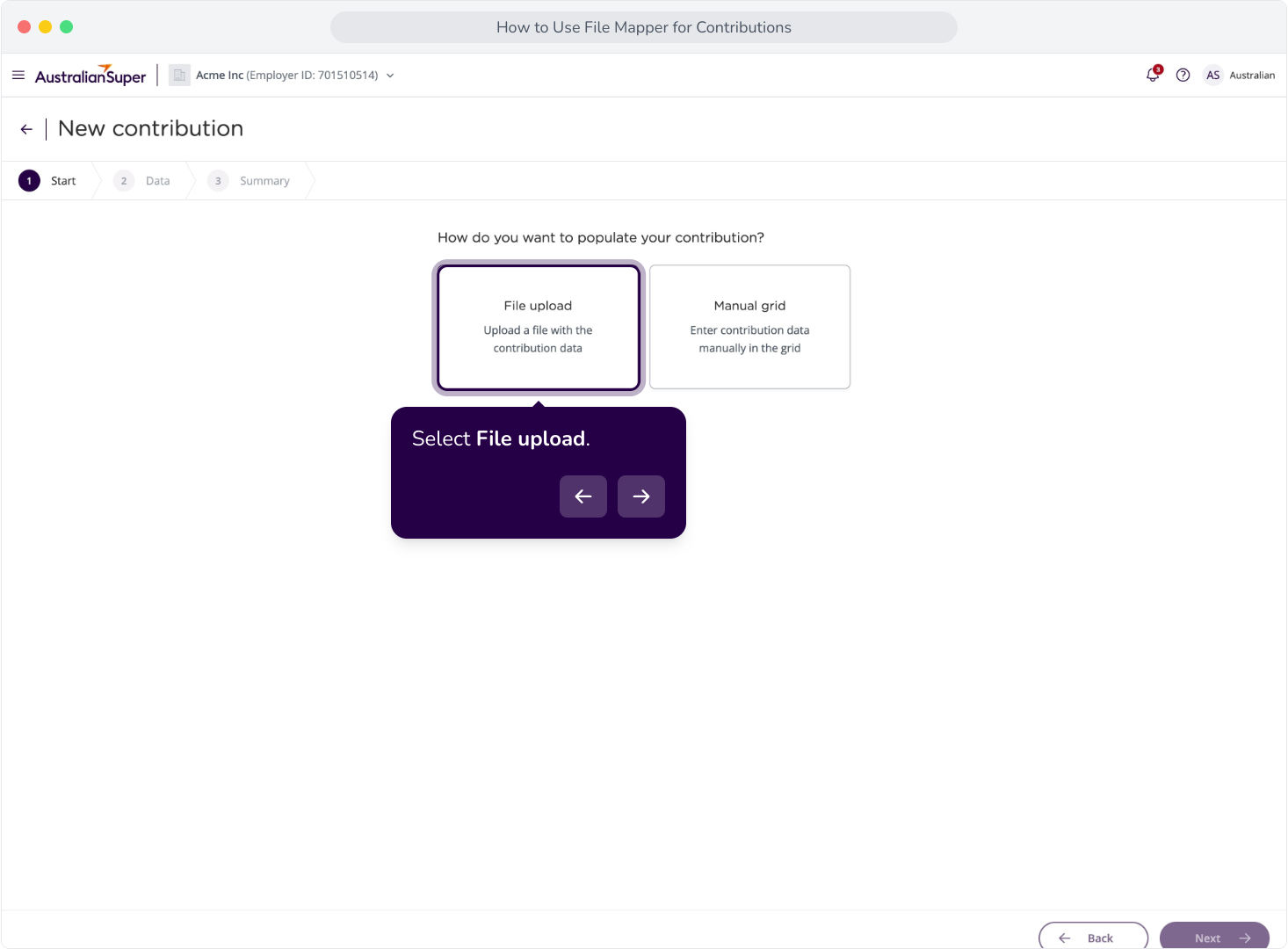
4. Now, select File upload.
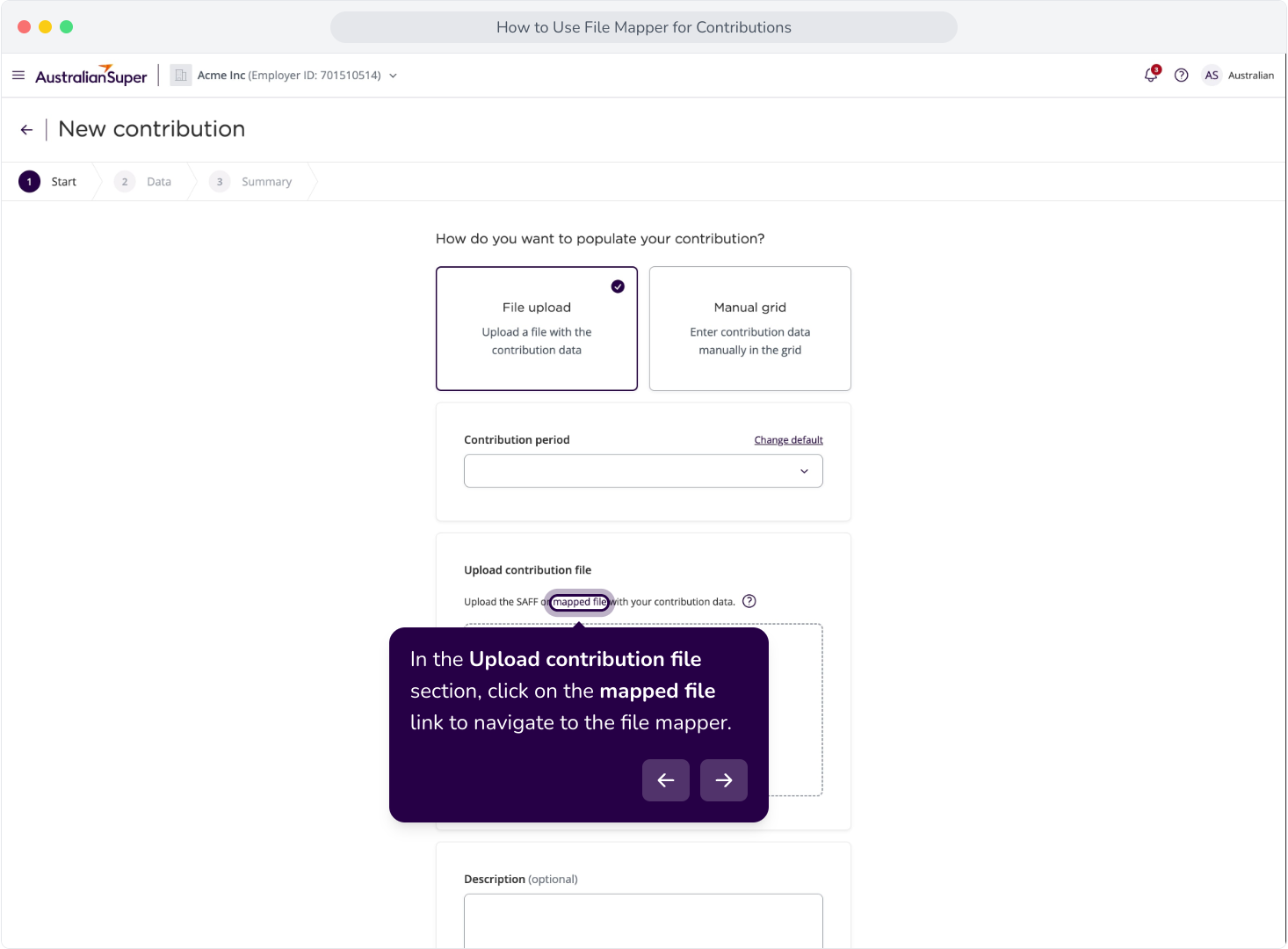
5. In the Upload contribution file section, click on the mapped file link to navigate to the file mapper.
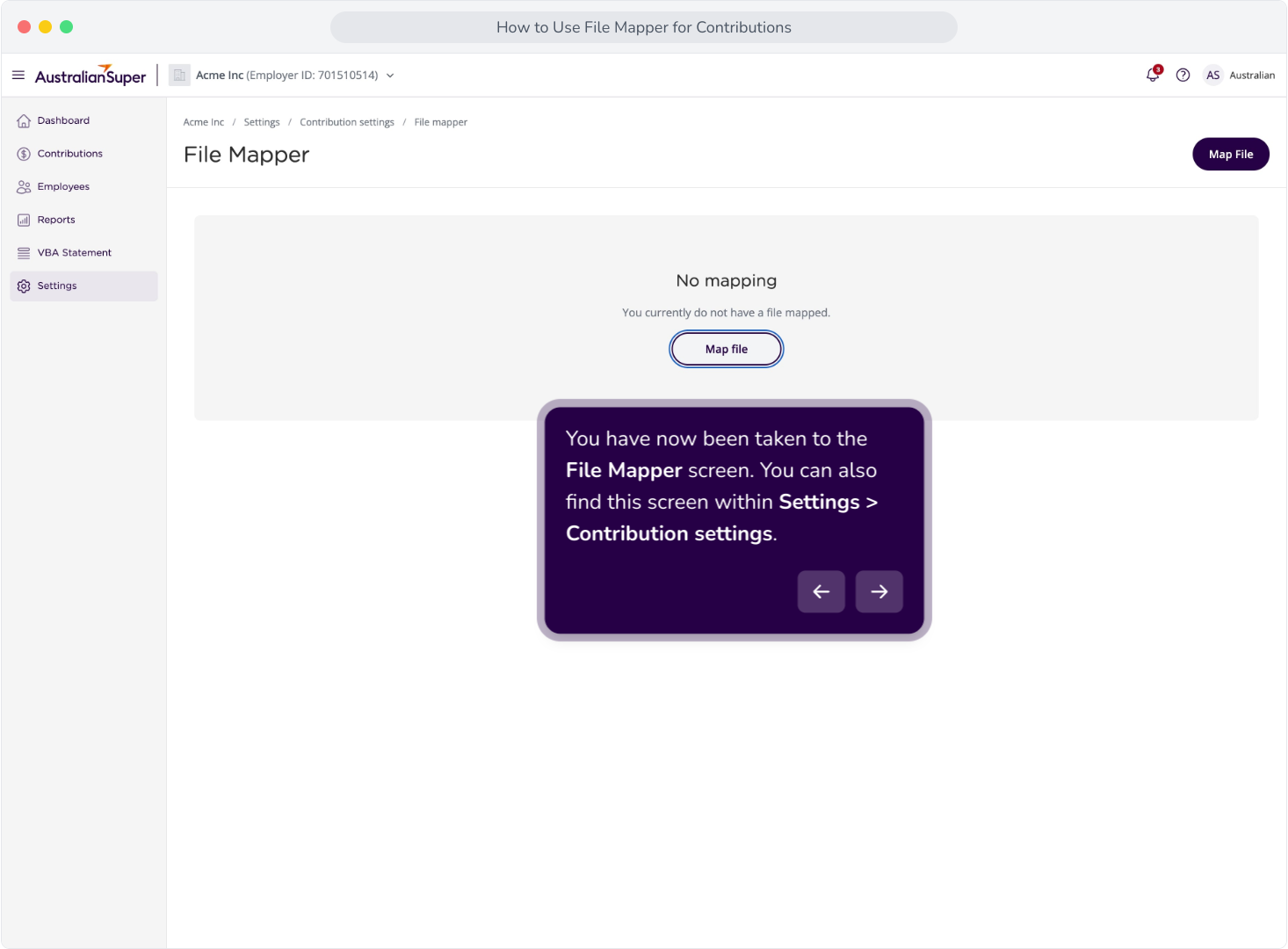
6. You have now been taken to the File Mapper screen. You can also find this screen within Settings > Contribution settings.
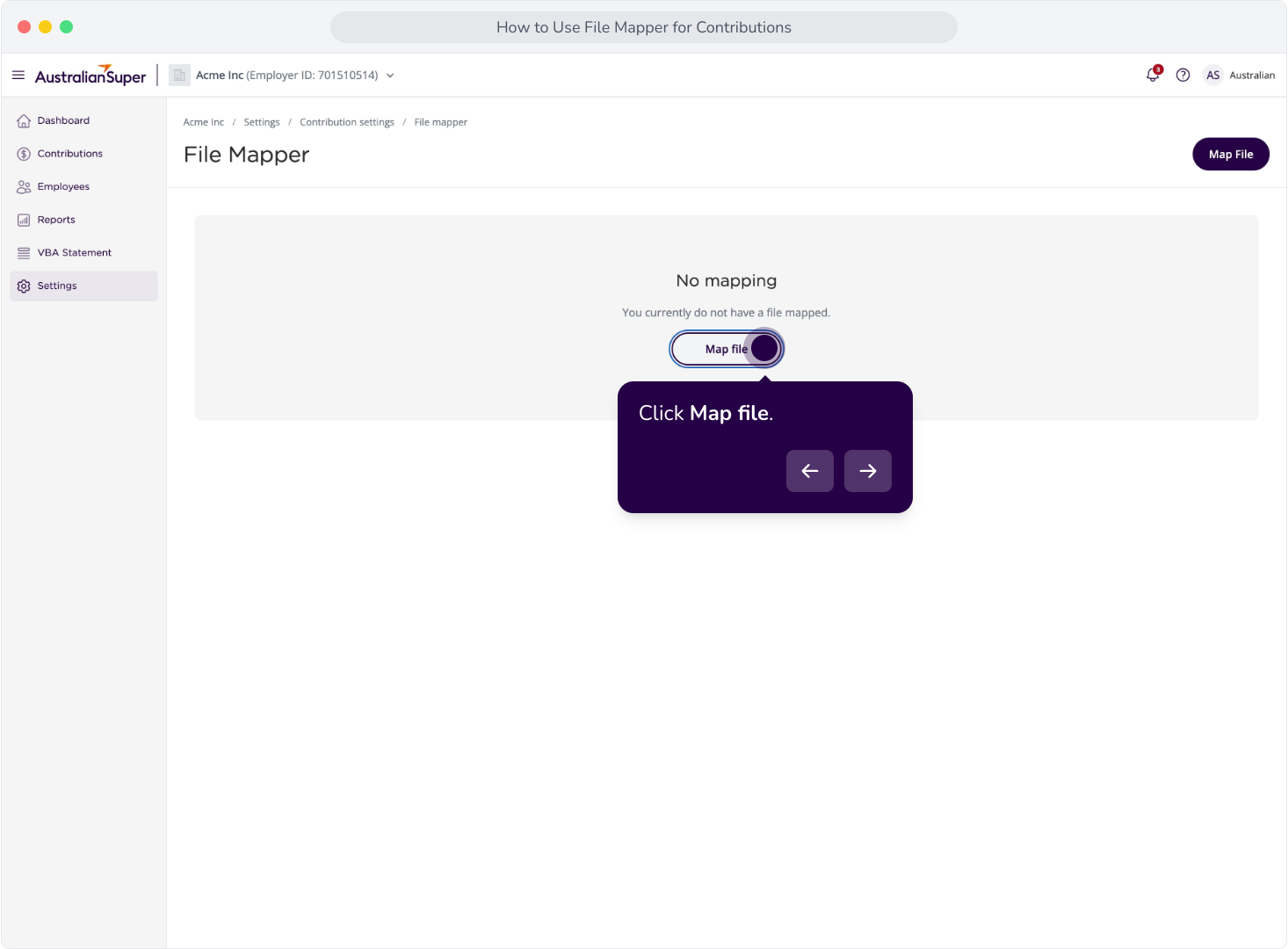
7. Click Map file.
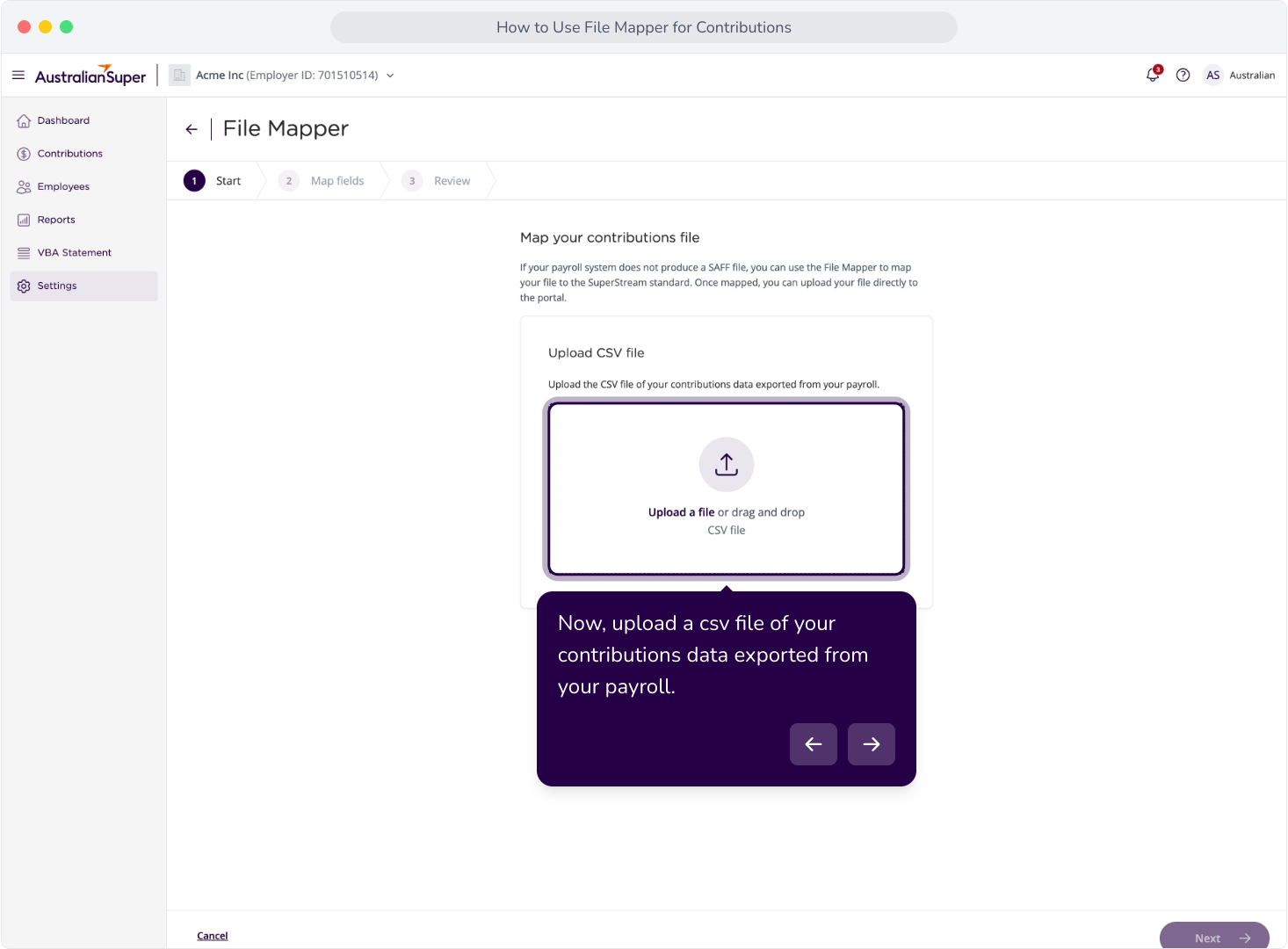
8. Now, upload a csv file of your contributions data exported from your payroll.
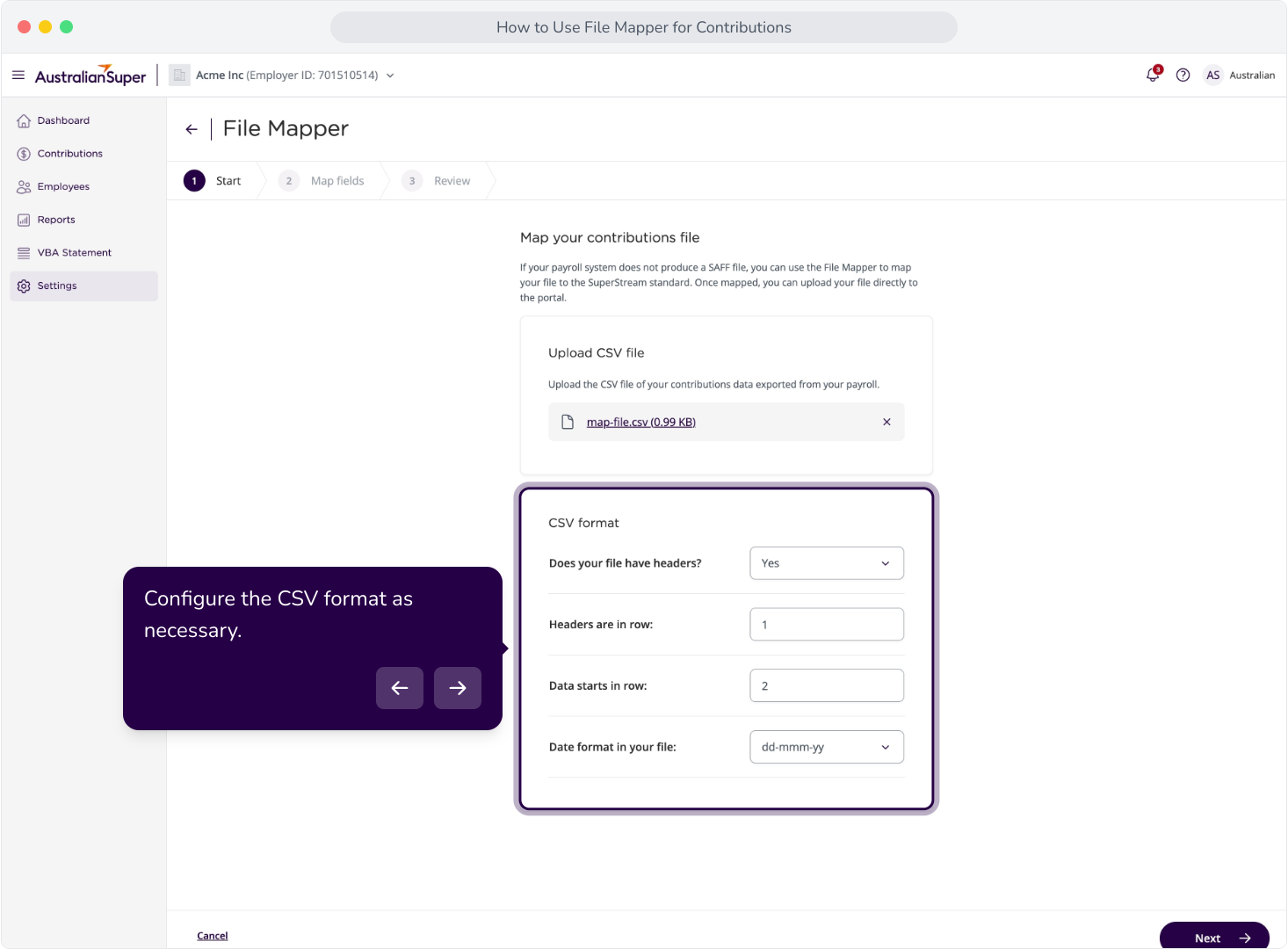
9. Configure the CSV format as necessary.
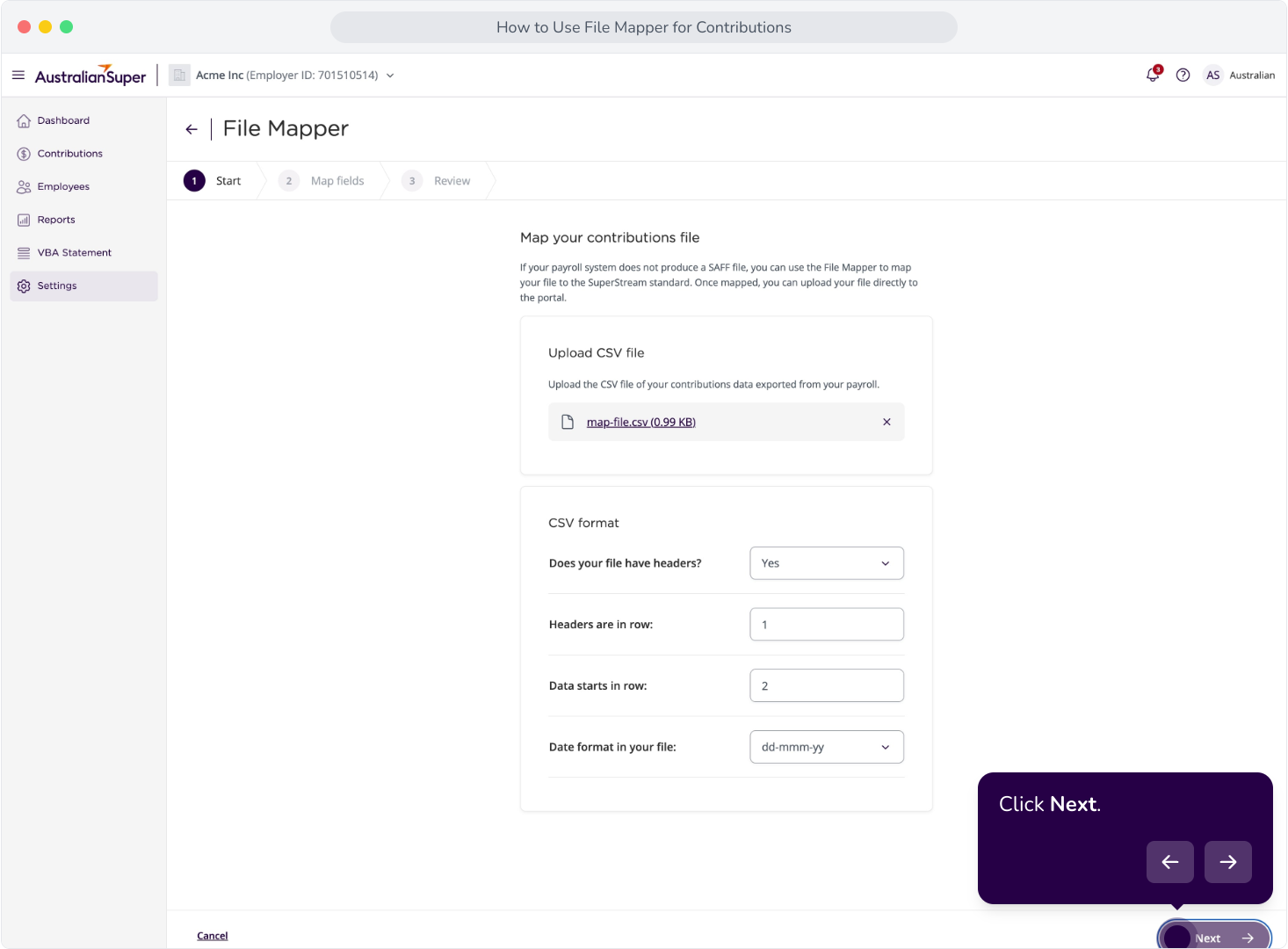
10. Click Next.
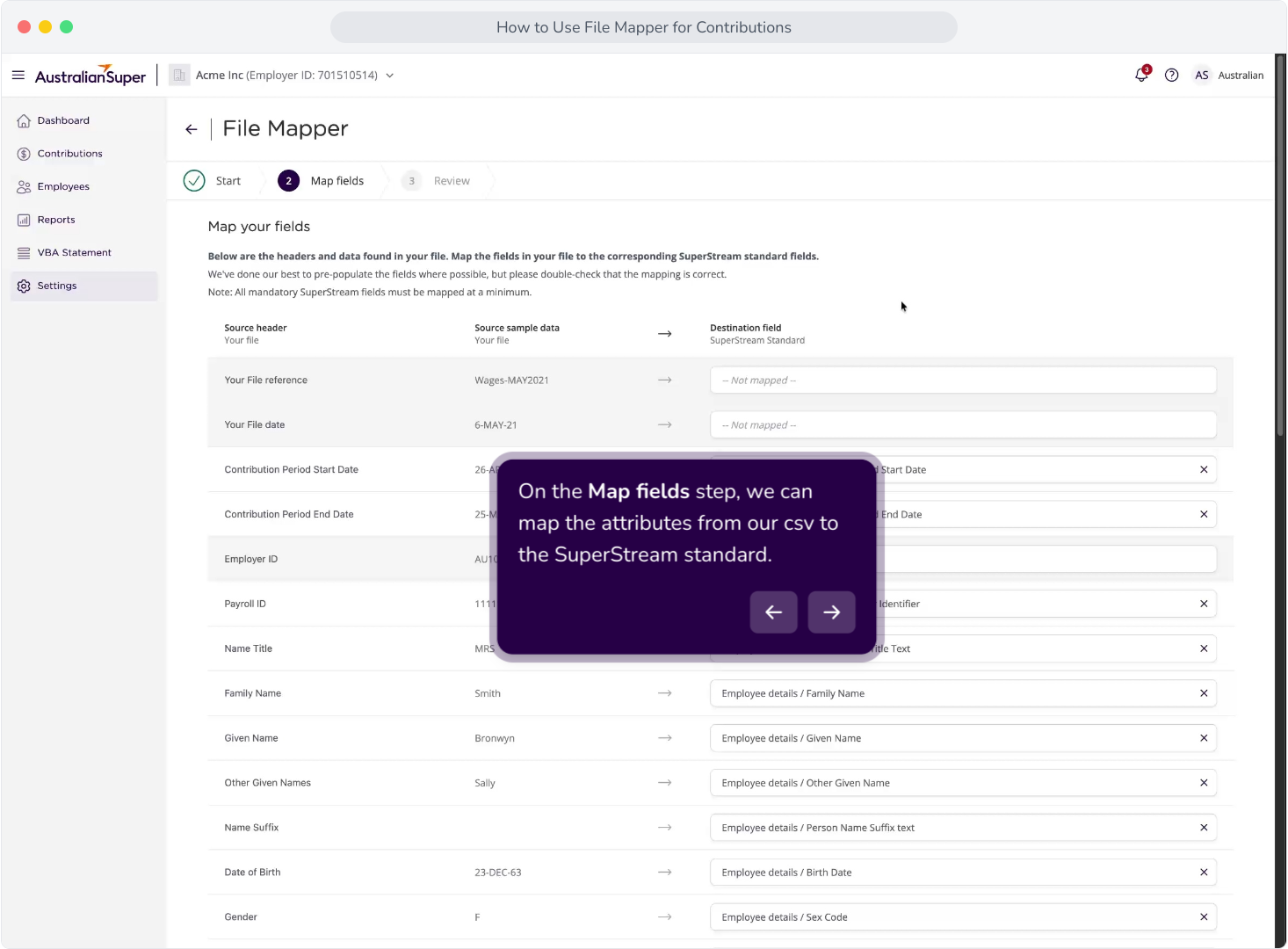
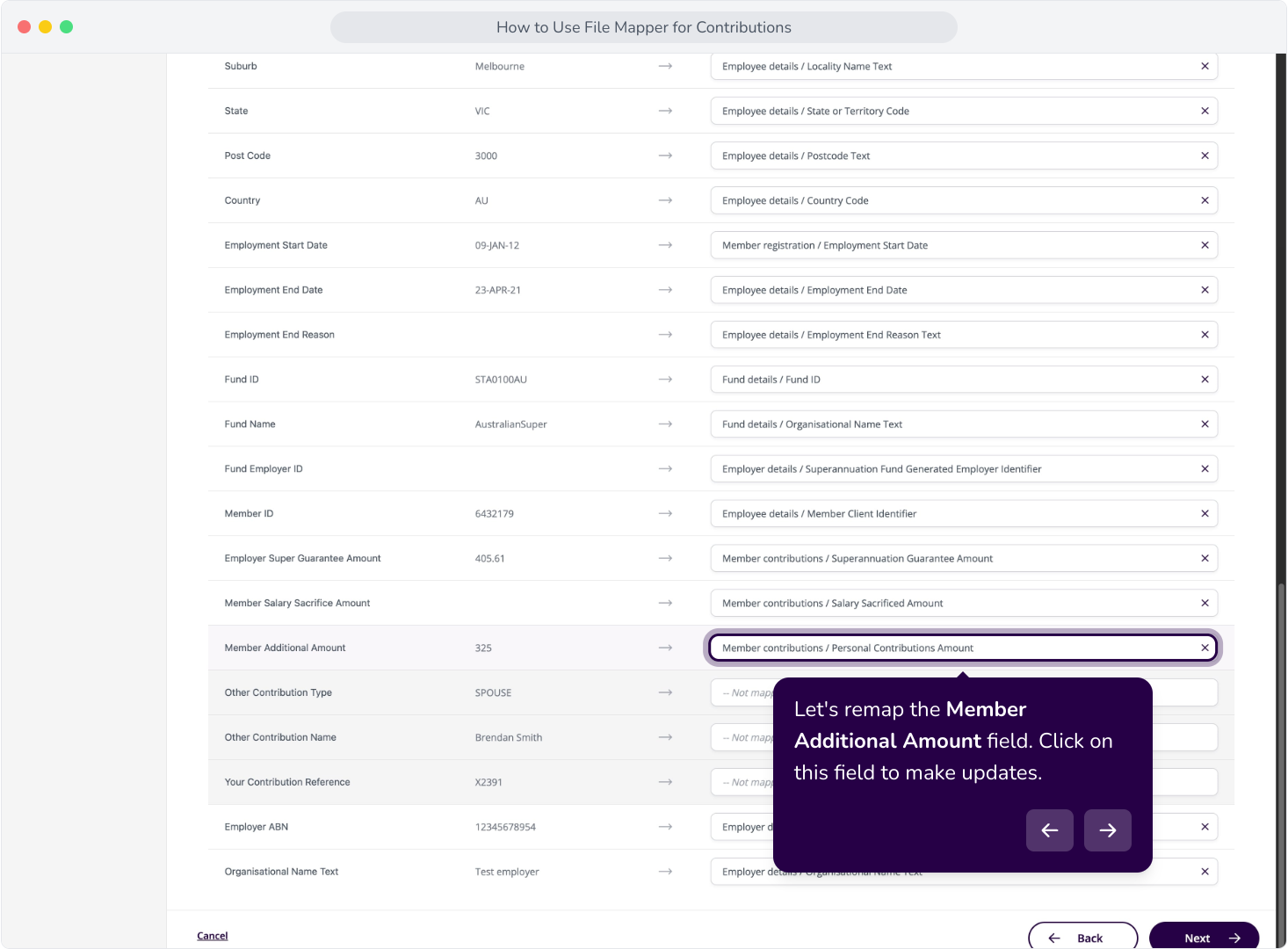
11. On the Map fields step, we can map the attributes from our csv to the SuperStream standard.
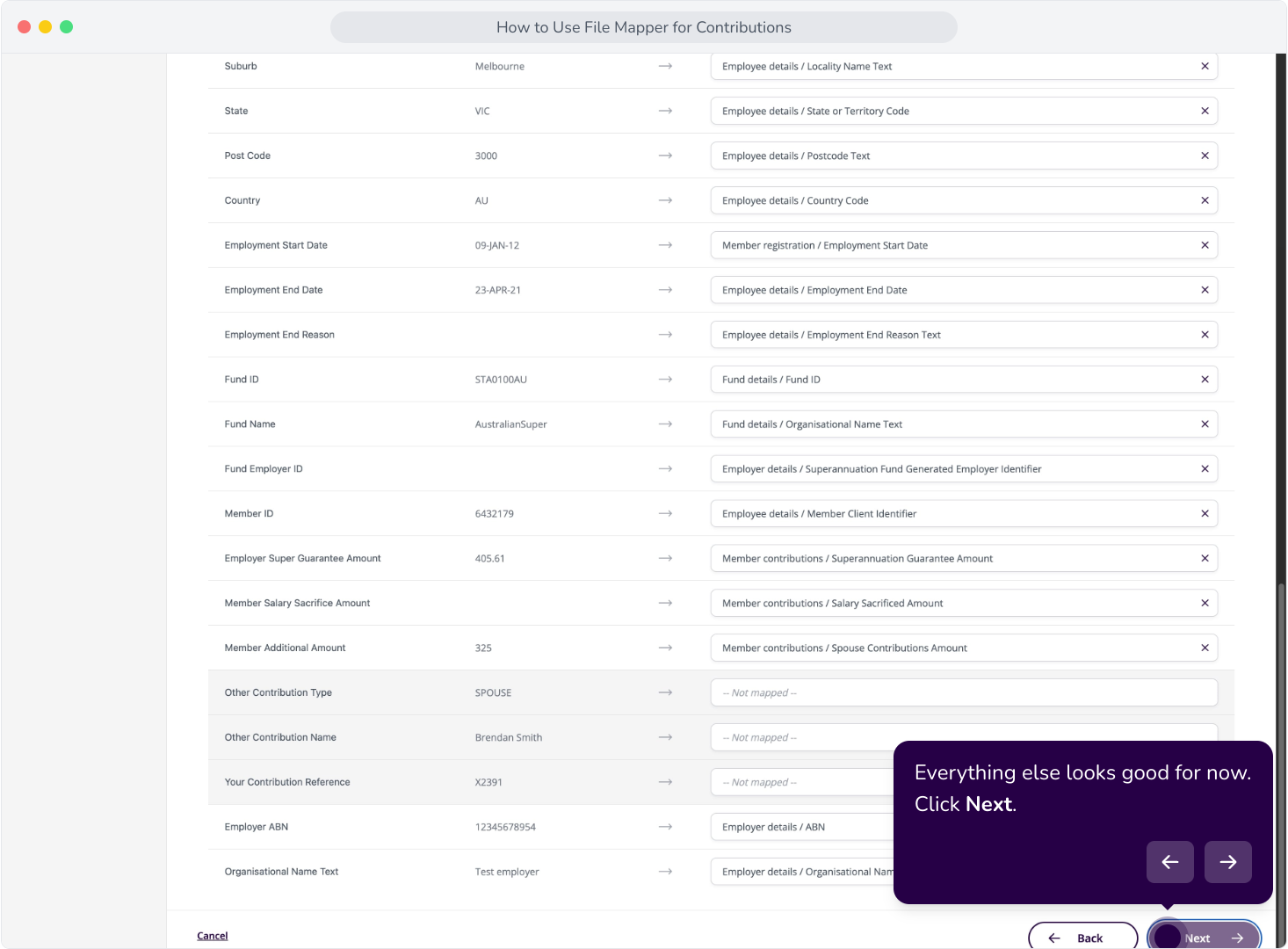
12. Let's remap the Member Additional Amount field. Click on this field to make updates.
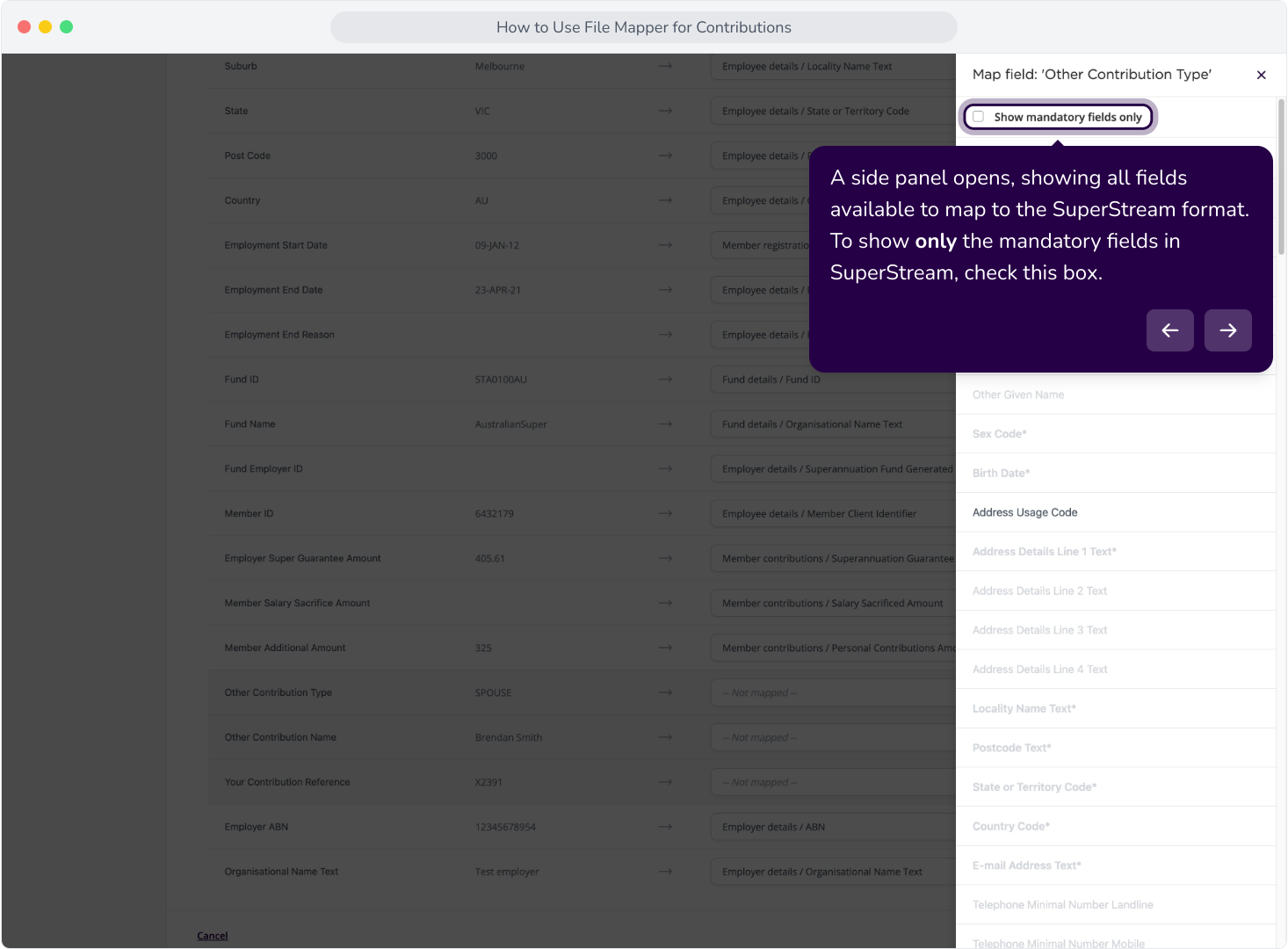
13. A side panel opens, showing all fields available to map to the SuperStream format. To show only the mandatory fields in SuperStream, check this box.
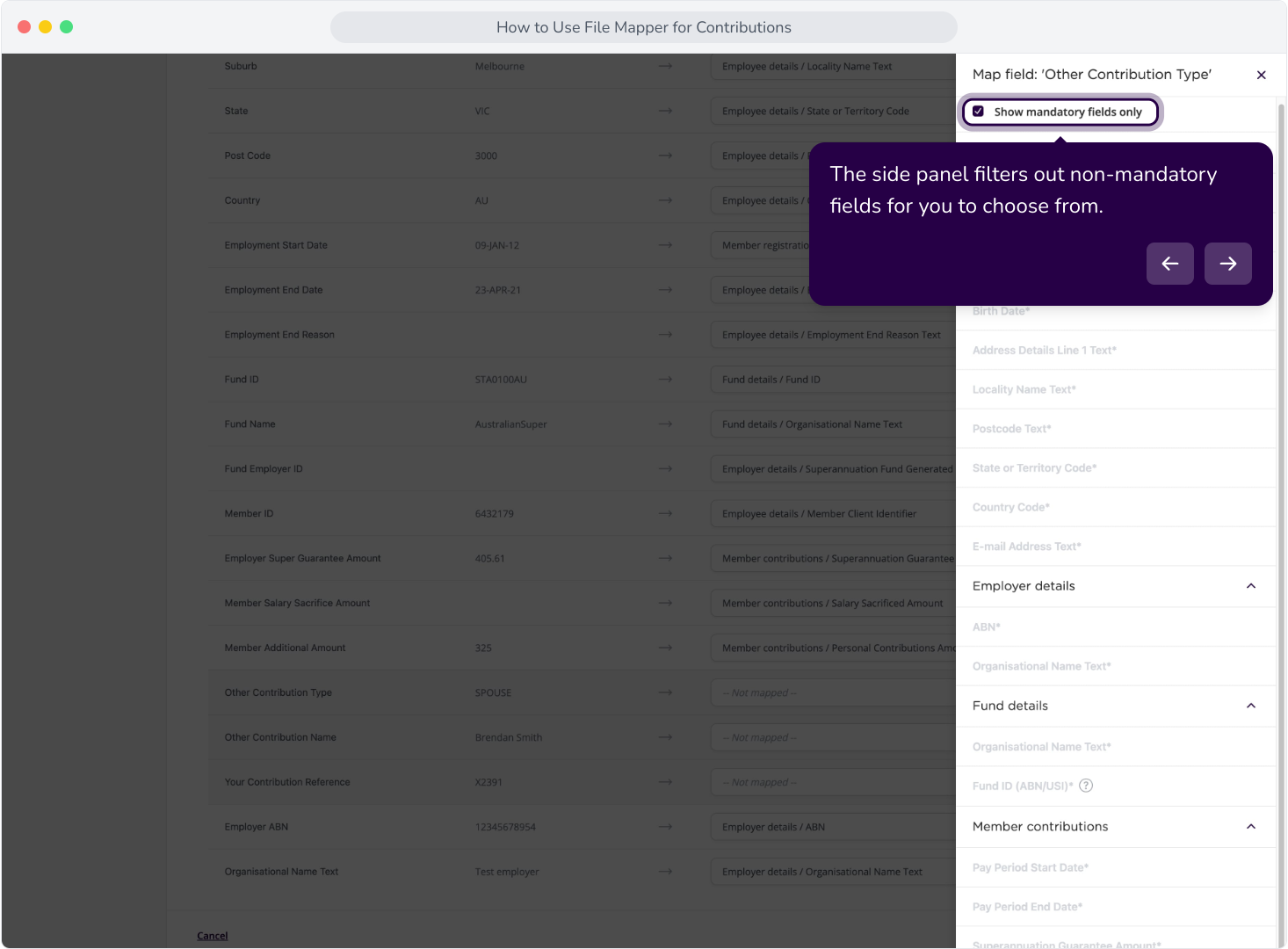
14. The side panel filters out non-mandatory fields for you to choose from.
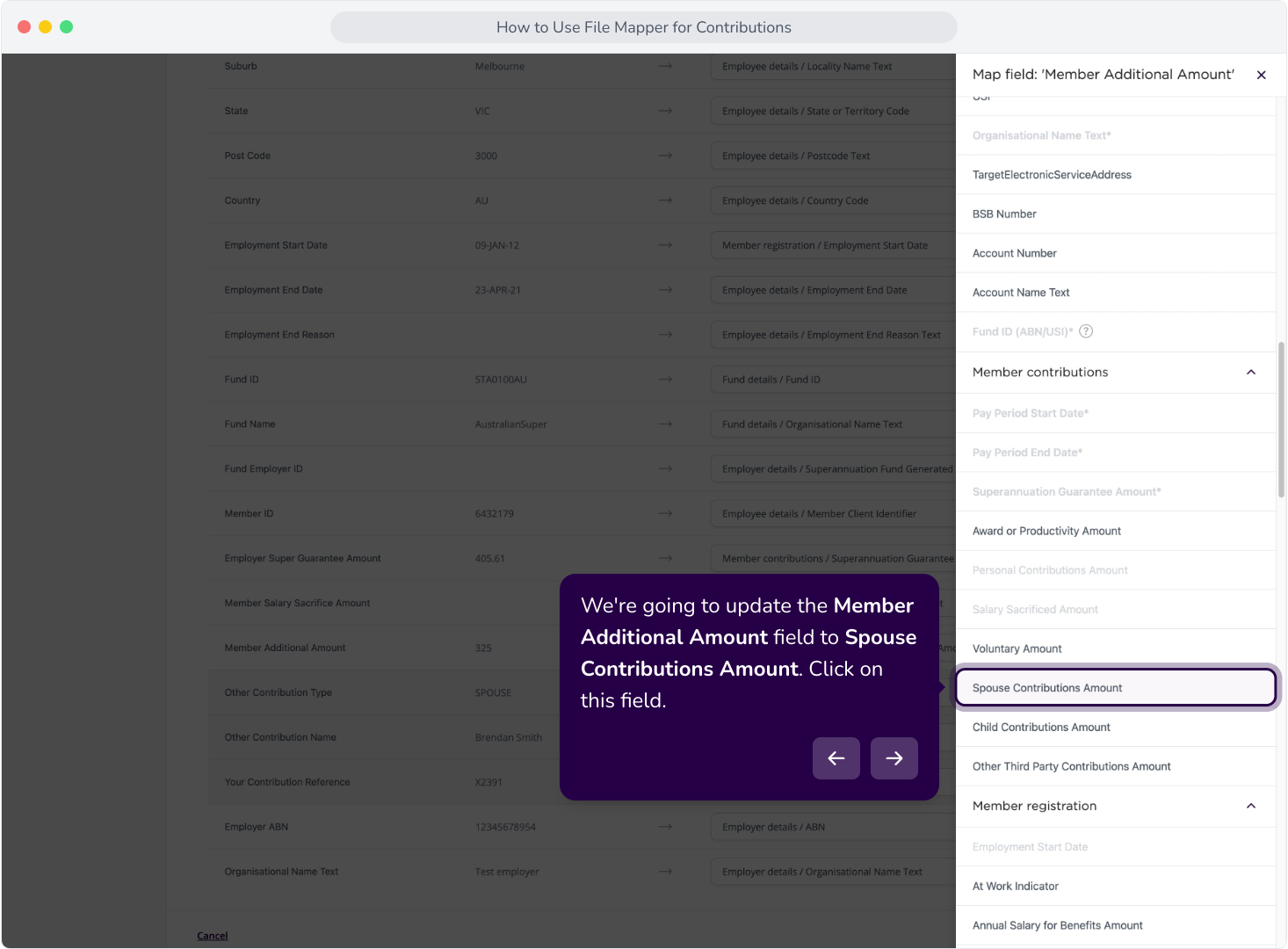
15. We're going to update the Member Additional Amount field to Spouse Contributions Amount. Click on this field.
16. Everything else looks good for now. Click Next.
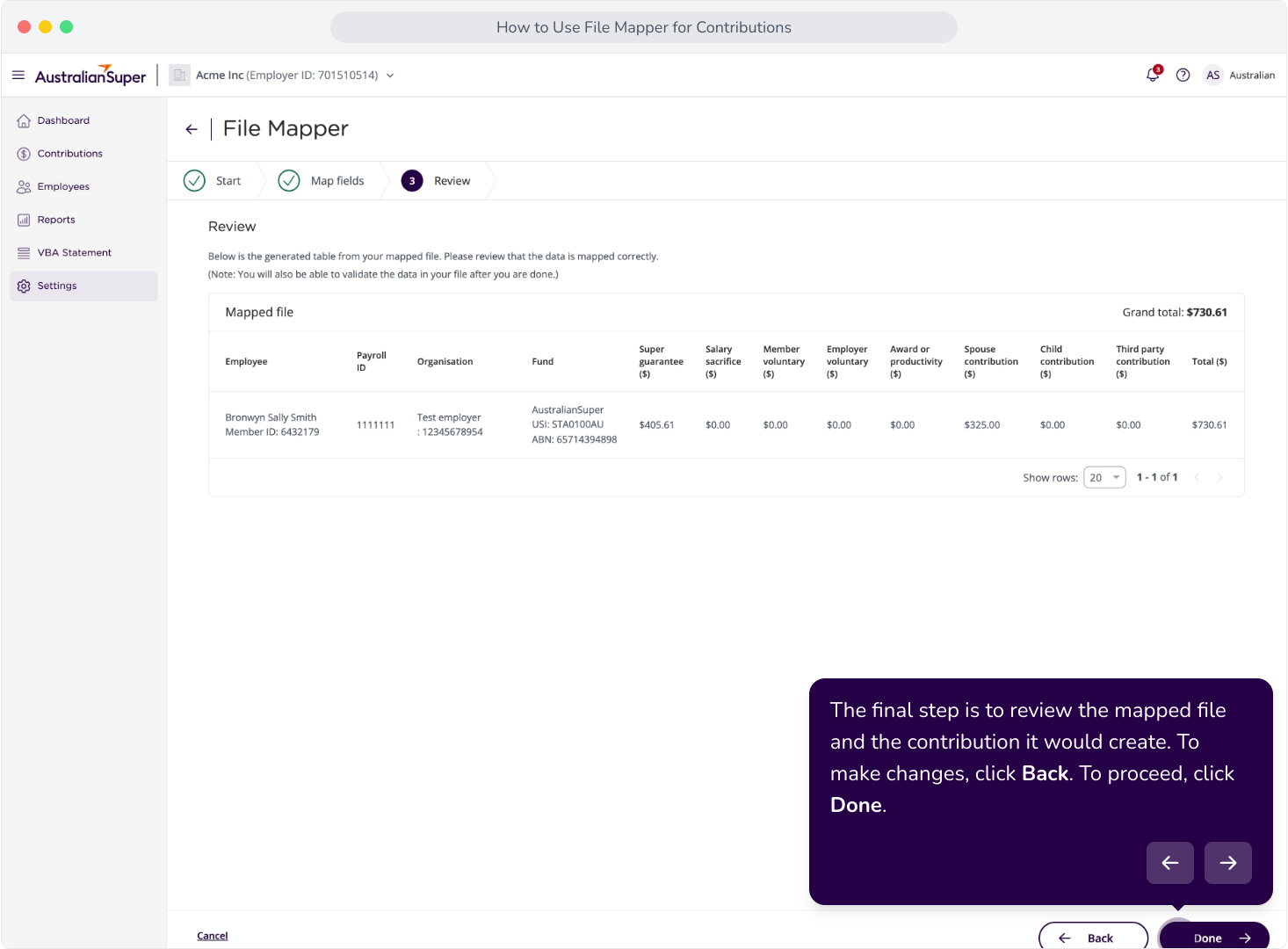
17. The final step is to review the mapped file and the contribution it would create. To make changes, click Back. To proceed, click Done.
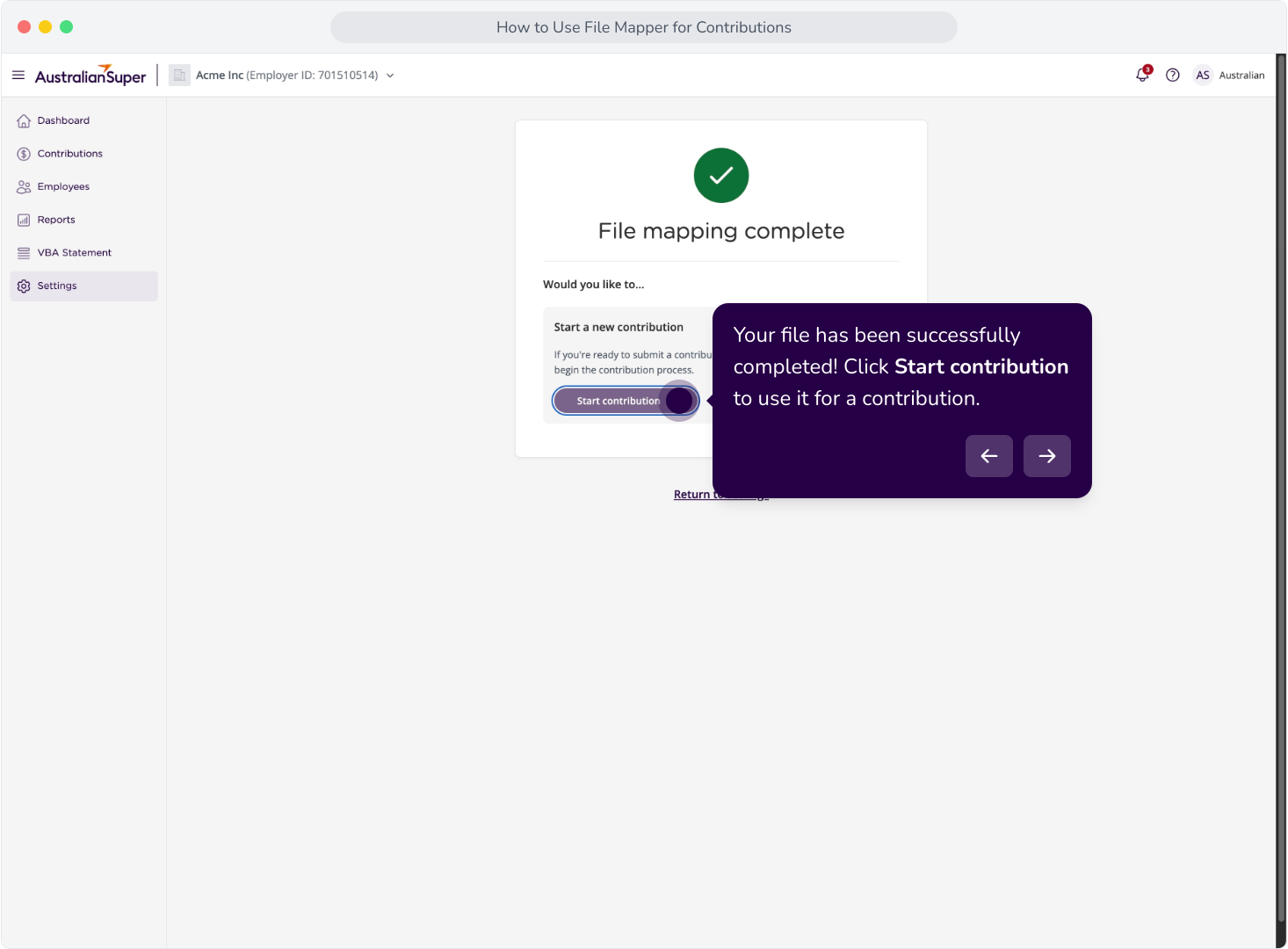
18. Your file has been successfully completed! Click Start contribution to use it for a contribution.
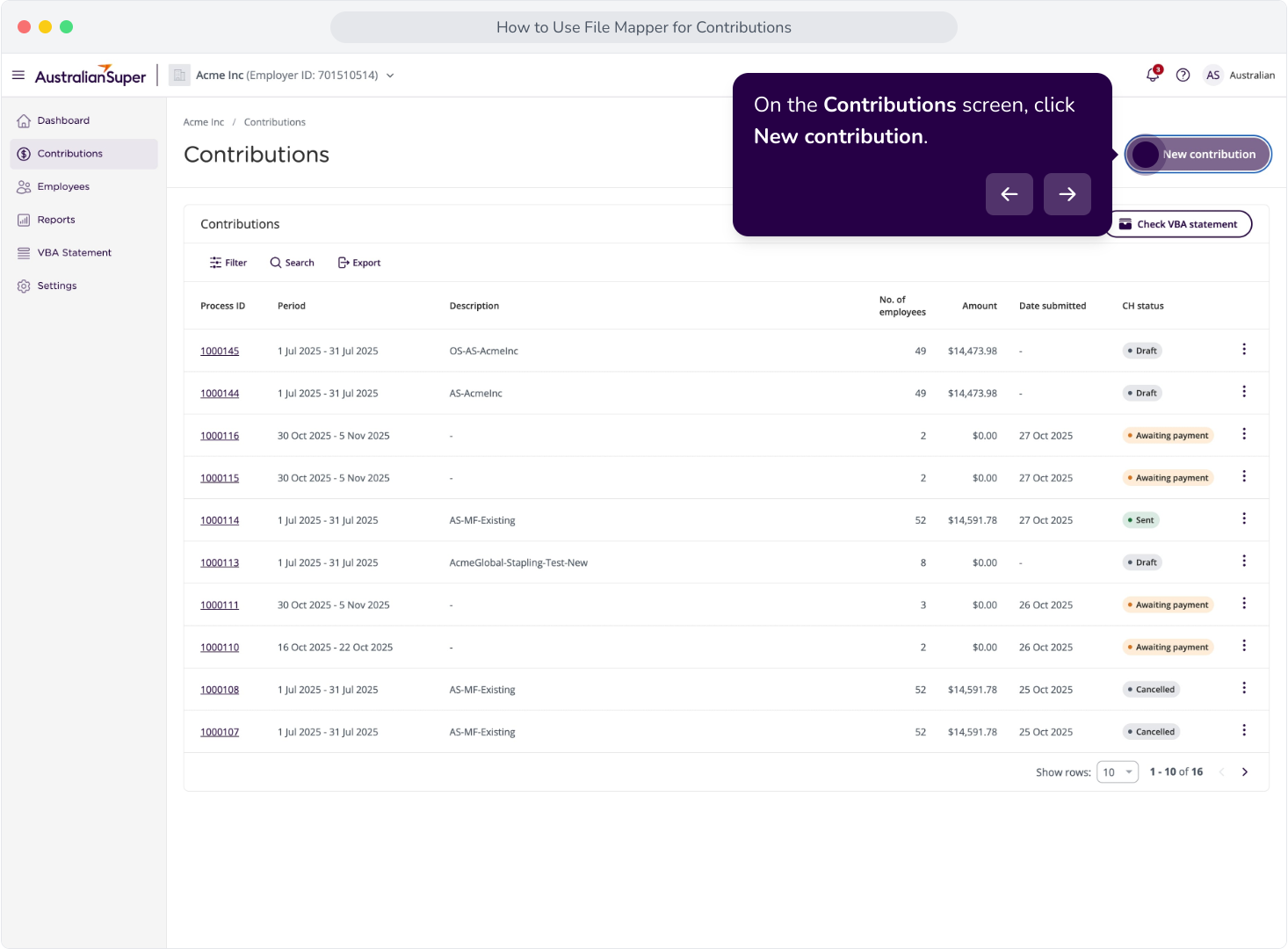
19. On the Contributions screen, click New contribution.
20. Select File upload.
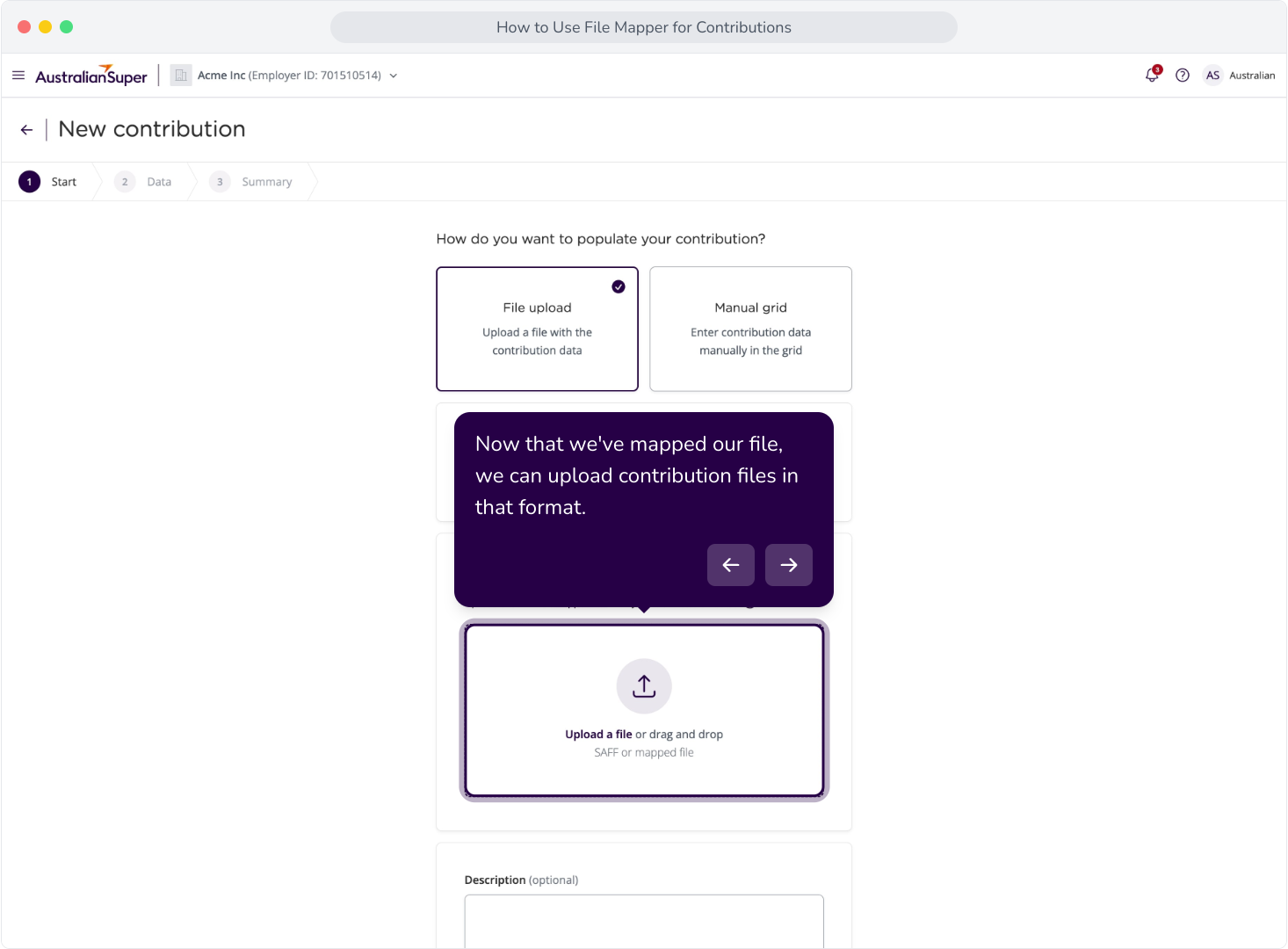
21. Now that we've mapped our file, we can upload contribution files in that format.
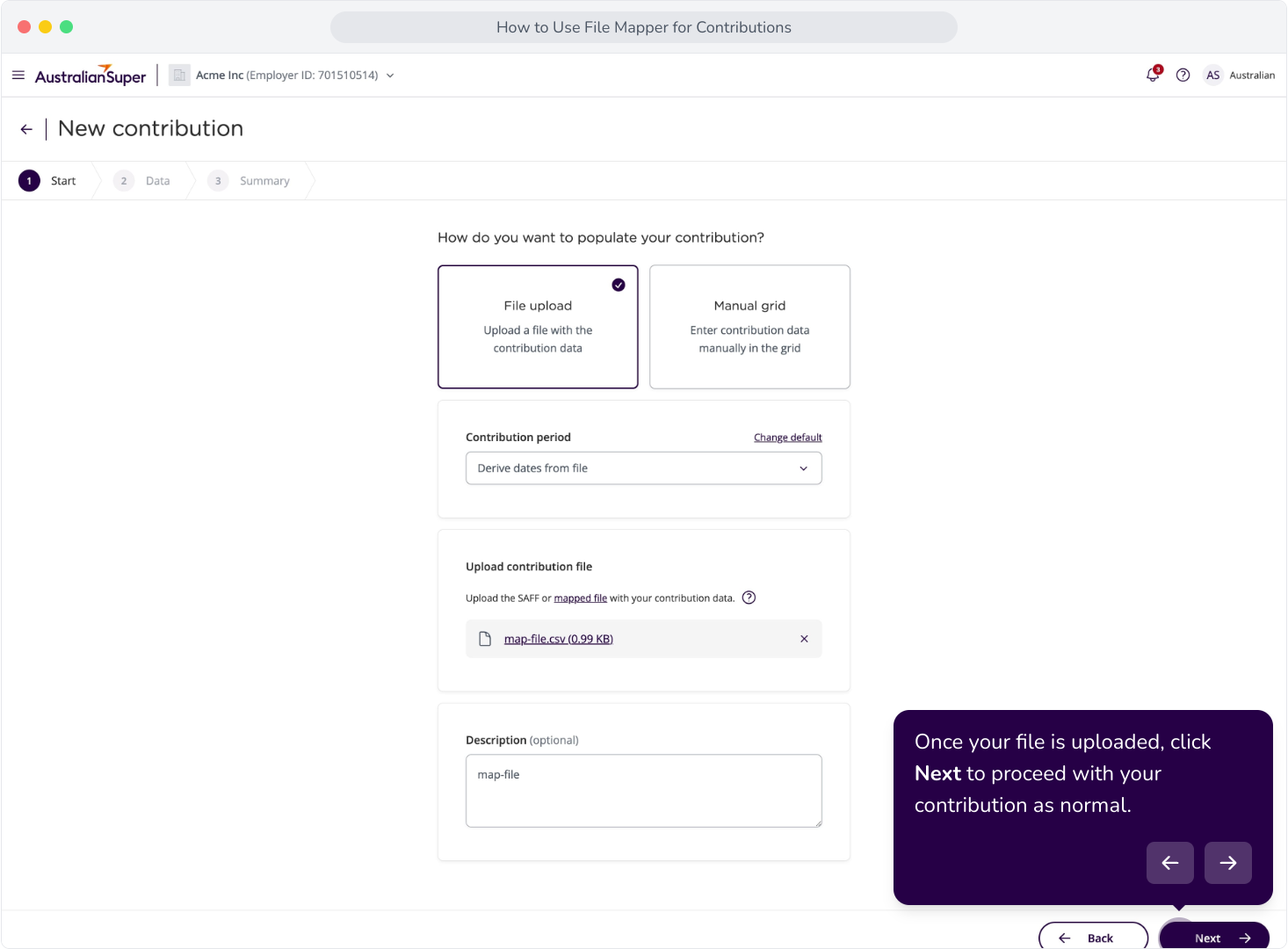
22. Once your file is uploaded, click Next to proceed with your contribution as normal.
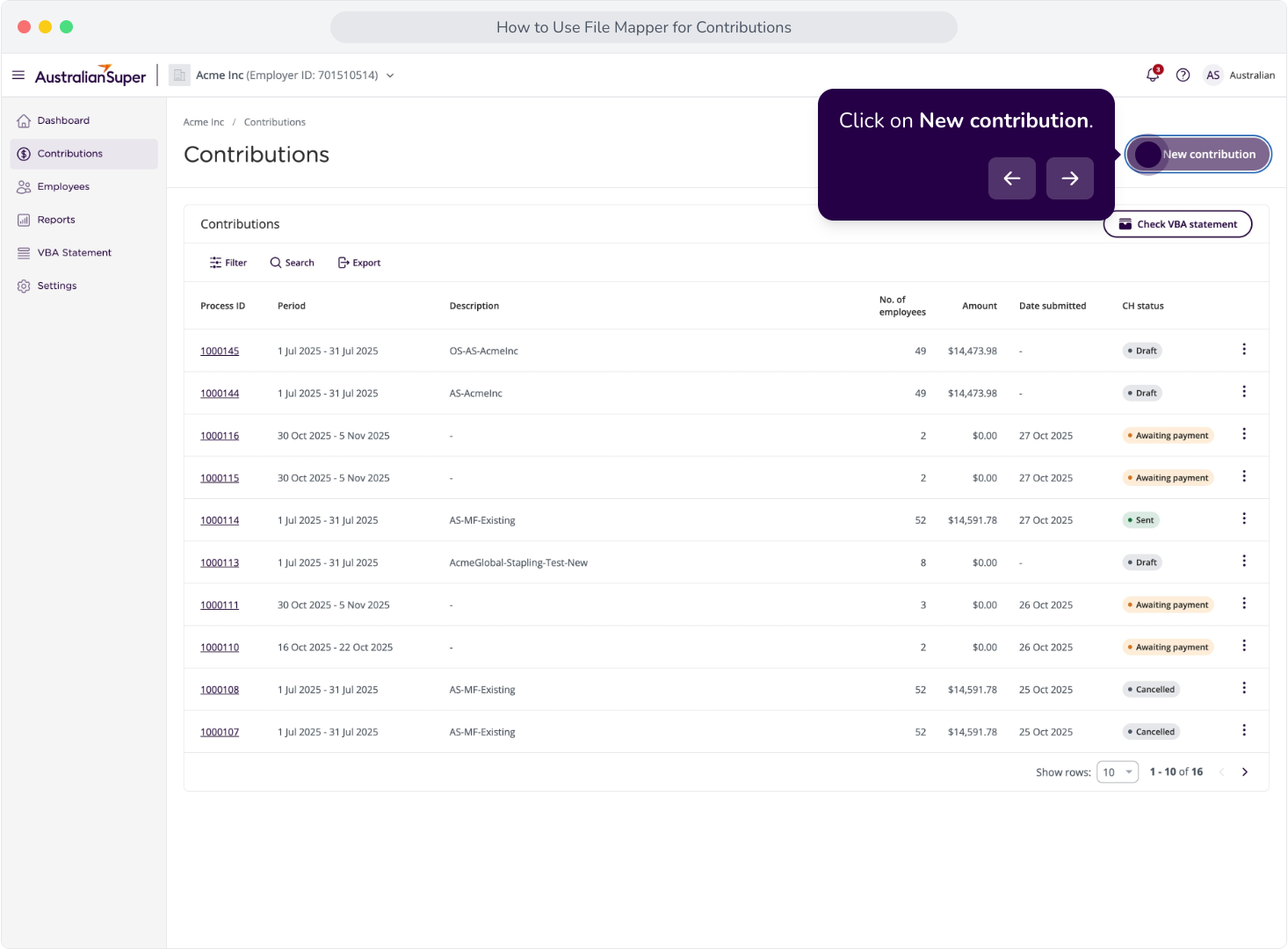
23. To update or change your mapping, navigate to the Settings tab and select Contribution settings.
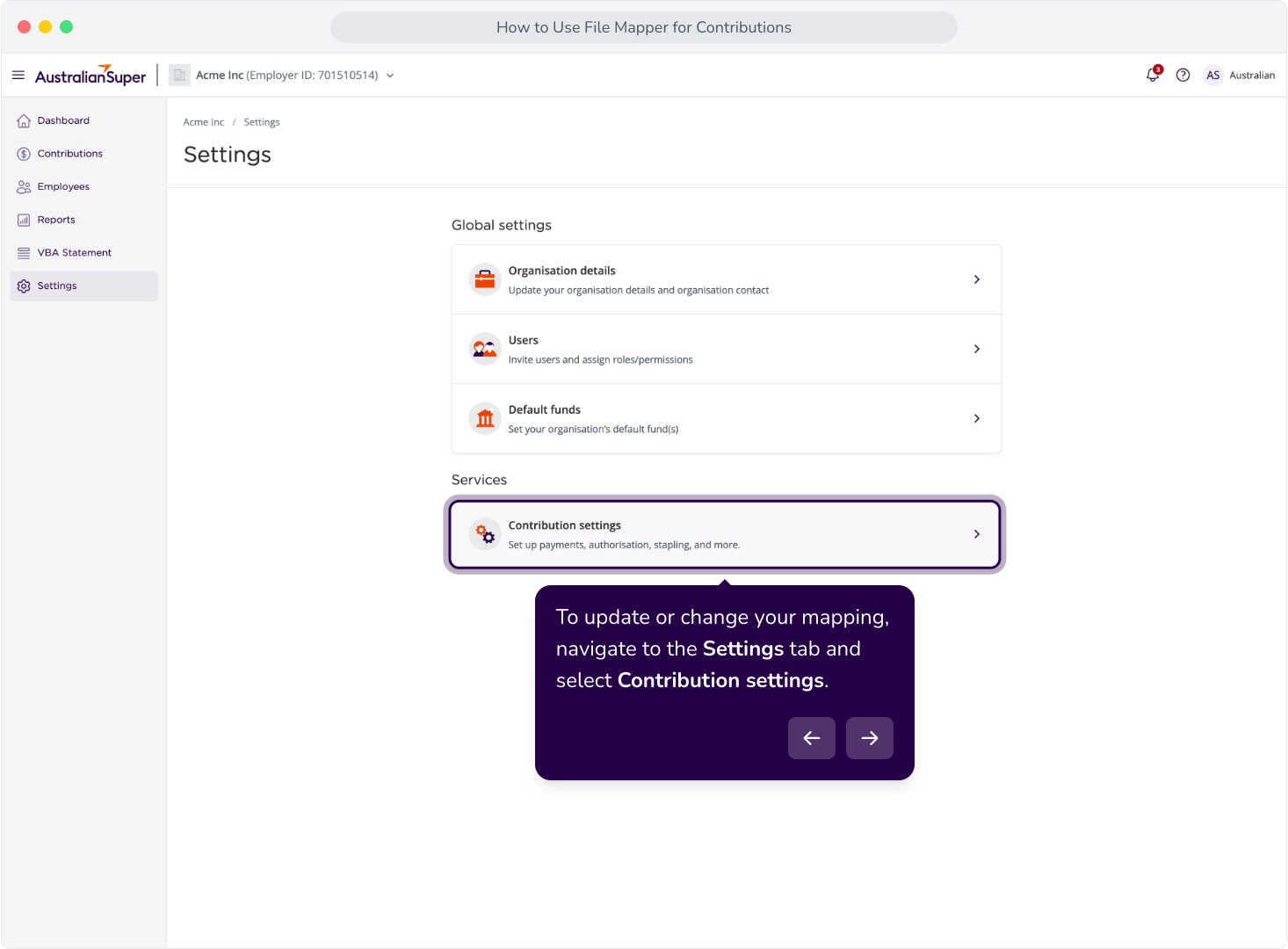
24. Click View within the File mapper section.
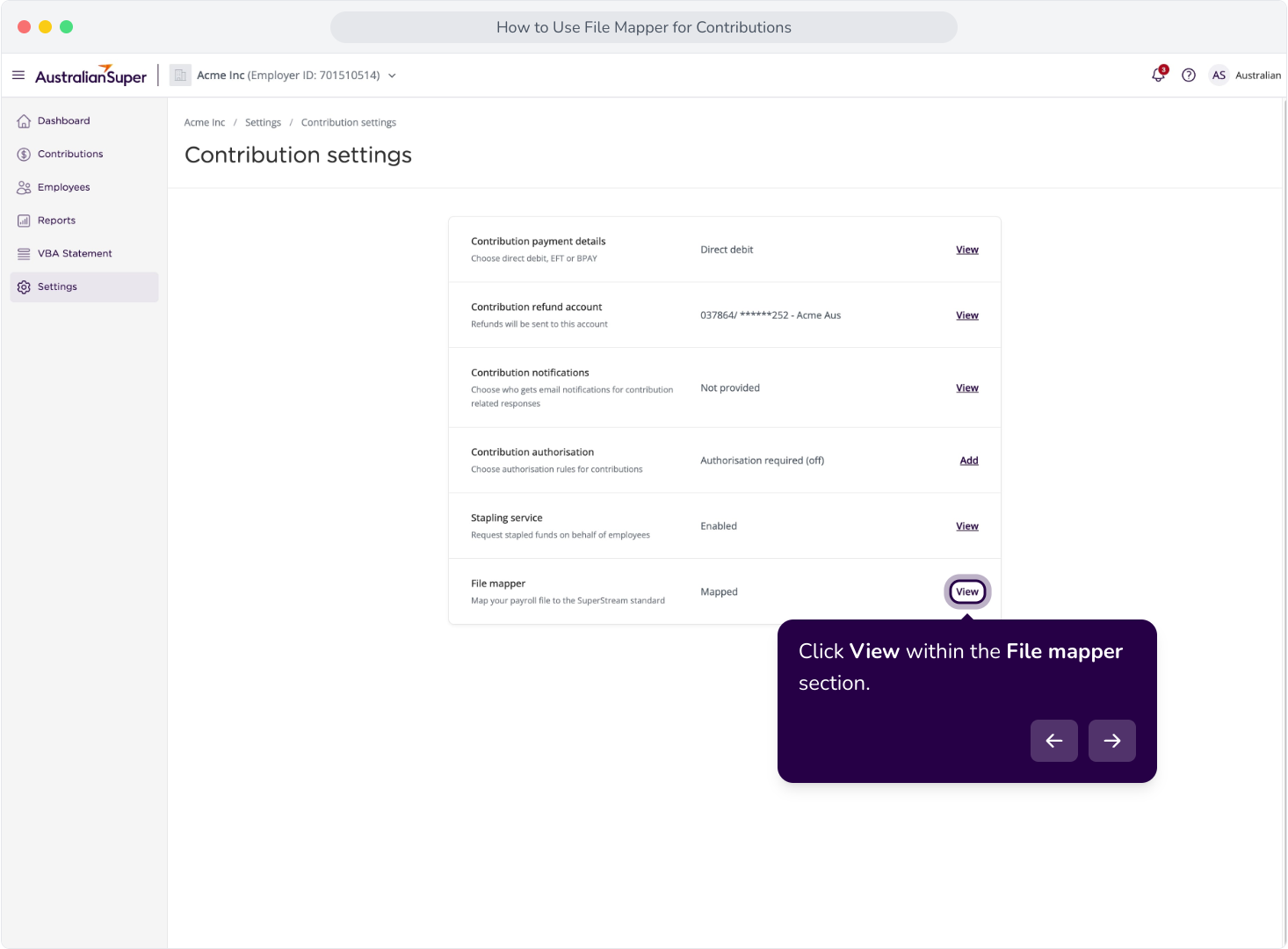
25. Here, you can review, edit, or delete your file mapping.