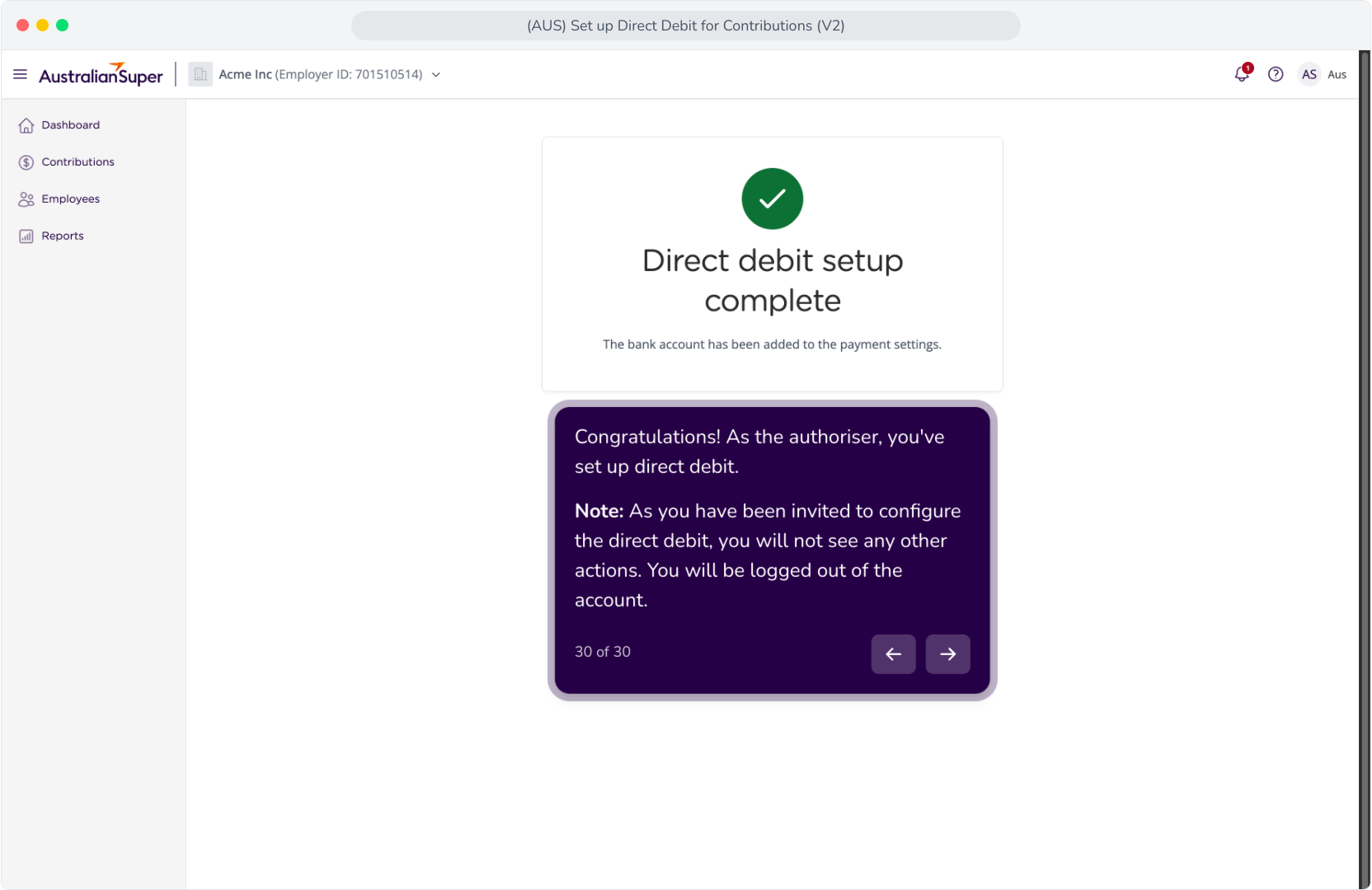
Context: This guide demonstrates the process of setting up direct debit as your preferred payment method for contributions. The guide covers both flows for self-authorised and delegated flows, and details the steps required for ID and bank account verification.
Help: If you are the bank account holder, see the self-authorised flow. If you are not the account holder, view the delegated flow.
New: If you have undergone the Identity Verification (IDV) process, you will be ‘verified’ for 24 hours, meaning you will not have to submit identity documents for any subsequent bank account setups during this time.
Glossary
- Interactive Demo
- Written steps:.Direct Debit Set Up – Self Authorised
- Written steps: Set Up Direct Debit – Delegated Flow
Interactive Demo
Note: Make the demo full-screen for a better experience. You can mute/un-mute narration to suit your preferences. Click the icon in the demo's toolbar to see the list of steps below for quicker navigation.
Written steps:. Direct Debit Set Up – Self Authorised
Context: This section covers the full process of setting up a Direct Debit account when you, the Employer Admin, are also the authorised Account Holder.
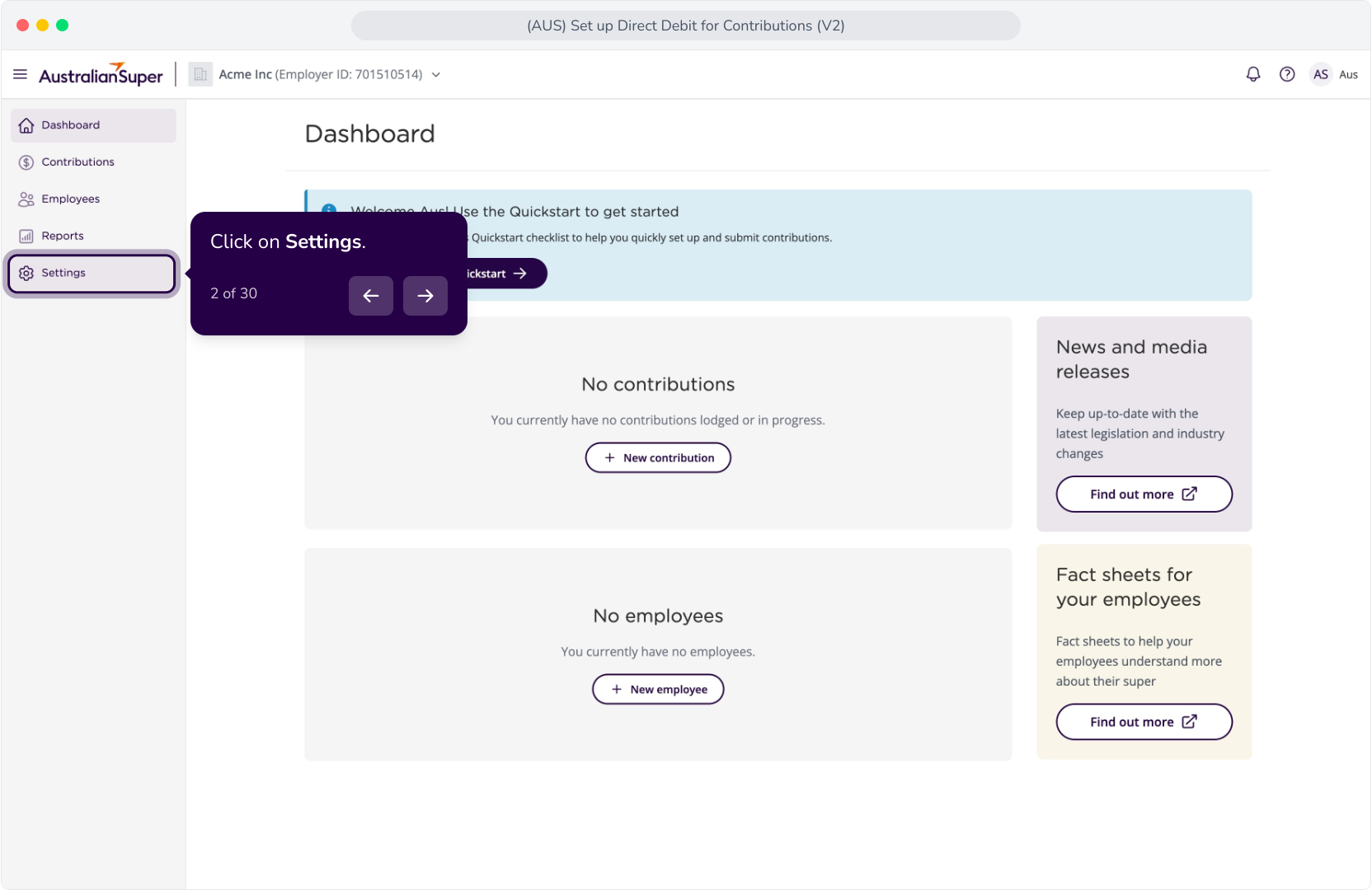
1 Click on Settings.
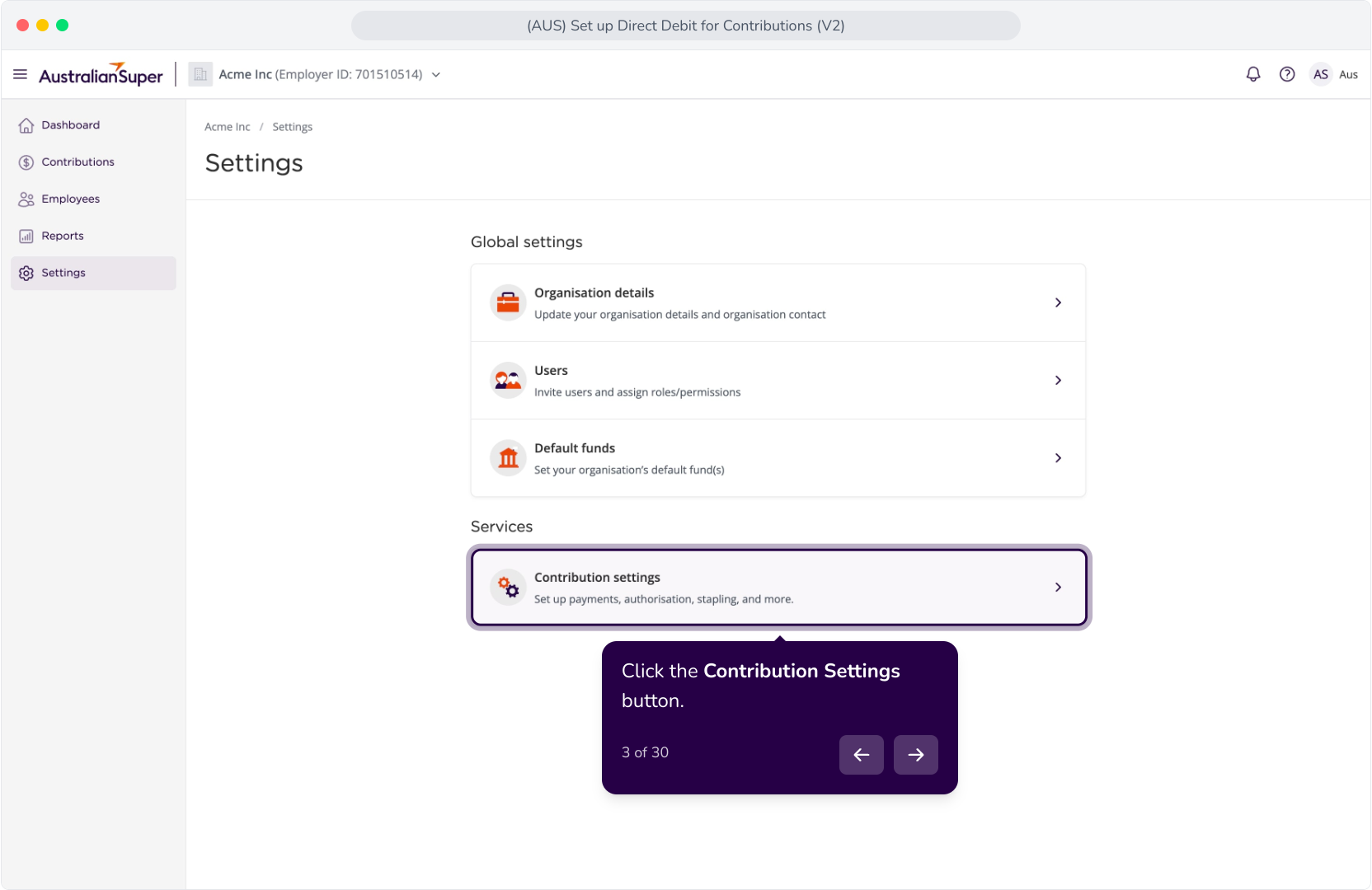
2. Click the Contribution Settings button.
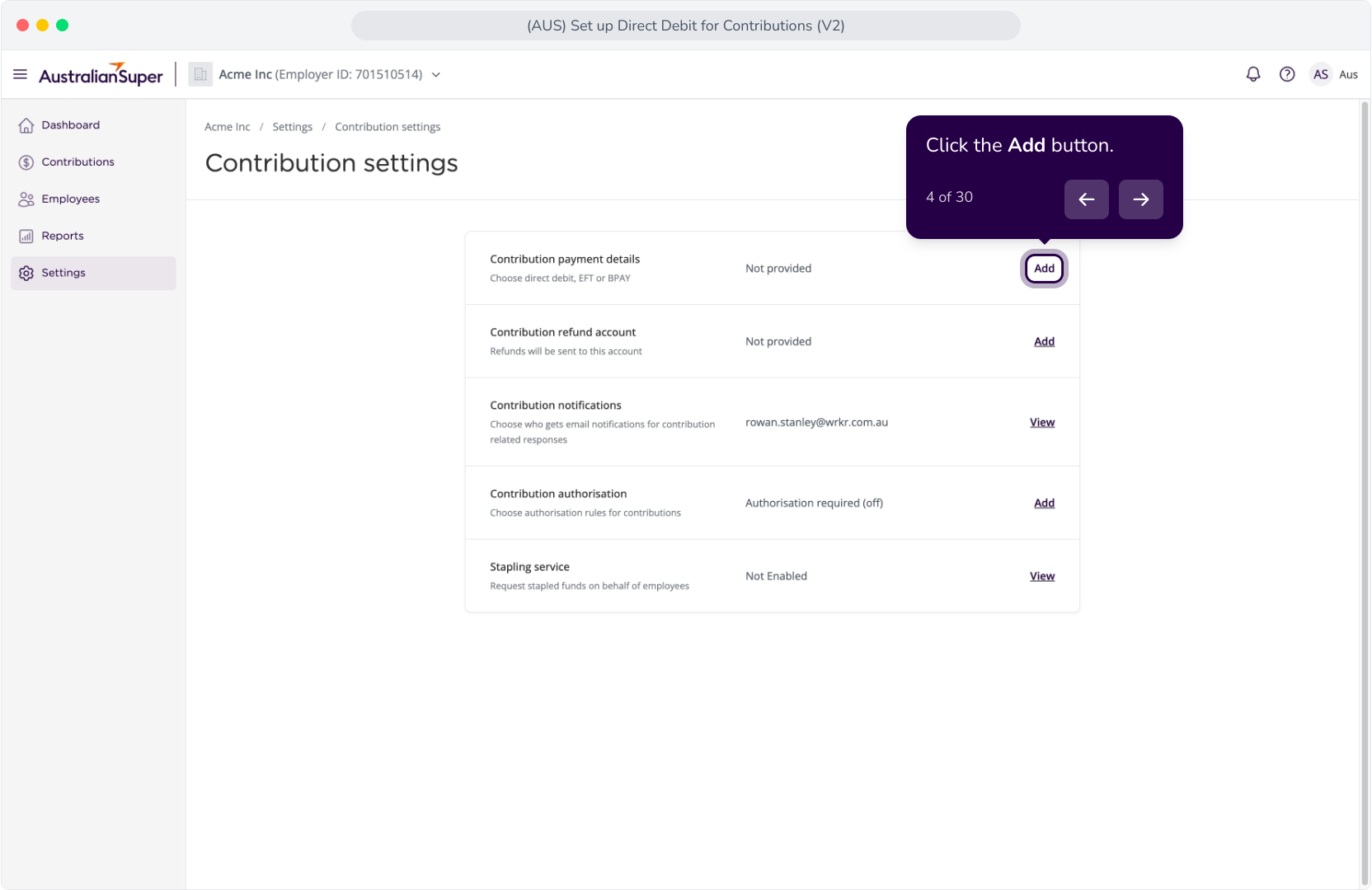
3. Click the Add button.
4. To configure Direct debit for contribution payments, you will need to undergo an identity and bank account verification process.
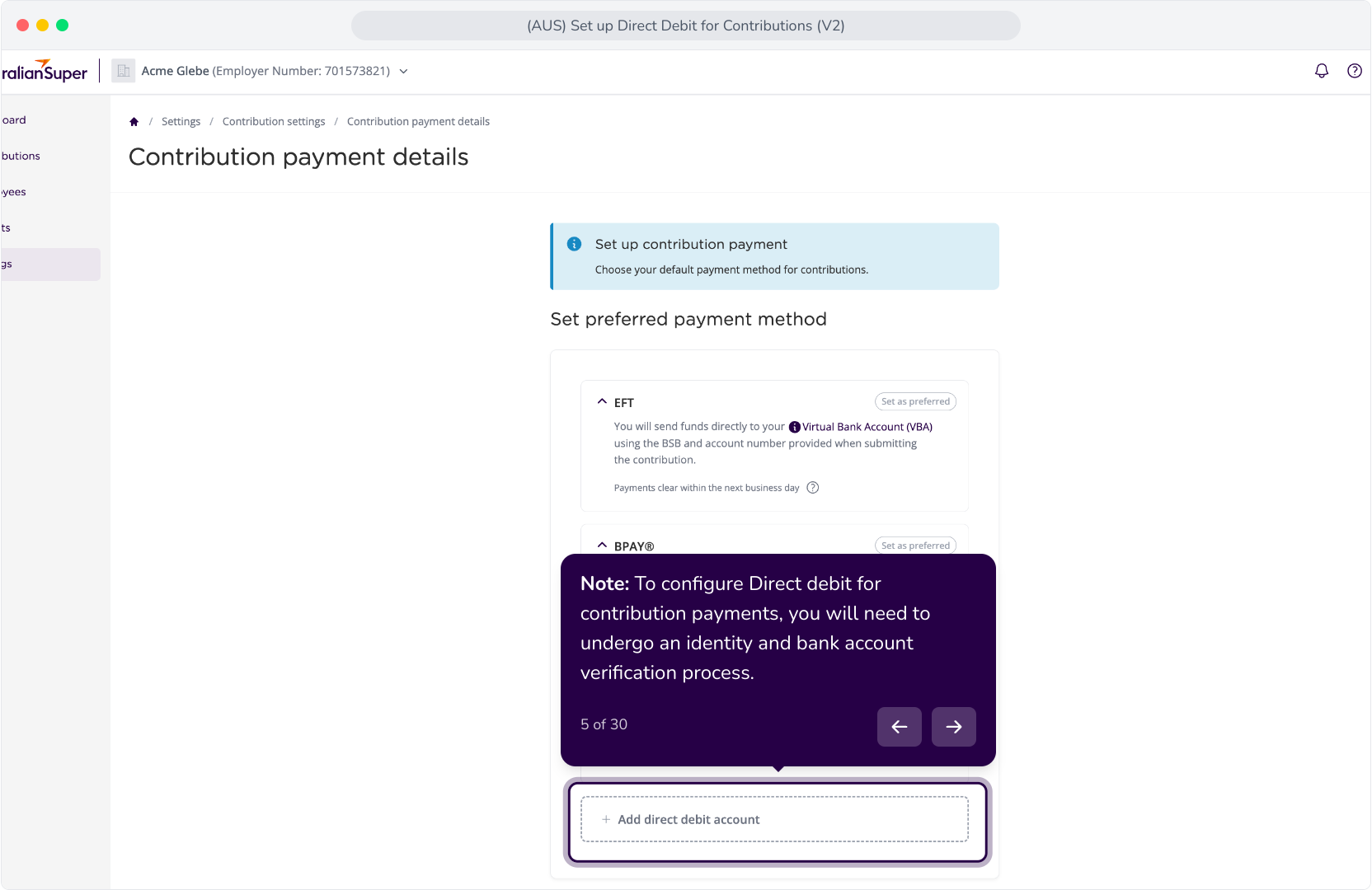
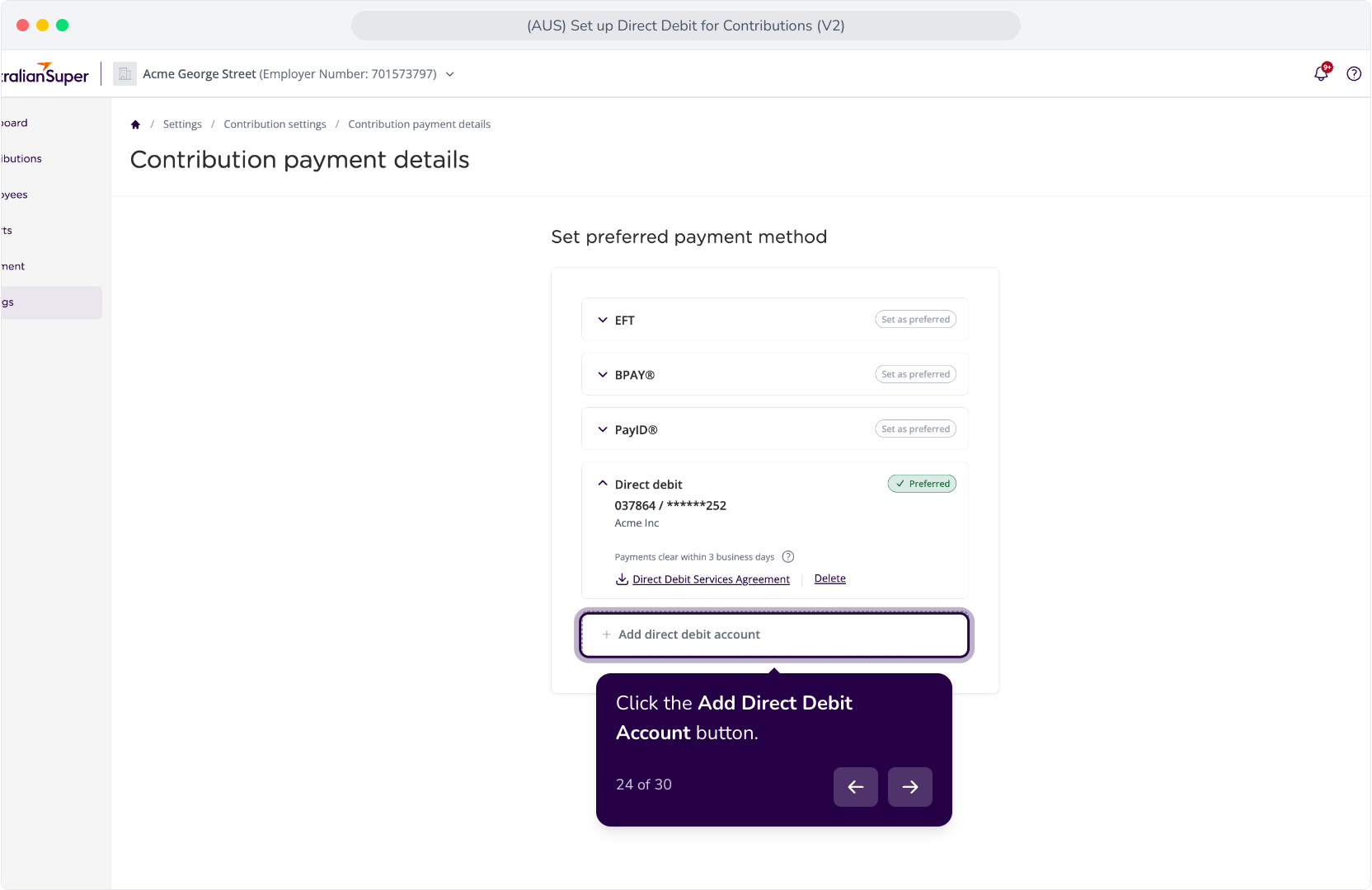
5. Click the Add Direct Debit Account button.
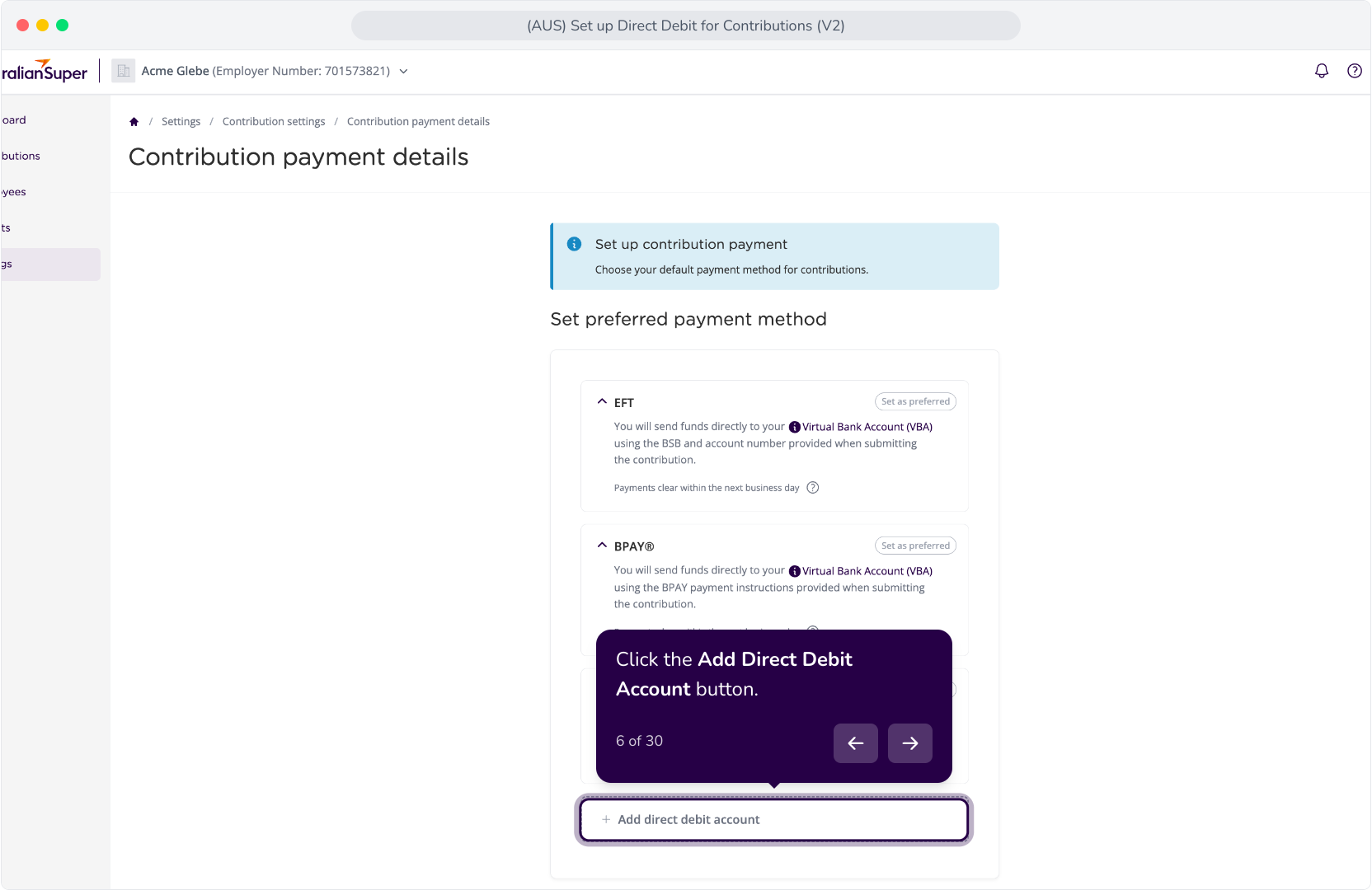
6. Select the I am the Account Holder option.
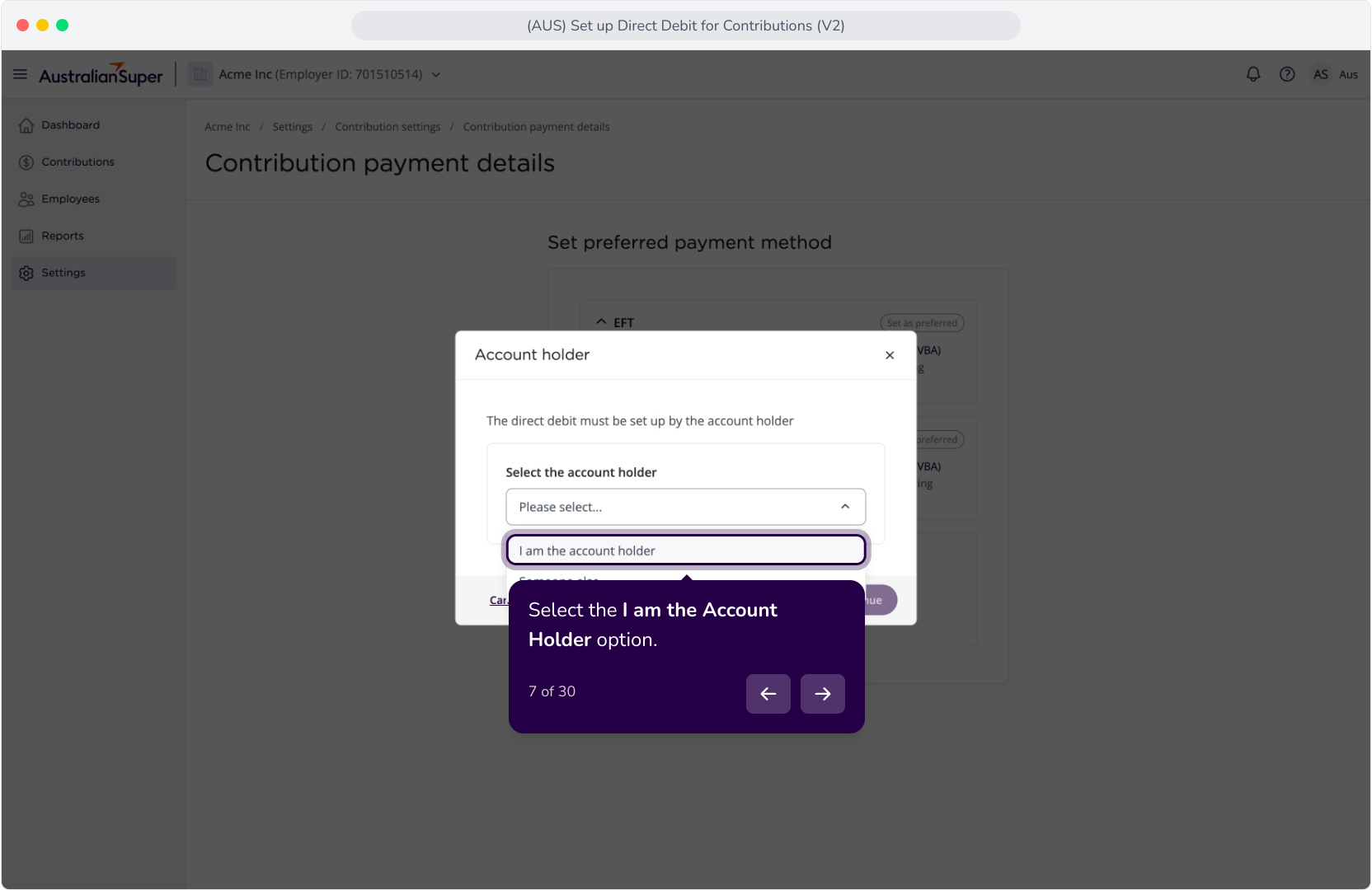
7. Click the Continue button.
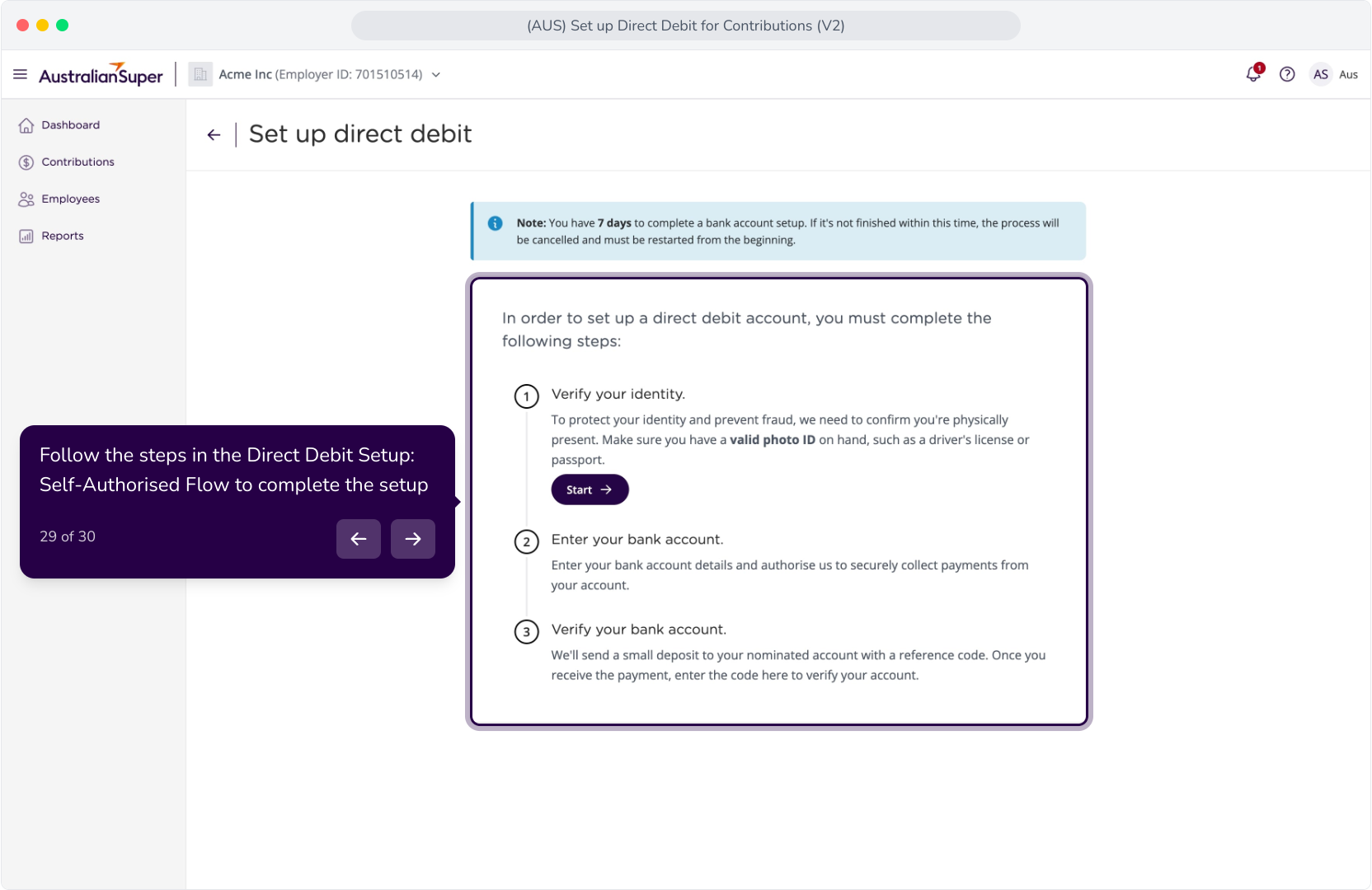
8. Let's commence the verification process. As stated in the info alert at the top, you have 7 days to complete the bank account setup.
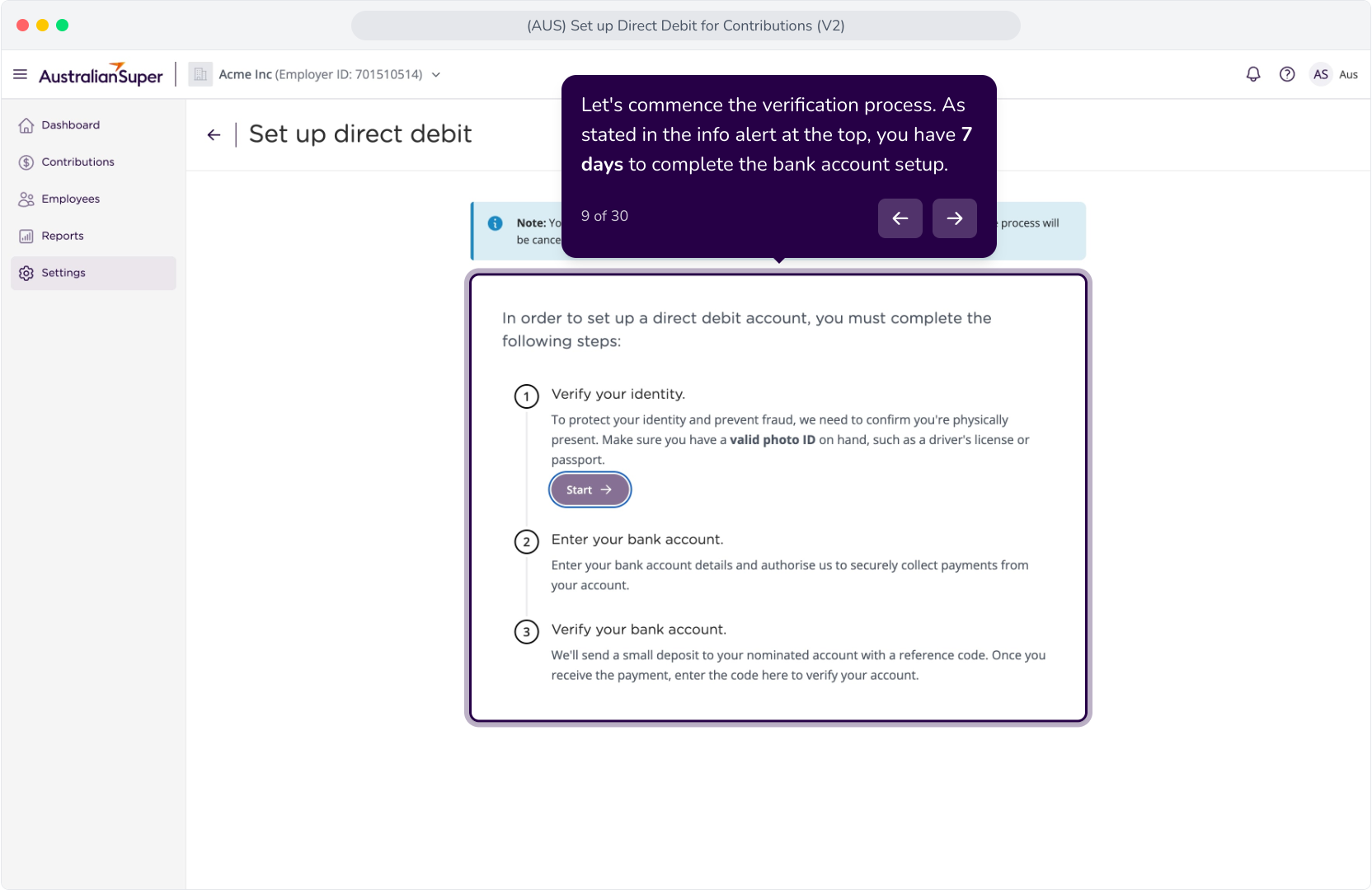
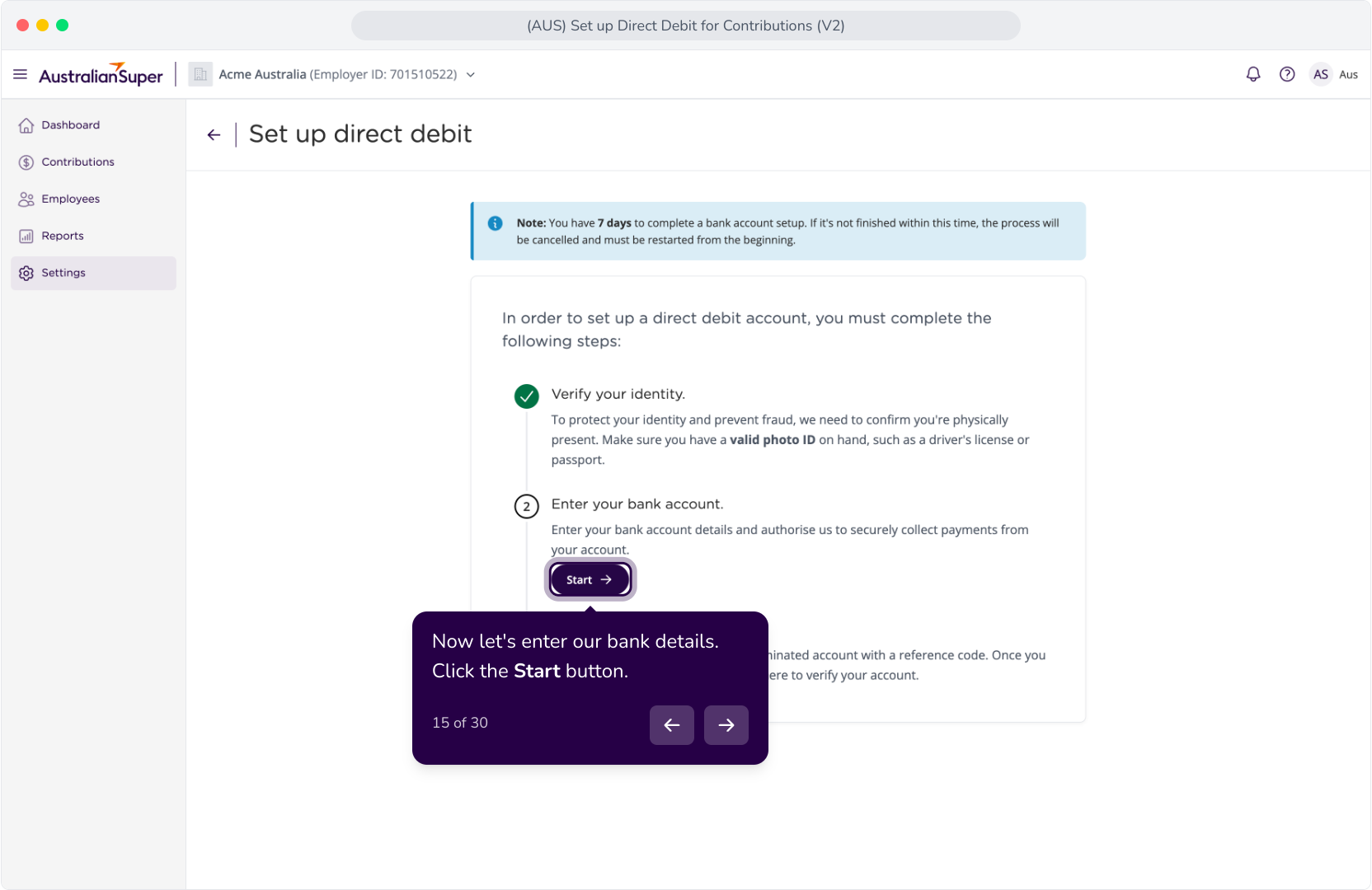
9. Click the Start button to begin the Identity verification process.
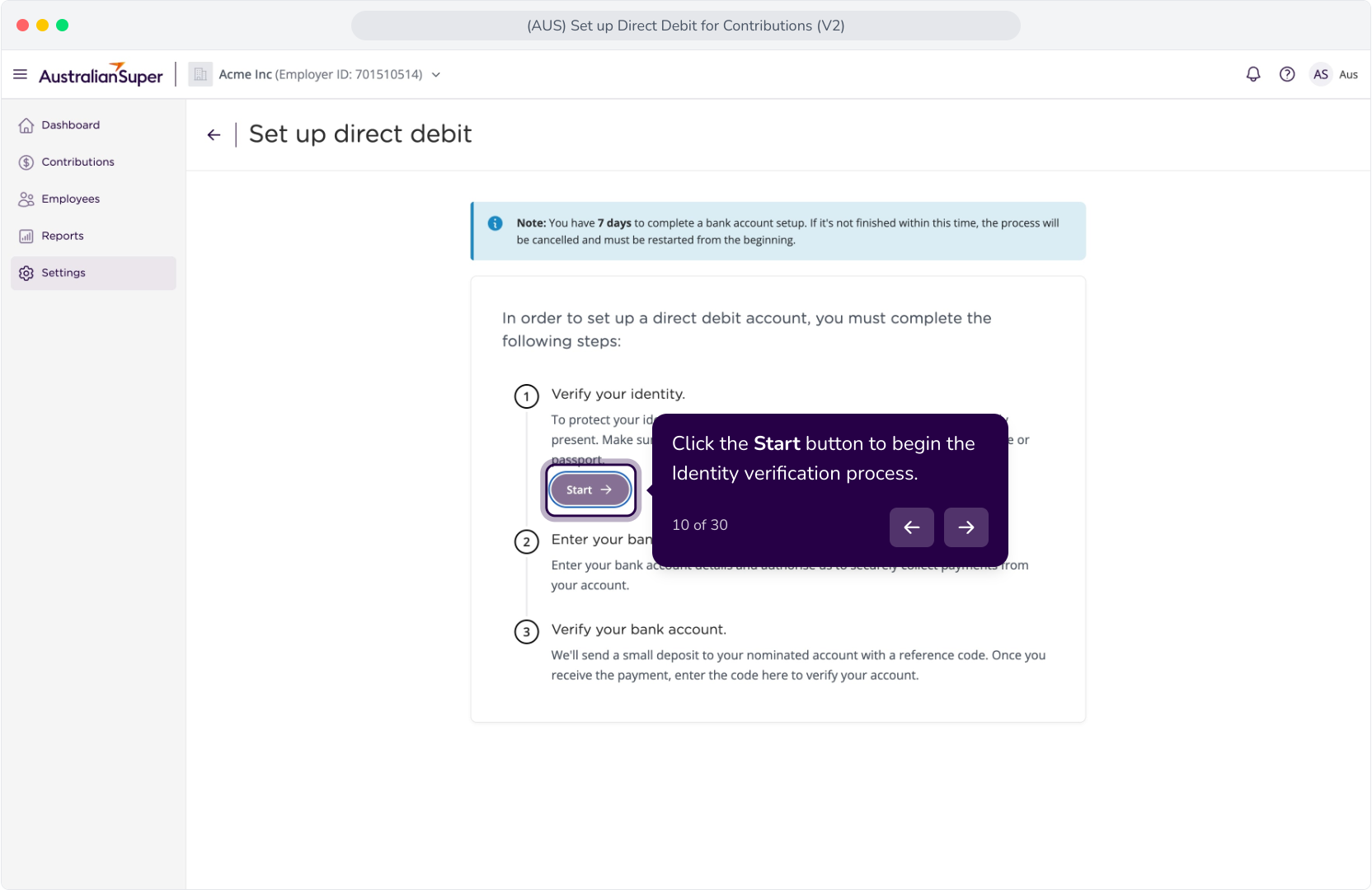
10. Scan the QR code with your mobile device, or if already on a mobile, click the link provided below.
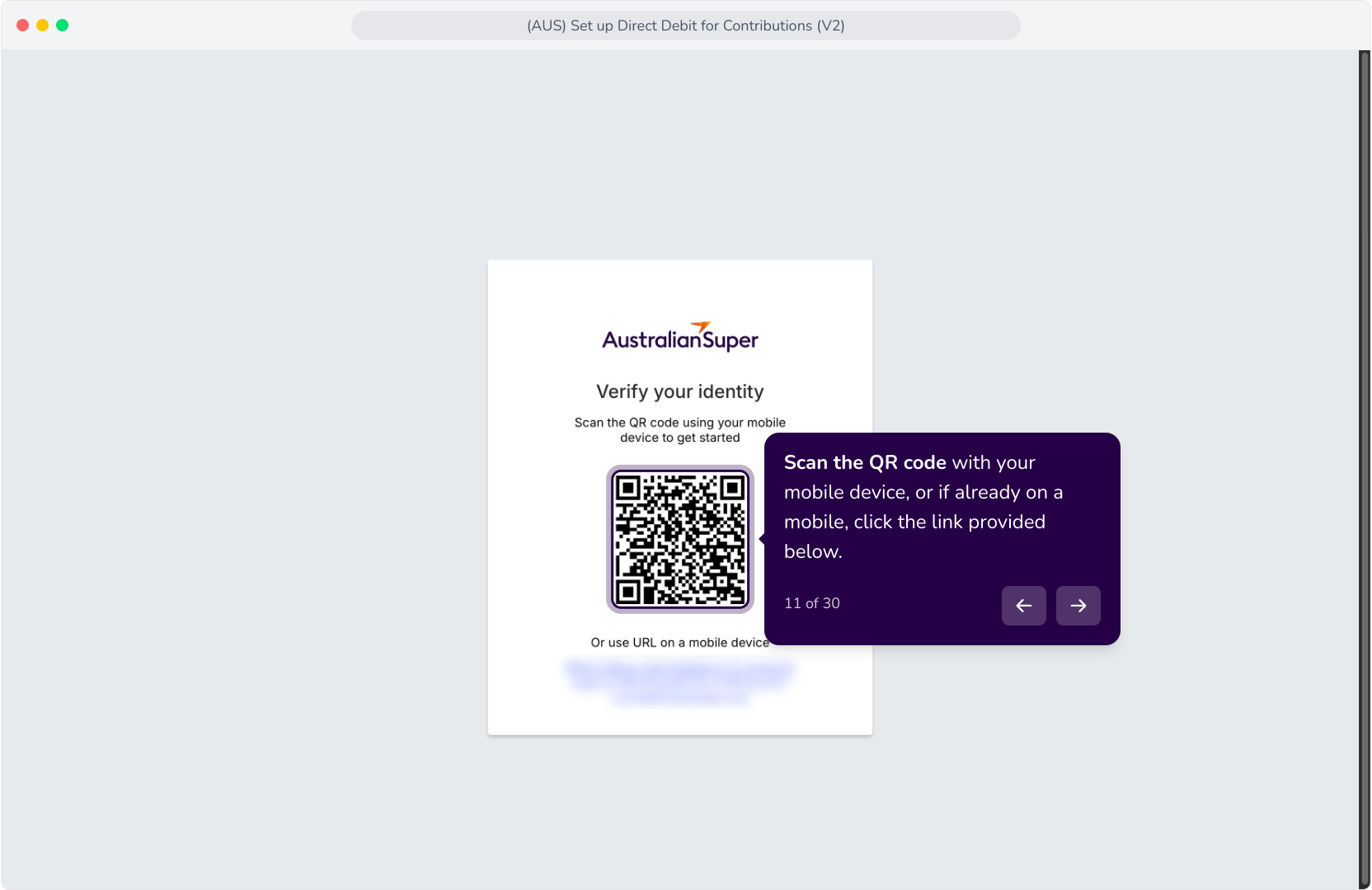
11. Once ready, click the Start button.
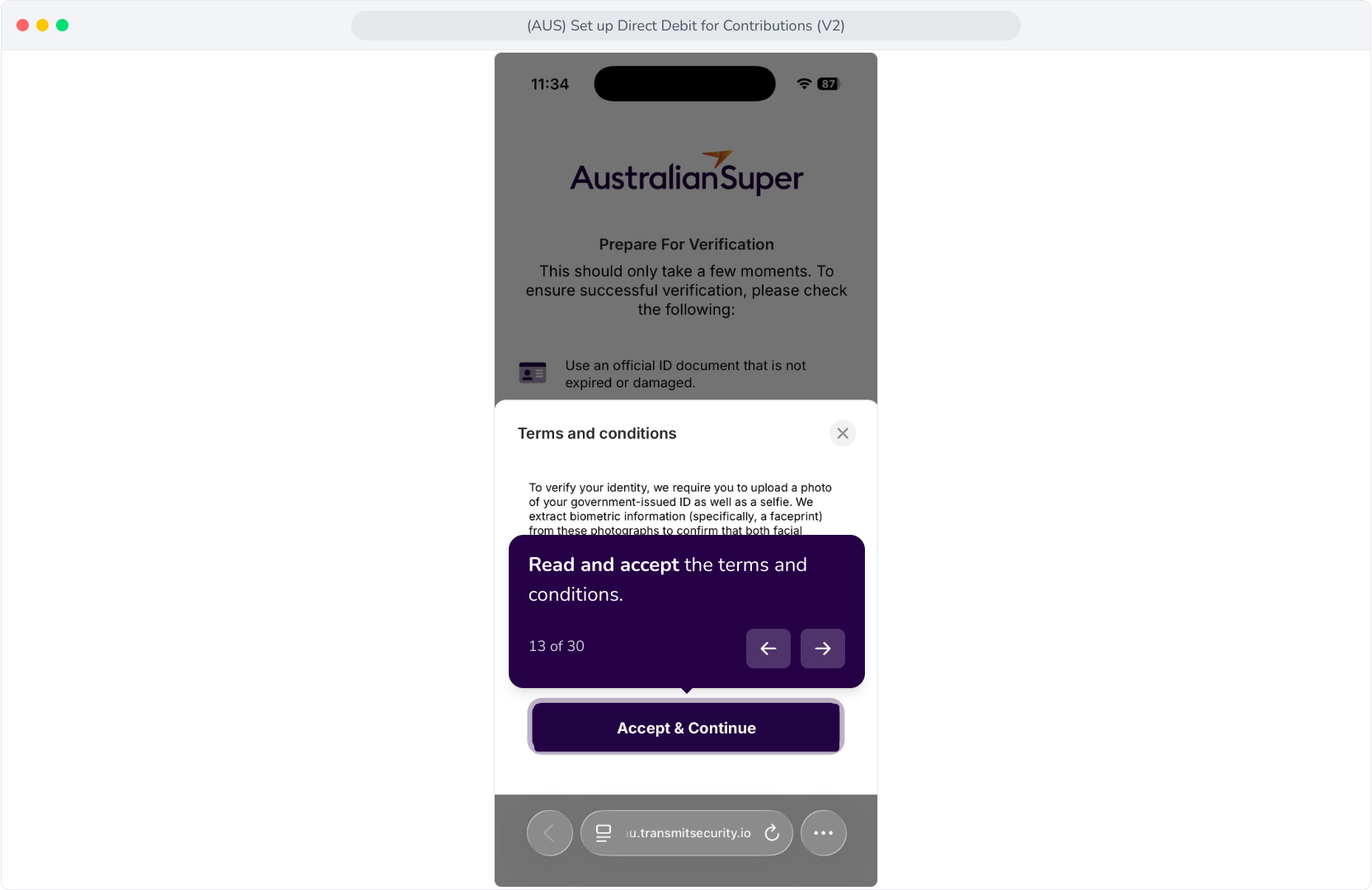
12. Read and accept the terms and conditions.
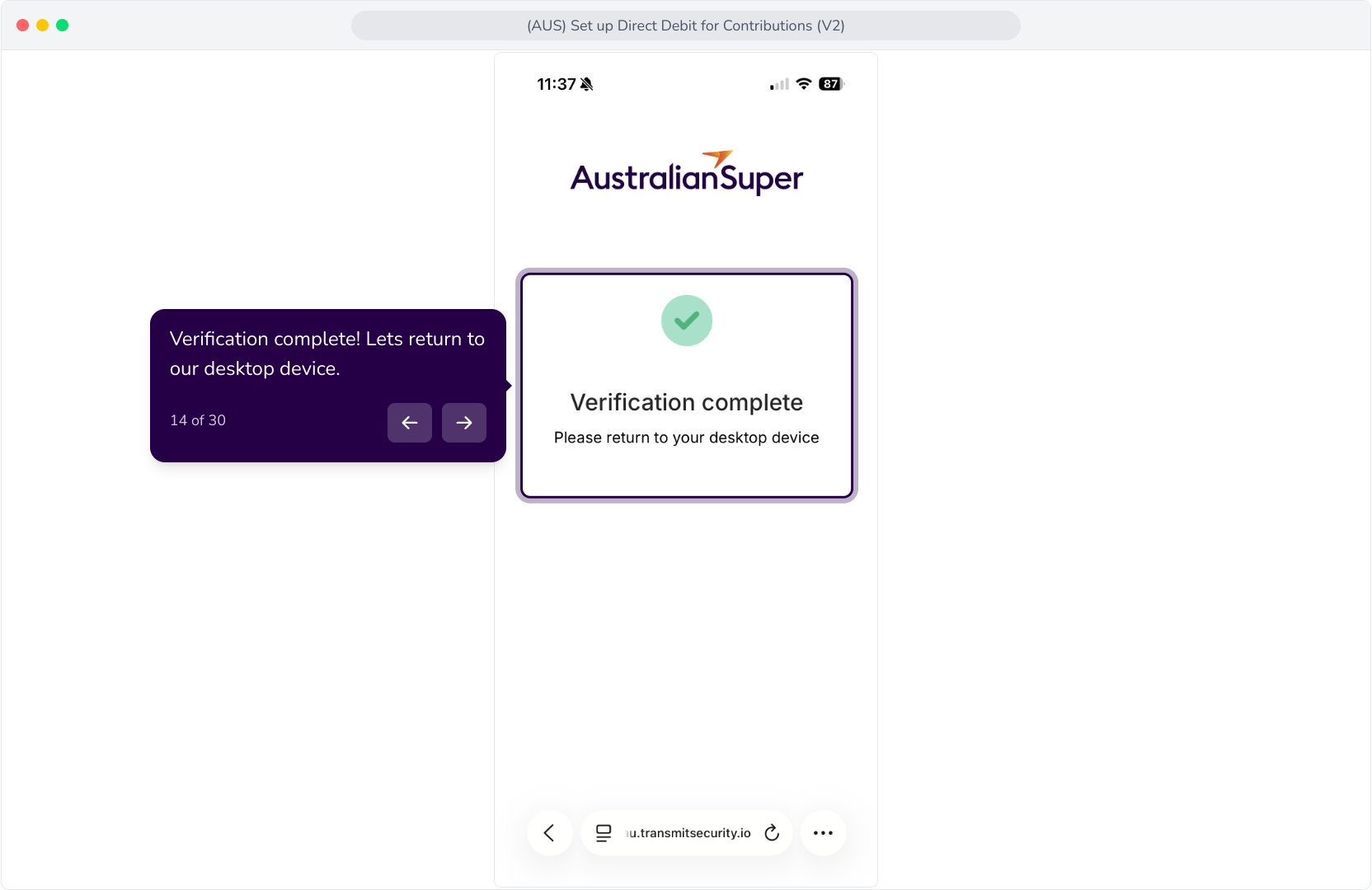
13. Verification complete! Lets return to our desktop device.
14. Now let's enter our bank details. Click the Start button.
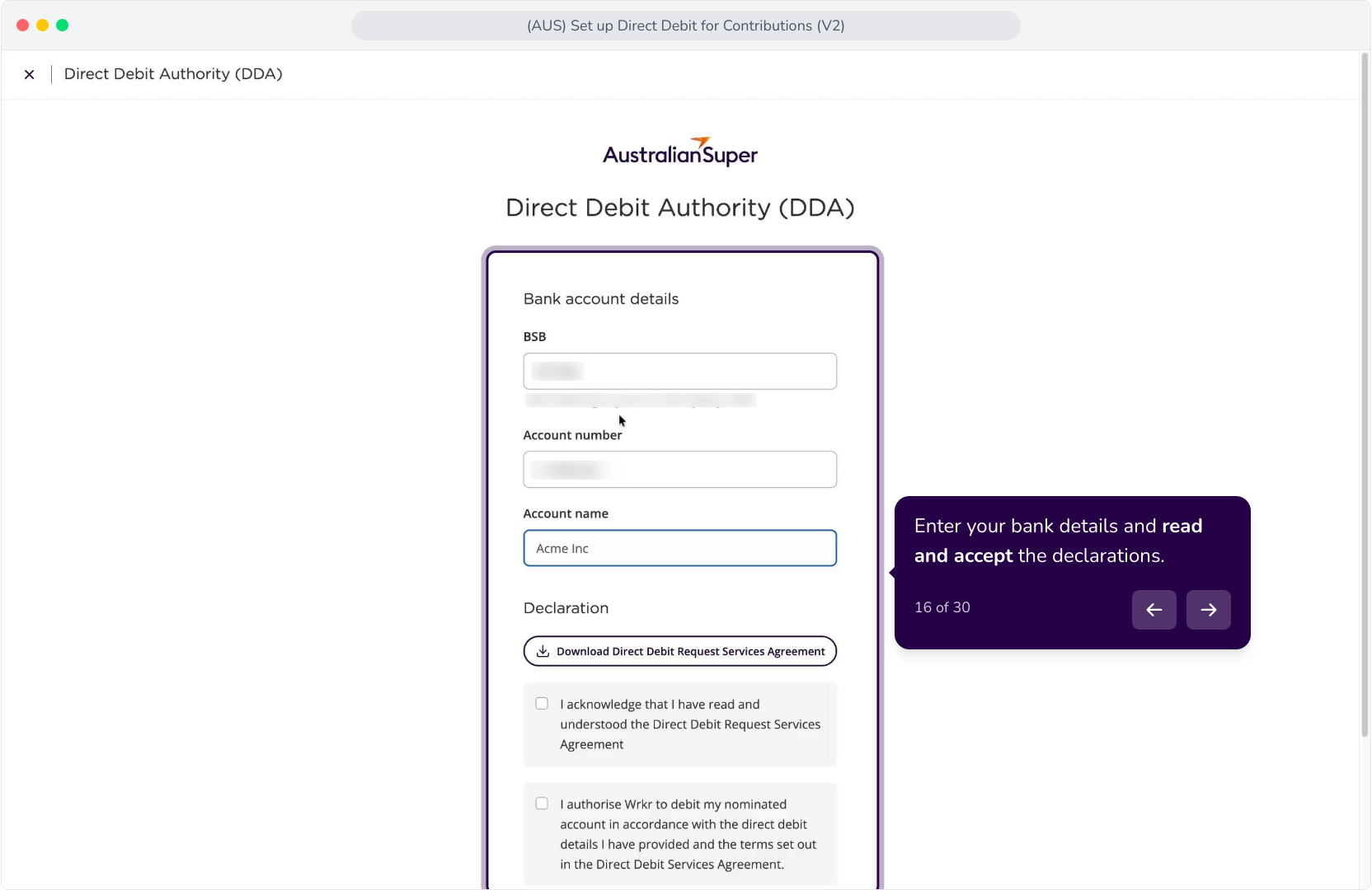
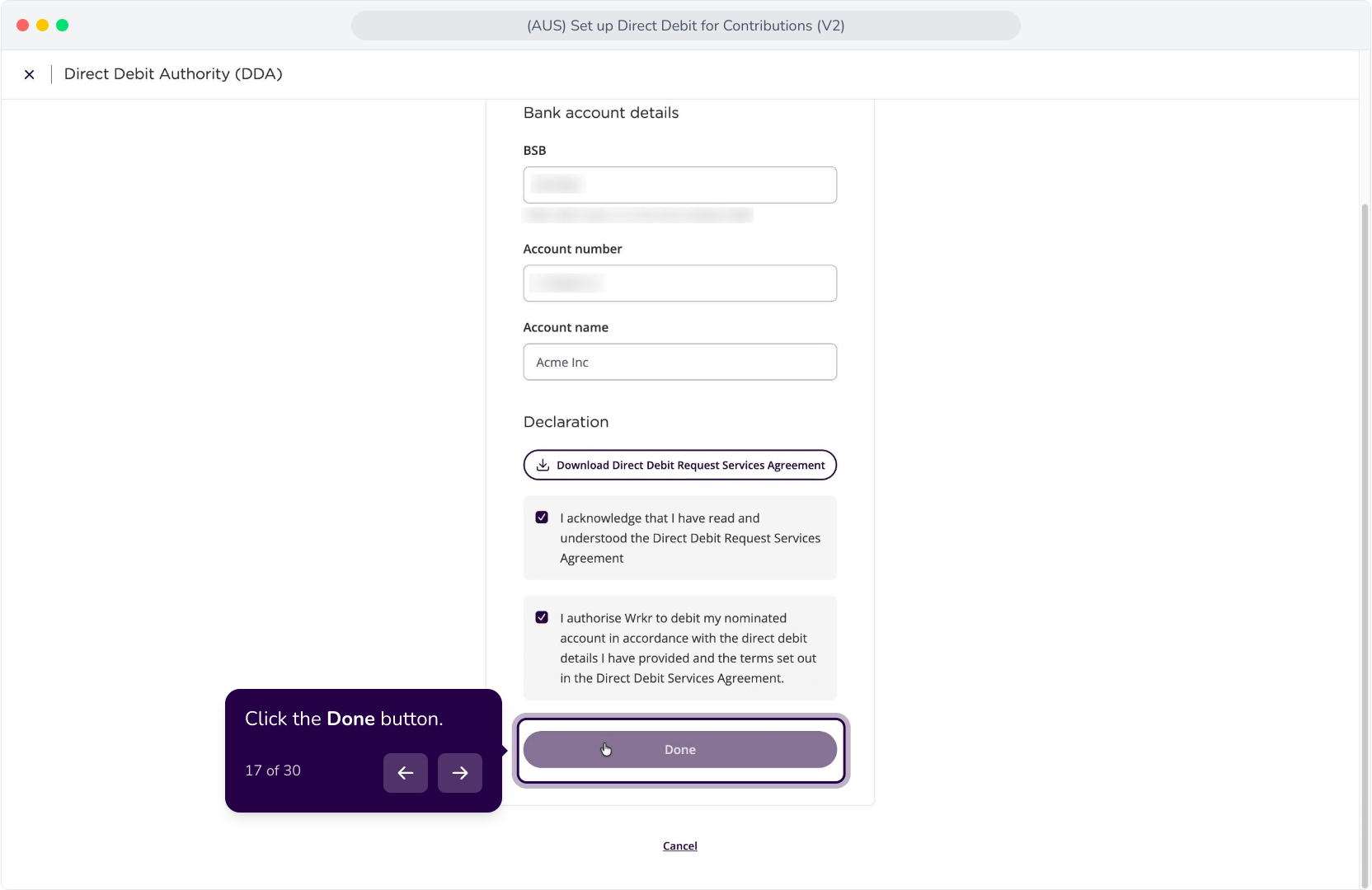
15. Enter your bank details and read and accept the declarations.
16. Click the Done button.
17. A small deposit will be made to the bank account you entered.
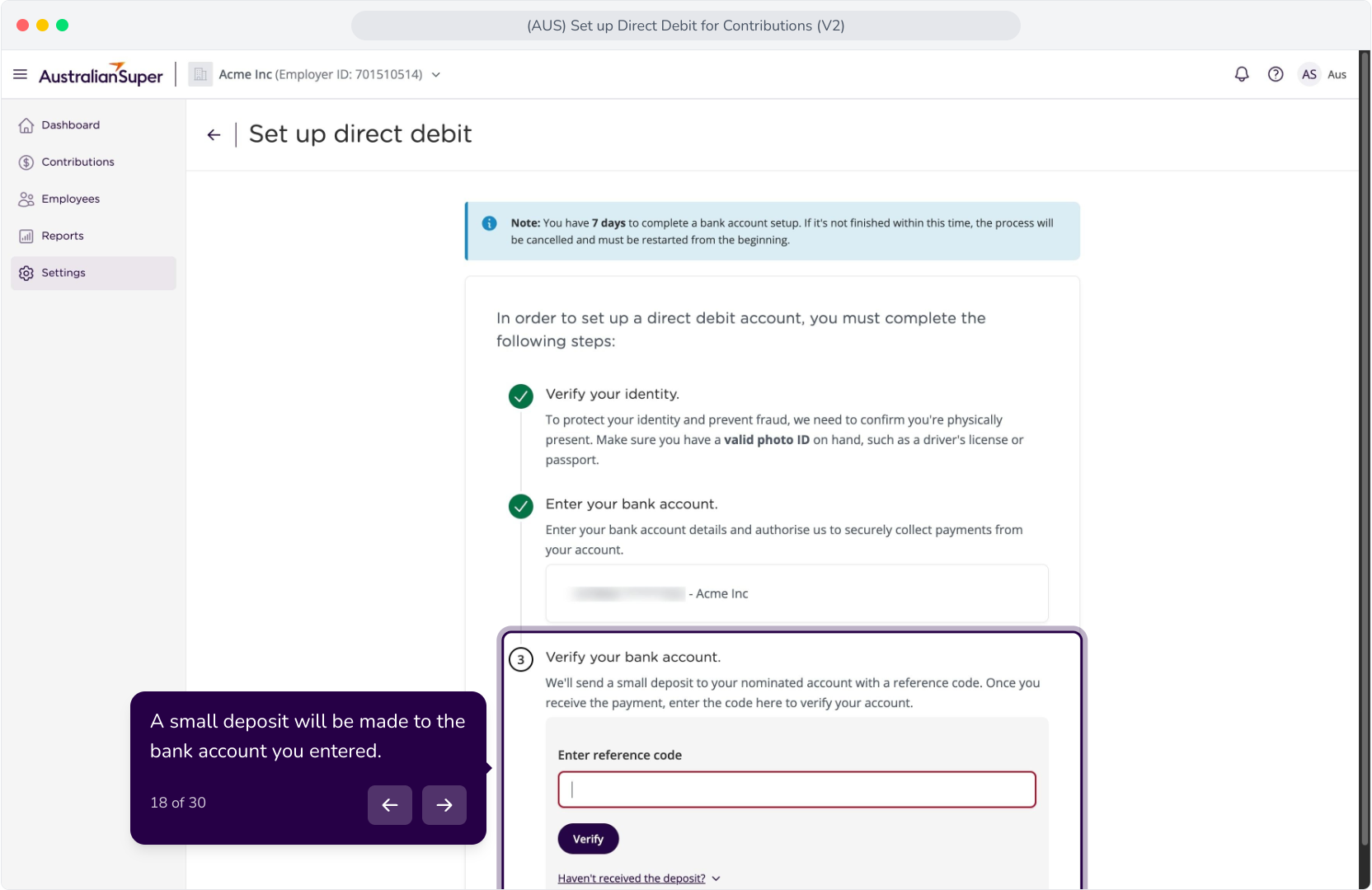
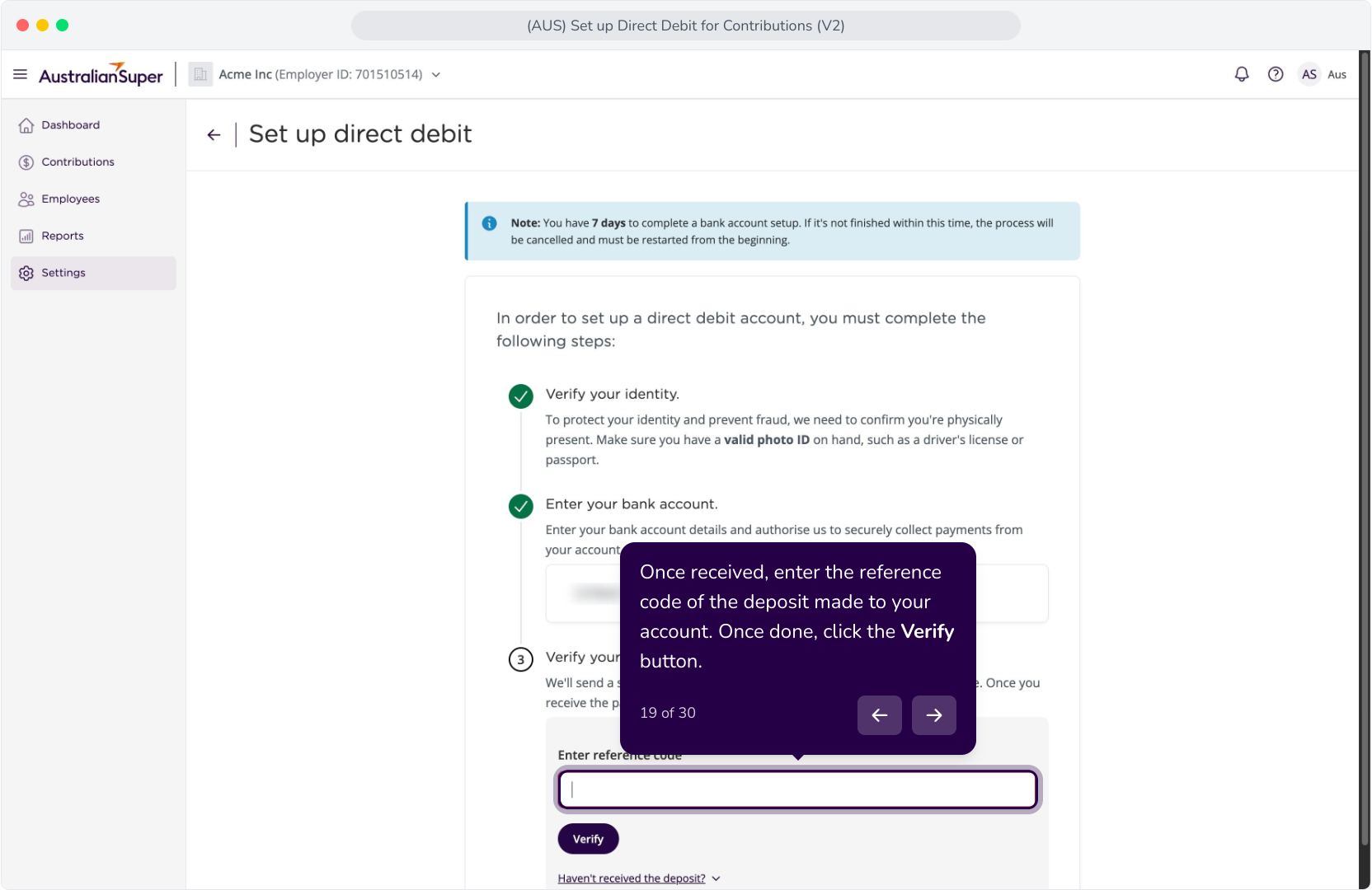
18. Once received, enter the reference code of the deposit made to your account. Once done, click the Verify button.
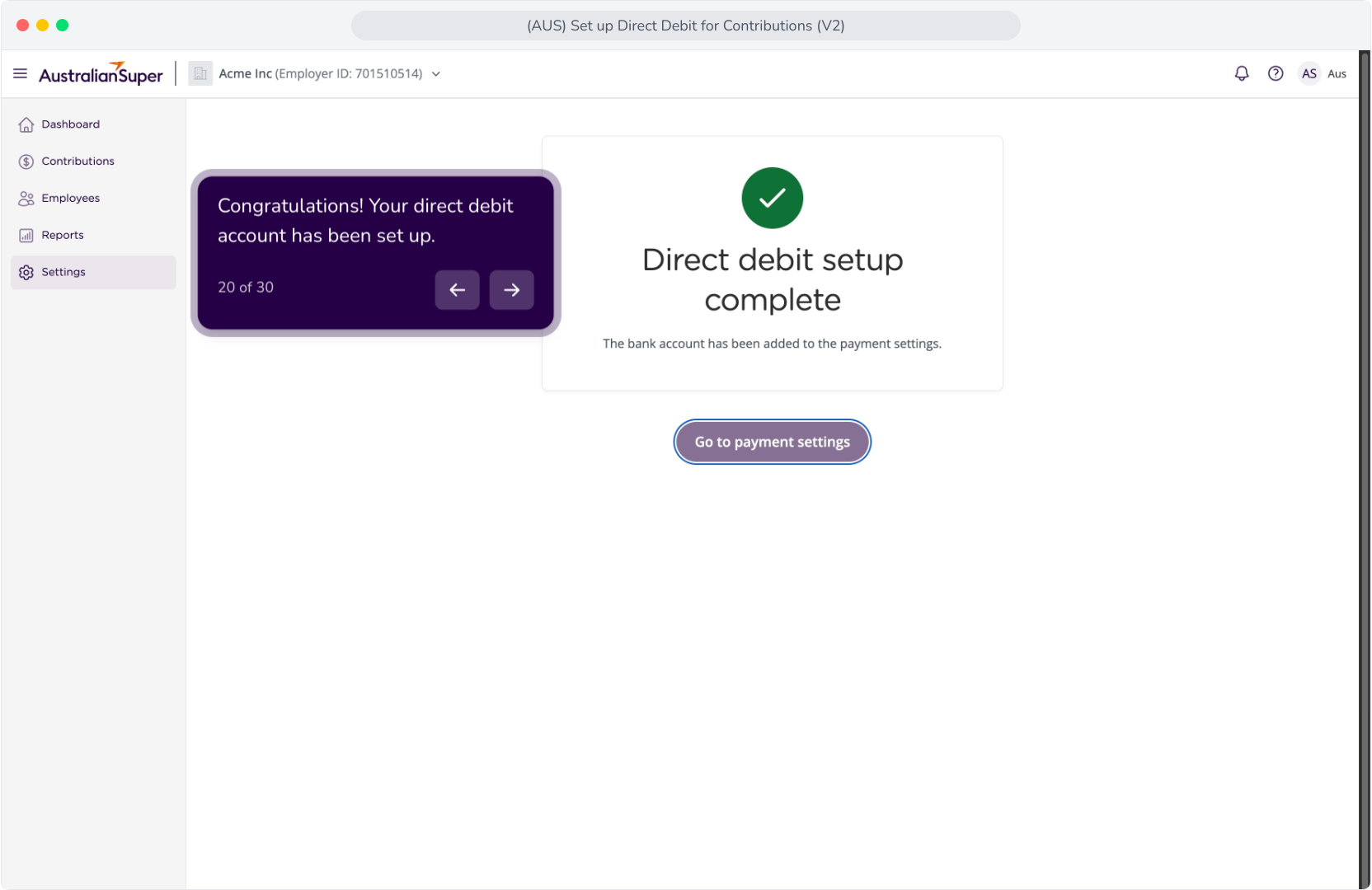
19. Congratulations! Your direct debit account has been set up.
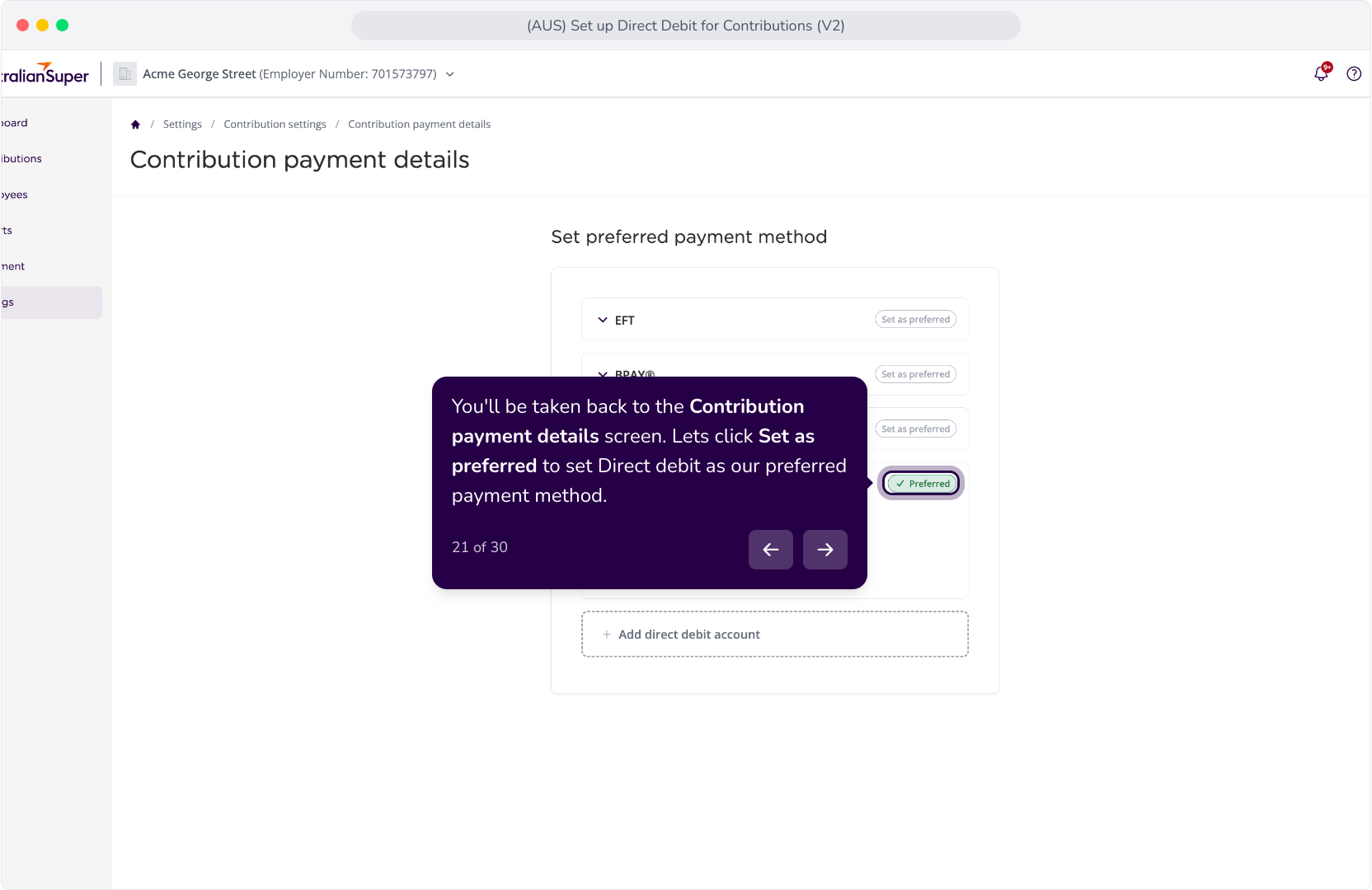
20. You'll be taken back to the Contribution payment details screen. Lets click Set as preferred to set Direct debit as our preferred payment method.
Written steps: Set Up Direct Debit – Delegated Flow
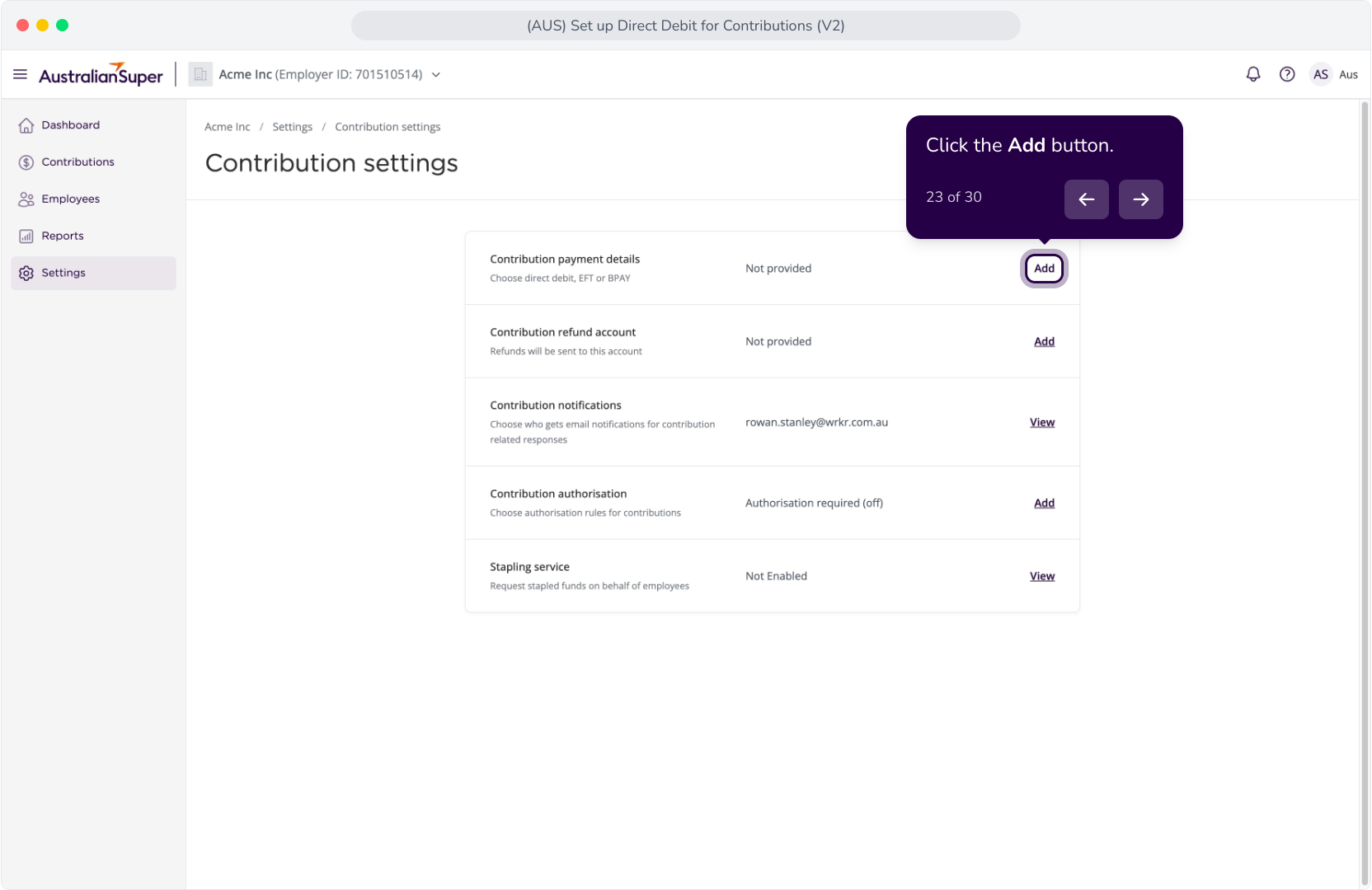
1. Click the Add button.
2. Click the Add Direct Debit Account button.
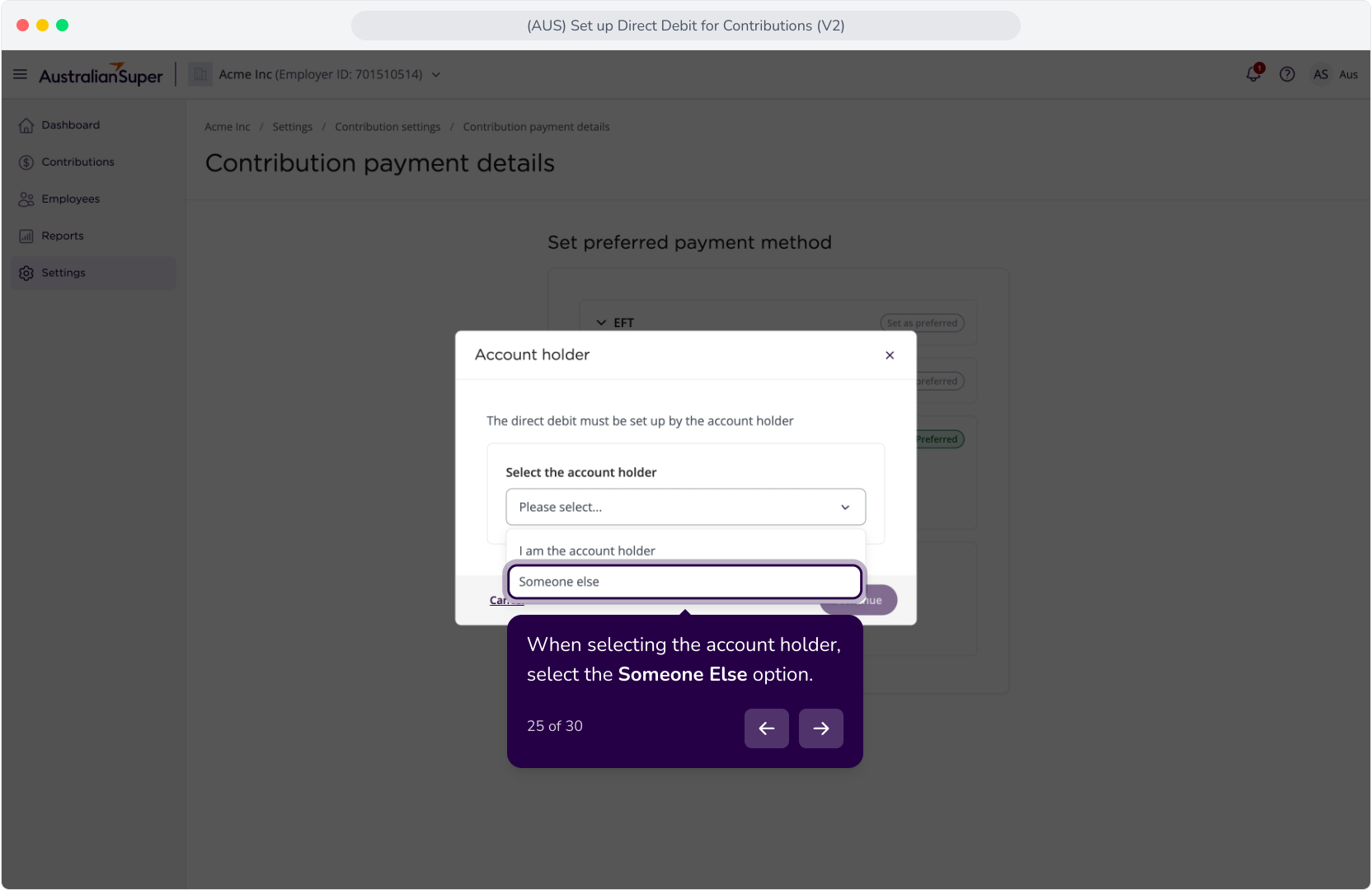
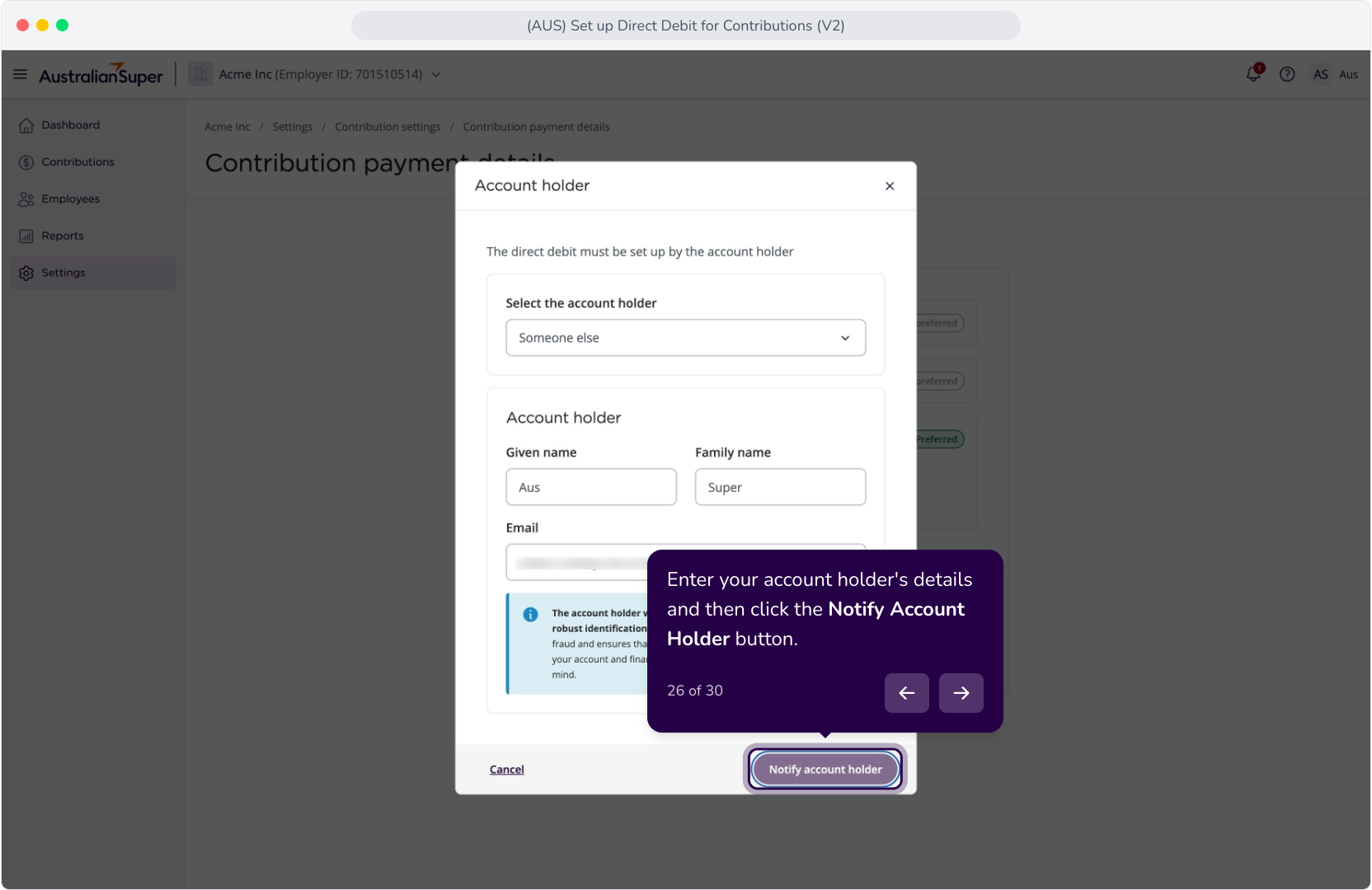
3 When selecting the account holder, select the Someone Else option.
4. Enter your account holder's details and then click the Notify Account Holder button.
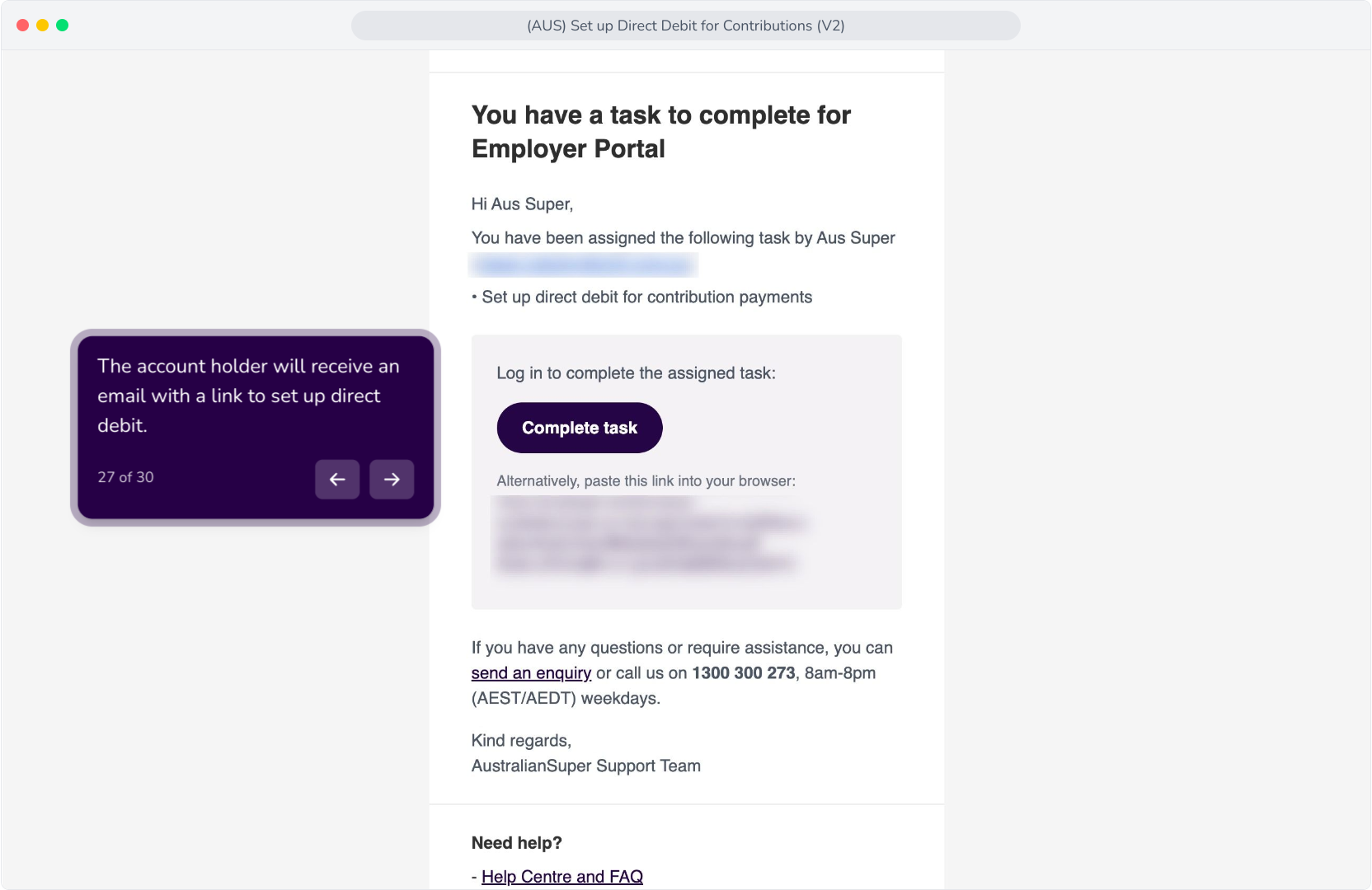
5. The account holder will receive an email with a link to set up direct debit.
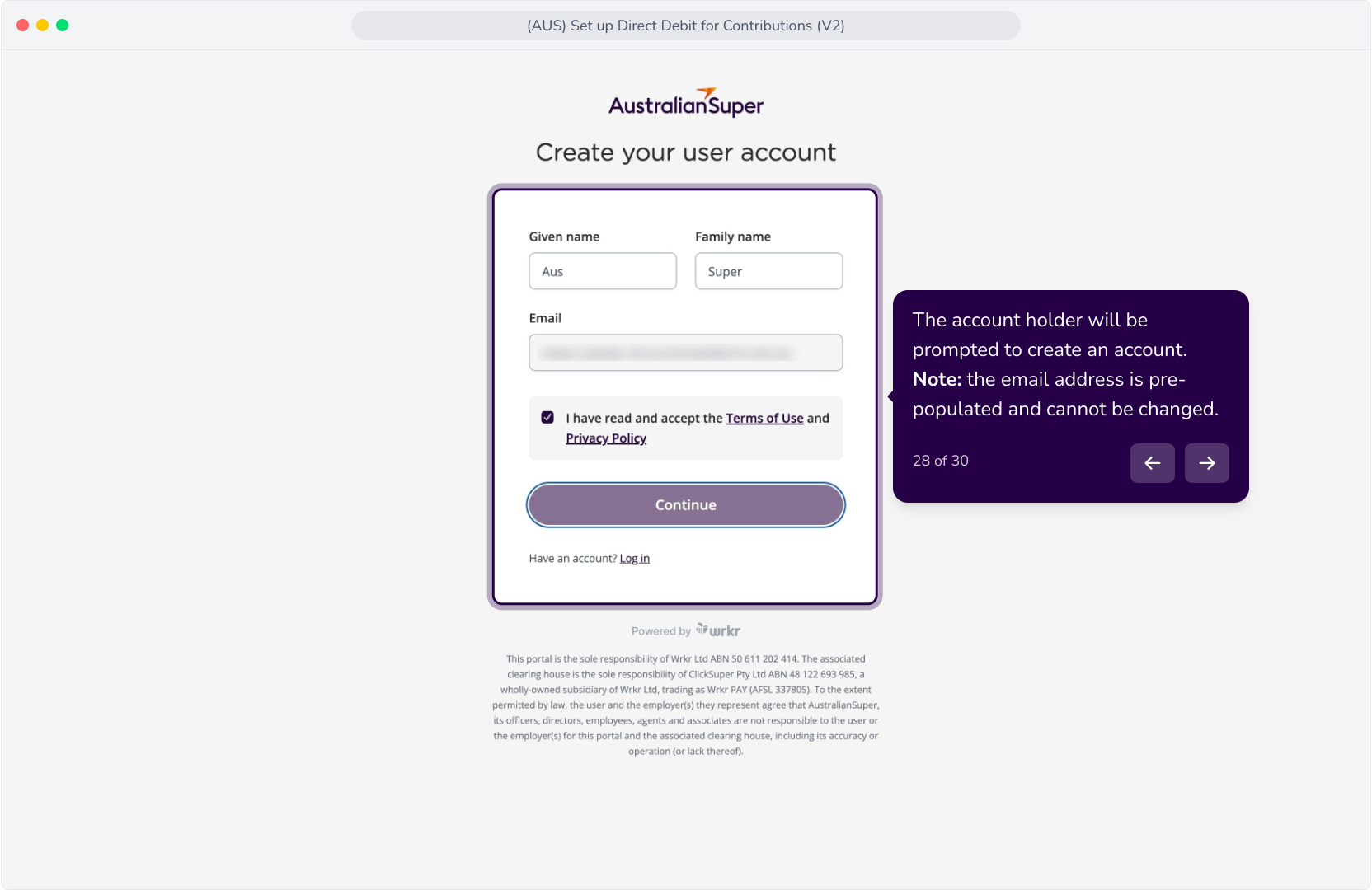
6. The account holder will be prompted to create an account. Note: the email address is pre-populated and cannot be changed.
7 Follow the steps in the Direct Debit Setup: Self-Authorised Flow to complete the setup
8. Congratulations! As the authoriser, you've set up direct debit.Note: As you have been invited to configure the direct debit, you will not see any other actions. You will be logged out of the account.