Context: This guide covers the ability to add and manage users and their roles within your organisation.
Help: Looking to onboard employees instead? Here are your options.
Interactive Demo
Note: Make the demo full-screen for a better experience. You can mute/un-mute narration to suit your preferences.
Step by Step
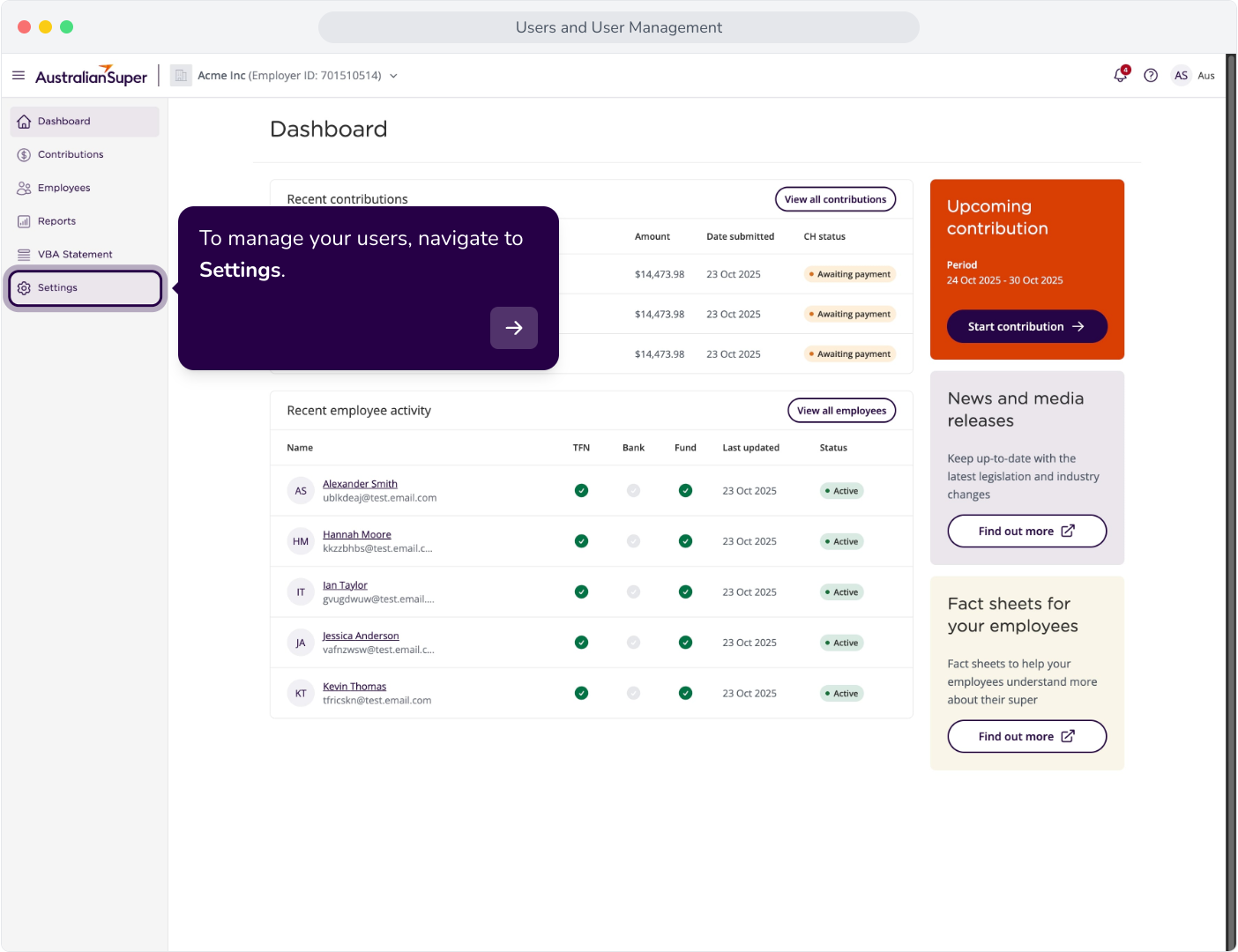
1. To manage your users, navigate to Settings.
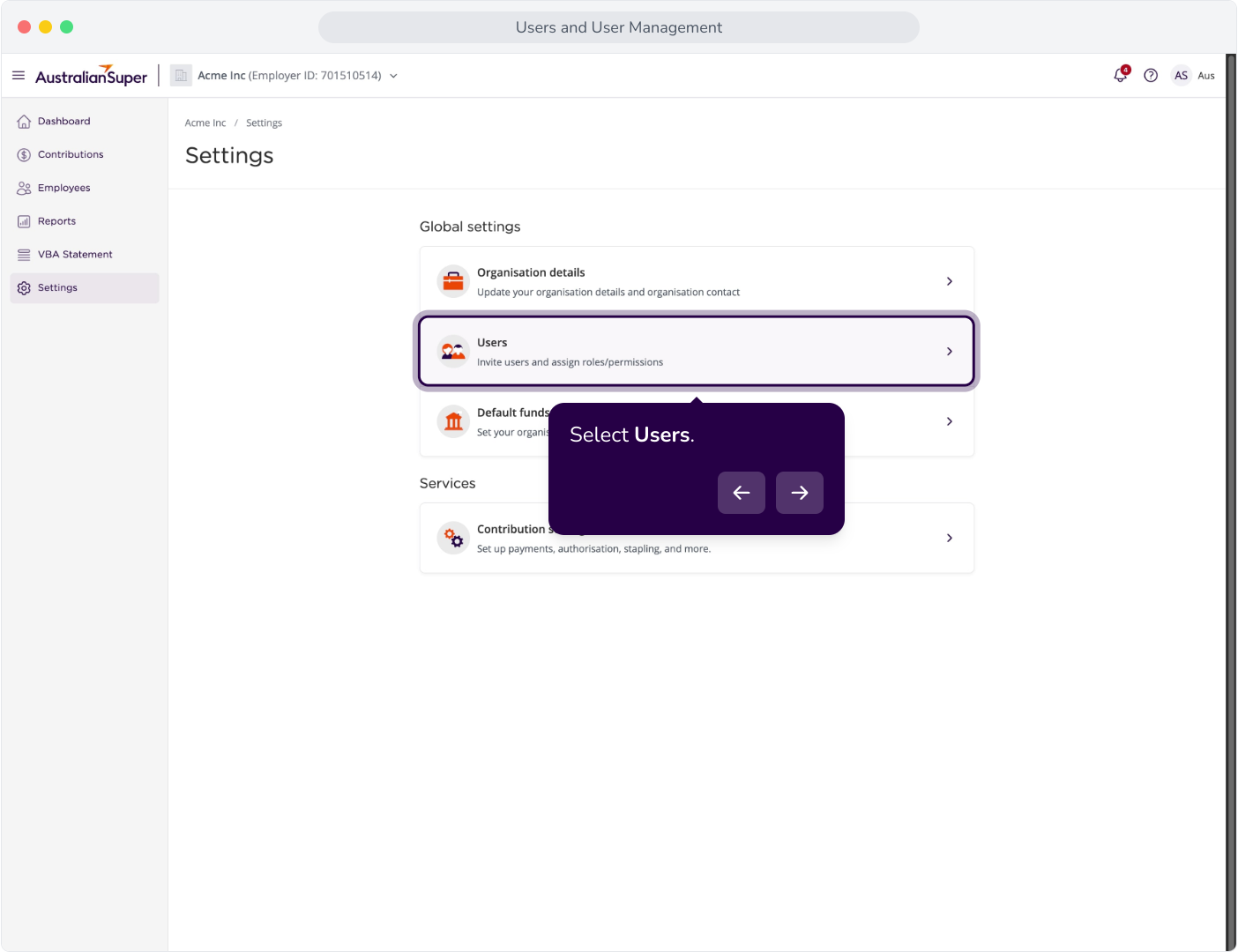
2. Select Users.
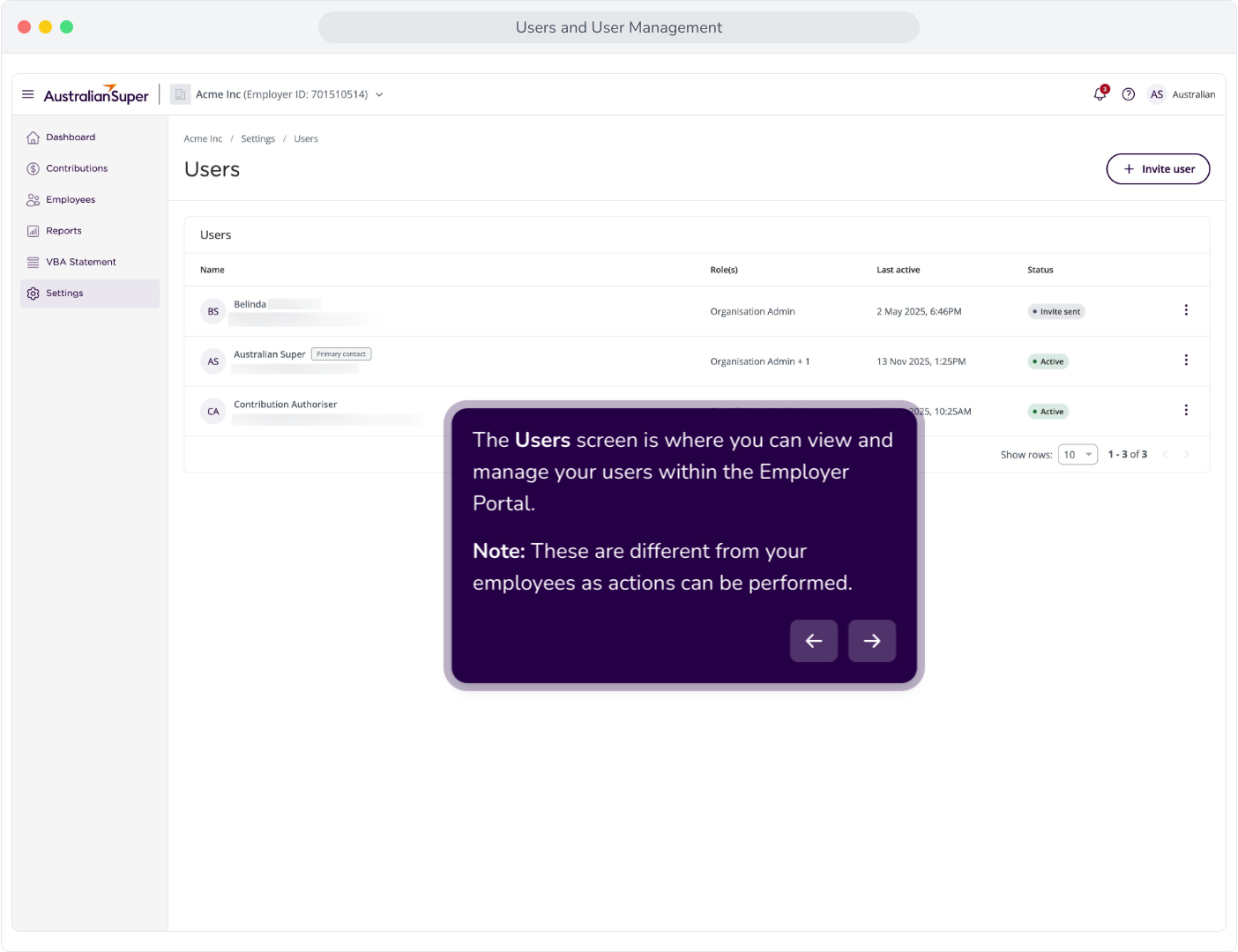
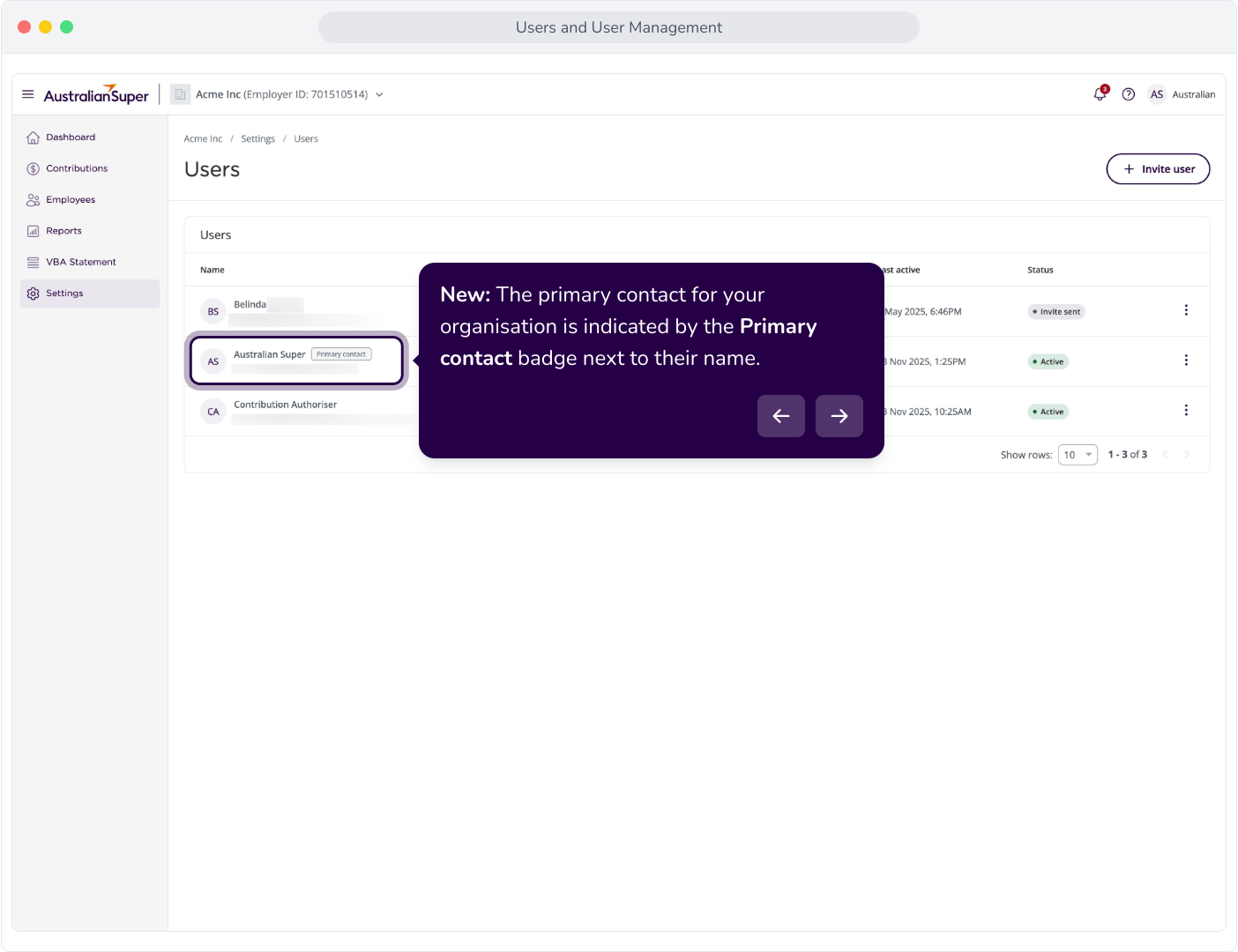
3. The Users screen is where you can view and manage your users within the Employer Portal.Note: These are different from your employees as actions can be performed.
4. New: The primary contact for your organisation is indicated by the Primary contact badge next to their name.
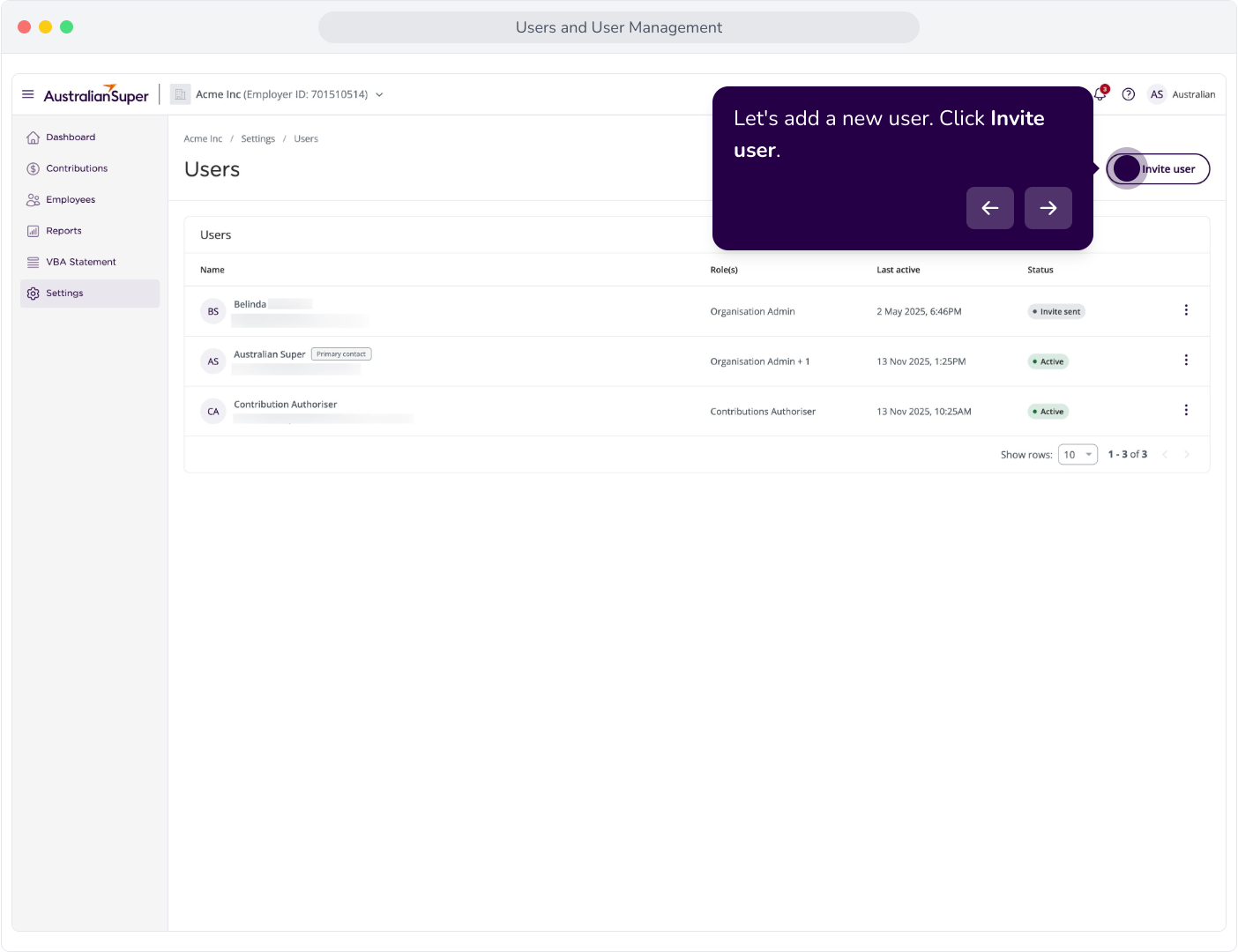
5. Let's add a new user. Click Invite user.
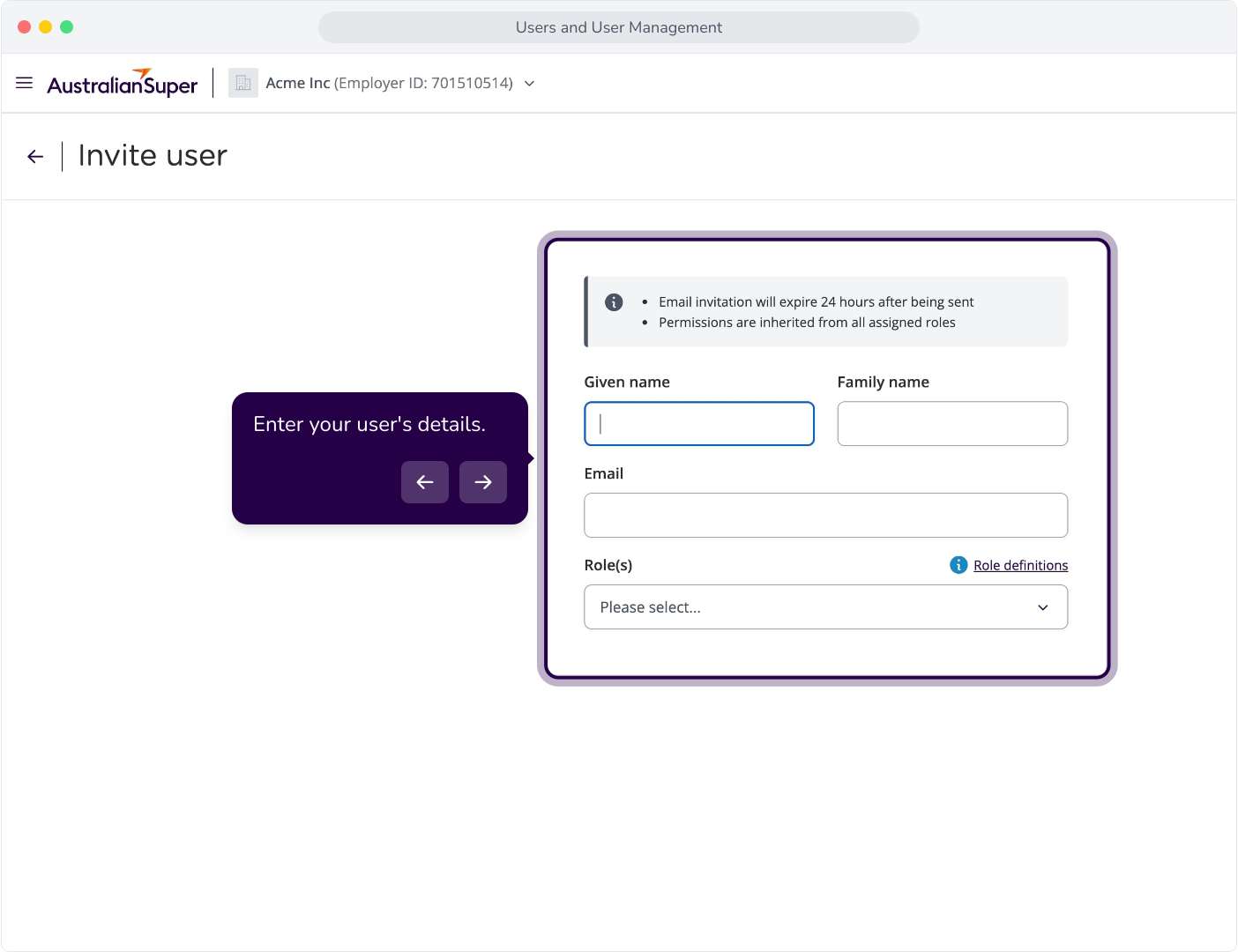
6. Enter your user's details.
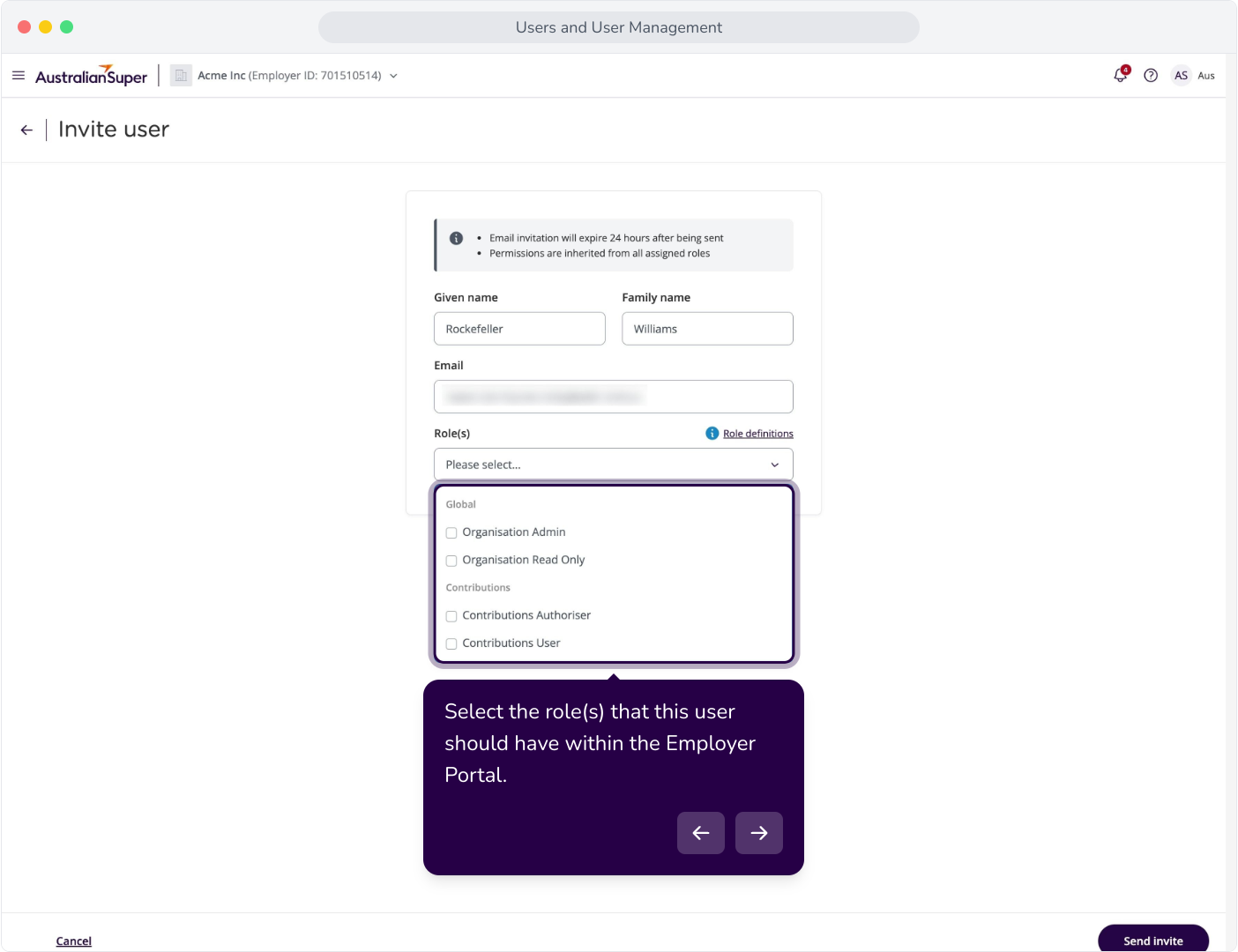
7. Select the role(s) that this user should have within the Employer Portal.
8. If you're unsure which role to assign, click here to view more details about each role.
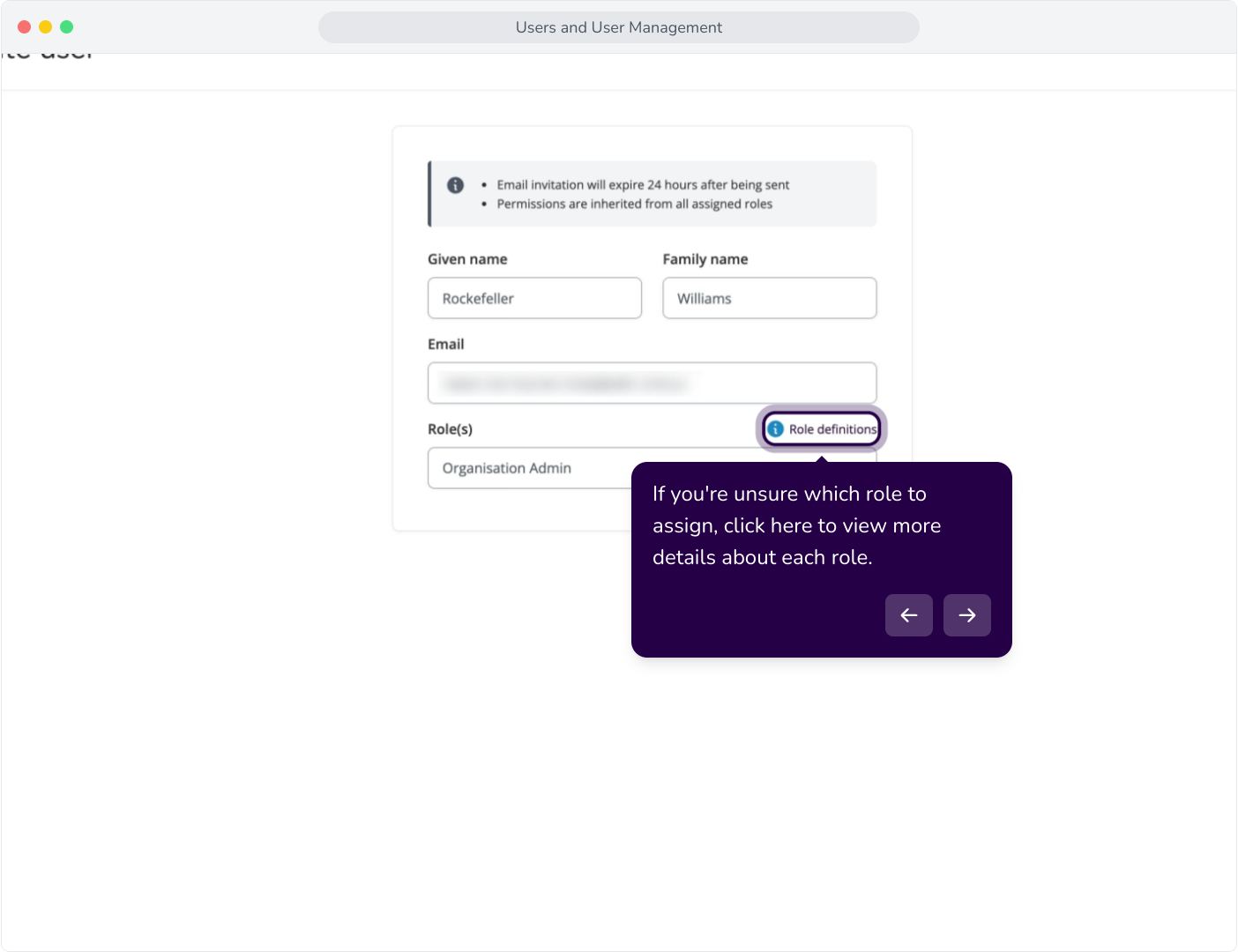
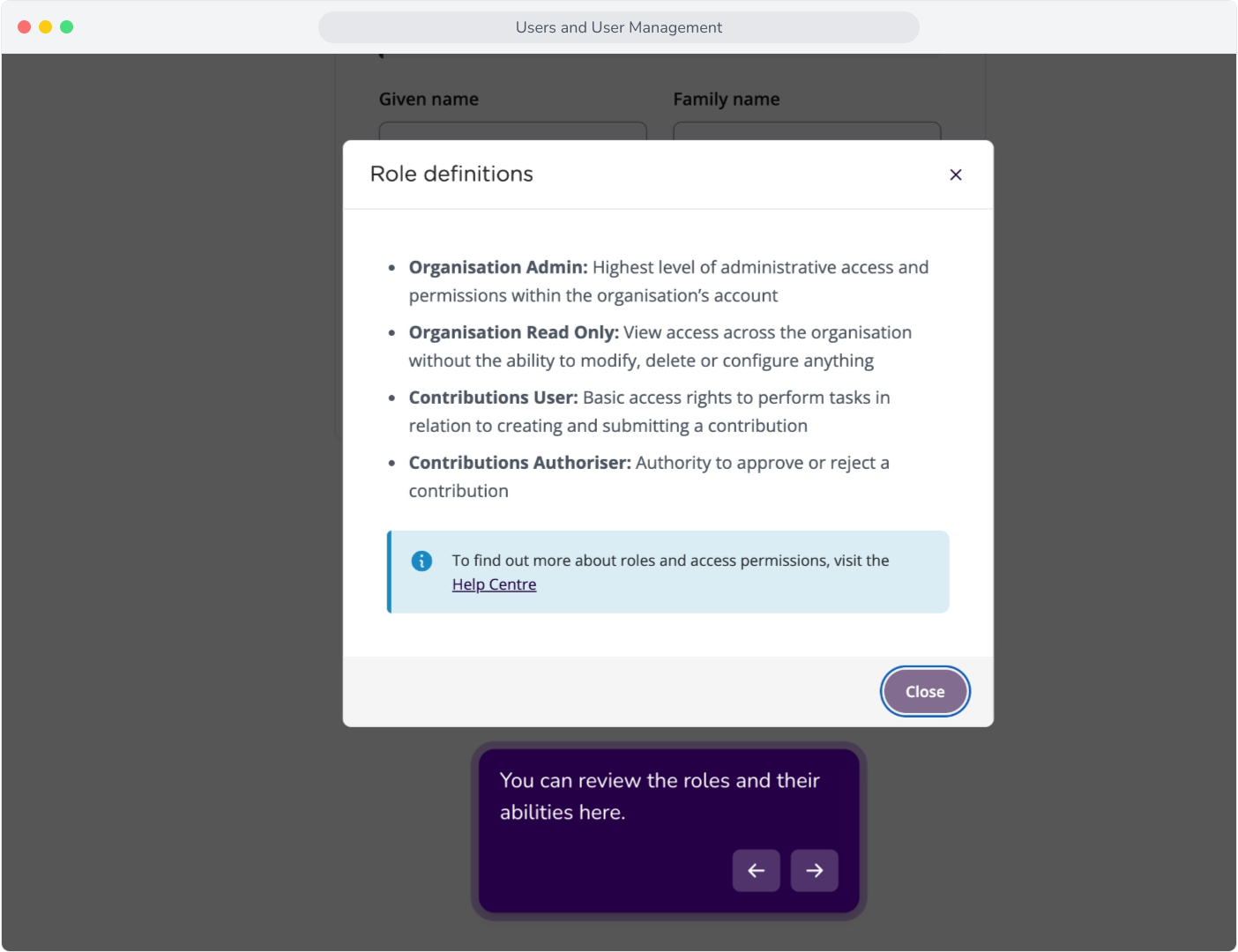
9. You can review the roles and their abilities here.
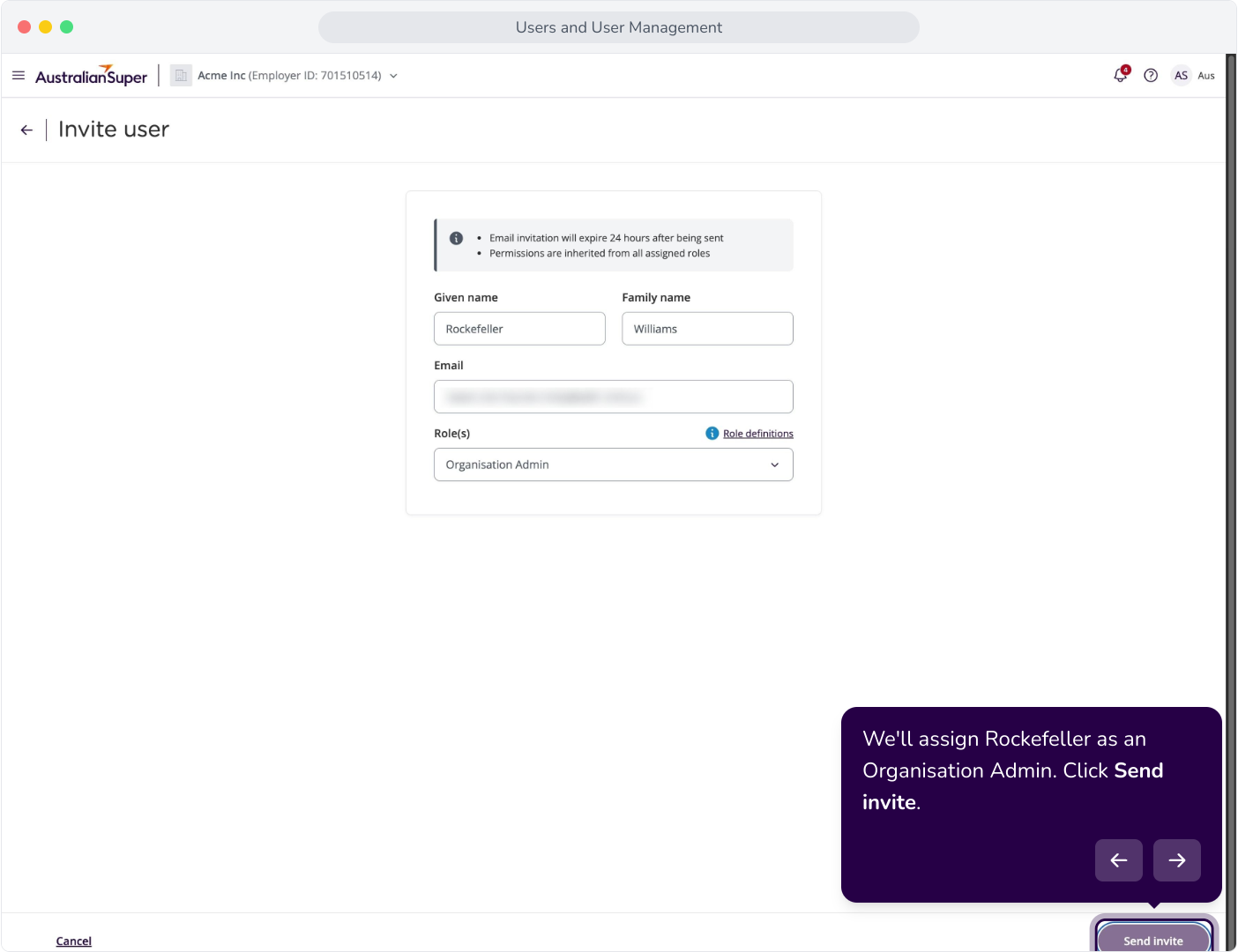
10. We'll assign Rockefeller as an Organisation Admin. Click Send invite.
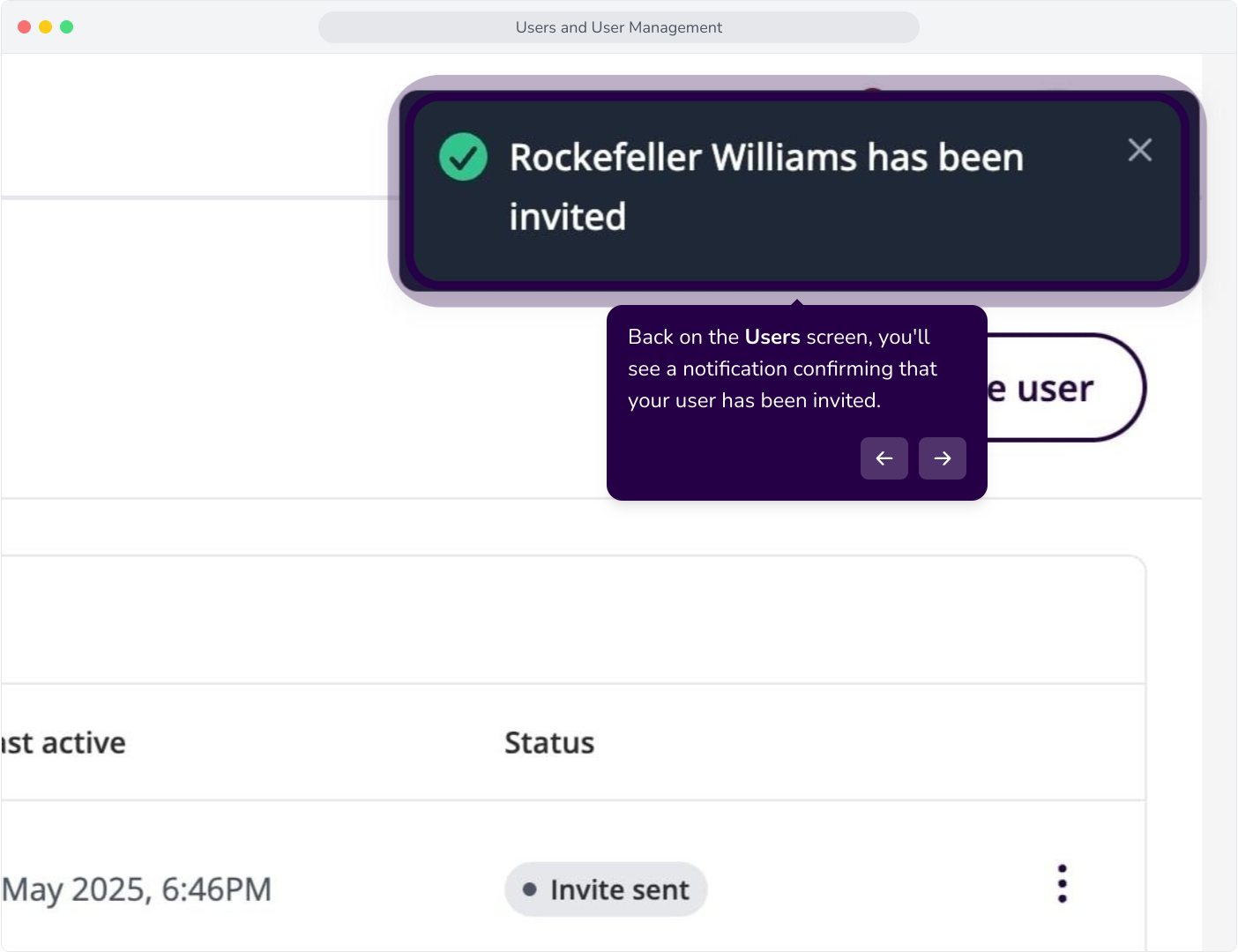
11. Back on the Users screen, you'll see a notification confirming that your user has been invited.
12. Now, lets modify Rockefeller's permissions. Click the three dot menu
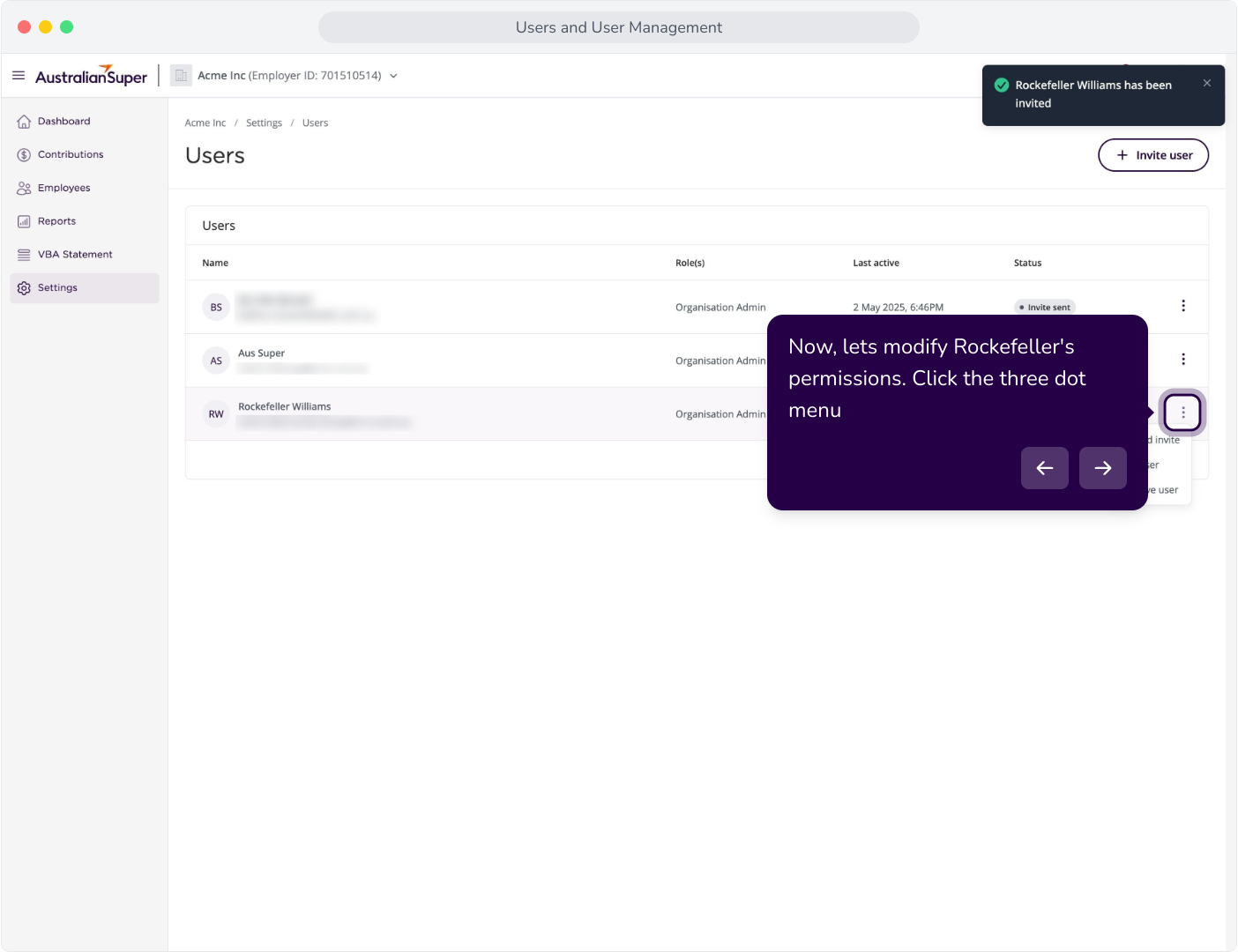
13. Select Edit user.
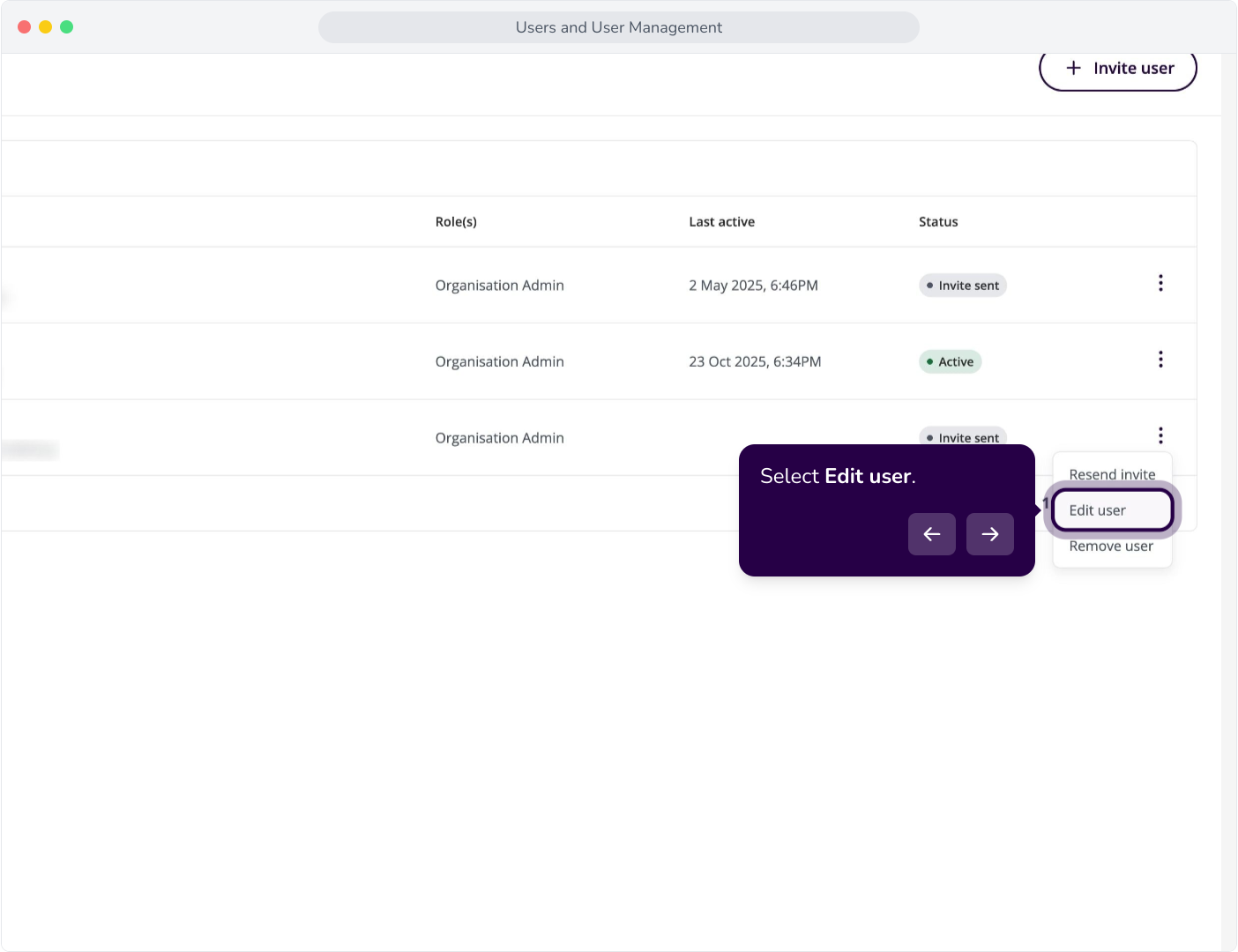
14. Now, let's re-configure their user roles
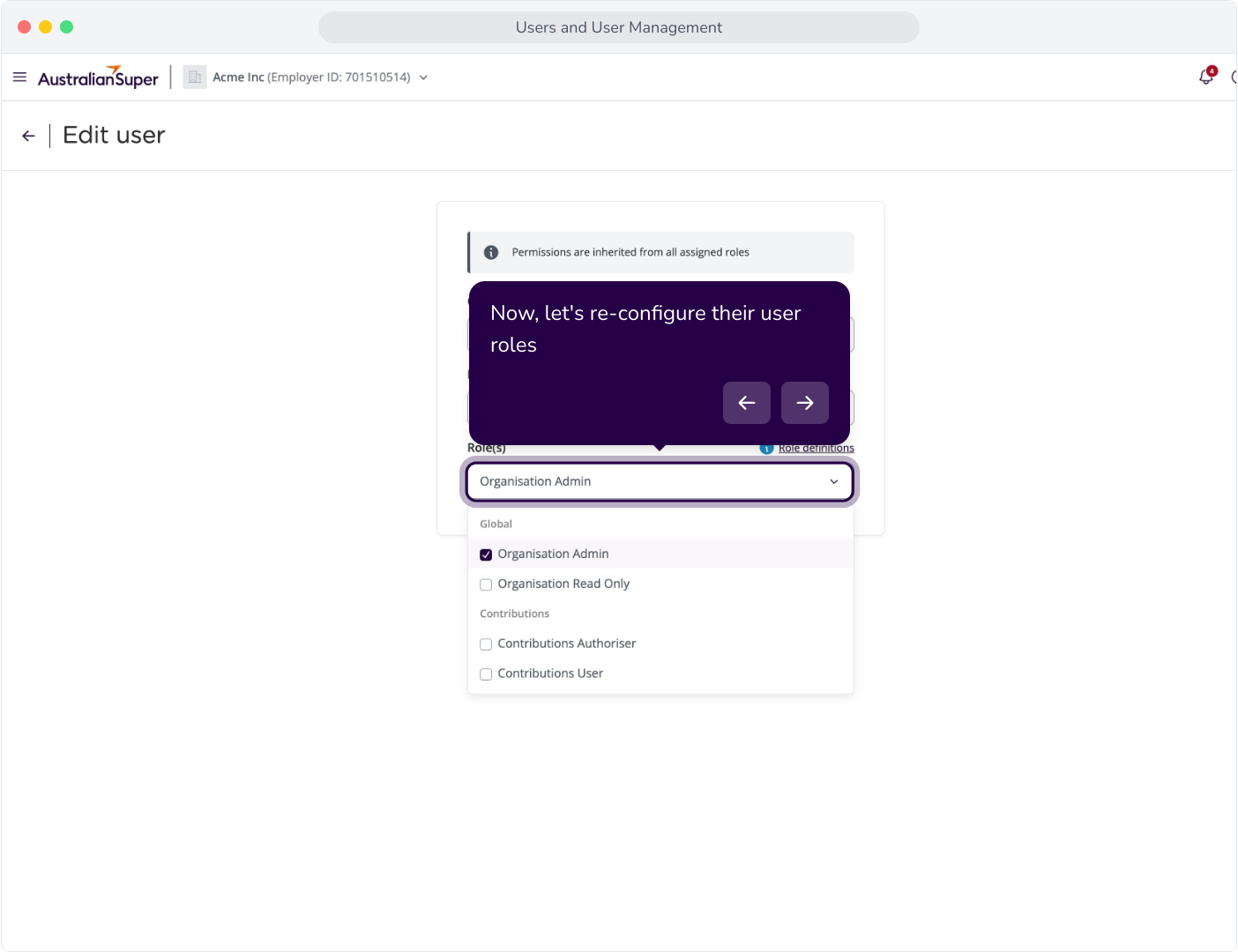
15. We'll select these new roles.
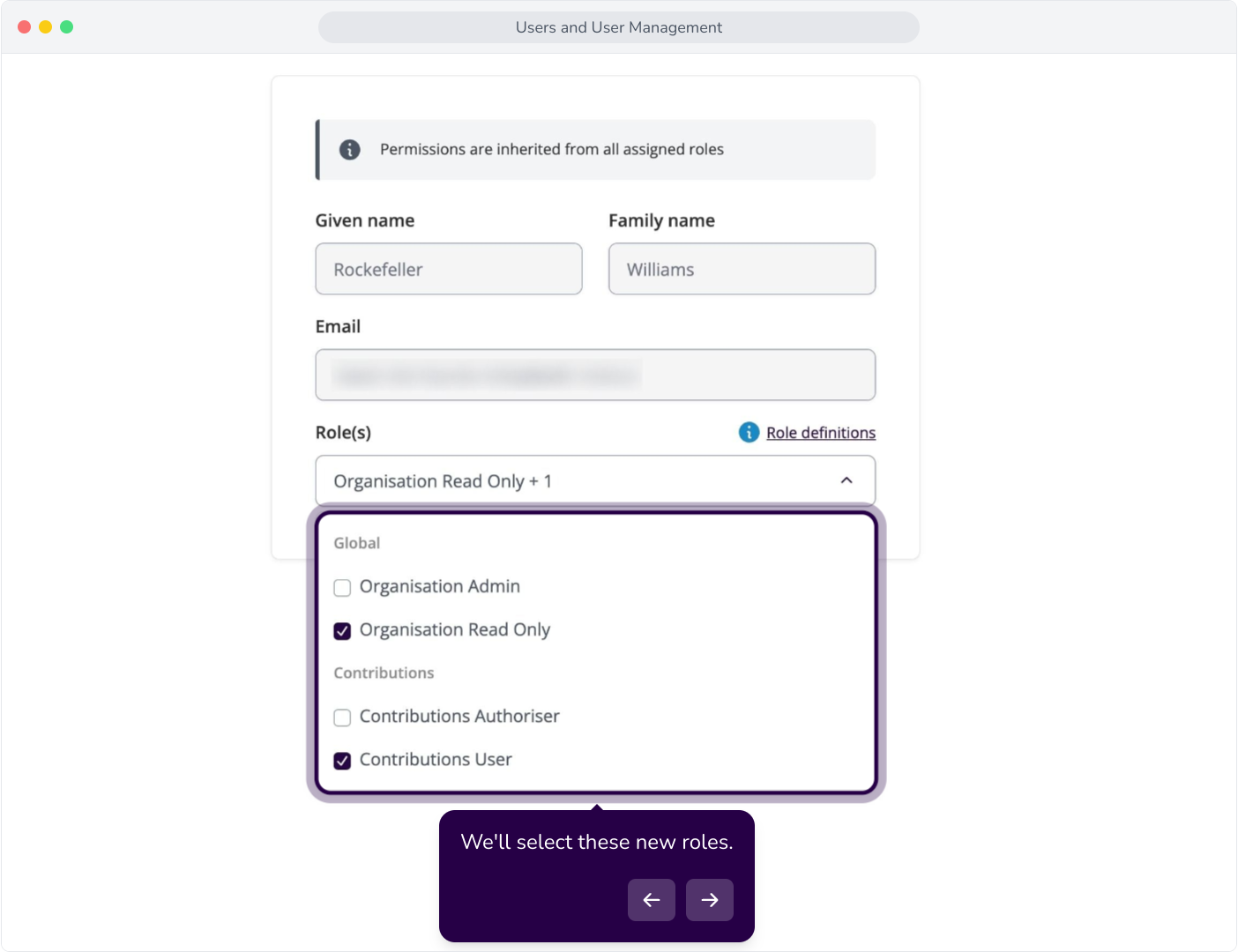
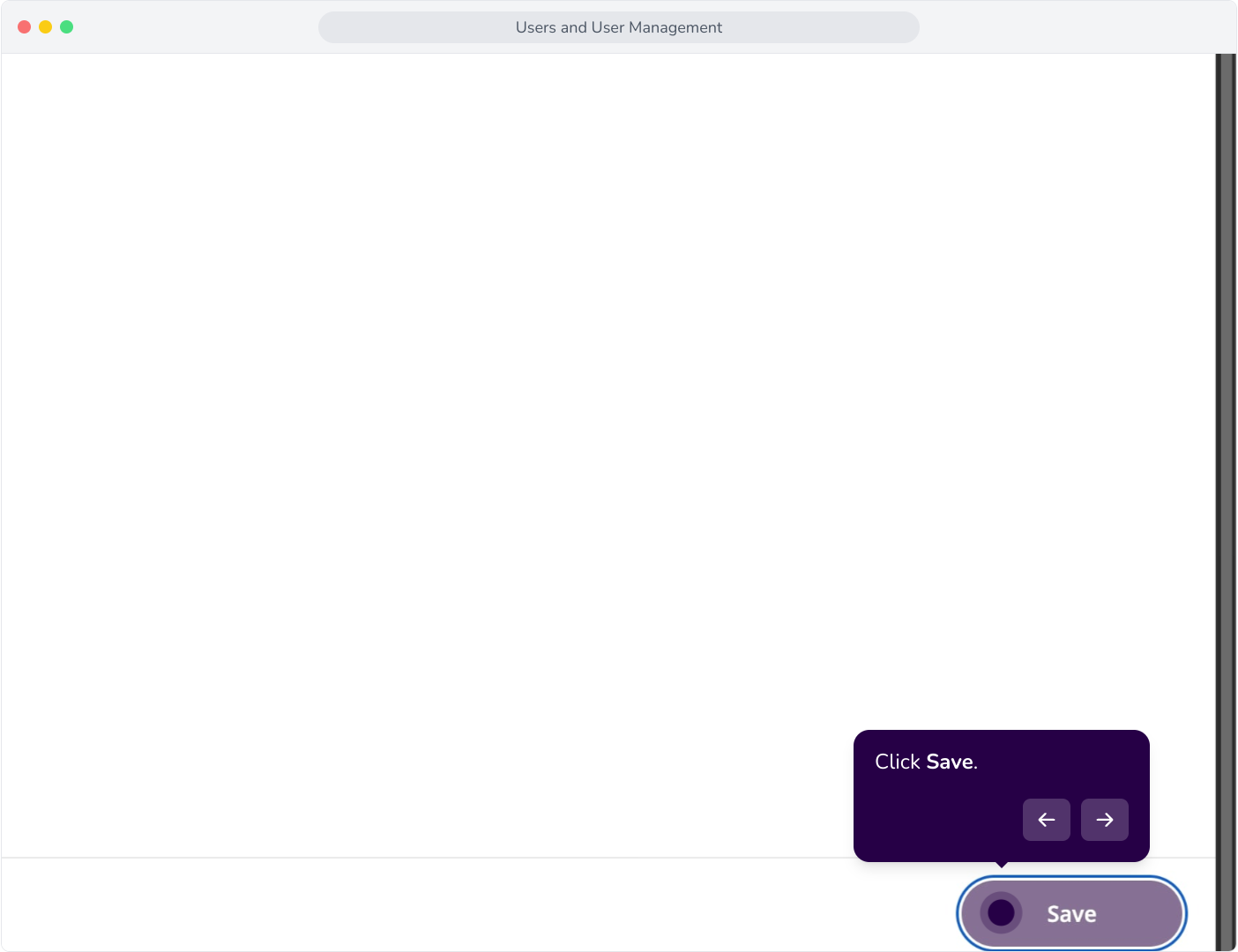
16. Click Save.
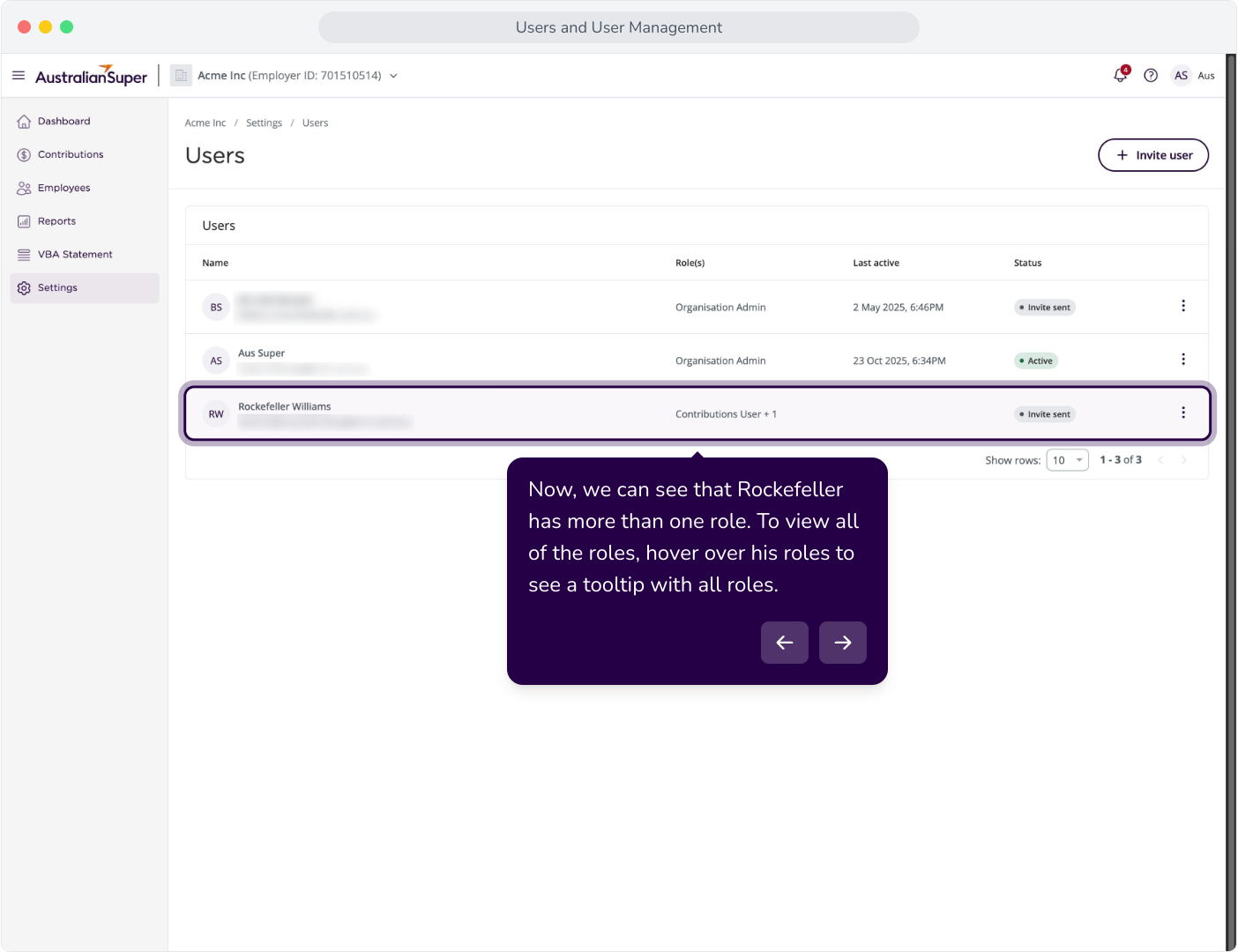
17. Now, we can see that Rockefeller has more than one role. To view all of the roles, hover over his roles to see a tooltip with all roles.
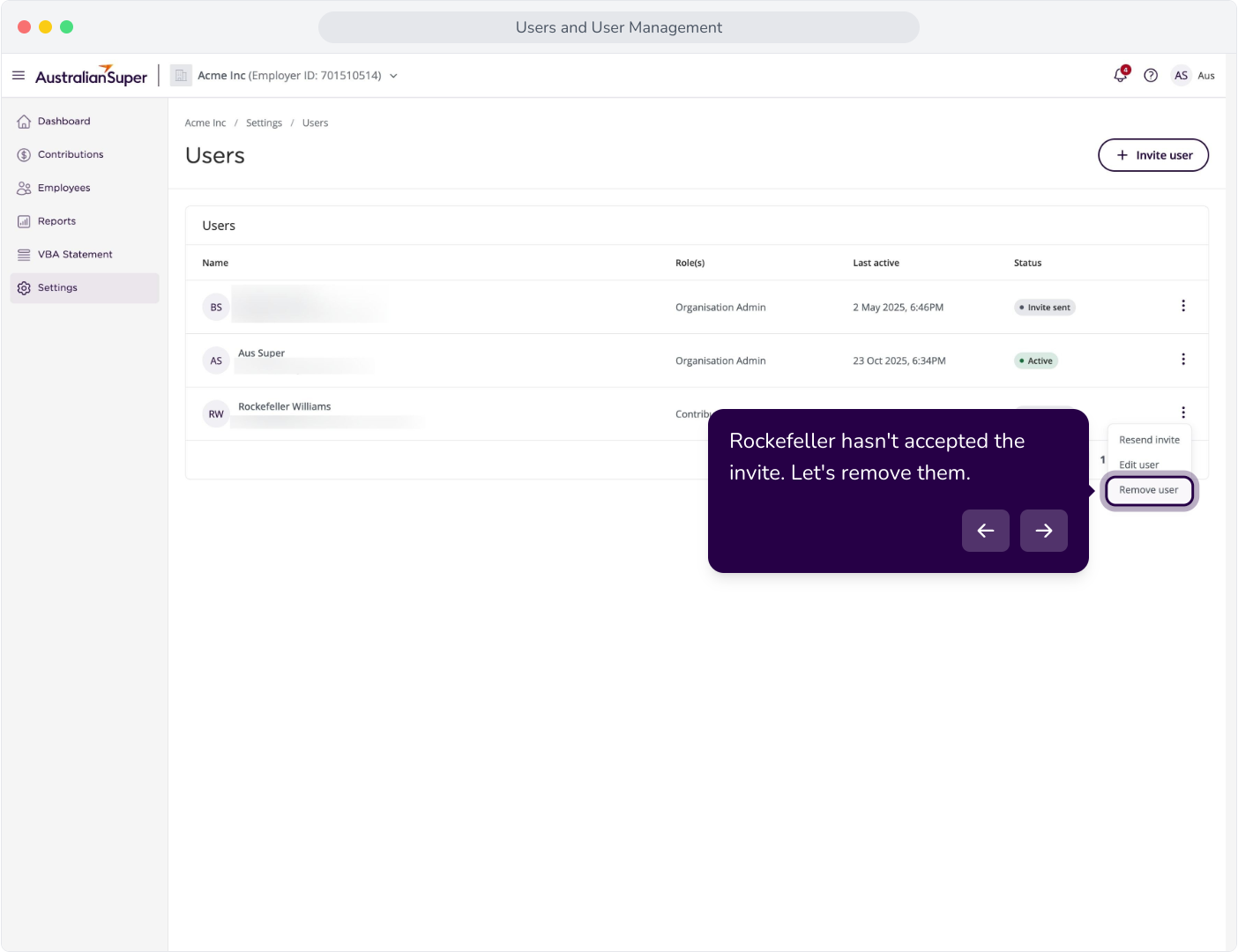
18. Rockefeller hasn't accepted the invite. Let's remove them.
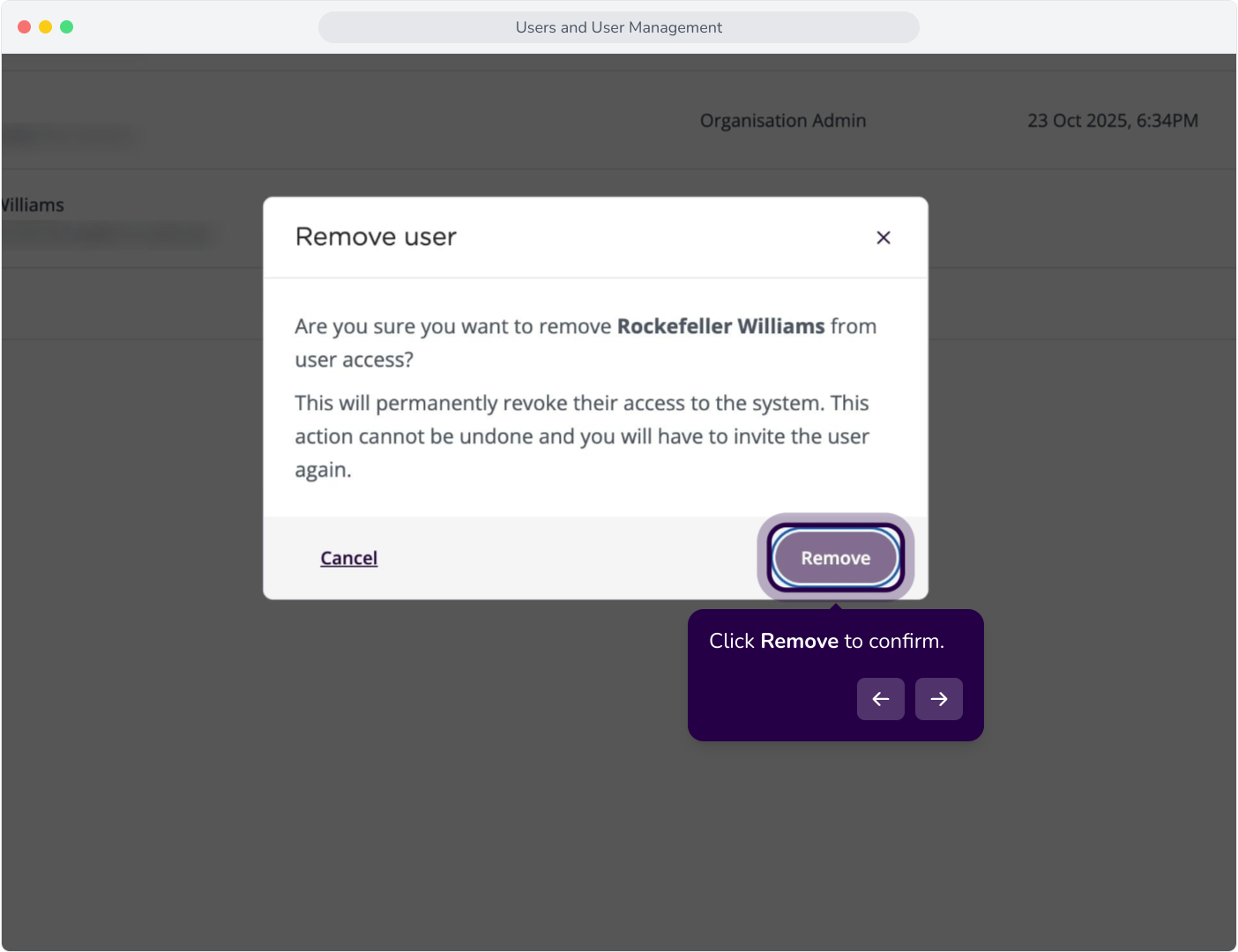
19. Click Remove to confirm.
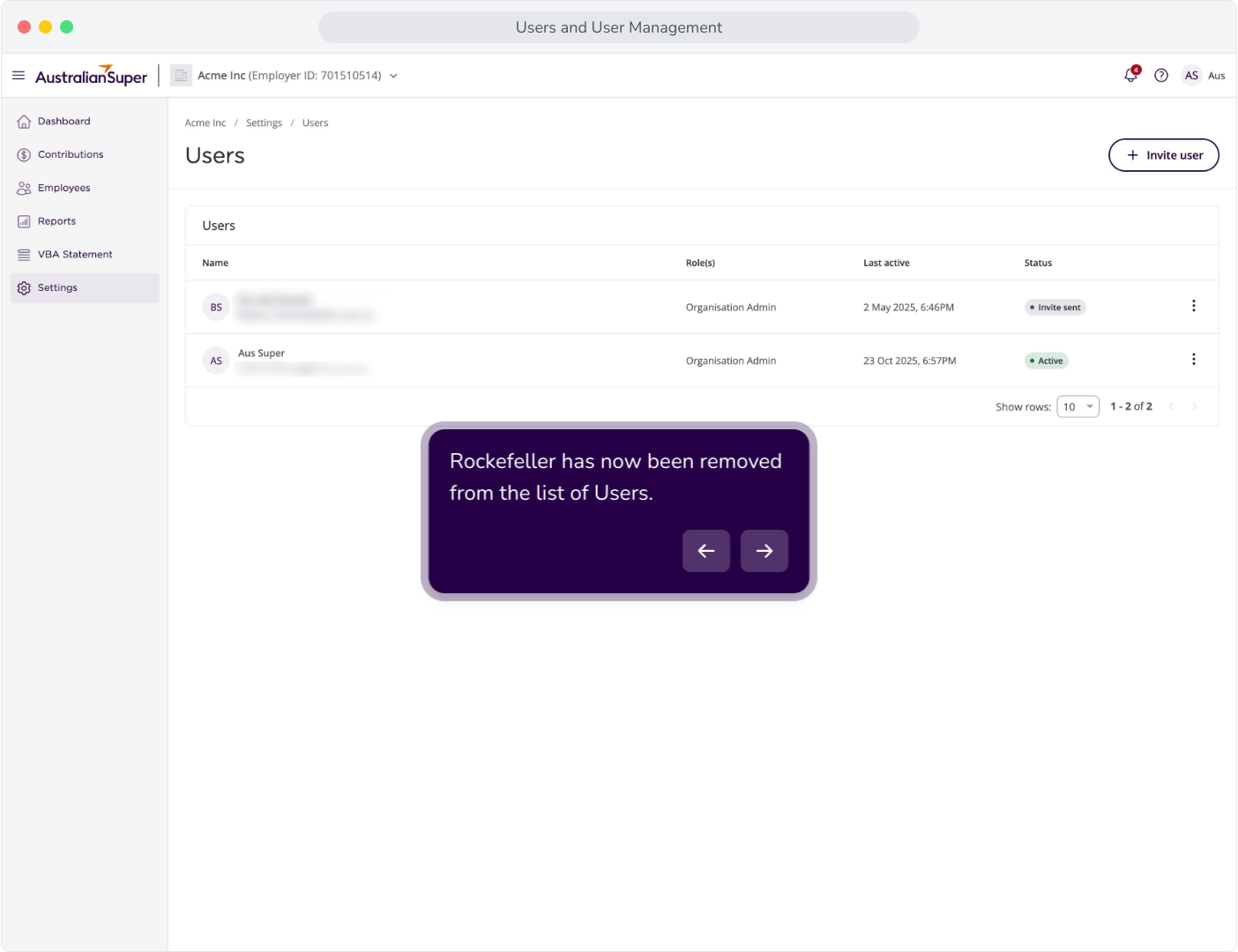
20. Rockefeller has now been removed from the list of Users.
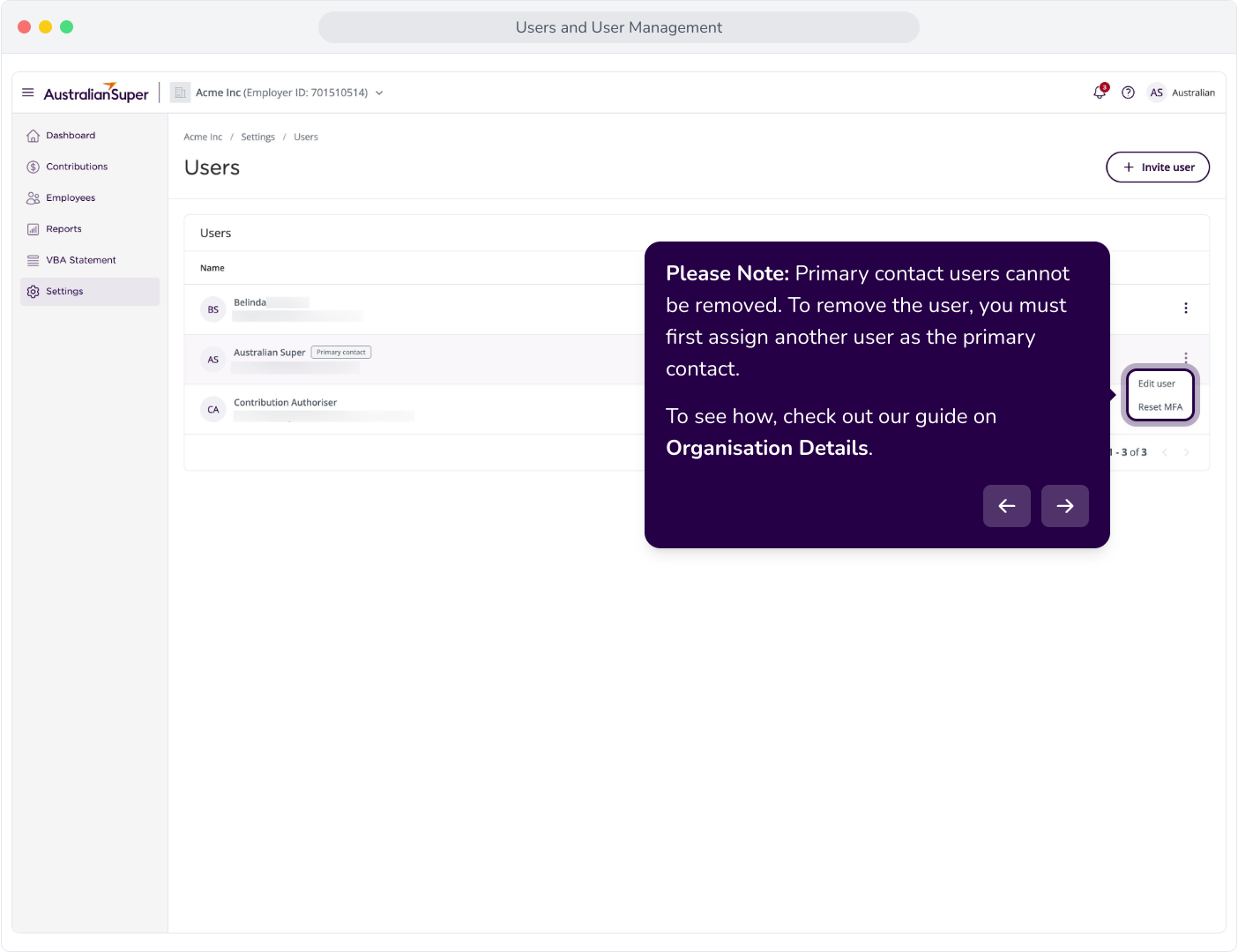
21. Please Note: Primary contact users cannot be removed. To remove the user, you must first assign another user as the primary contact.To see how, check out our guide on Organisation Details.