Context: This guide walks through the process of setting up notifications for Contributions, and how to add users to be notified.
Interactive Demo
Note: Make the demo full-screen for a better experience. You can mute/un-mute narration to suit your preferences.
Step by Step
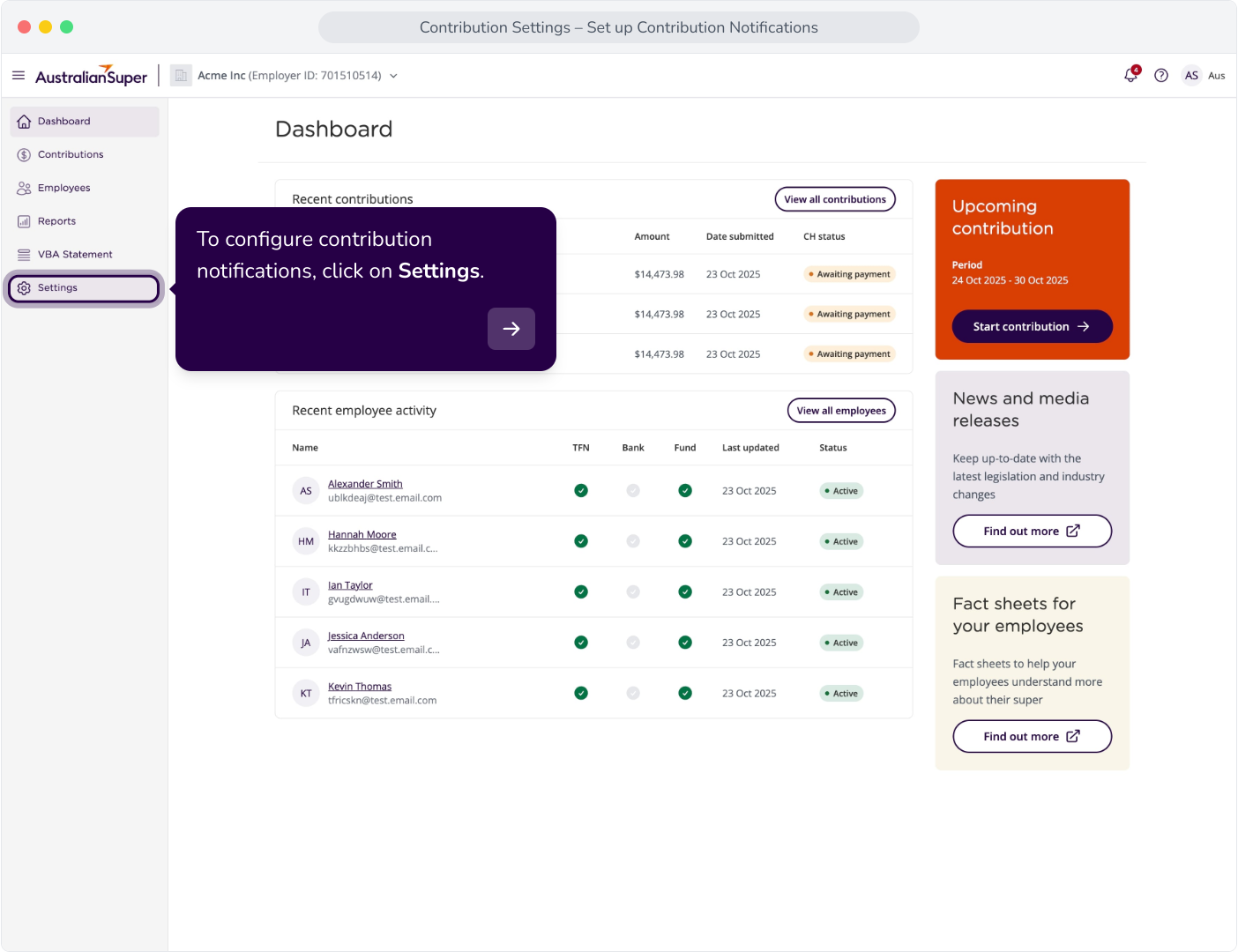
1. To configure contribution notifications, click on Settings.
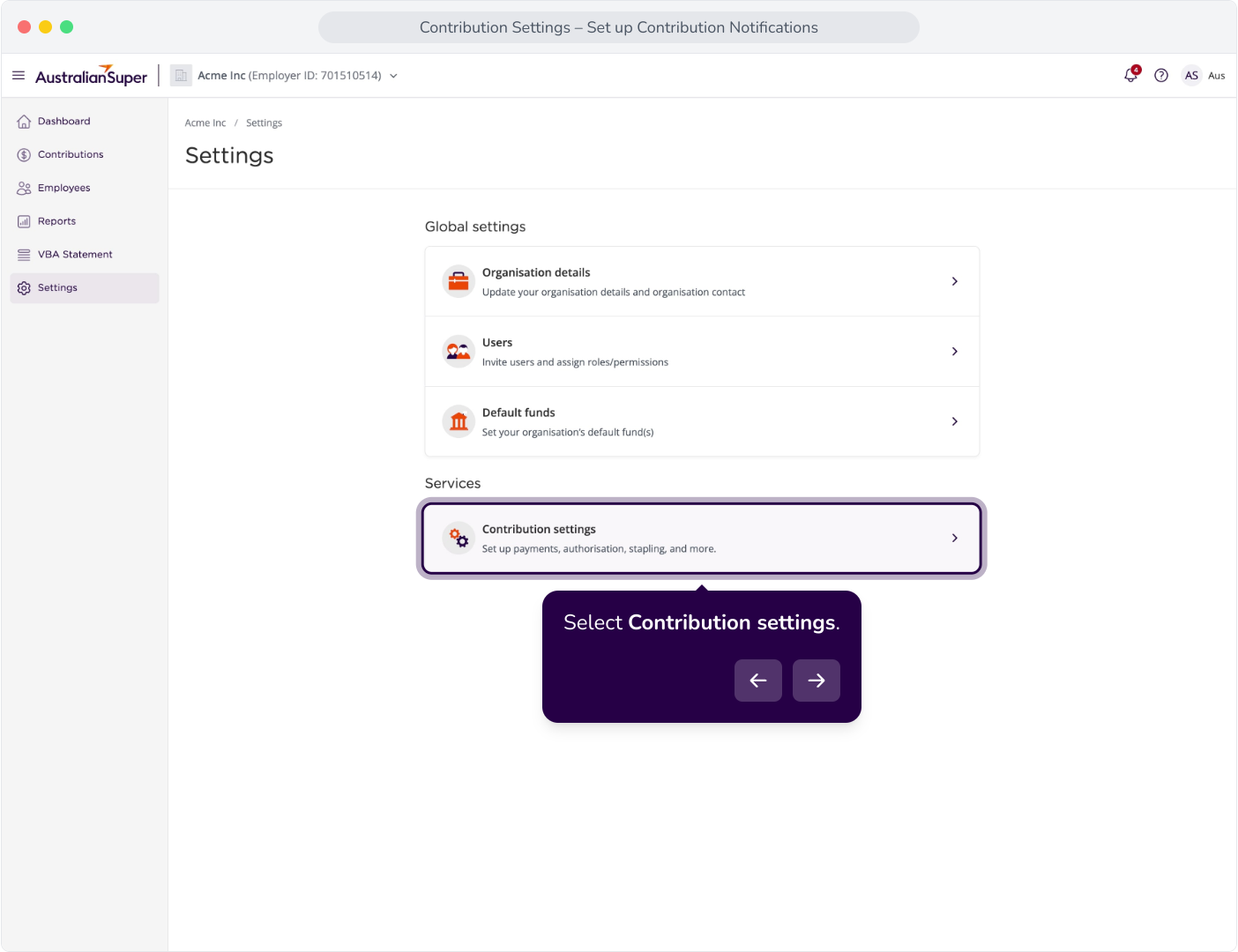
2. Select Contribution settings.
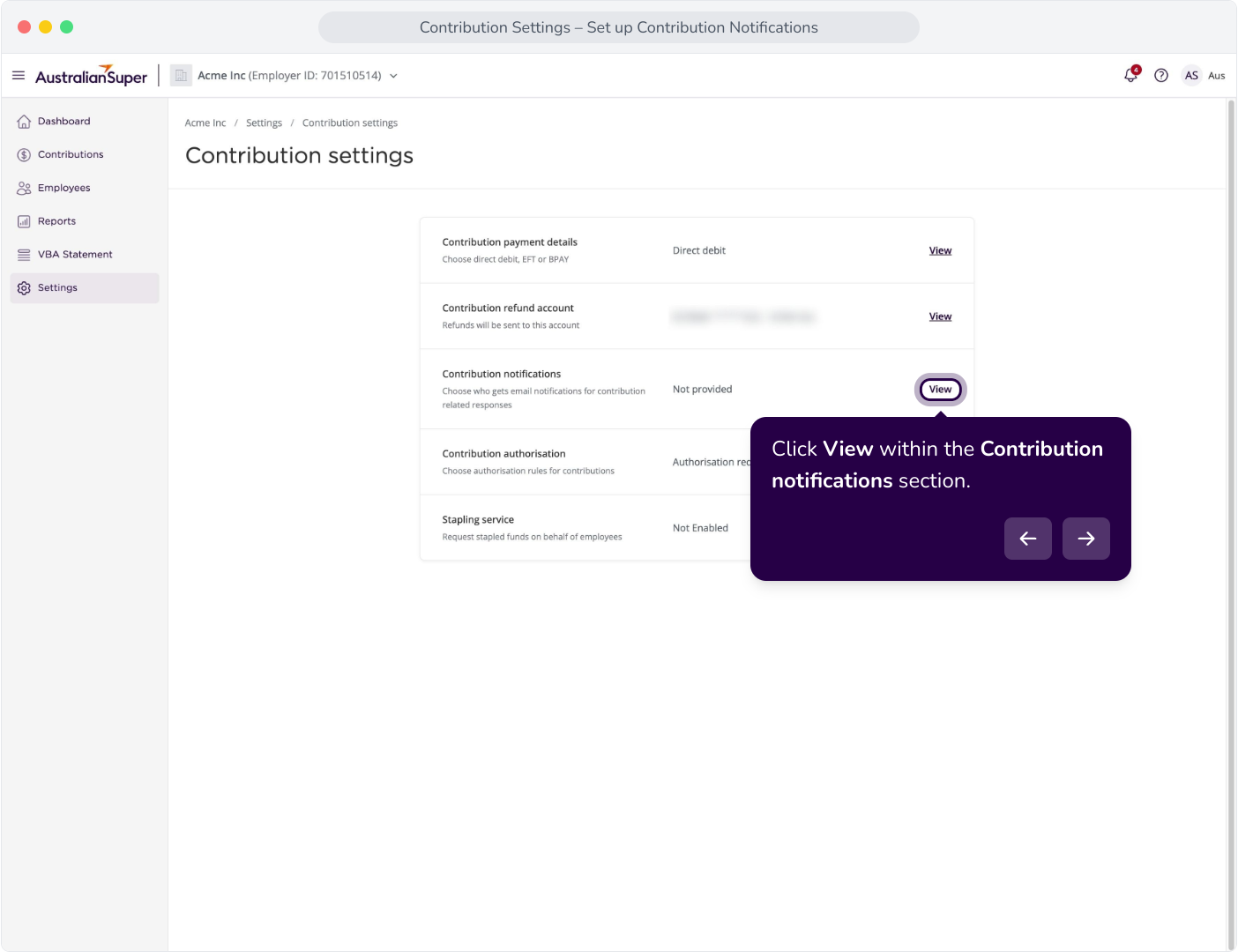
3. Click View within the Contribution notifications section.
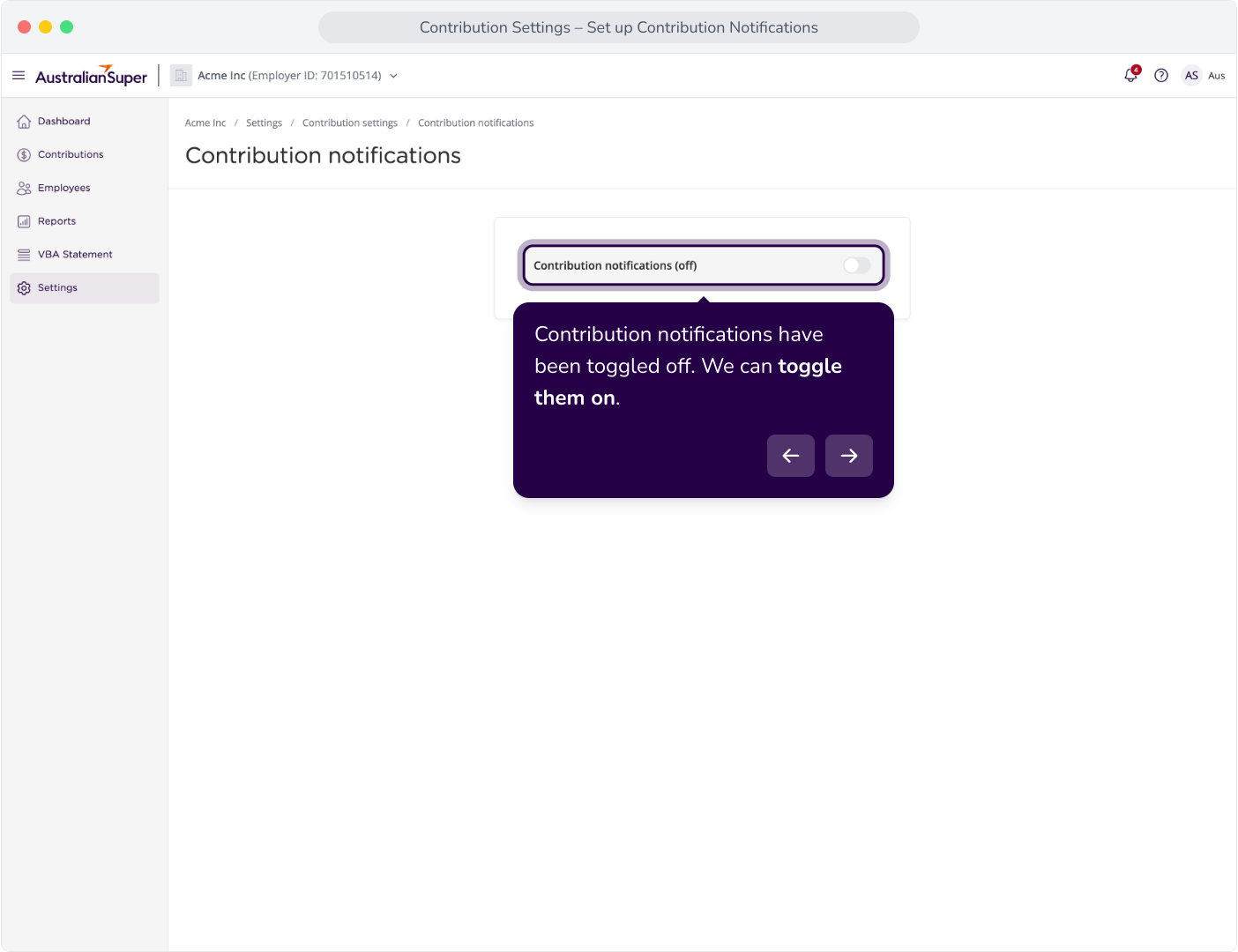
4. Contribution notifications have been toggled off. We can toggle them on.
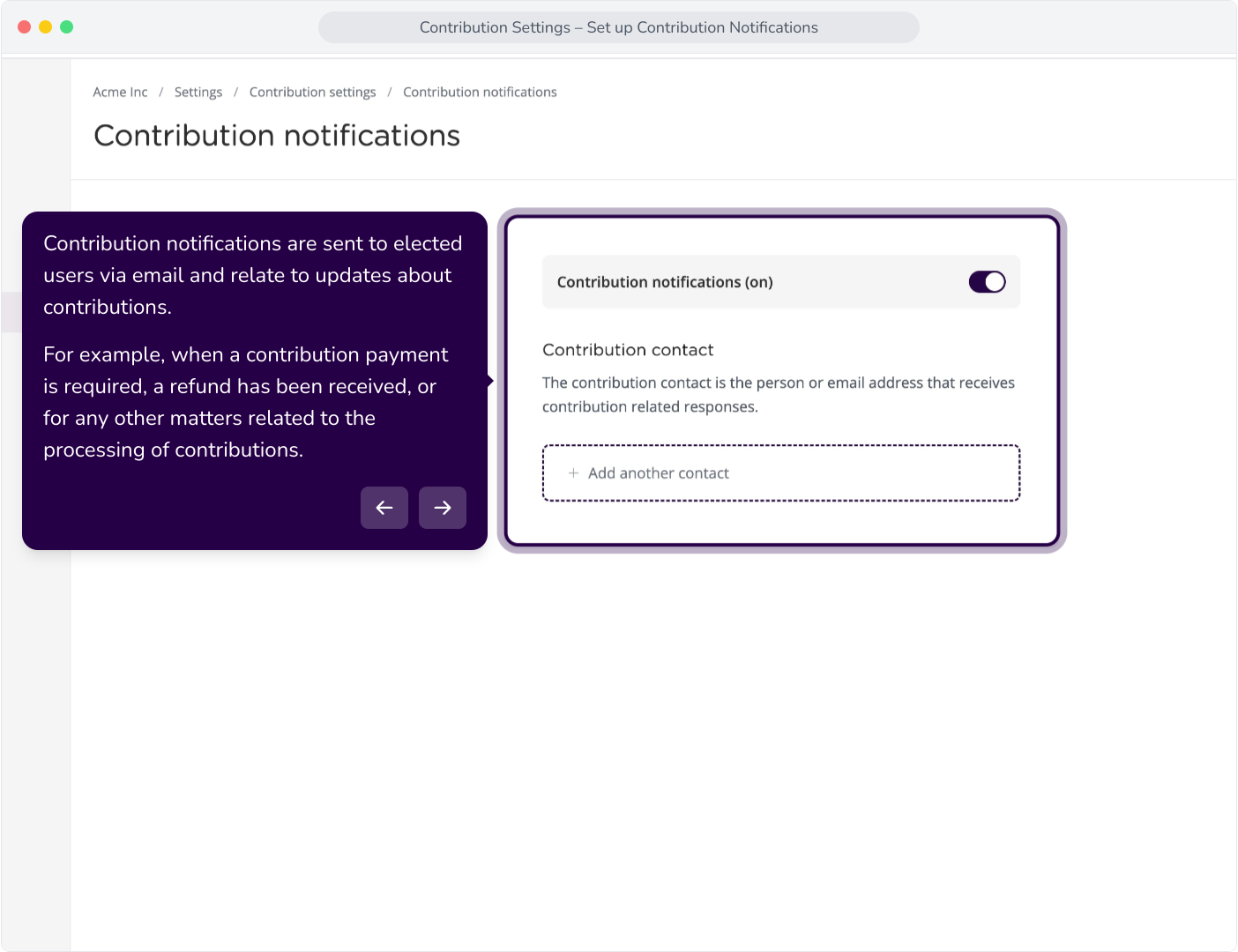
5. Contribution notifications are sent to elected users via email and relate to updates about contributions. For example, when a contribution payment is required, a refund has been received, or for any other matters related to the processing of contributions.
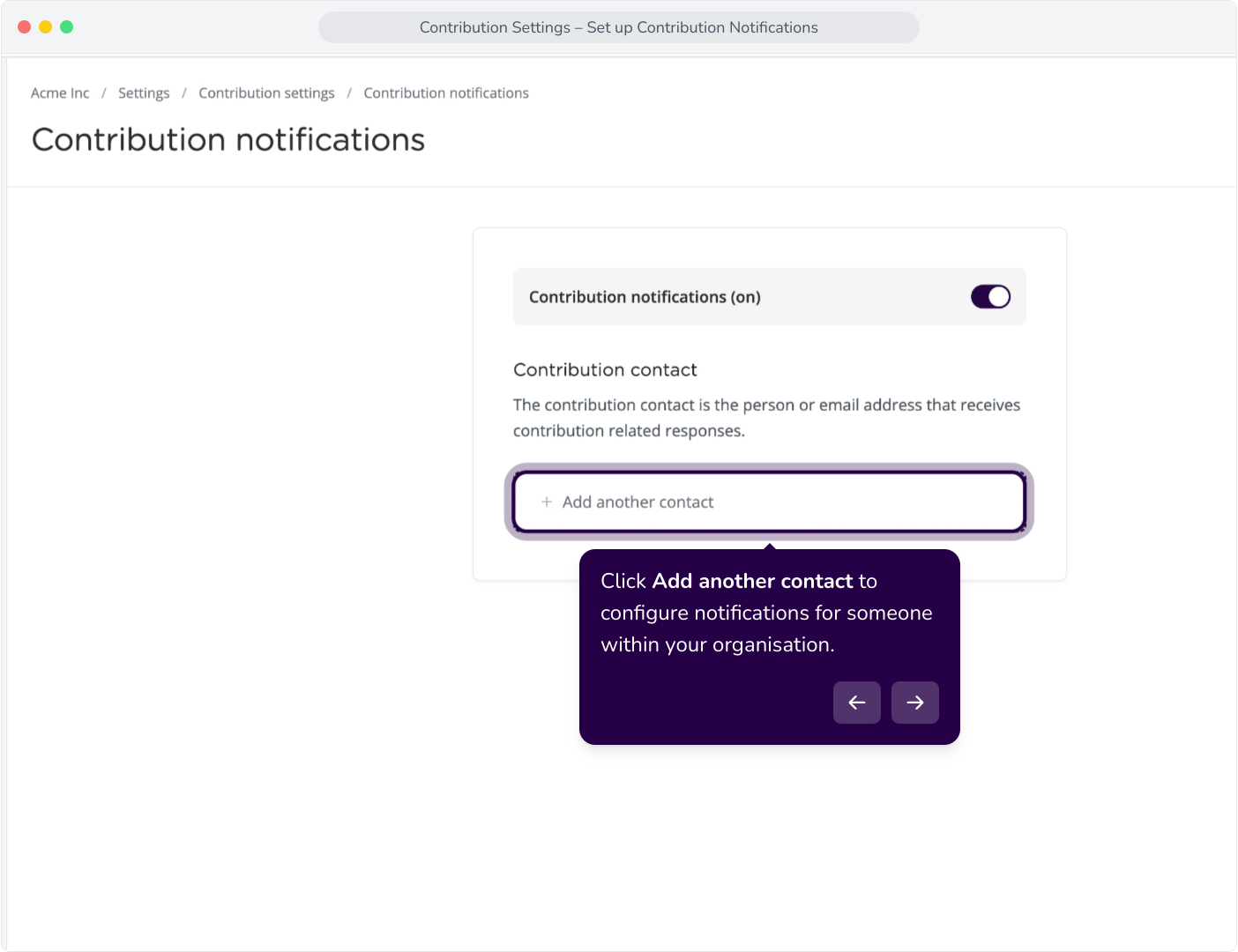
6. Click Add another contact to configure notifications for someone within your organisation.
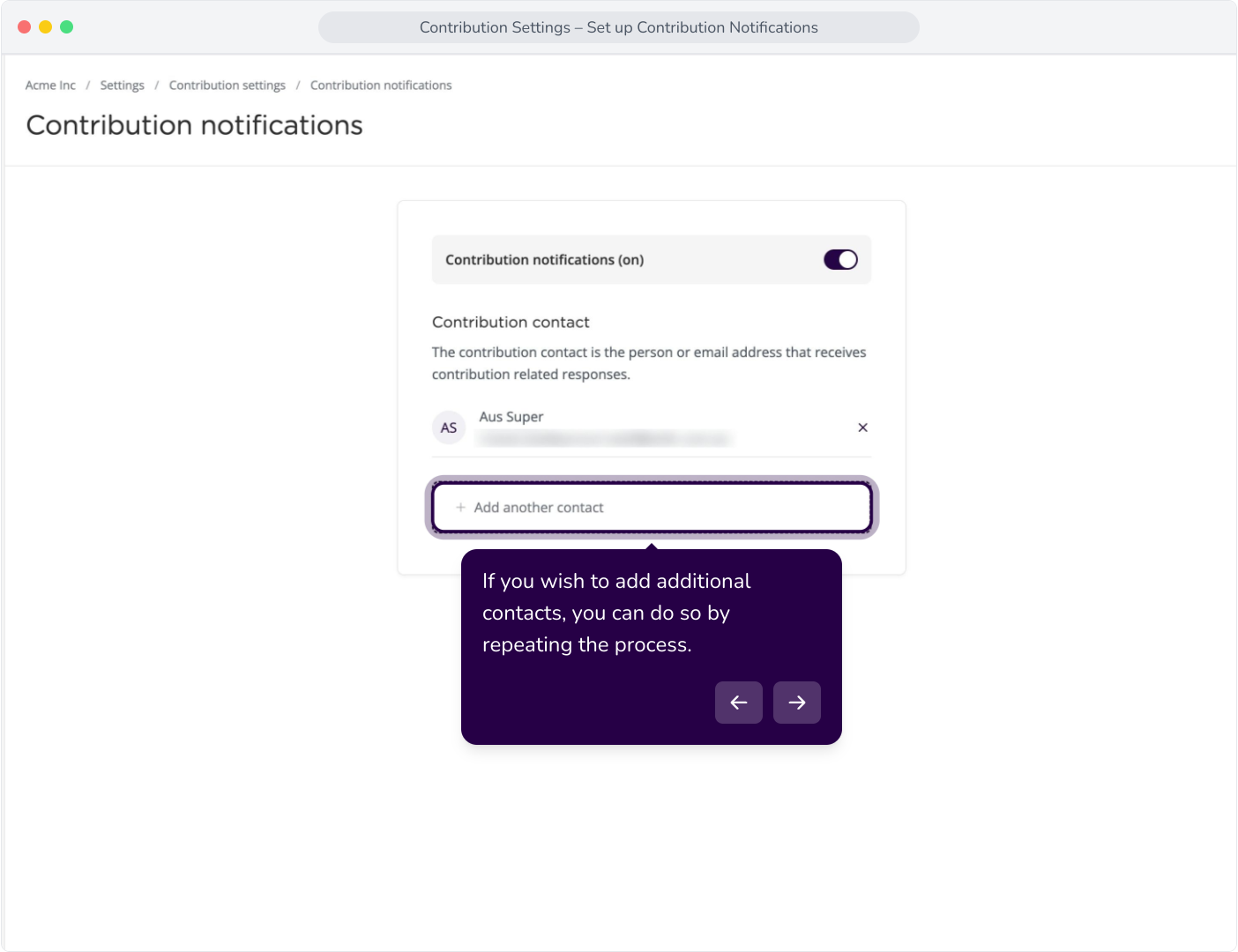
7. If you have a contact already onboarded as a user in your organisation, you can select them from this drop-down.
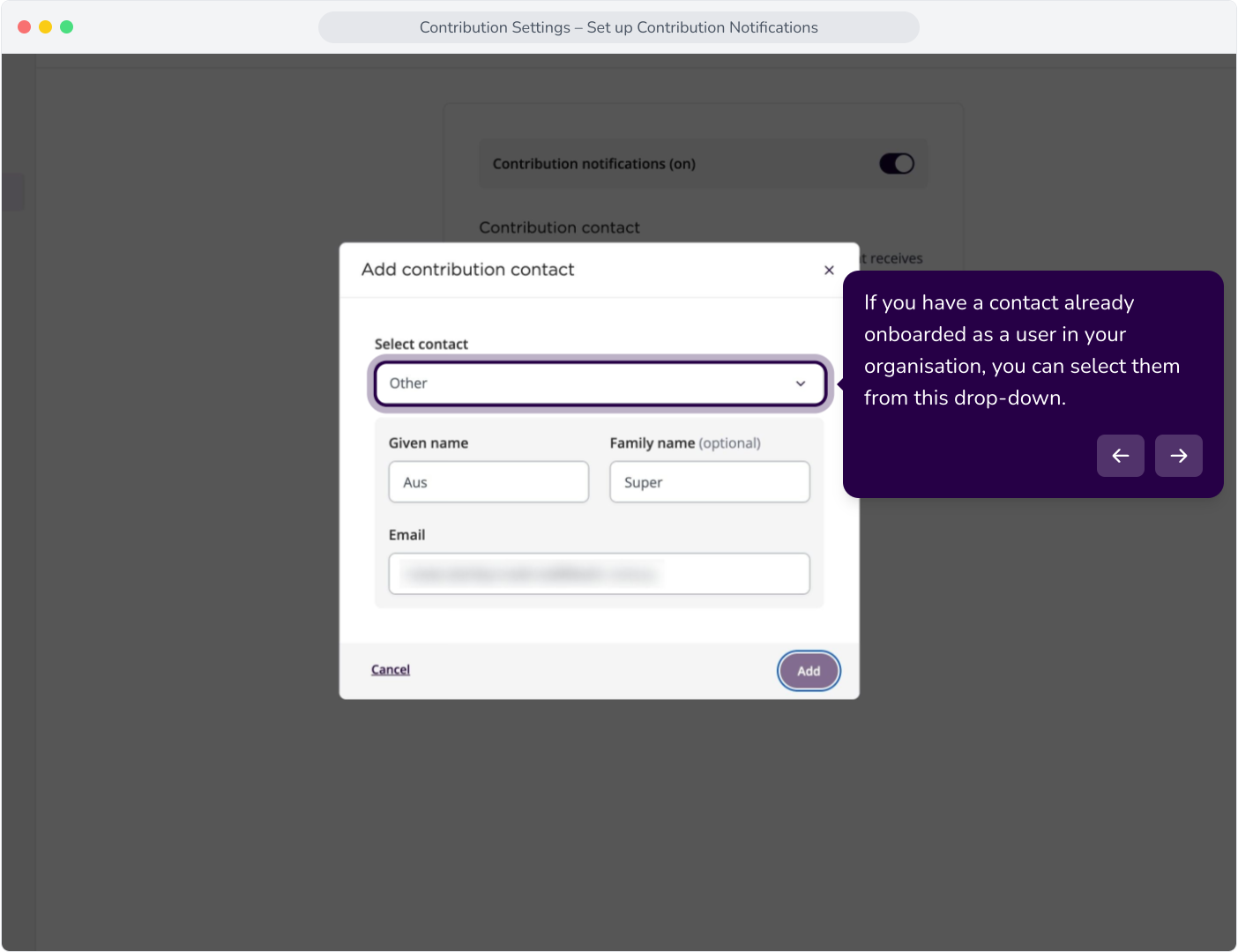
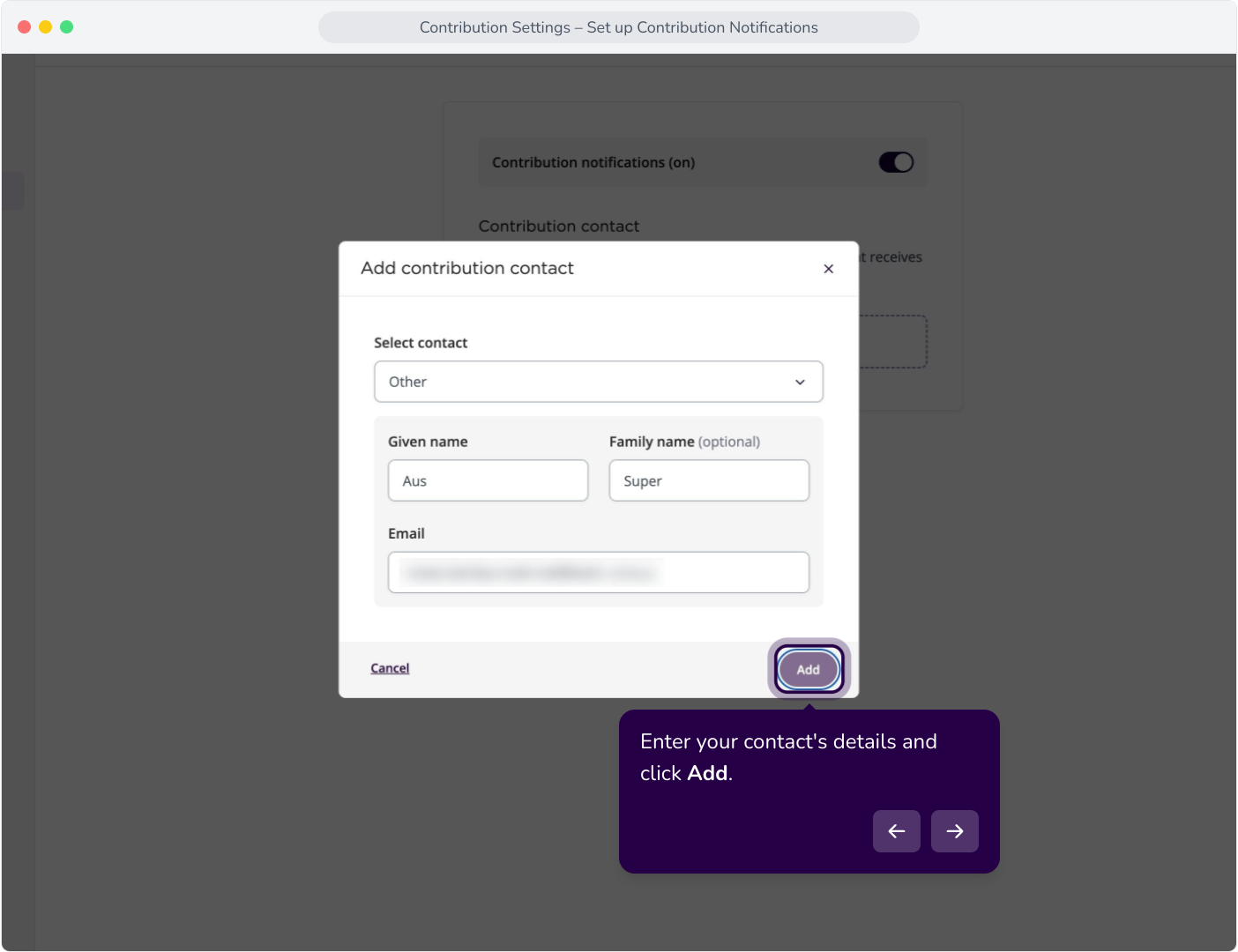
8. Enter your contact's details and click Add.
9. Now we've added our first contribution contact. They will receive emails relating to contributions.
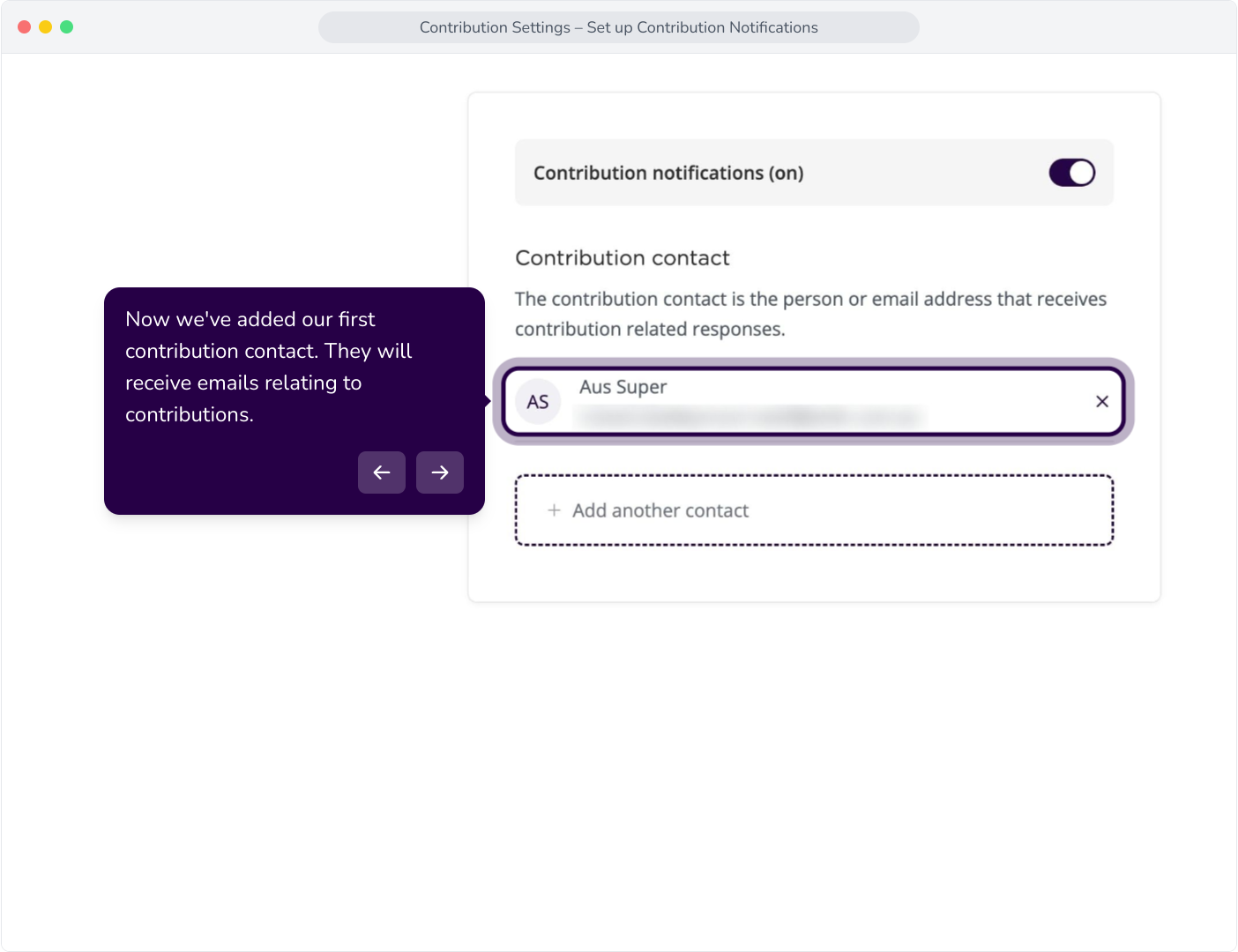
10. If you wish to add additional contacts, you can do so by repeating the process.