Context: This guide demonstrates how to clear your cache and browsing data in Chrome, Firefox, Safari, and Edge.
Tip: Occasionally, you may encounter some issues within the Employer Portal. When this happens, its commonly resolved by clearing your cache and/or cookies.
Interactive Demo
Note: Make the demo full-screen for a better experience. You can mute/un-mute narration to suit your preferences.
Step by Step
Google Chrome
2. Click on the three dot menu.

3. Select Settings.

4. Select Privacy and security.
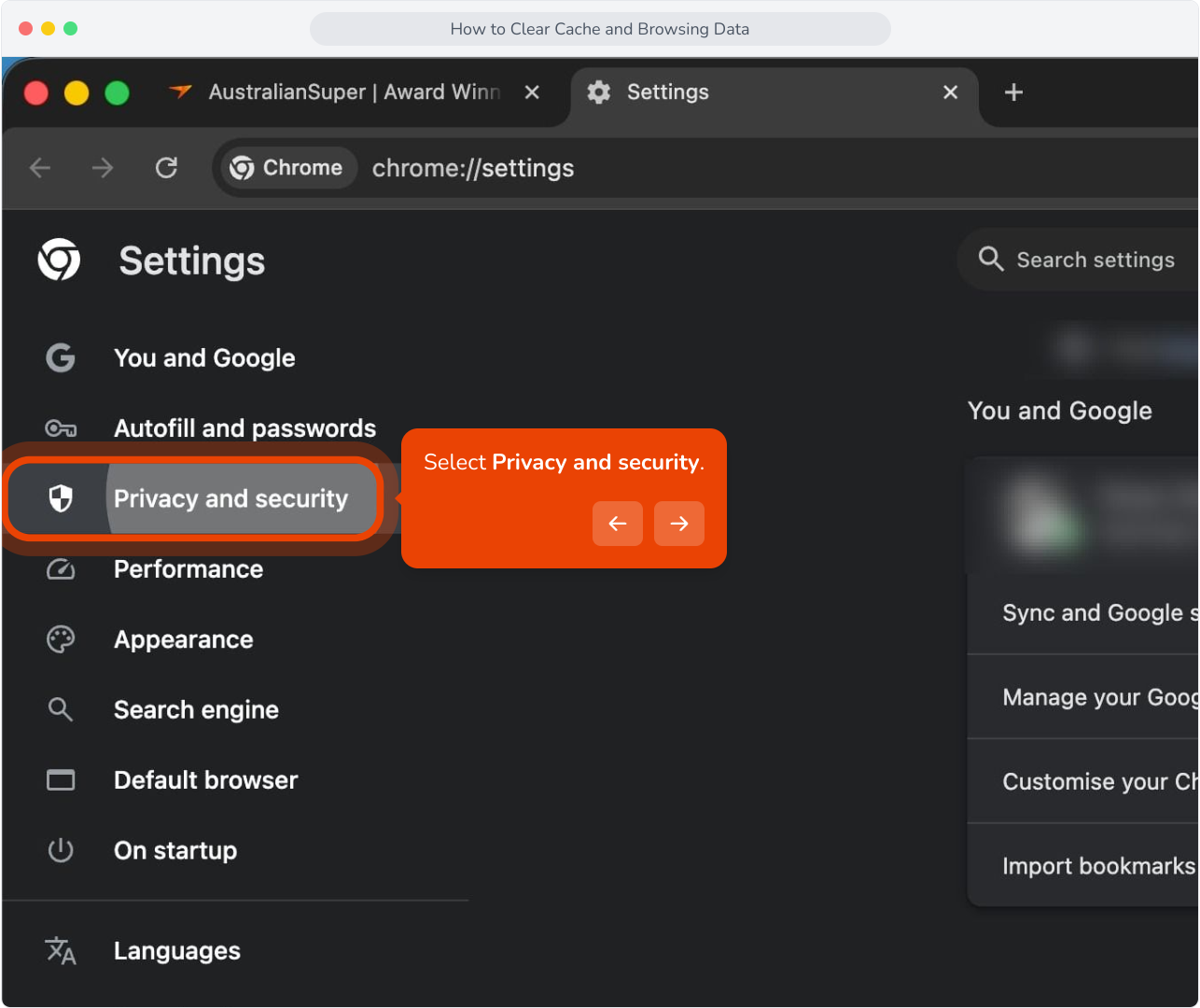
5. Select Delete browsing data.
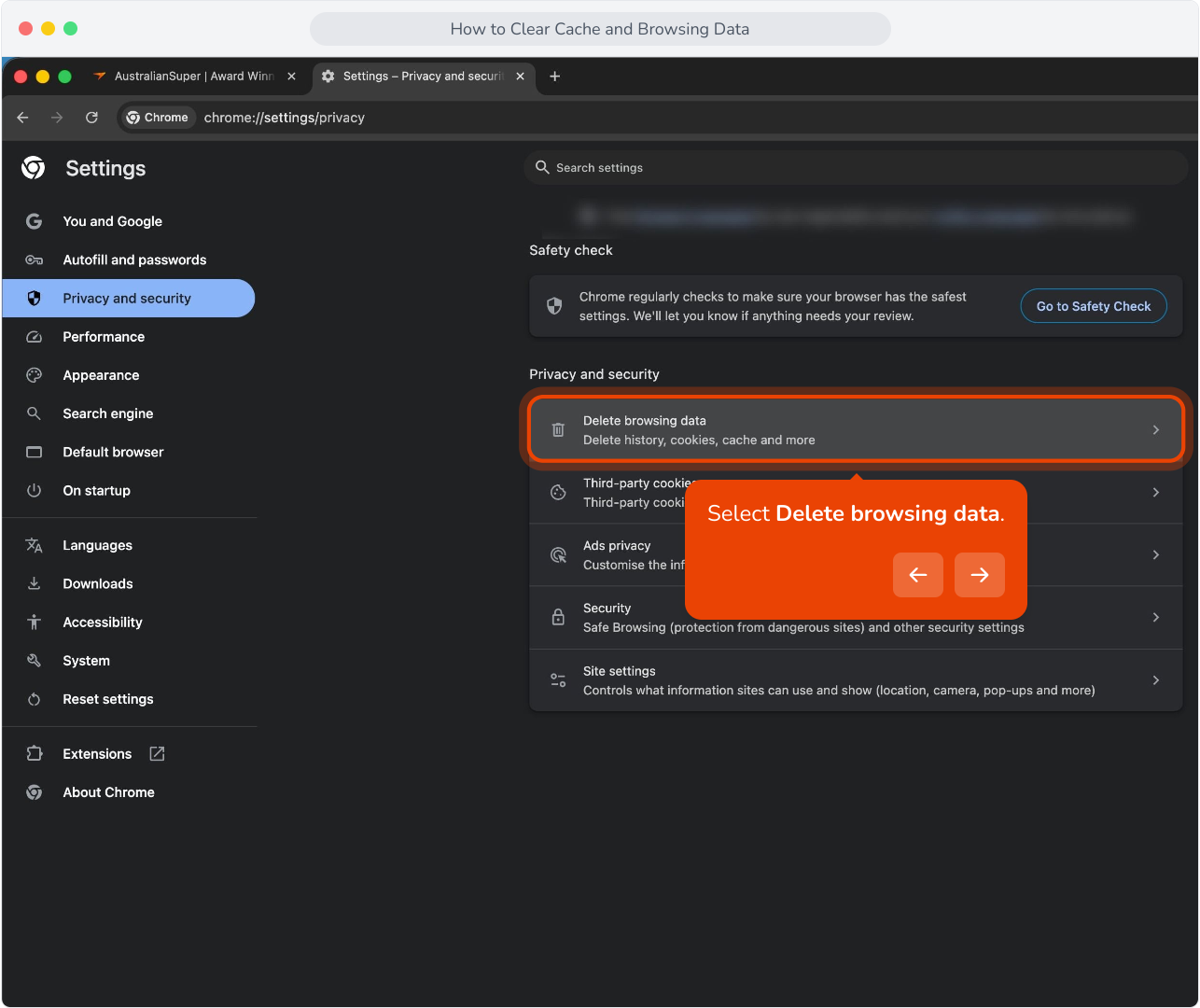
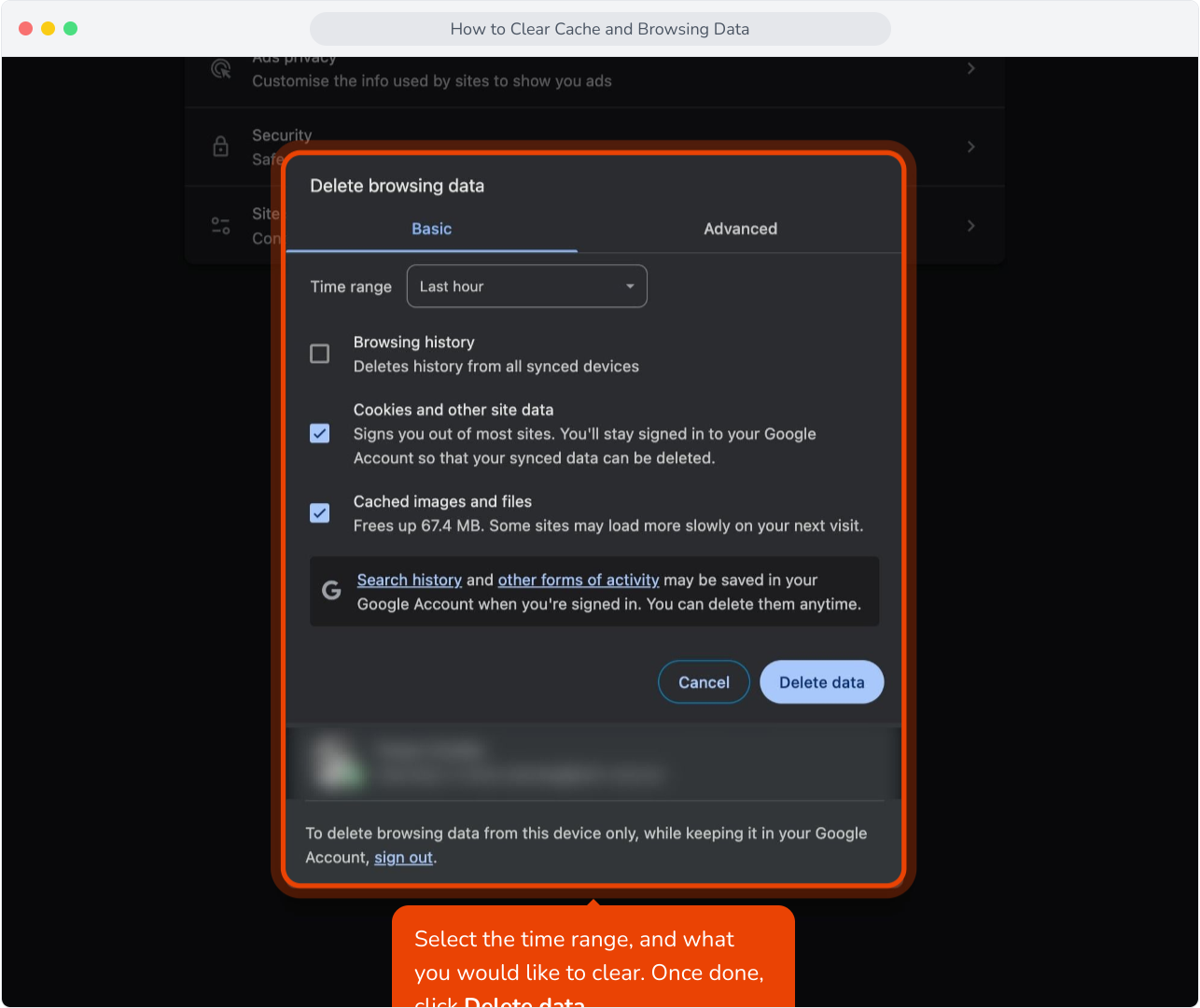
6. Select the time range, and what you would like to clear. Once done, click Delete data.
Firefox
8. Click on the menu button.

9. Select Settings.

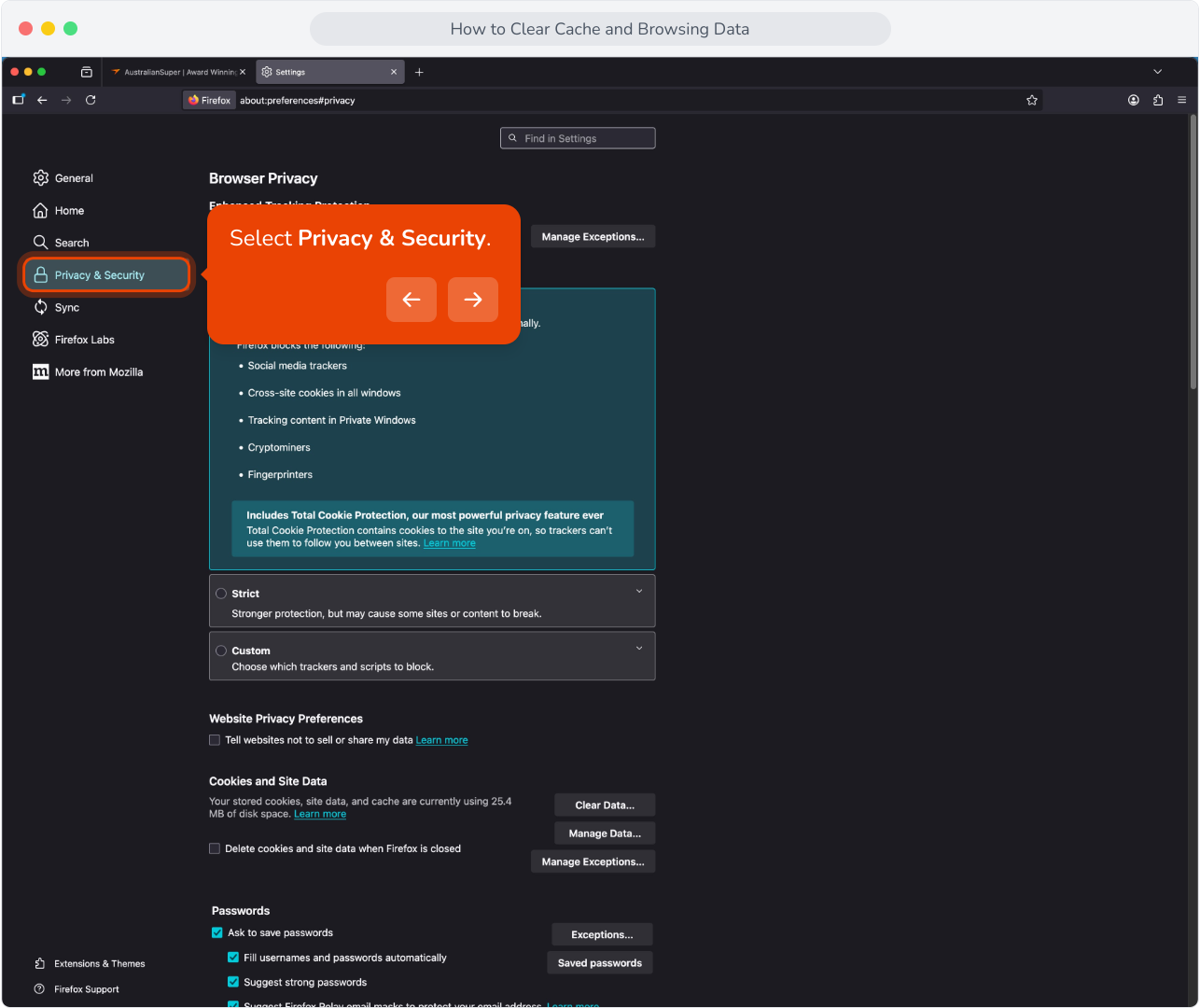
10. Select Privacy & Security.
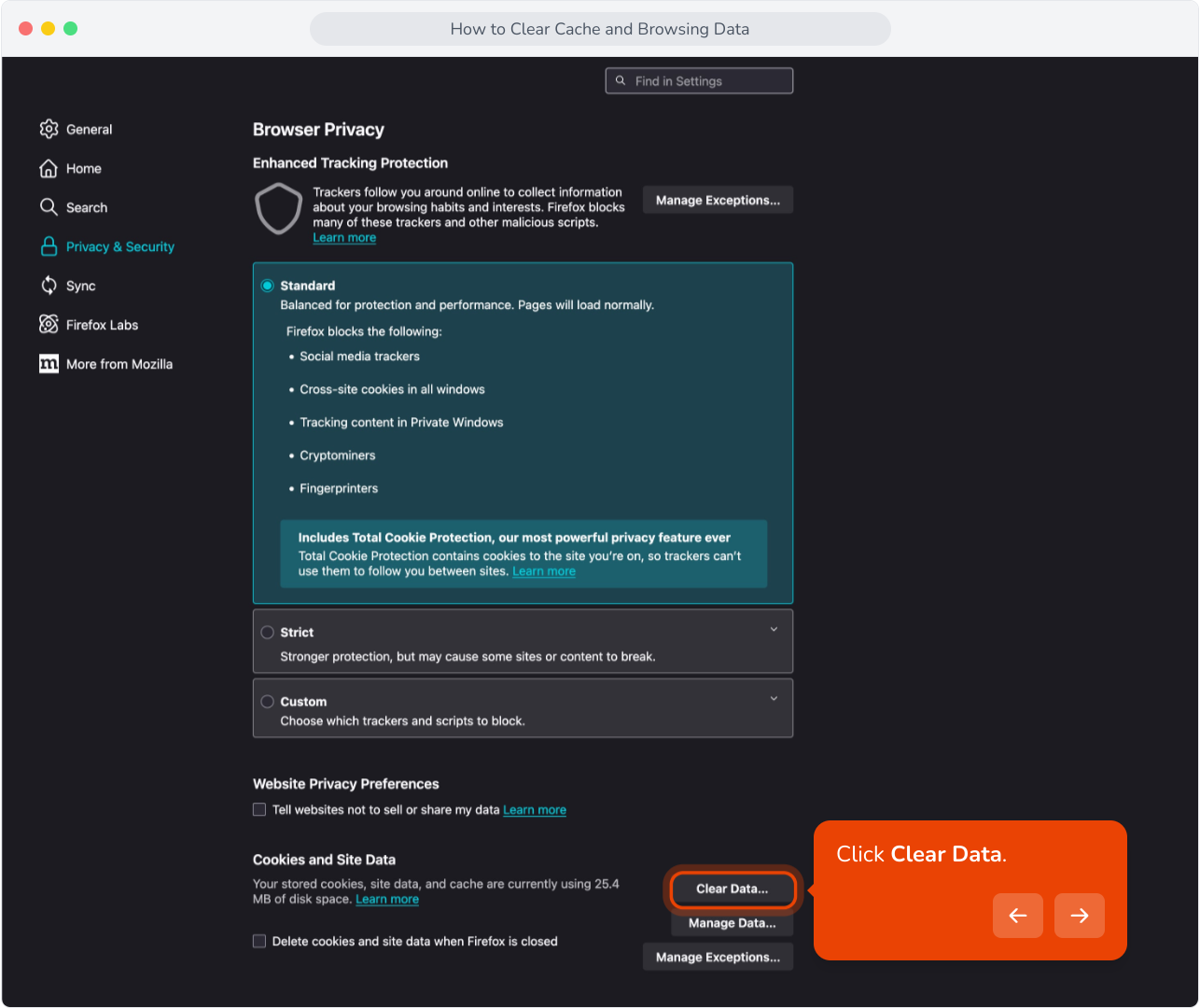
11. Click Clear Data.
Safari

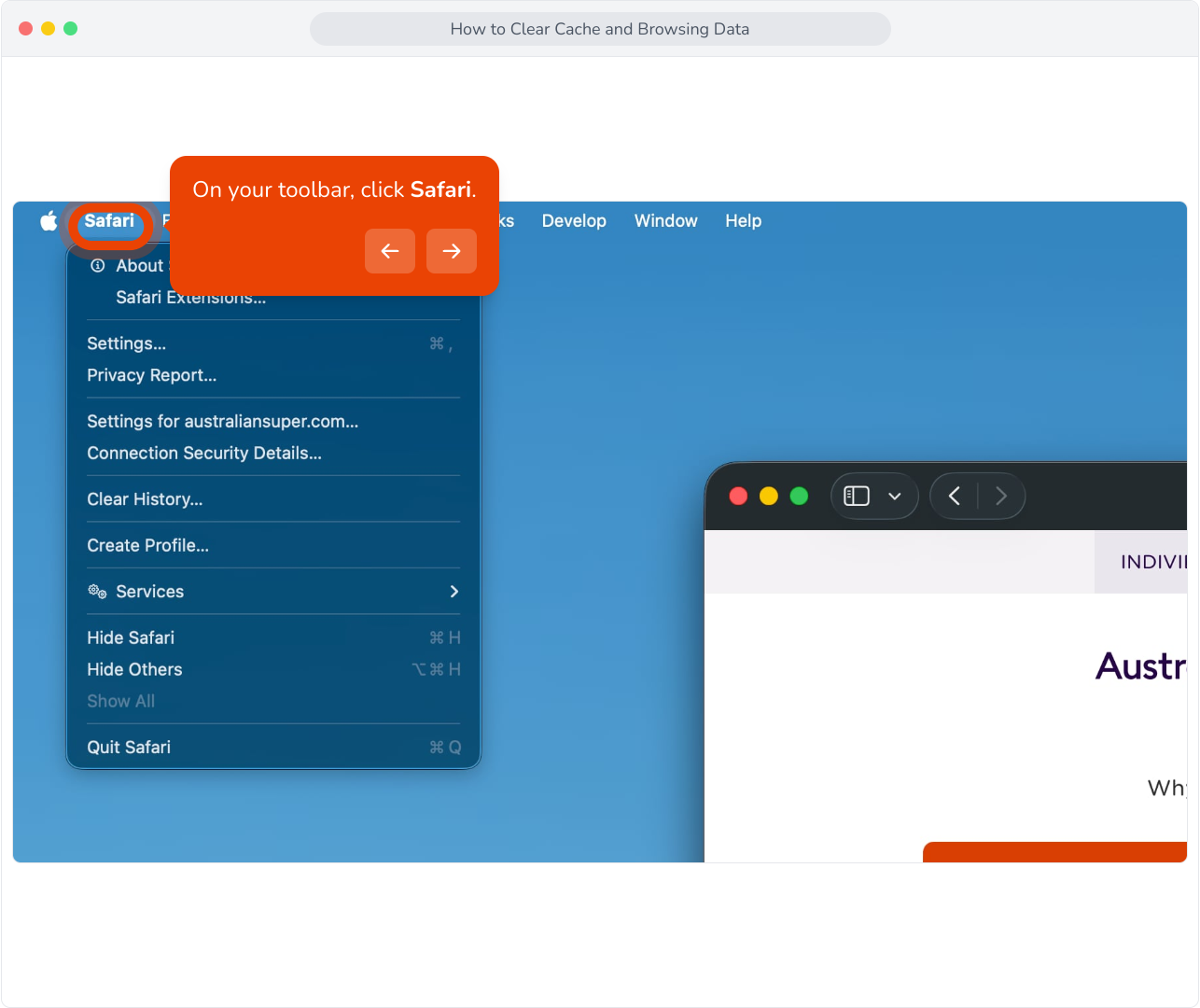
13. On your toolbar, click Safari.
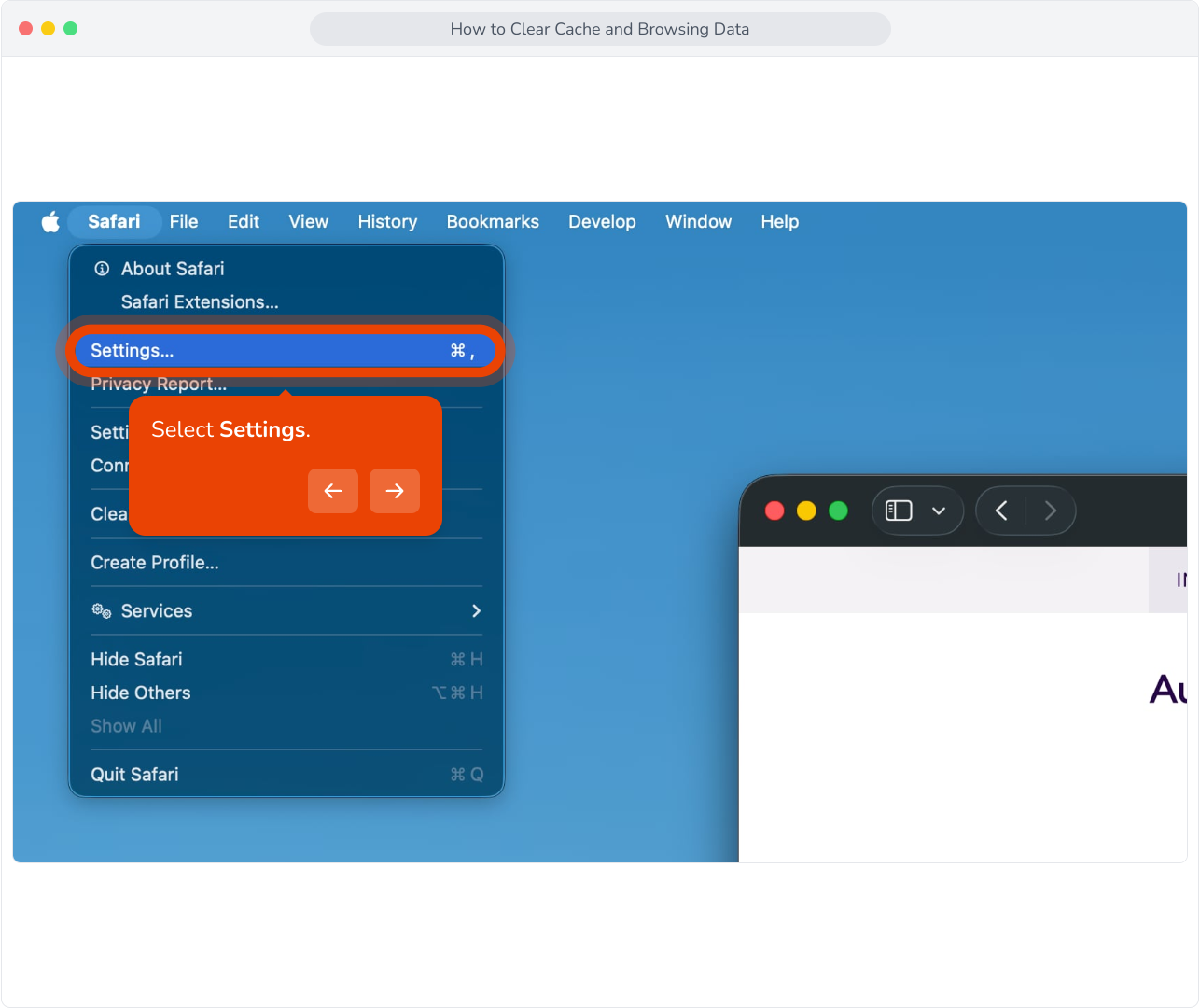
14. Select Settings.
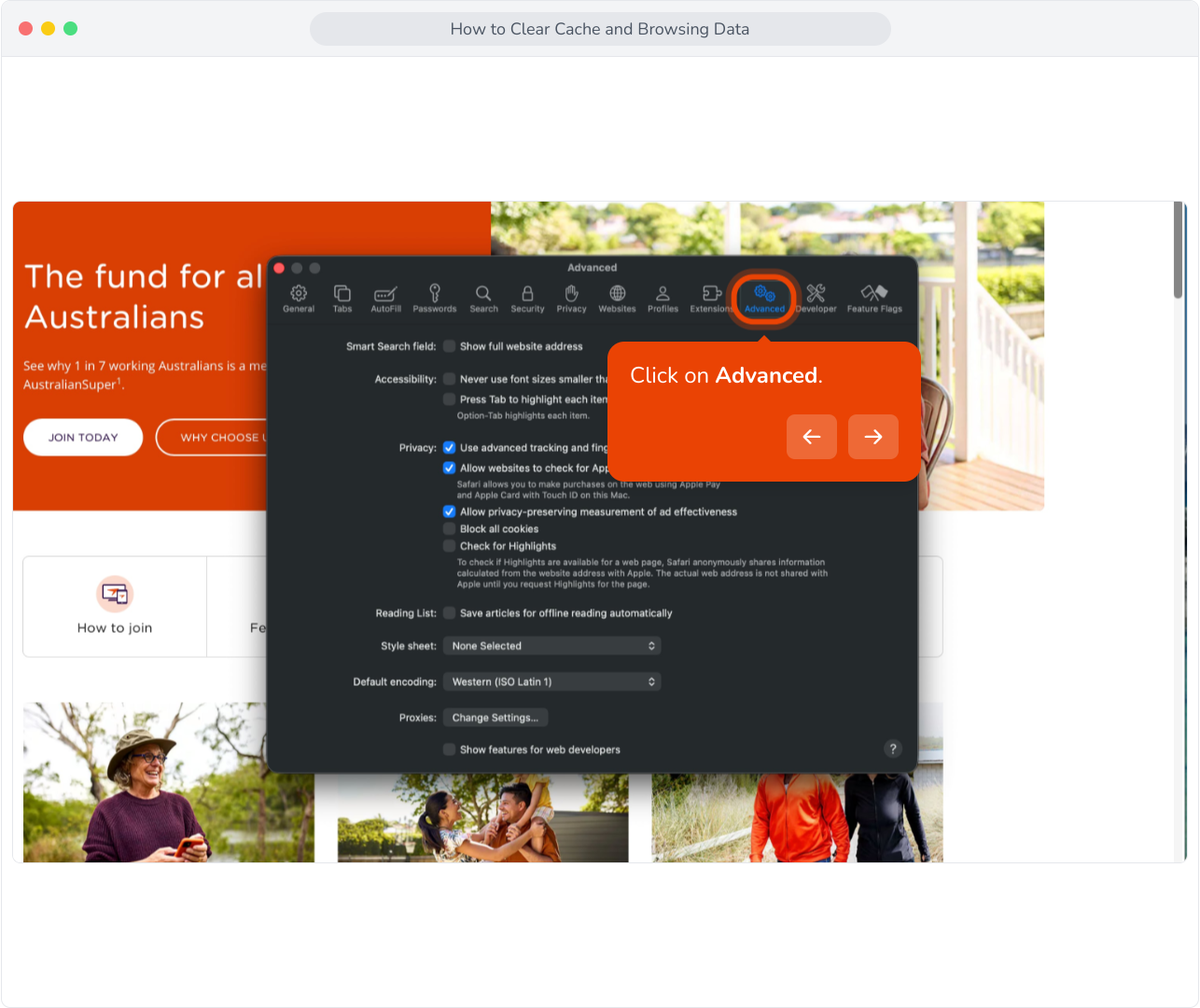
15. Click on Advanced.
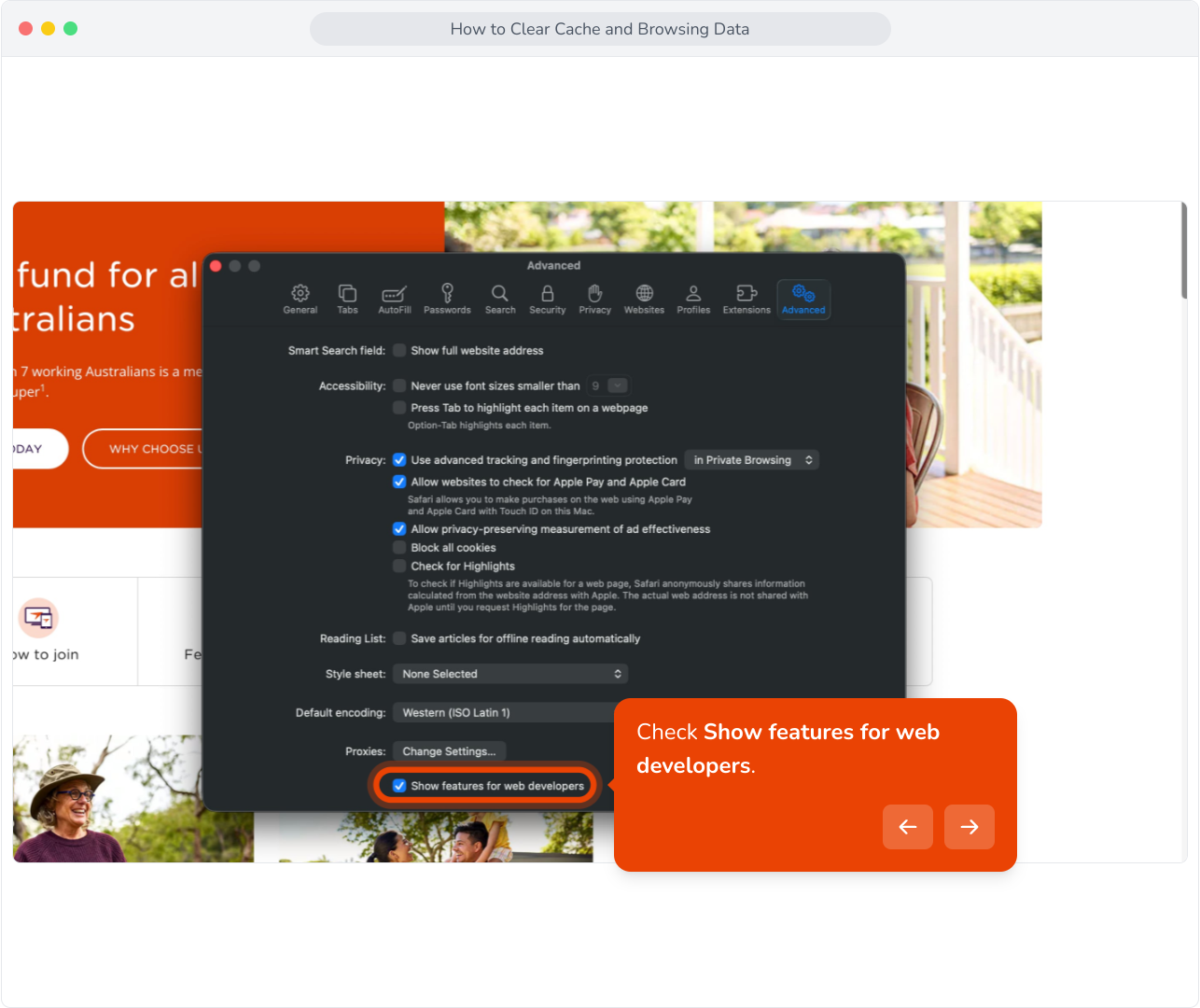
16. Check Show features for web developers.
17. In the toolbar, click Develop.

18. Select Empty Caches.

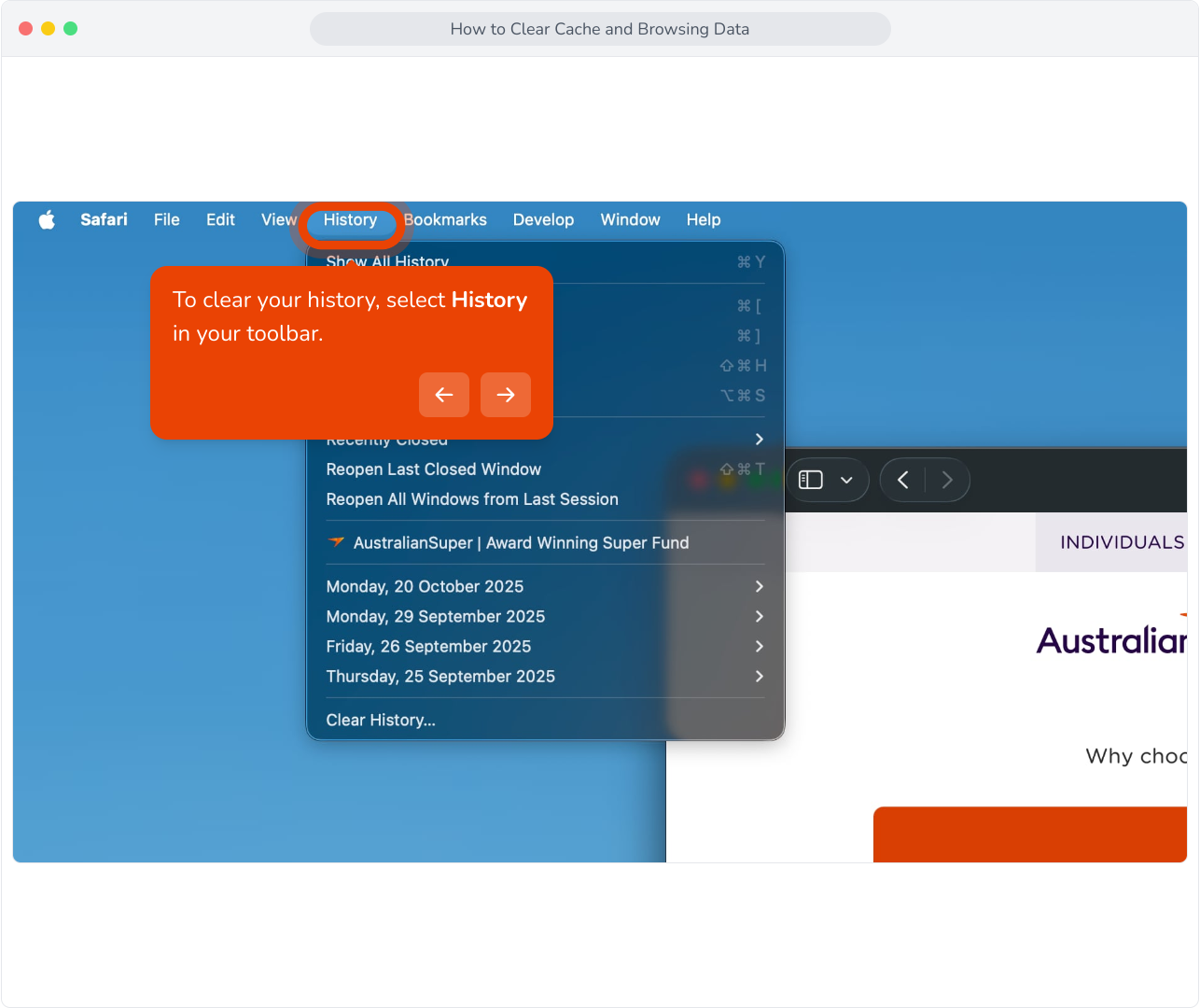
19. To clear your history, select History in your toolbar.
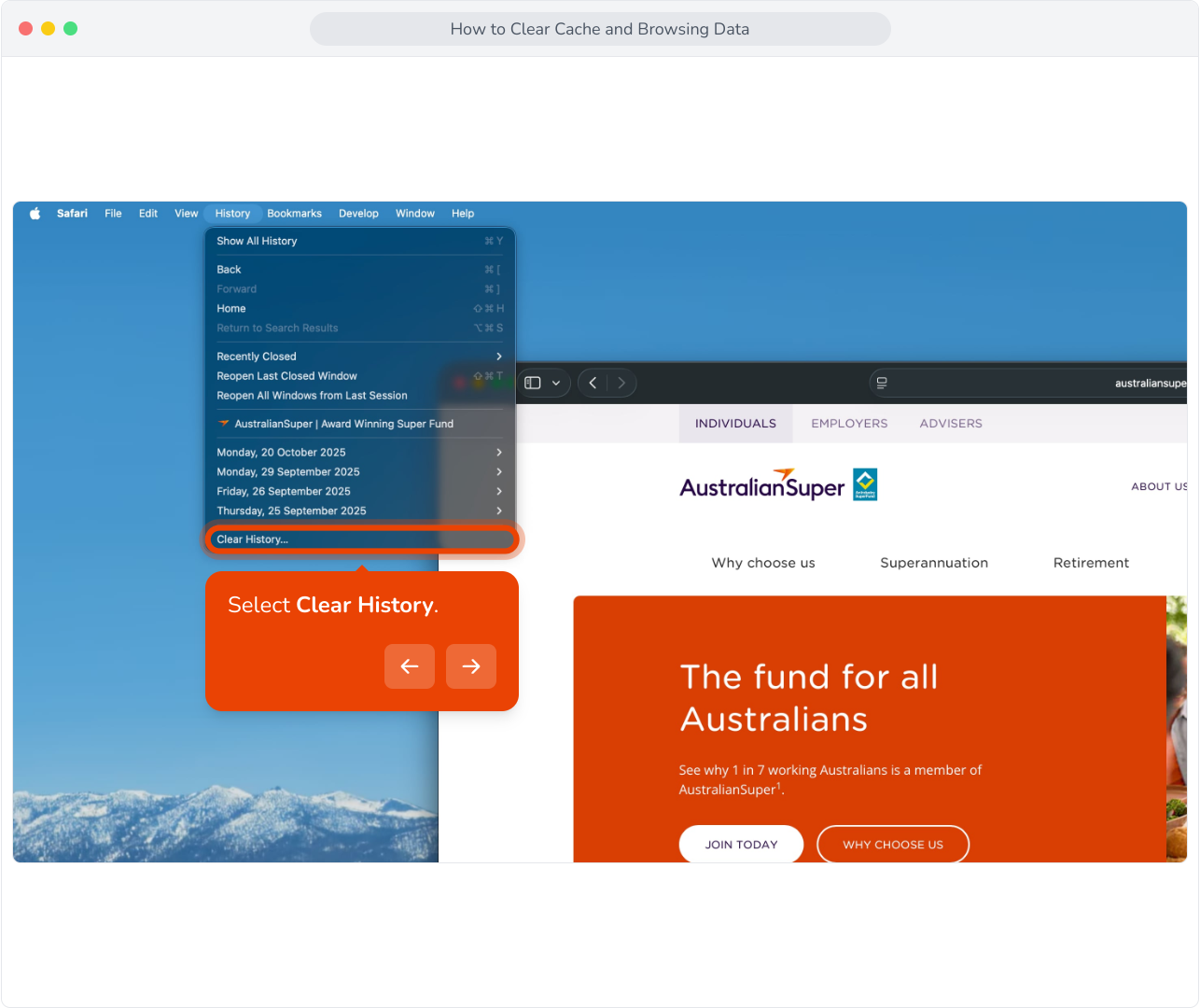
20. Select Clear History.
21. Select the period of time and click Clear History.

Microsoft Edge

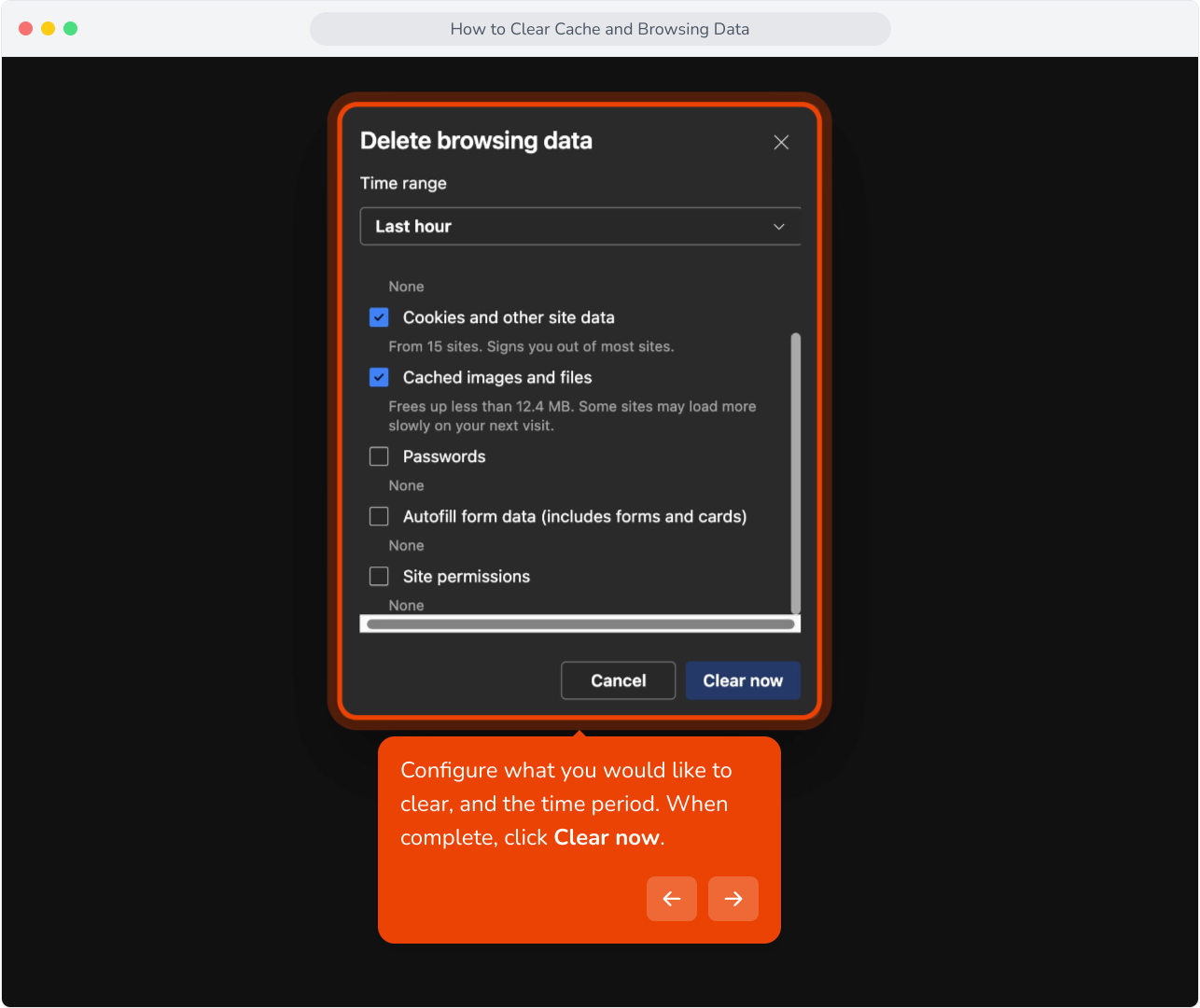
23. Click on the three dot menu

24. Select Settings.

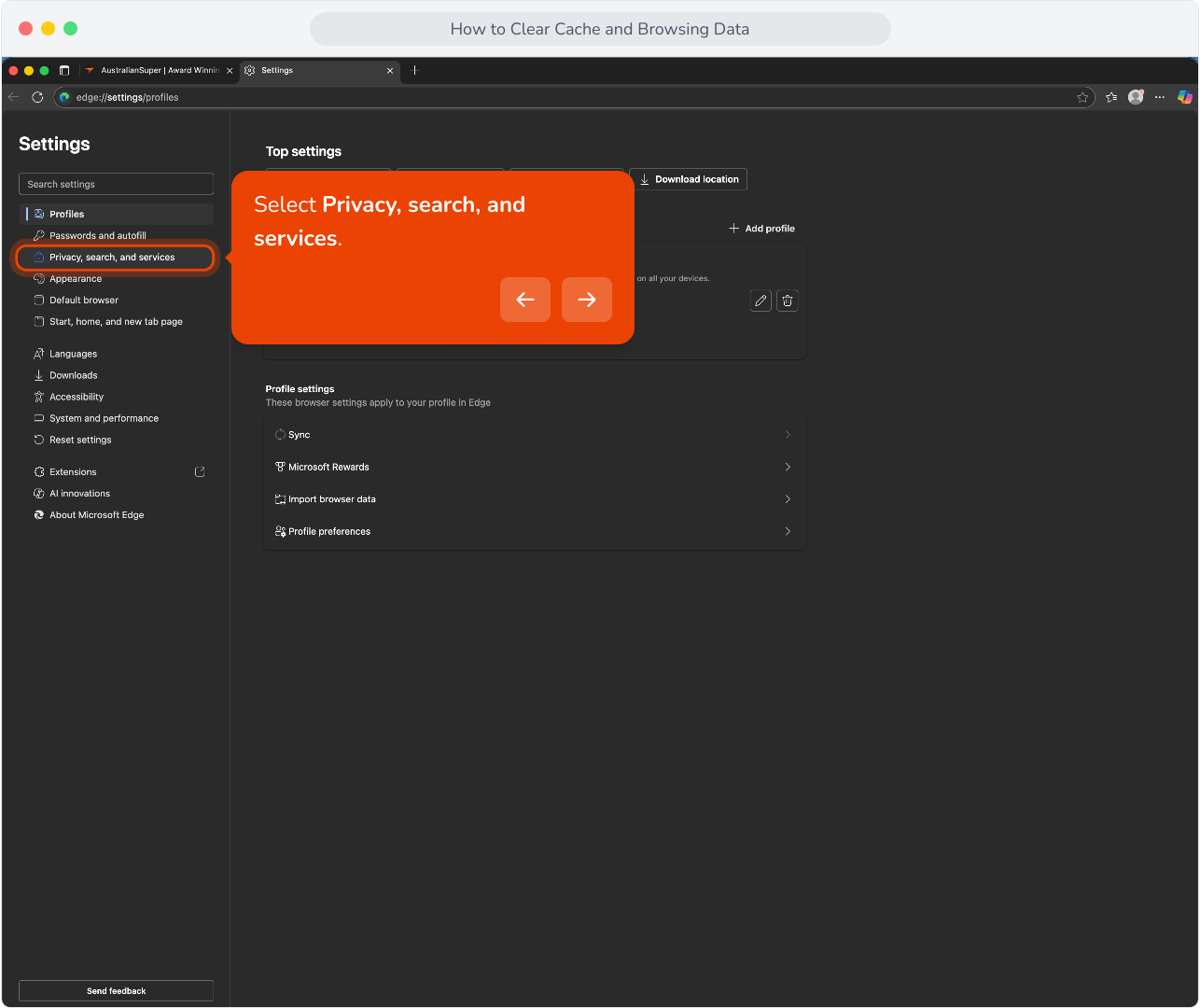
25. Select Privacy, search, and services.
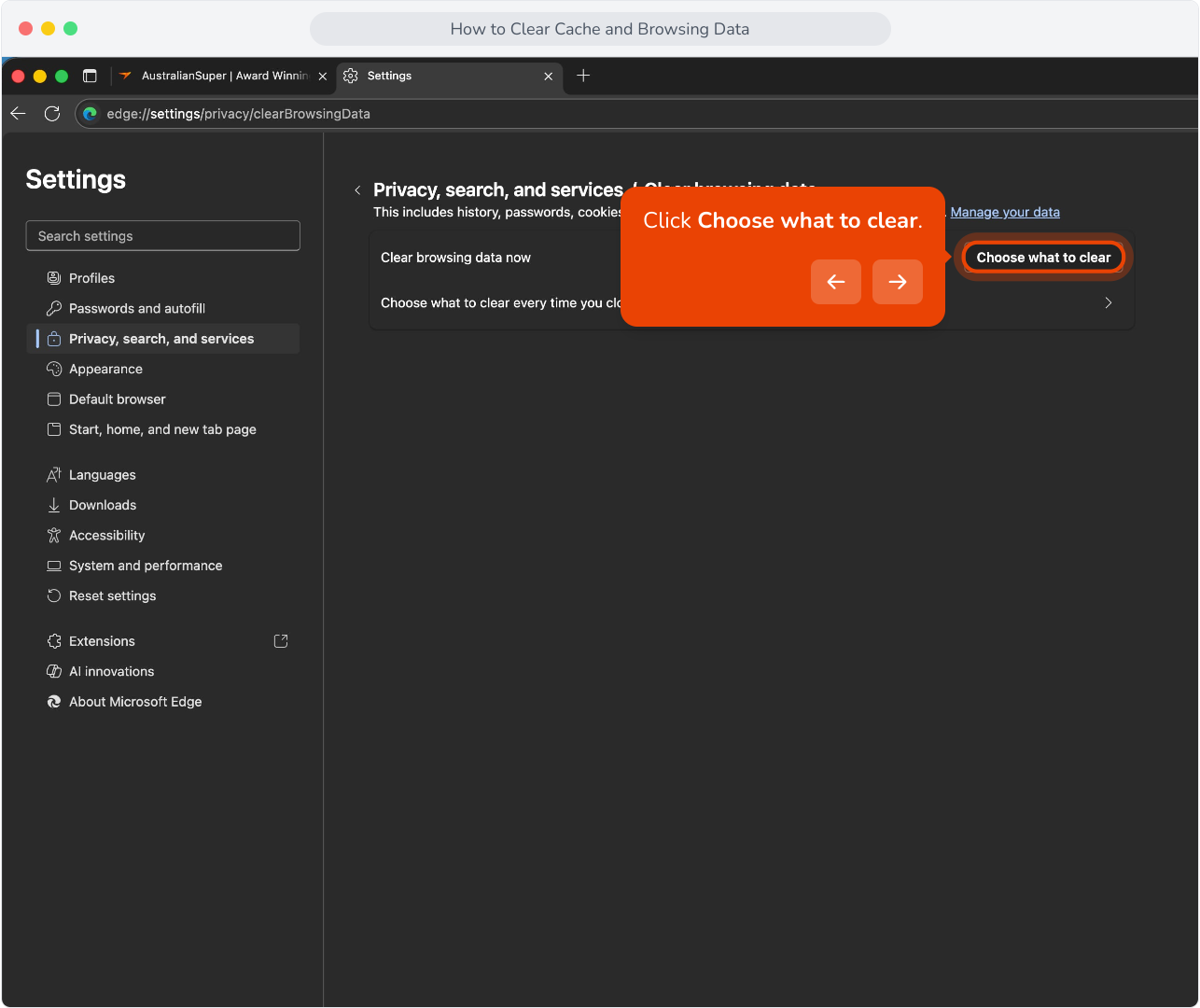
26. Click Choose what to clear.
27. Configure what you would like to clear, and the time period. When complete, click Clear now.