Context: This guide demonstrates the process of resetting a User’s MFA from the Employer Portal.
Help: For steps to configure MFA, see Setting Up MFA for more.
Interactive Demo
Note: Make the demo full-screen for a better experience. You can mute/un-mute narration to suit your preferences.
Step by Step
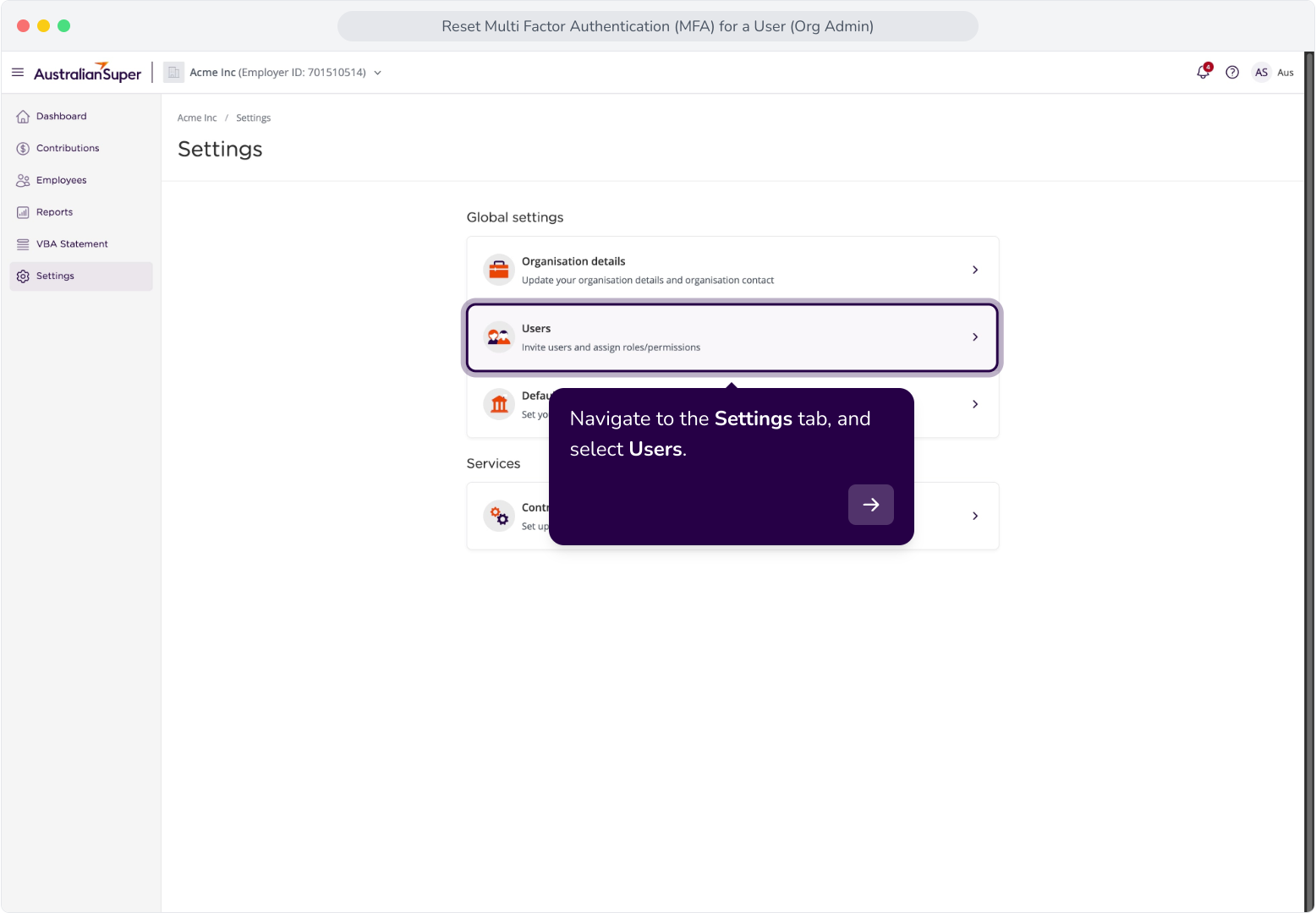
1. Navigate to the Settings tab, and select Users.
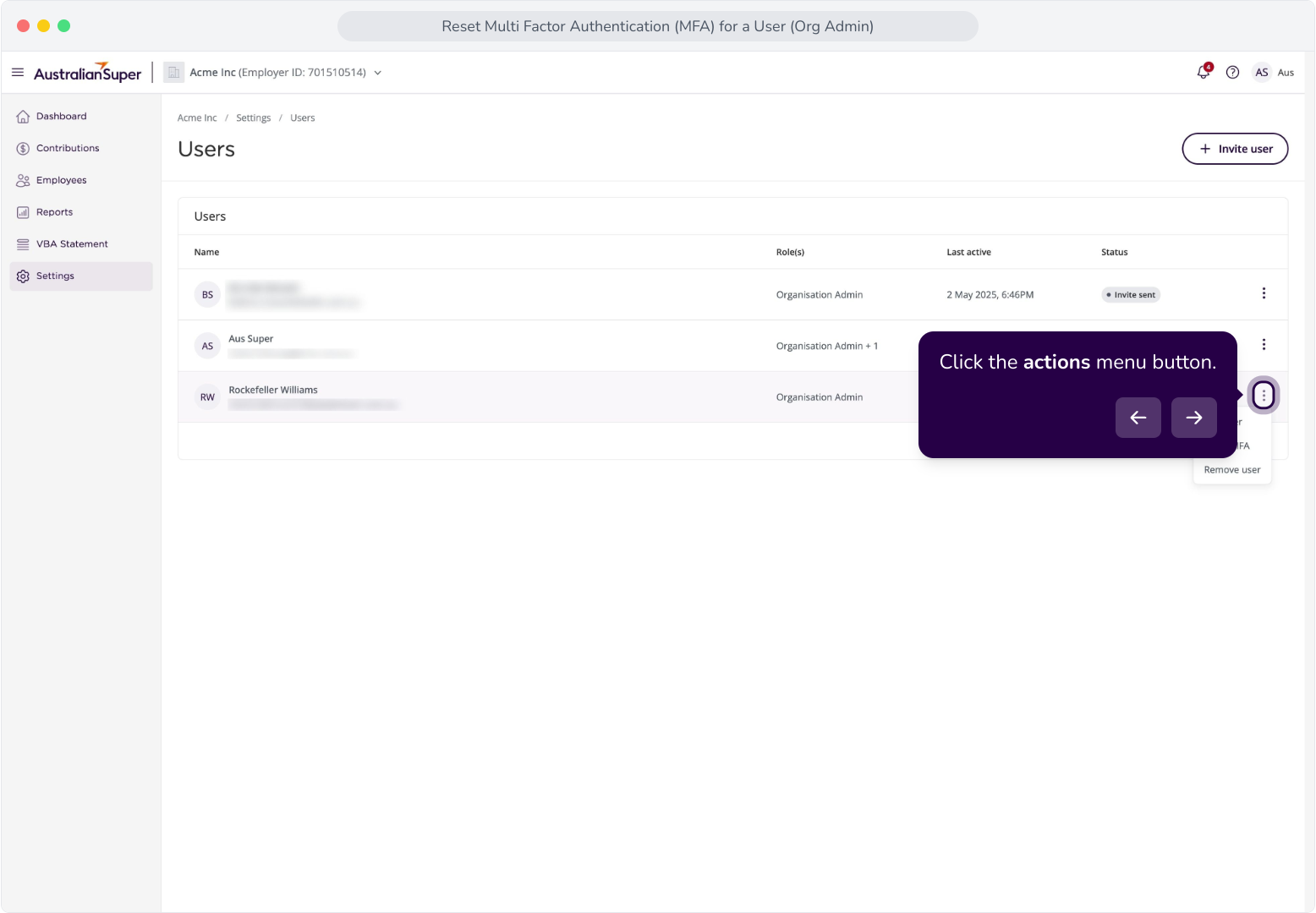
2. Click the actions menu button.
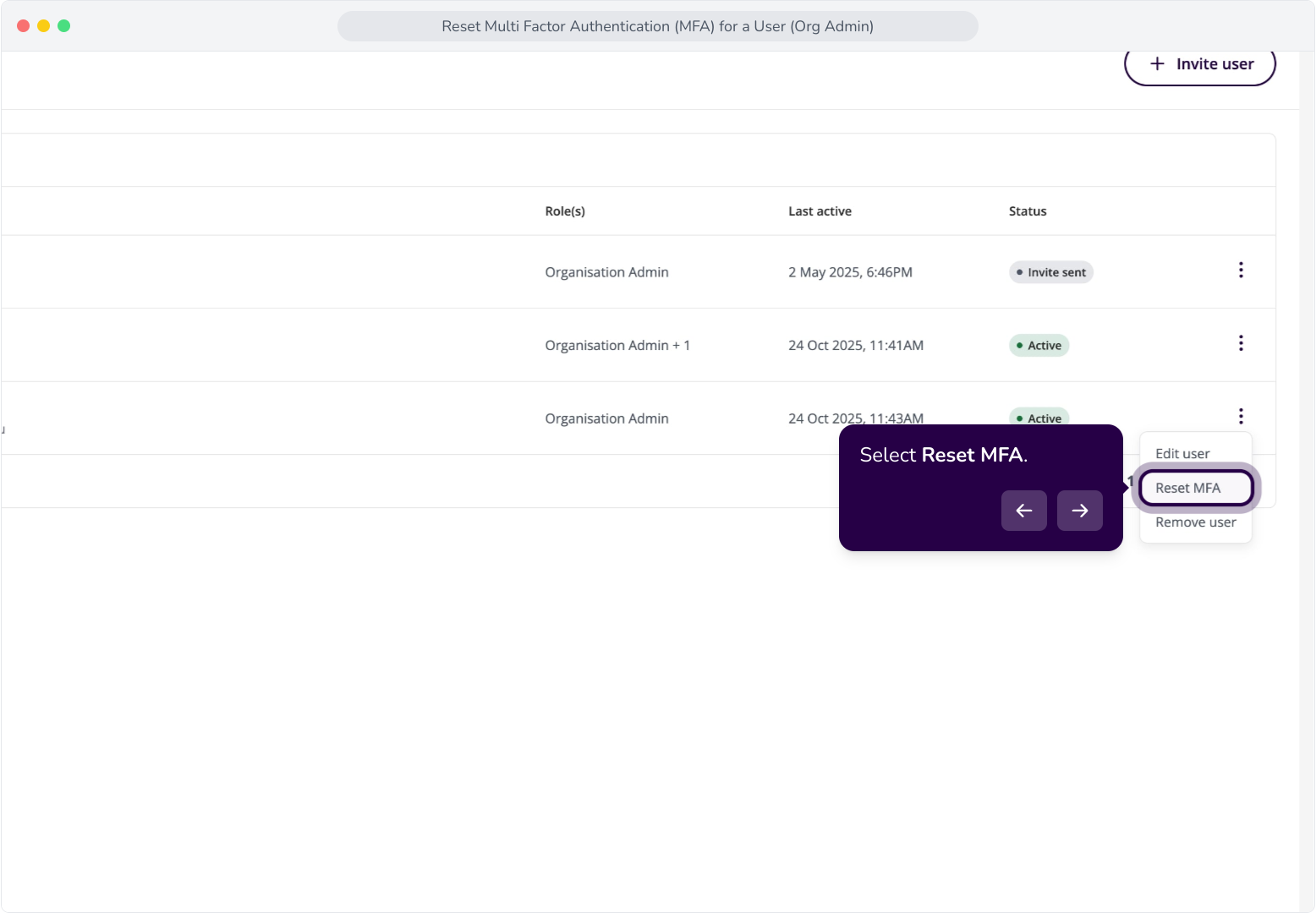
3. Select Reset MFA.
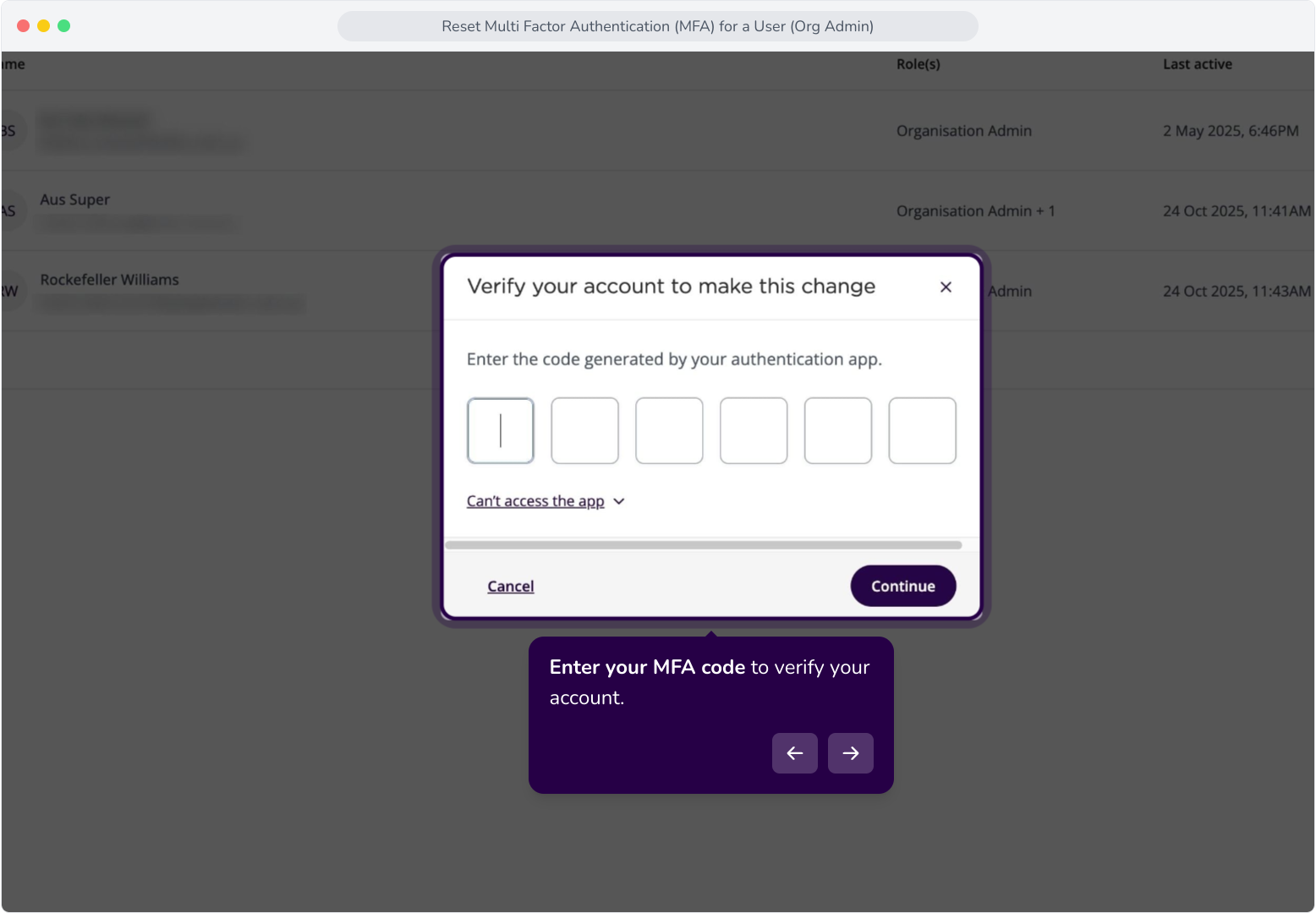
4. Enter your MFA code to verify your account.
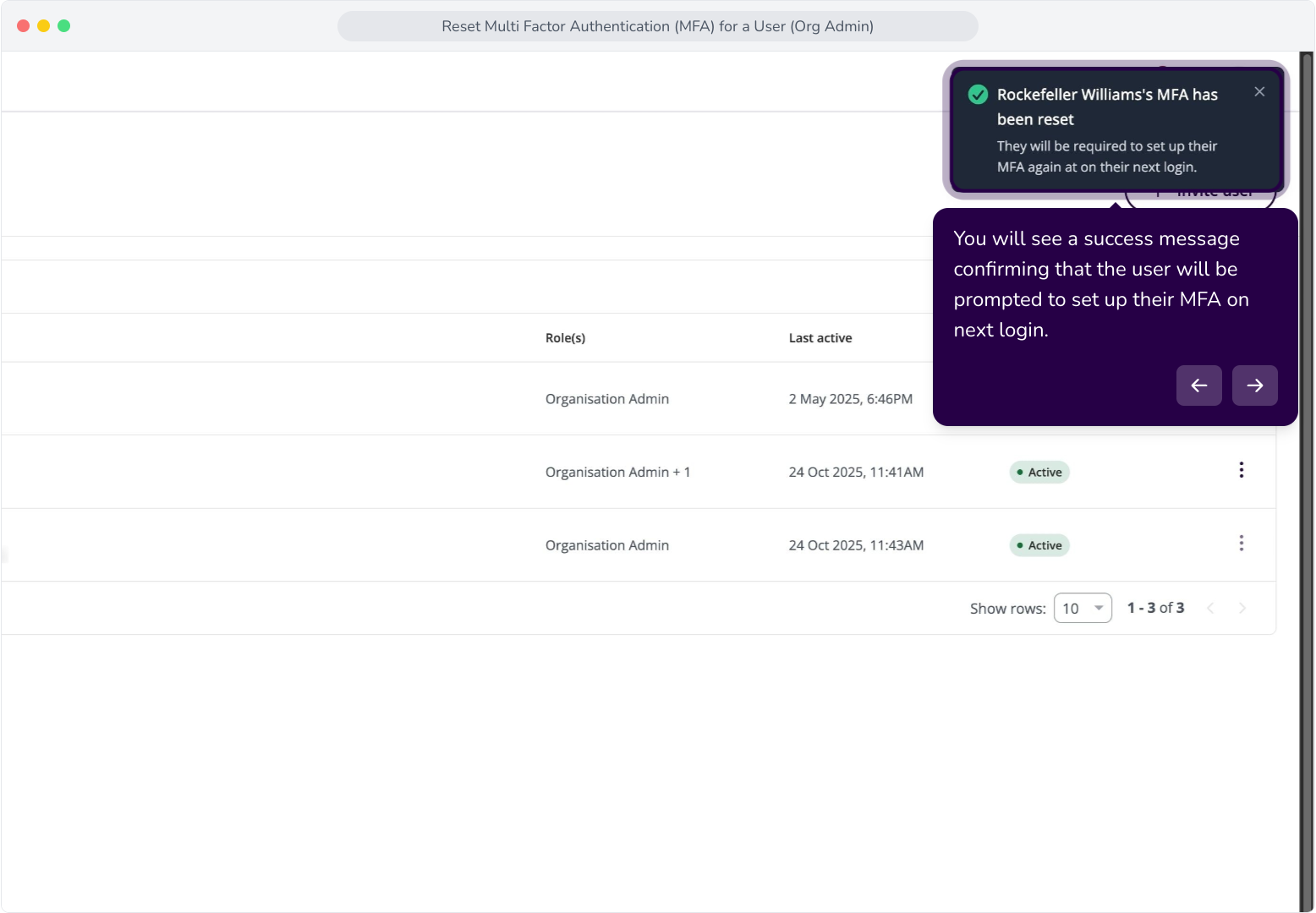
5. You will see a success message confirming that the user will be prompted to set up their MFA on next login.
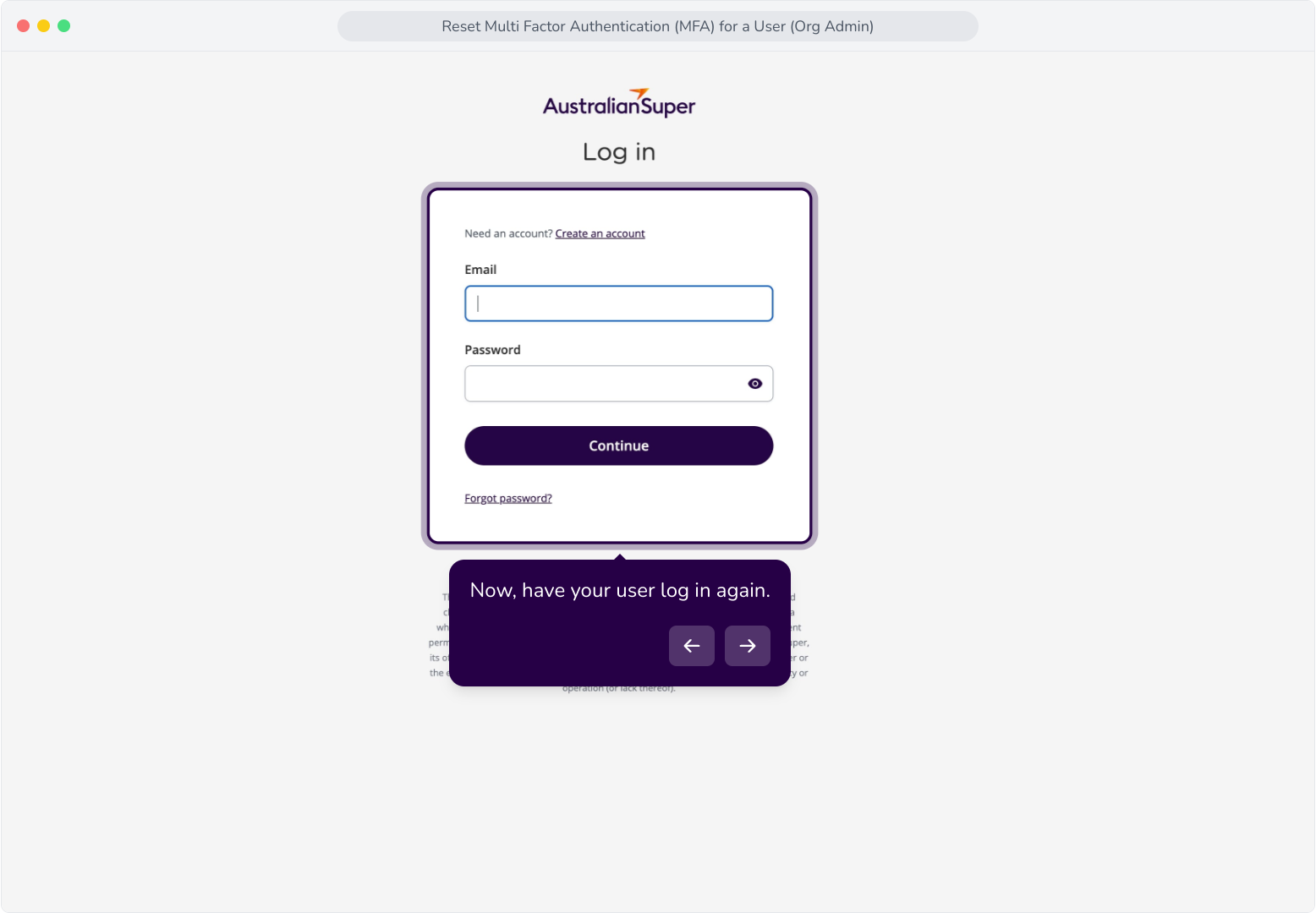
6. Now, have your user log in again.
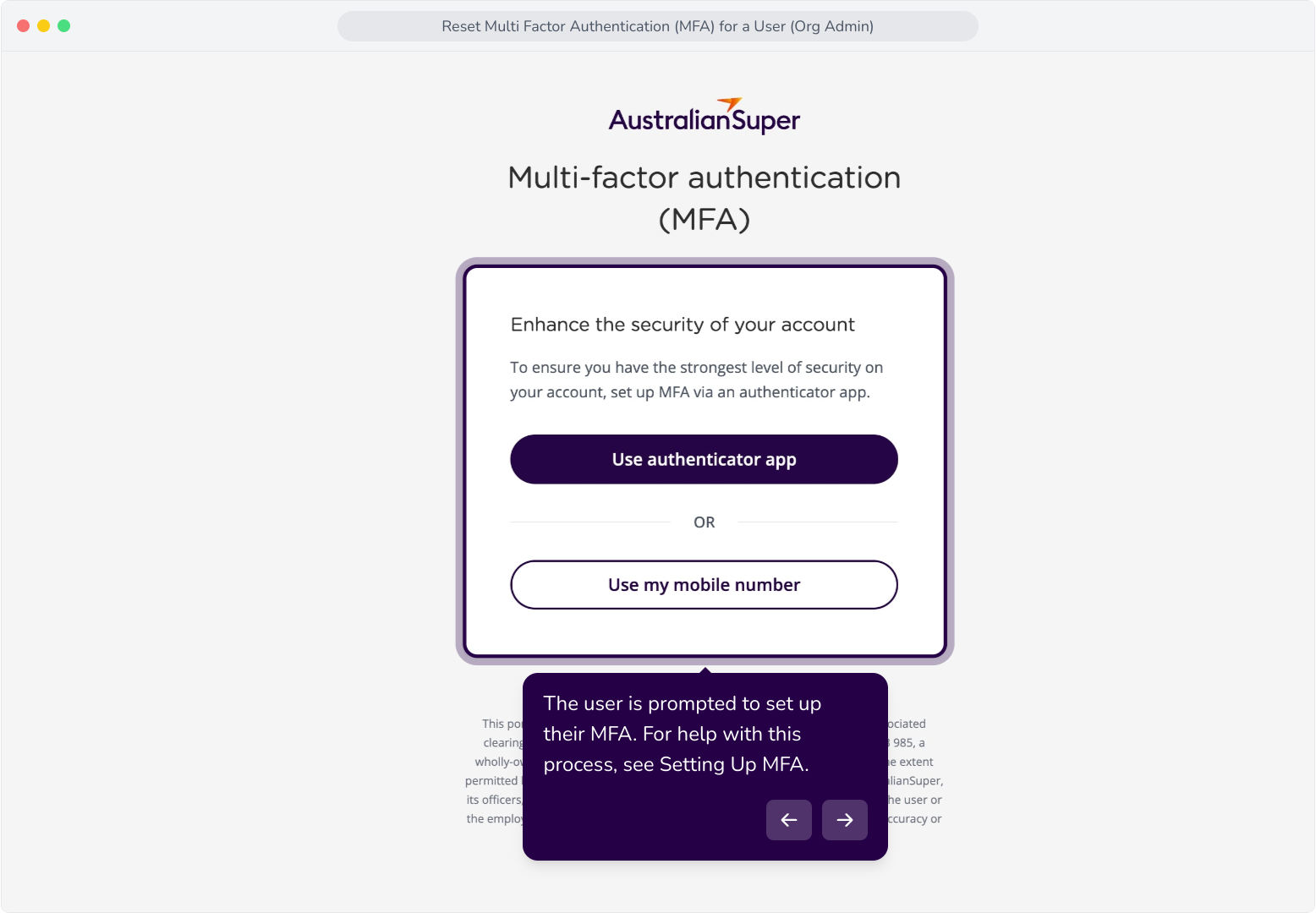
7. The user is prompted to set up their MFA. For help with this process, see Setting Up MFA.