Context: This guide covers the process of setting up MFA. The circumstances demonstrated in this guide are triggered by an MFA reset via the Employer Portal, however, the process remains the same.
Important: We’ve updated our MFA criteria to help strengthen your account security. Please see our Password and MFA Requirements article for more information. We recommend and support Google Authenticator as the MFA app of choice.
Interactive Demo
Note: Make the demo full-screen for a better experience. You can mute/un-mute narration to suit your preferences.
Step by Step
1. Let's set up your MFA. You can do this during the account sign-up process, or after triggering an MFA reset within Settings > Users.
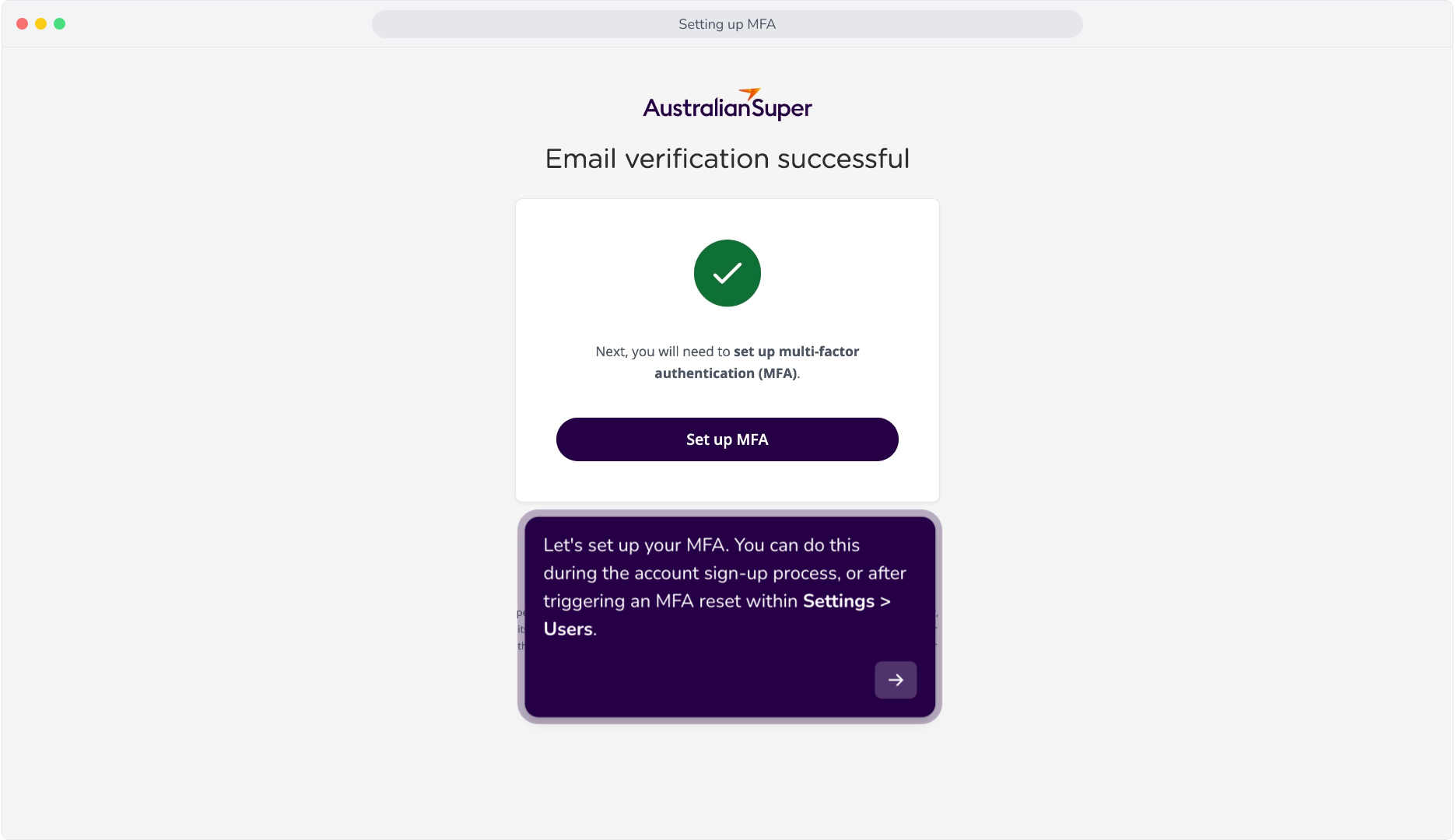
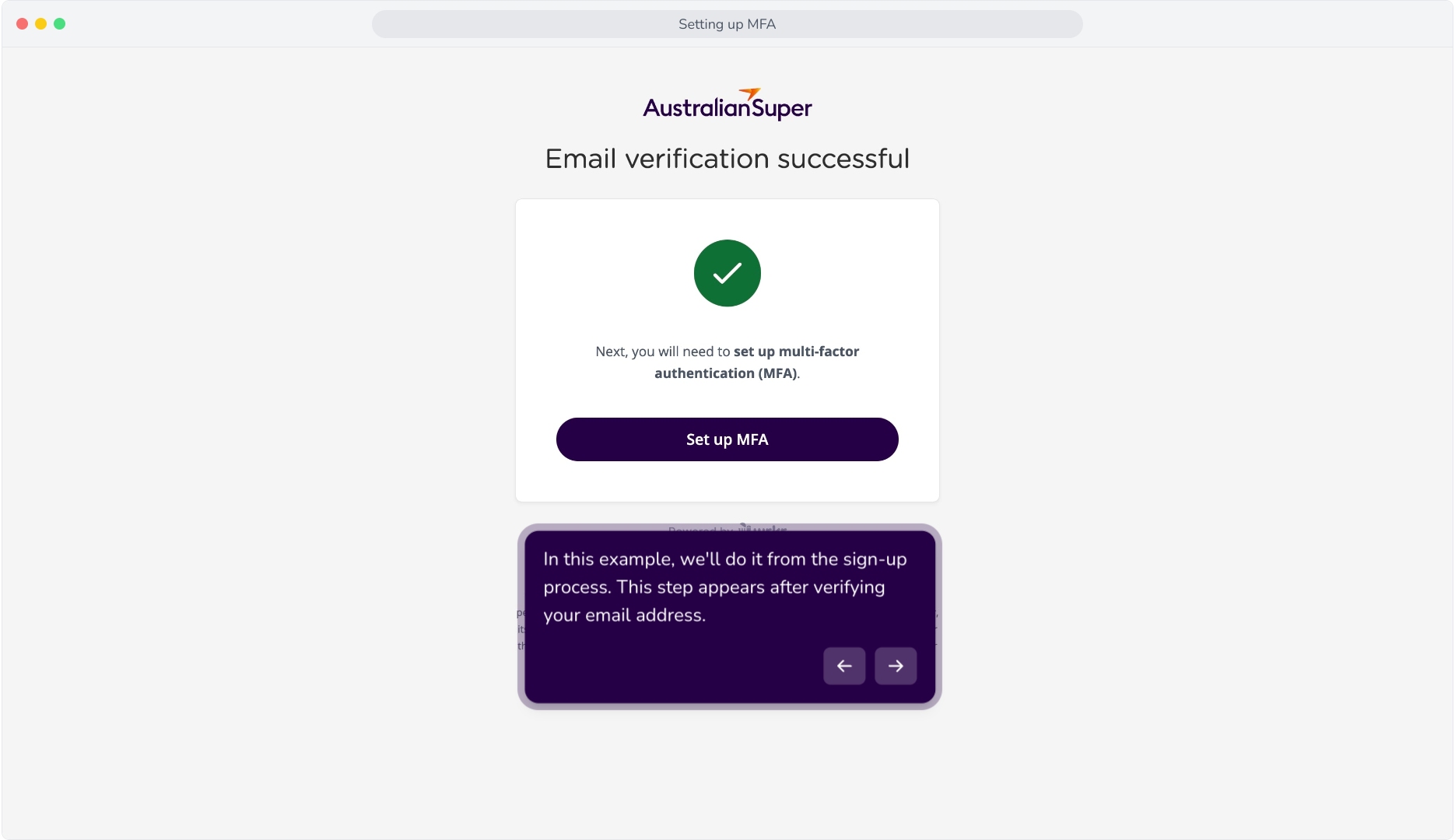
2. In this example, we'll do it from the sign-up process. This step appears after verifying your email address.
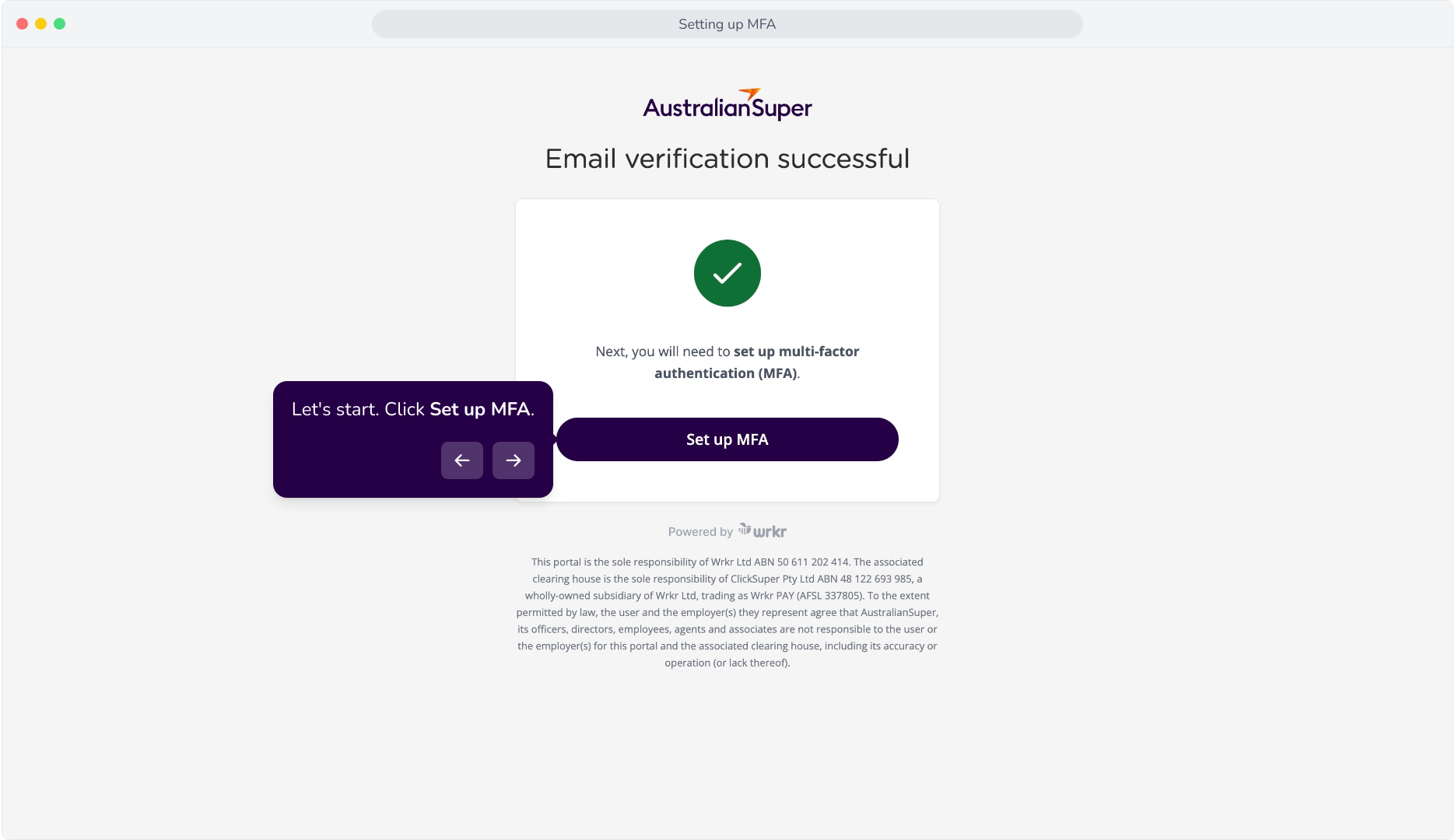
3. Let's start. Click Set up MFA.
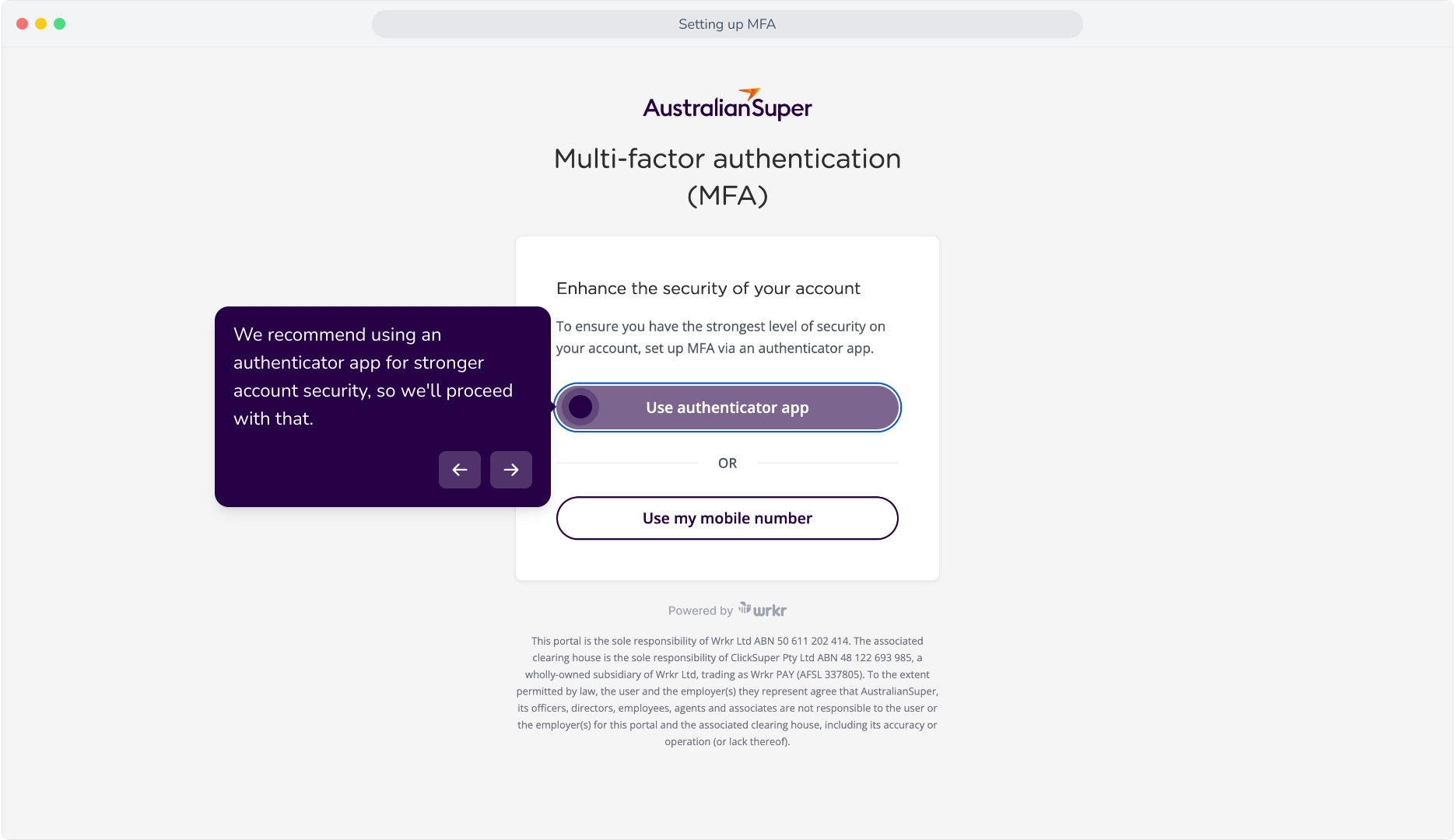
4. We recommend using an authenticator app for stronger account security, so we'll proceed with that.
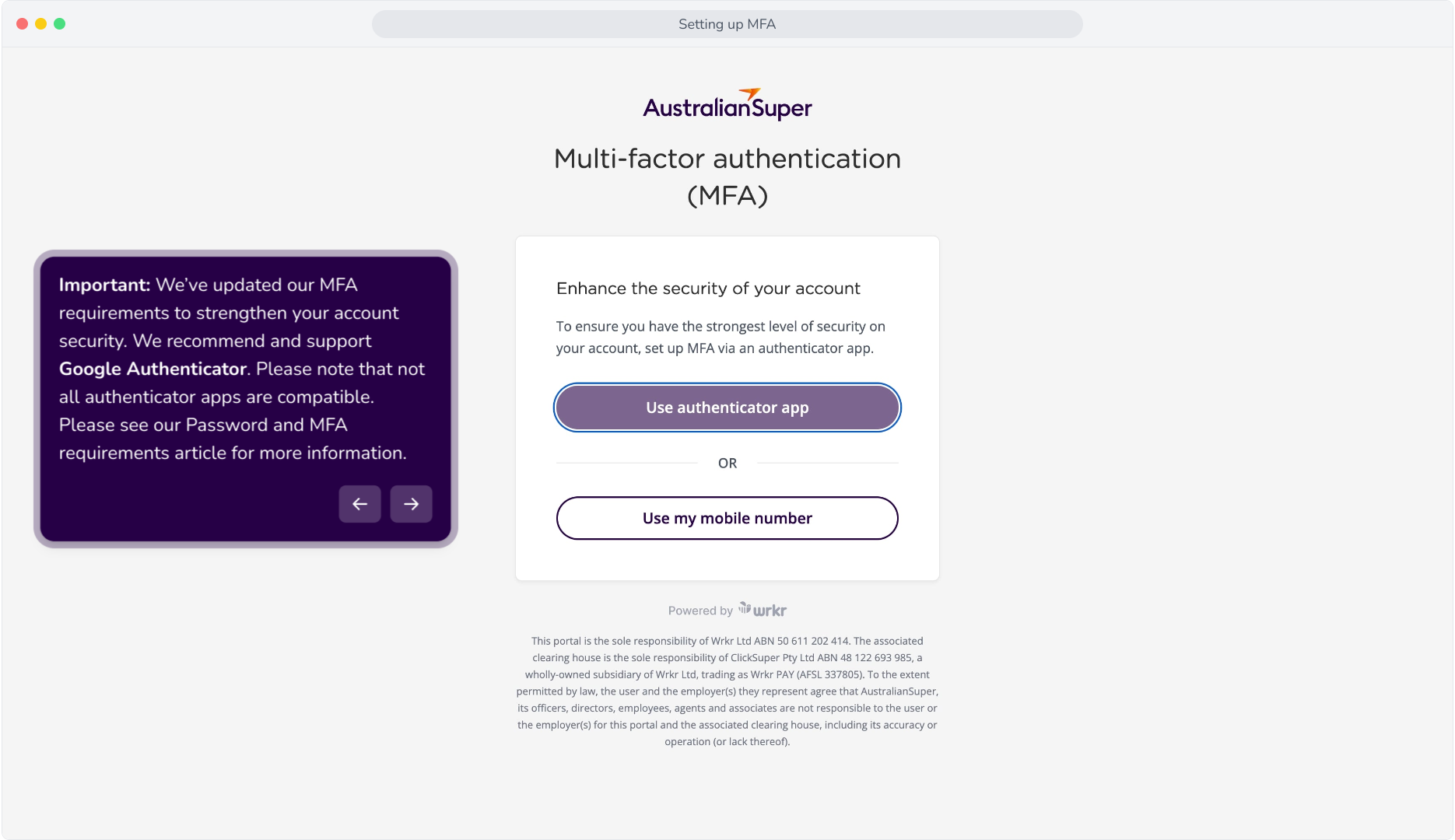
5. Important: We’ve updated our MFA requirements to strengthen your account security. We recommend and support Google Authenticator. Please note that not all authenticator apps are compatible. Please see our Password and MFA requirements article for more information.
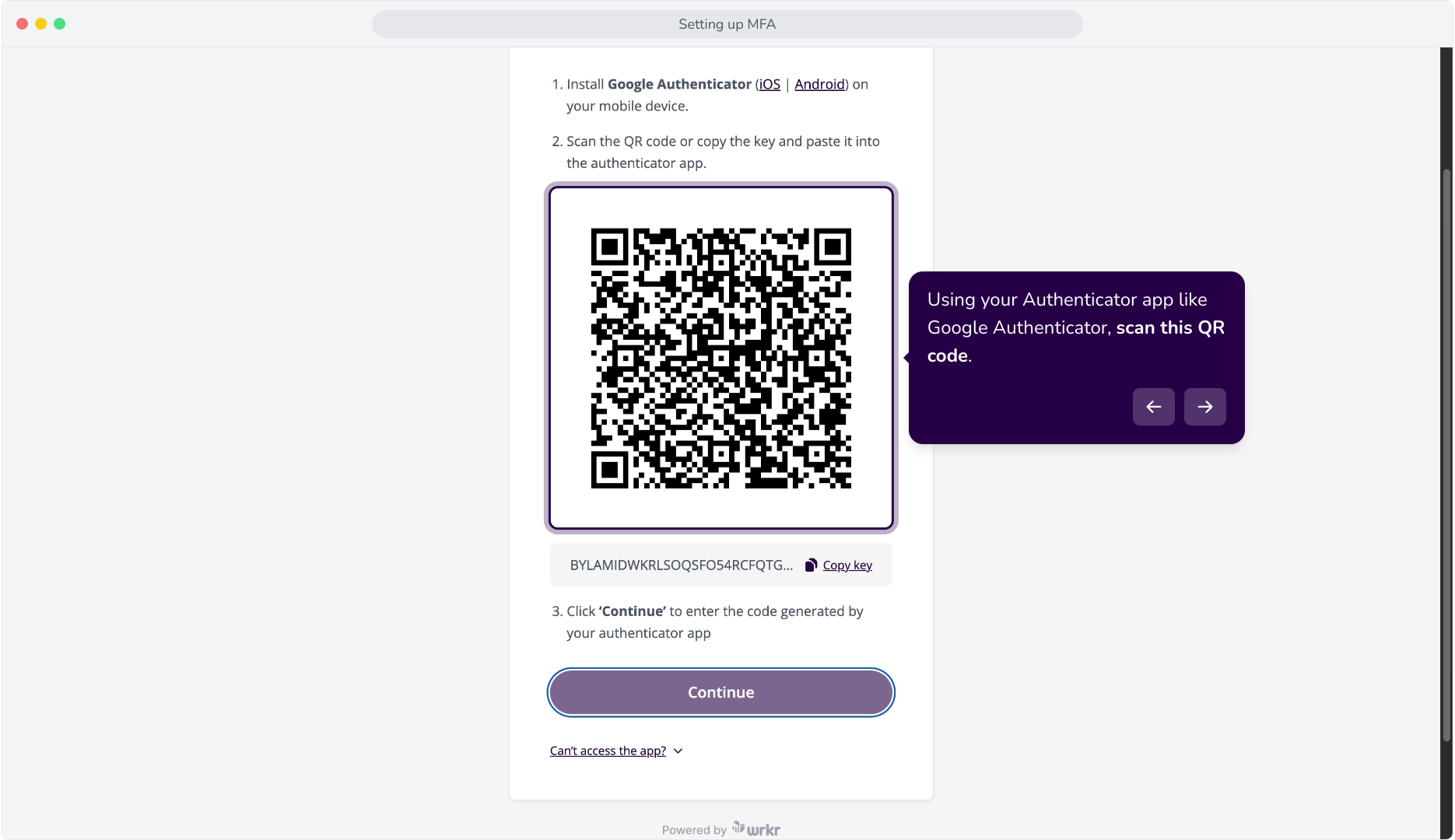
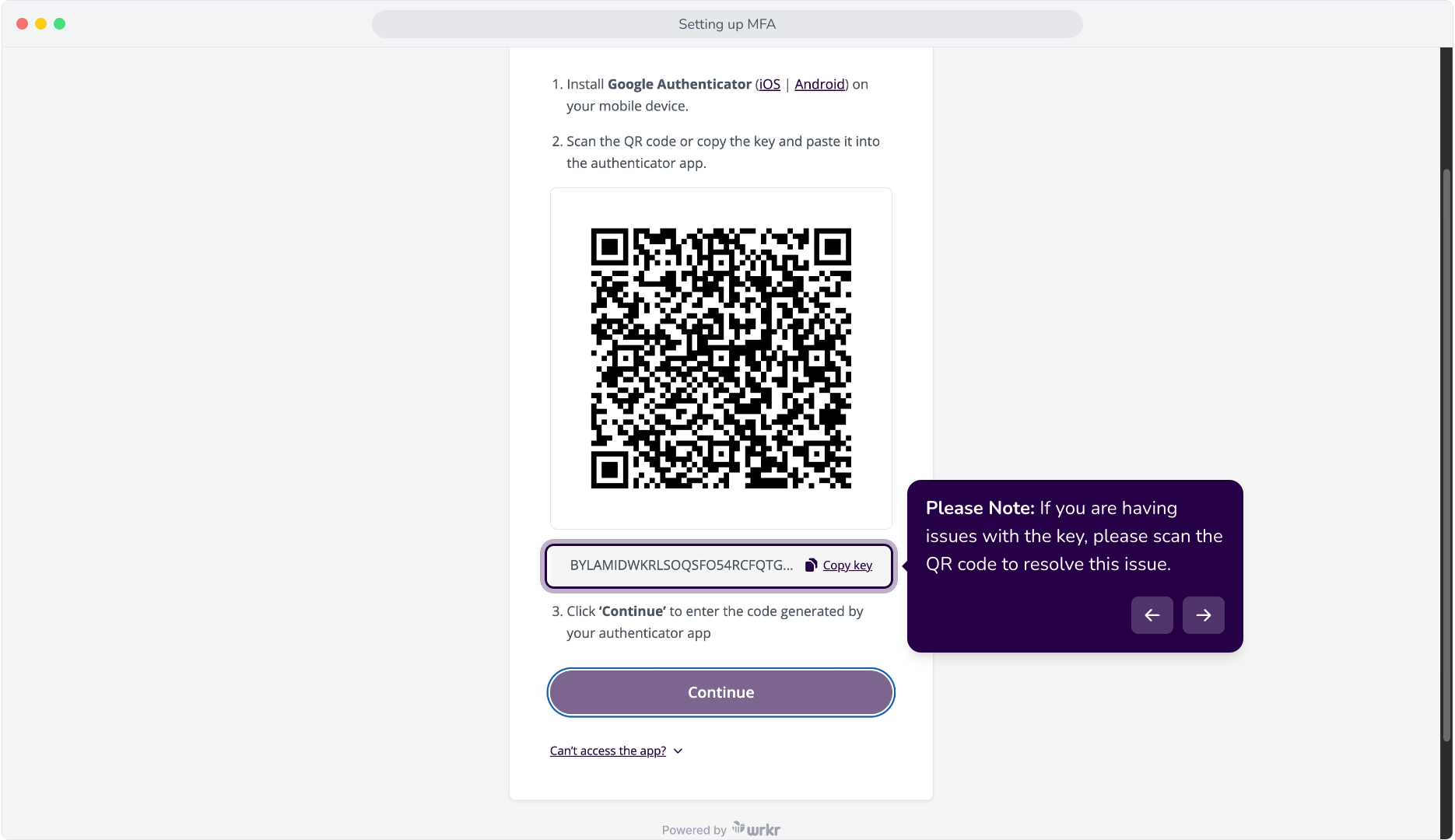
6. Using your Authenticator app like Google Authenticator, scan this QR code.
7. Alternatively, copy this key into your authenticator app to generate the code.
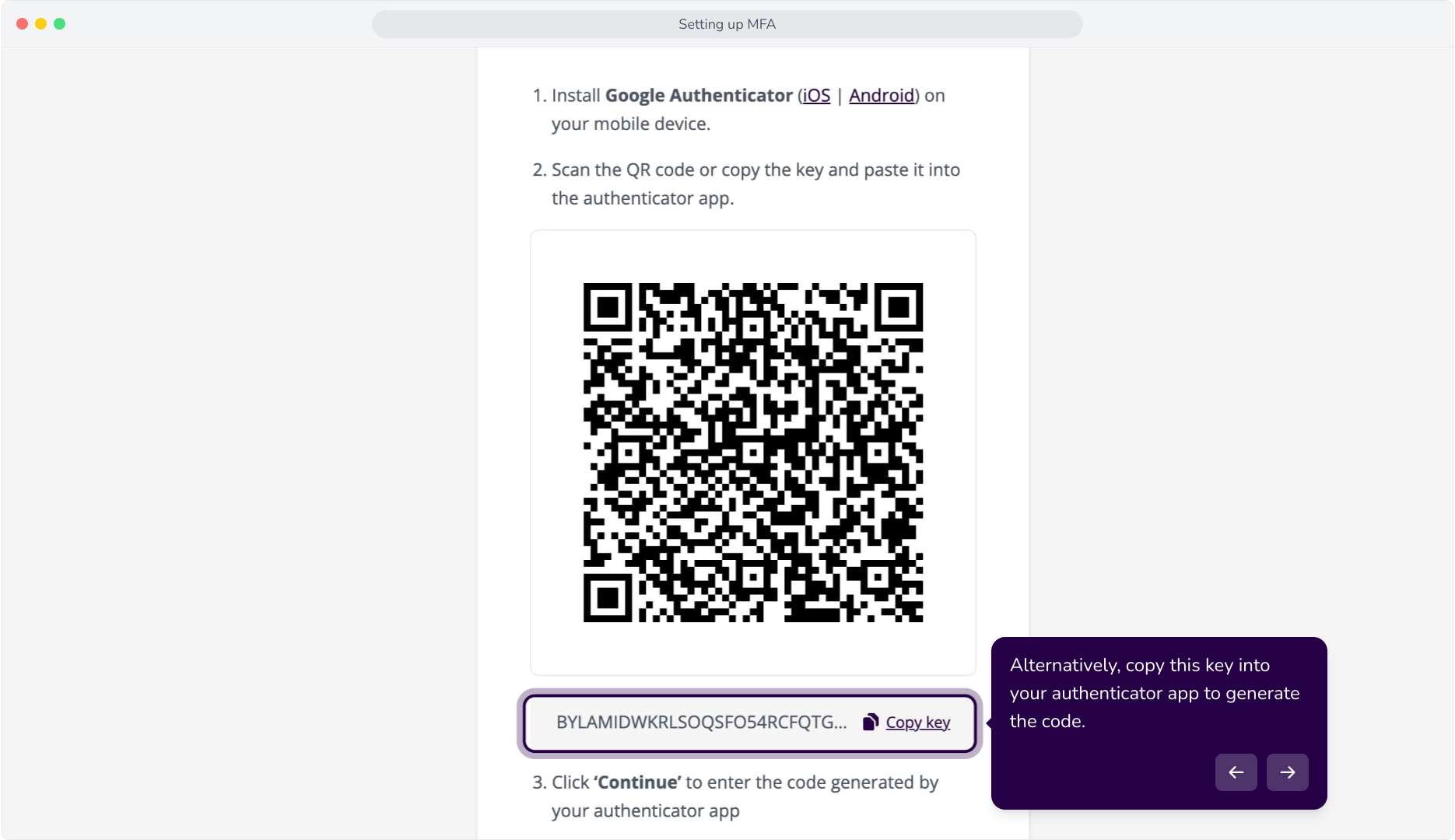
8. Please Note: If you are having issues with the key, please scan the QR code to resolve this issue.
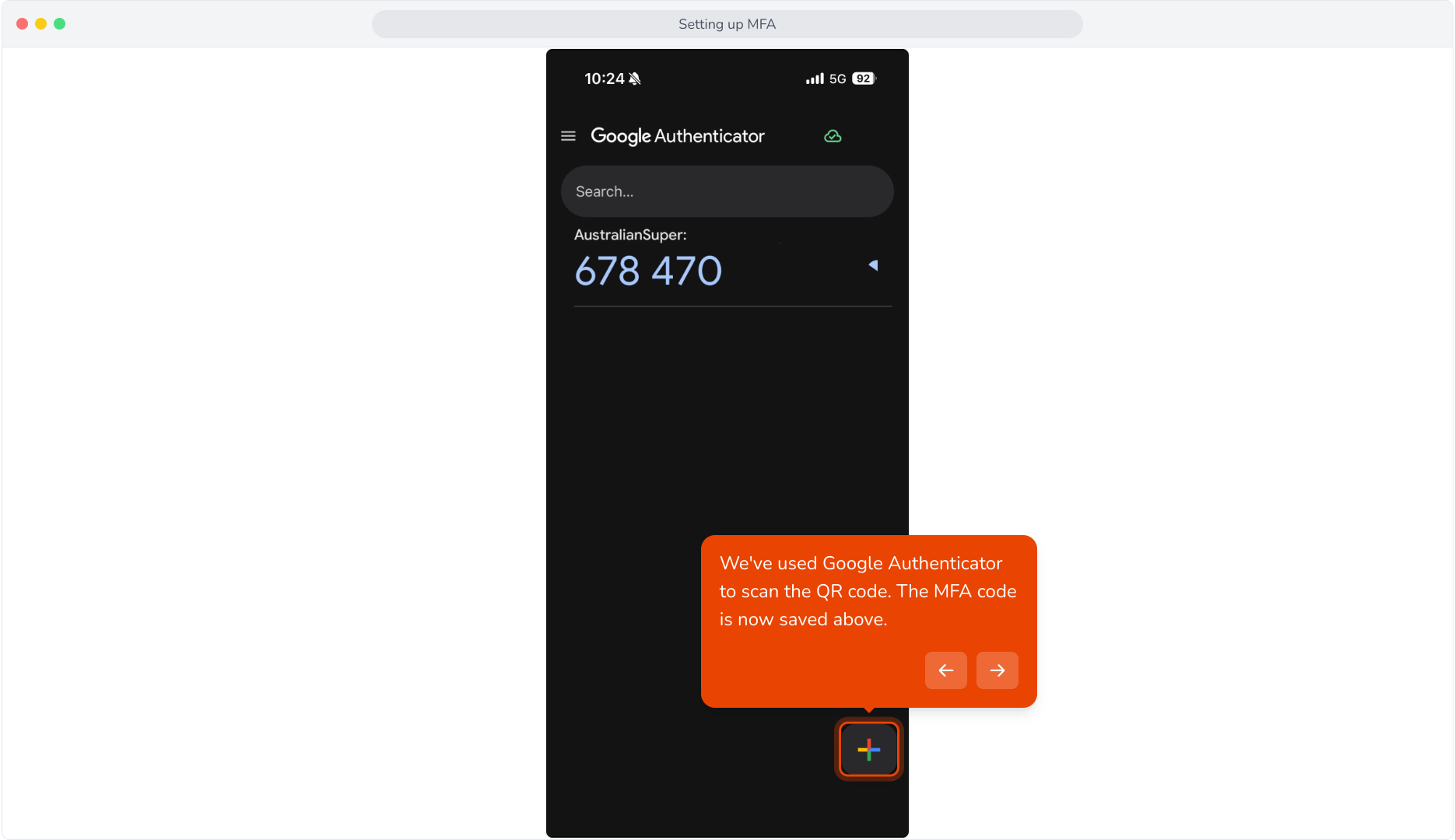
9. We've used Google Authenticator to scan the QR code. The MFA code is now saved above.
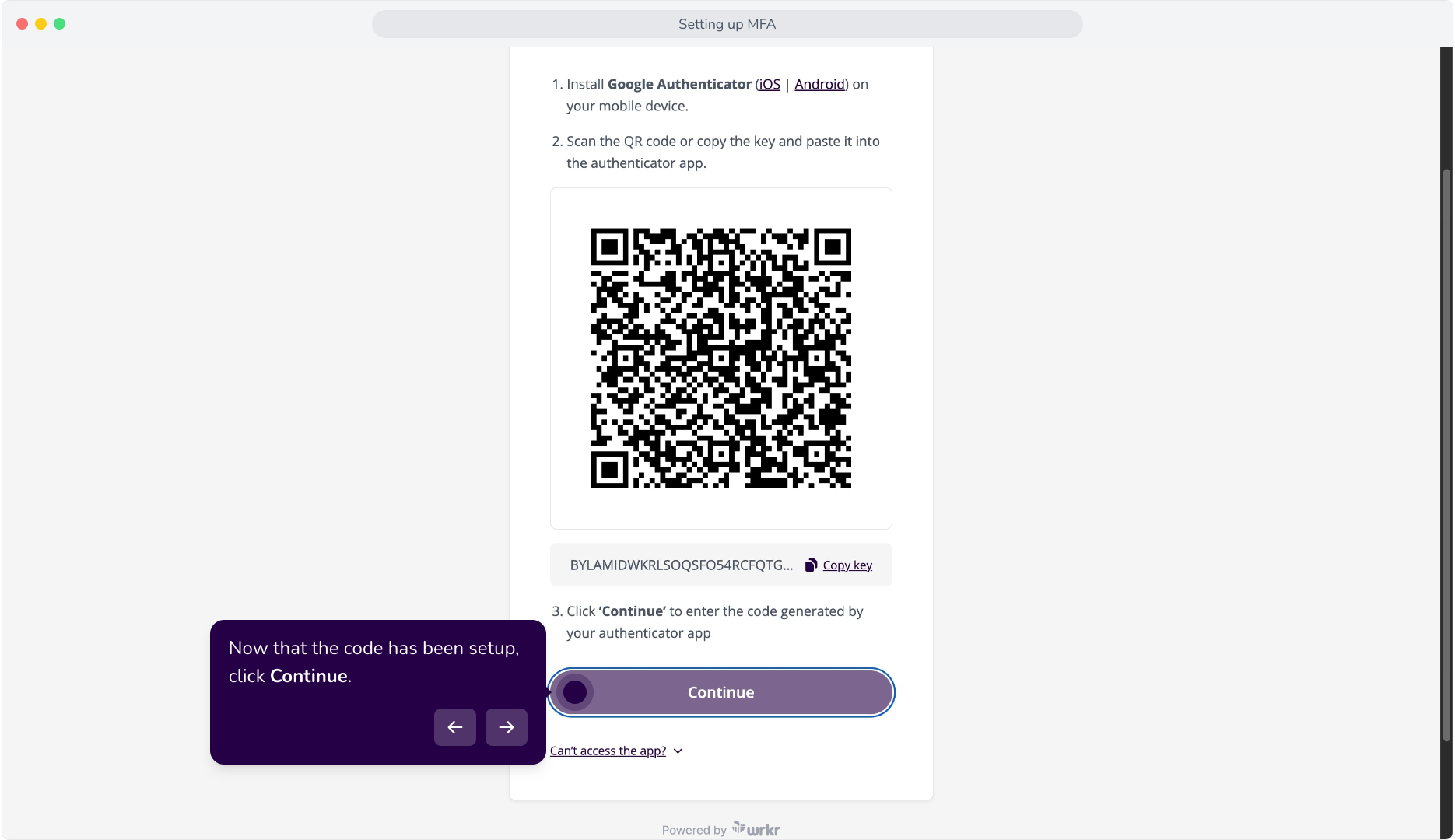
10. Now that the code has been setup, click Continue.
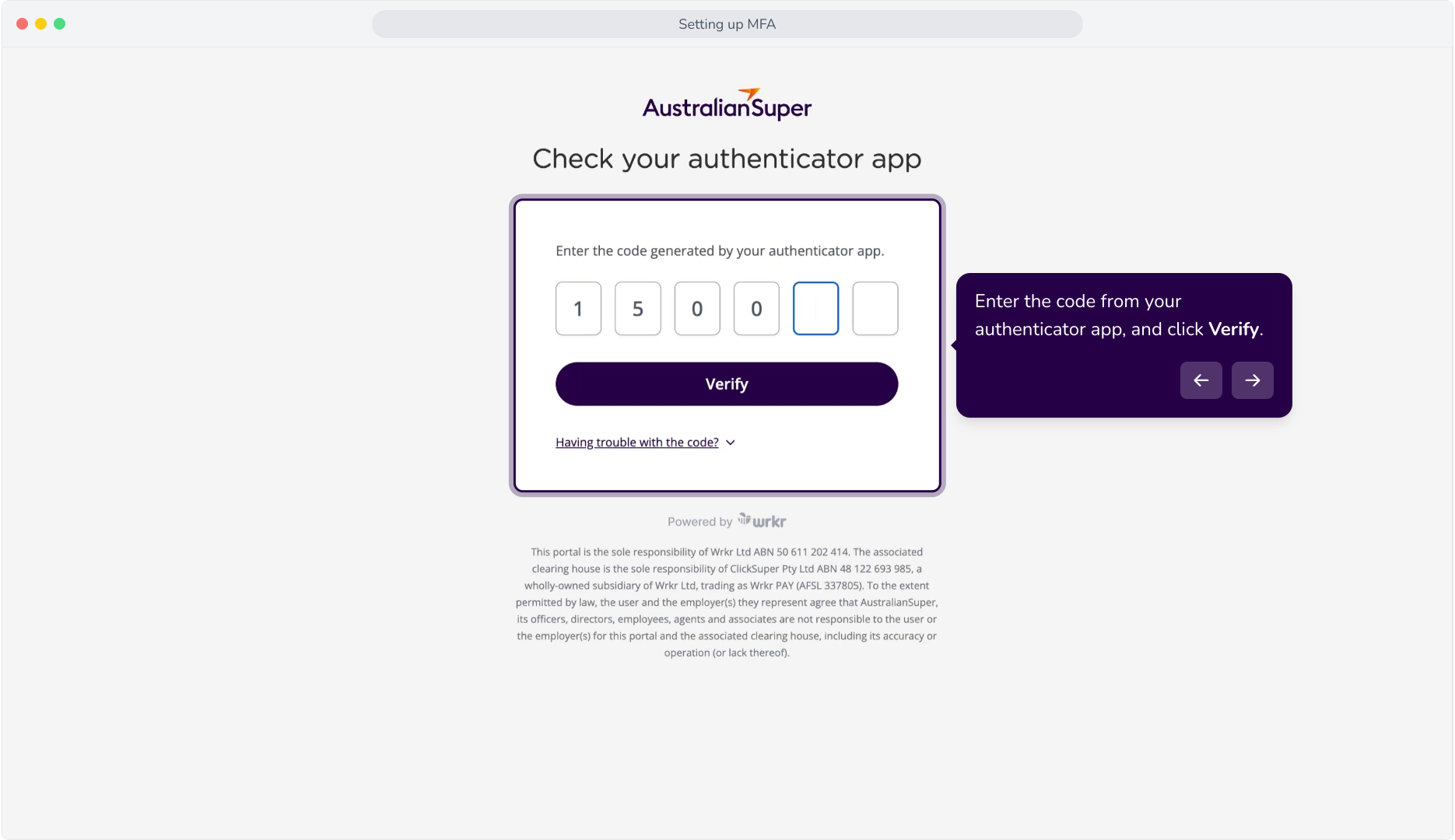
11. Enter the code from your authenticator app, and click Verify.
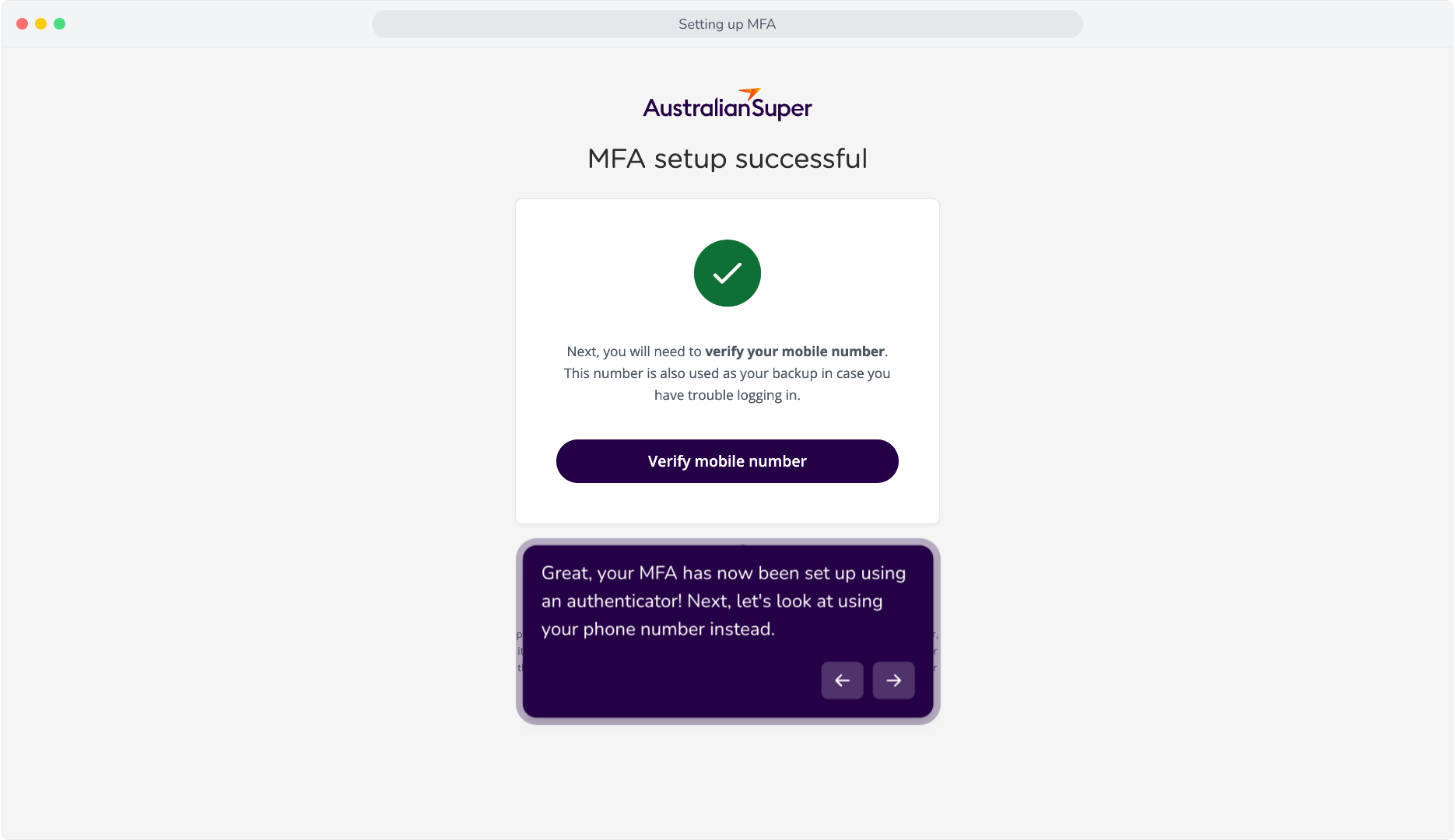
12. Great, your MFA has now been set up using an authenticator! Next, let's look at using your phone number instead.
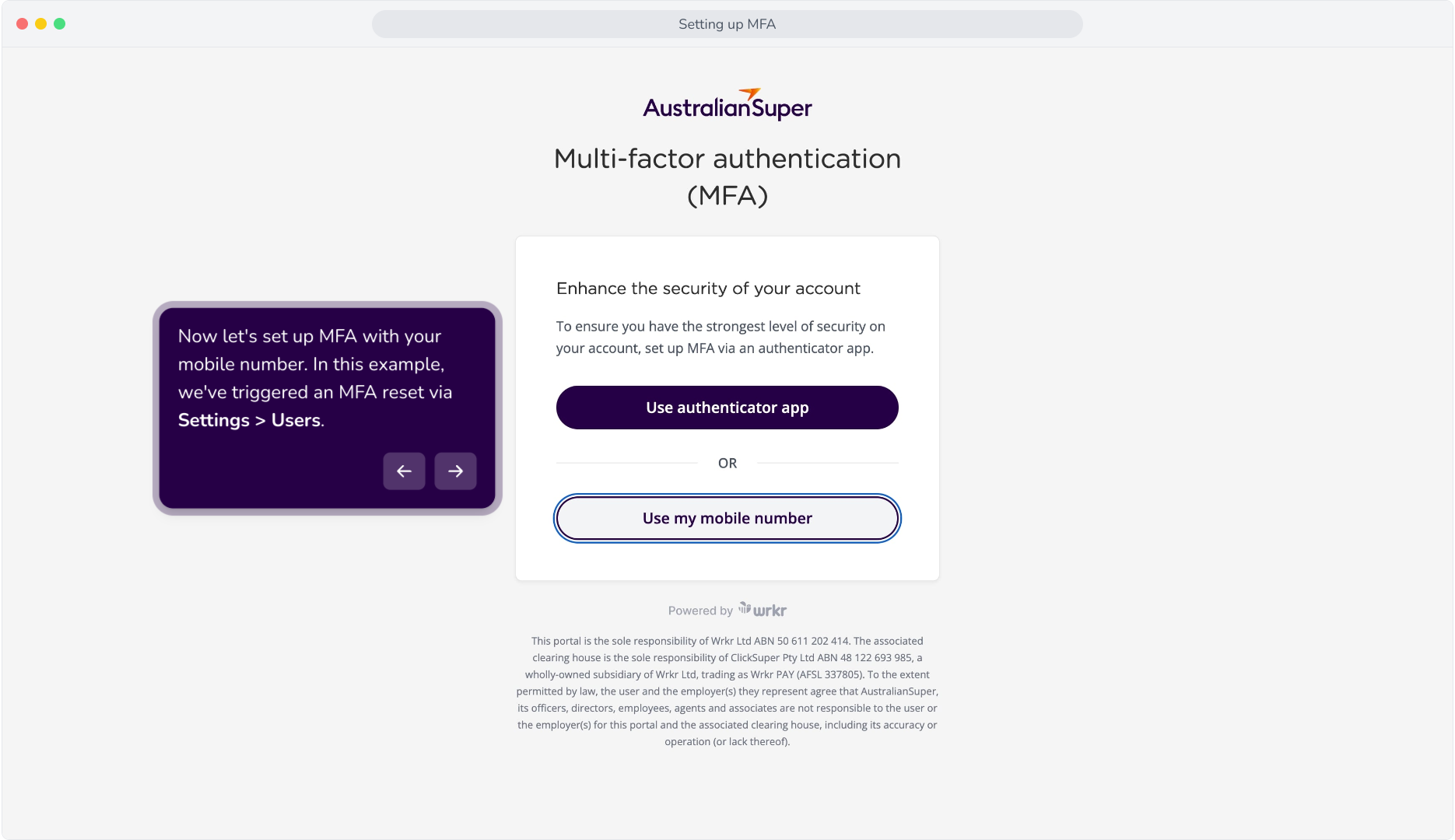
13. Now let's set up MFA with your mobile number. In this example, we've triggered an MFA reset via Settings > Users.
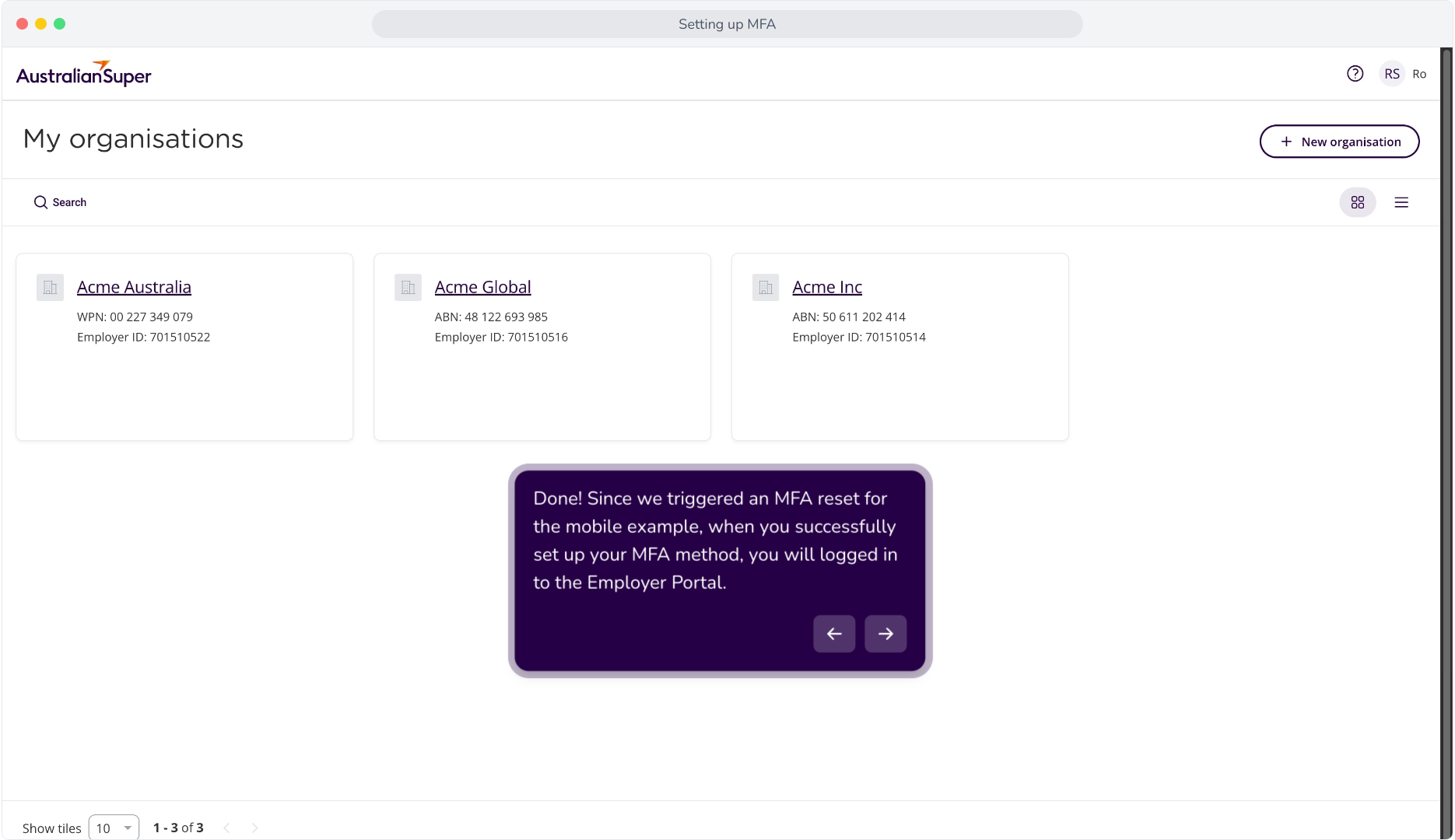
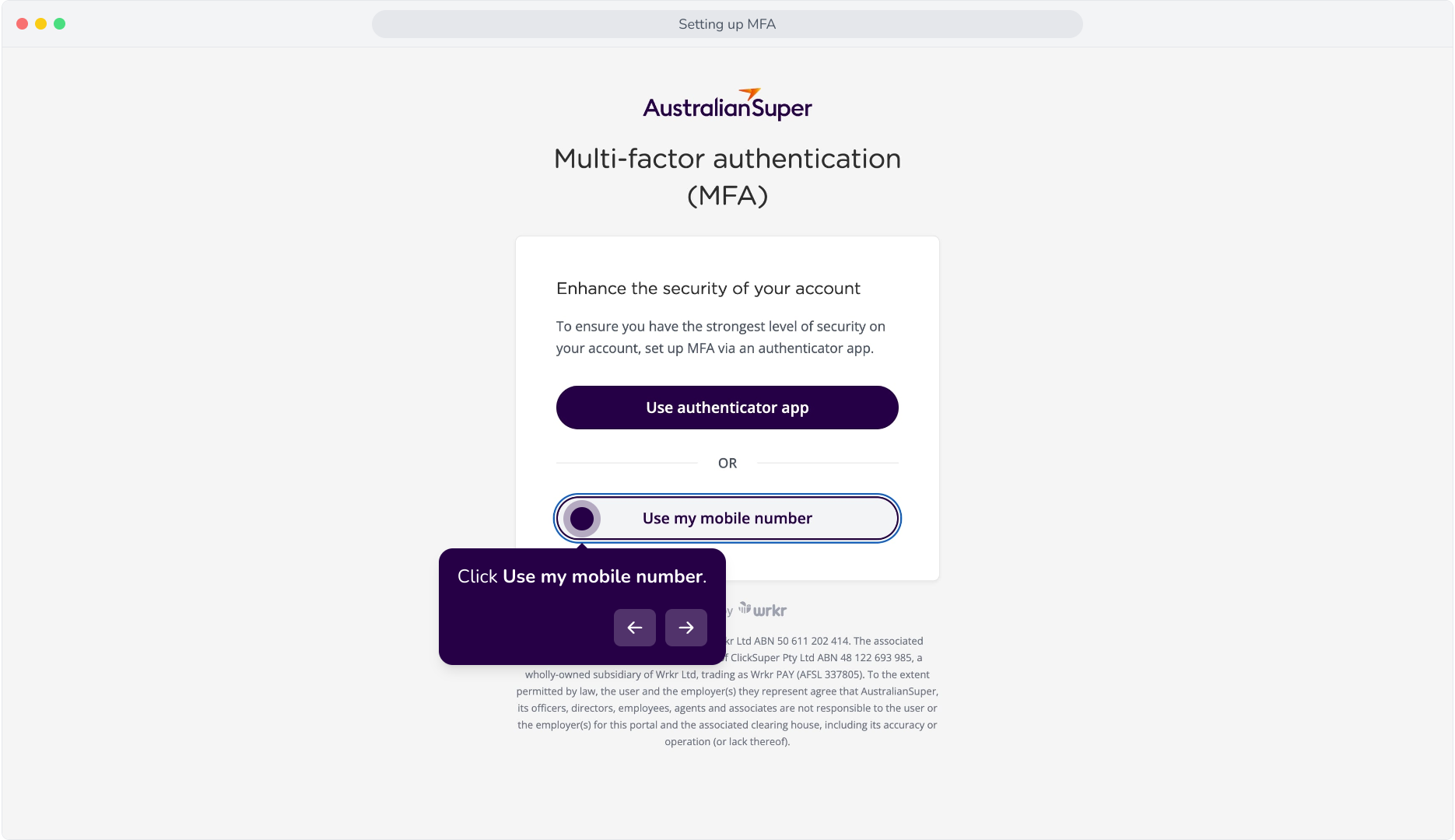
14. Click Use my mobile number.
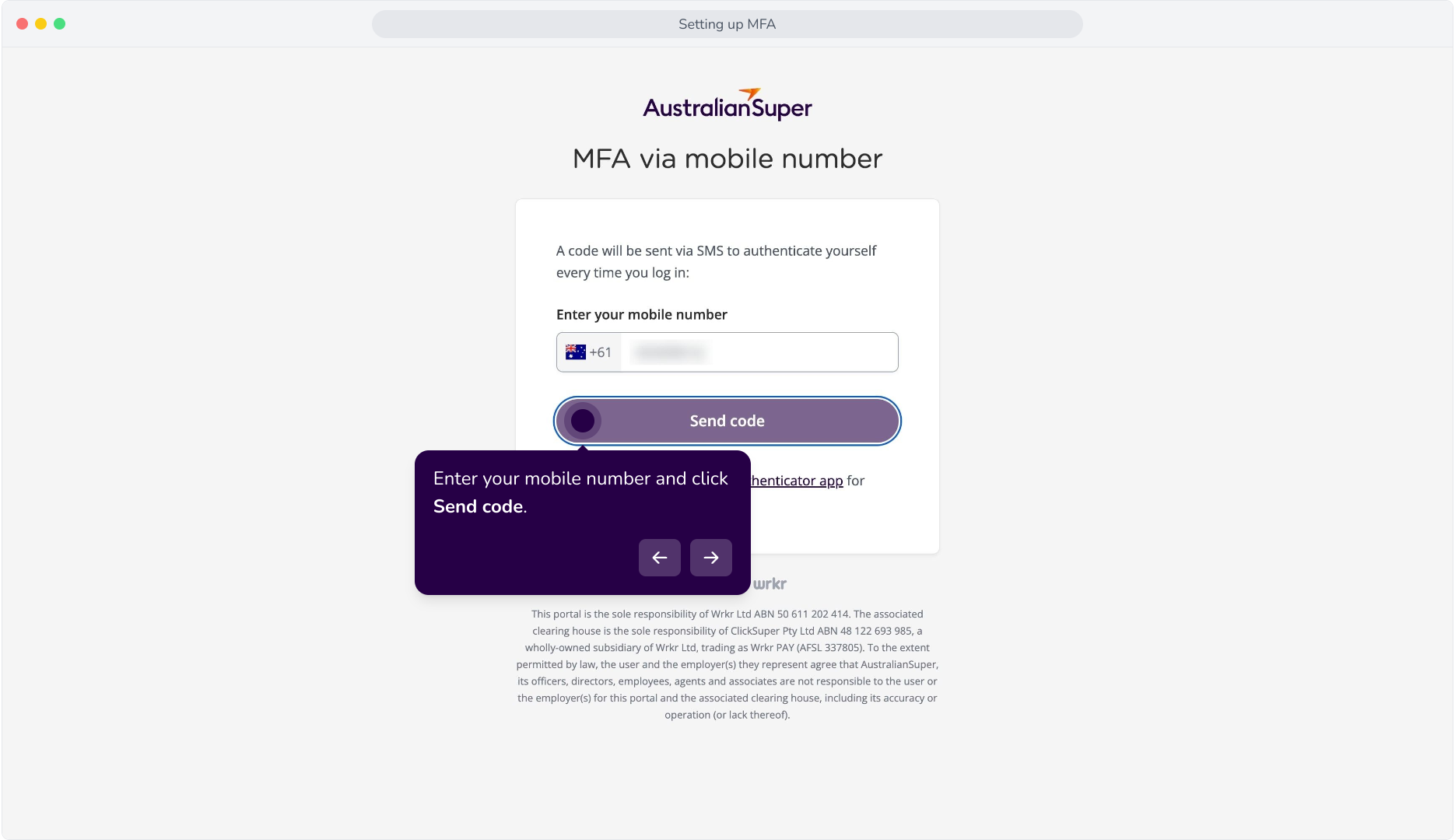
15. Enter your mobile number and click Send code.
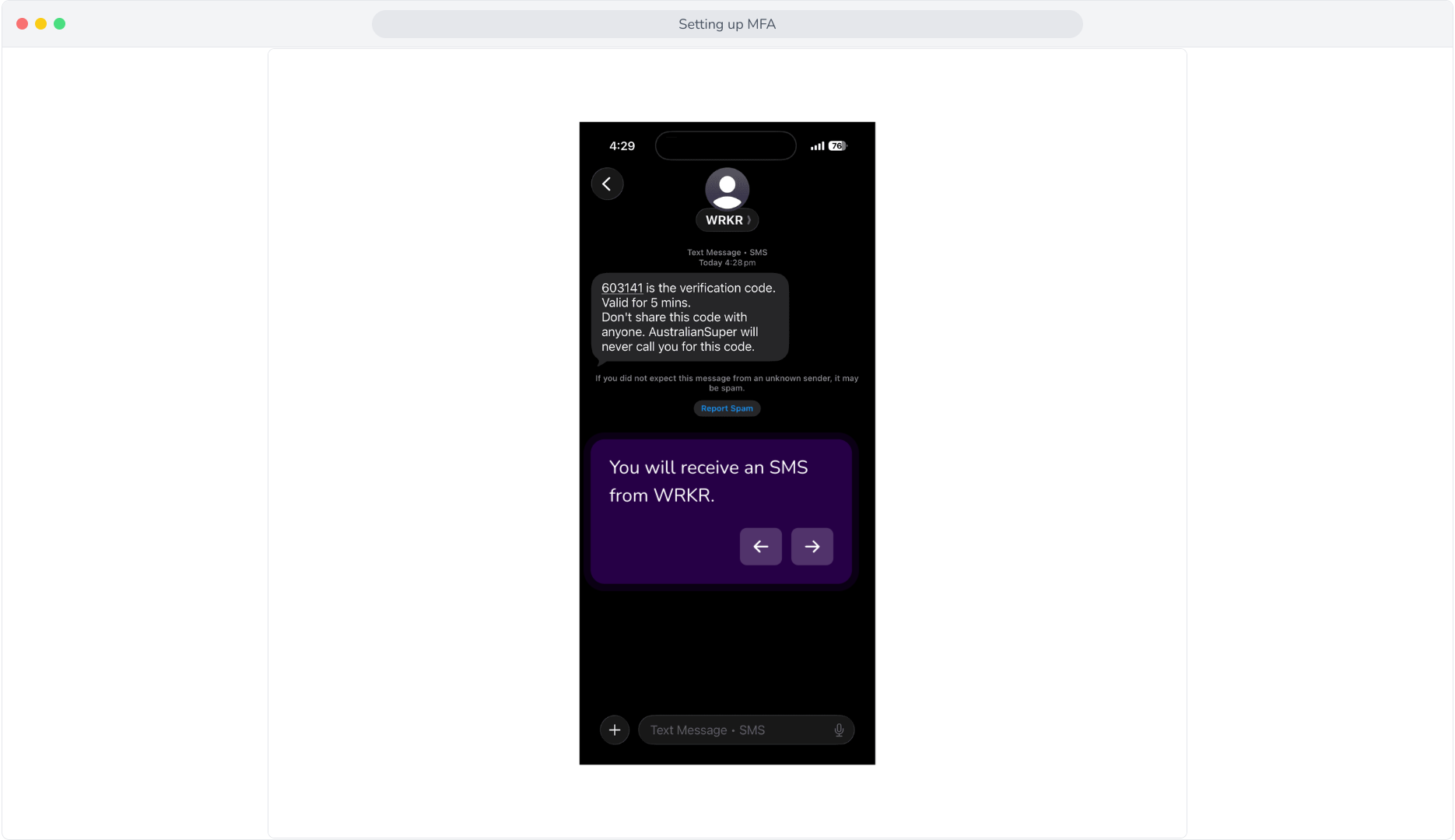
16. You will receive an SMS from WRKR.
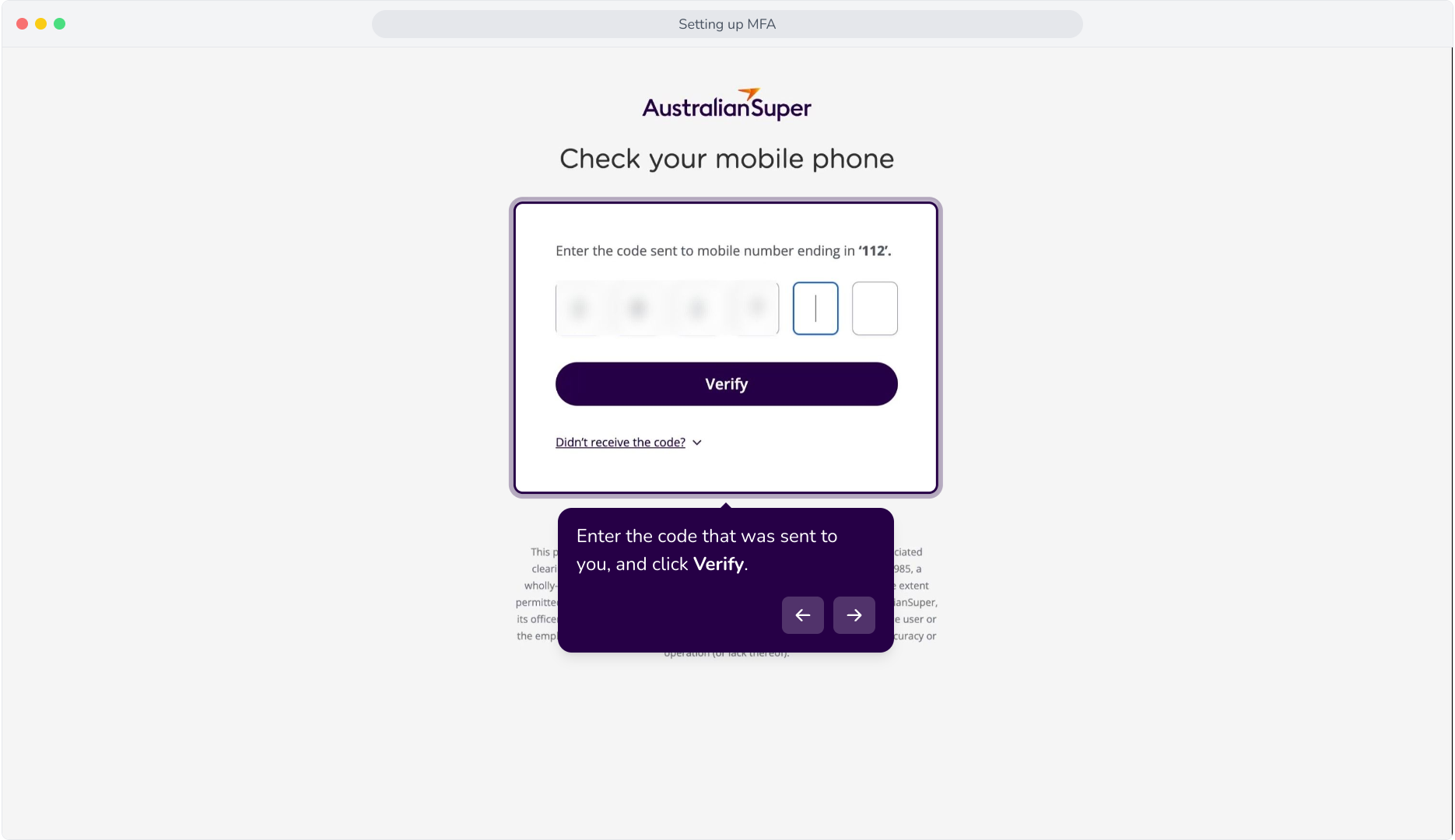
17. Enter the code that was sent to you, and click Verify.
18. Done! Since we triggered an MFA reset for the mobile example, when you successfully set up your MFA method, you will logged in to the Employer Portal.