Context: This guide details the process of changing your password within the Profile settings of the Employer Portal.
Interactive Demo
Note: Make the demo full-screen for a better experience. You can mute/un-mute narration to suit your preferences.
Step by Step
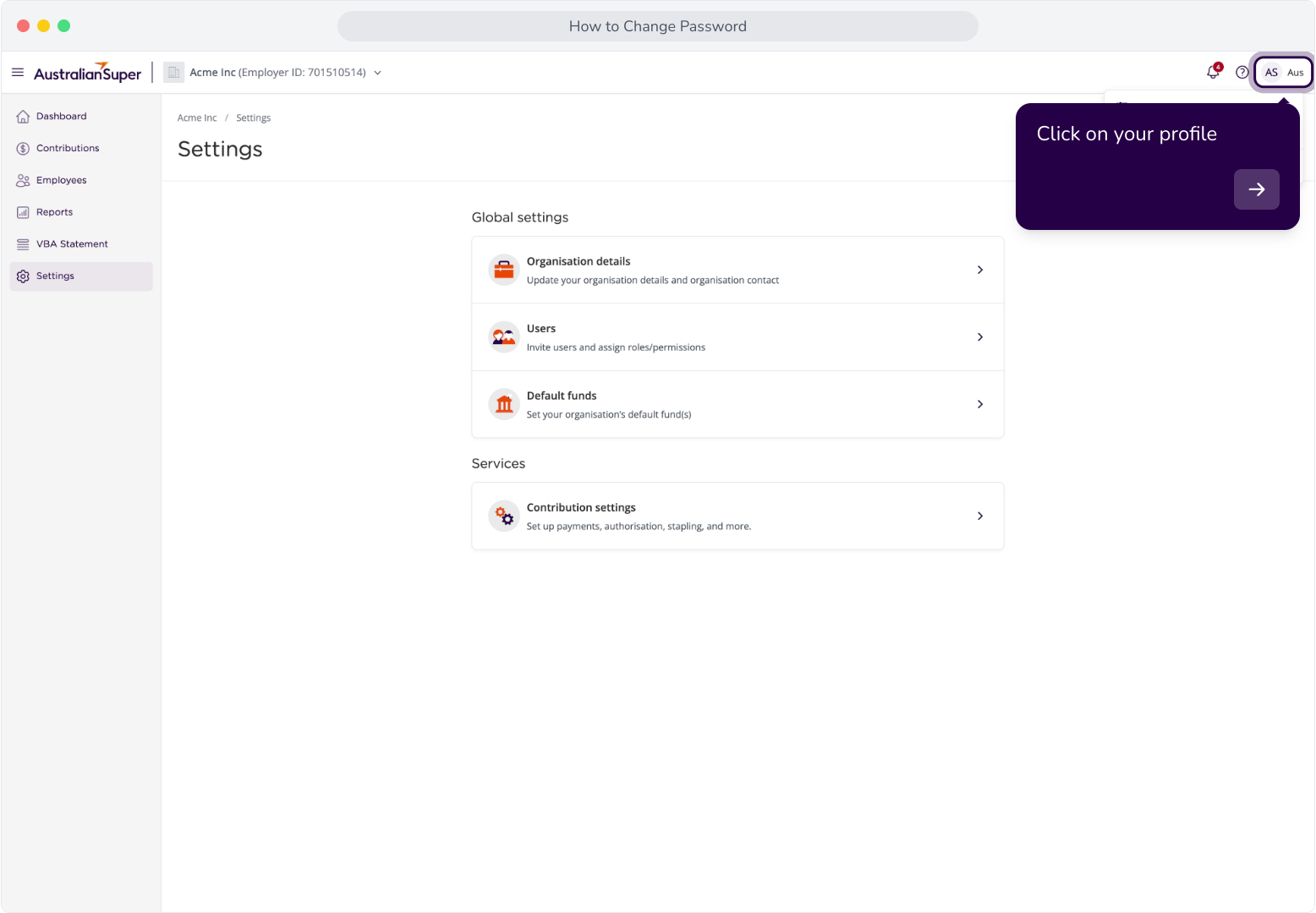
1. Click on your profile
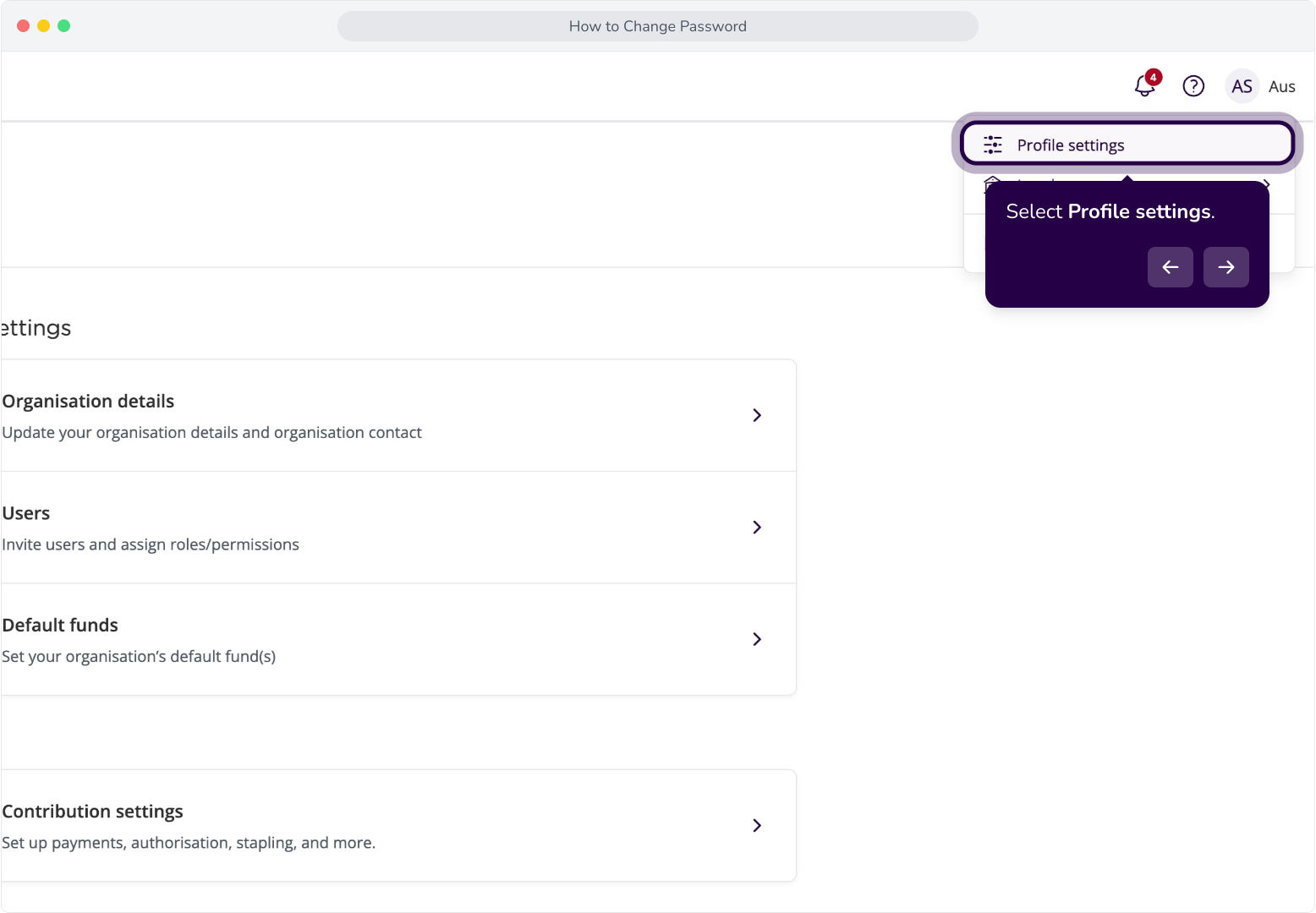
2. Select Profile settings.
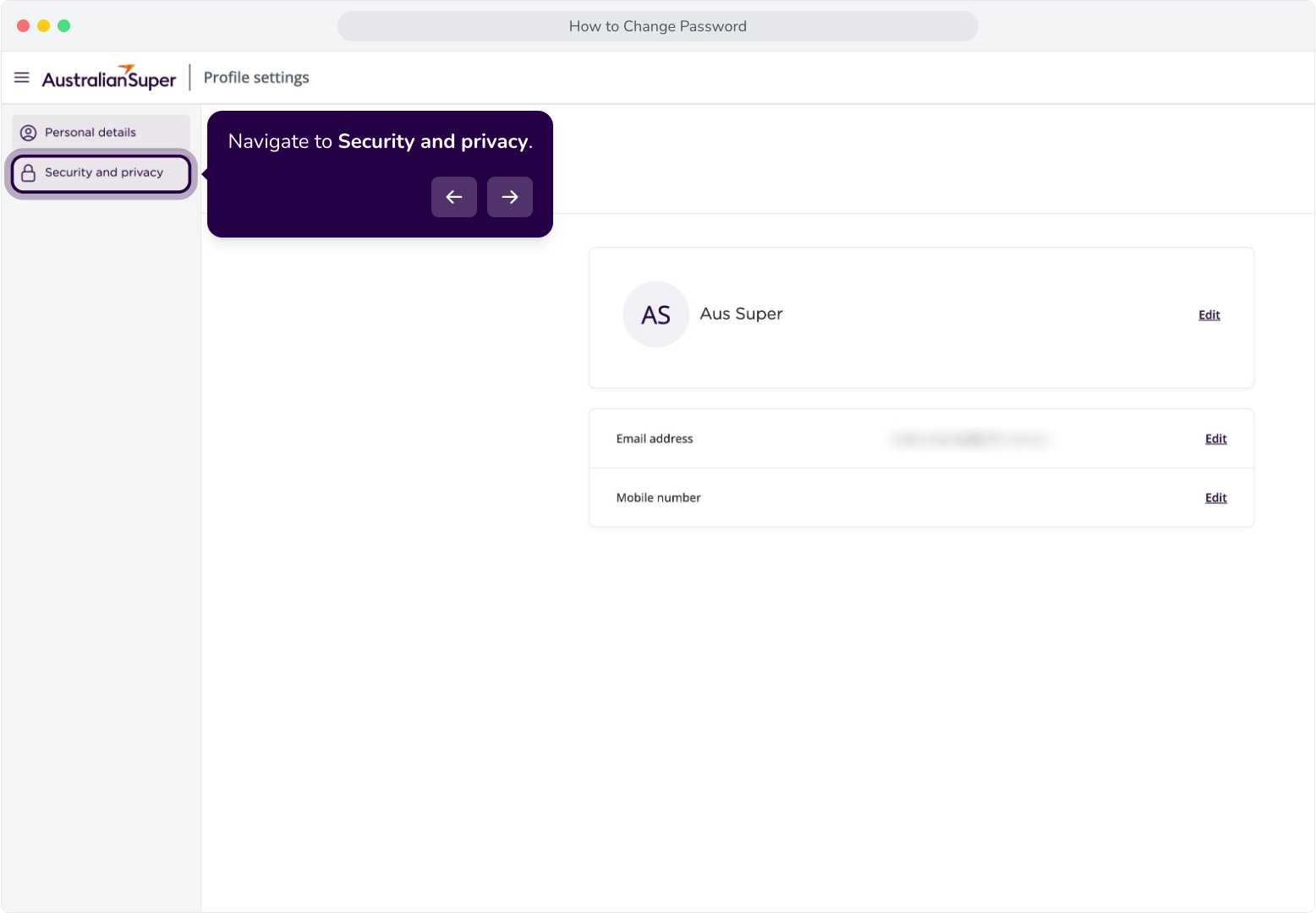
3. Navigate to Security and privacy.
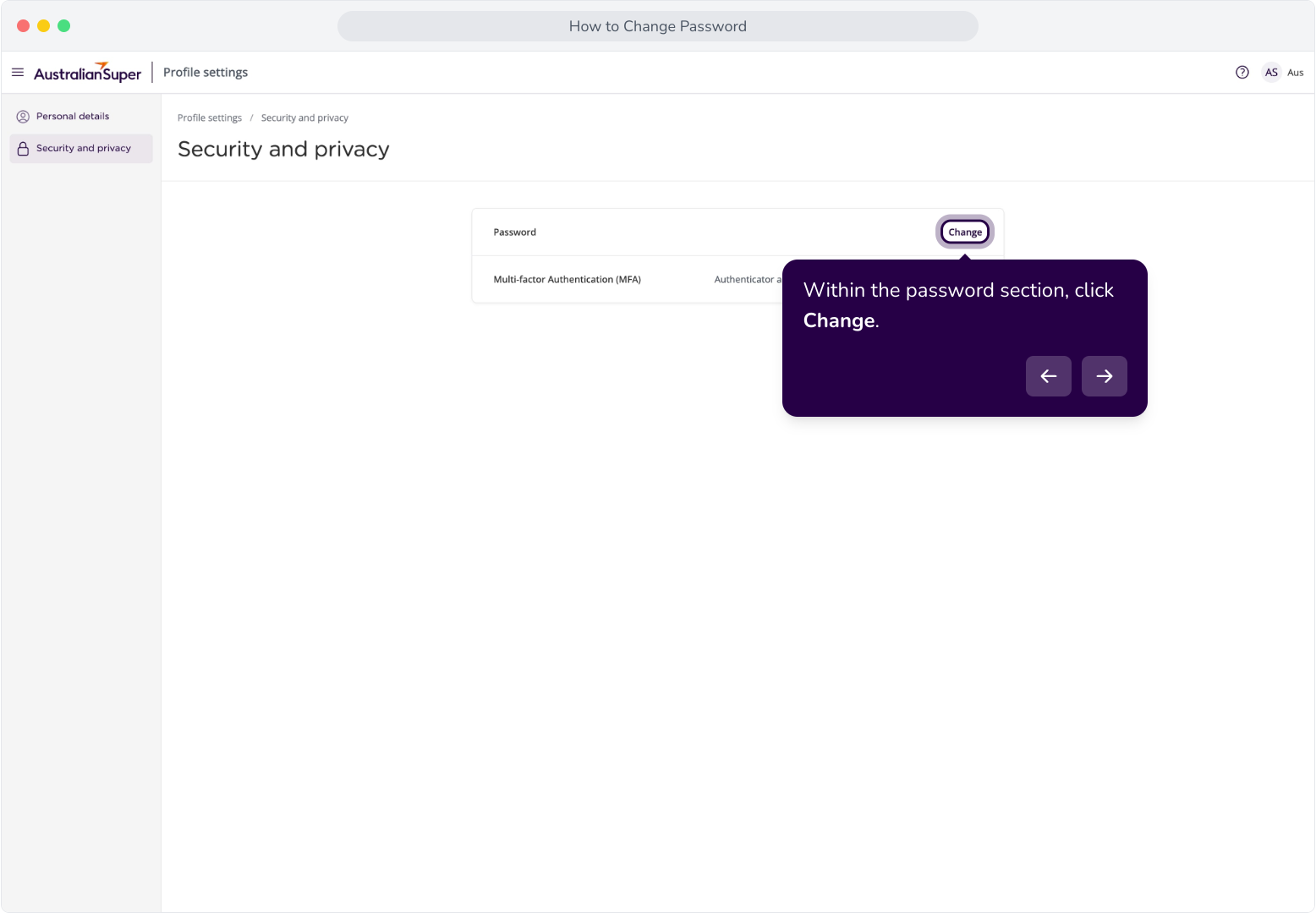
4. Within the password section, click Change.
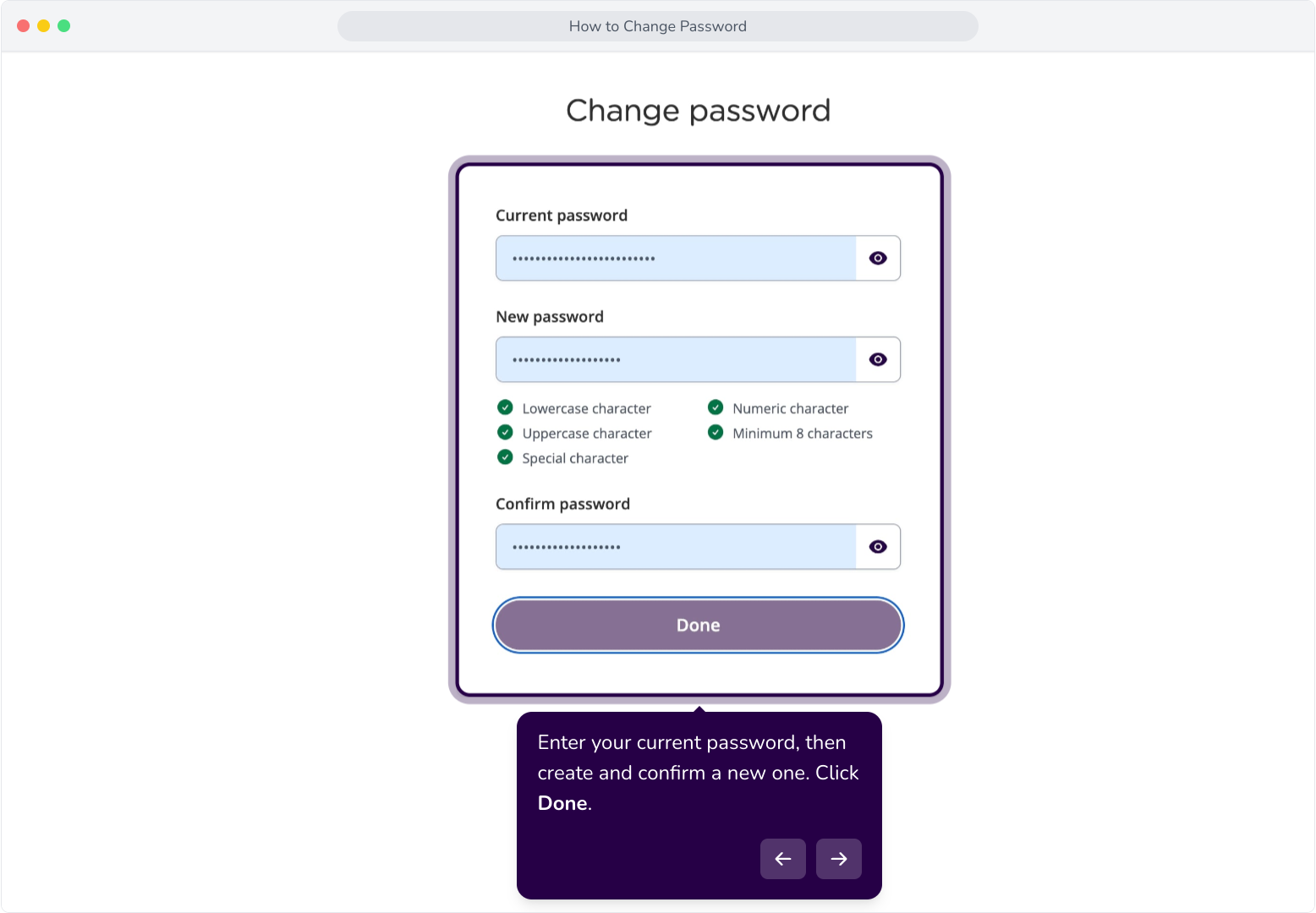
5. Enter your current password, then create and confirm a new one. Click Done.
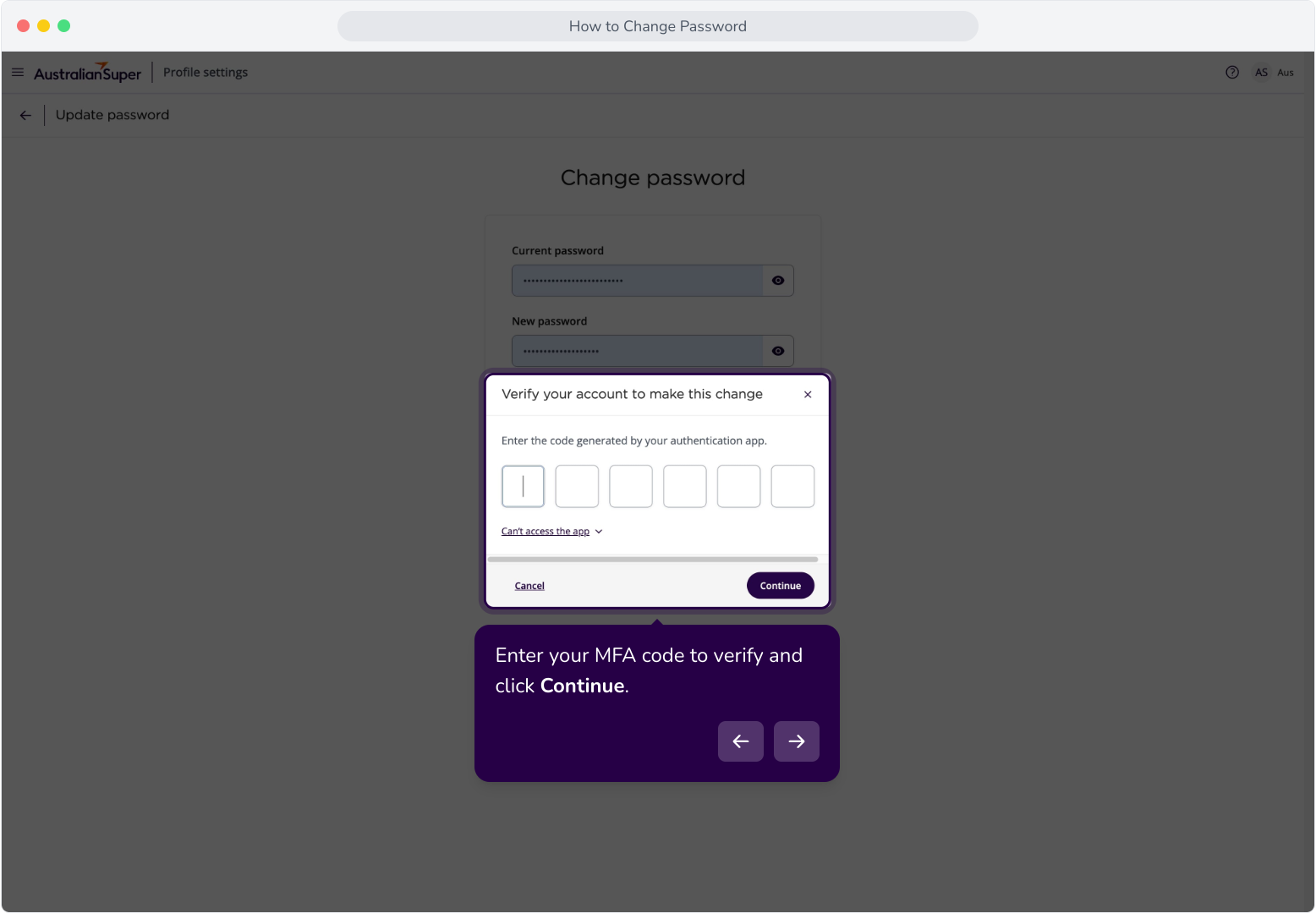
6. Enter your MFA code to verify and click Continue.
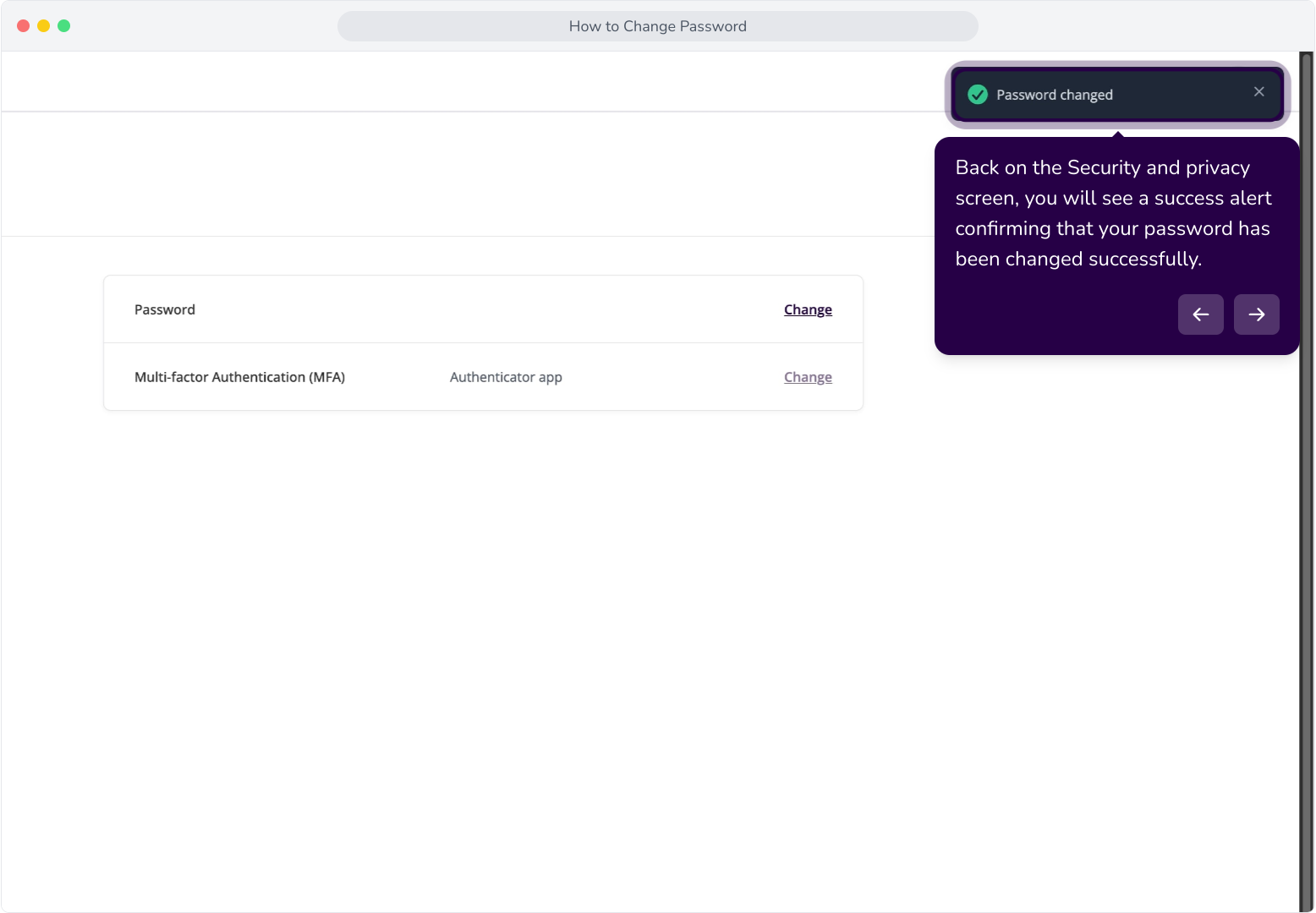
7. Back on the Security and privacy screen, you will see a success alert confirming that your password has been changed successfully.