Context: This article documents an employer’s options when online onboarding is not progressing.
Interactive Demo
Note: Make the demo full-screen for a better experience. You can mute/un-mute narration to suit your preferences.
Step by Step
Scenario 1: An employee hasn't completed their onboarding
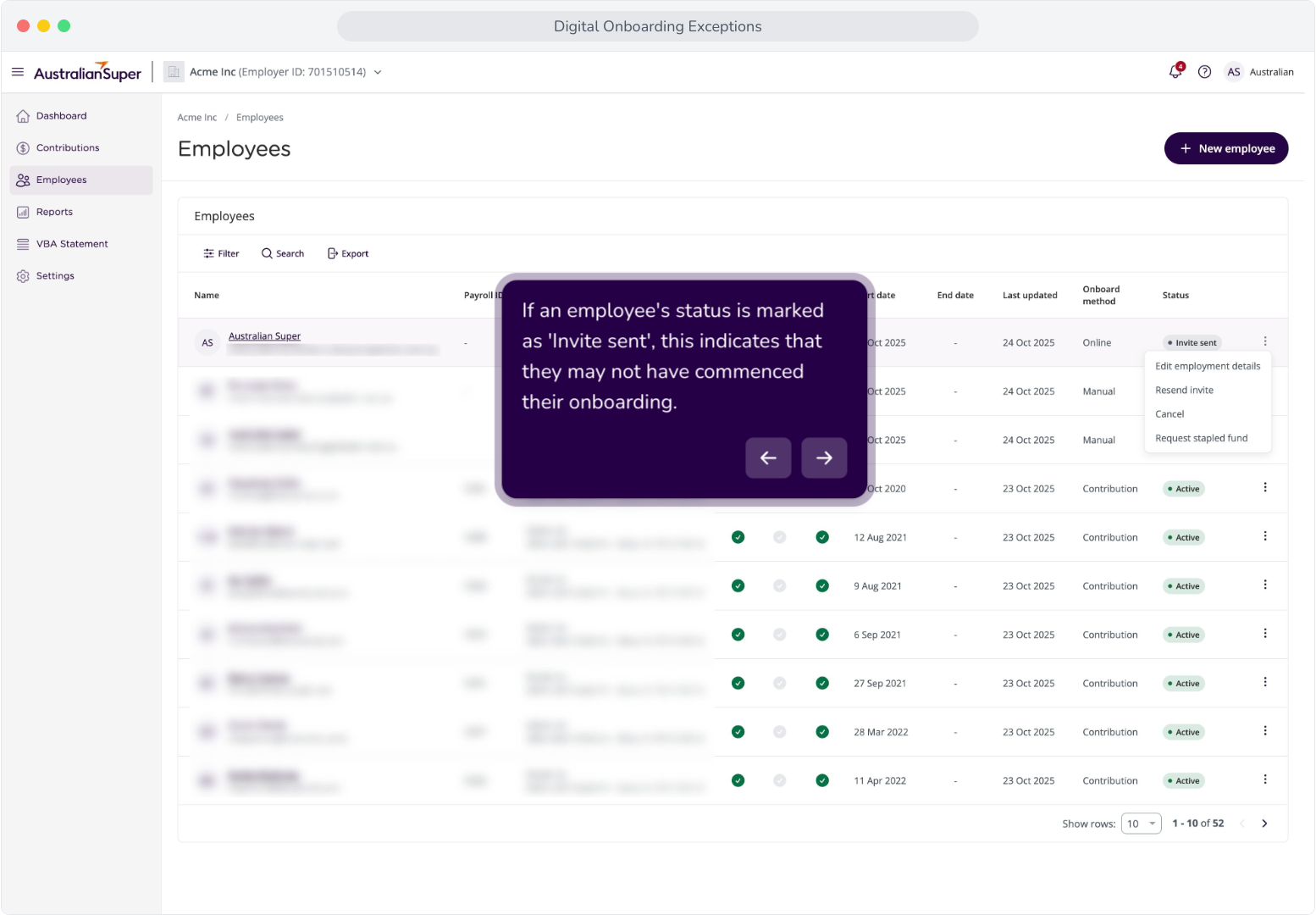
2. If an employee's status is marked as 'Invite sent', this indicates that they may not have commenced their onboarding.
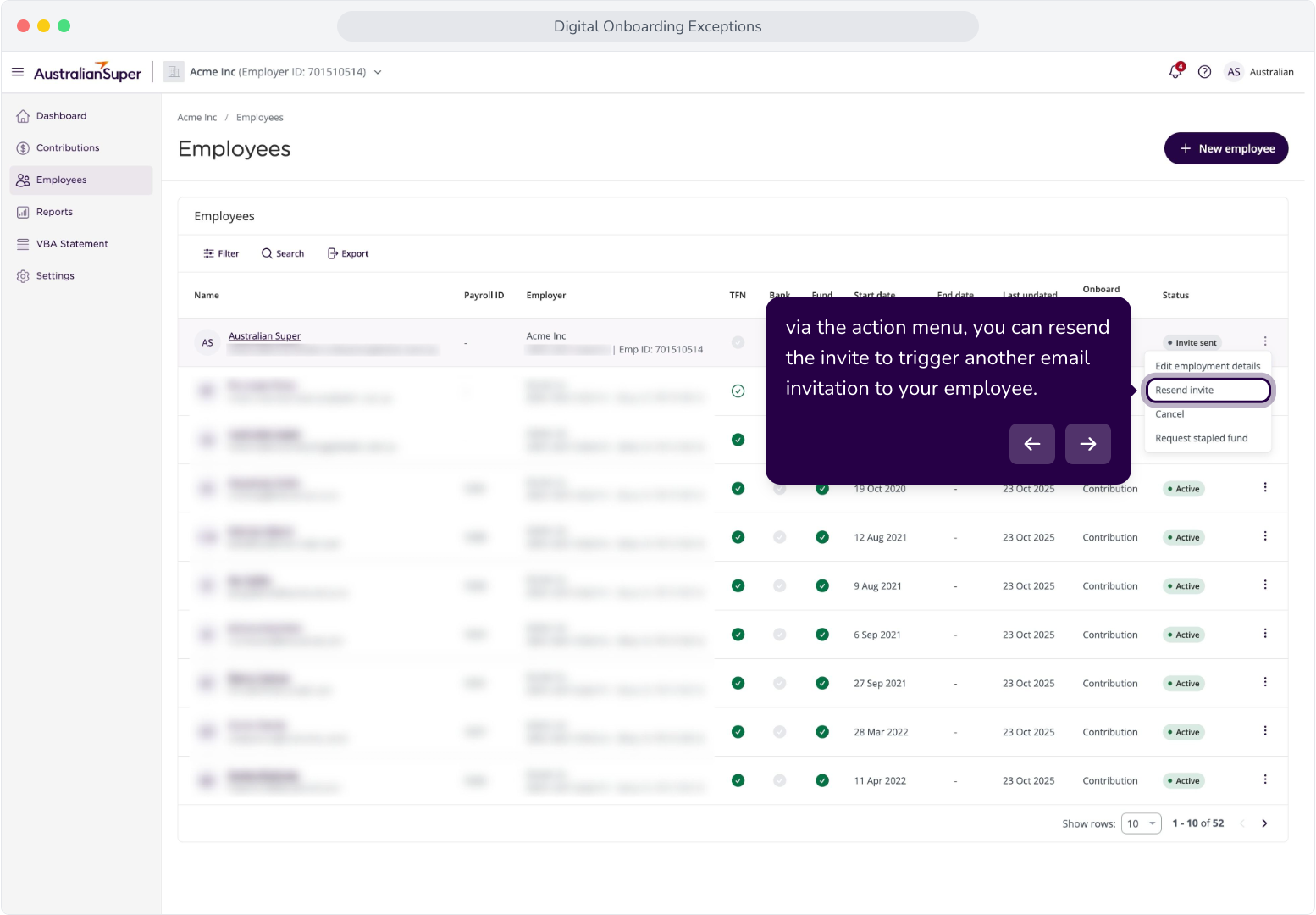
3. via the action menu, you can resend the invite to trigger another email invitation to your employee.
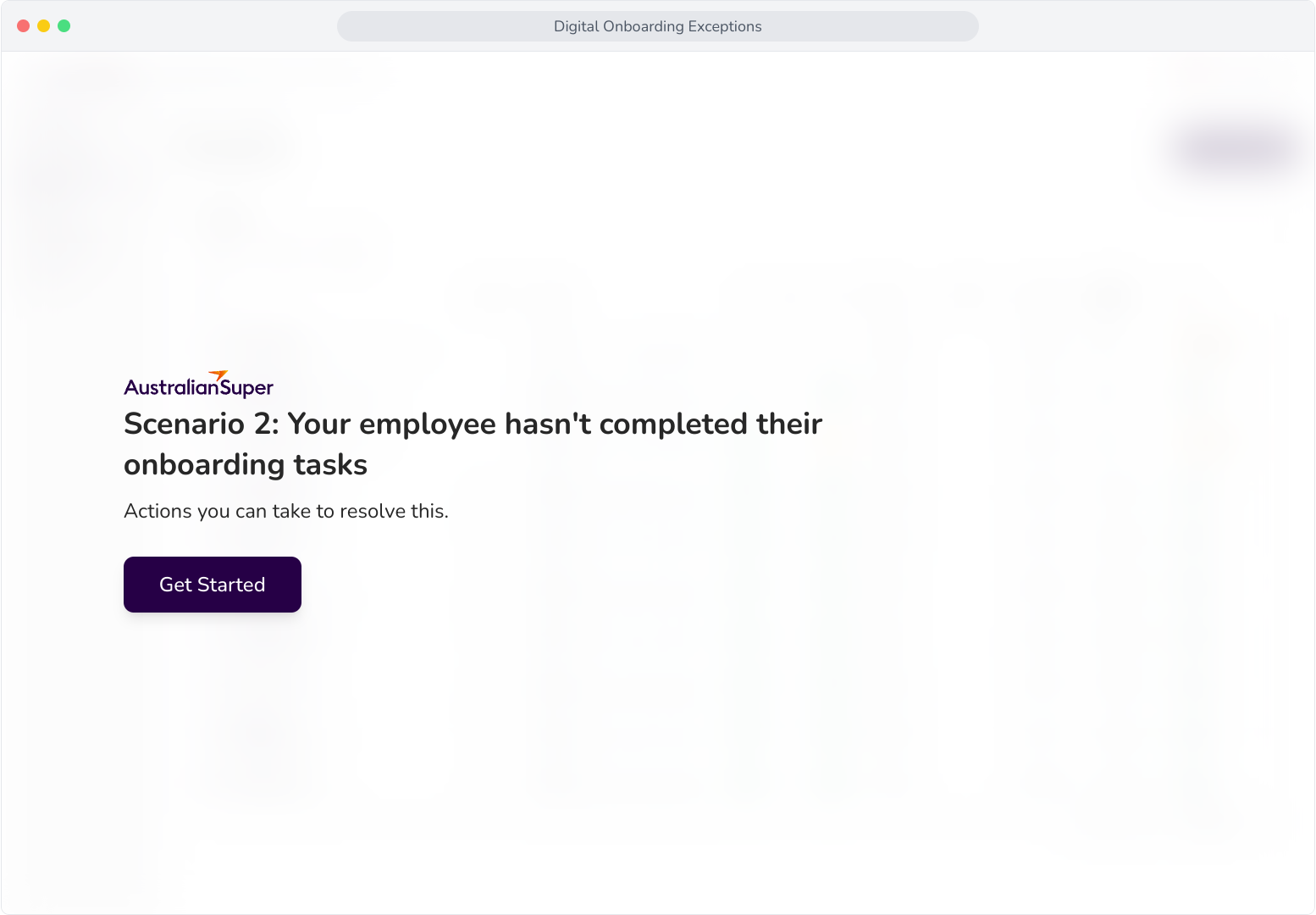
4. Scenario 2: Your employee hasn't completed their onboarding tasks
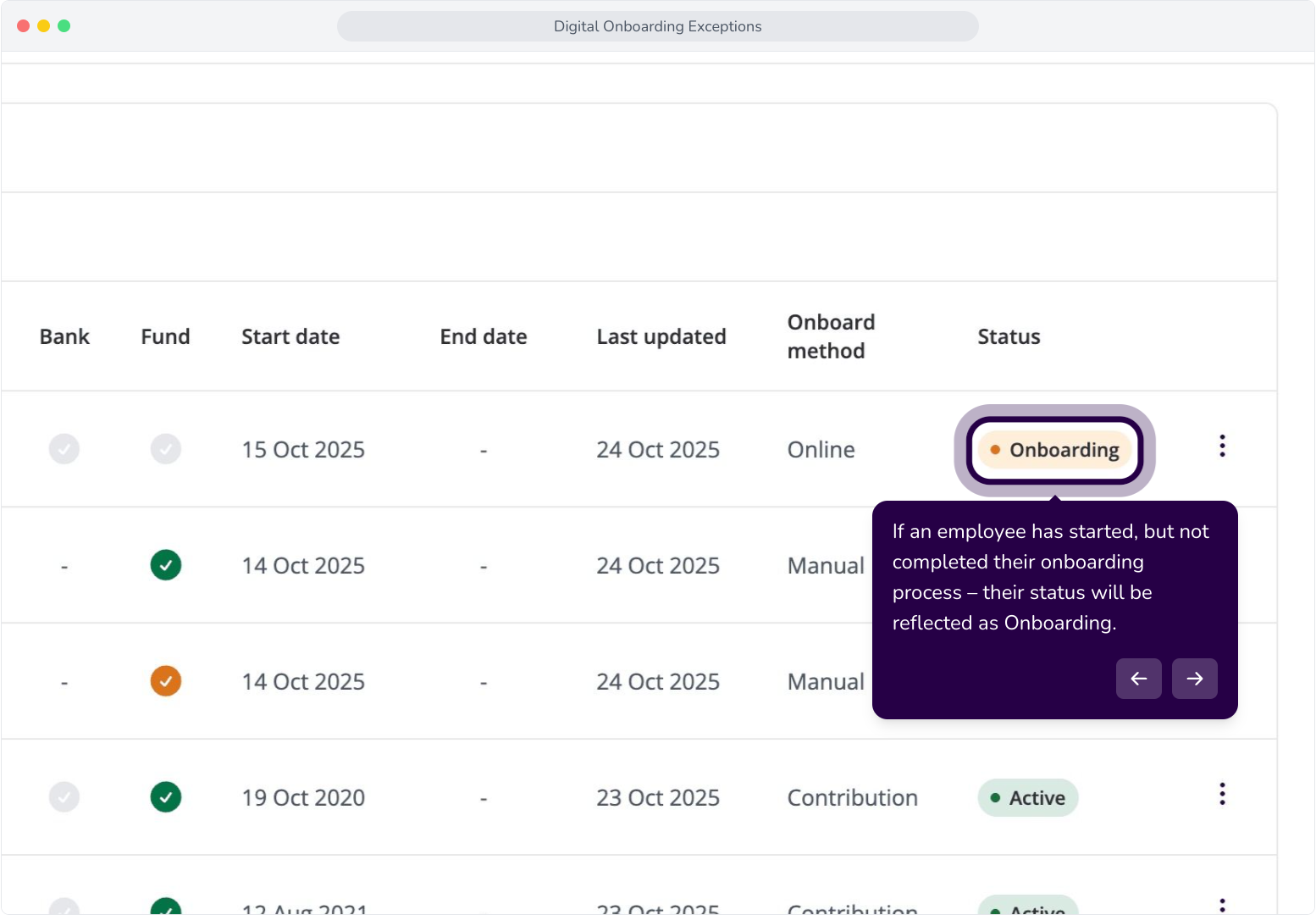
5. If an employee has started, but not completed their onboarding process – their status will be reflected as Onboarding.
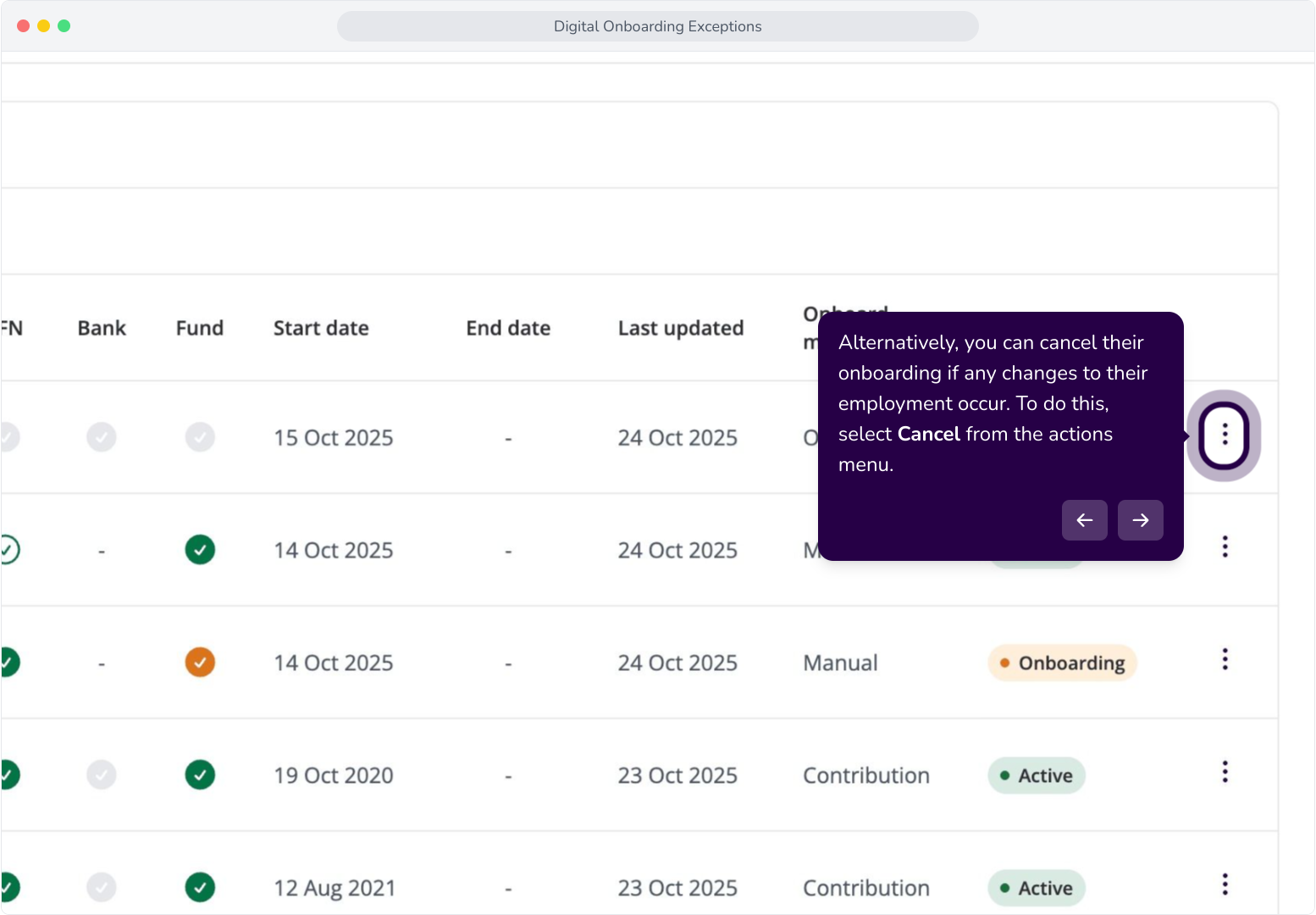
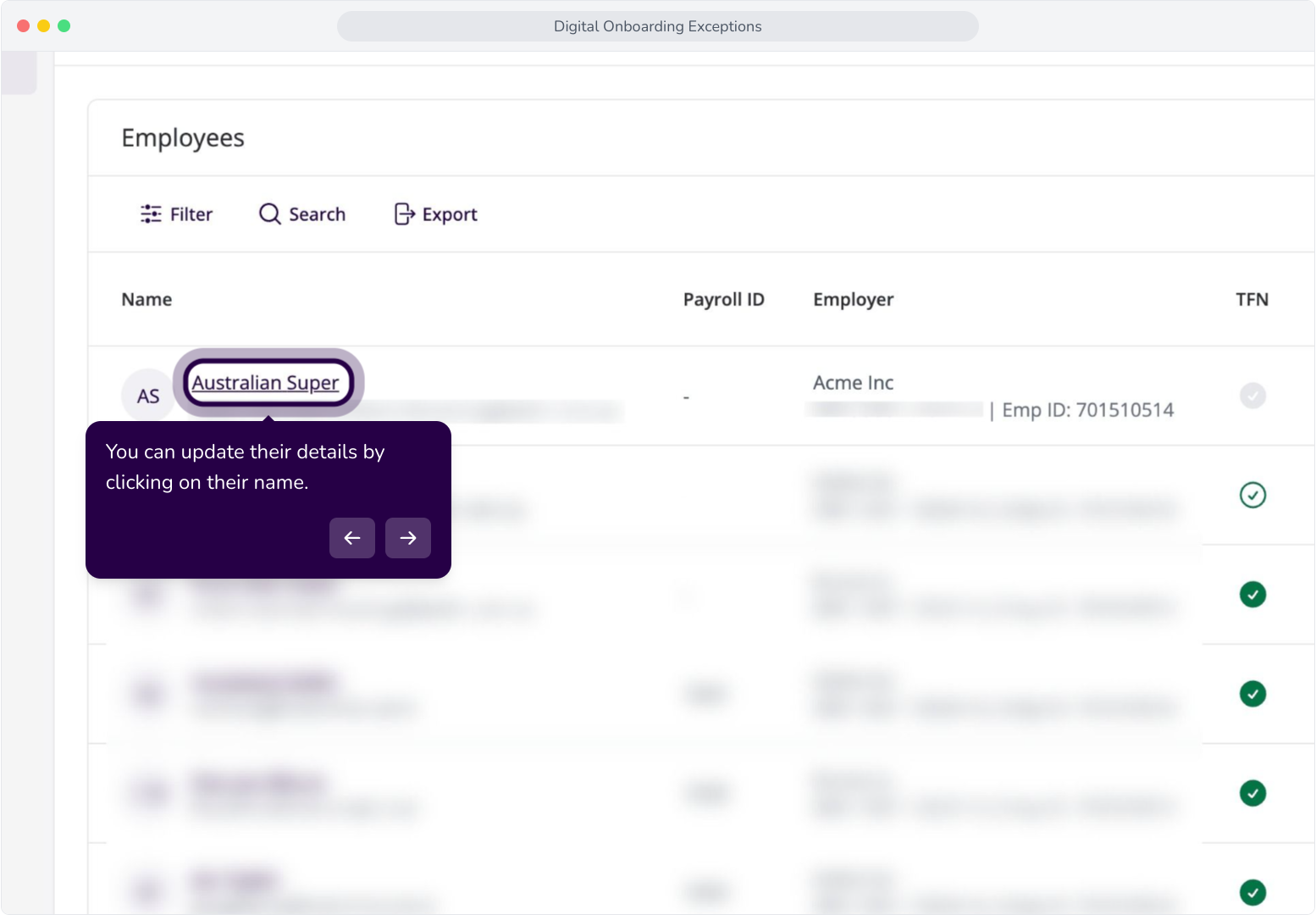
6. You can update their details by clicking on their name.
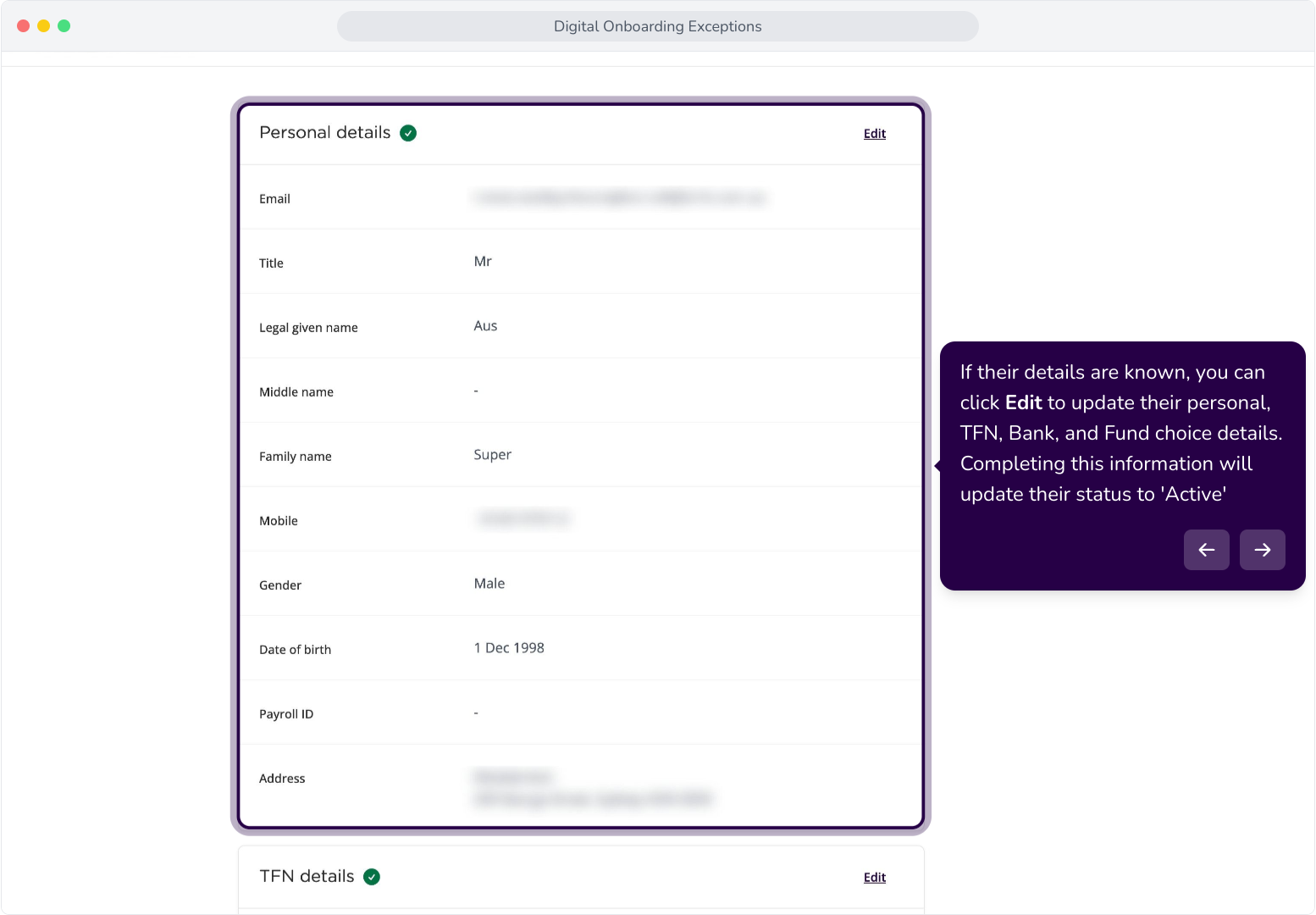
7. If their details are known, you can click Edit to update their personal, TFN, Bank, and Fund choice details. Completing this information will update their status to 'Active'
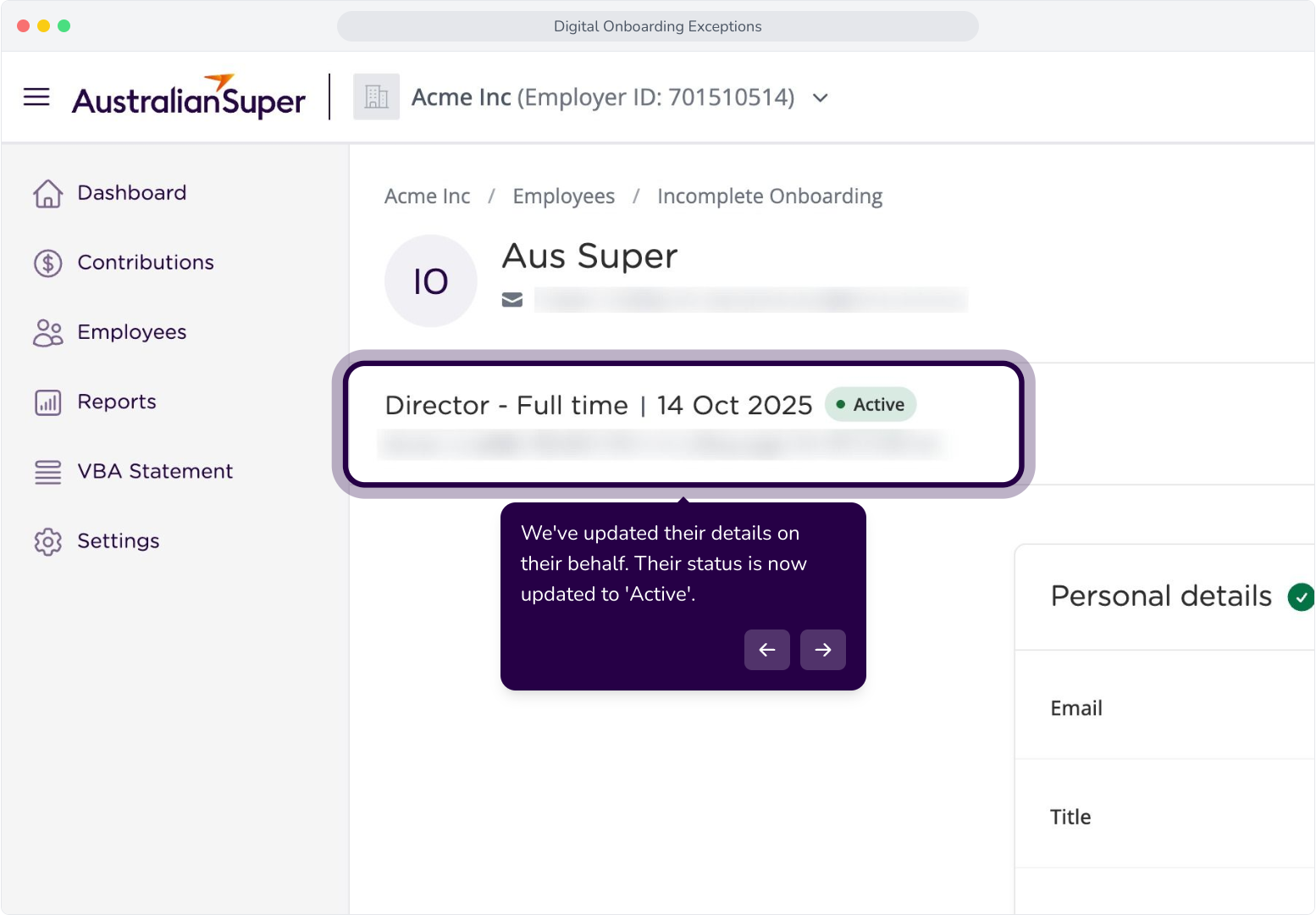
8. We've updated their details on their behalf. Their status is now updated to 'Active'.
9. Alternatively, you can cancel their onboarding if any changes to their employment occur. To do this, select Cancel from the actions menu.