Context: This guide demonstrates how to create a new user account in the Employer Portal.
Important: We’ve updated our password and MFA criteria to help strengthen your account security. Please see our Password and MFA Requirements article for more information. We recommend and support Google Authenticator as the MFA app of choice.
Interactive Guide
Note: Make the demo full-screen for a better experience. You can mute/un-mute narration to suit your preferences.
Step by Step
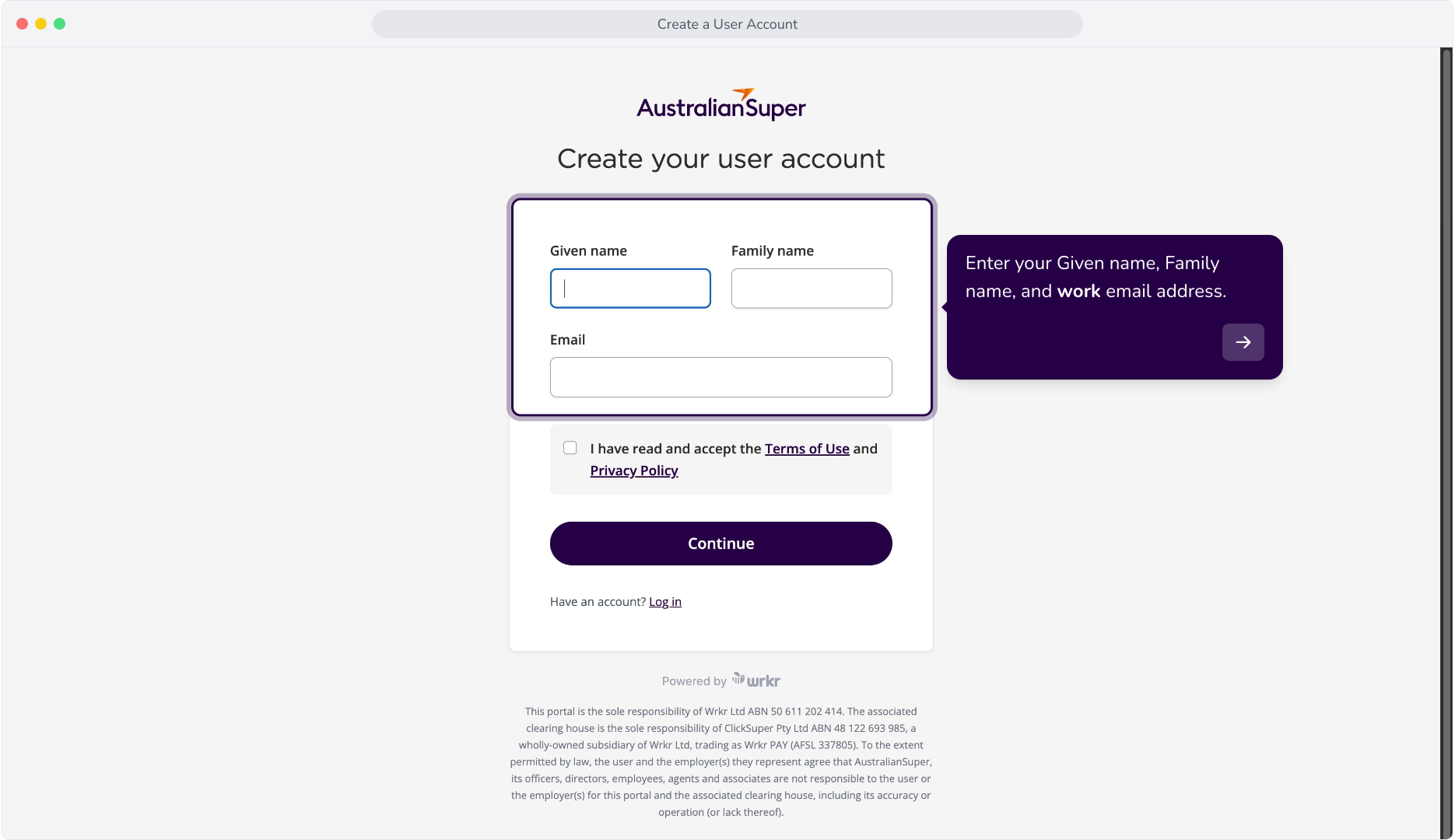
1. Enter your Given name, Family name, and work email address.
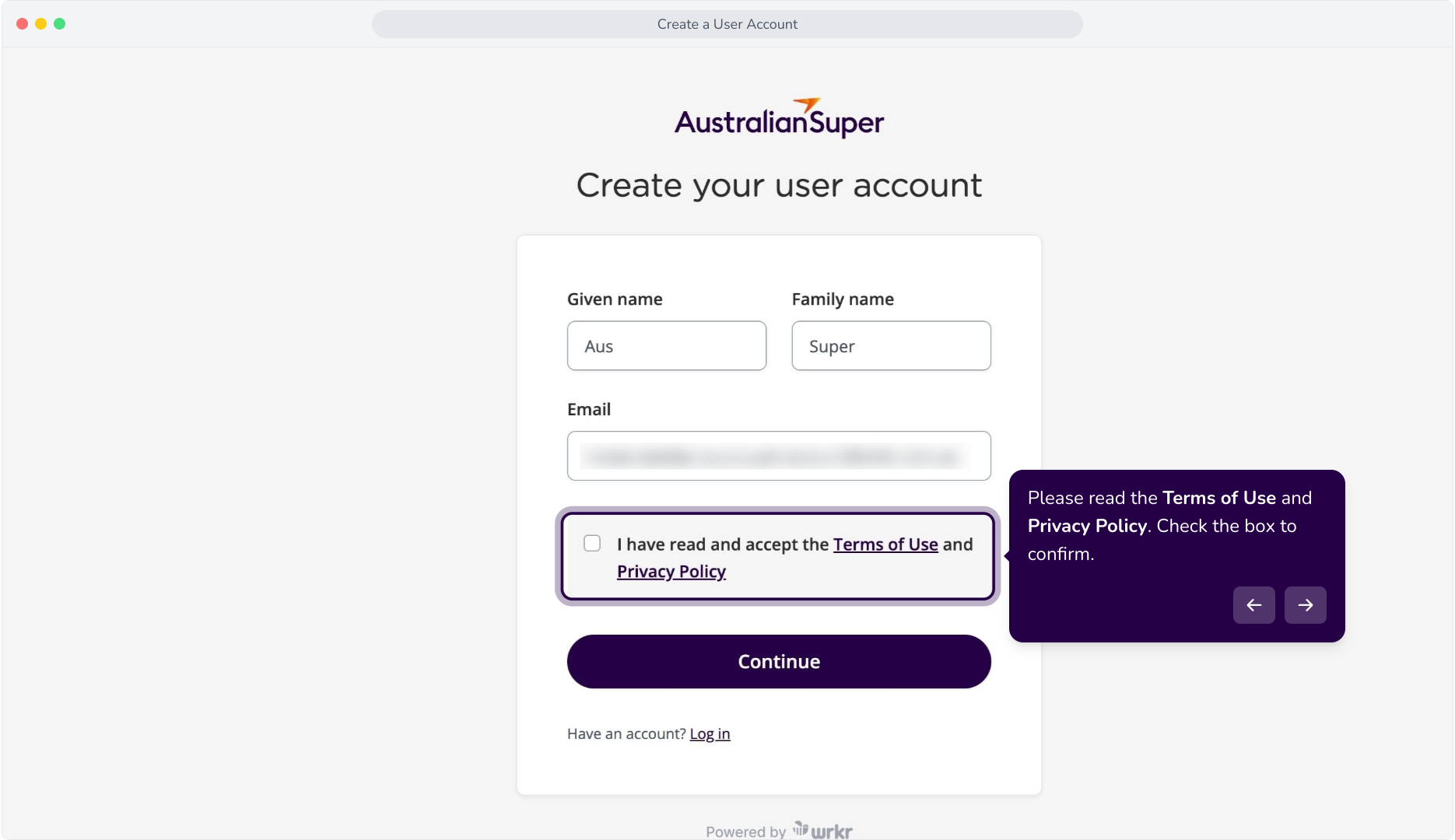
2. Please read the Terms of Use and Privacy Policy. Check the box to confirm.
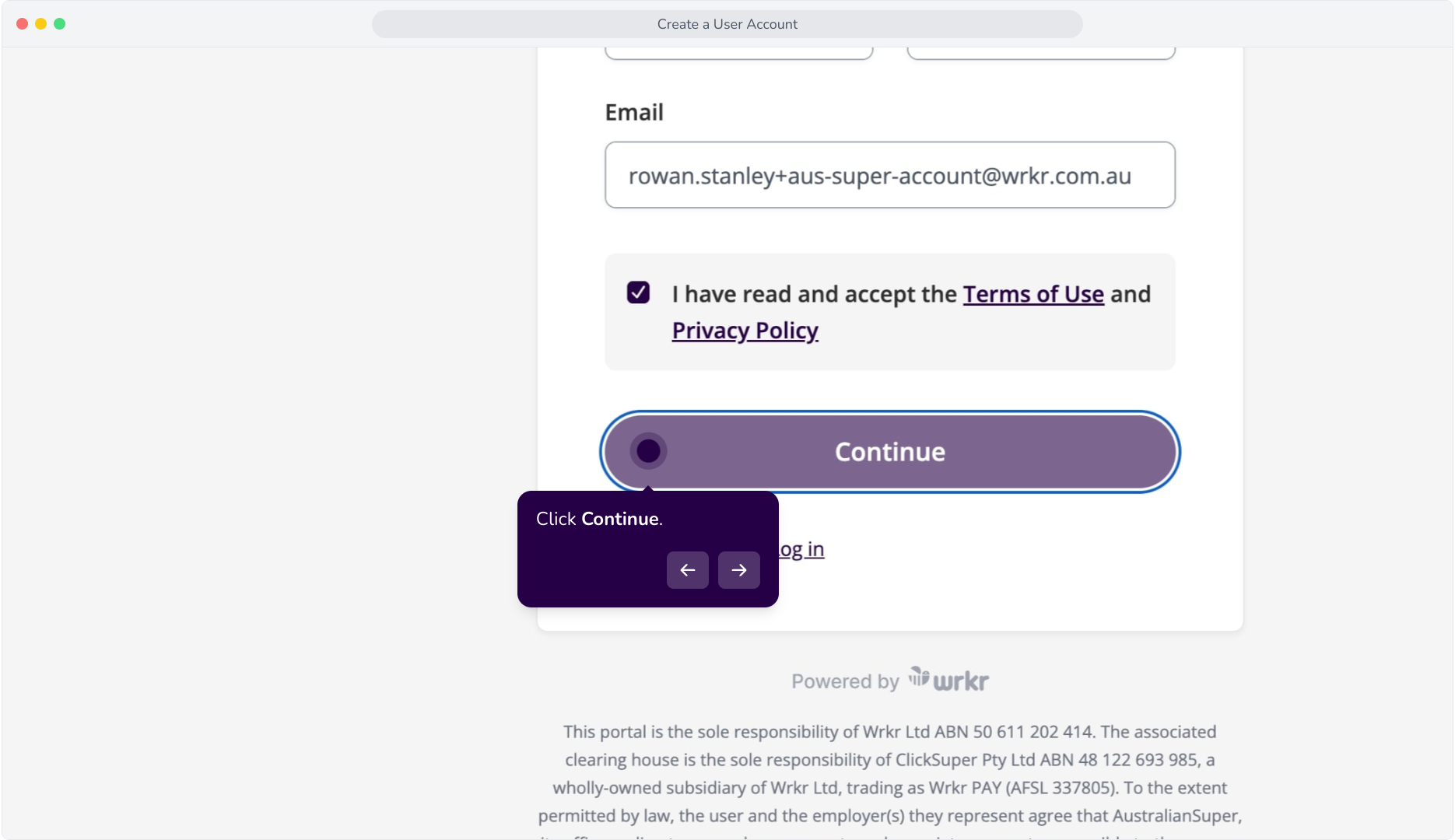
3. Click Continue.
4. Please Note: We've updated our password and MFA requirements to strengthen your account security. Please see our article on Password and MFA Criteria for more details.
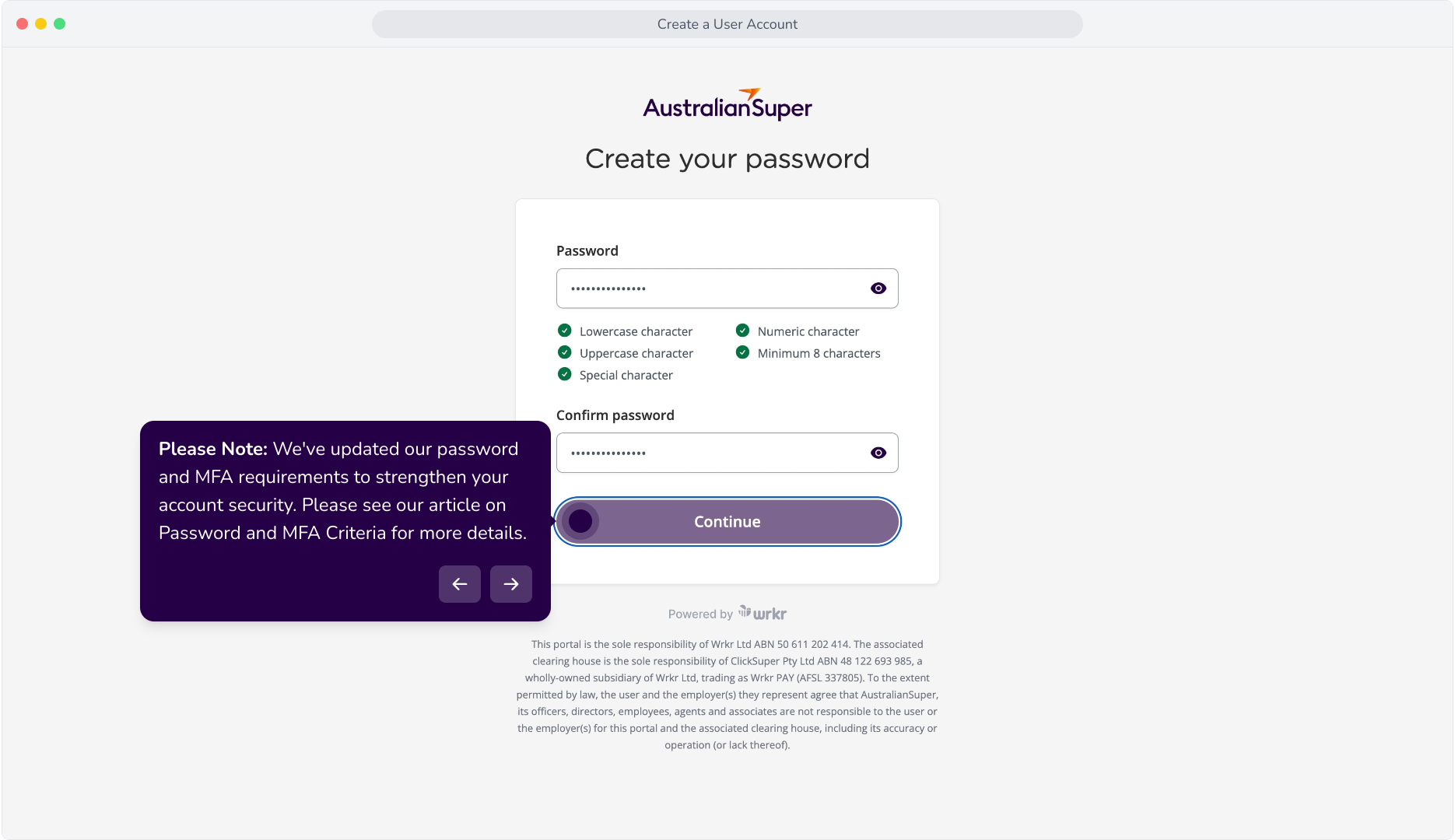
5. Enter and confirm your password, making sure to meet the requirements. Once complete, click Continue.
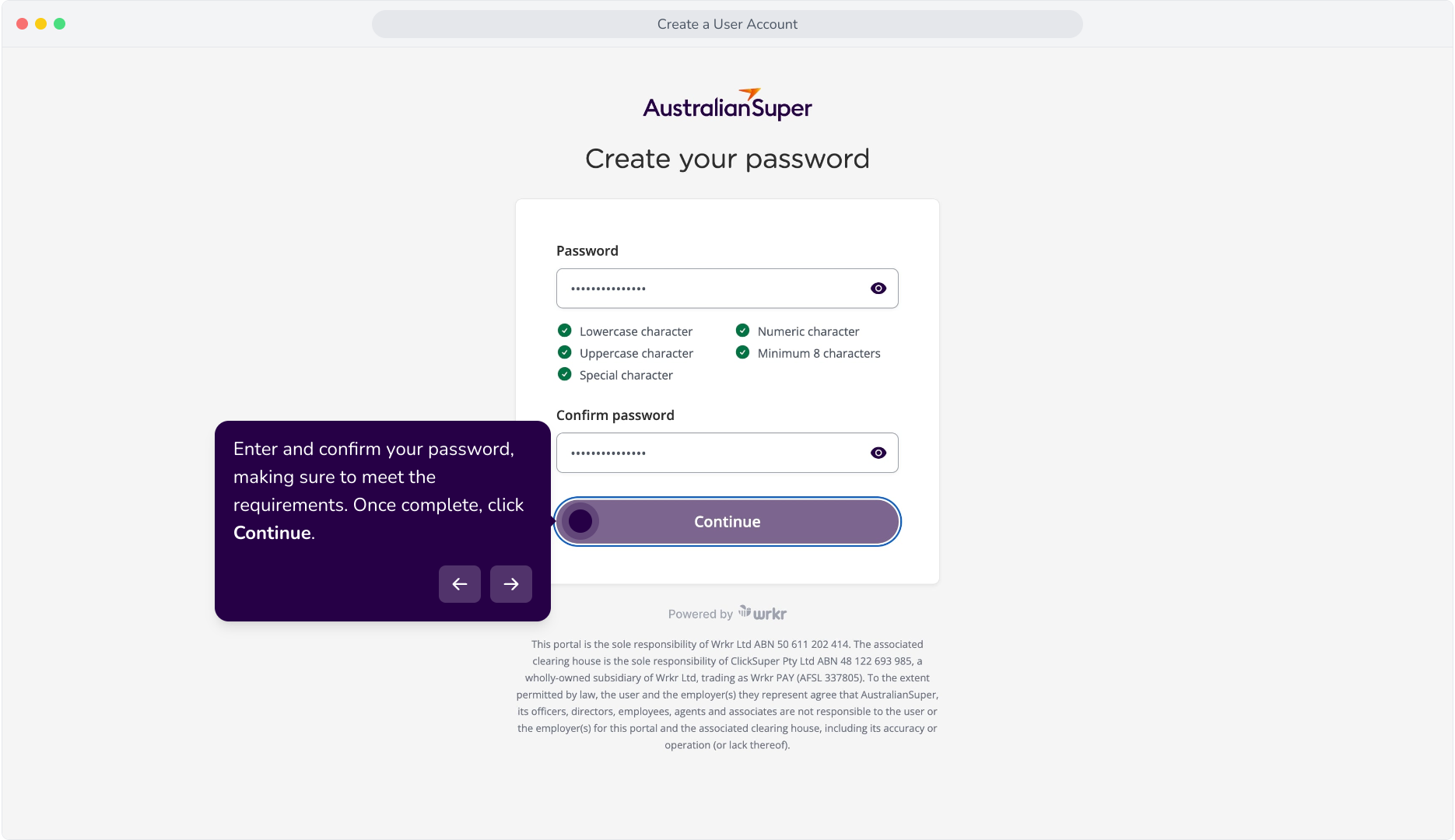
6. Navigate to your work email and copy the verification code that has been sent to you.
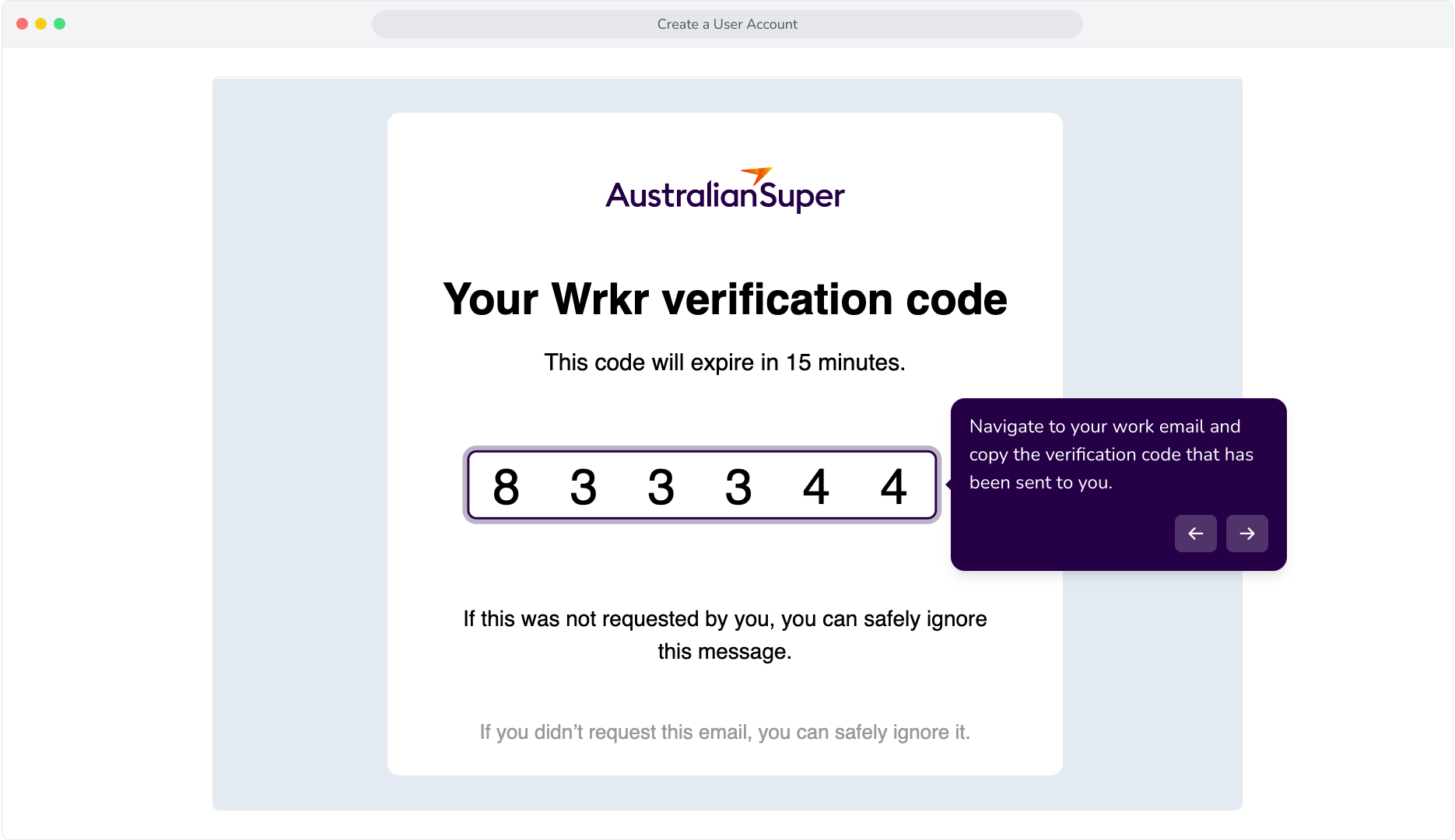
7. Enter the code from your email, and click Verify.
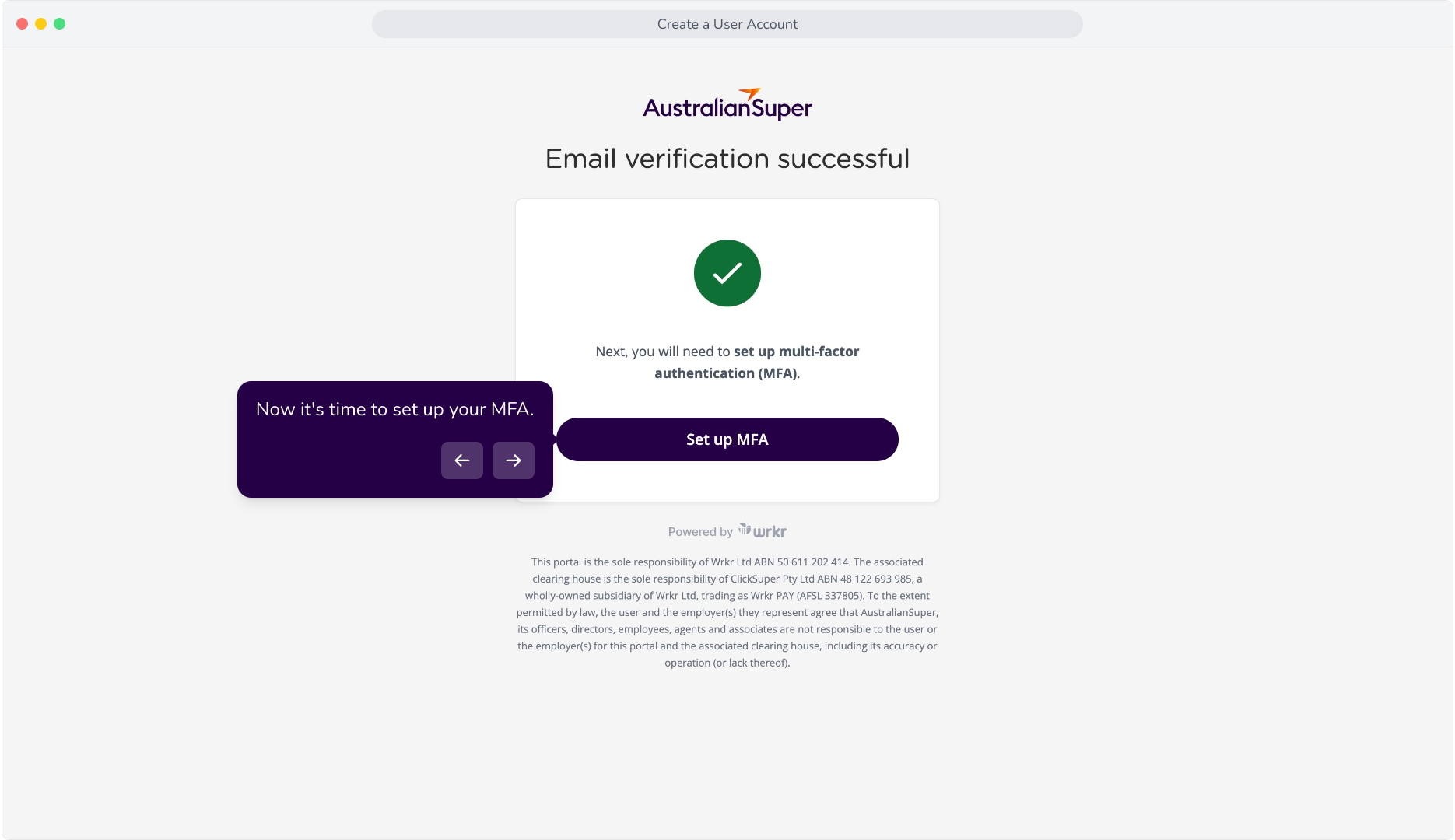
8. Now it's time to set up your MFA.
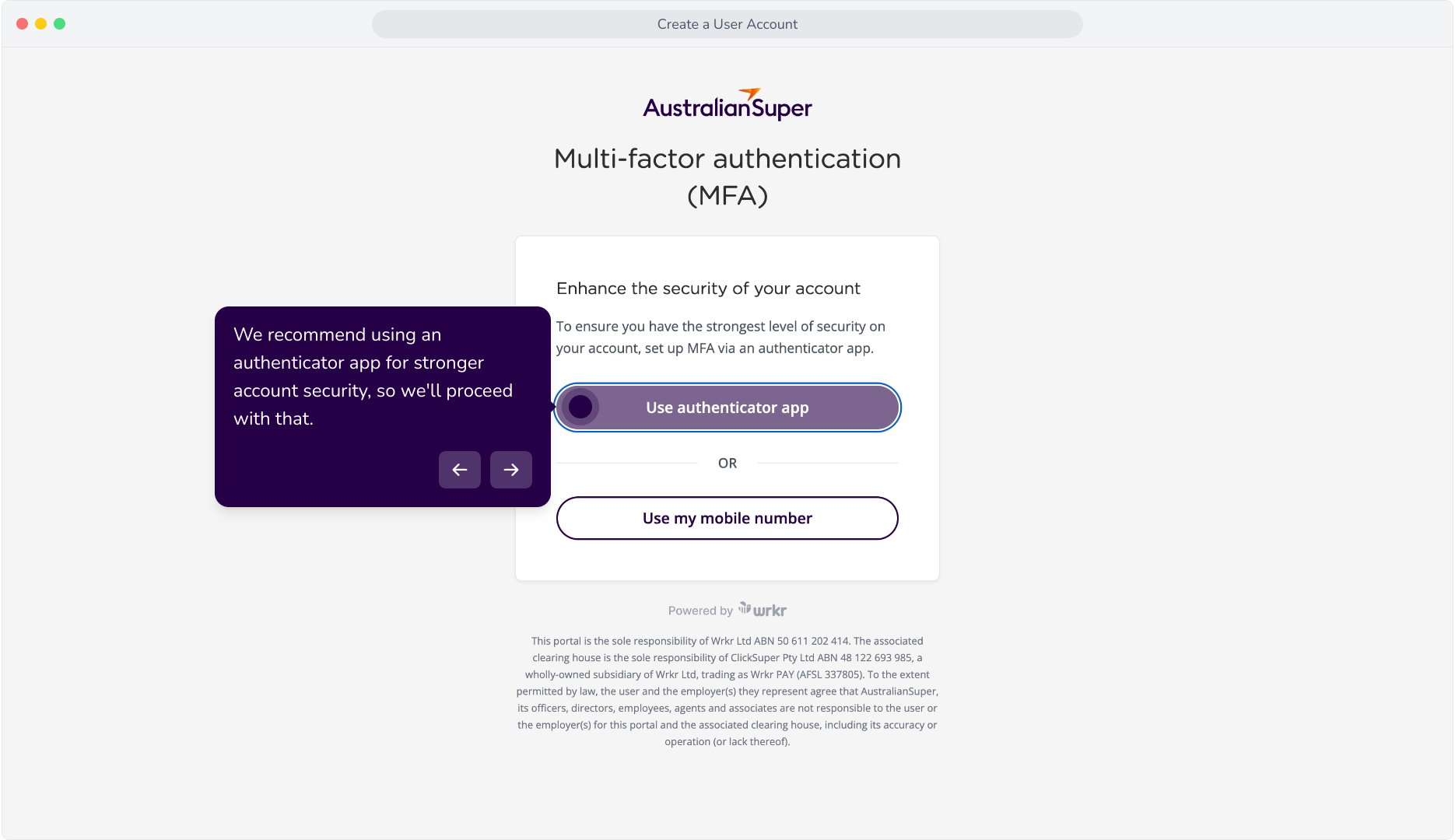
9. We recommend using an authenticator app for stronger account security, so we'll proceed with that.
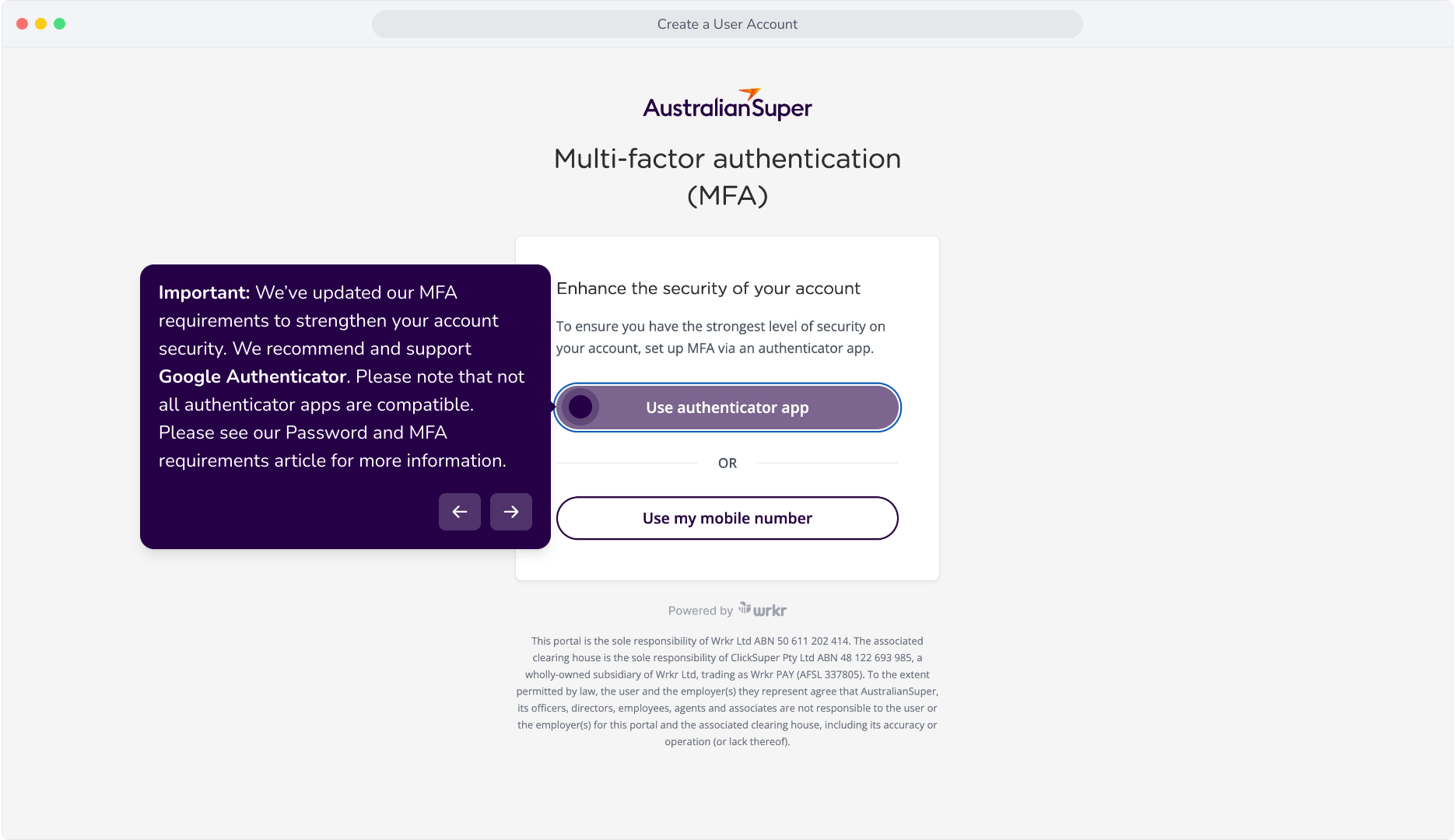
10. Important: We’ve updated our MFA requirements to strengthen your account security. We recommend and support Google Authenticator. Please note that not all authenticator apps are compatible. Please see our Password and MFA requirements article for more information.
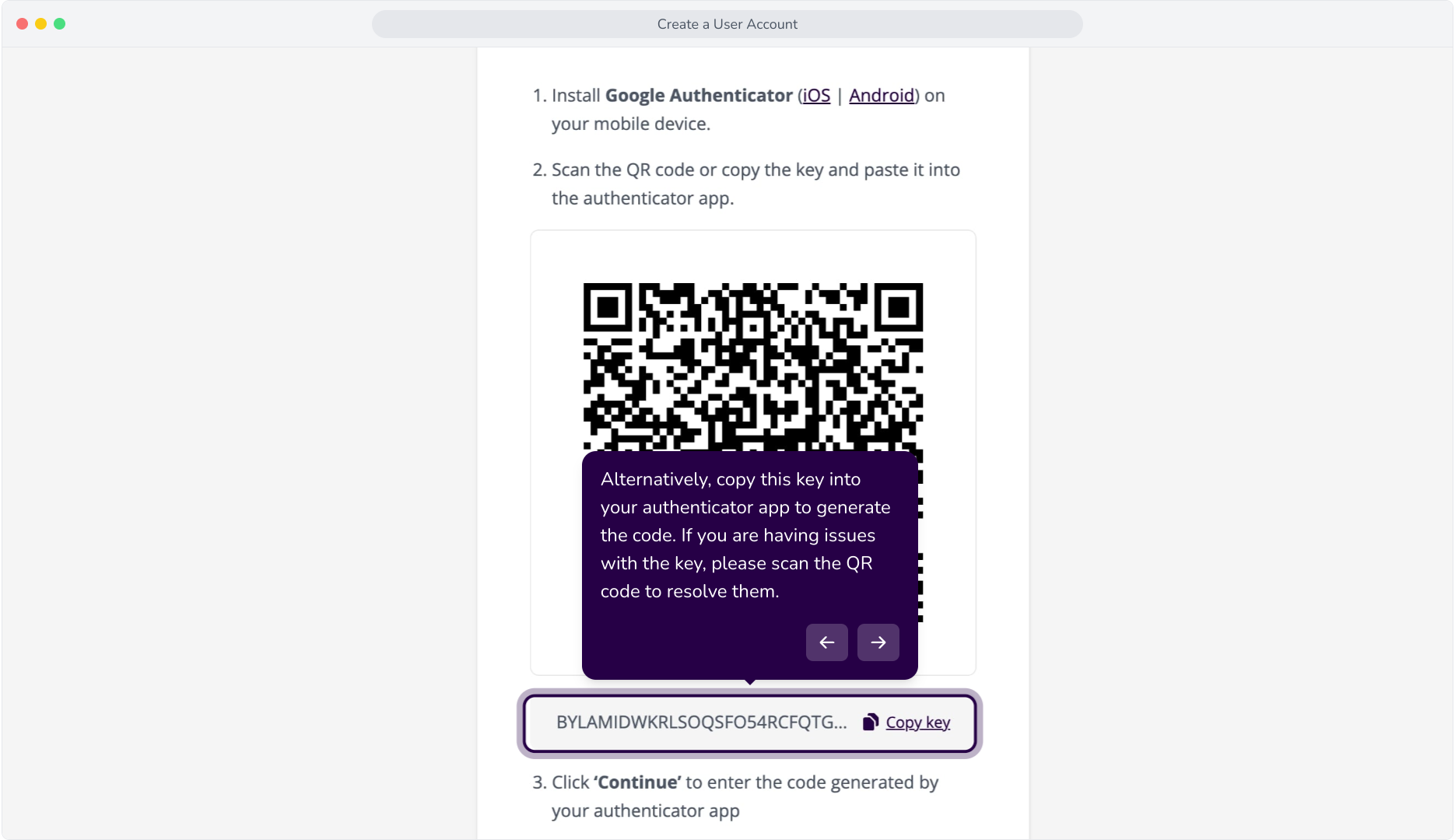
11. Using your Authenticator app like Google Authenticator, scan this QR code.
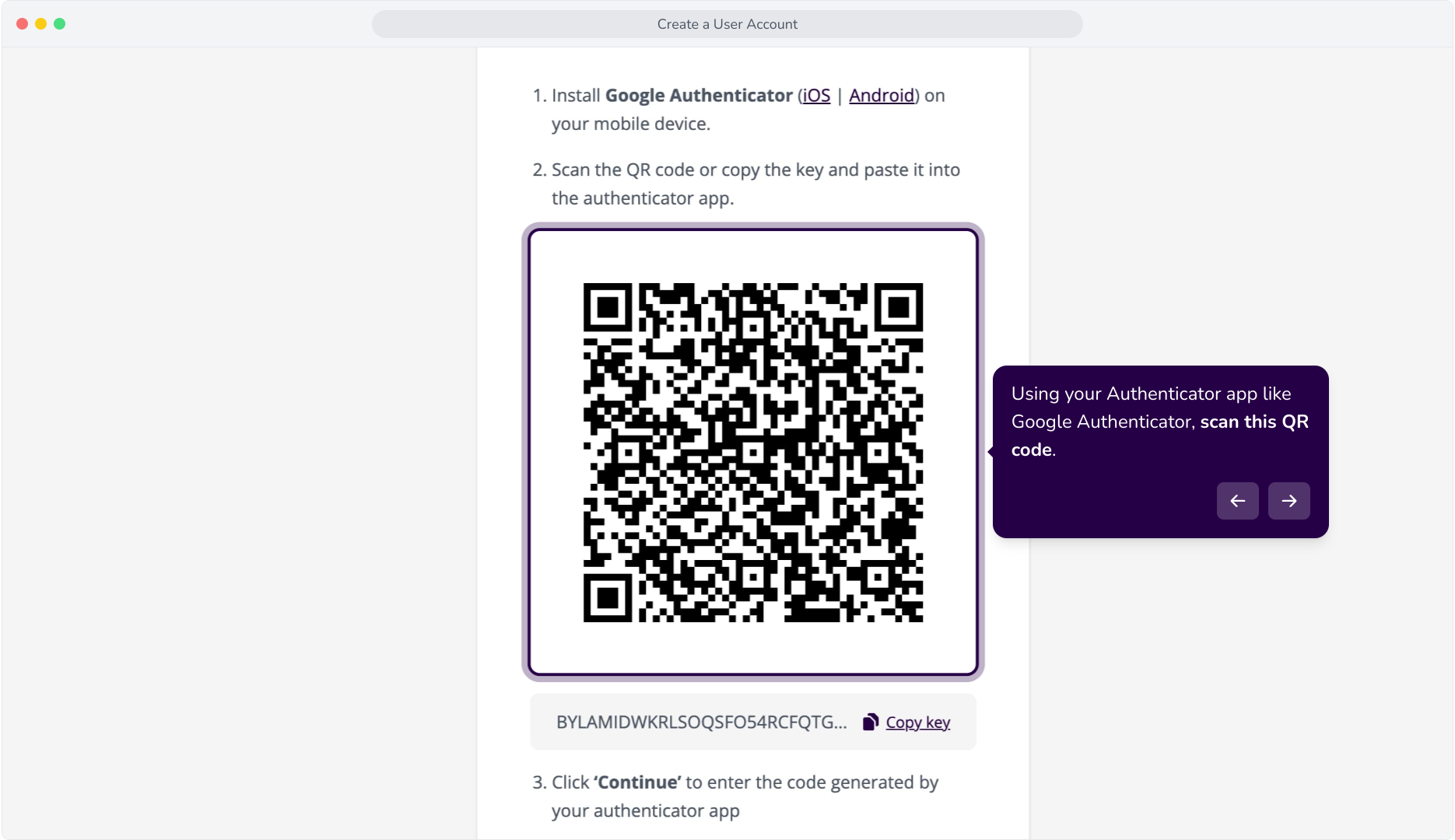
12. Alternatively, copy this key into your authenticator app to generate the code. If you are having issues with the key, please scan the QR code to resolve them.
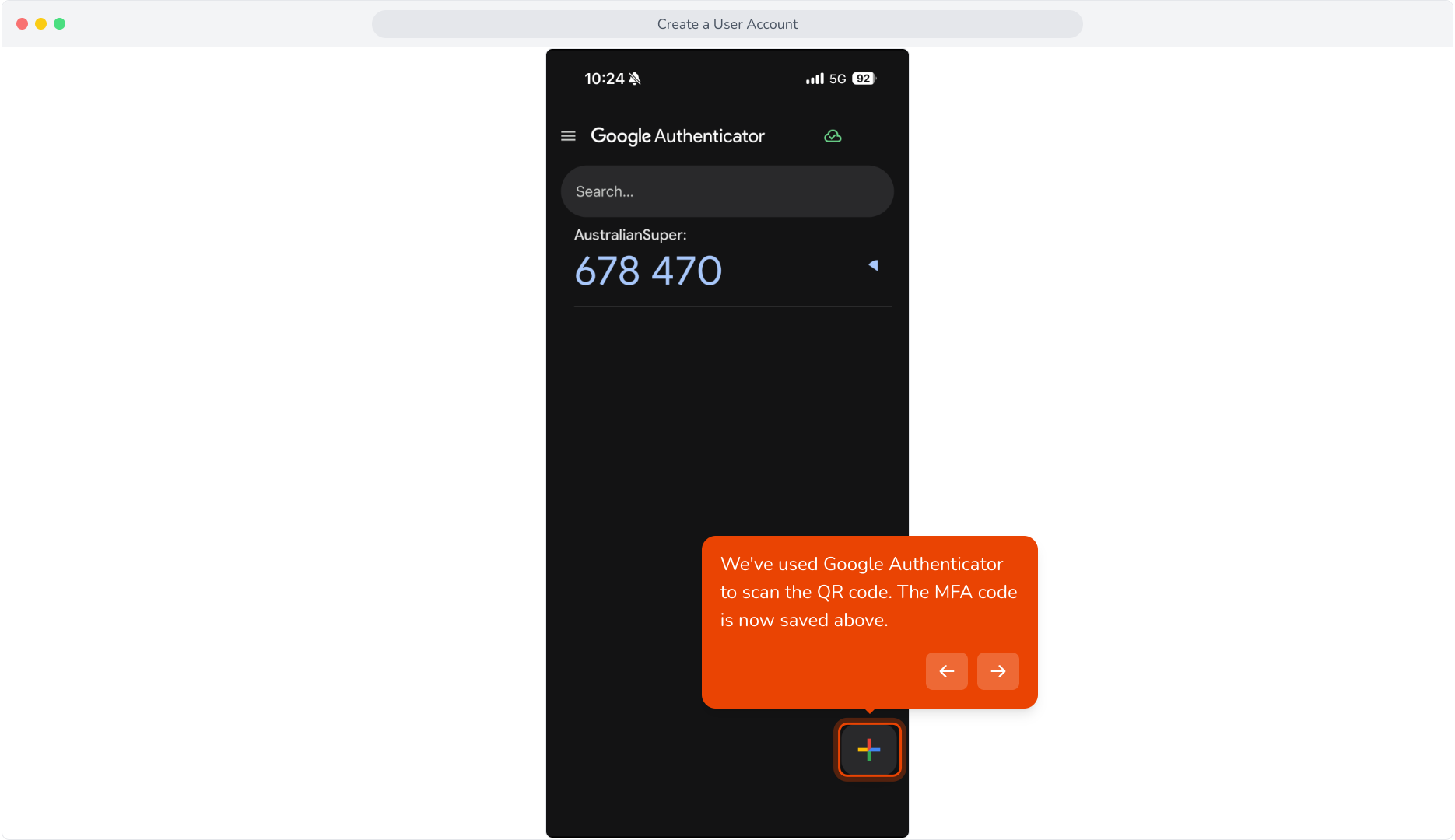
13. We've used Google Authenticator to scan the QR code. The MFA code is now saved above.
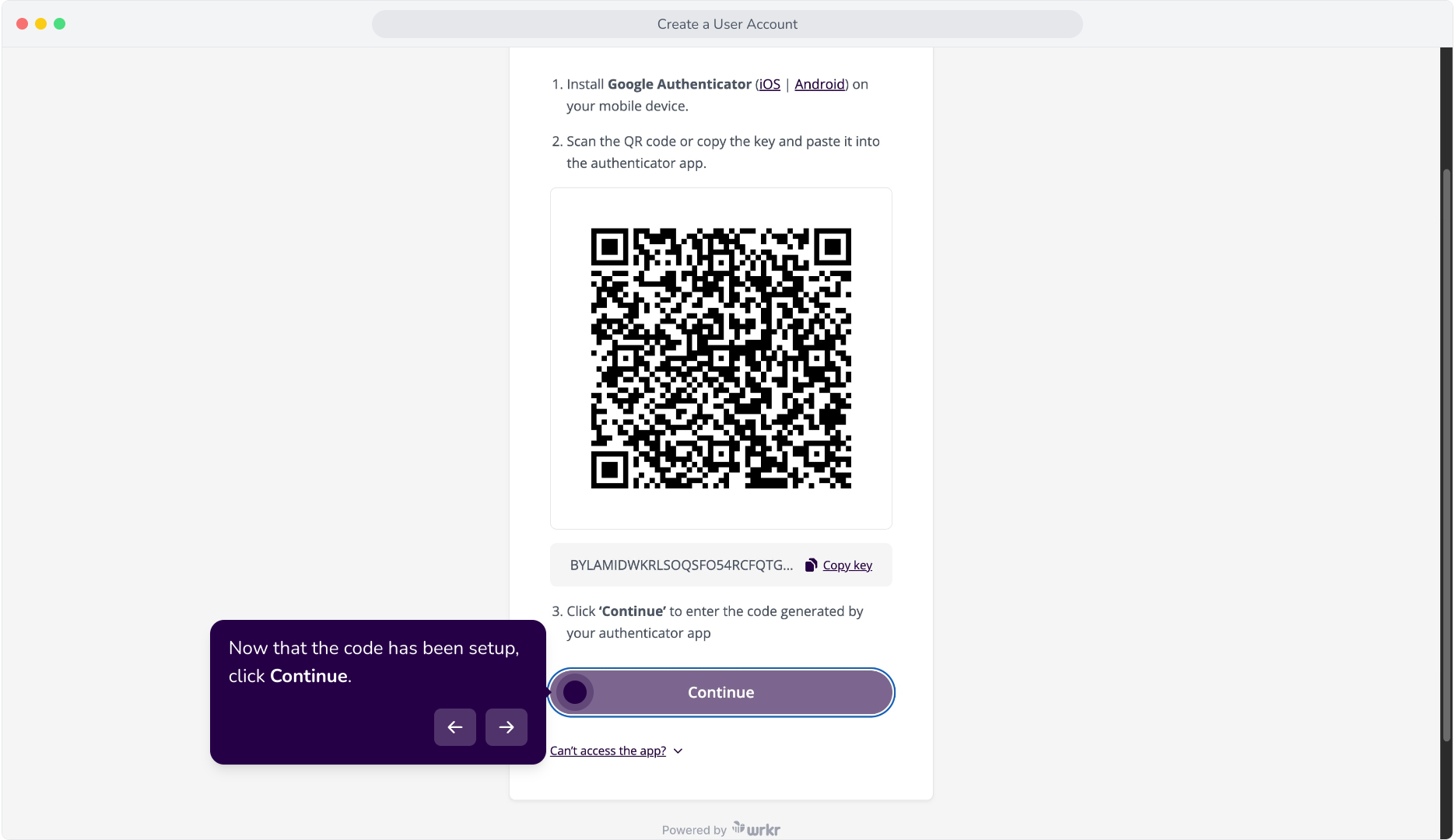
14. Now that the code has been setup, click Continue.
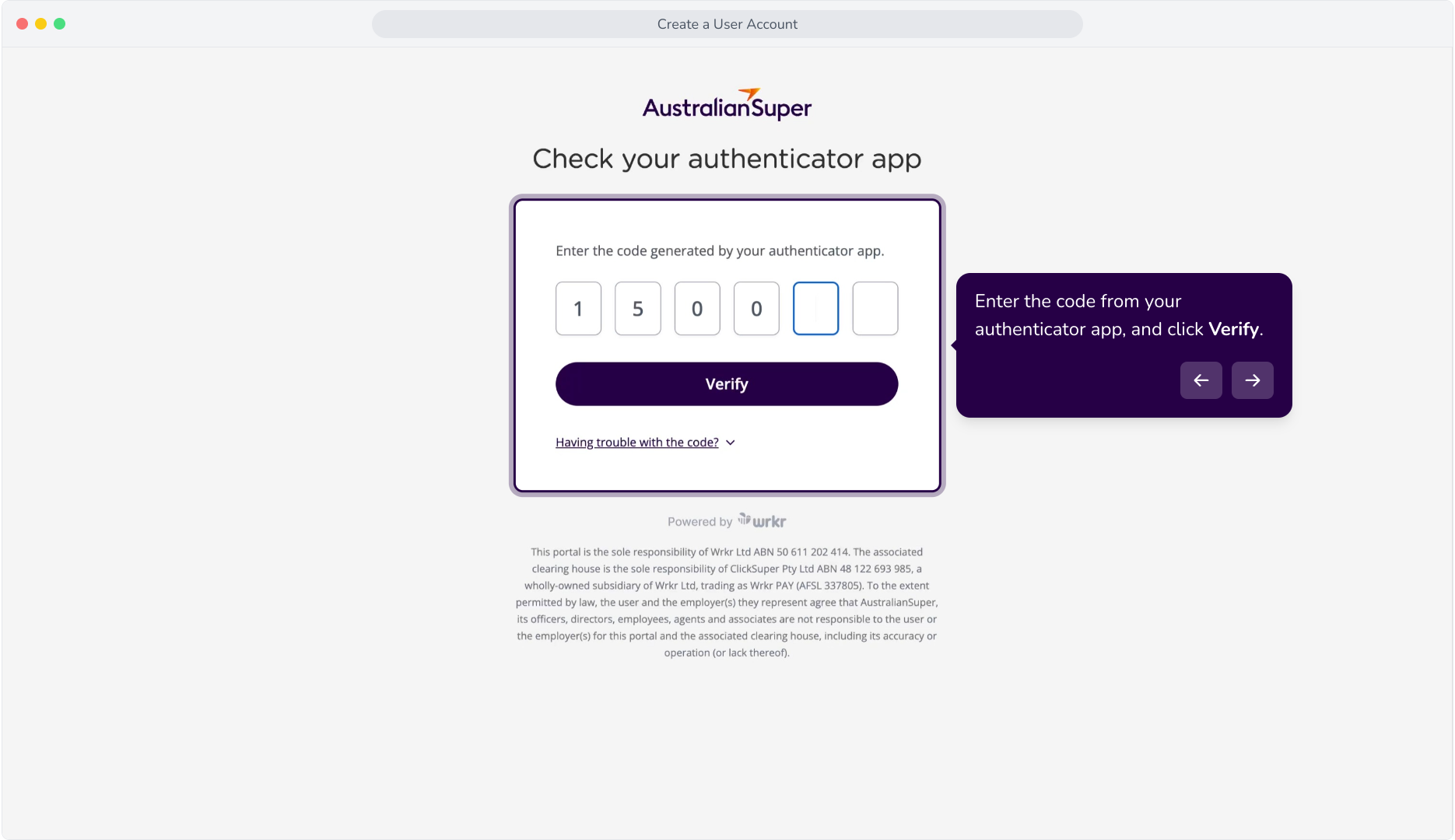
15. Enter the code from your authenticator app, and click Verify.
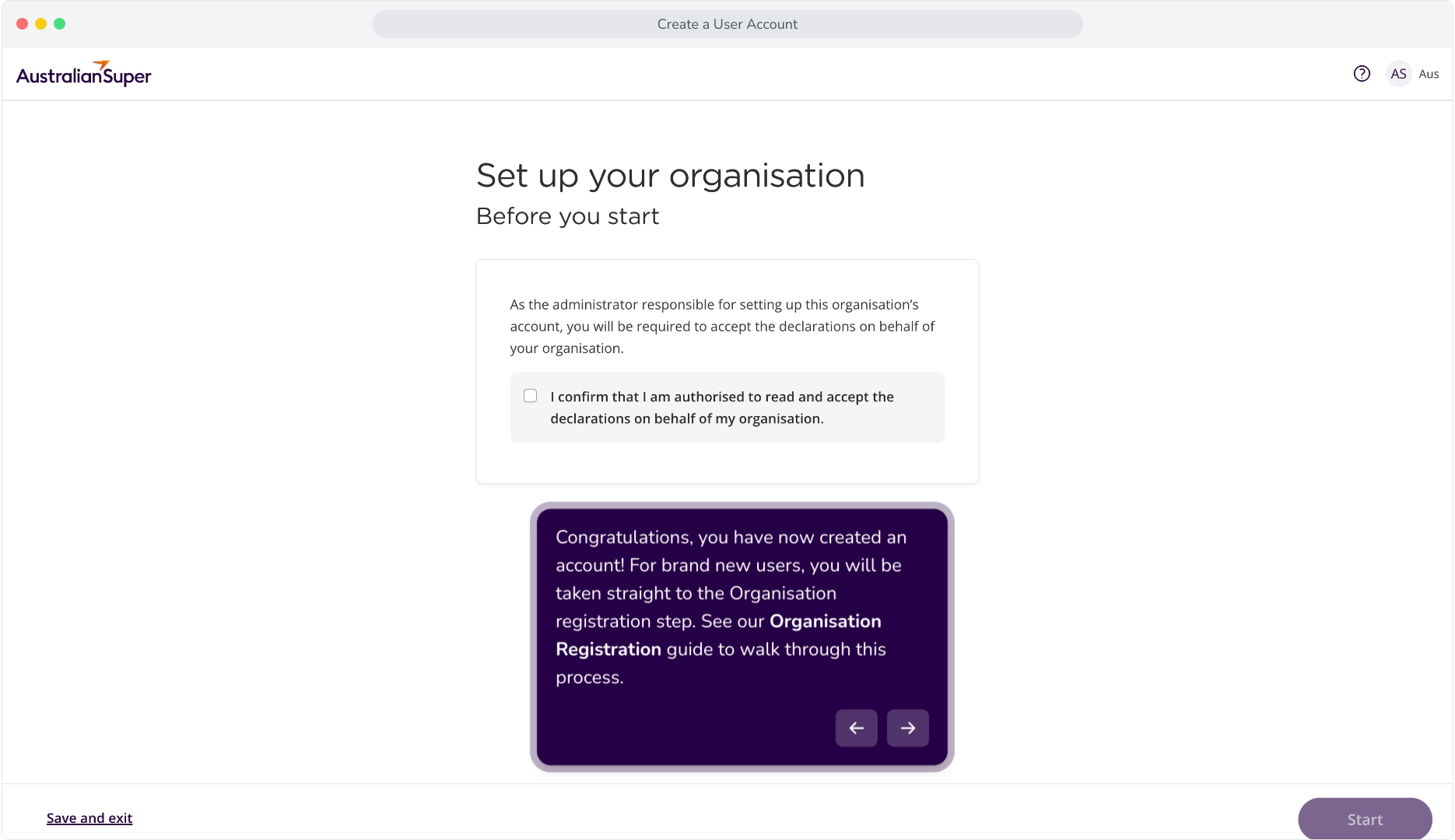
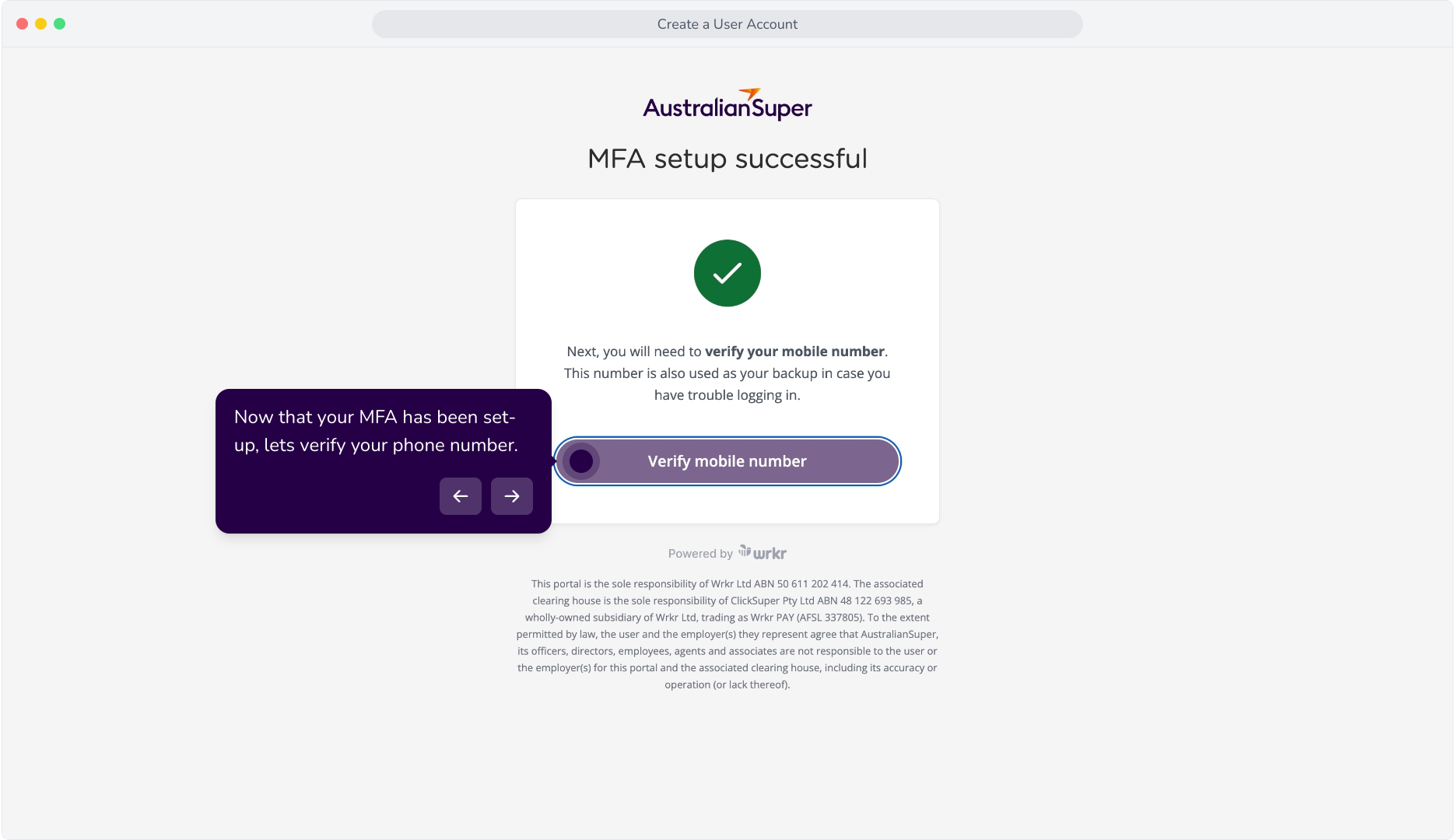
16. Now that your MFA has been set-up, lets verify your phone number.
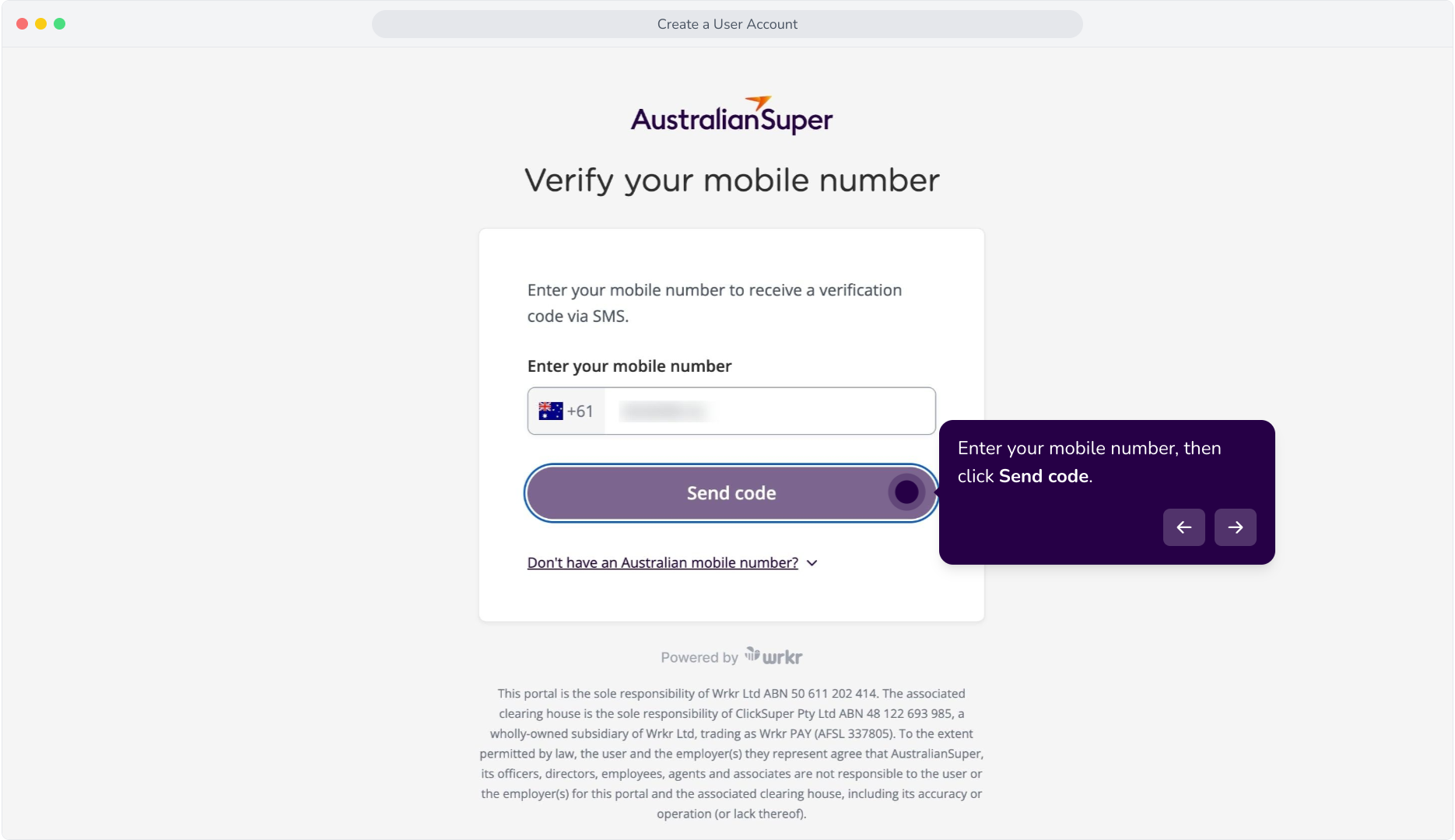
17. Enter your mobile number, then click Send code.
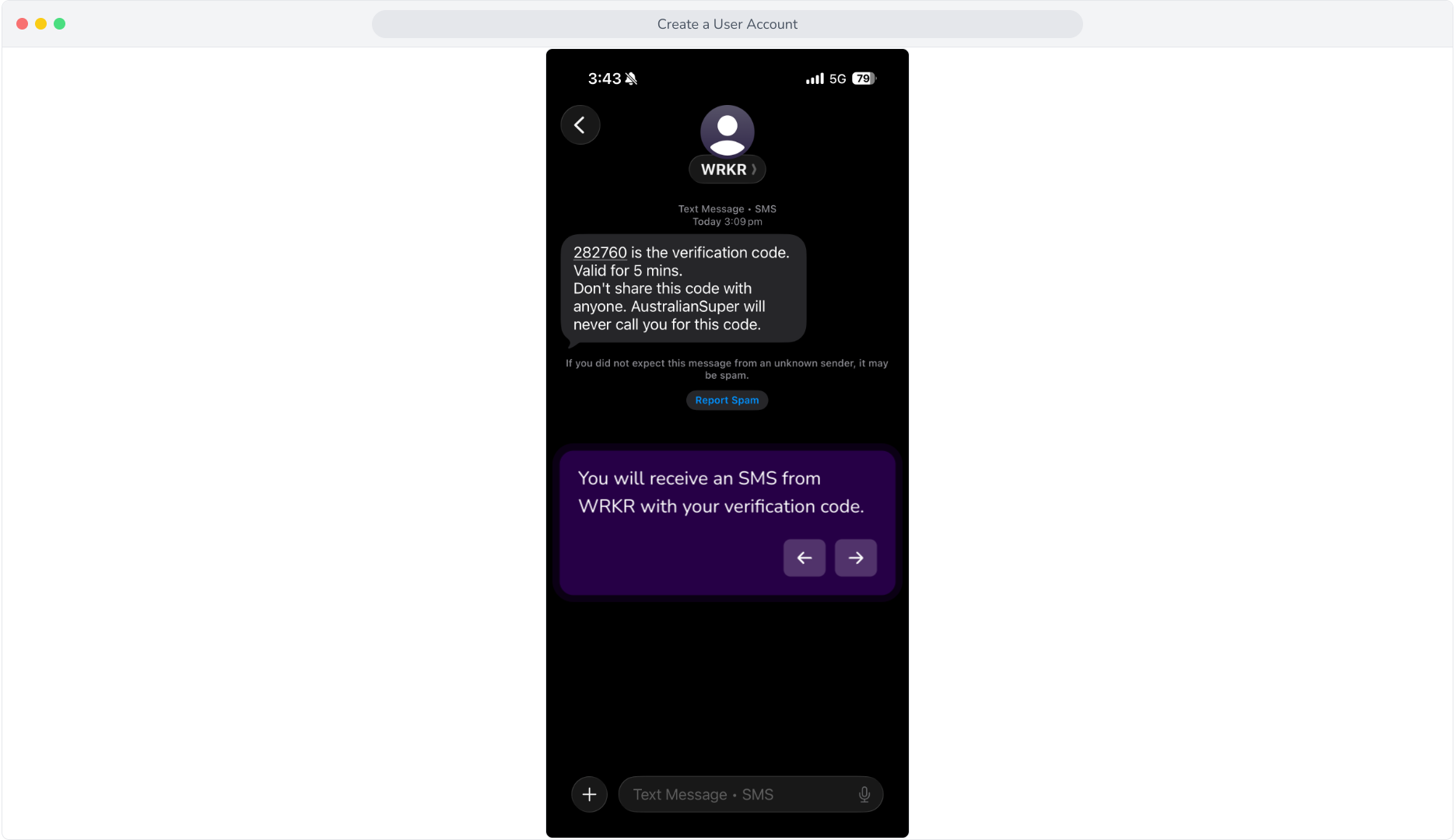
18. You will receive an SMS from WRKR with your verification code.
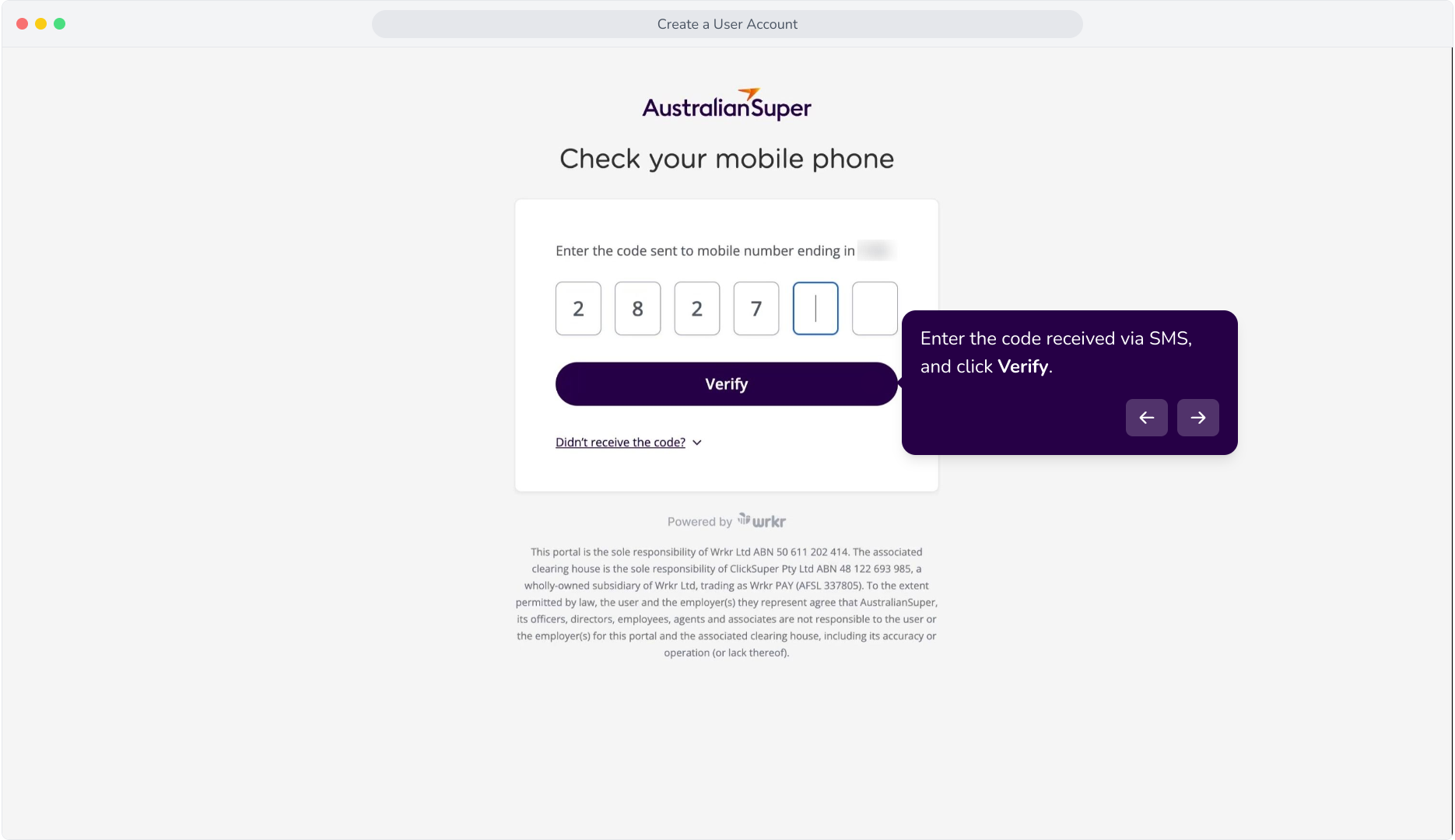
19. Enter the code received via SMS, and click Verify.
20. Congratulations, you have now created an account! For brand new users, you will be taken straight to the Organisation registration step. See our Organisation Registration guide to walk through this process.