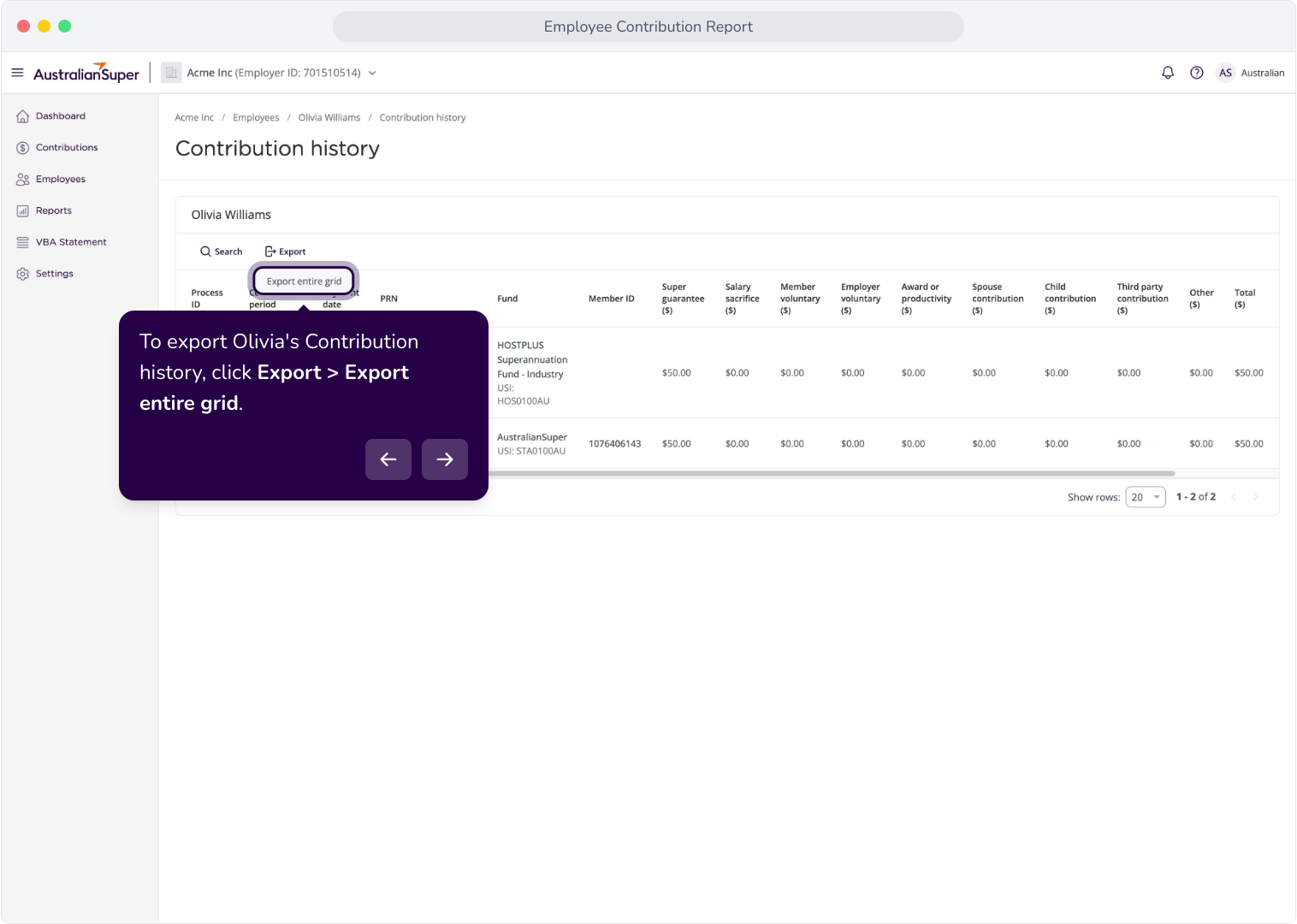
Context: This guide details how to view and export the Contribution history for your employees within the Employer Portal.
Interactive Demo
Note: Make the demo full-screen for a better experience. You can mute/un-mute narration to suit your preferences.
Step by Step
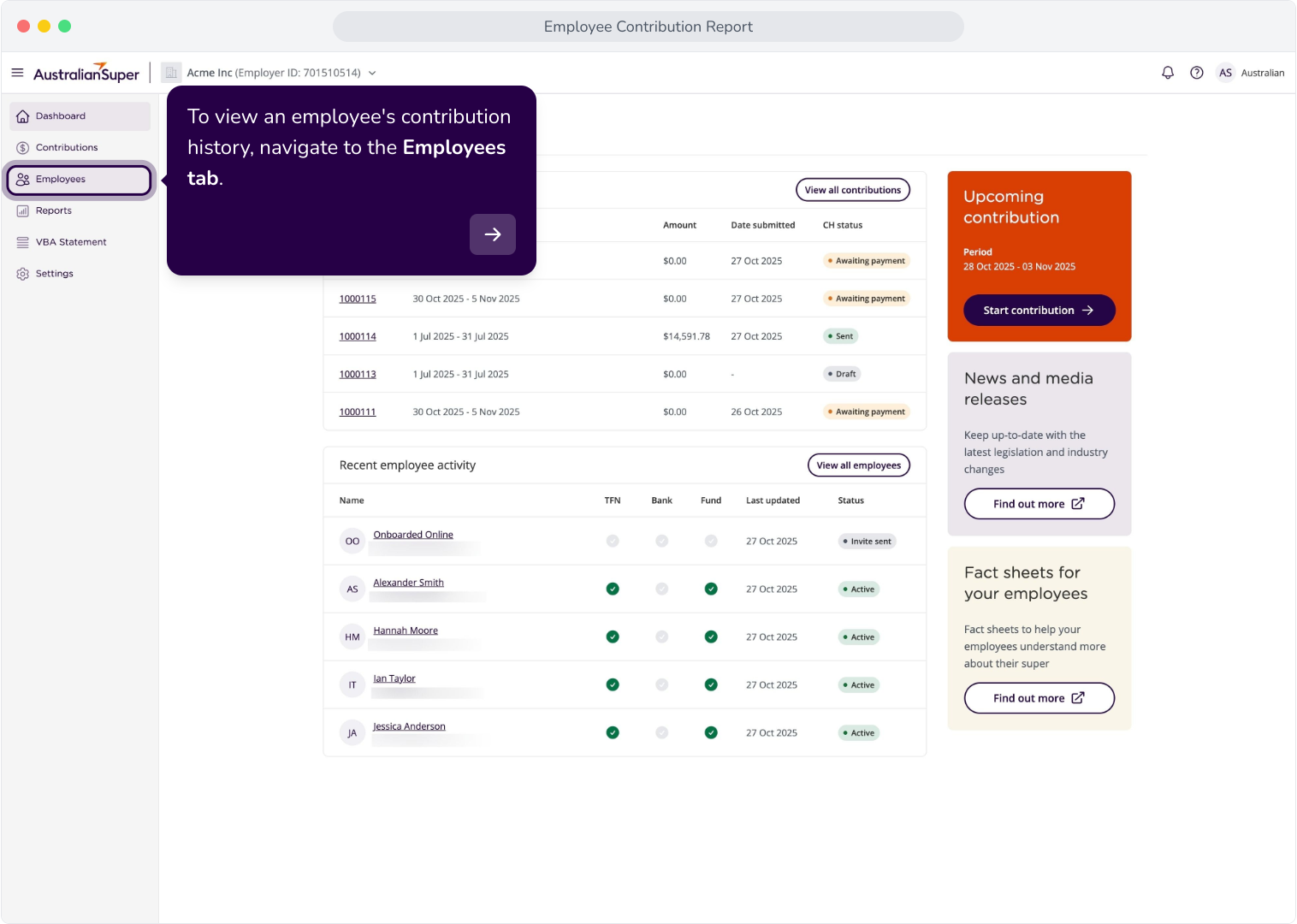
1. To view an employee's contribution history, navigate to the Employees tab.
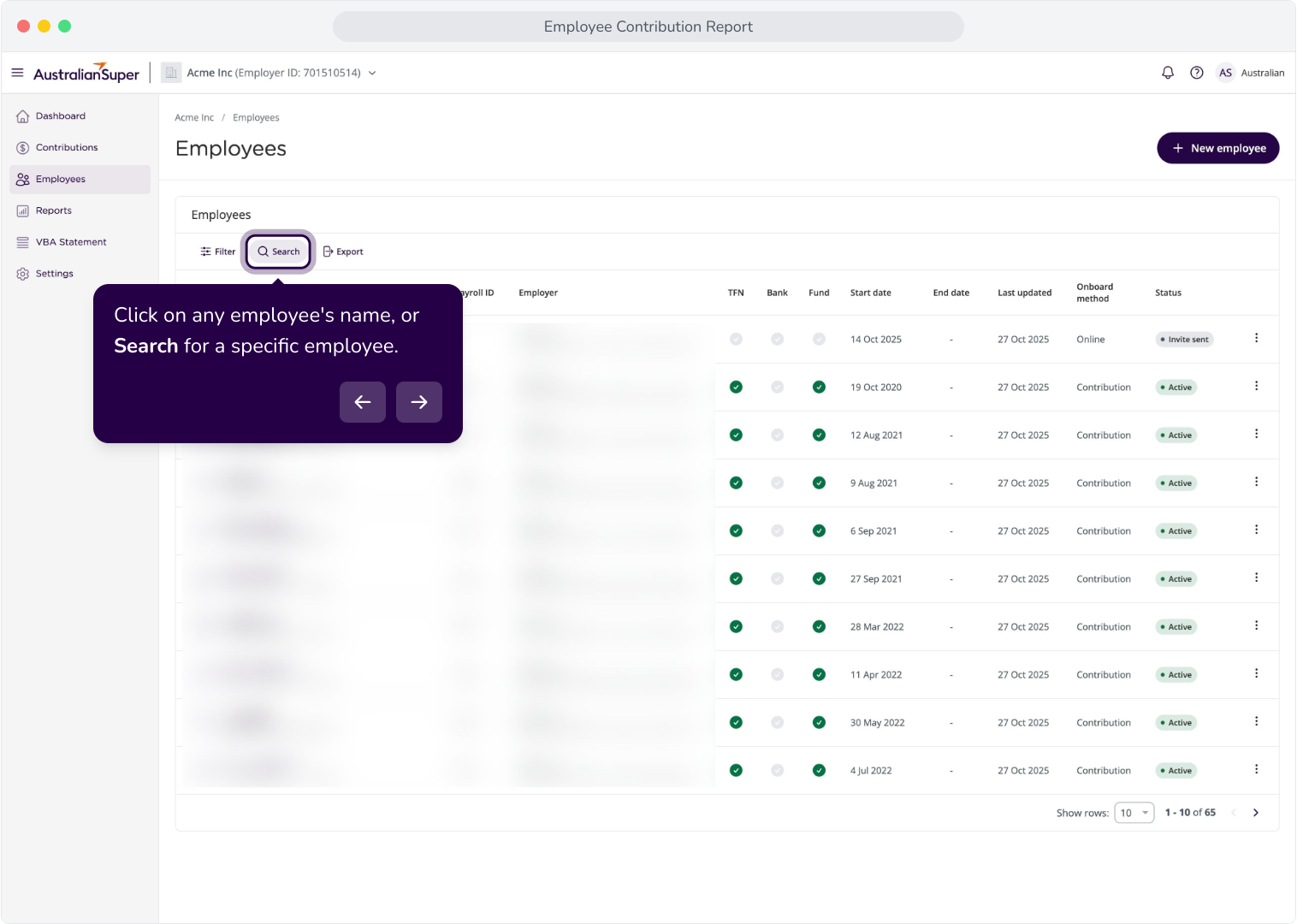
2. Click on any employee's name, or Search for a specific employee.
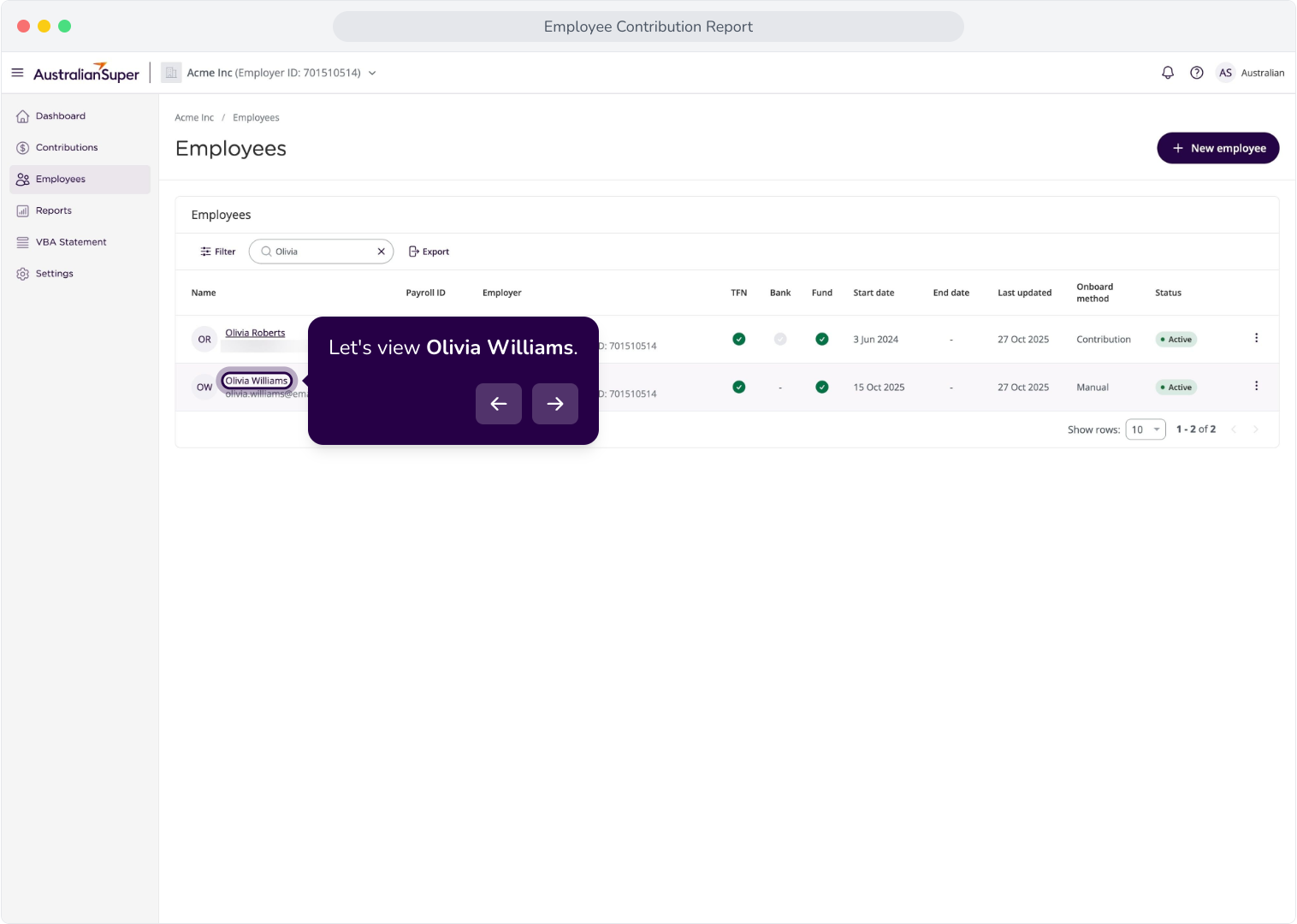
3. Let's view Olivia Williams.
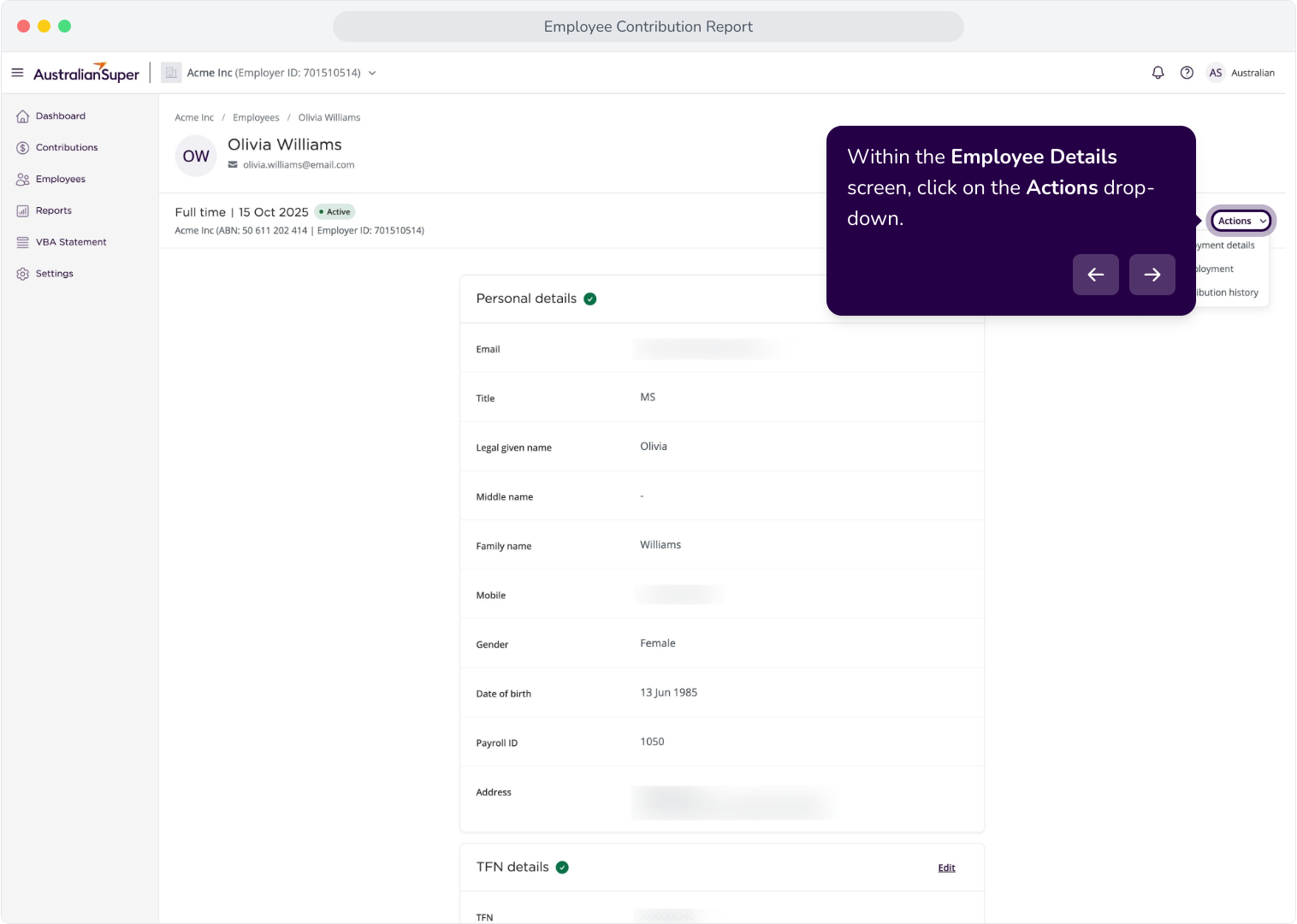
4. Within the Employee Details screen, click on the Actions drop-down.
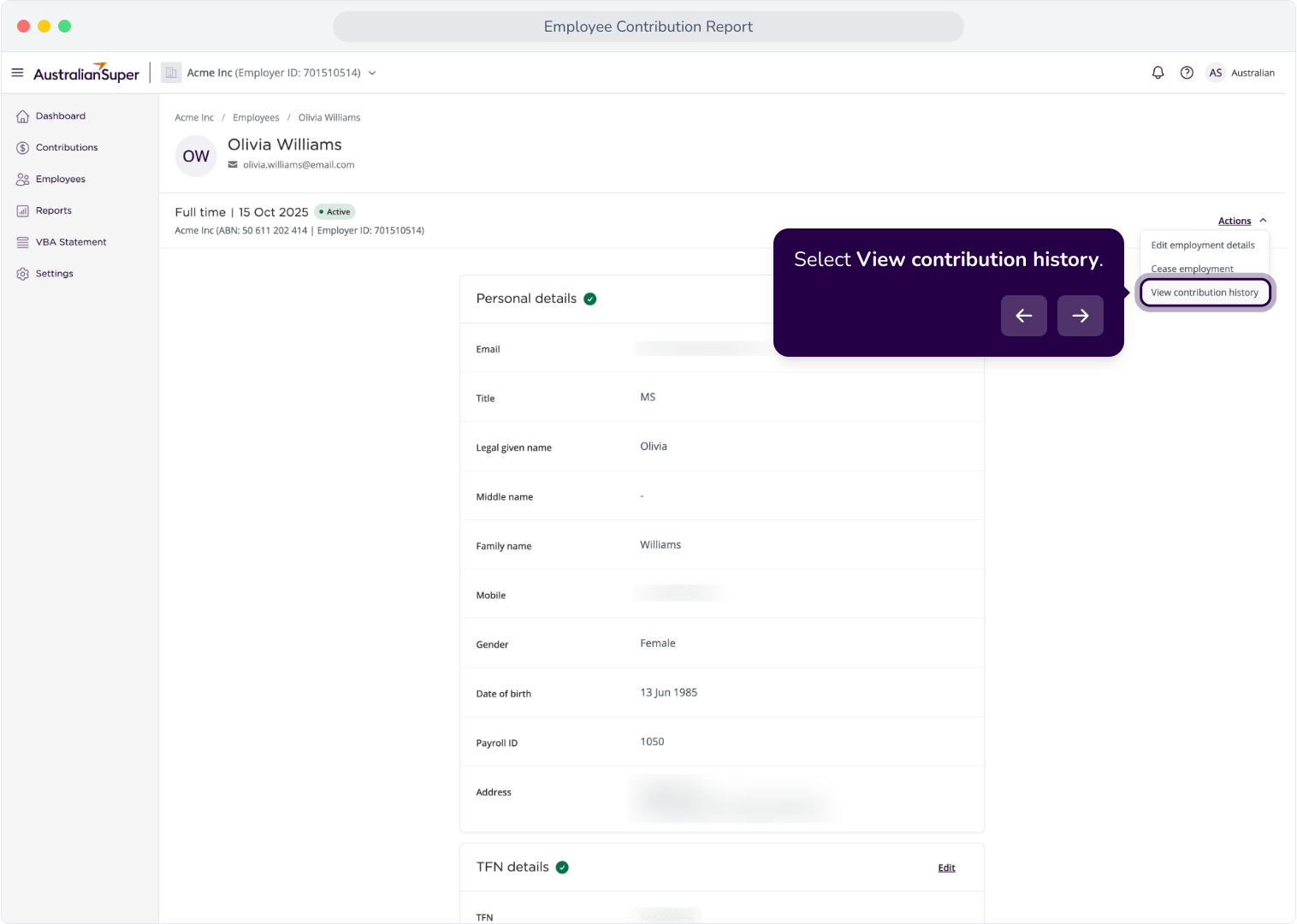
5. Select View contribution history.
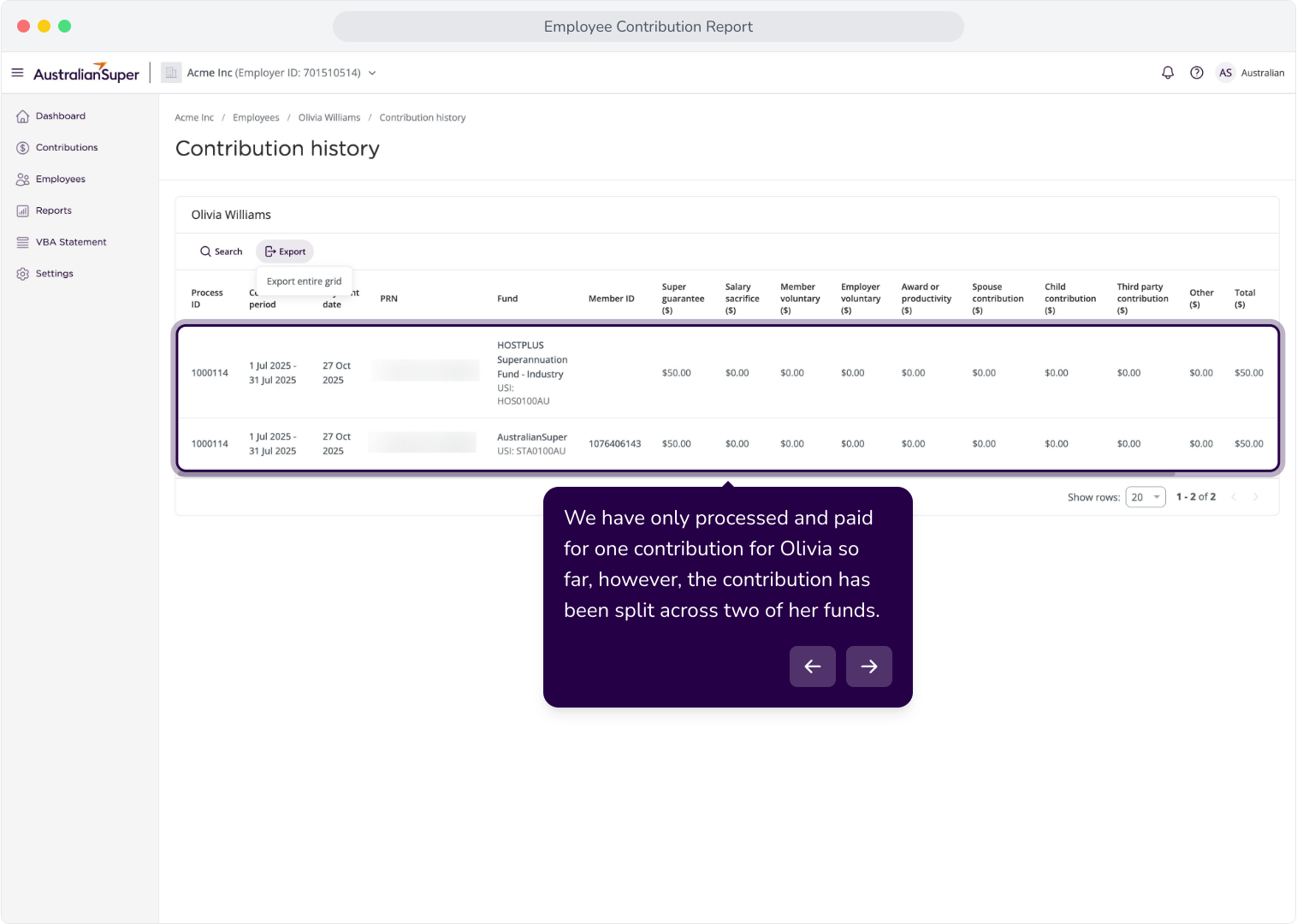
6. We have only processed and paid for one contribution for Olivia so far, however, the contribution has been split across two of her funds.
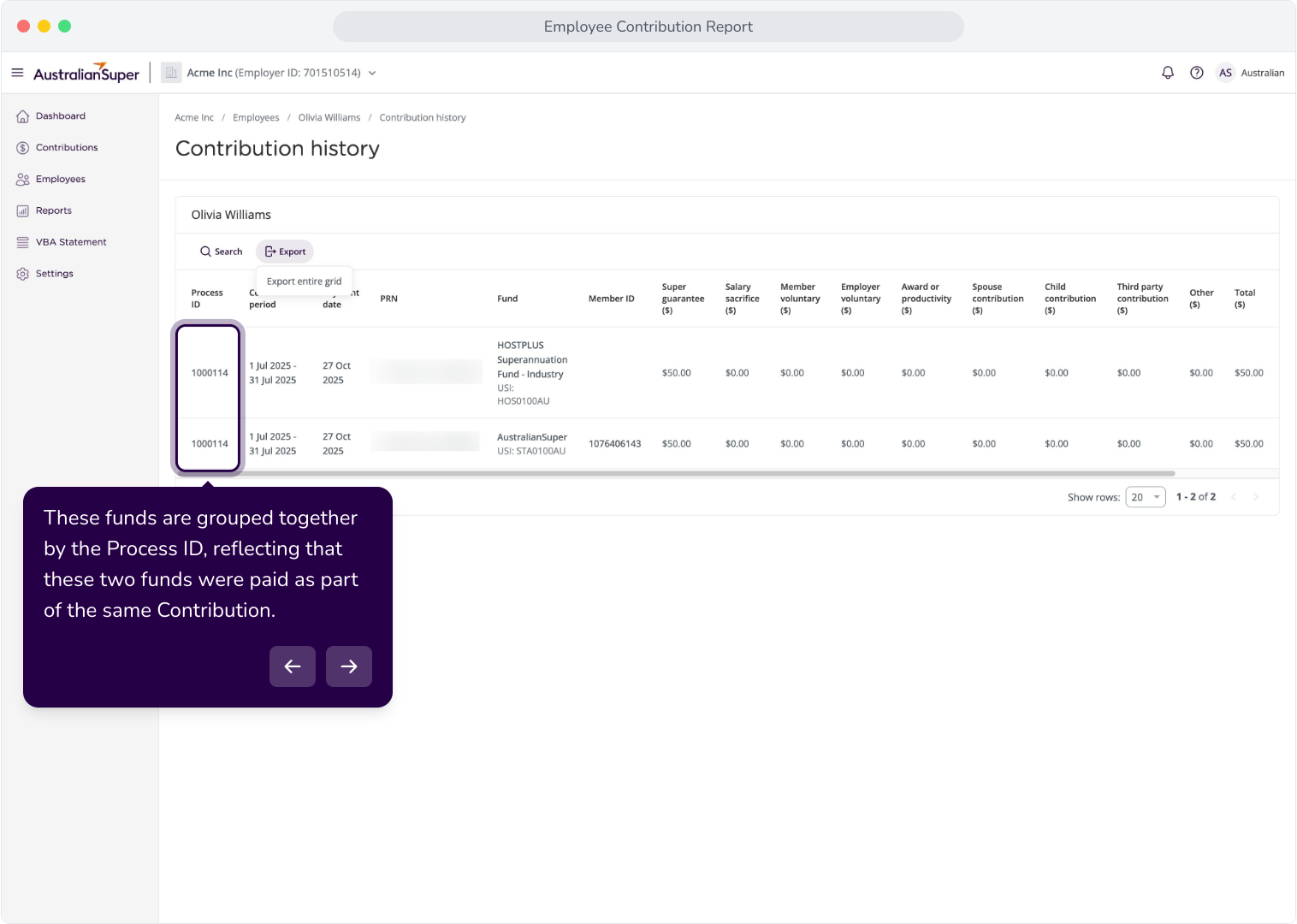
7. These funds are grouped together by the Process ID, reflecting that these two funds were paid as part of the same Contribution.
8. To export Olivia's Contribution history, click Export > Export entire grid.